Context: This guide covers the configuration and submission of Contributions with both EFT and BPAY configured.
Interactive Demo
Note: Make the demo full-screen for a better experience. You can mute/un-mute narration to suit your preferences.
Step by Step
1. EFT and BPAY for Contribution Payments
2. Configuring Electronic Funds Transfer (EFT)
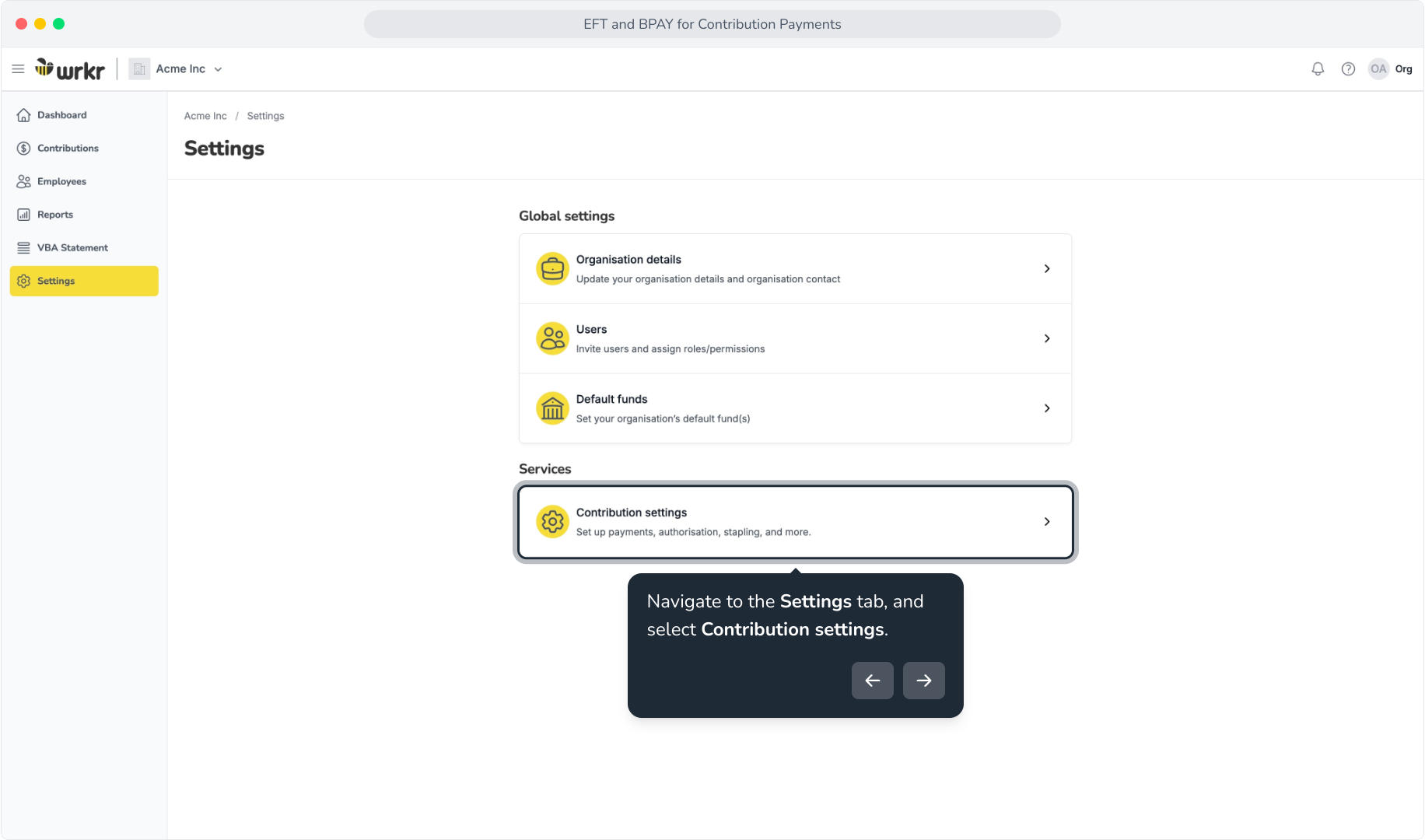
3. Navigate to the Settings tab, and select Contribution settings.
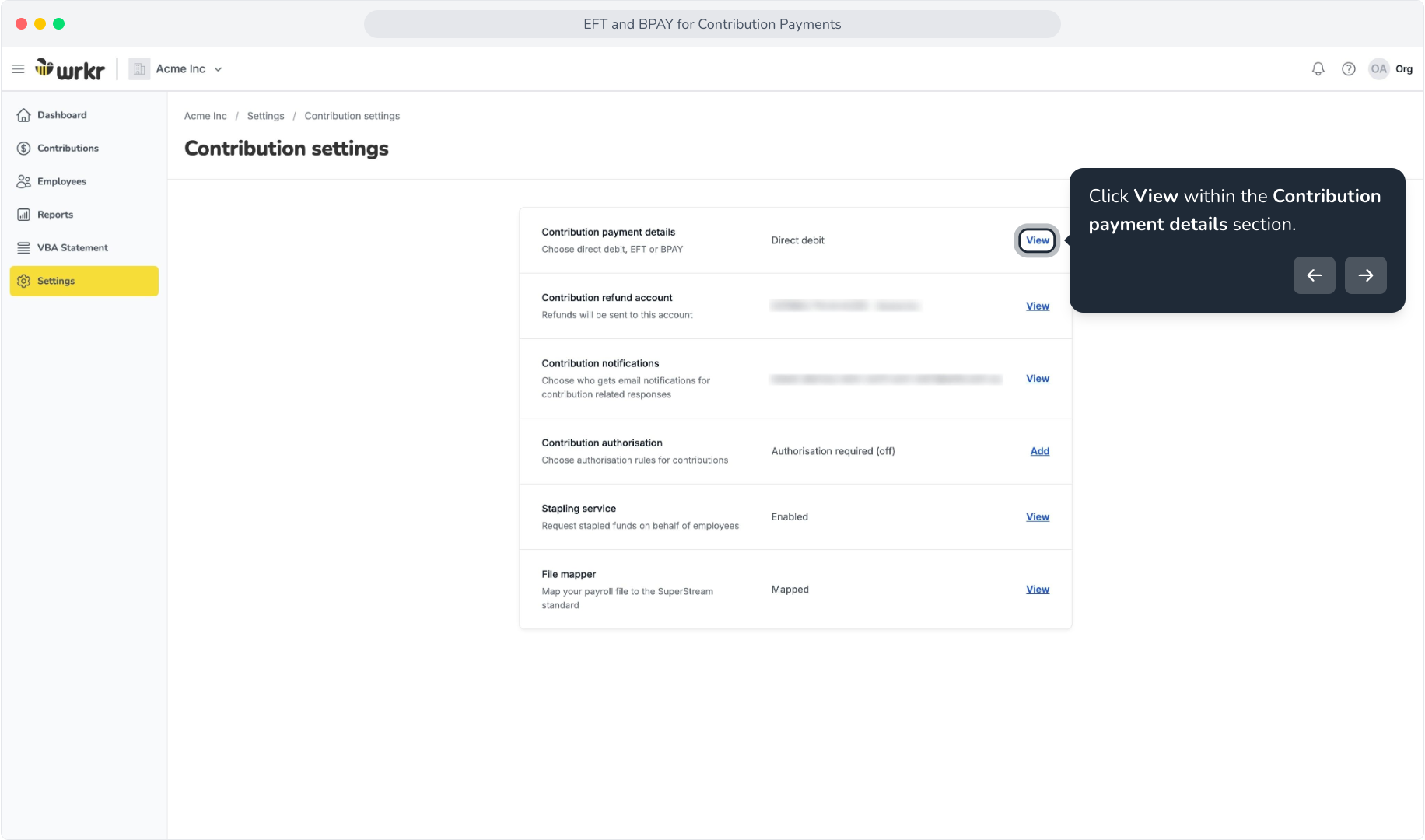
4. Click View within the Contribution payment details section.
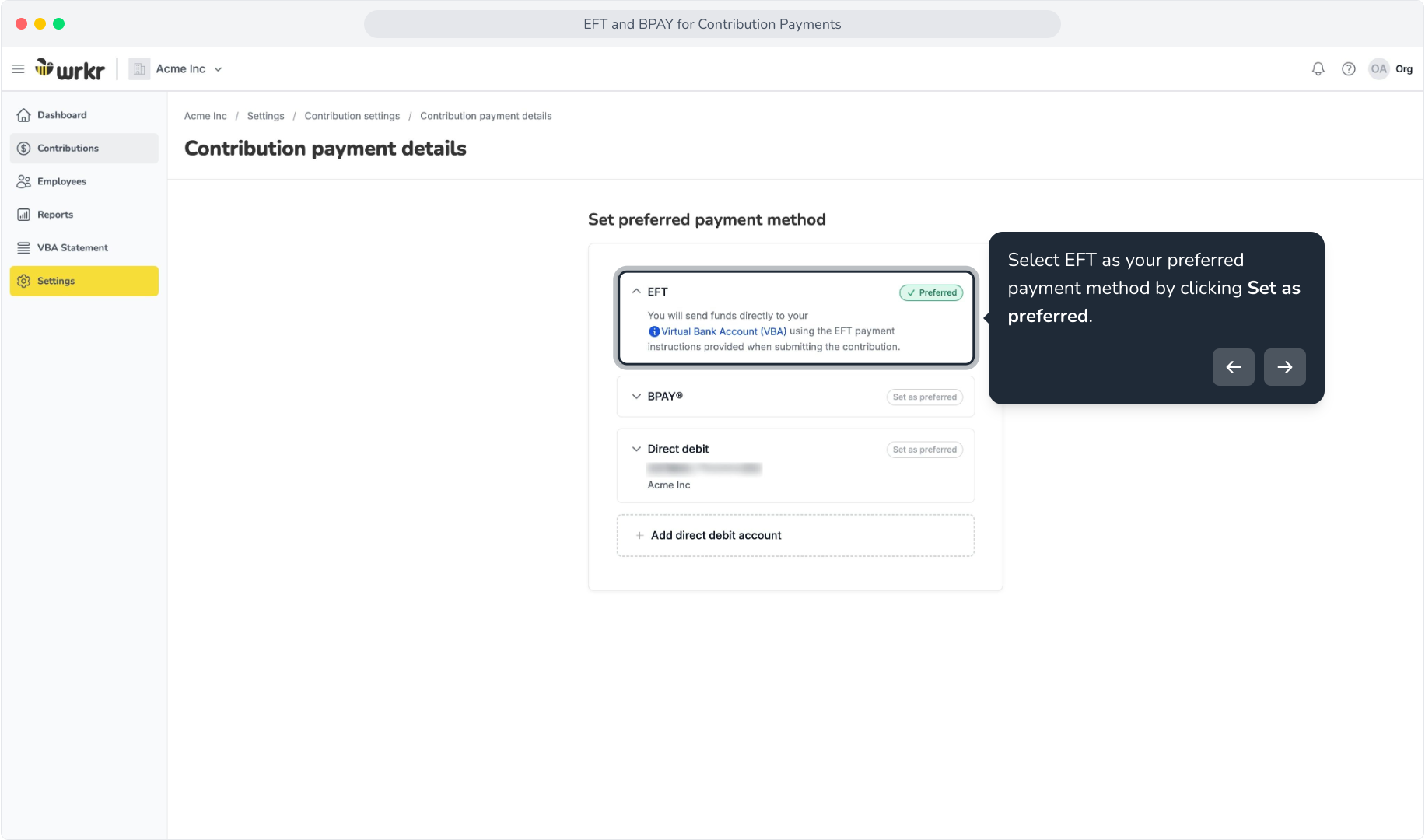
5. Select EFT as your preferred payment method by clicking Set as preferred.
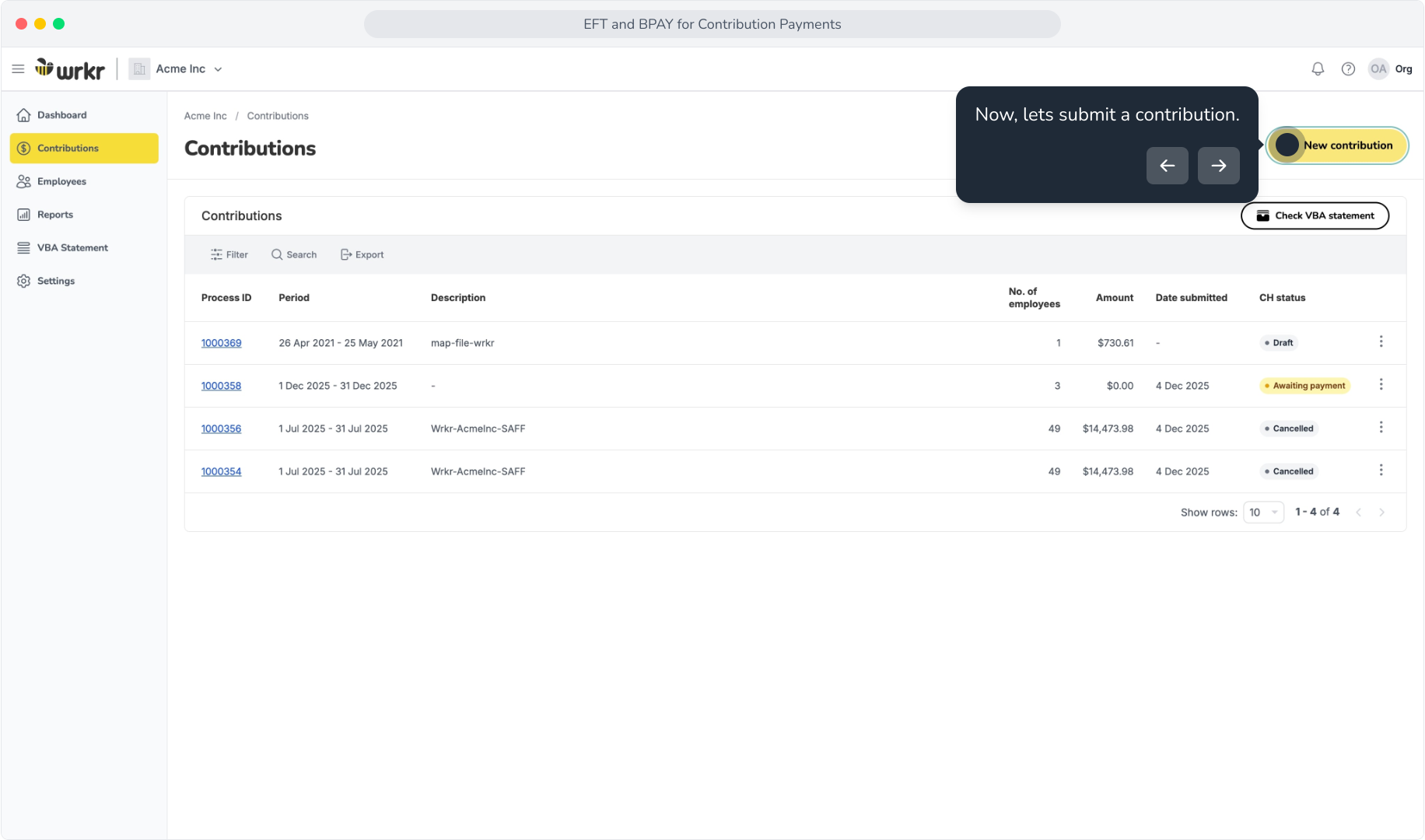
6. Now, lets submit a contribution.
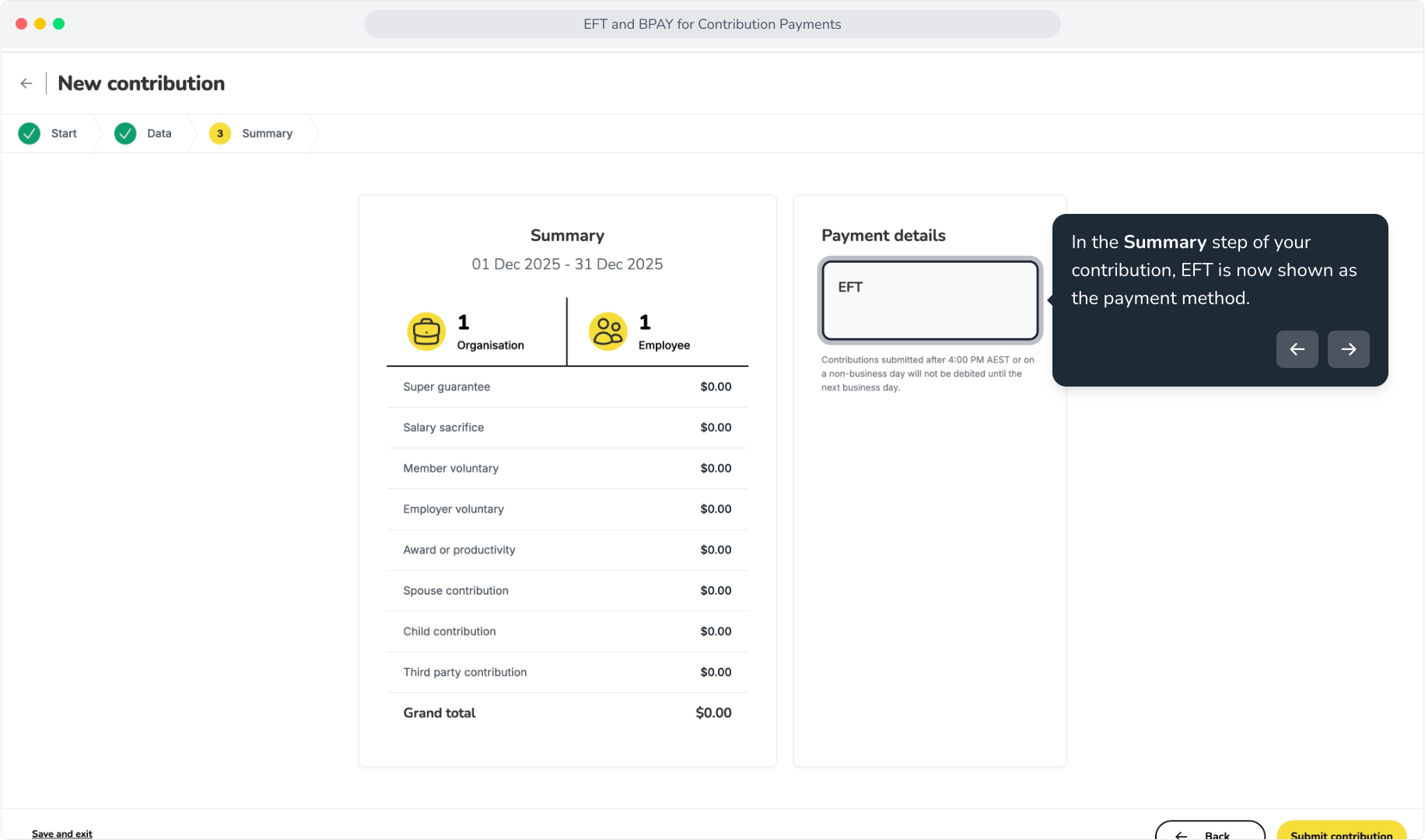
7. In the Summary step of your contribution, EFT is now shown as the payment method.
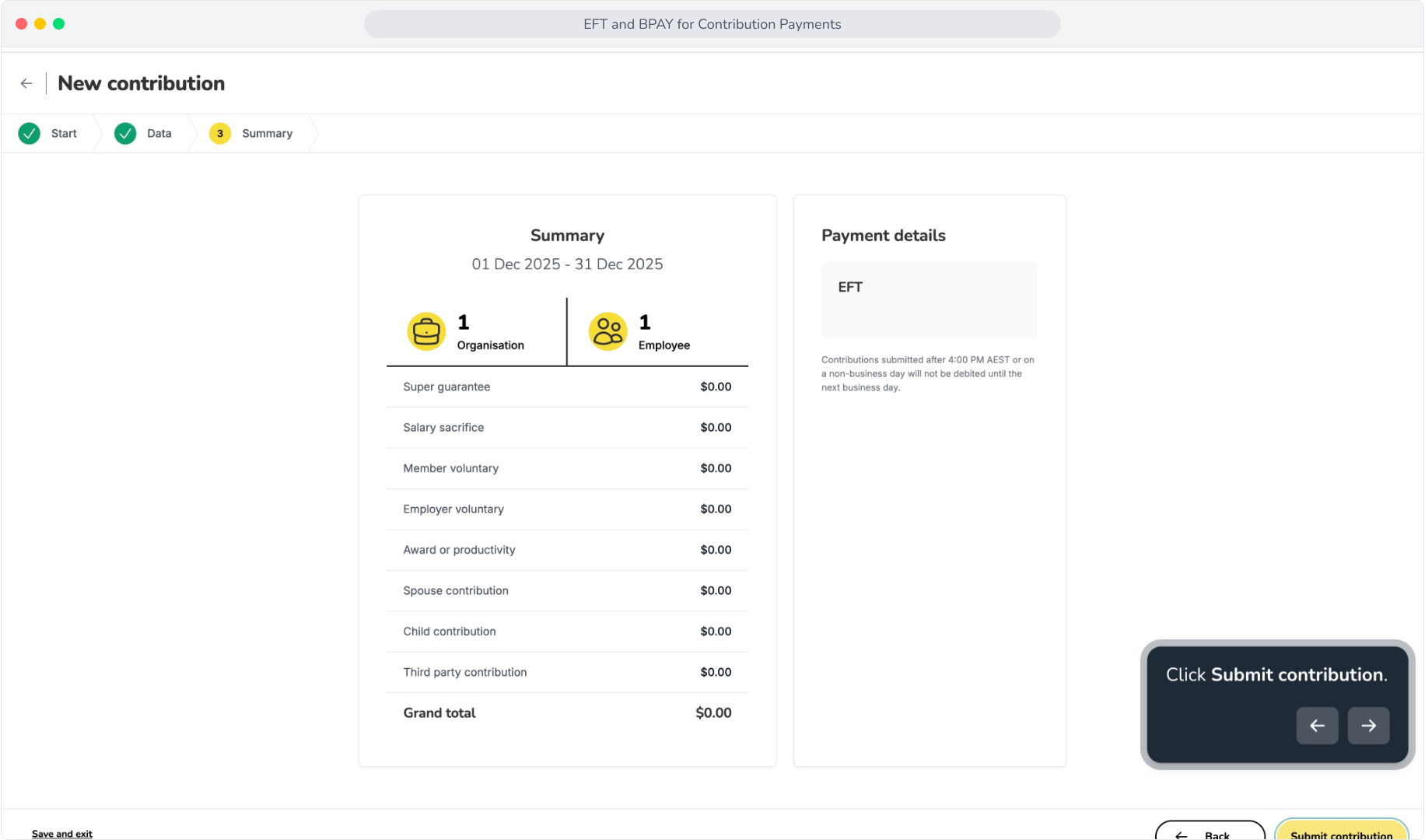
8. Click Submit contribution.
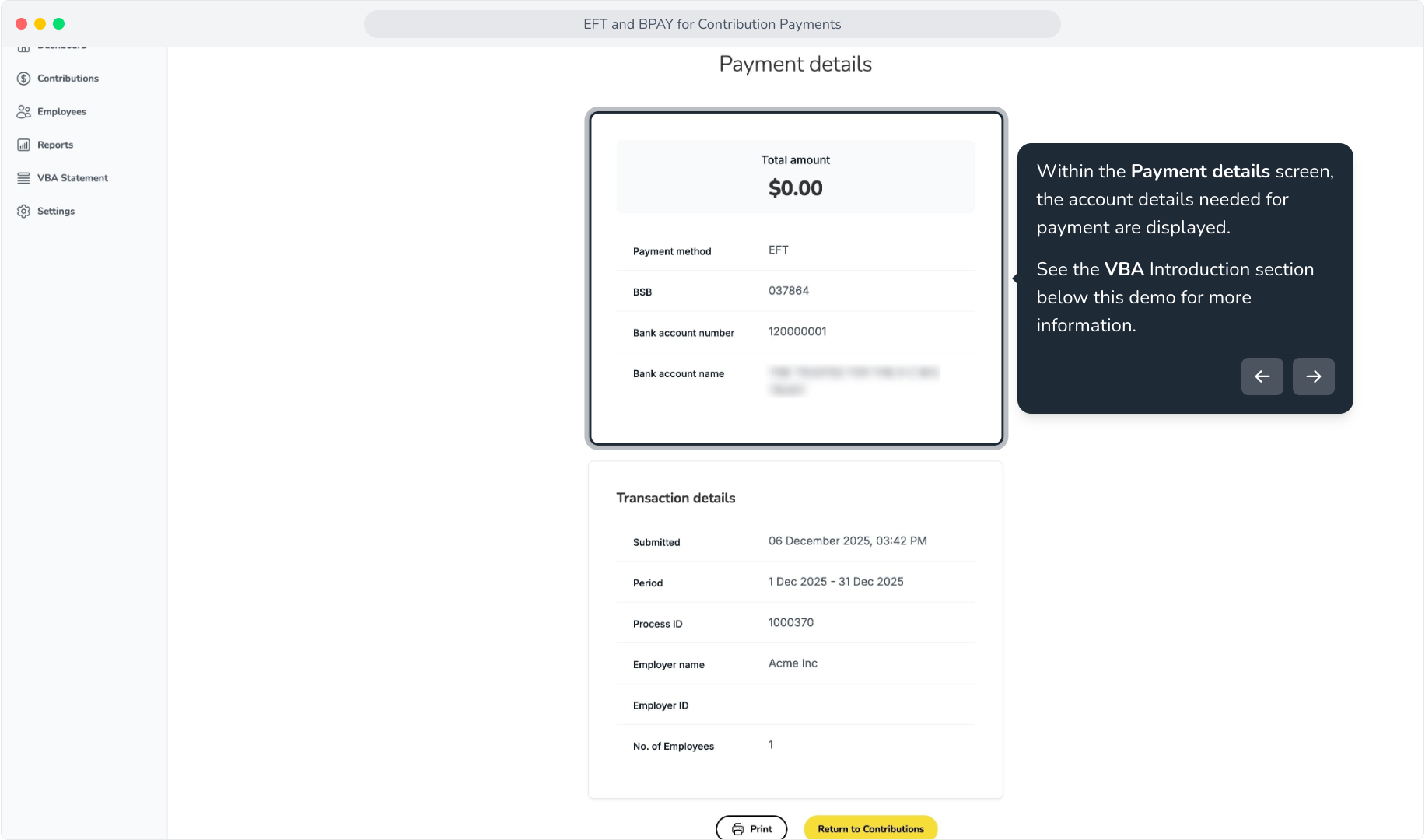
9. Within the Payment details screen, the account details needed for payment are displayed.See the VBA Introduction section below this demo for more information.
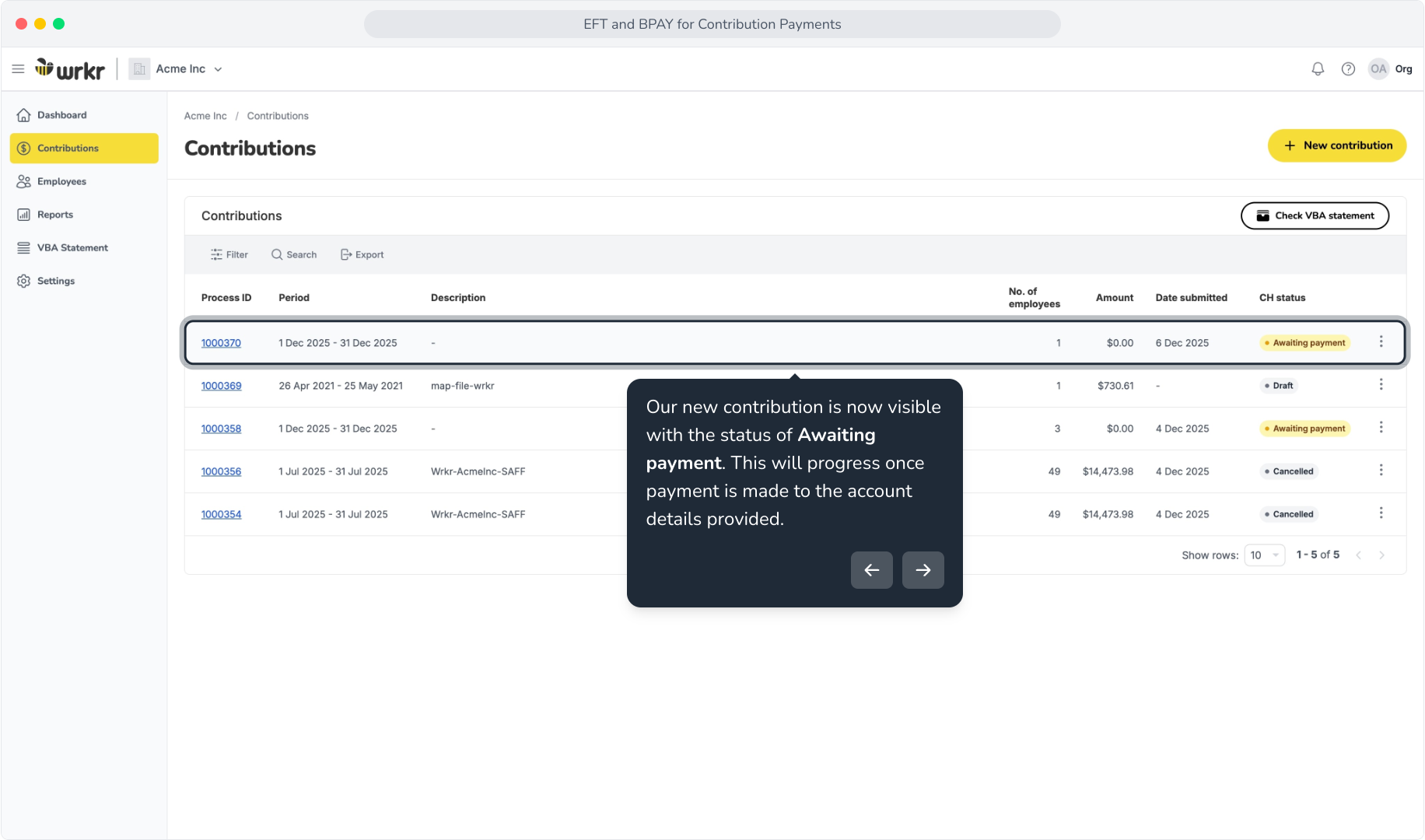
10. Our new contribution is now visible with the status of Awaiting payment. This will progress once payment is made to the account details provided.
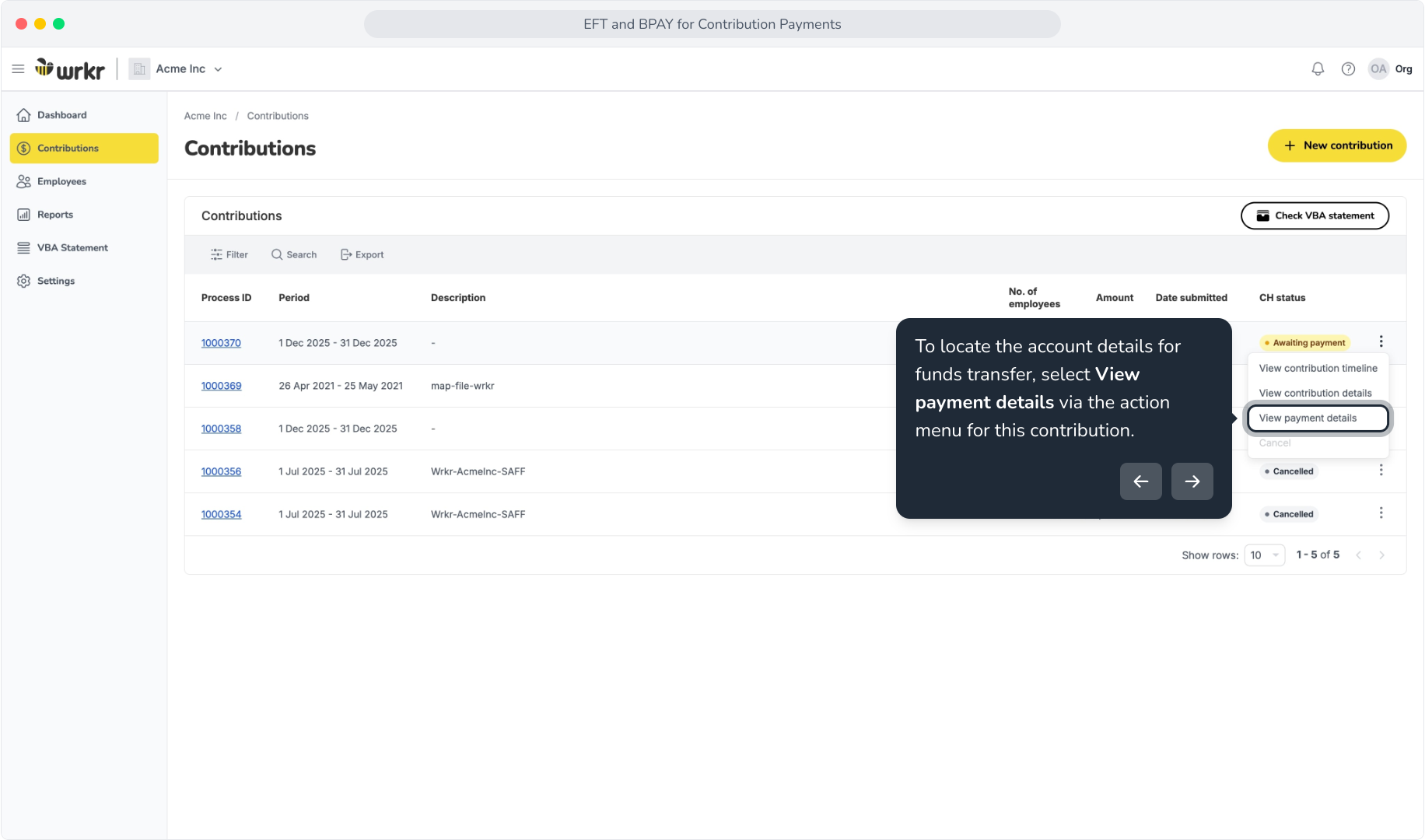
11. To locate the account details for funds transfer, select View payment details via the action menu for this contribution.
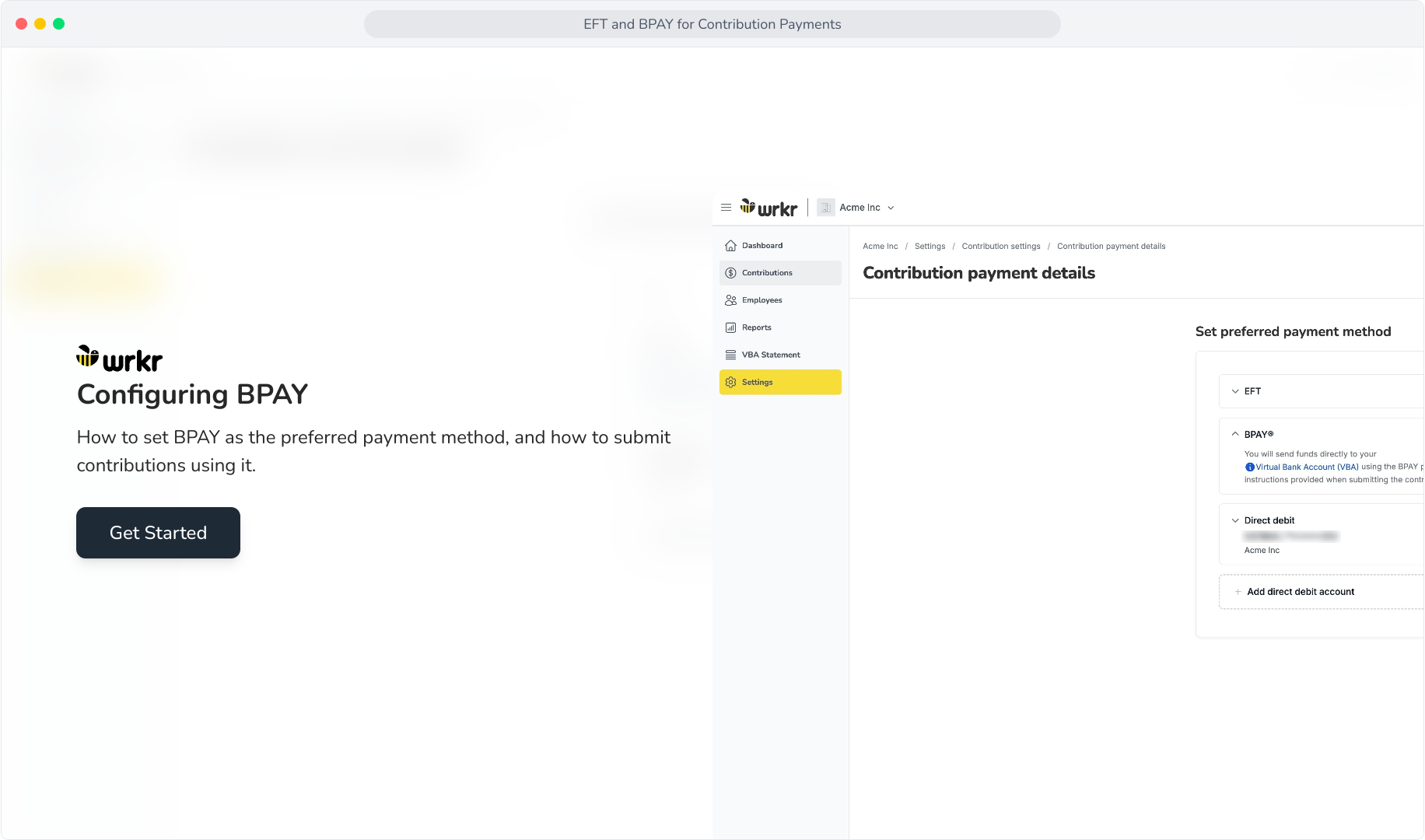
12. Configuring BPAY
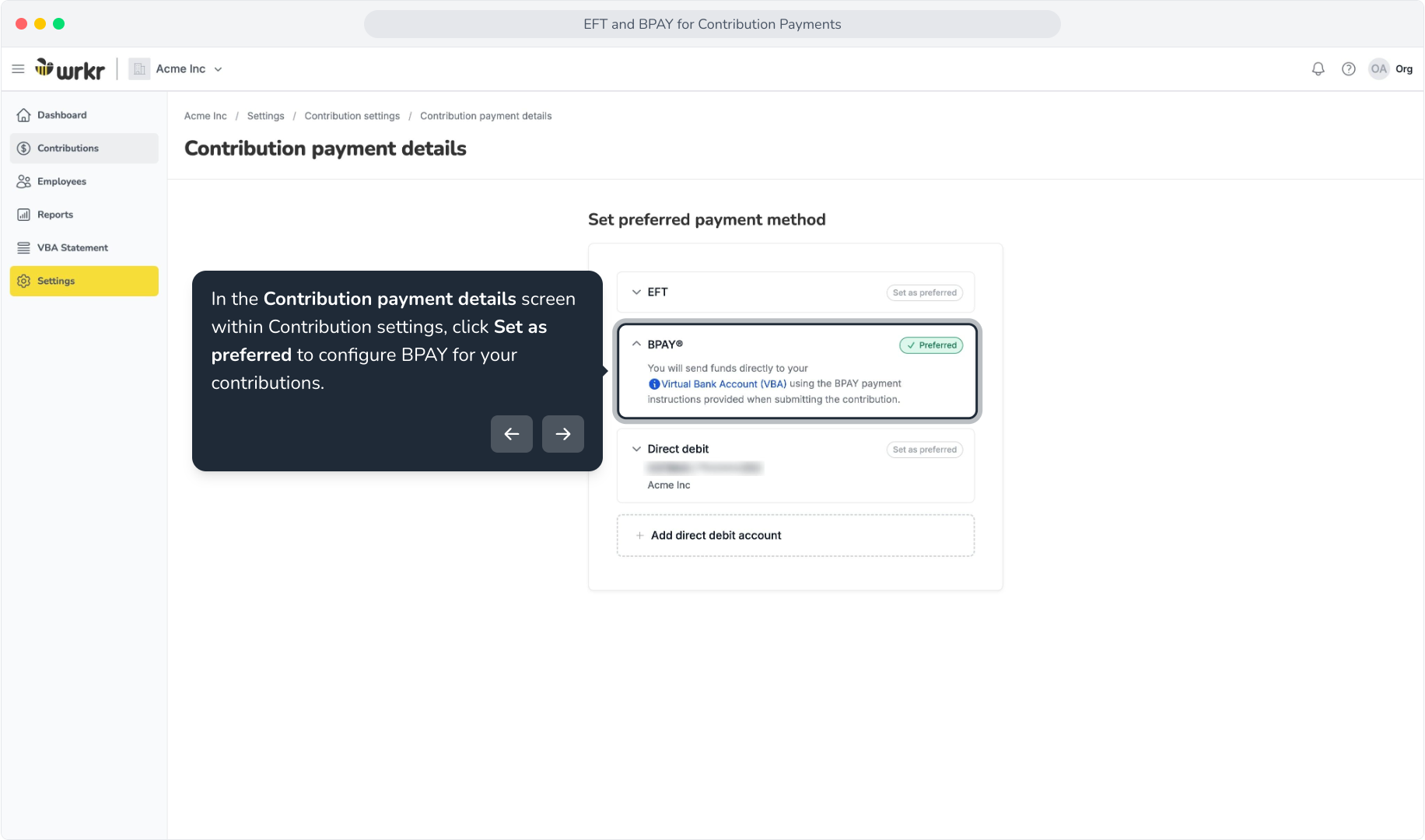
13. In the Contribution payment details screen within Contribution settings, click Set as preferred to configure BPAY for your contributions.
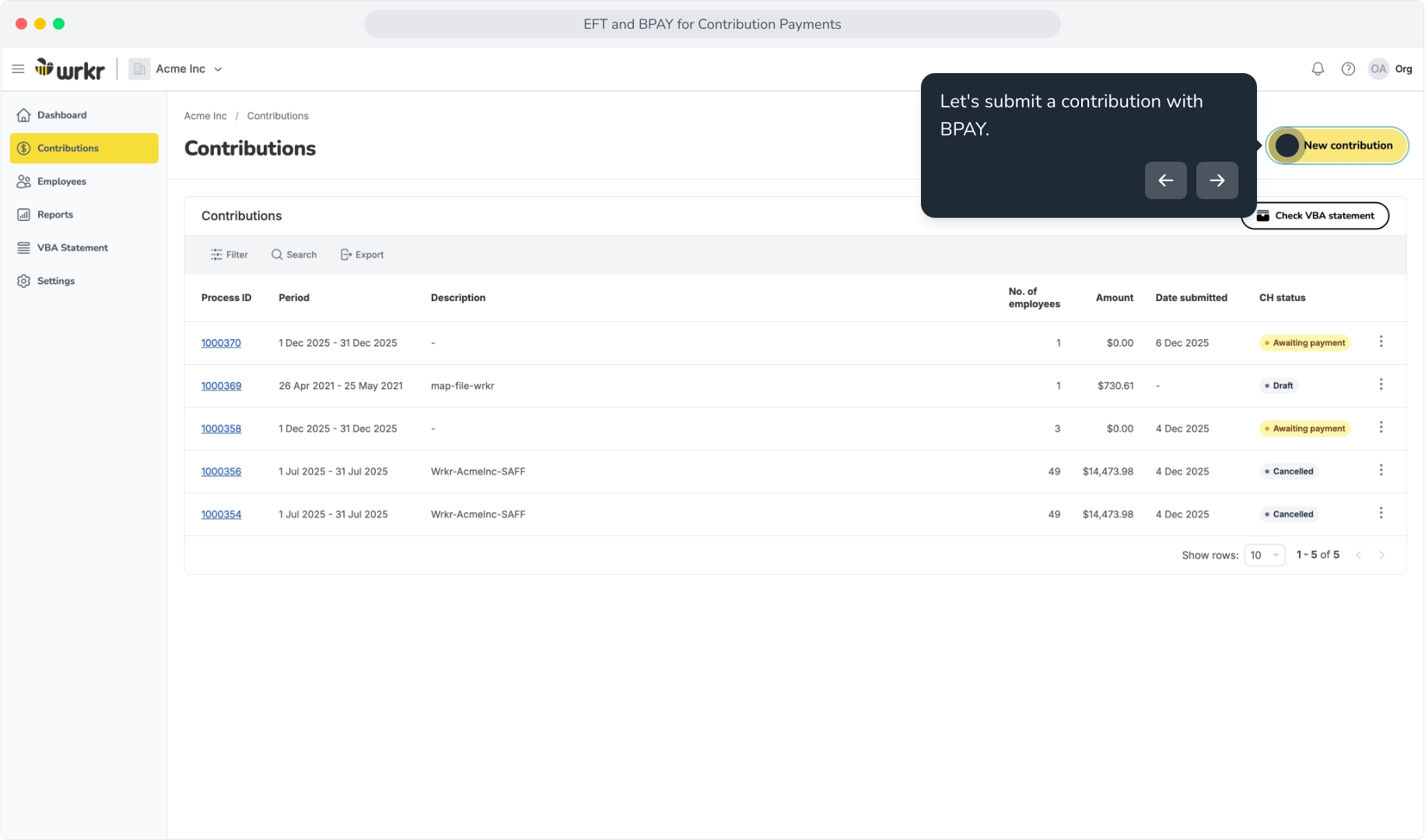
14. Let's submit a contribution with BPAY.
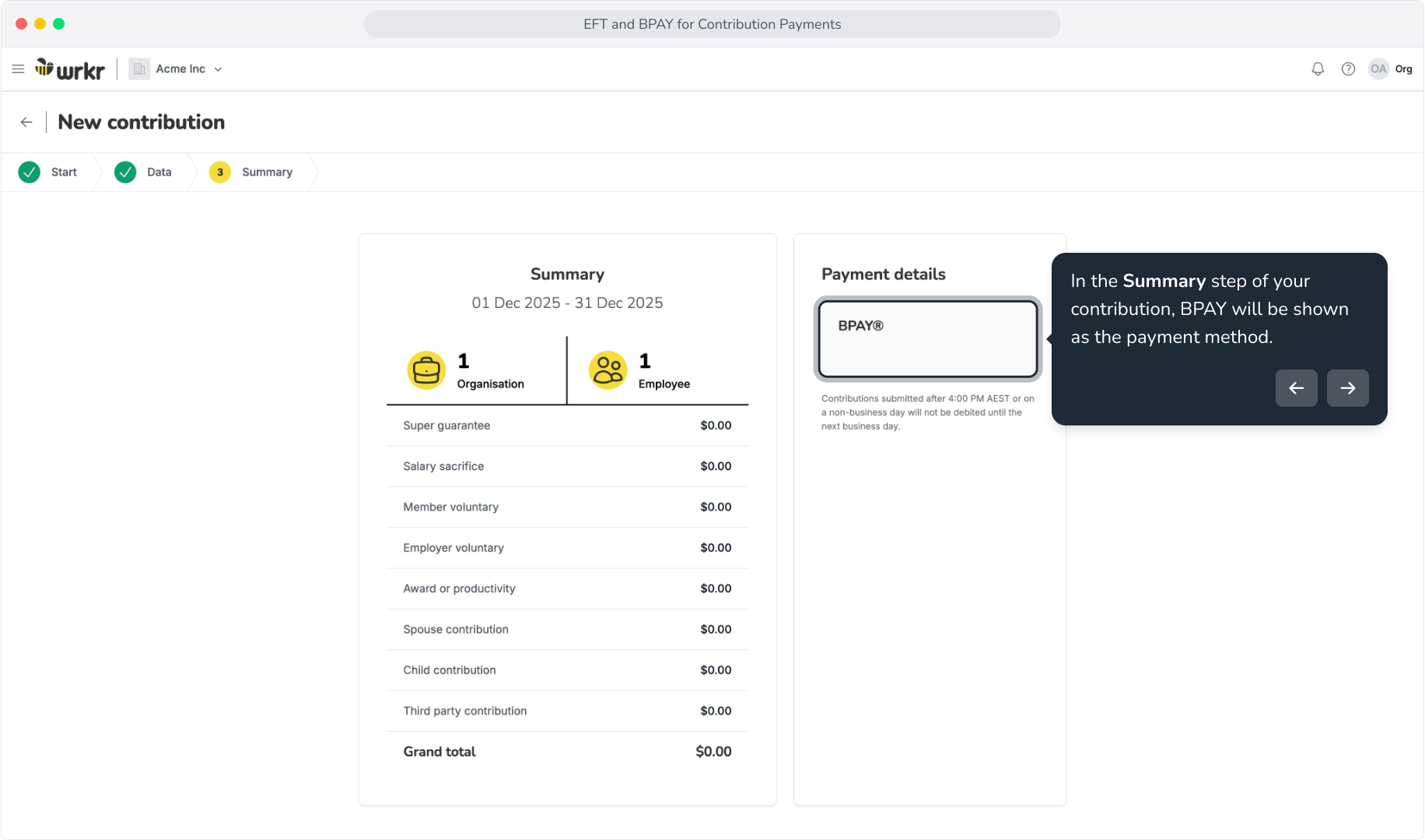
15. In the Summary step of your contribution, BPAY will be shown as the payment method.
16. On the Payment details screen after submitting your contribution – The BPAY details for funds transfer are shown.
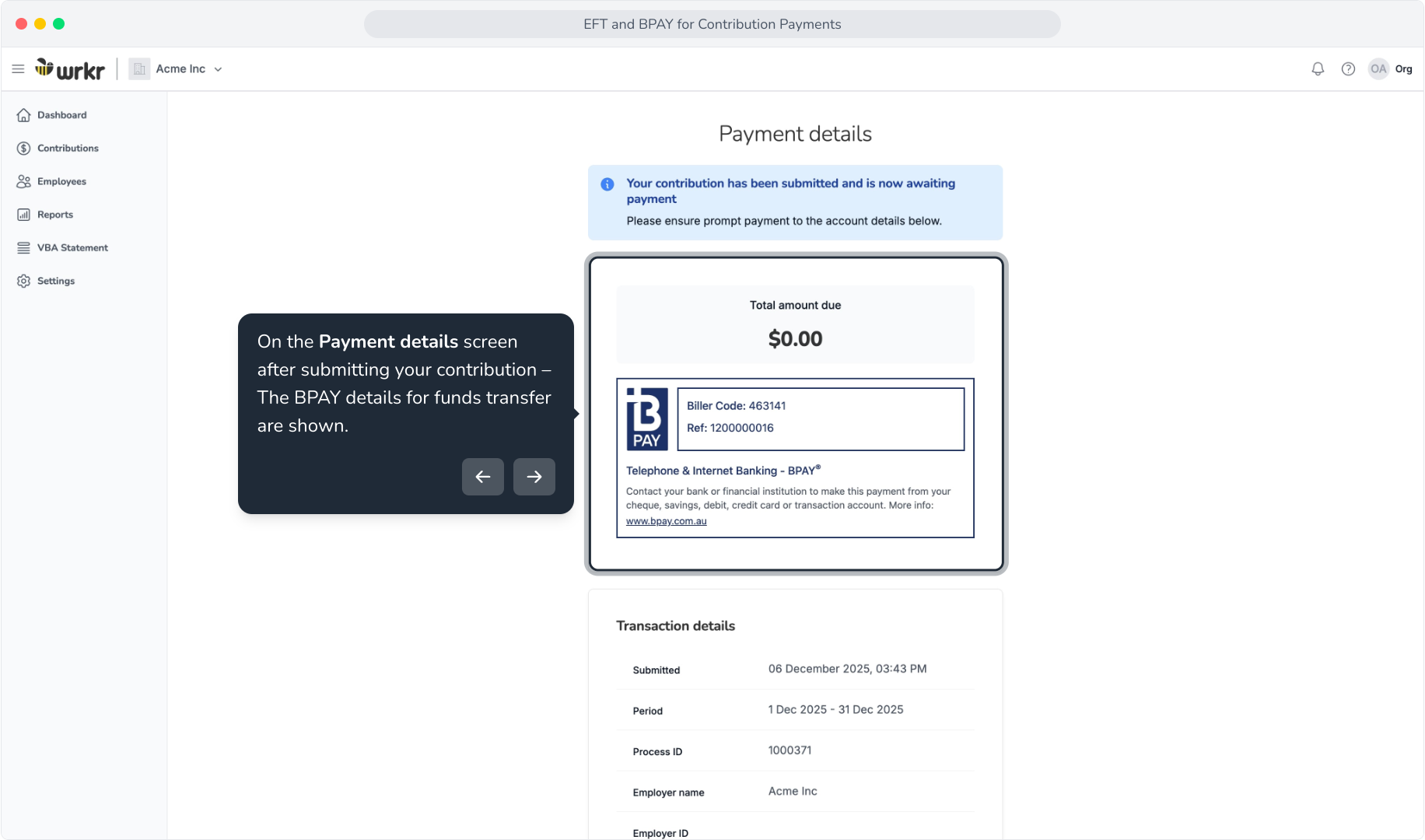
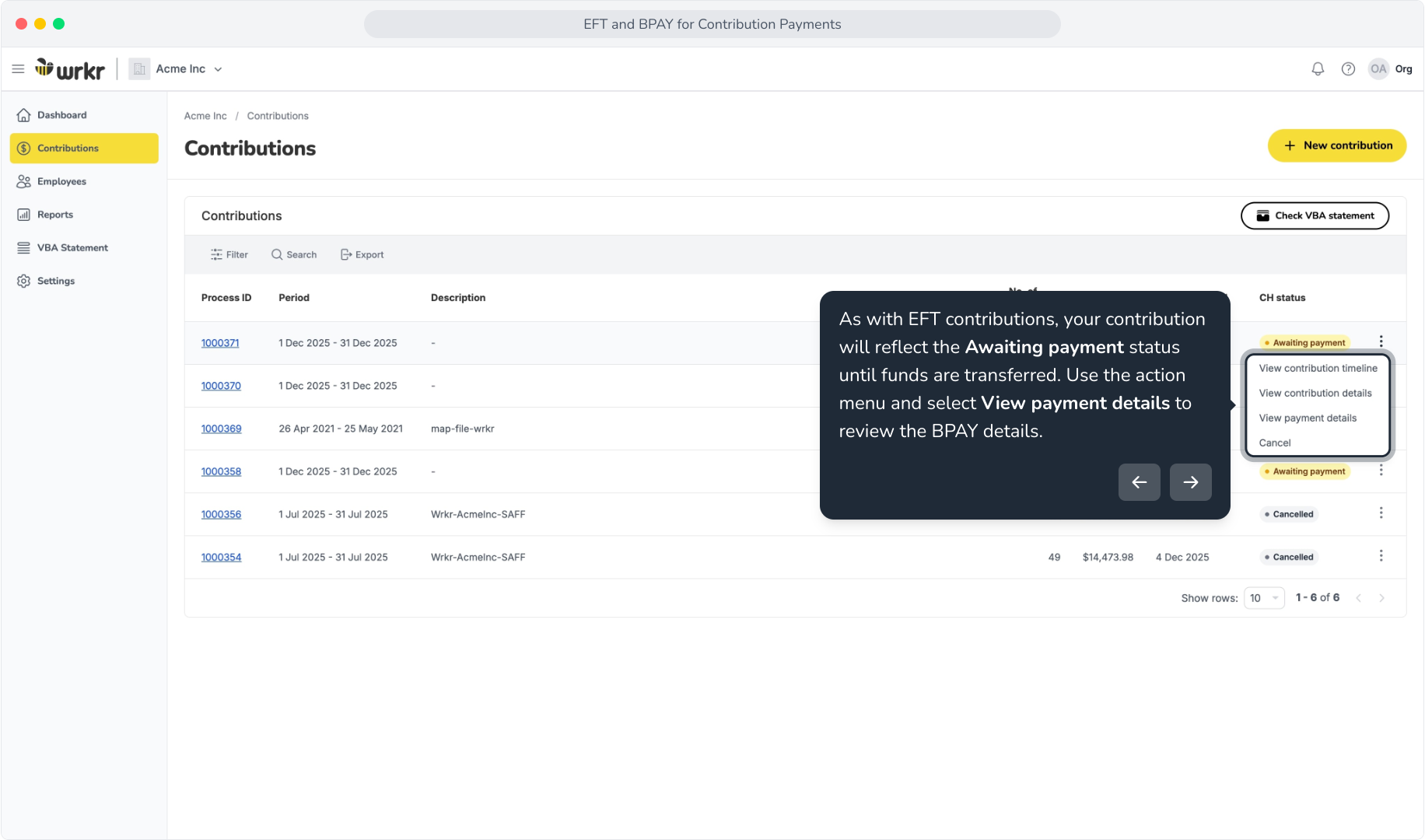
17. As with EFT contributions, your contribution will reflect the Awaiting payment status until funds are transferred. Use the action menu and select View payment details to review the BPAY details.
Virtual Bank Account (VBA) Introduction
Context: This section details an introduction to how the Virtual Bank Account (VBA) works. Content is derived from the introduction within Employer Online, which can be accessed via the 'Virtual Bank Account (VBA) hyperlink within the EFT and BPAY payment method tiles.
When you have configured either EFT or BPAY as the preferred payment method for your contributions, we create a Virtual Bank Account for your organisation. A VBA enables faster and more efficient payment processing from a single account.
VBA’s also guarantee secure, compliant transactions, minimise errors, and help prevent fraud by centralising payments, improving monitoring, and reducing the risk of unauthorised actions.
Contribution payments are made directly into your organisation’s account so you don’t need to provide a specific PRN and can use your own preferred format for reference numbers.
When payments are received into your VBA, the balance will be used for any pending contributions provided there is enough money to cover the due balance on the contribution(s).
Money will be allocated to contribution payments in descending order, starting with the largest amount.
Any money refunded from superfunds will be returned to the VBA so that it can be re-sent to the fund with corrected information to ensure employee obligations can be met.
Balances will be maintained in the VBA for 10 business days, if the balance is not used at the end of that period, it will be returned to your nominated refund bank account.