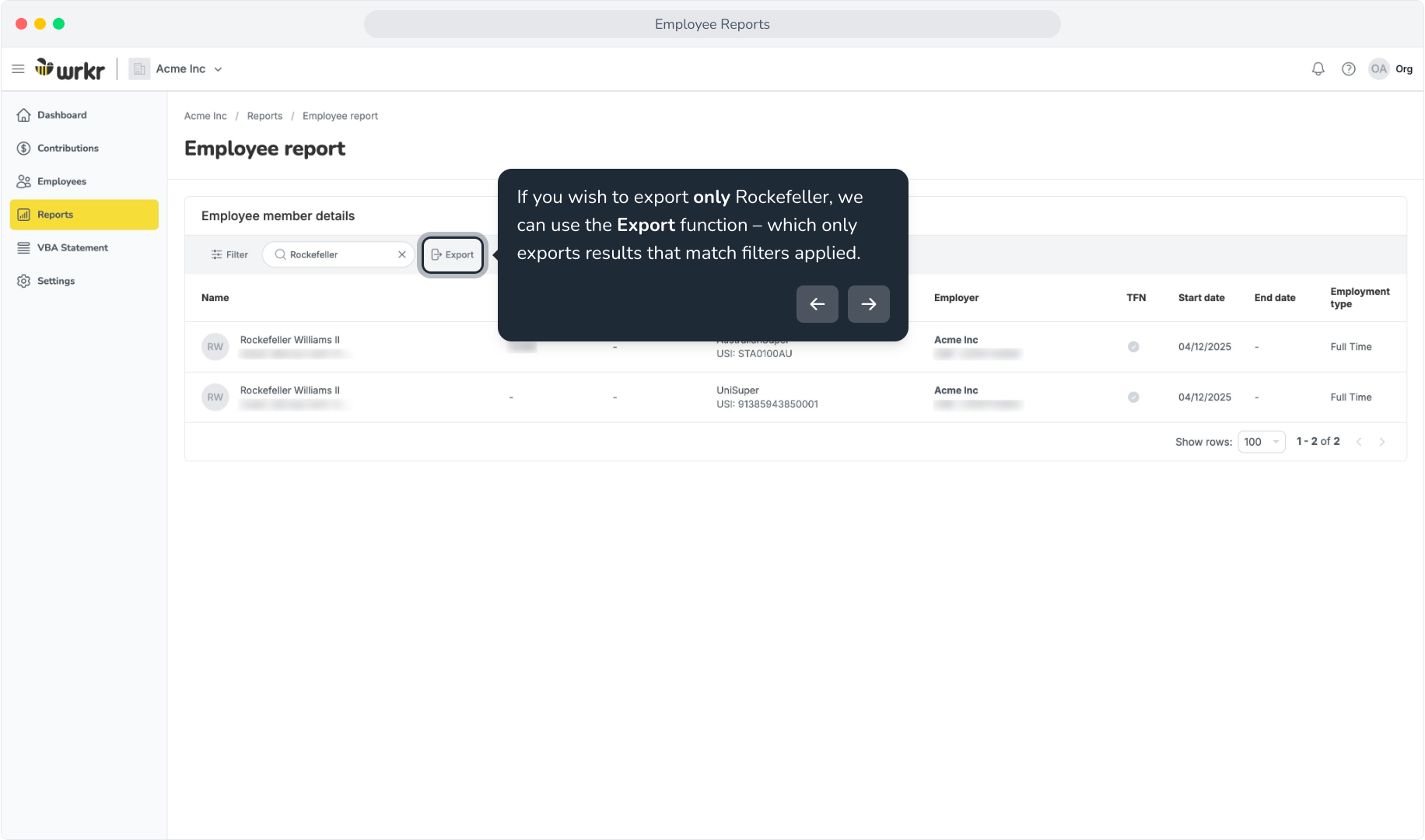
Context: This guide details the Employee Reports function of the Employer Portal, and the ability to refine your report prior to exporting – via search and filter functions. This guide also demonstrates how employees are handled when they belong to more than one fund.
Interactive Demo
Note: Make the demo full-screen for a better experience. You can mute/un-mute narration to suit your preferences.
Step by Step
1. Employee Reports
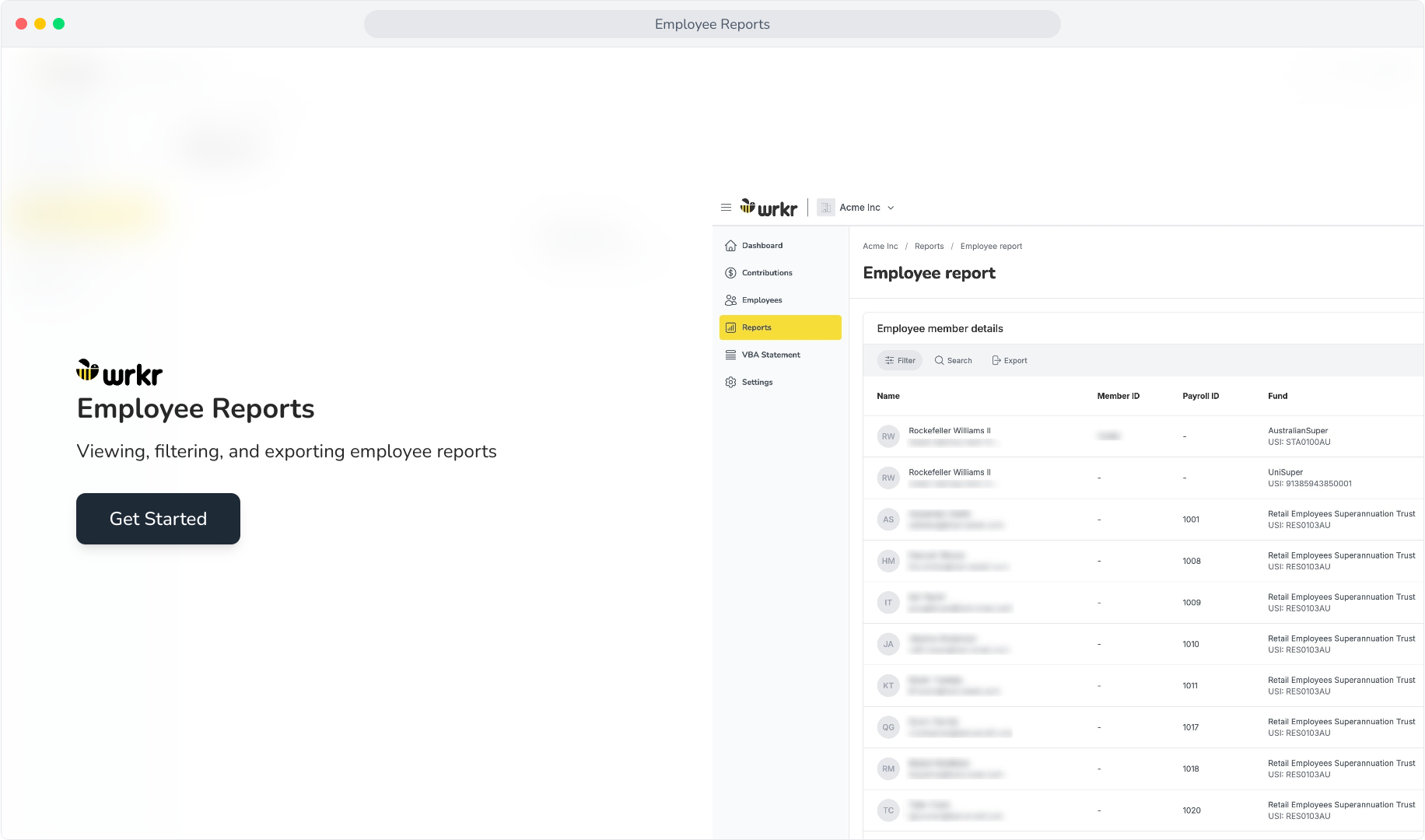
2. Navigate to the Reports tab, and click View in the Employee report tile.
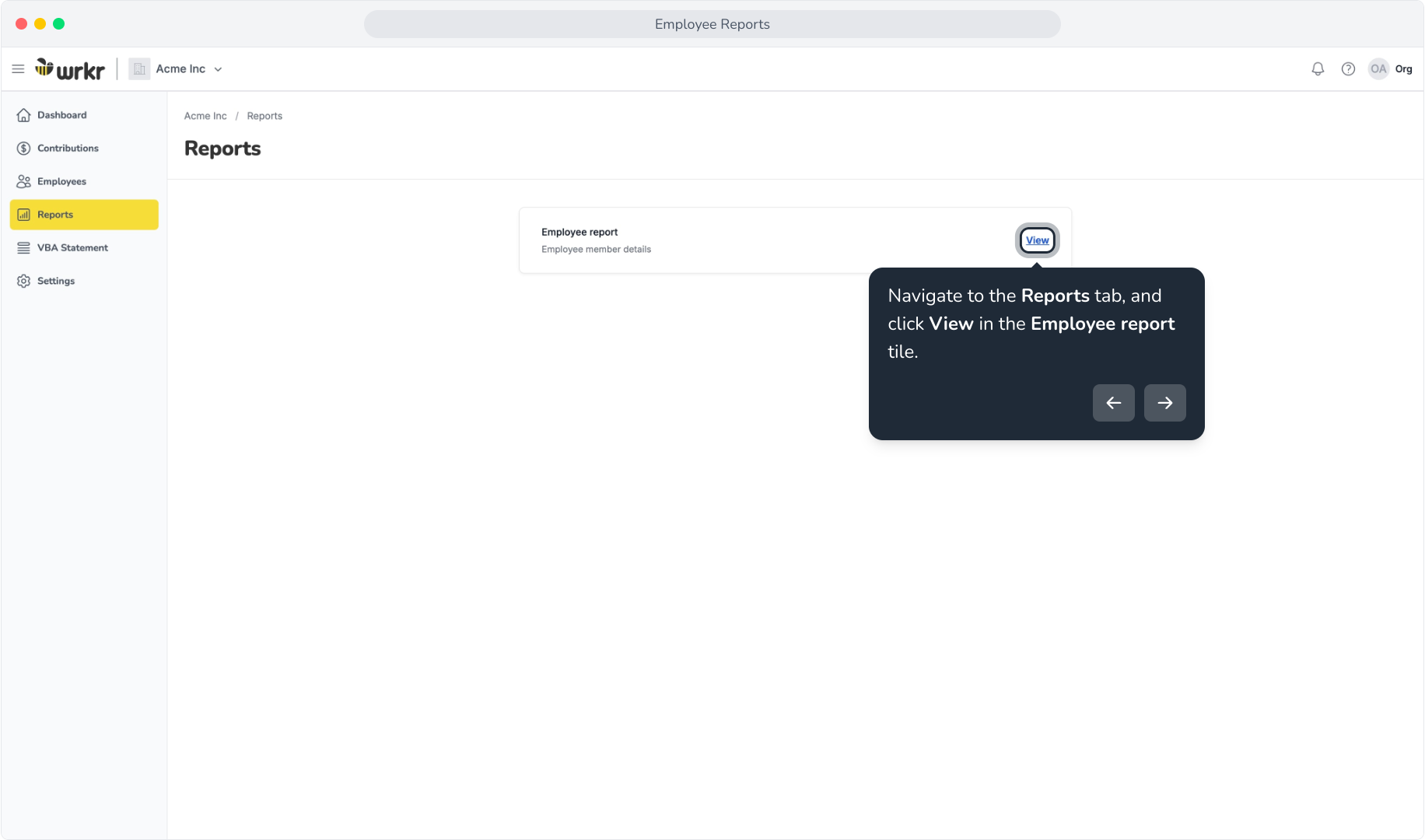
3. Within the view, you can filter, search, and export the list of your employees.
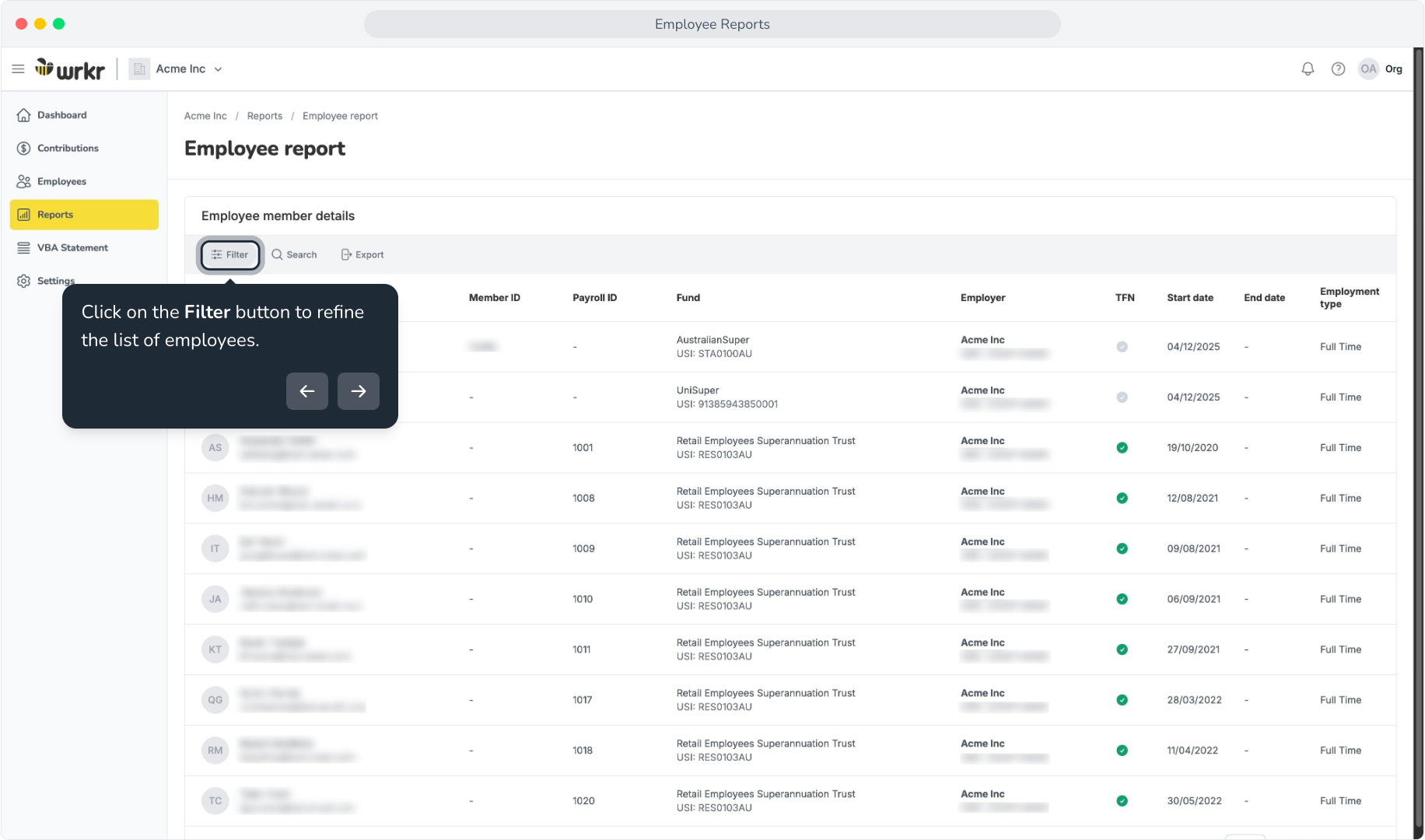
4. Click on the Filter button to refine the list of employees.
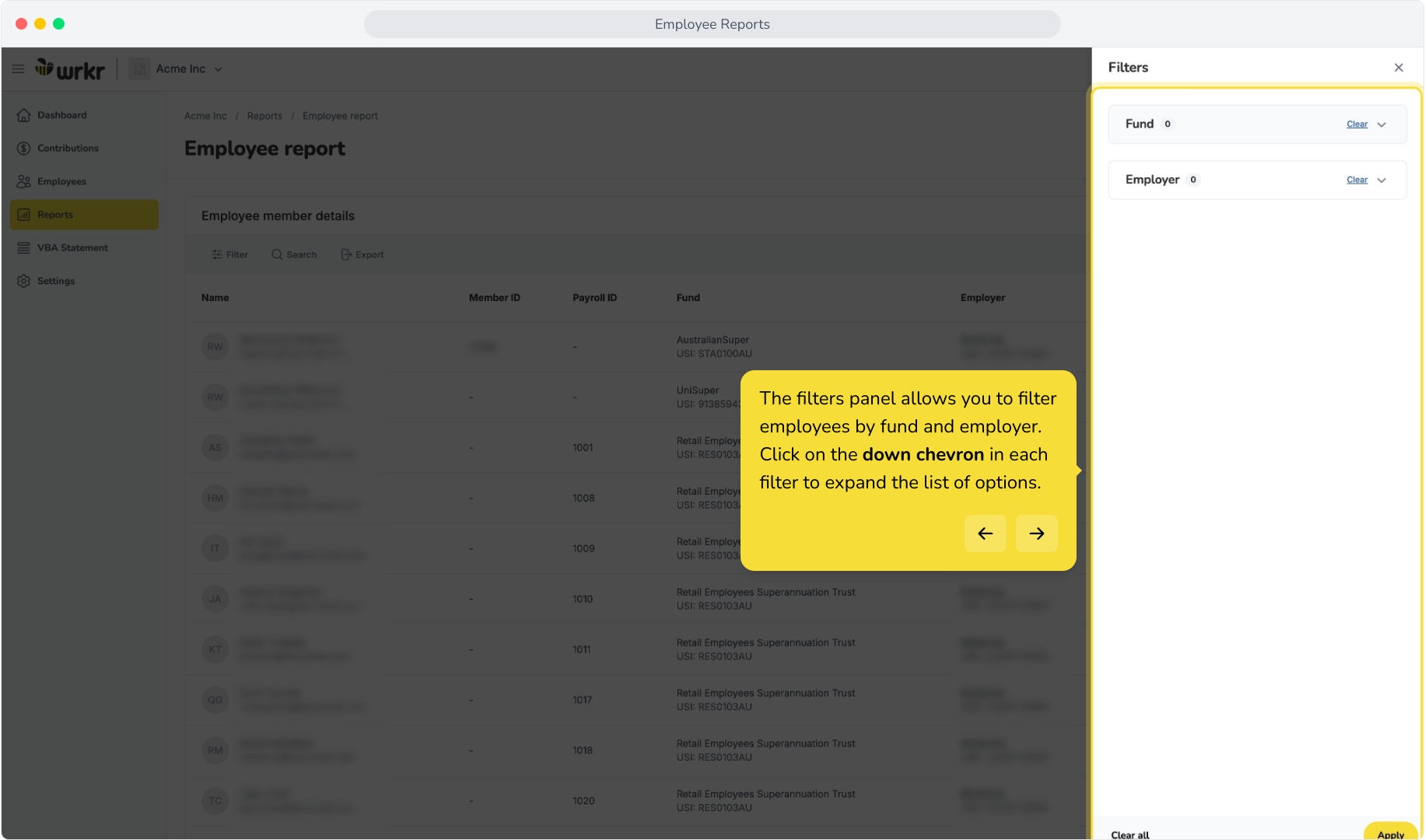
5. The filters panel allows you to filter employees by fund and employer. Click on the down chevron in each filter to expand the list of options.
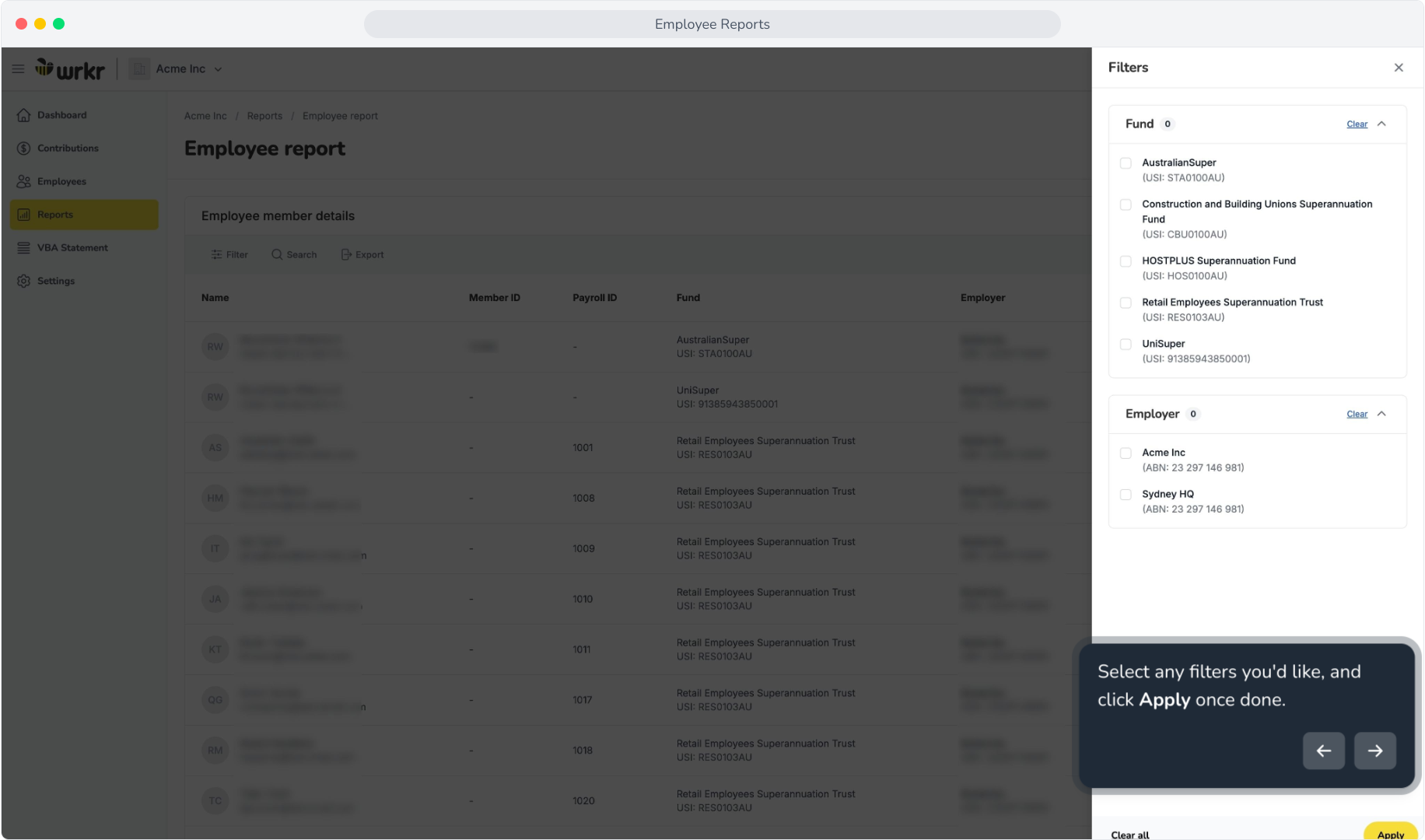
6. Select any filters you'd like, and click Apply once done.
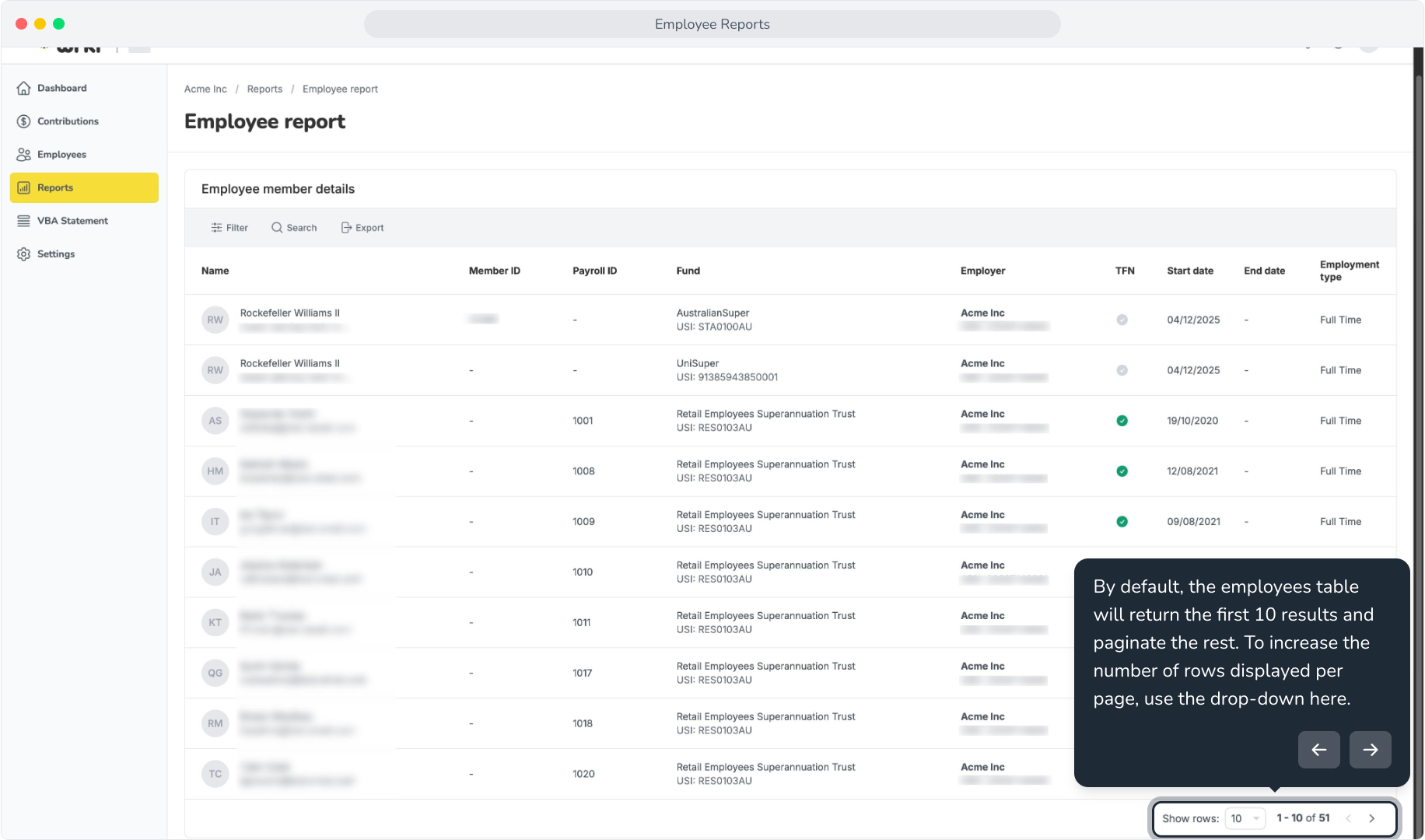
7. By default, the employees table will return the first 10 results and paginate the rest. To increase the number of rows displayed per page, use the drop-down here.
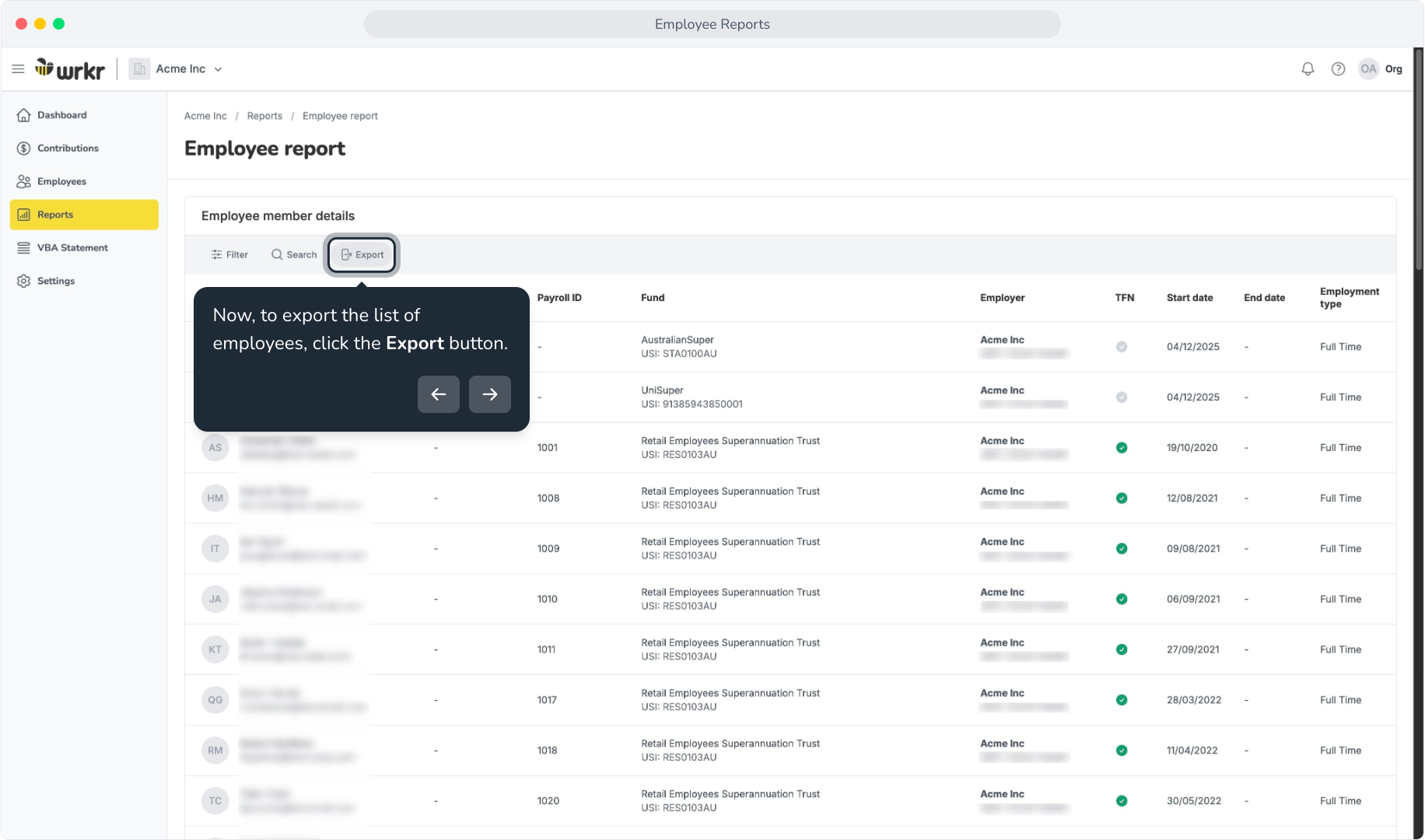
8. Now, to export the list of employees, click the Export button.
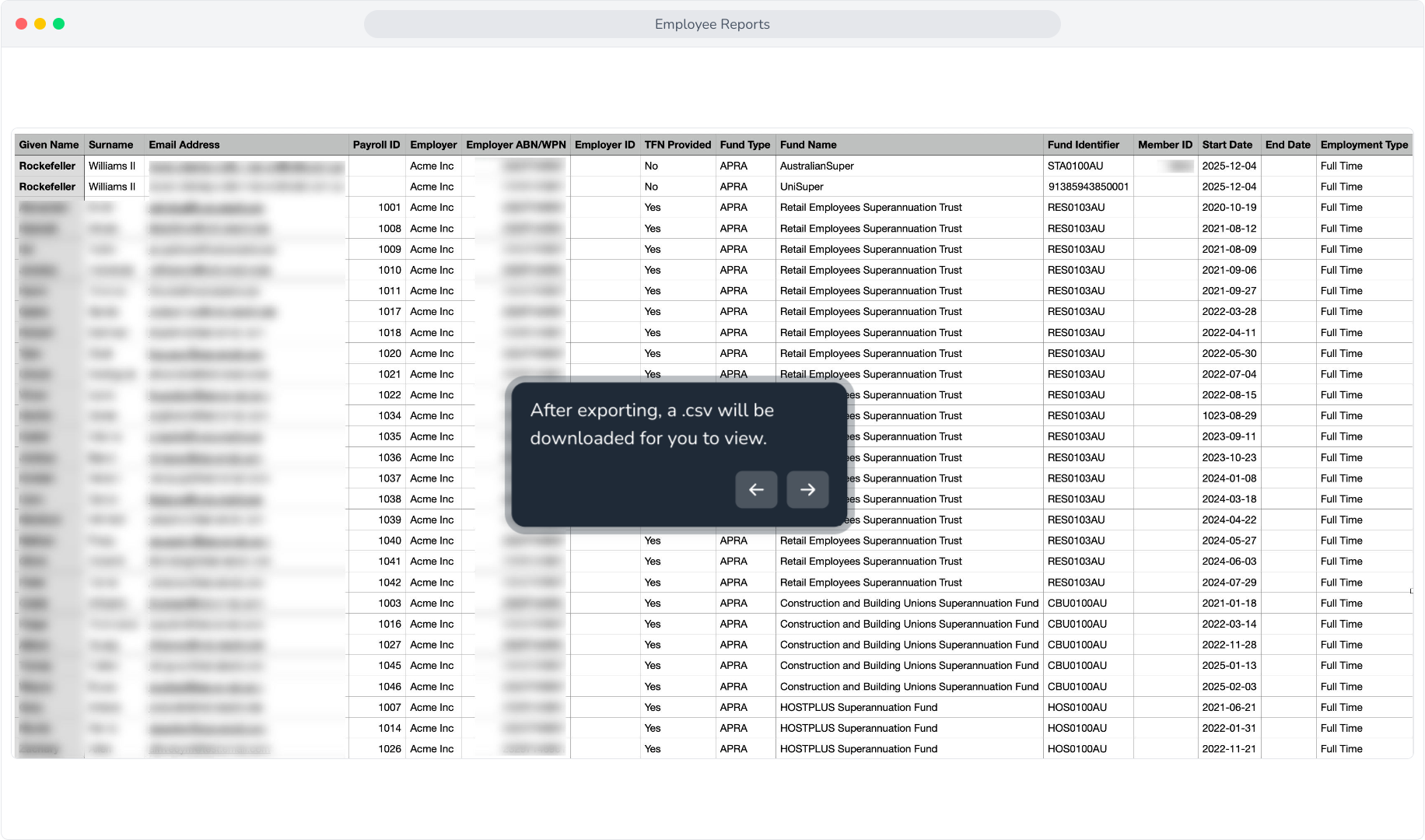
9. After exporting, a .csv will be downloaded for you to view.
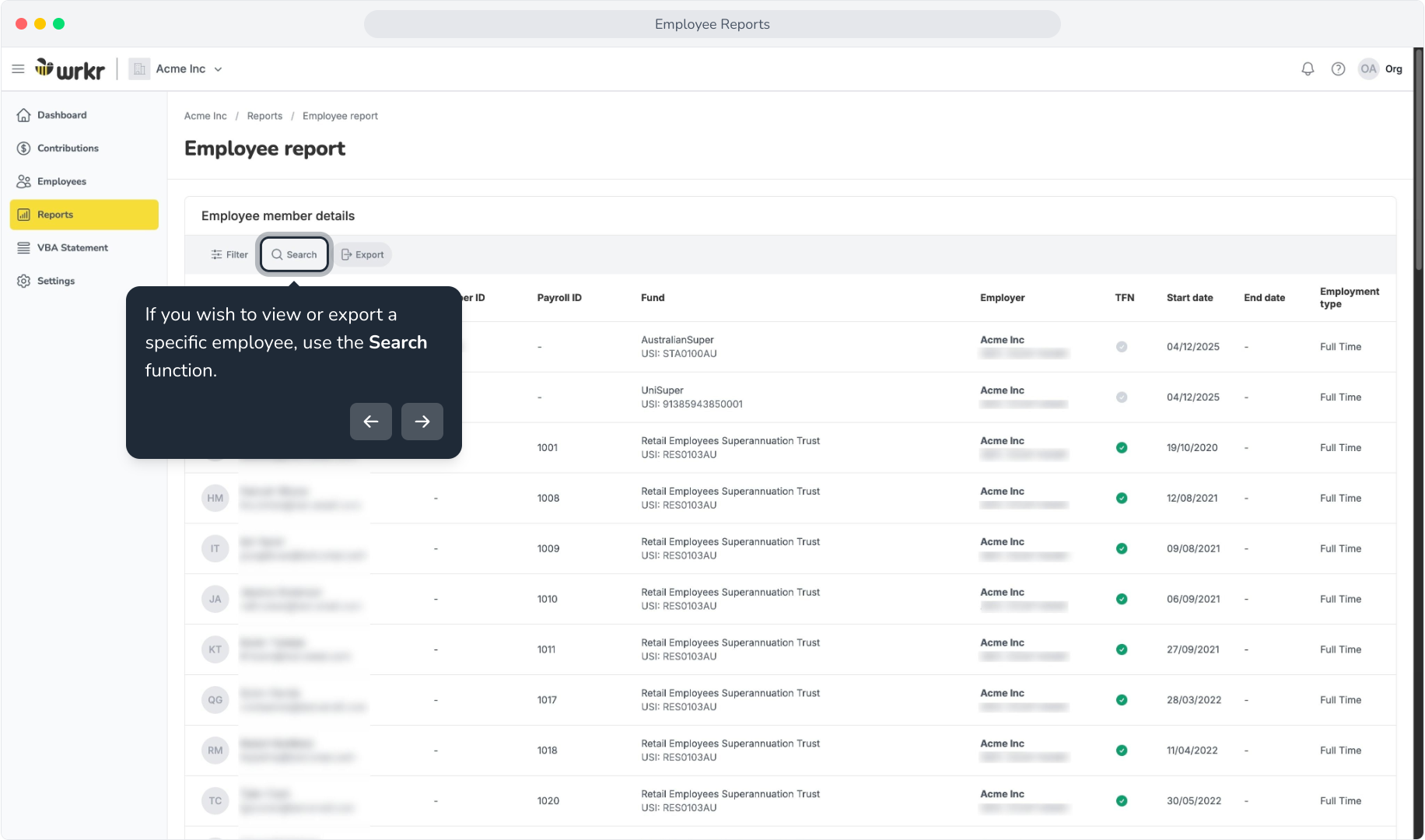
10. If you wish to view or export a specific employee, use the Search function.
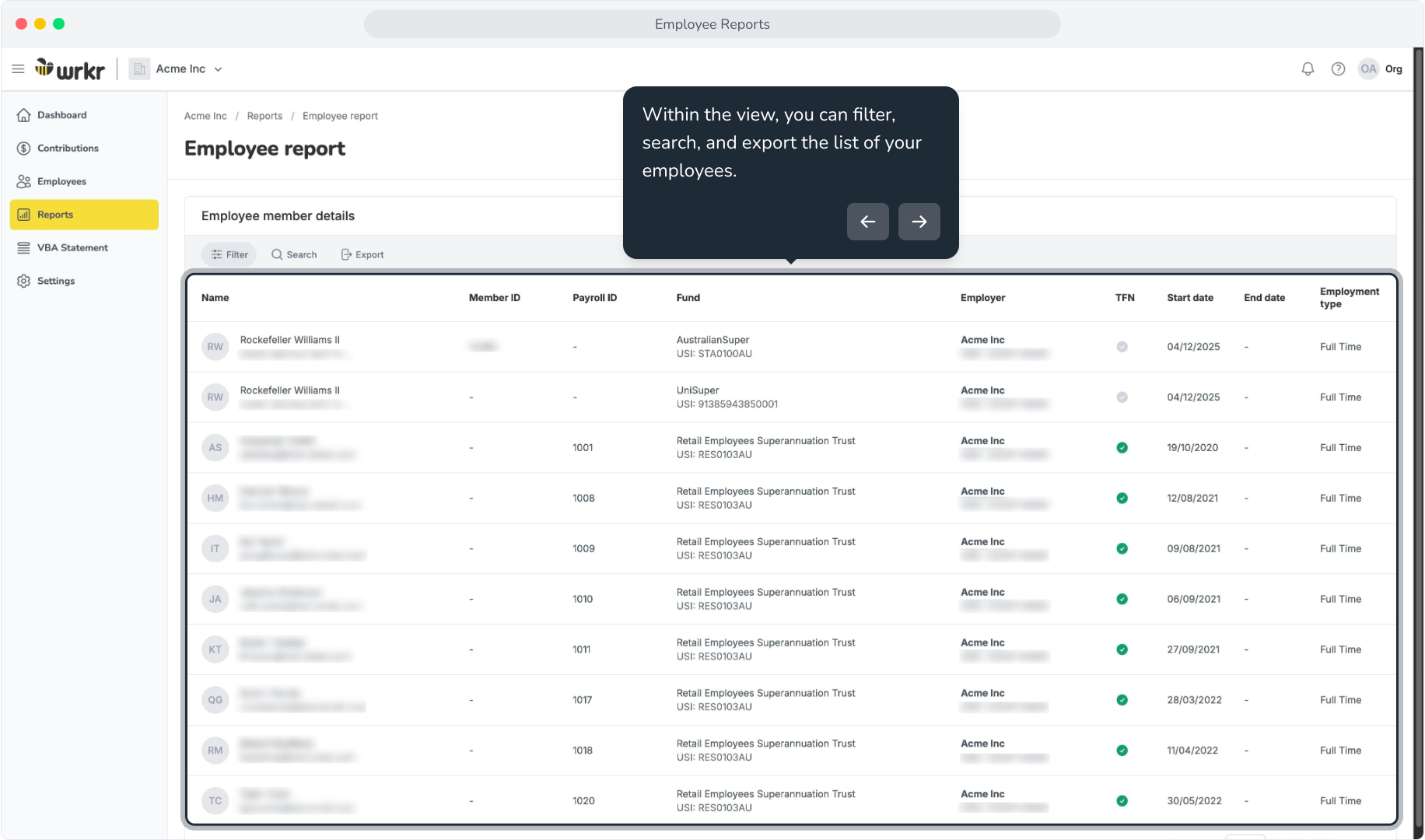
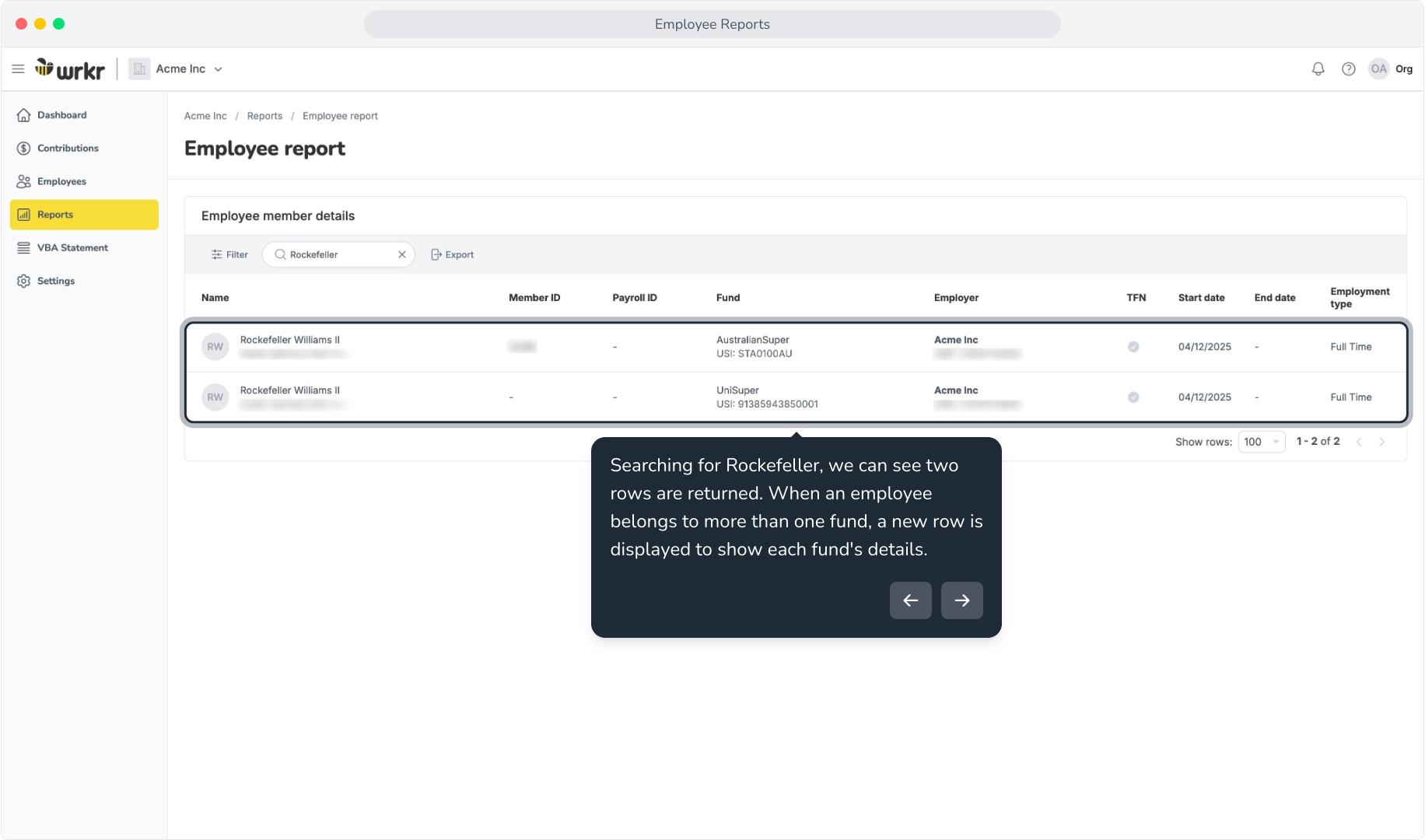
11. Searching for Rockefeller, we can see two rows are returned. When an employee belongs to more than one fund, a new row is displayed to show each fund's details.
12. If you wish to export only Rockefeller, we can use the Export function – which only exports results that match filters applied.