Context: This guide details how to view and export the Contribution history for your employees within the Wrkr Portal.
Interactive Demo
Note: Make the demo full-screen for a better experience. You can mute/un-mute narration to suit your preferences.
Step by Step
1. Export and Review Employee Contribution History Records
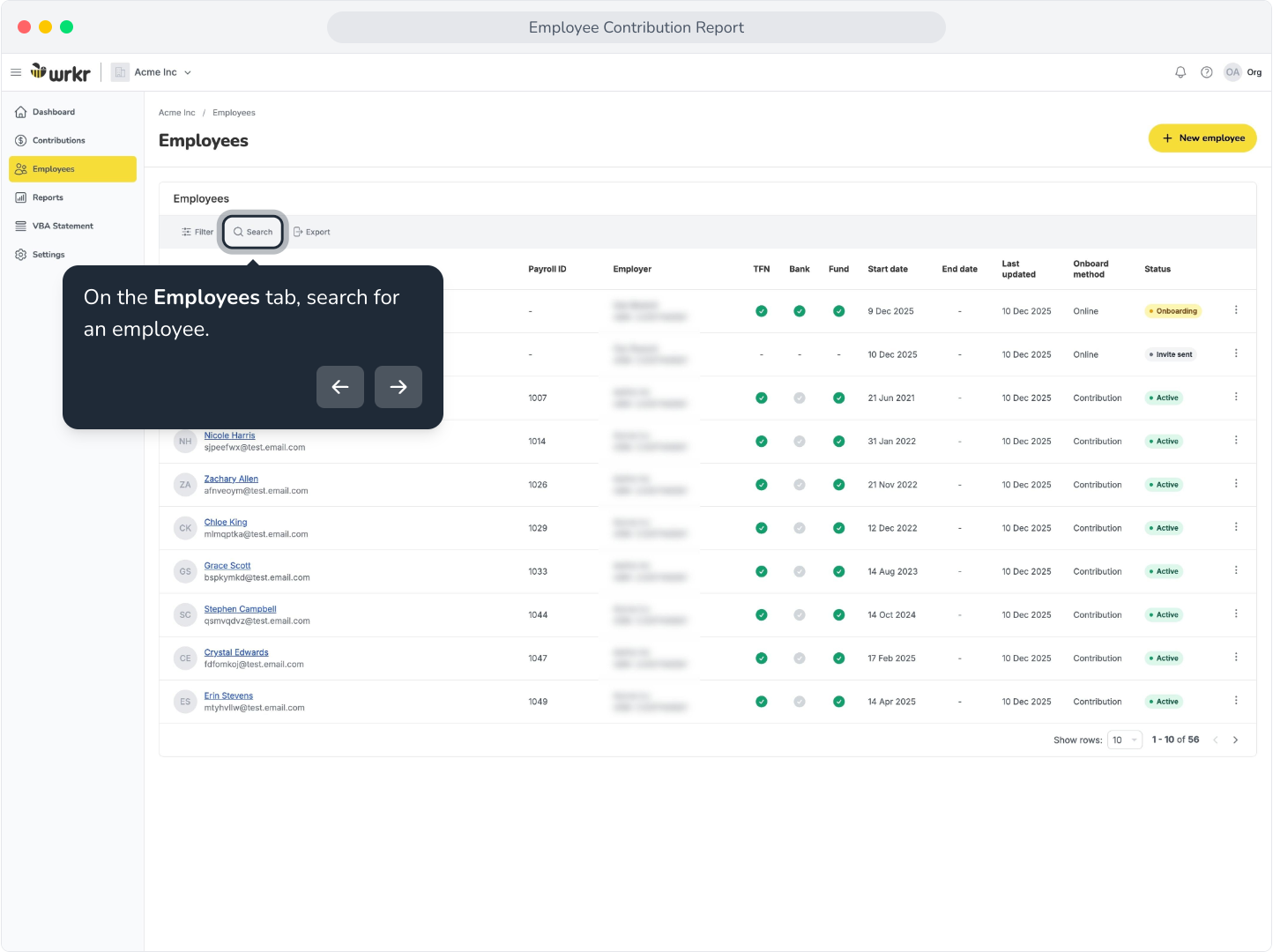
2. On the Employees tab, search for an employee.
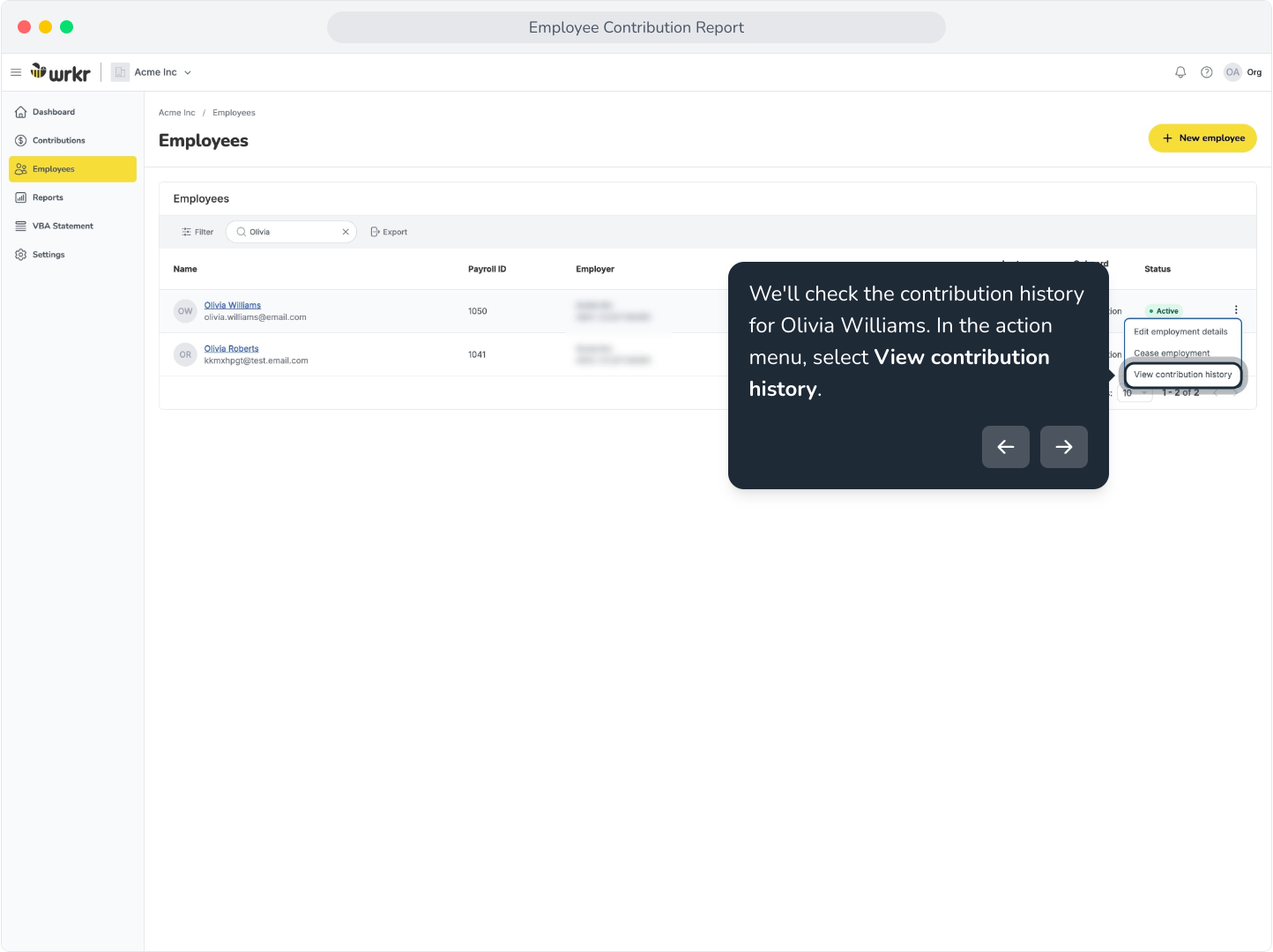
3. We'll check the contribution history for Olivia Williams. In the action menu, select View contribution history.
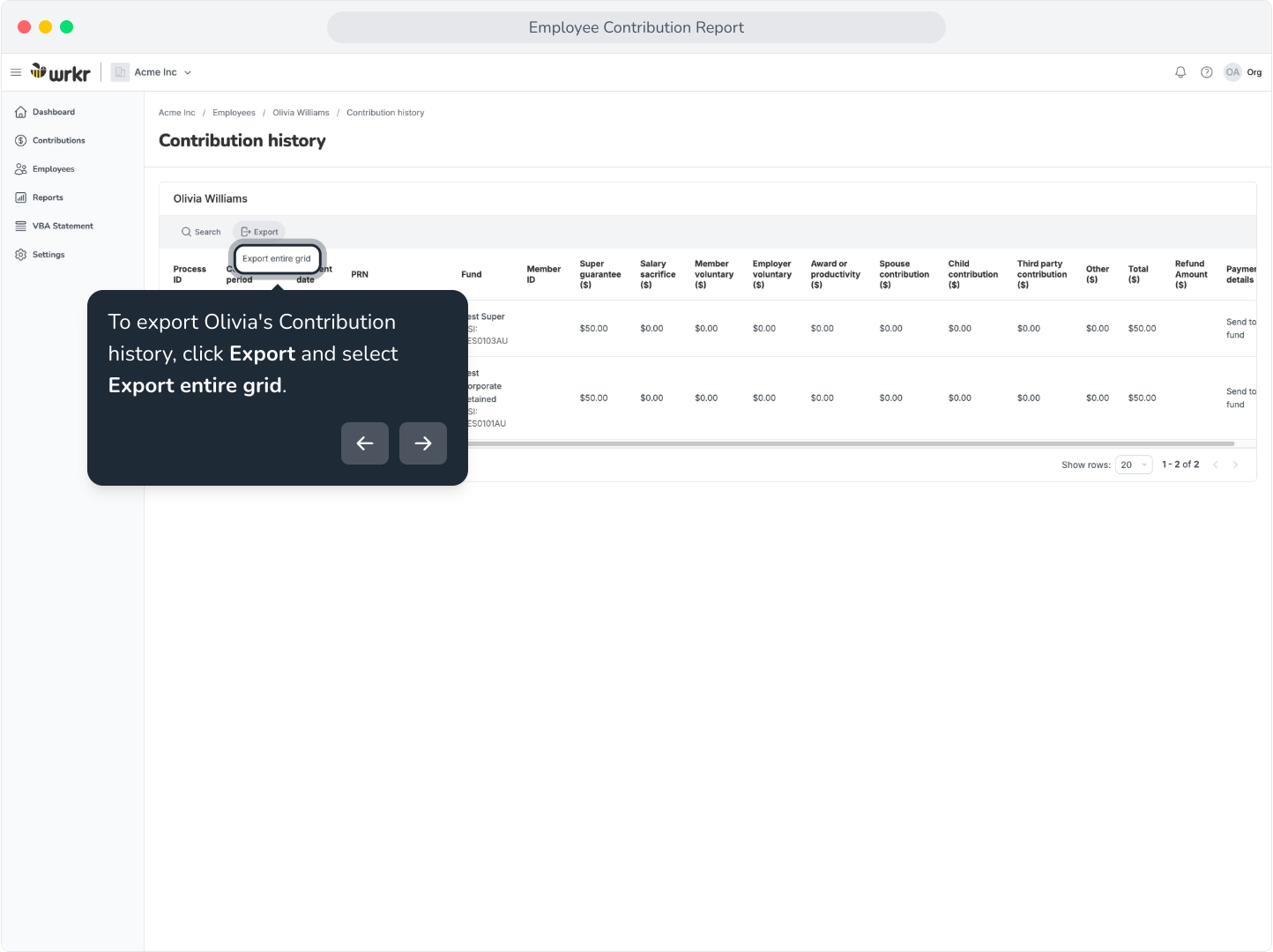
4. We have only processed and paid one contribution for Olivia so far, however, the contribution has been split across her two funds.
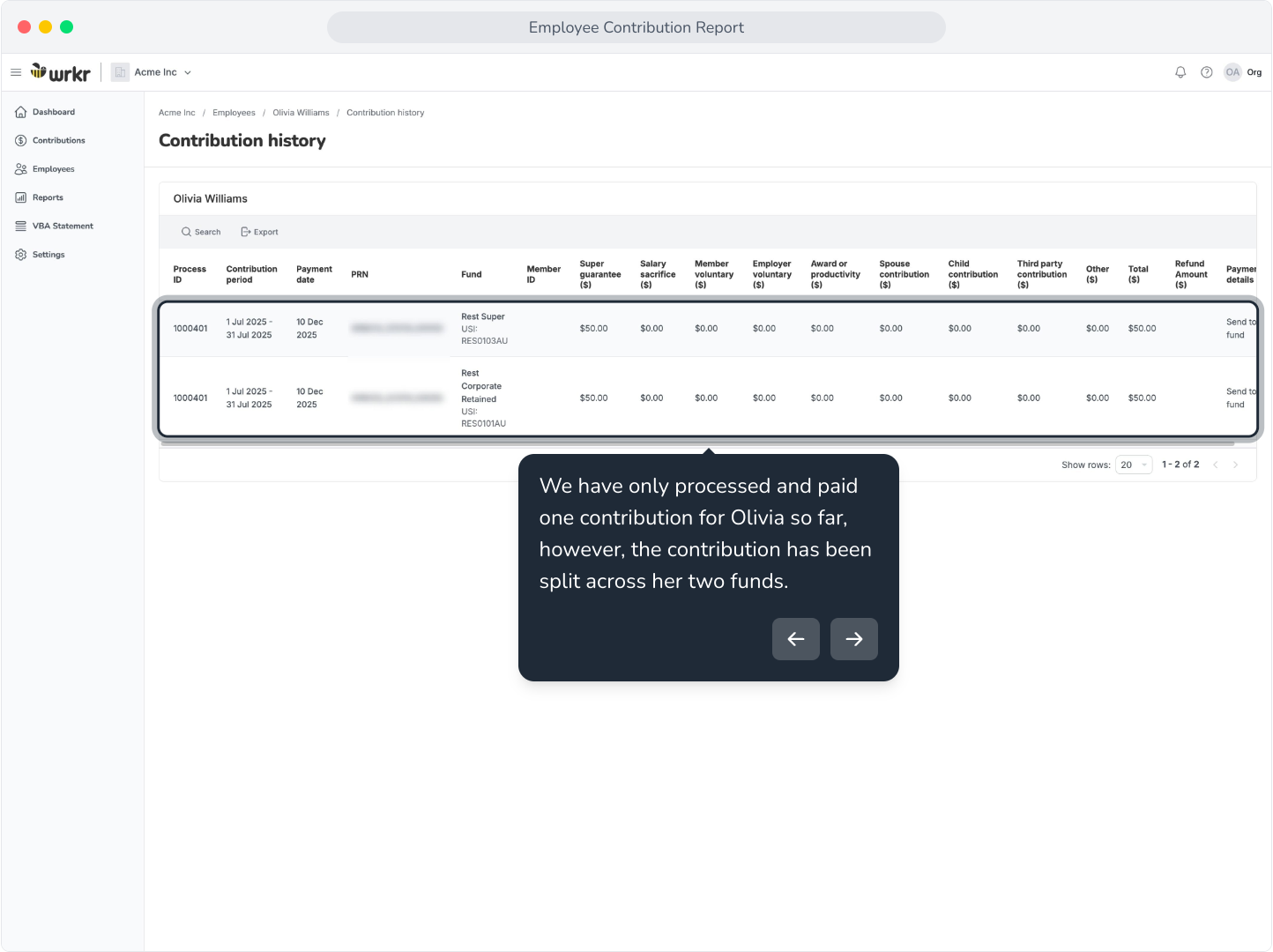
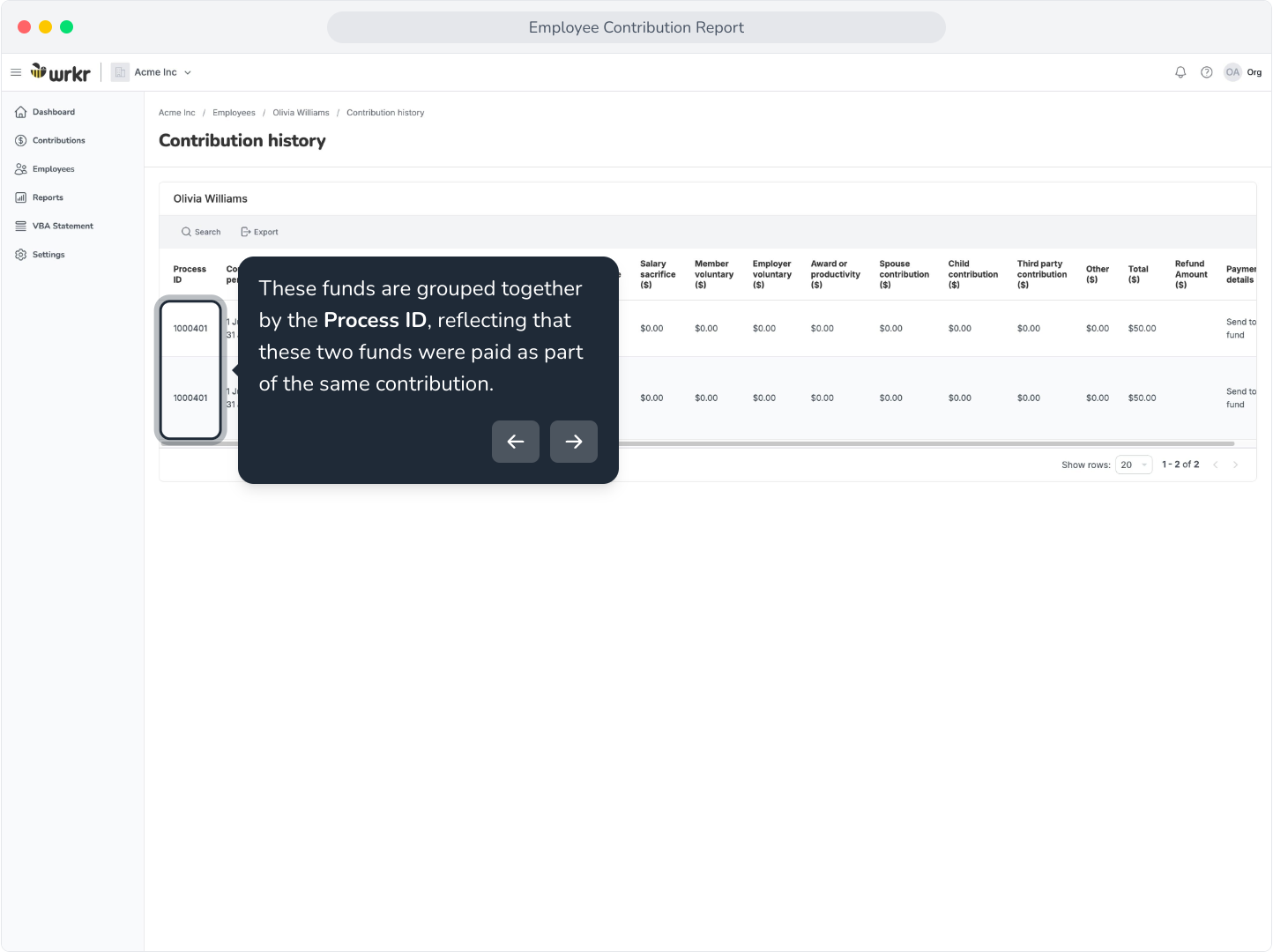
5. These funds are grouped together by the Process ID, reflecting that these two funds were paid as part of the same contribution.
6. To export Olivia's Contribution history, click Export and select Export entire grid.