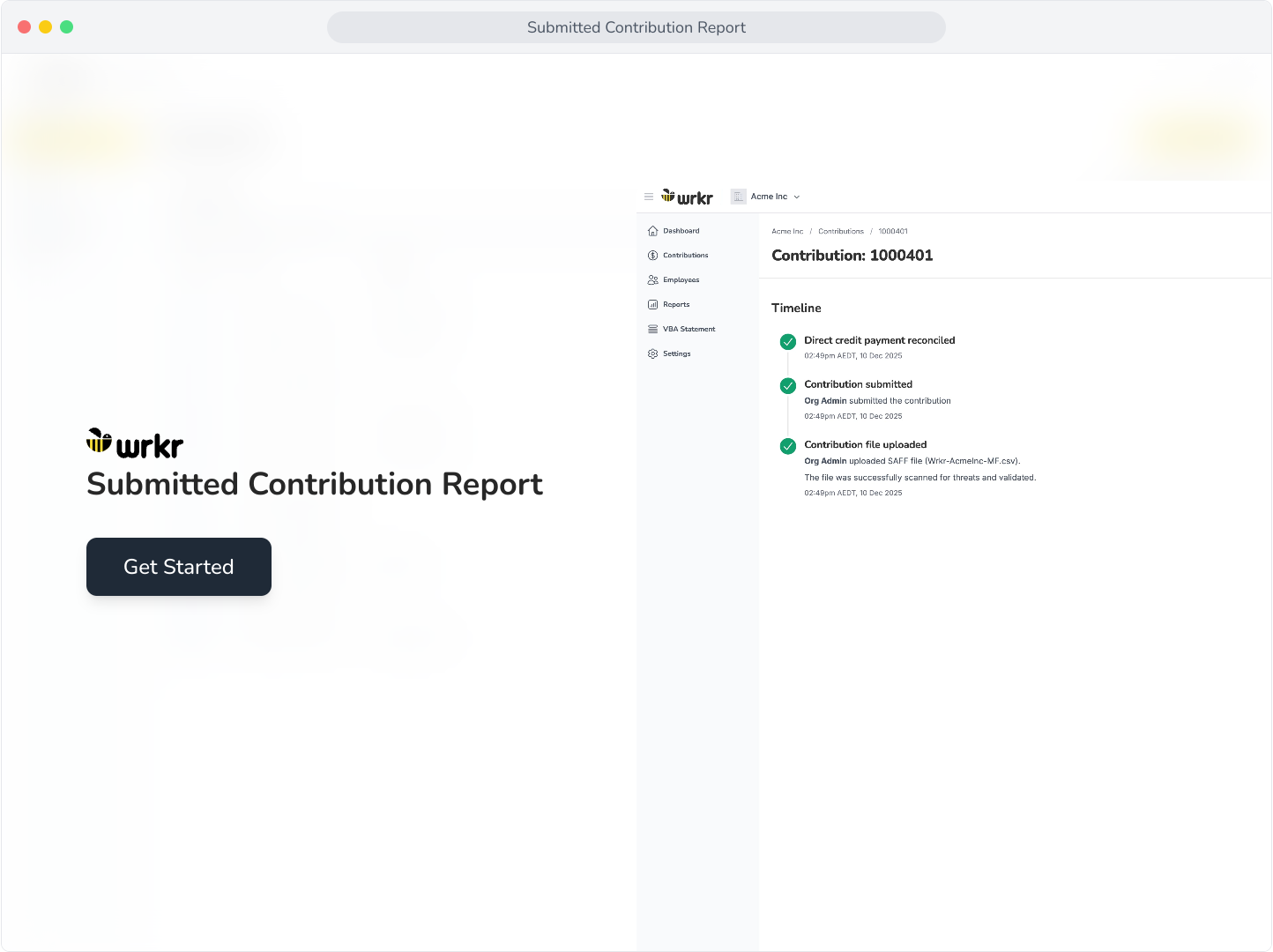
Context: This guide details the ability to export Contribution grids, view their statuses, the contribution timeline, and view and print payment details.
Interactive Demo
Note: Make the demo full-screen for a better experience. You can mute/un-mute narration to suit your preferences.
Step by Step
1. Submitted Contribution Report
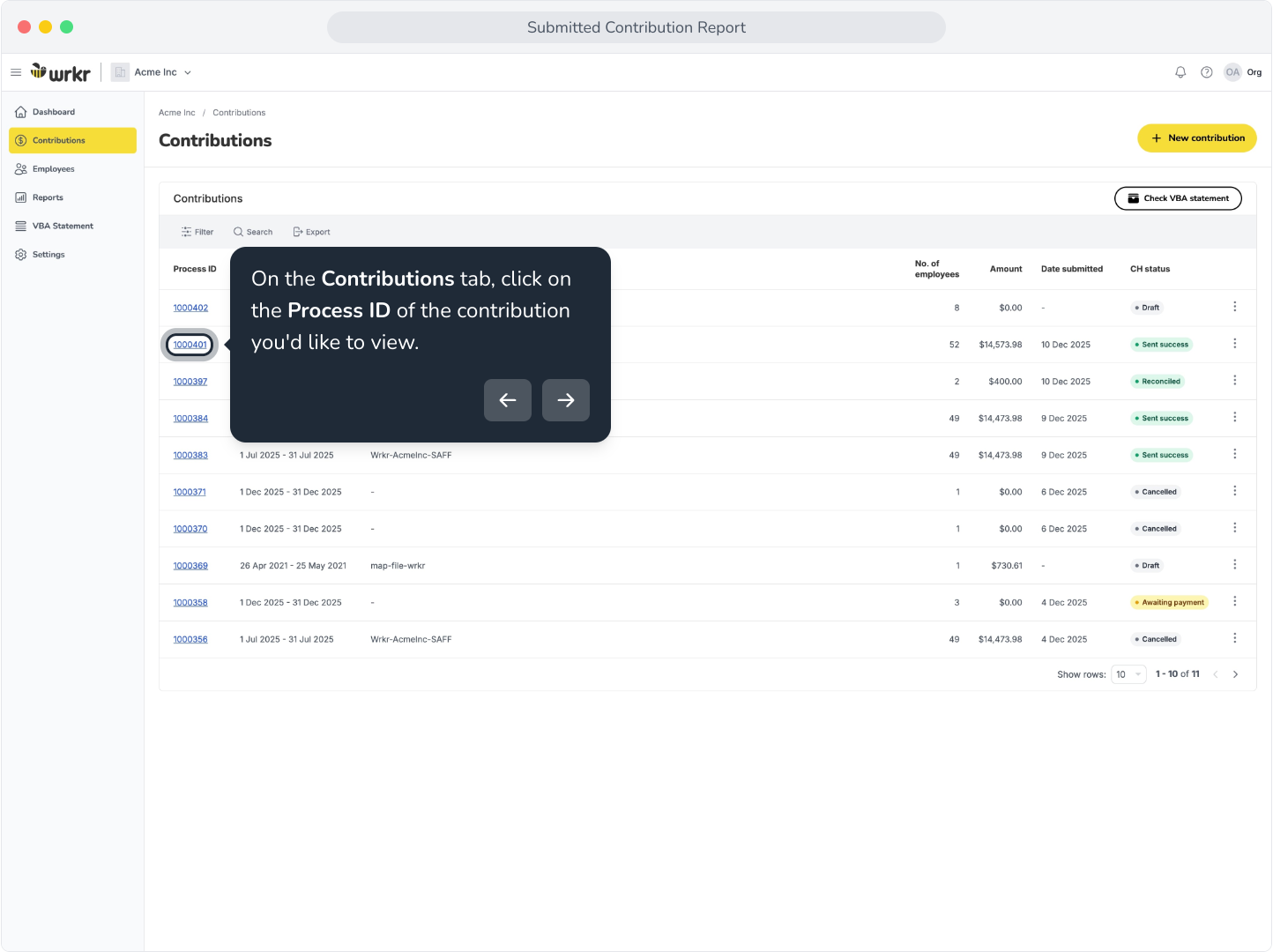
2. On the Contributions tab, click on the Process ID of the contribution you'd like to view.
3. In this view, you can see details specific to your selected contribution.
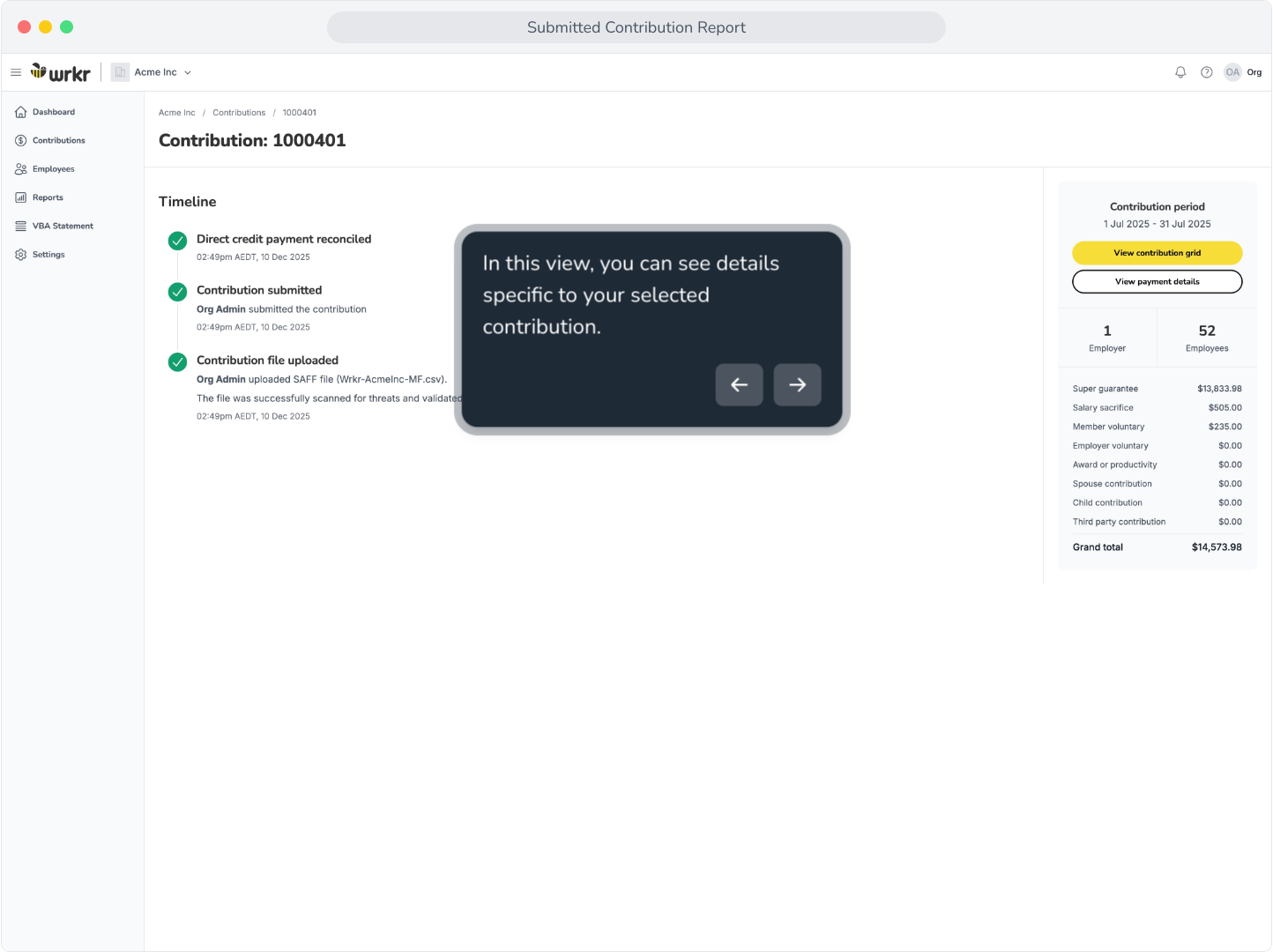
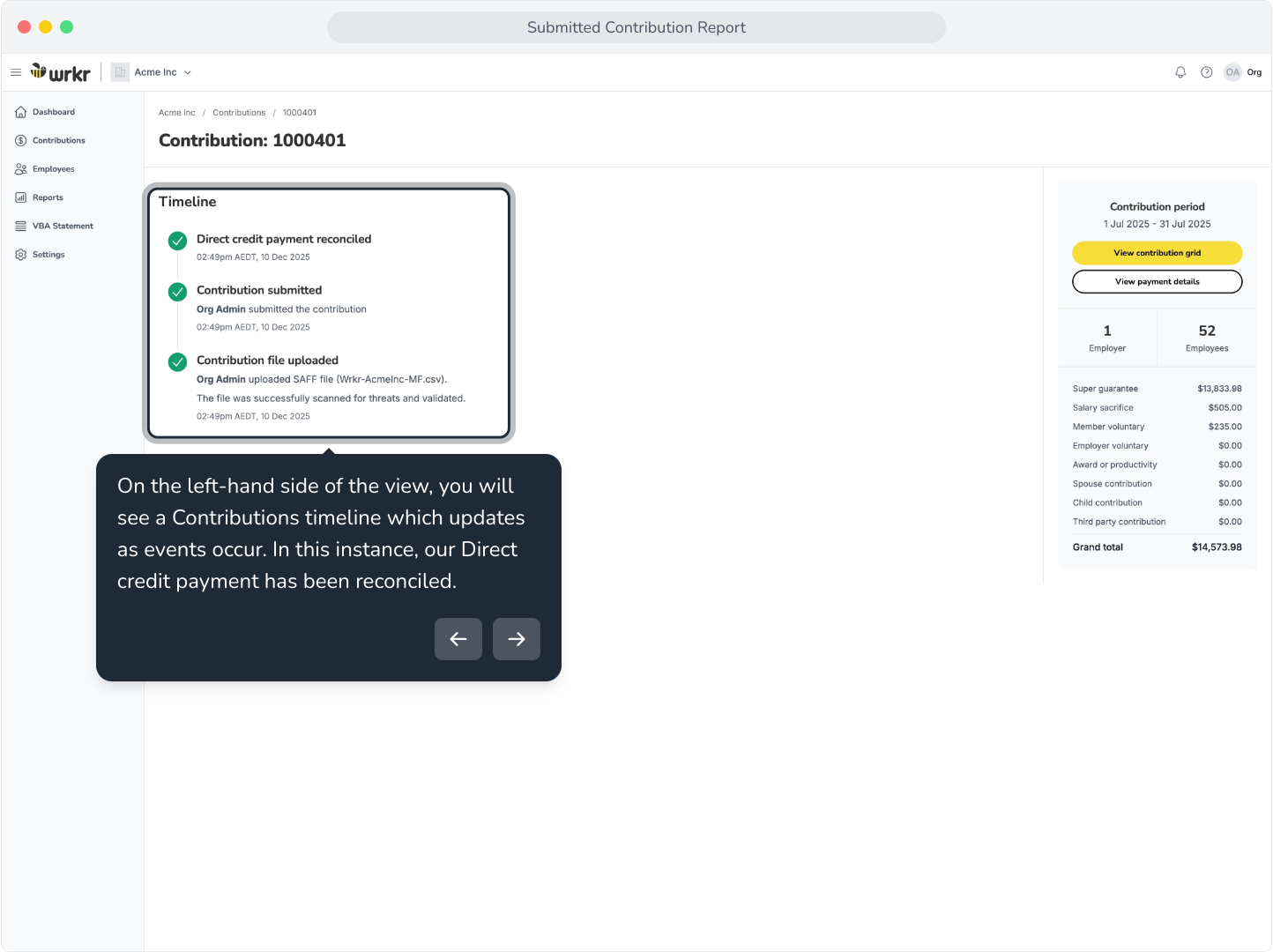
4. On the left-hand side of the view, you will see a Contributions timeline which updates as events occur. In this instance, our Direct credit payment has been reconciled.
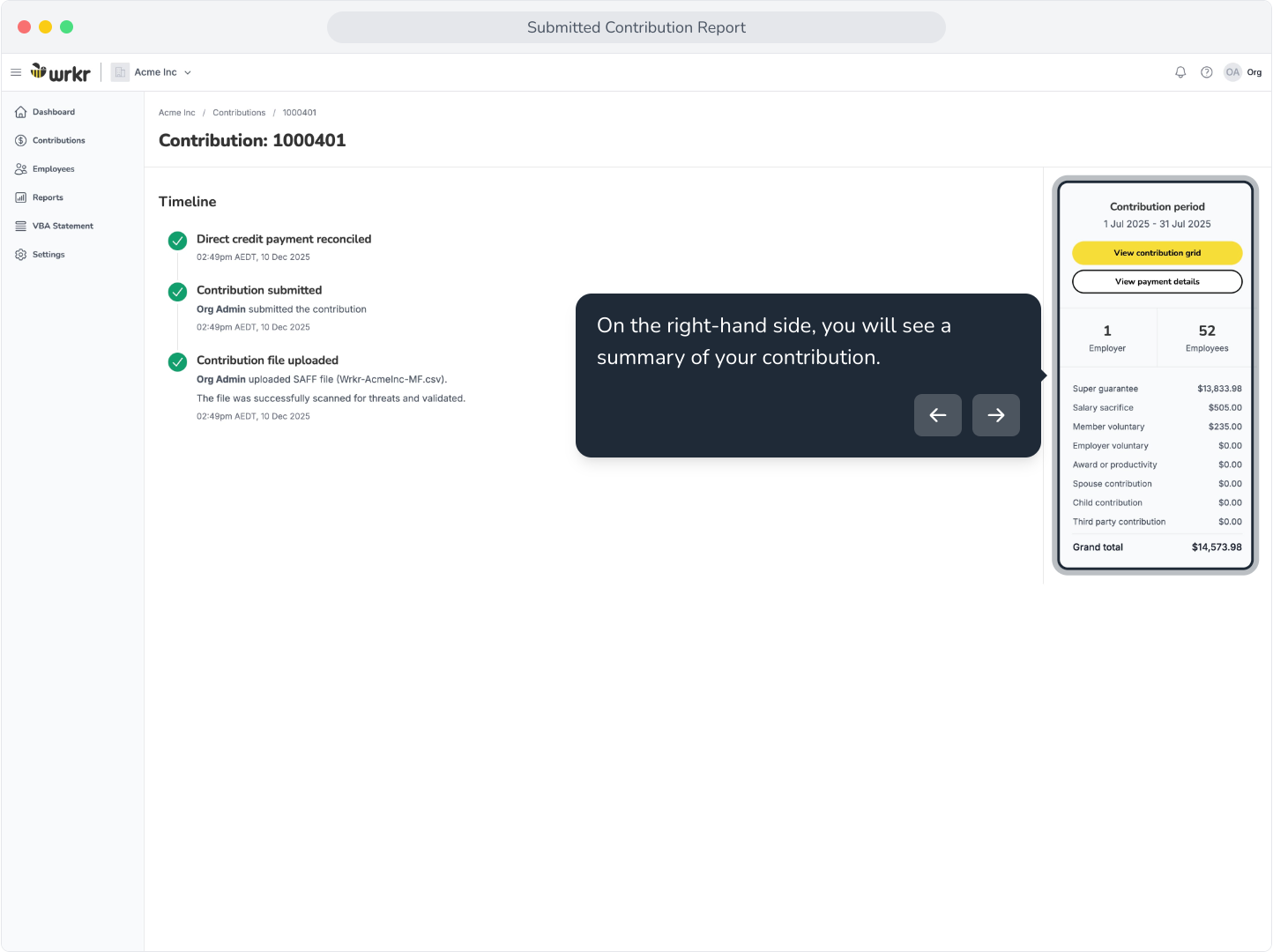
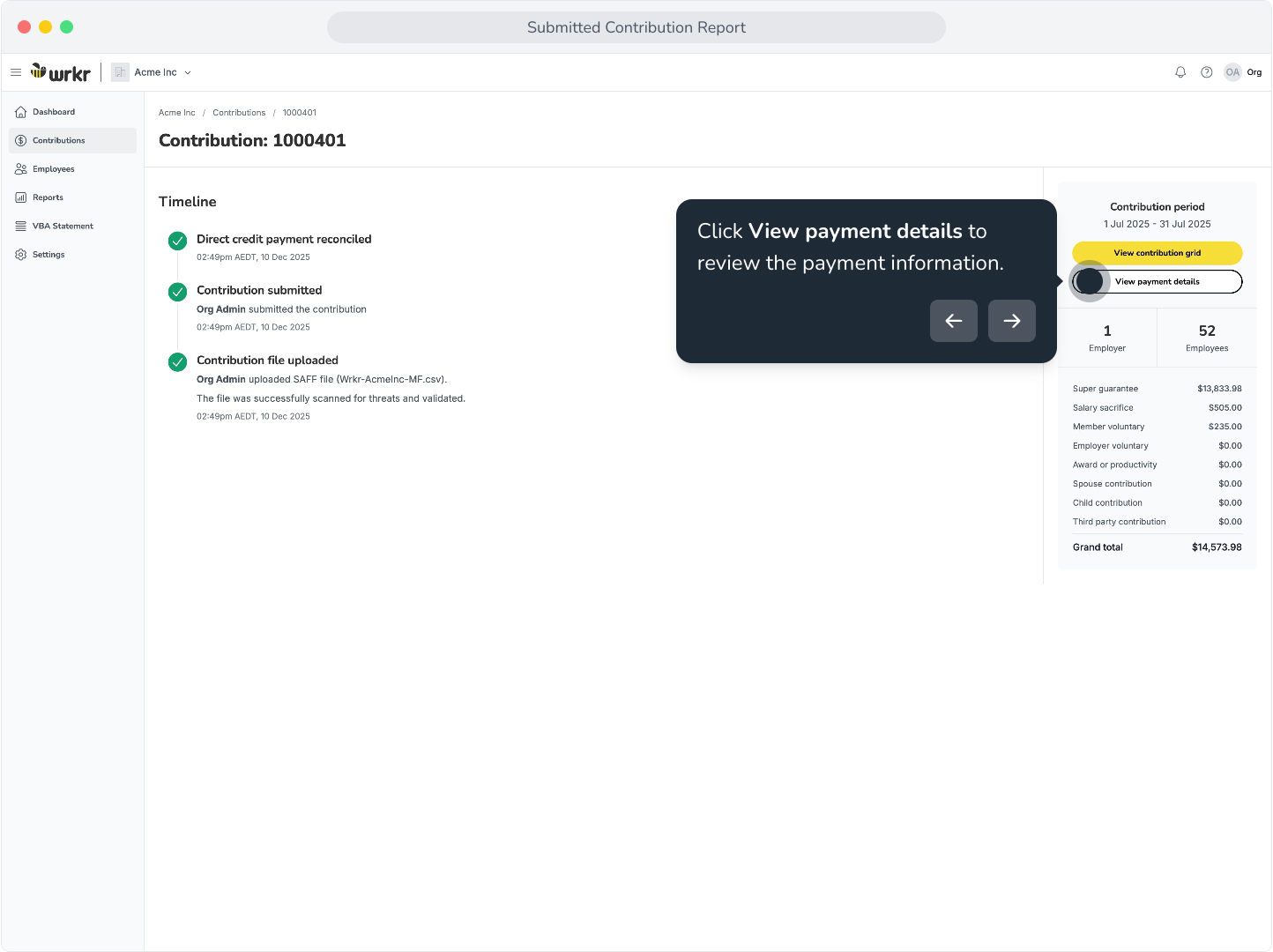
5. On the right-hand side, you will see a summary of your contribution.
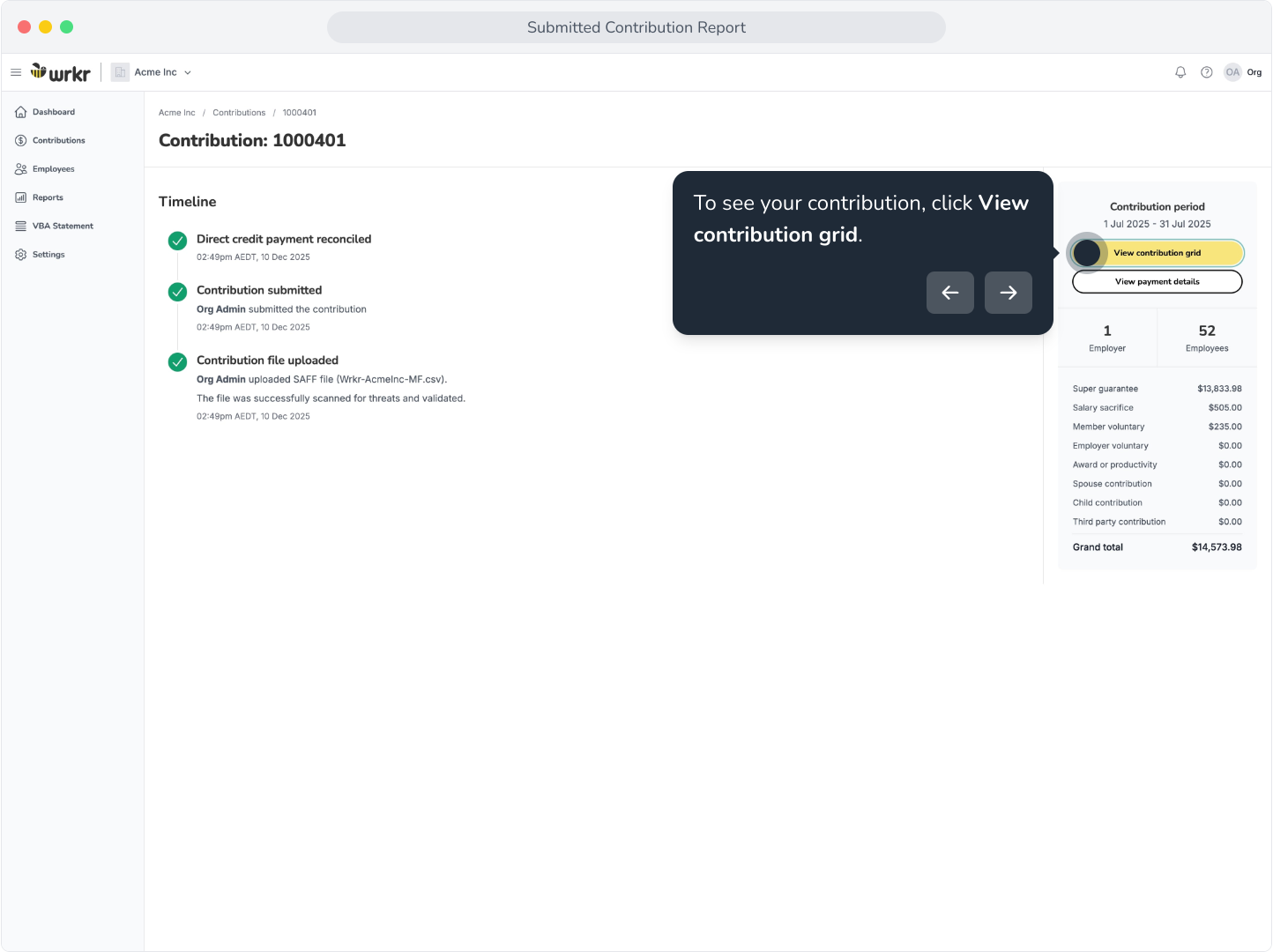
6. To see your contribution, click View contribution grid.
7. Here, you can revisit the grid for your contributions in any status.
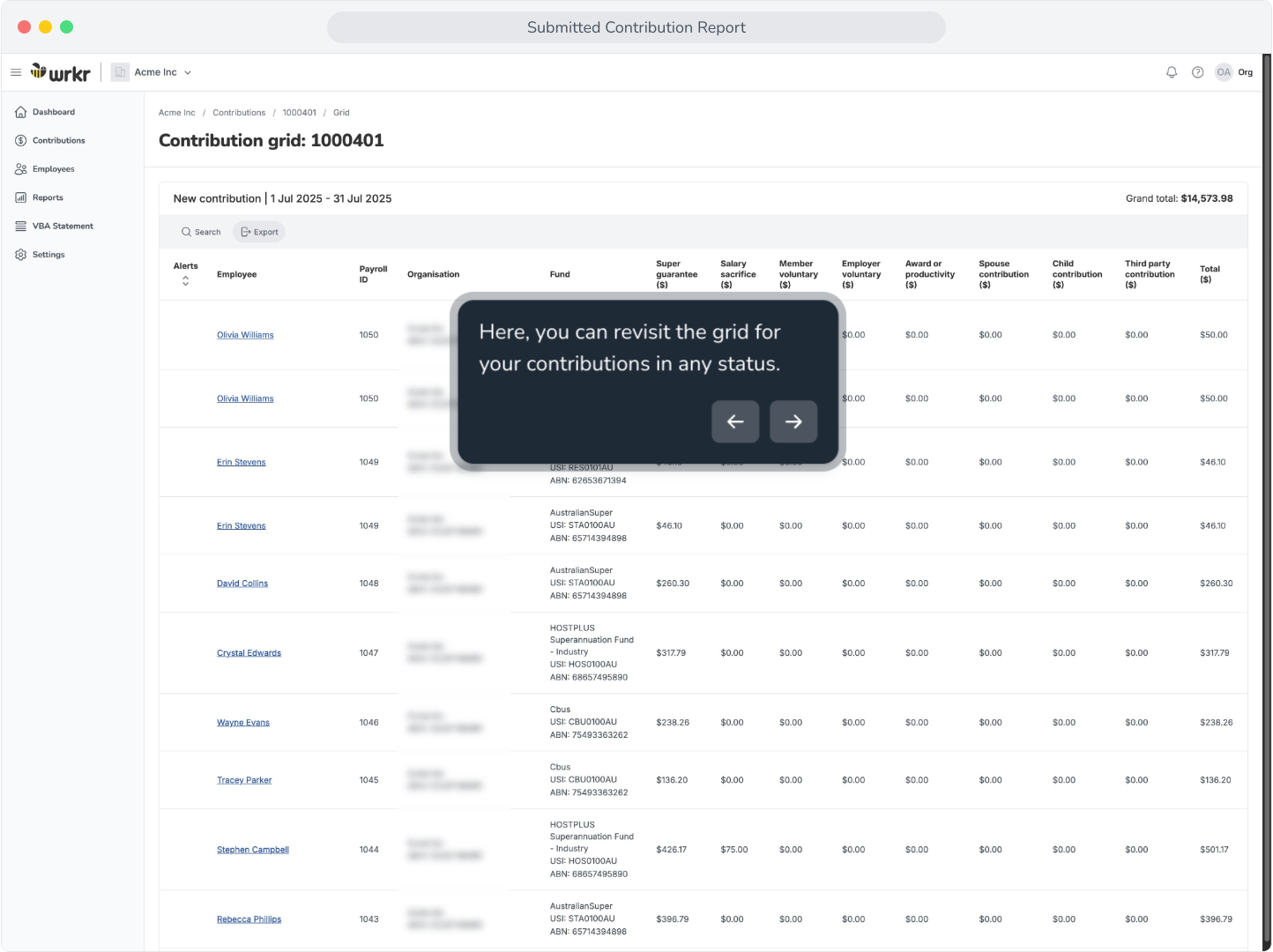
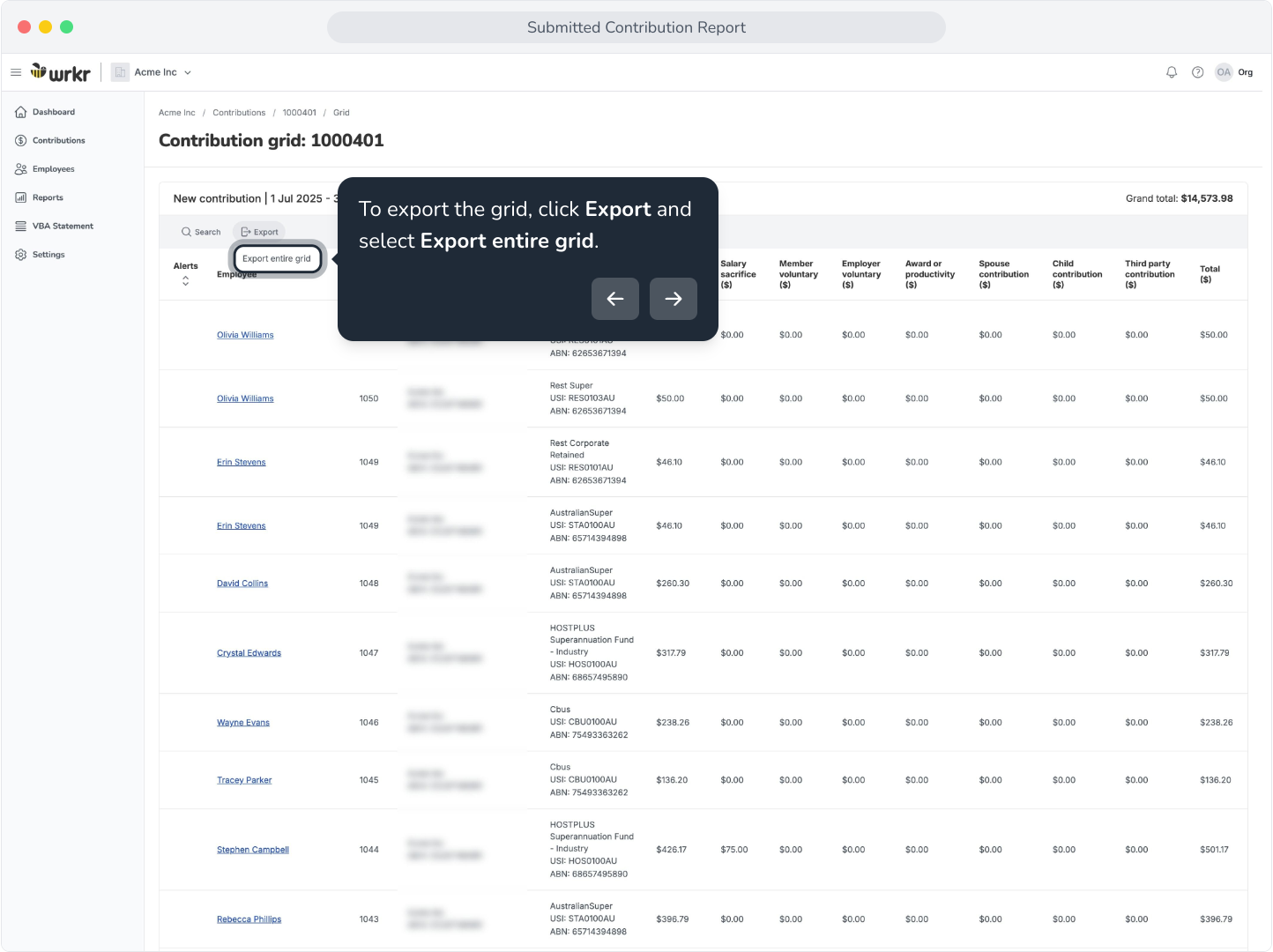
8. To export the grid, click Export and select Export entire grid.
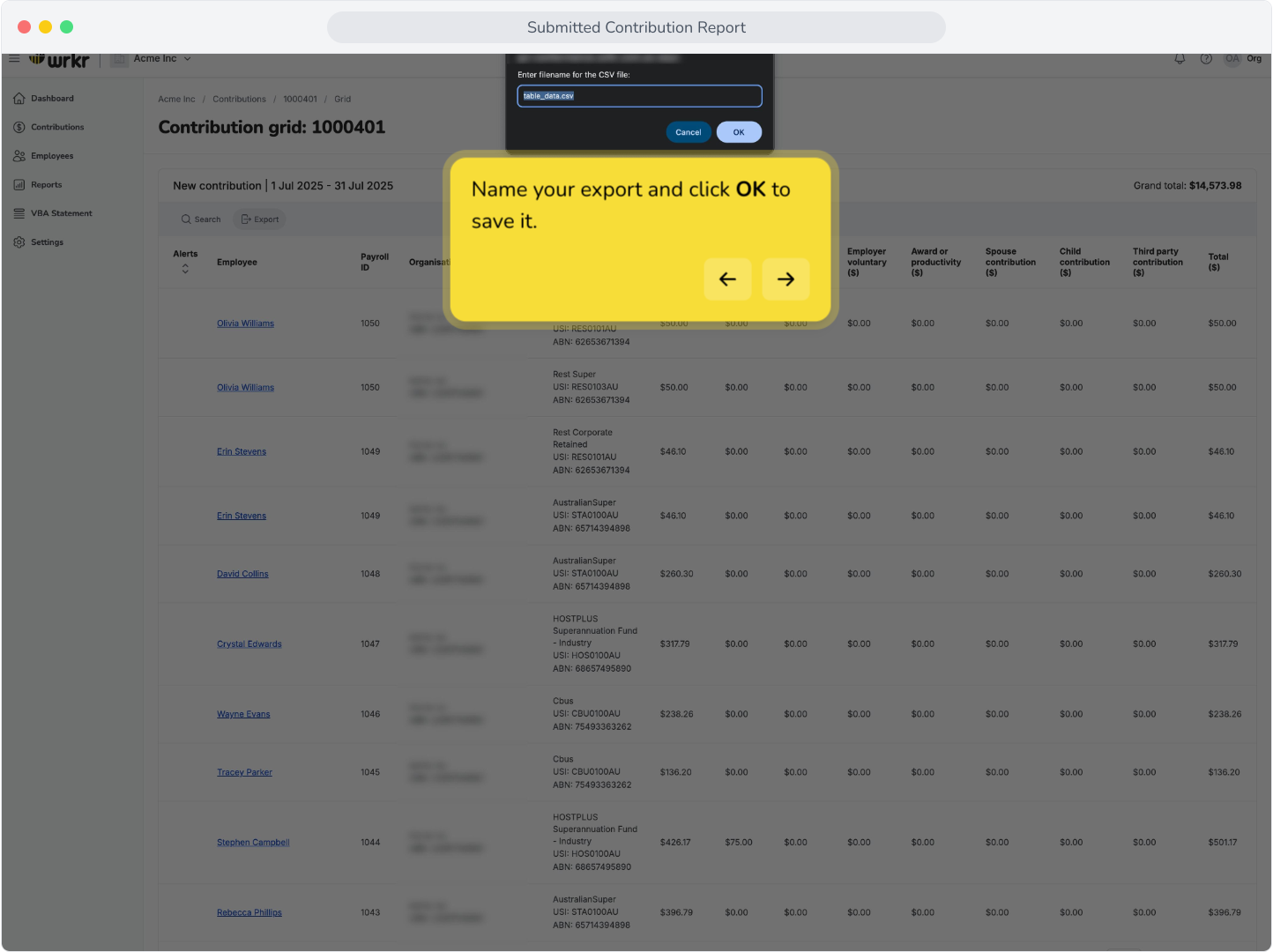
9. Name your export and click OK to save it.
10. Click View payment details to review the payment information.
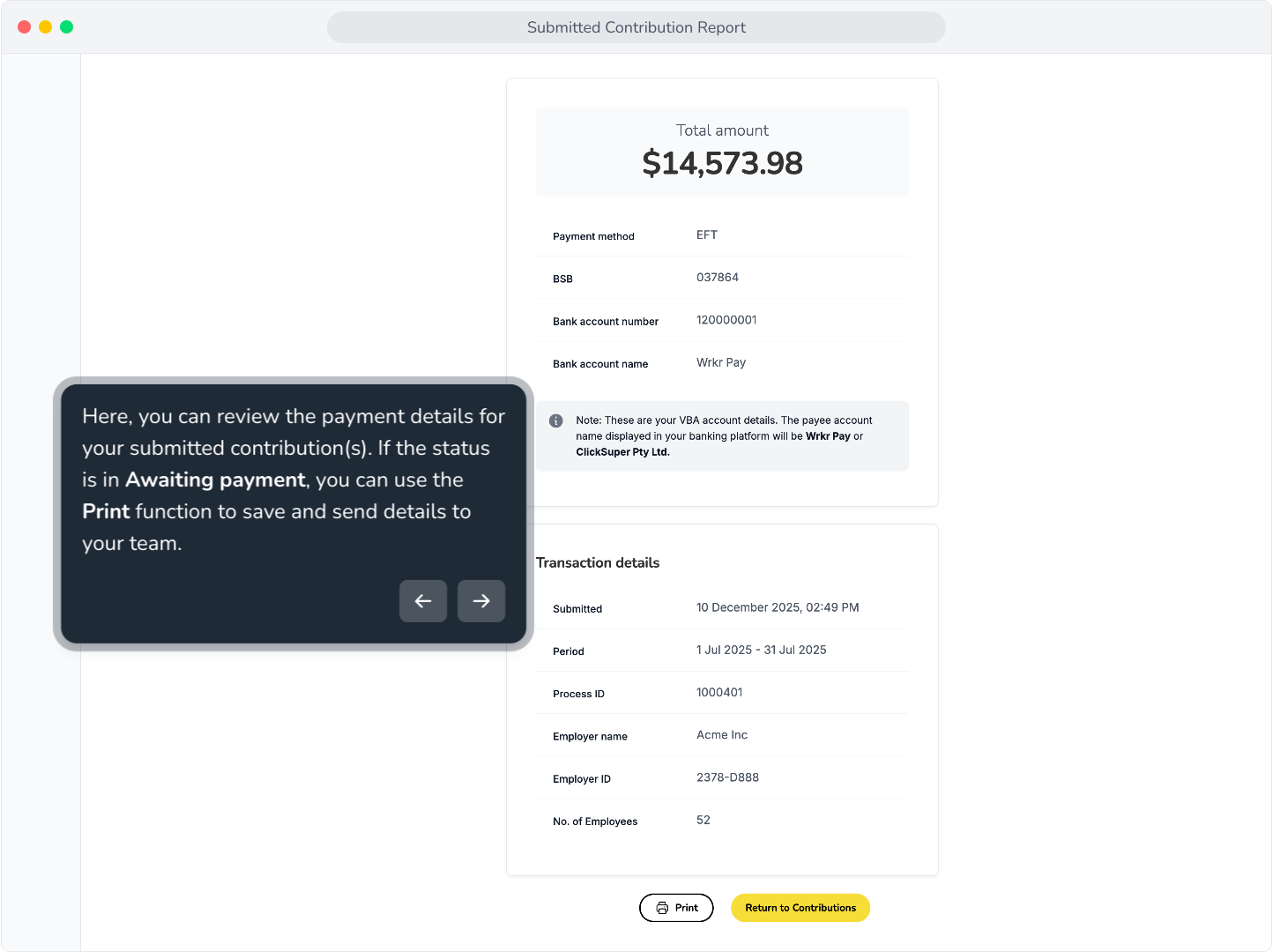
11. Here, you can review the payment details for your submitted contribution(s). If the status is in Awaiting payment, you can use the Print function to save and send details to your team.