Context: This guide explains how users can update their email via the Profile Settings section of the Wrkr Portal.
Interactive Demo
Note: Make the demo full-screen for a better experience. You can mute/un-mute narration to suit your preferences.
Step by Step
1. Edit Personal Information – Email
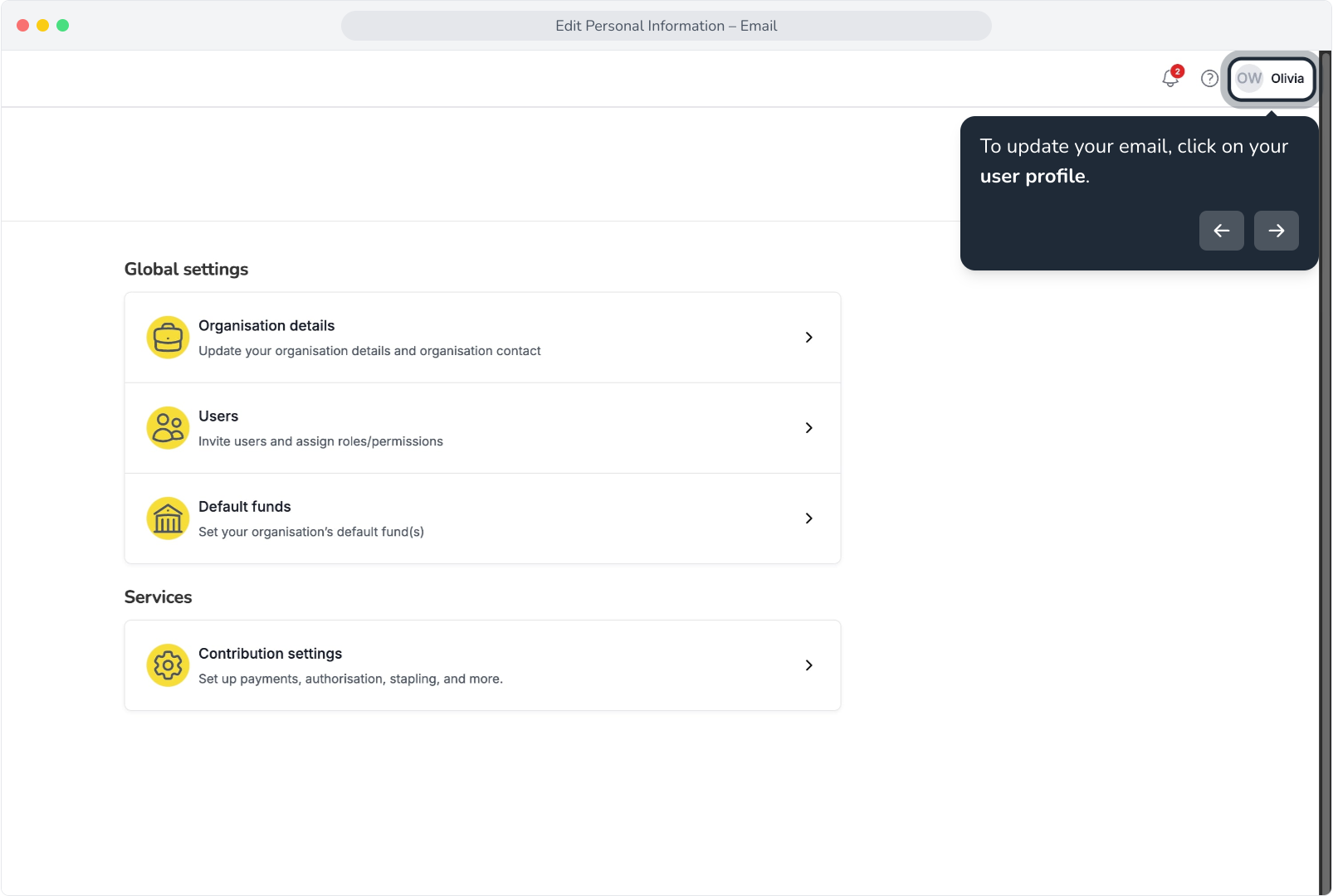
2. To update your email, click on your user profile.
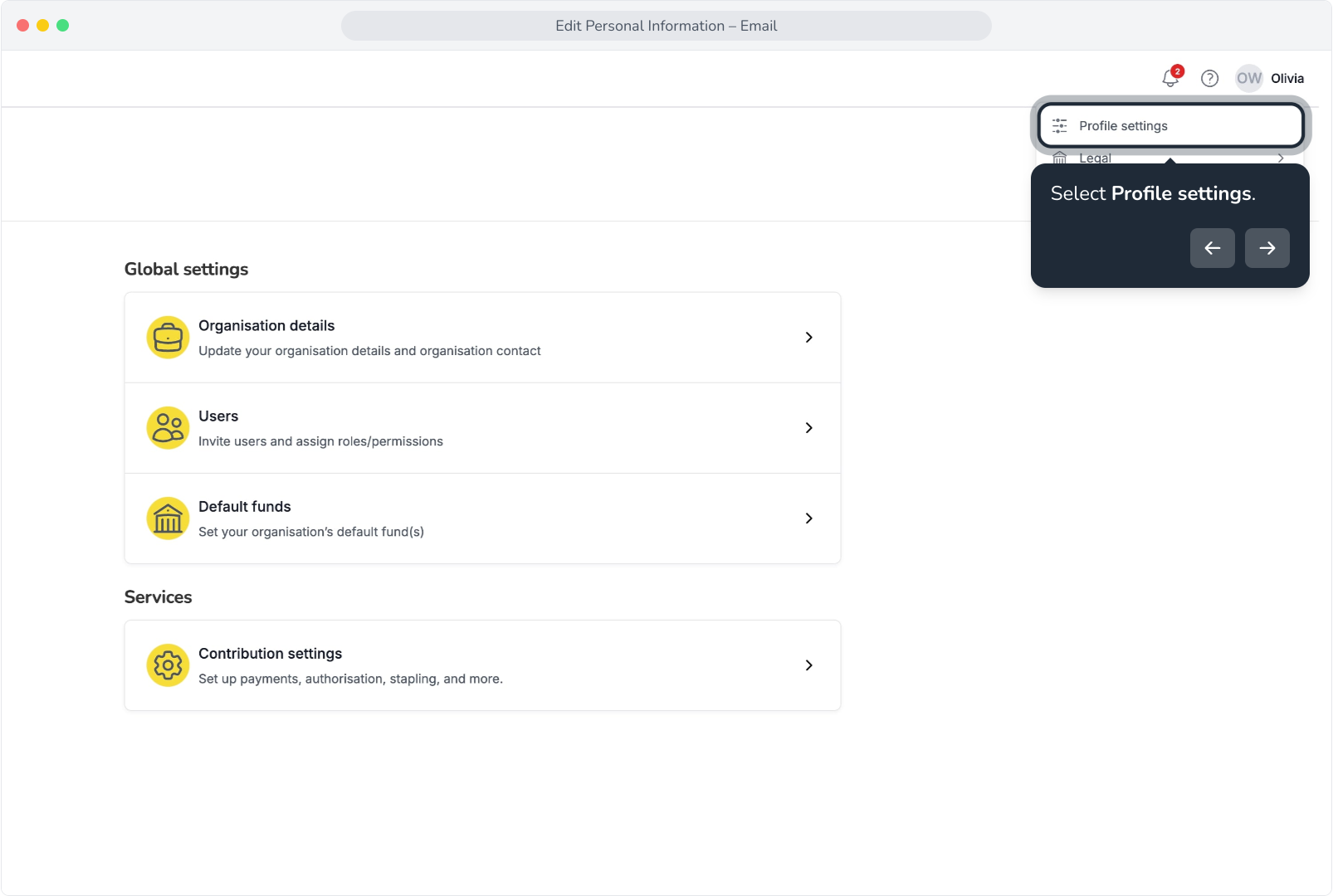
3. Select Profile settings.
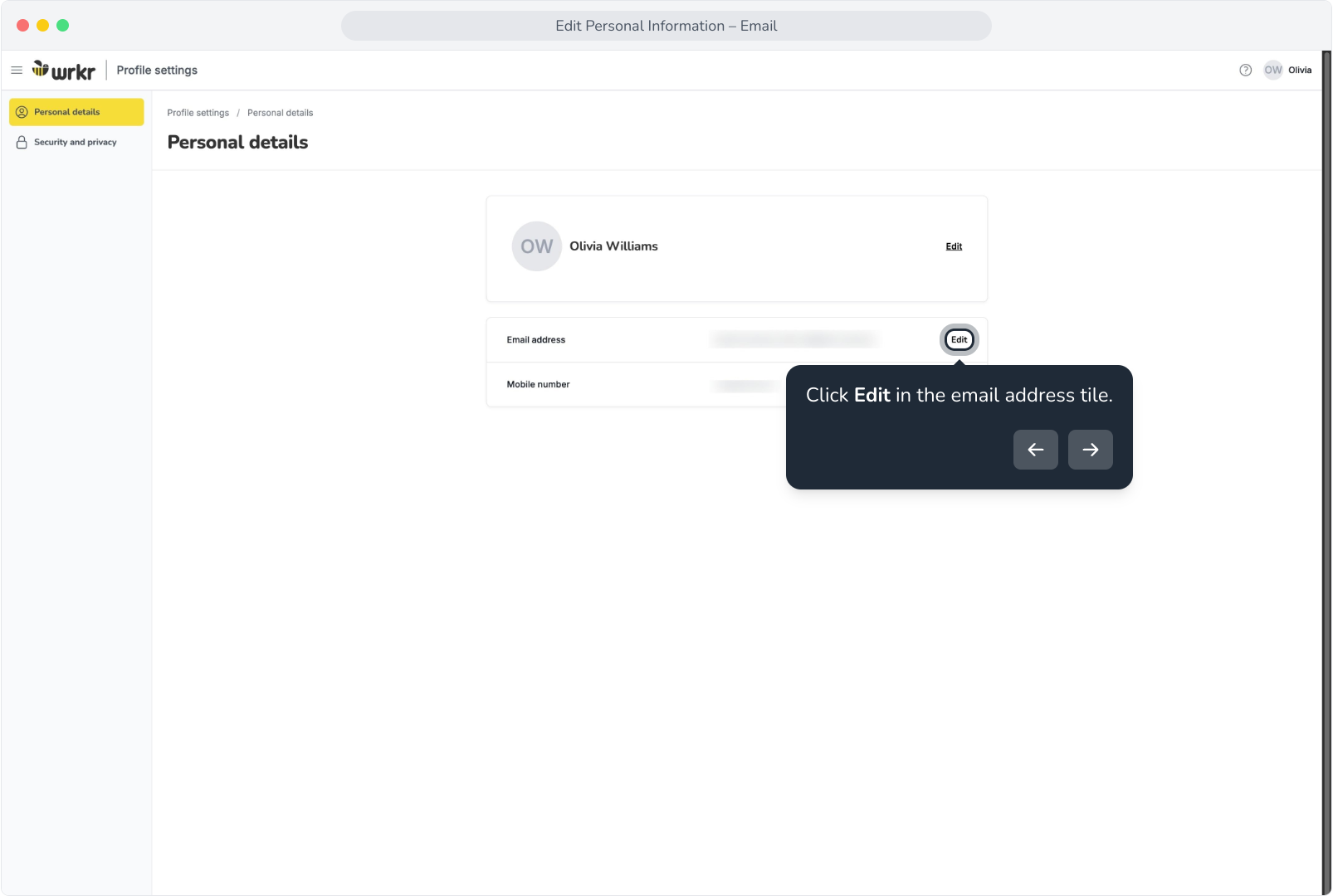
4. Click Edit in the email address tile.
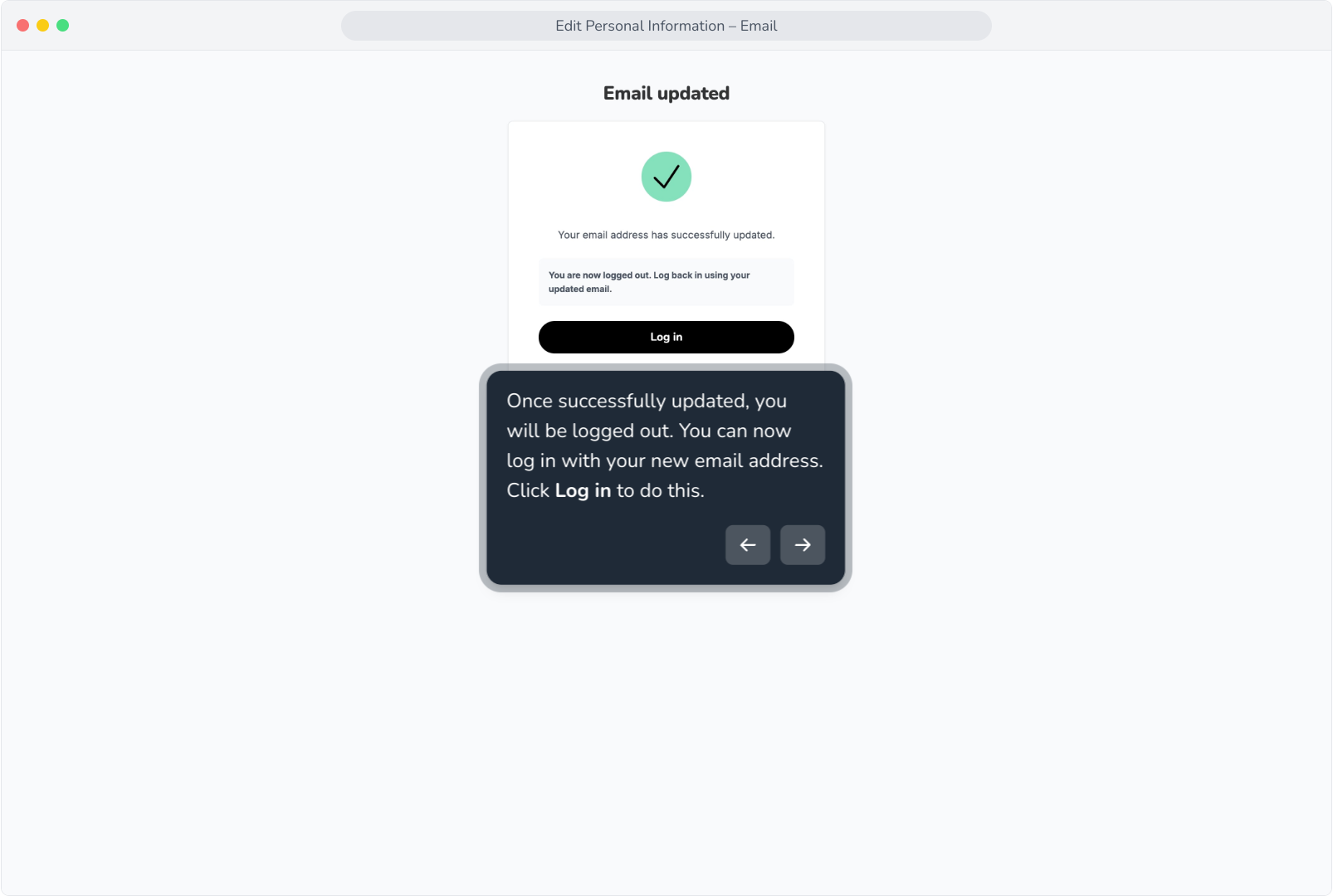
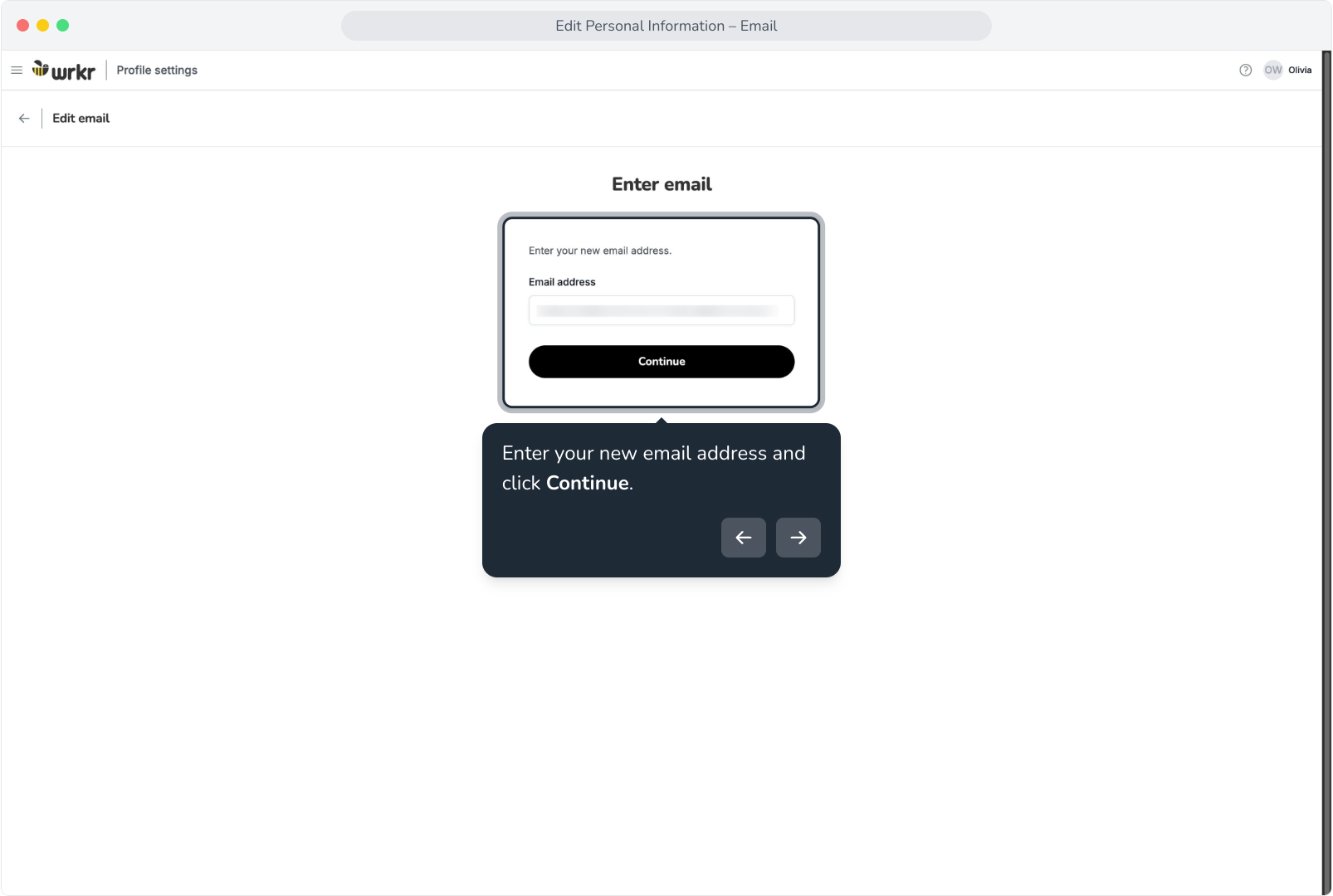
5. Enter your new email address and click Continue.
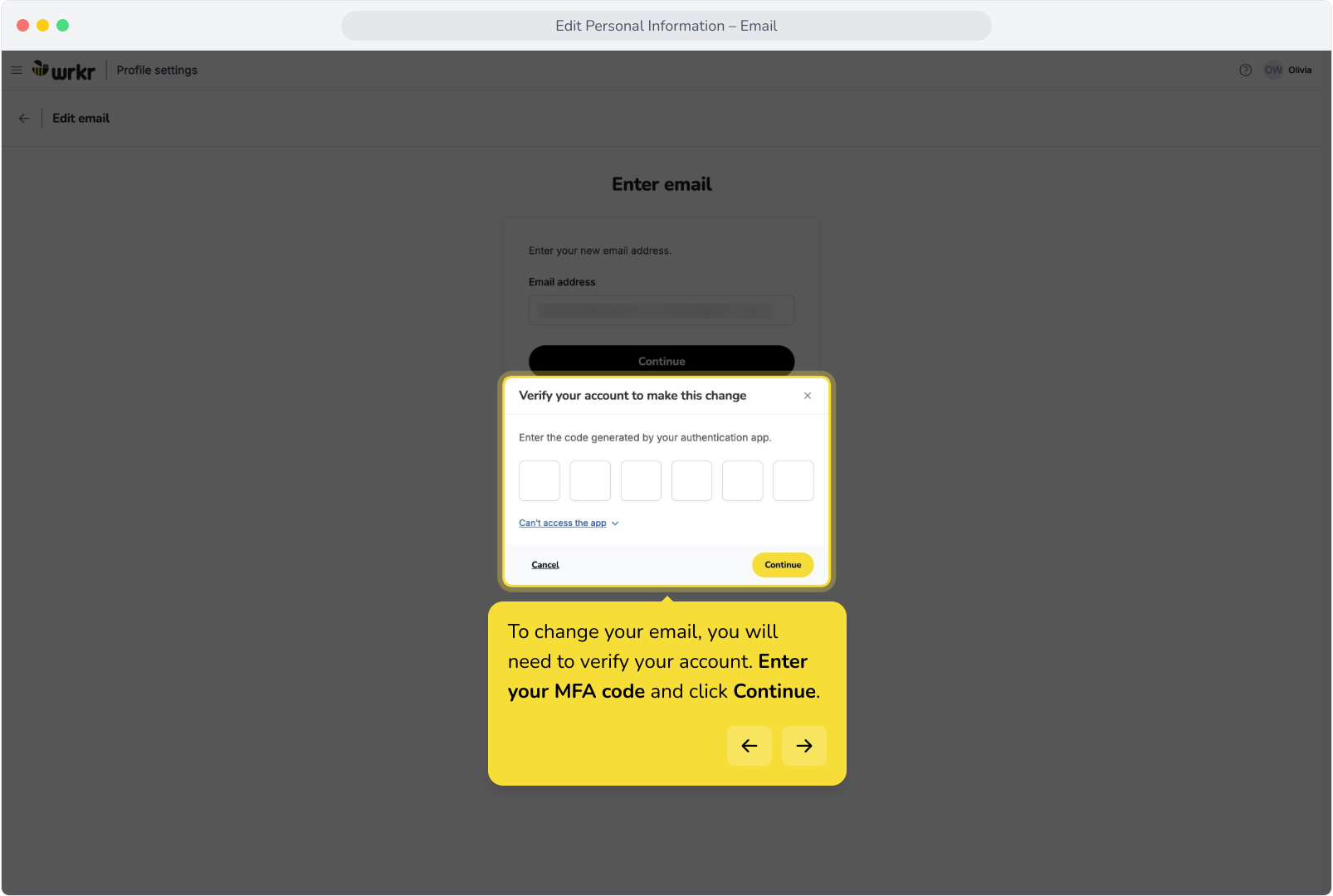
6. To change your email, you will need to verify your account. Enter your MFA code and click Continue.
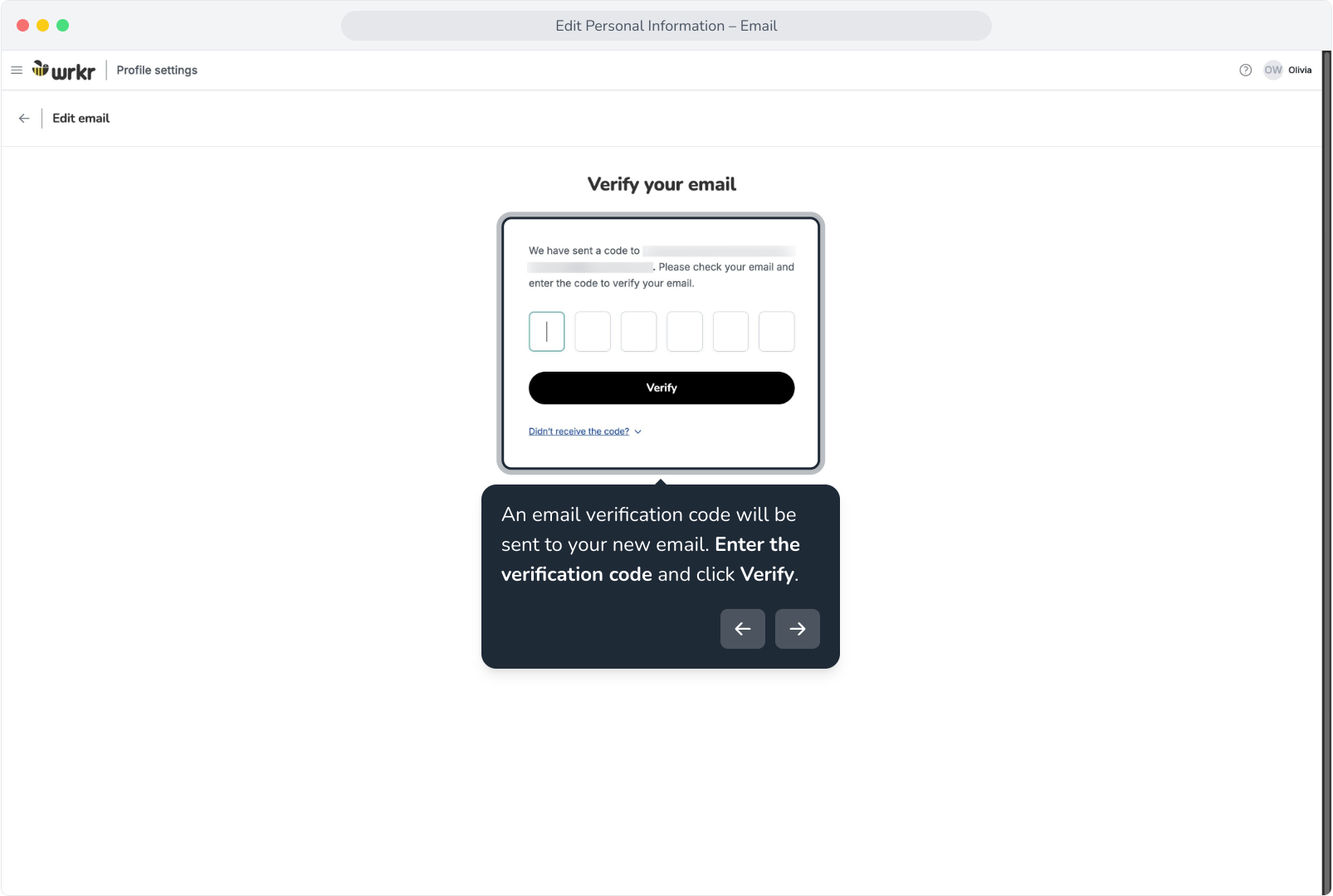
7. An email verification code will be sent to your new email. Enter the verification code and click Verify.
8. Once successfully updated, you will be logged out. You can now log in with your new email address. Click Log in to do this.