Context: This guide covers the steps involved in adding an employee via online onboarding in the Wrkr Portal, and the Employer's view throughout the process.
Interactive Demo
Note: Make the demo full-screen for a better experience. You can mute/un-mute narration to suit your preferences.
Step by Step
1. Adding employees to your account – Onboard Online Process – Employer View
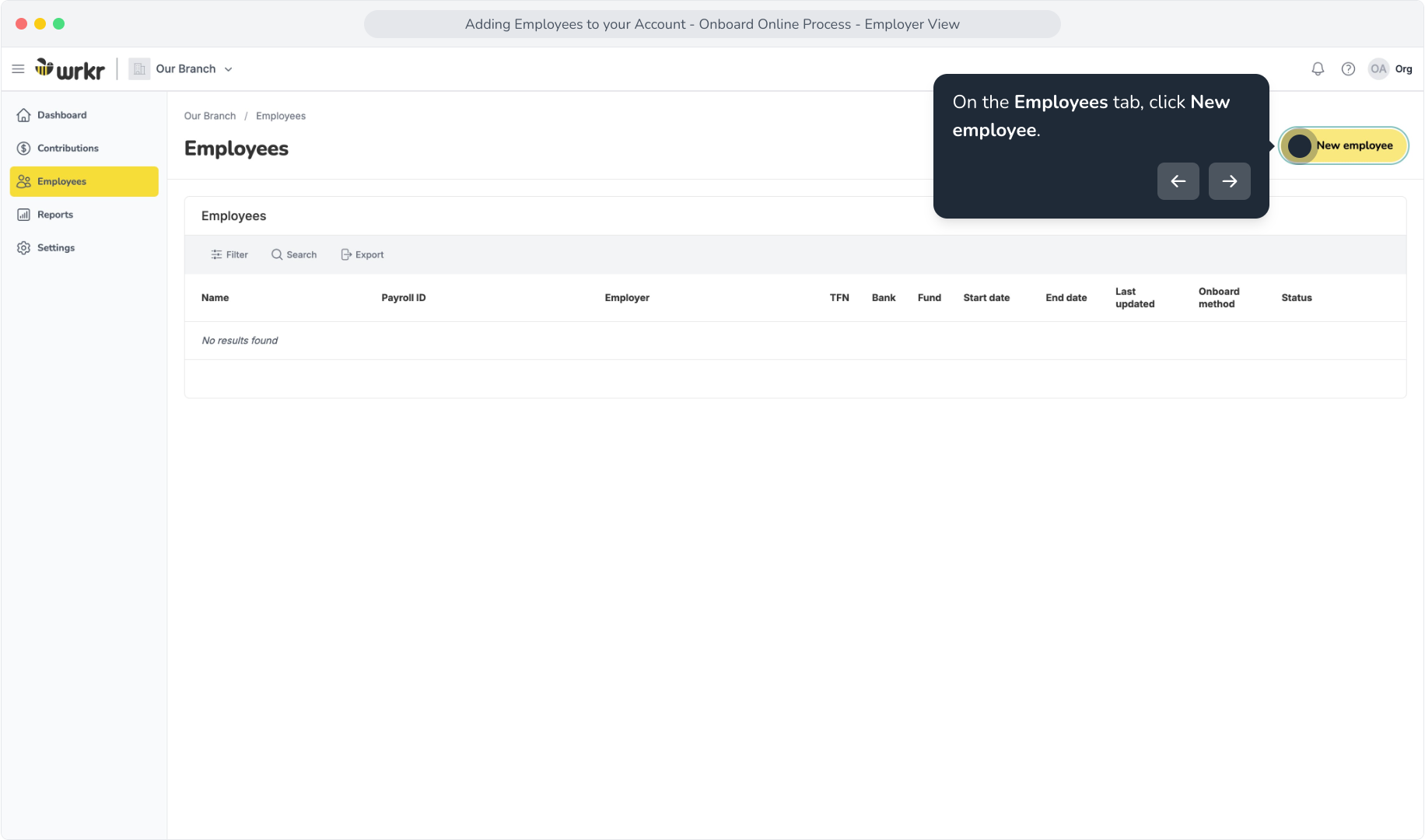
2. On the Employees tab, click New employee.
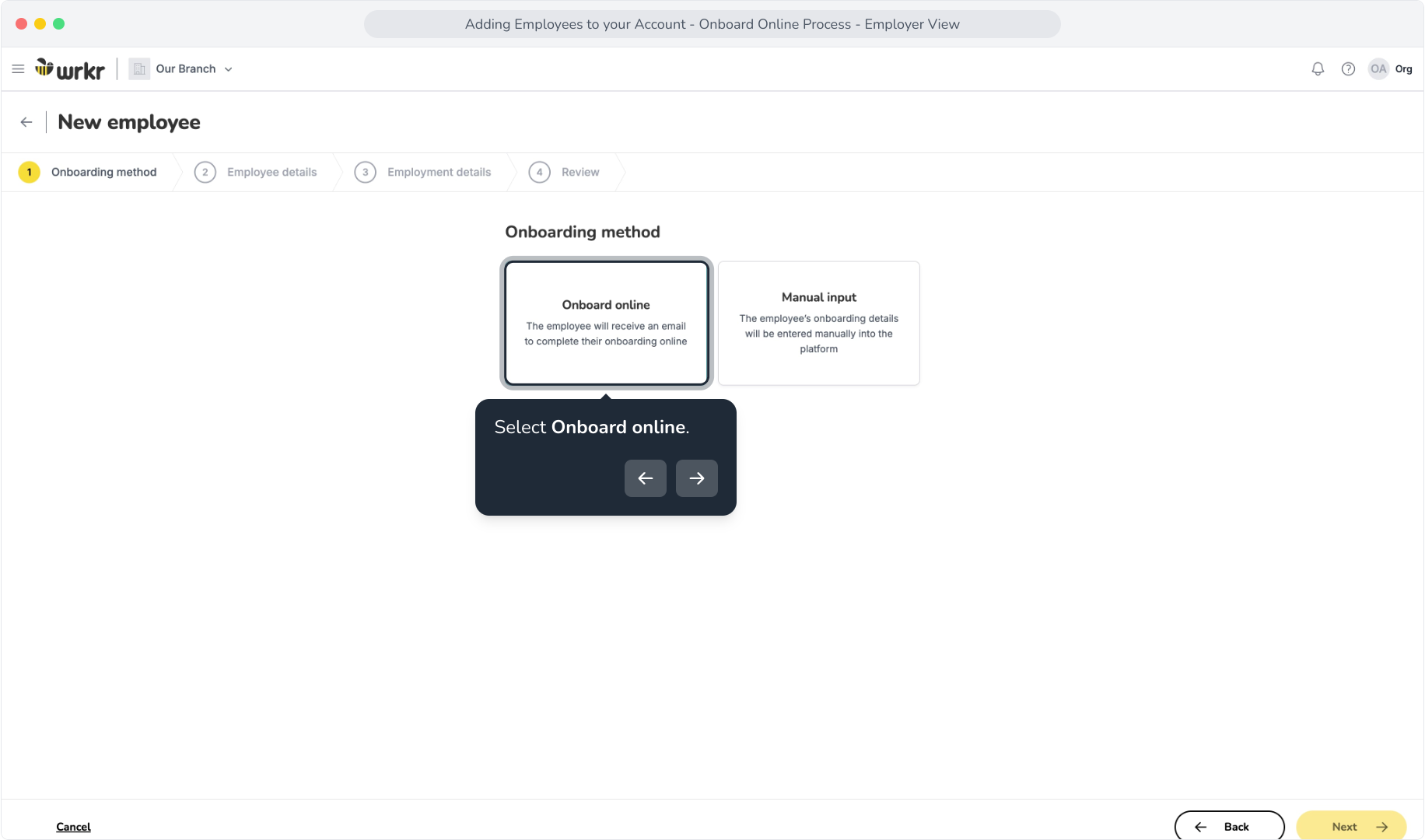
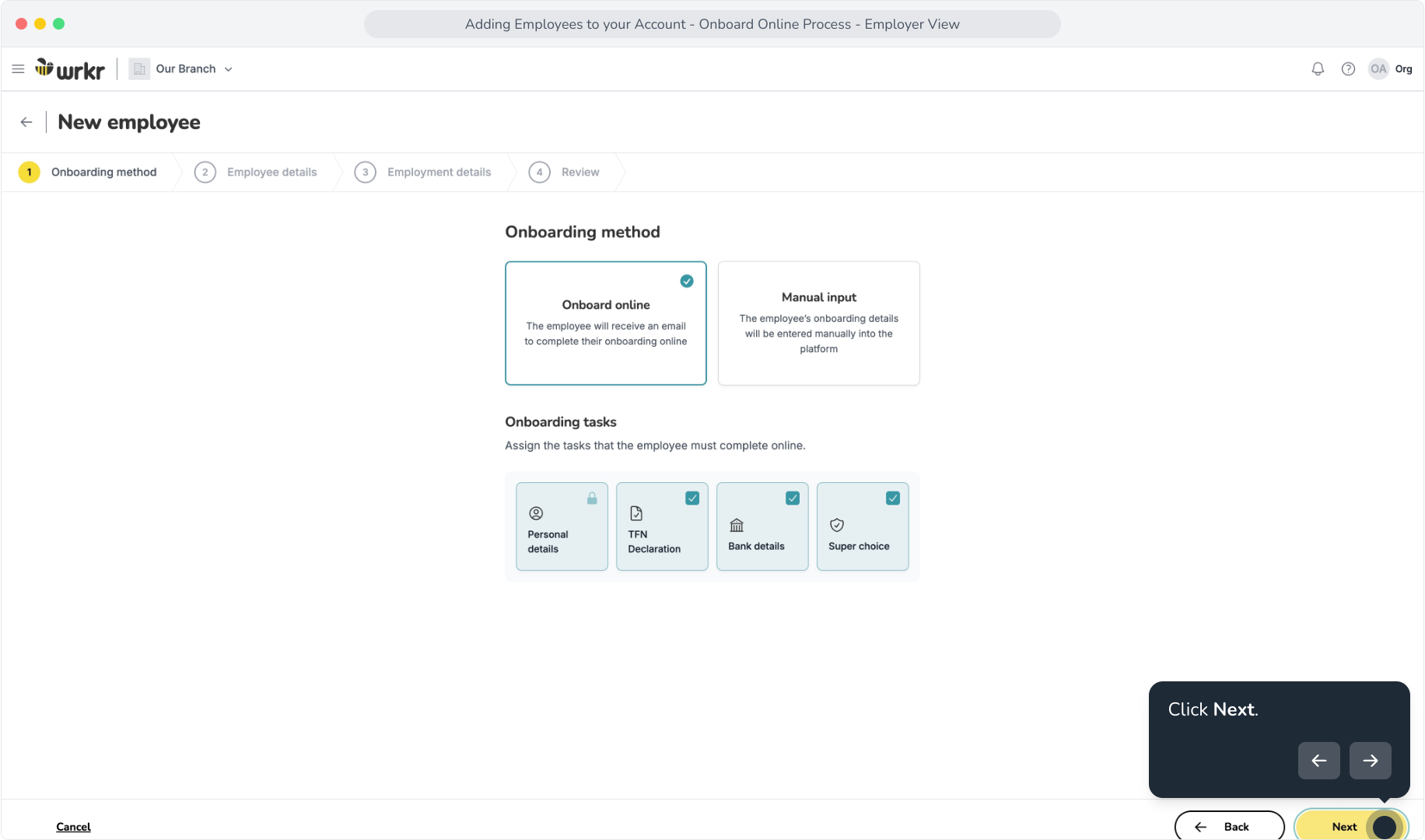
3. Select Onboard online.
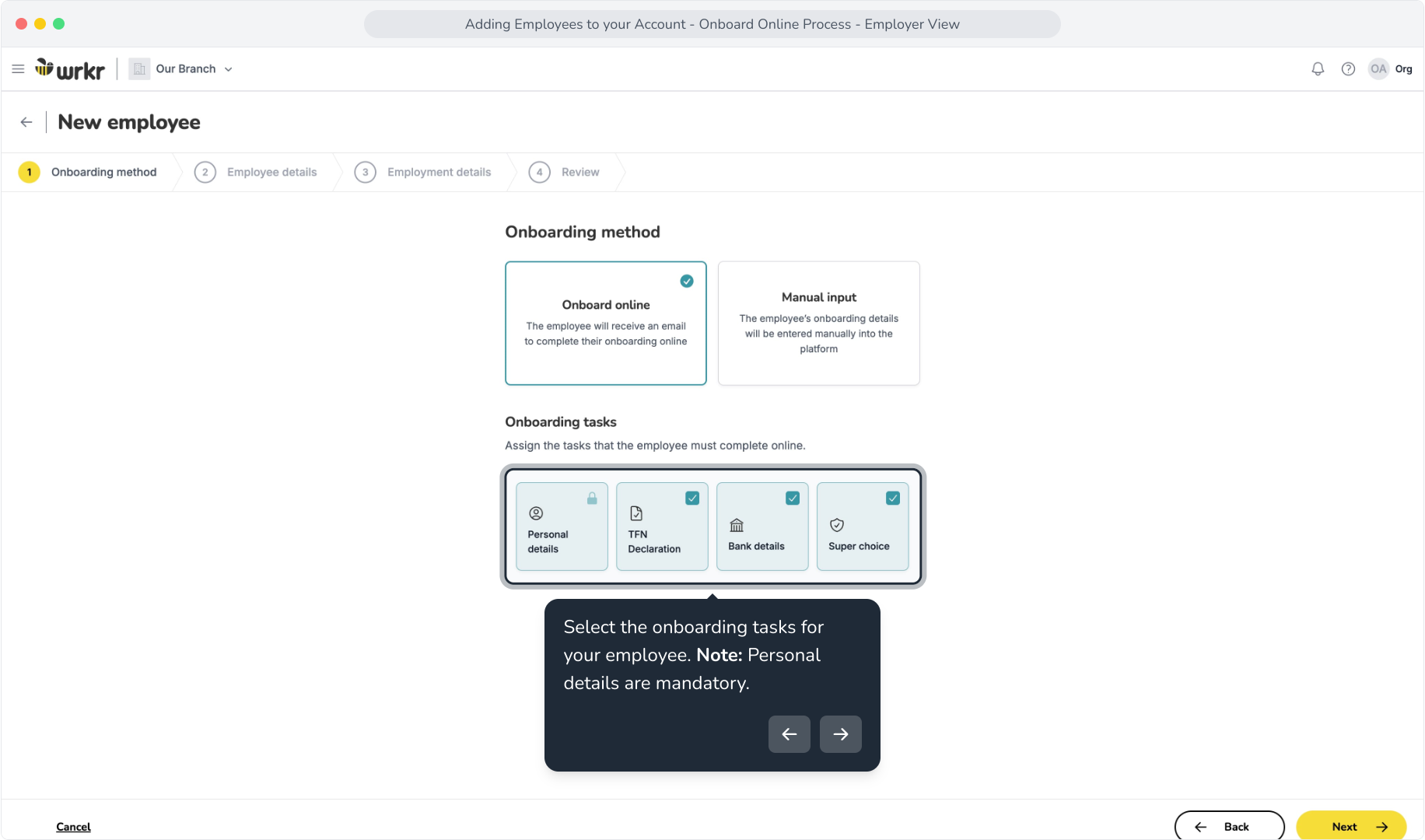
4. Select the onboarding tasks for your employee. Note: Personal details are mandatory.
5. Click Next.
6. Enter your employee's details
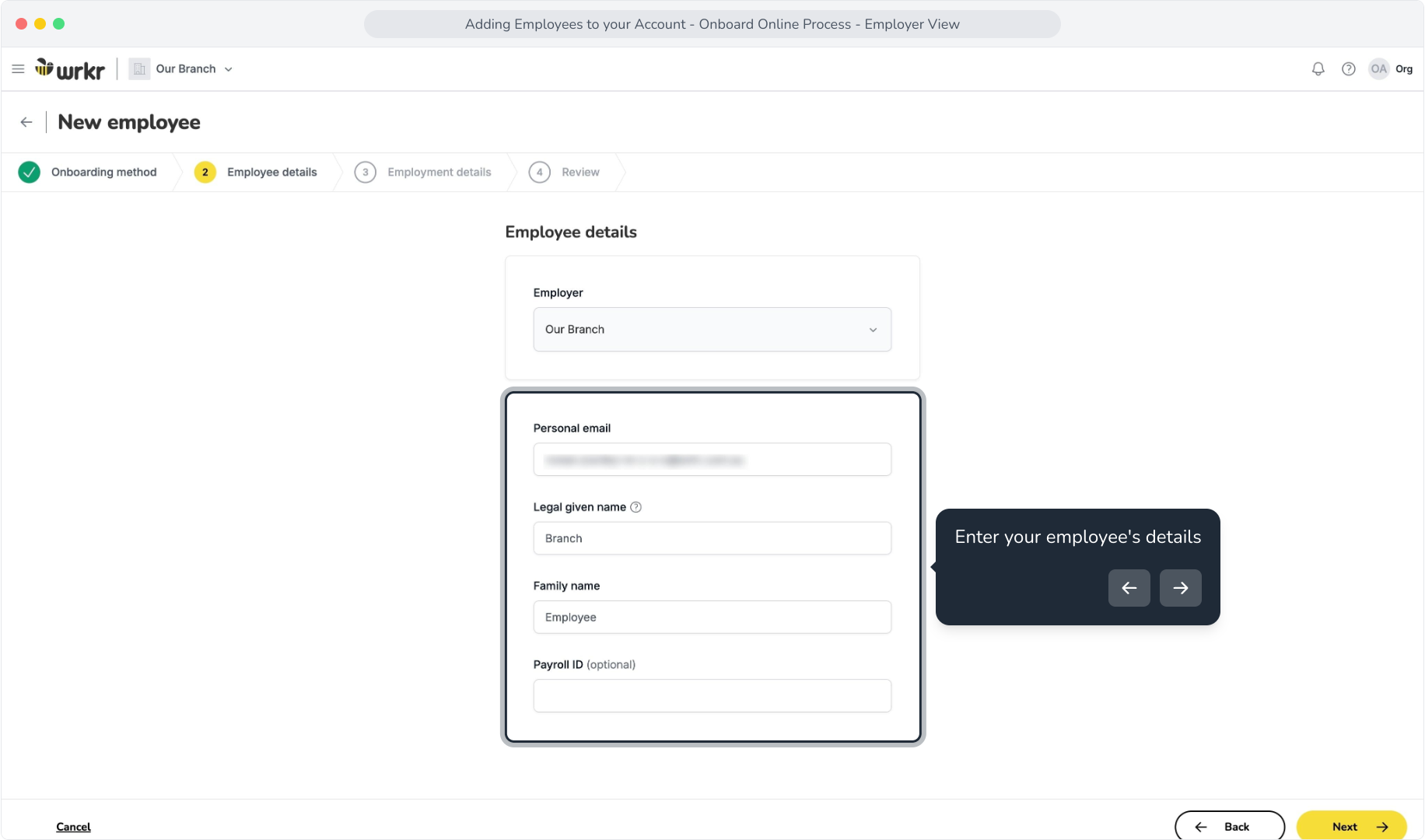
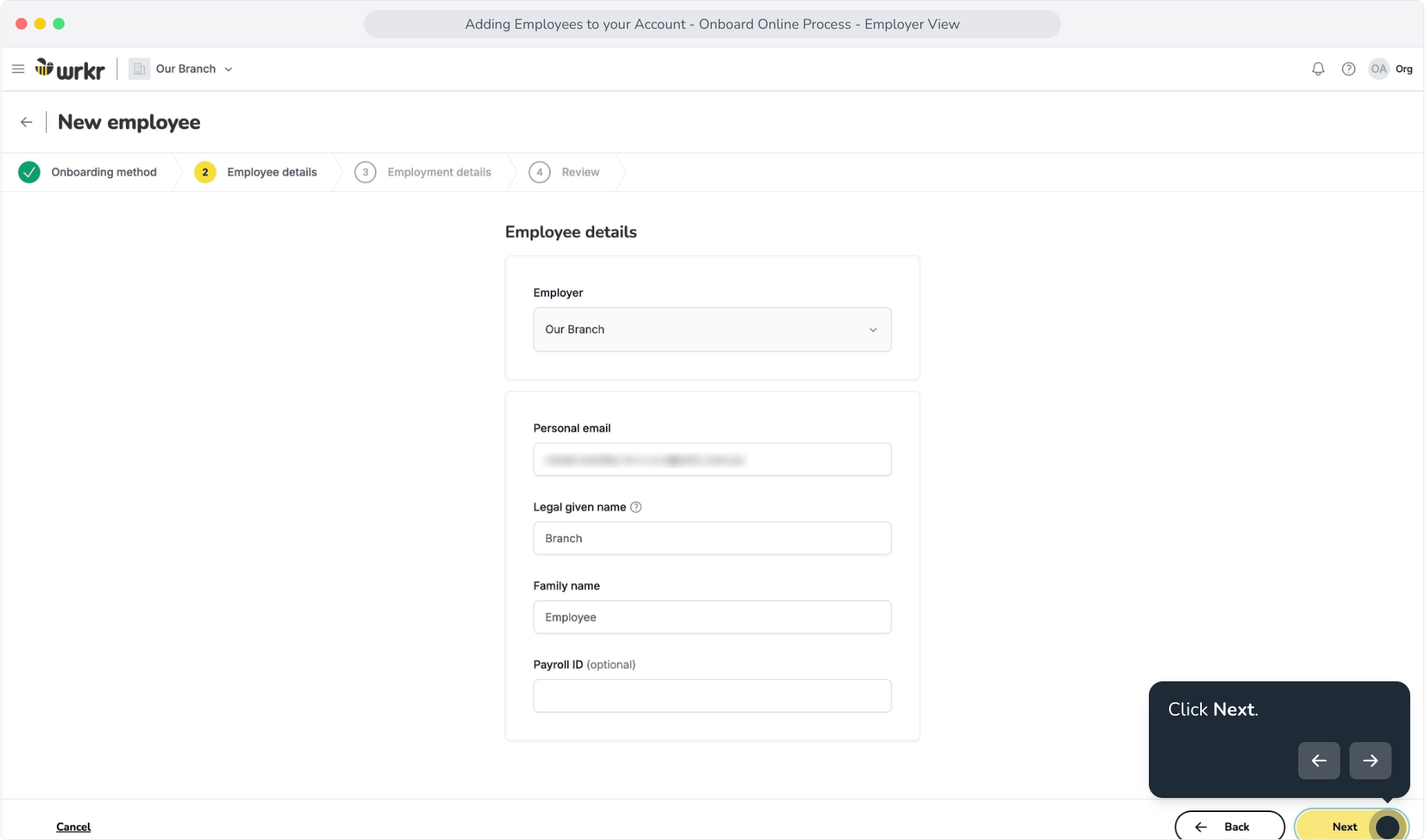
7. Click Next.
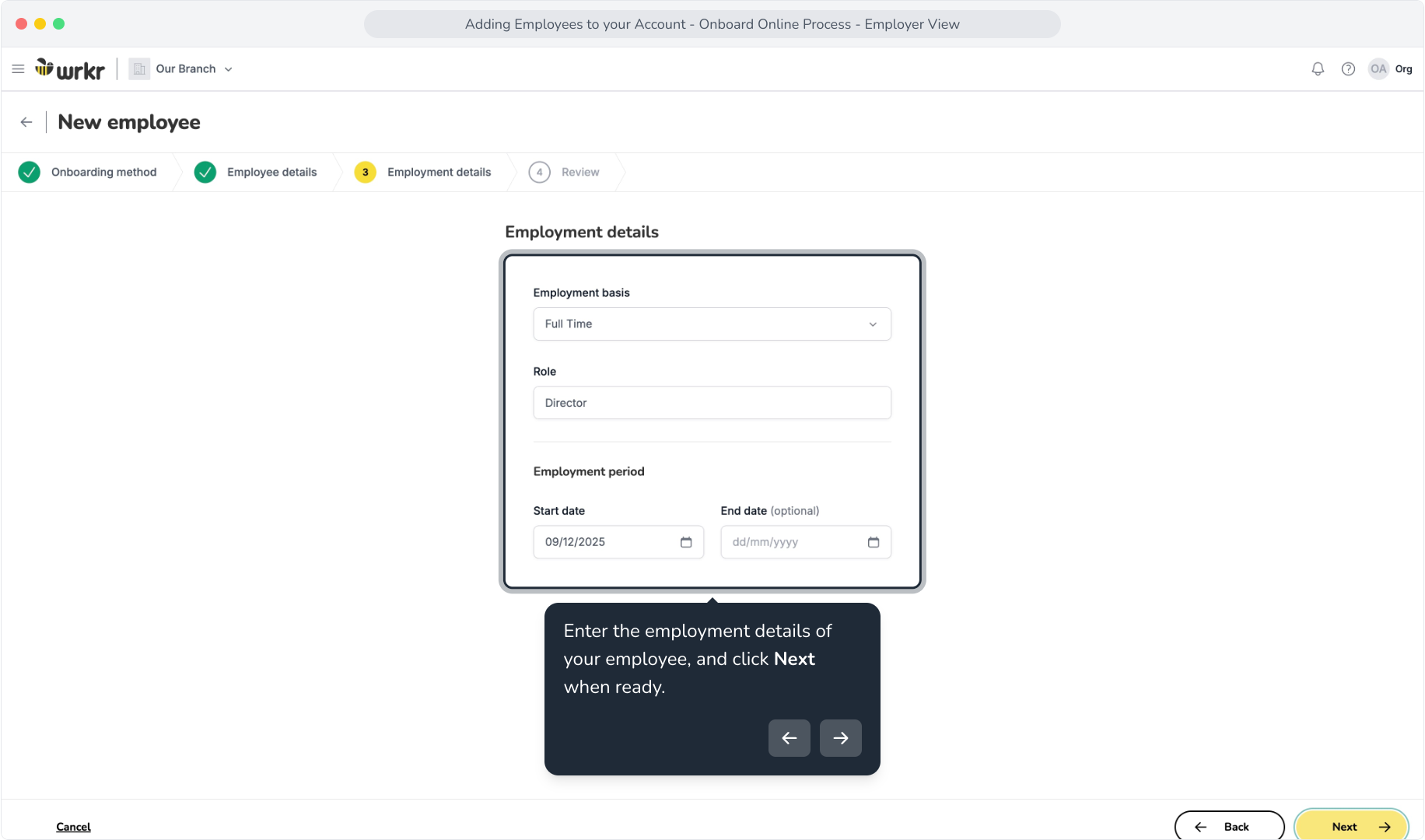
8. Enter the employment details of your employee, and click Next when ready.
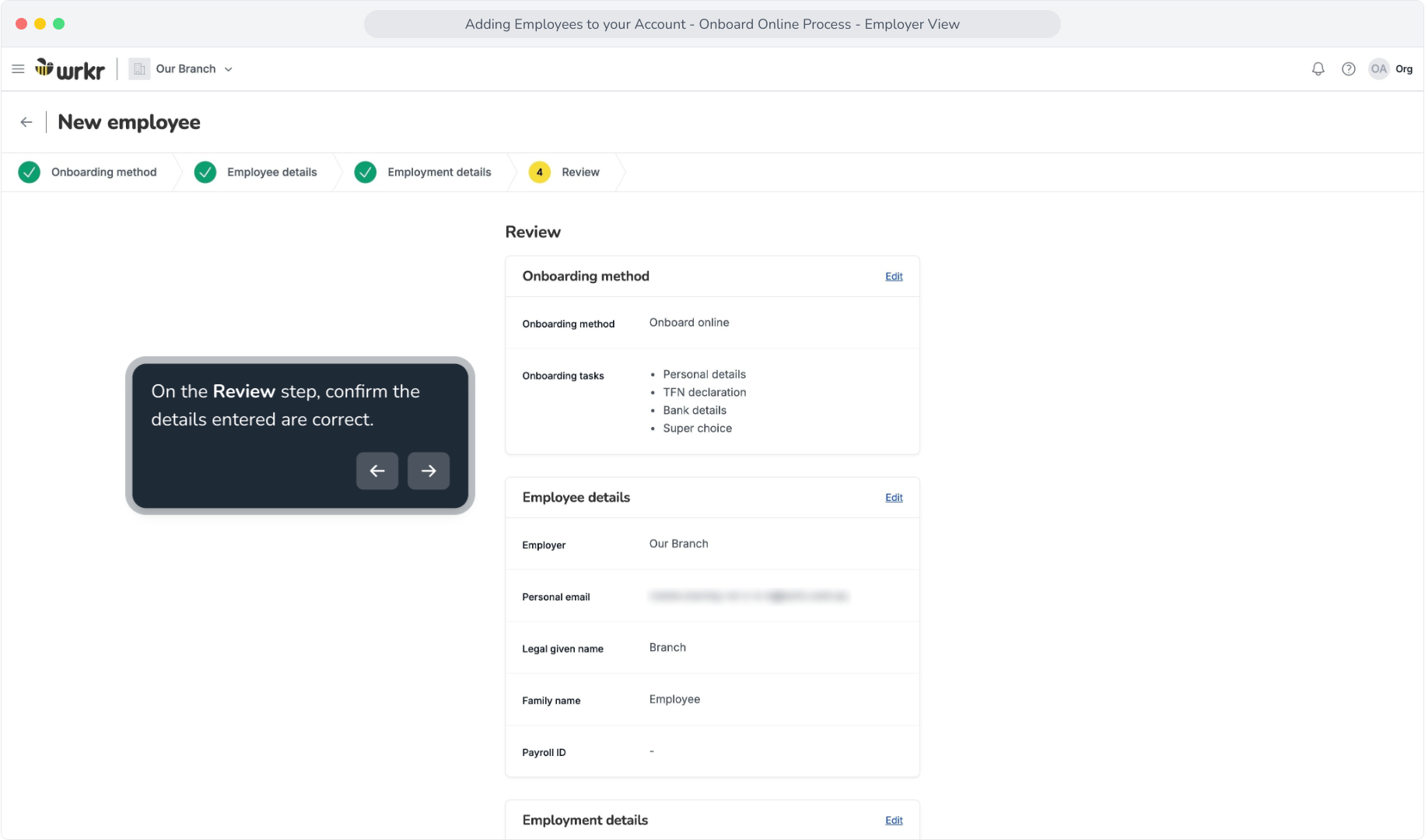
9. On the Review step, confirm the details entered are correct.
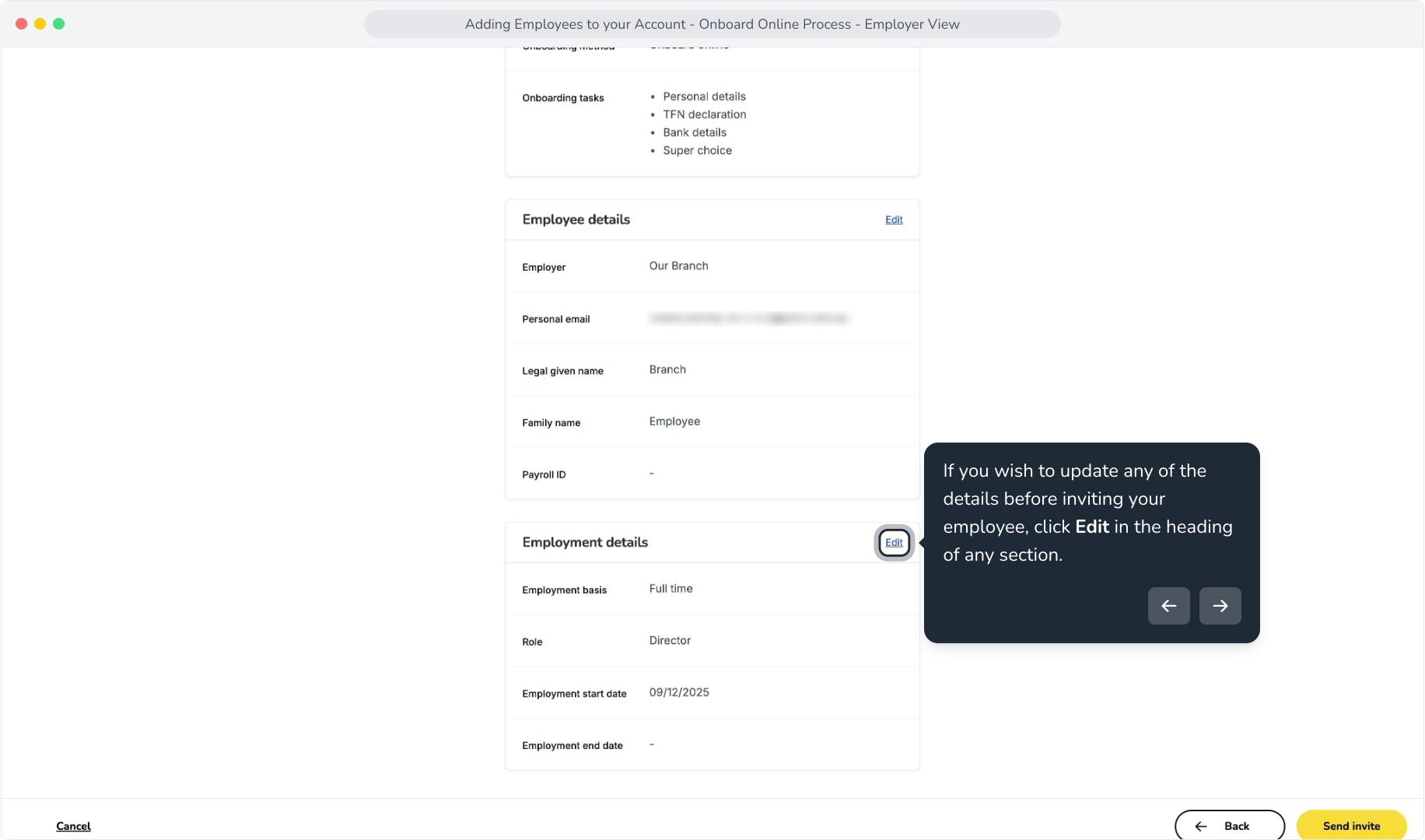
10. If you wish to update any of the details before inviting your employee, click Edit in the heading of any section.
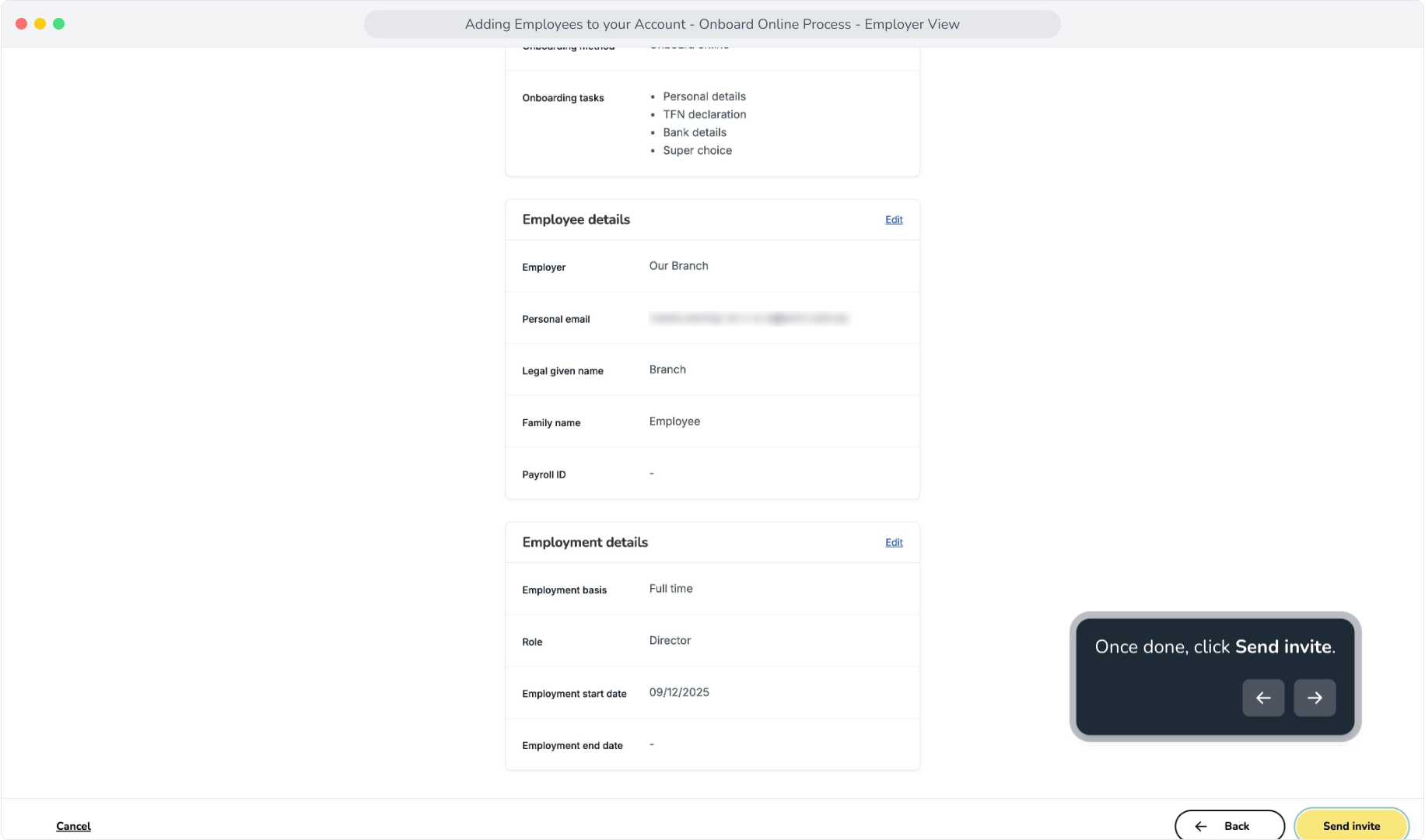
11. Once done, click Send invite.
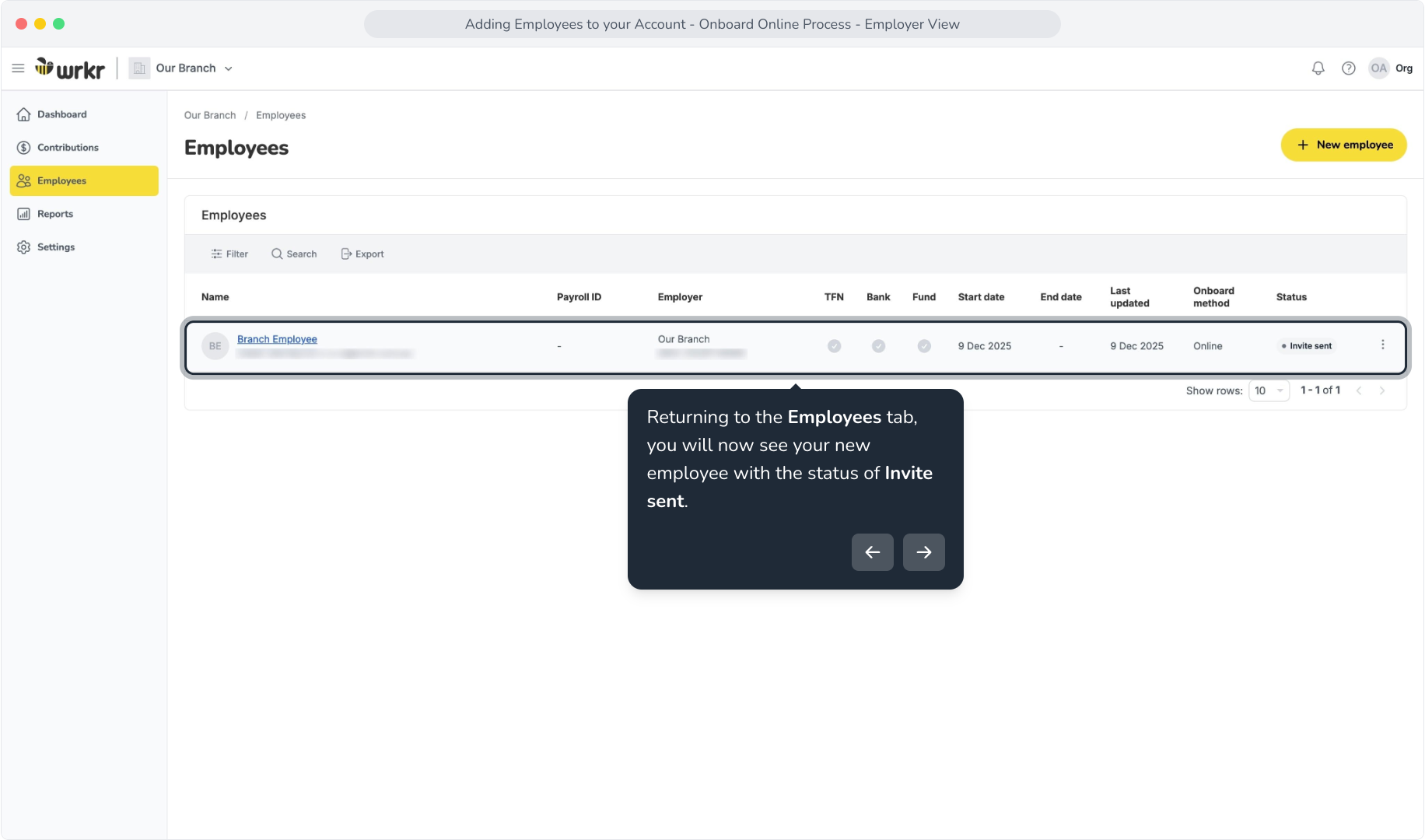
12. Returning to the Employees tab, you will now see your new employee with the status of Invite sent.
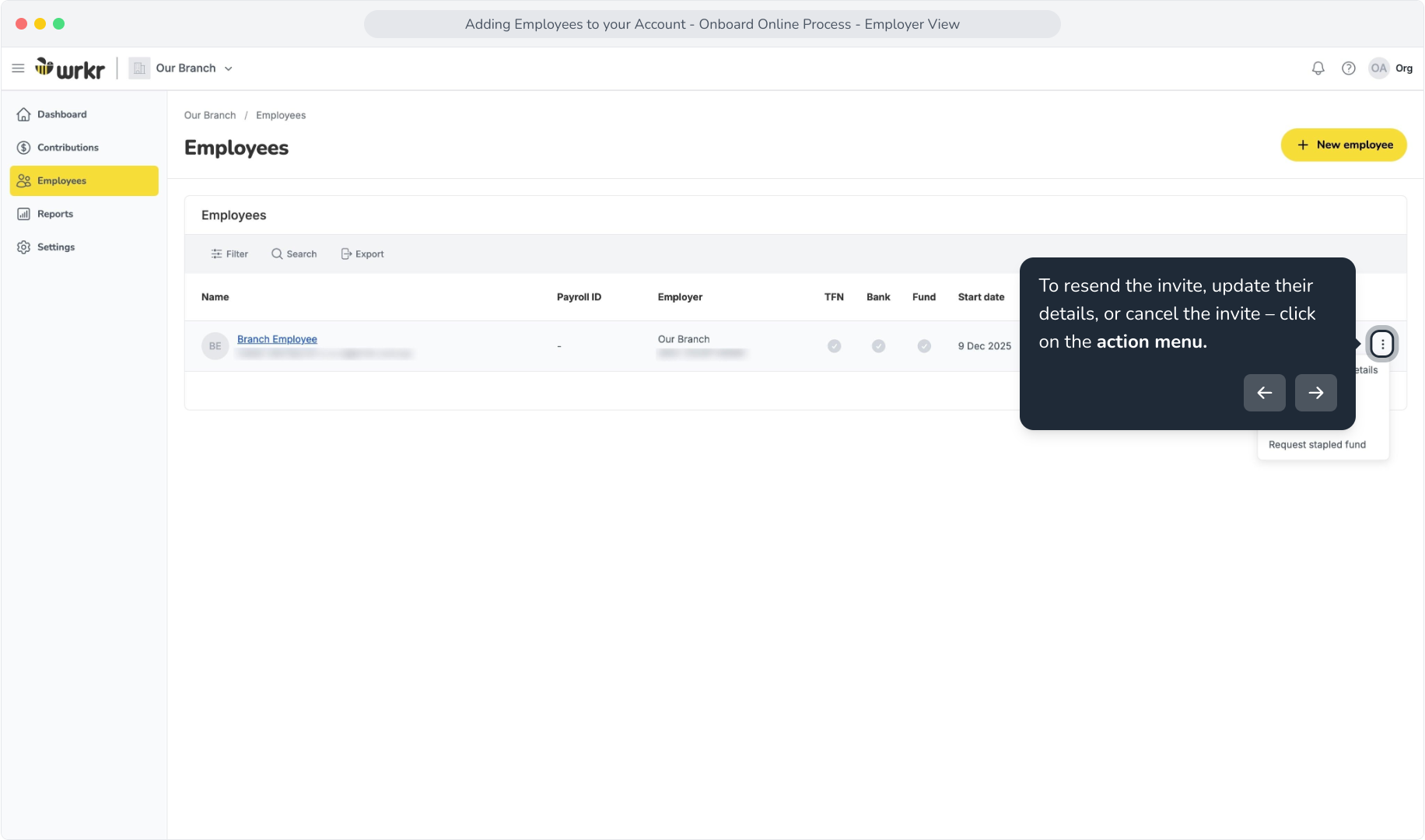
13. To resend the invite, update their details, or cancel the invite – click on the action menu.
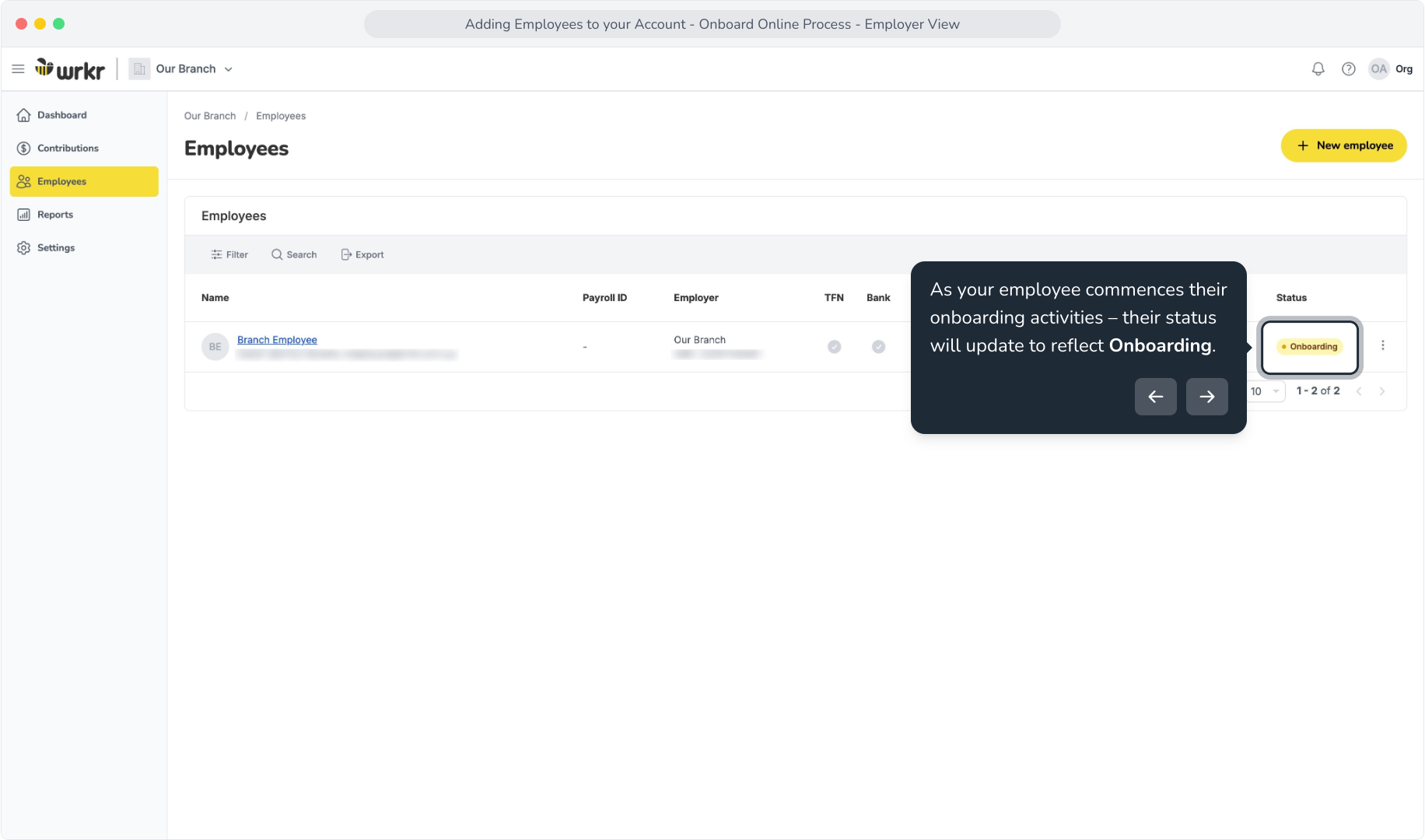
14. As your employee commences their onboarding activities – their status will update to reflect Onboarding.
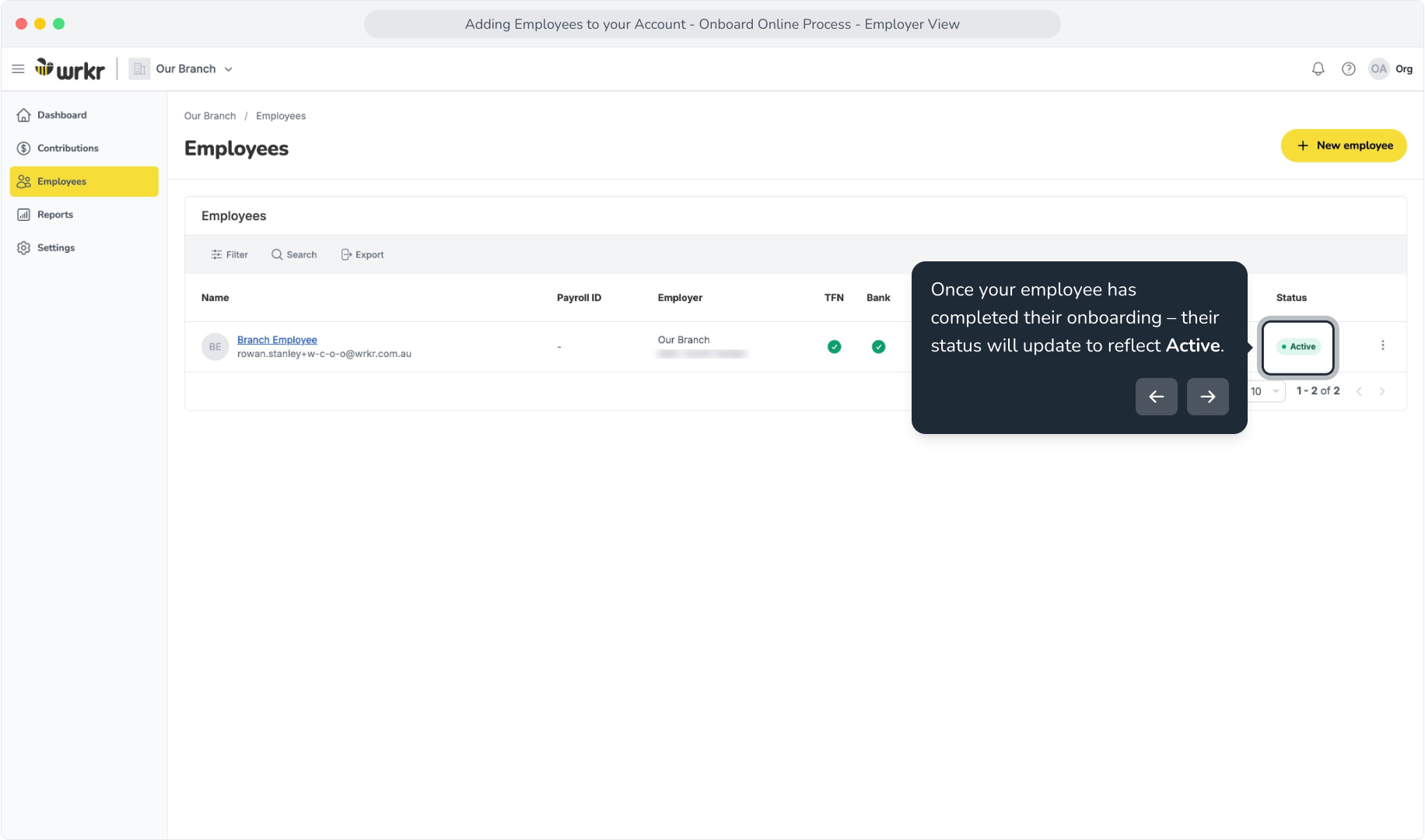
15. Once your employee has completed their onboarding – their status will update to reflect Active.
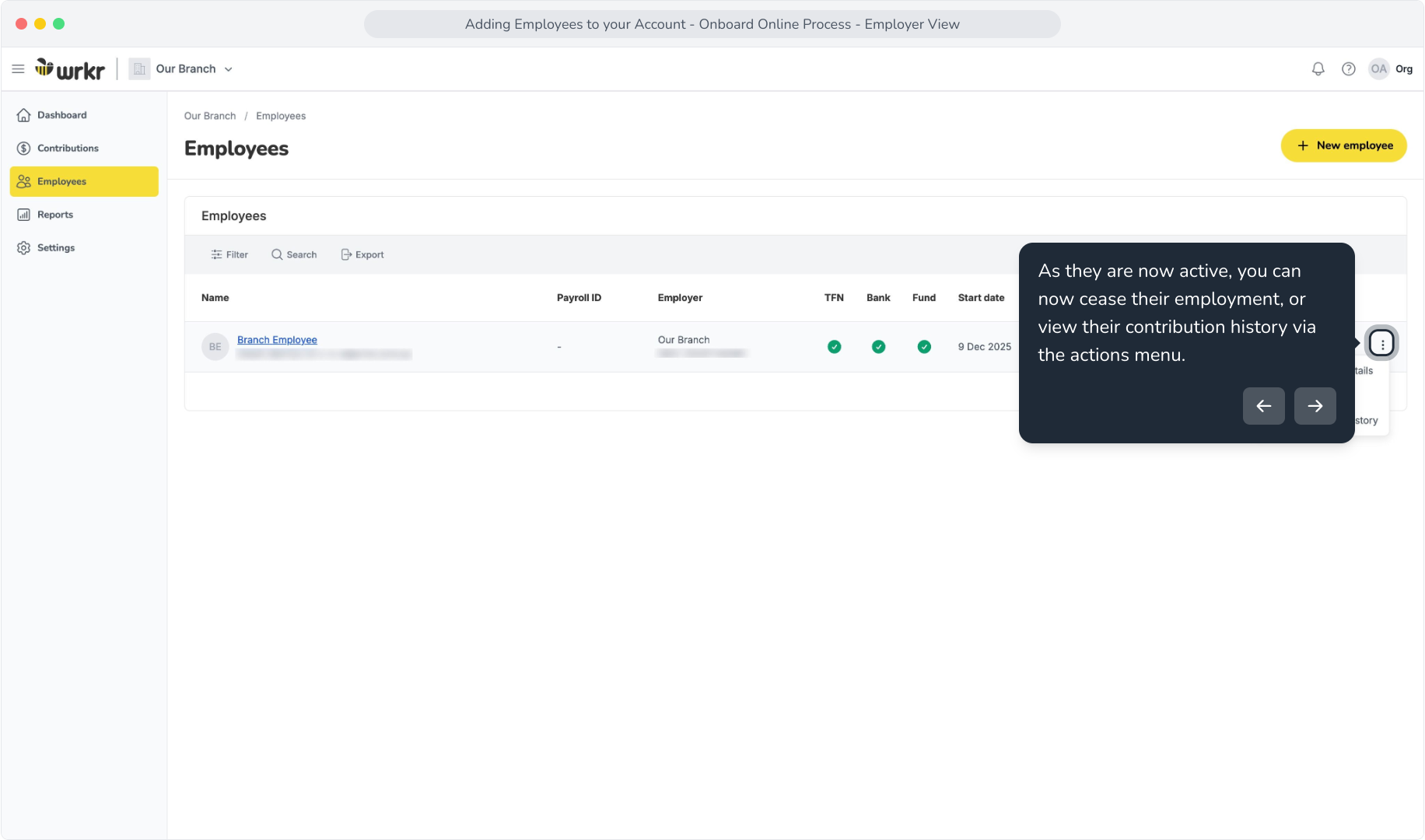
16. As they are now active, you can now cease their employment, or view their contribution history via the actions menu.
What is a Member Super Fund Verification Request (MVR) and Member Registration Request (MRR), and when are they sent?
An MRR is an existing message sent for employees who elect your employer's default fund. On receiving an MRR, the fund will verify if your employee has an account and either respond with your employee’s existing member number, or create a new membership and respond with your employee’s new member number.
An MVR is a new message introduced within Payday Super to help you verify that your employee is a member of a super fund that is not your default fund, and that the fund can accept contributions for them. An MVR is only used to verify your employee’s existing account, it cannot be used to create a new account. An MVR is triggered when:
You add your employee or make a contribution for your employee for the first time,
When you or your employee update their super fund,
When you or your employee update their TFN, Family Name, Given name, Other given name, Date of birth.
An MVR won’t be sent with each contribution, or where your employee chooses your employer's default fund.
You don’t need to choose whether to send an MRR or MVR. We use your default fund to automatically determine when to send an MRR or MVR. You can change your default fund in Settings > Default funds.
Member Super Fund Verification Status
Icon | Tag | Meaning | Filter | Tooltip message | Alert |
|---|---|---|---|---|---|
| Verifying | Verifying | Membership is being verified with the fund. | N/A | ||
| Verifying - after contribution submission | Verifying | Membership will be verified after a contribution is submitted. | N/A | ||
| Verified - via MVR | Verified | Membership has been verified with the fund | N/A | ||
| Verified - after contribution submission due to no error response within 20 days after contribution submission | Verified | Membership has been confirmed via historical success. | N/A | ||
| Error - MVR fail | Error | Member verification failed with the fund. | |||
| Error - MVR fail | Error | Member verification failed with the fund. | |||
| Error - MVR fail | Error | Member verification failed with the fund. | |||
| Error - MVR fail | Error | Member verification failed with the fund. | |||
| Error - MVR fail | Error | Member verification failed with the fund. | |||
| Error - MVR fail | Error | Member verification failed with the fund. | |||
| Error - MVR fail | Error | Member verification failed with the fund. | |||
| Error - MVR fail | Error | Member verification failed with the fund. | Member TFN required for this Contribution Type. |