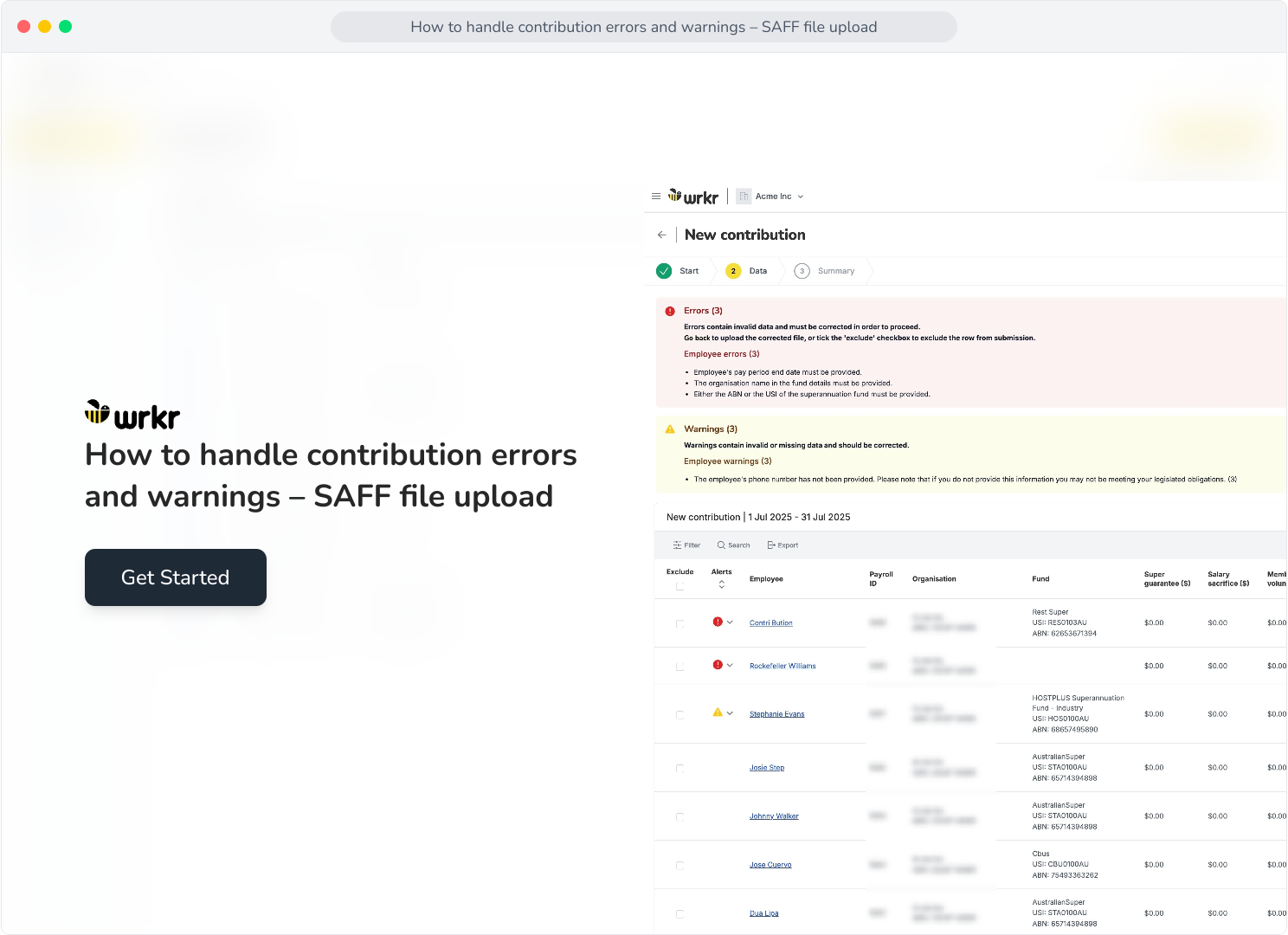
Context: This guide covers the actions you can perform when encountering errors and warnings whilst submitting contributions via SAFF file upload in the Wrkr Portal.
Interactive Demo
Note: Make the demo full-screen for a better experience. You can mute/un-mute narration to suit your preferences.
Step by Step
1. How to handle contribution errors and warnings – SAFF file upload
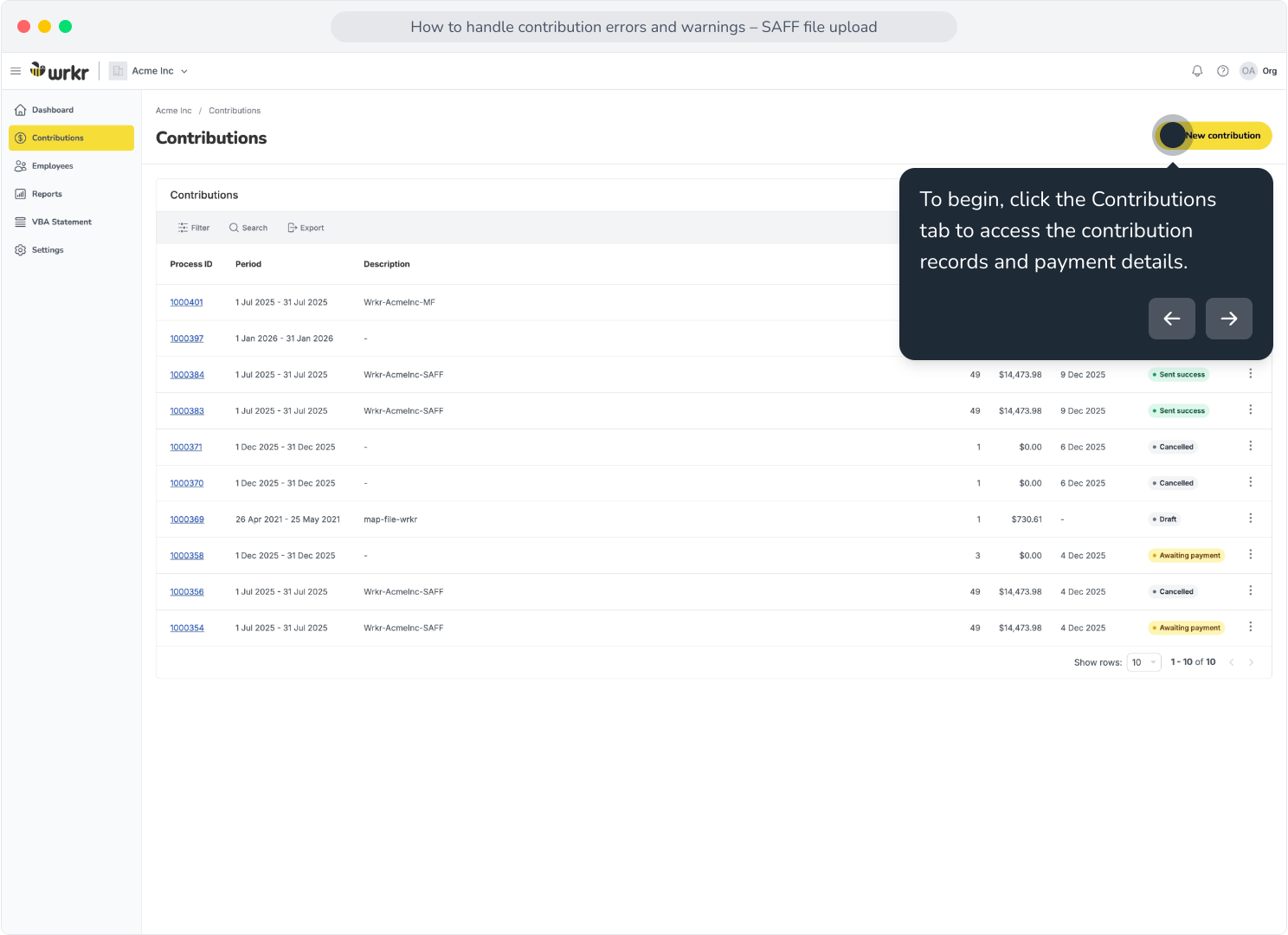
2. To begin, click the Contributions tab to access the contribution records and payment details.
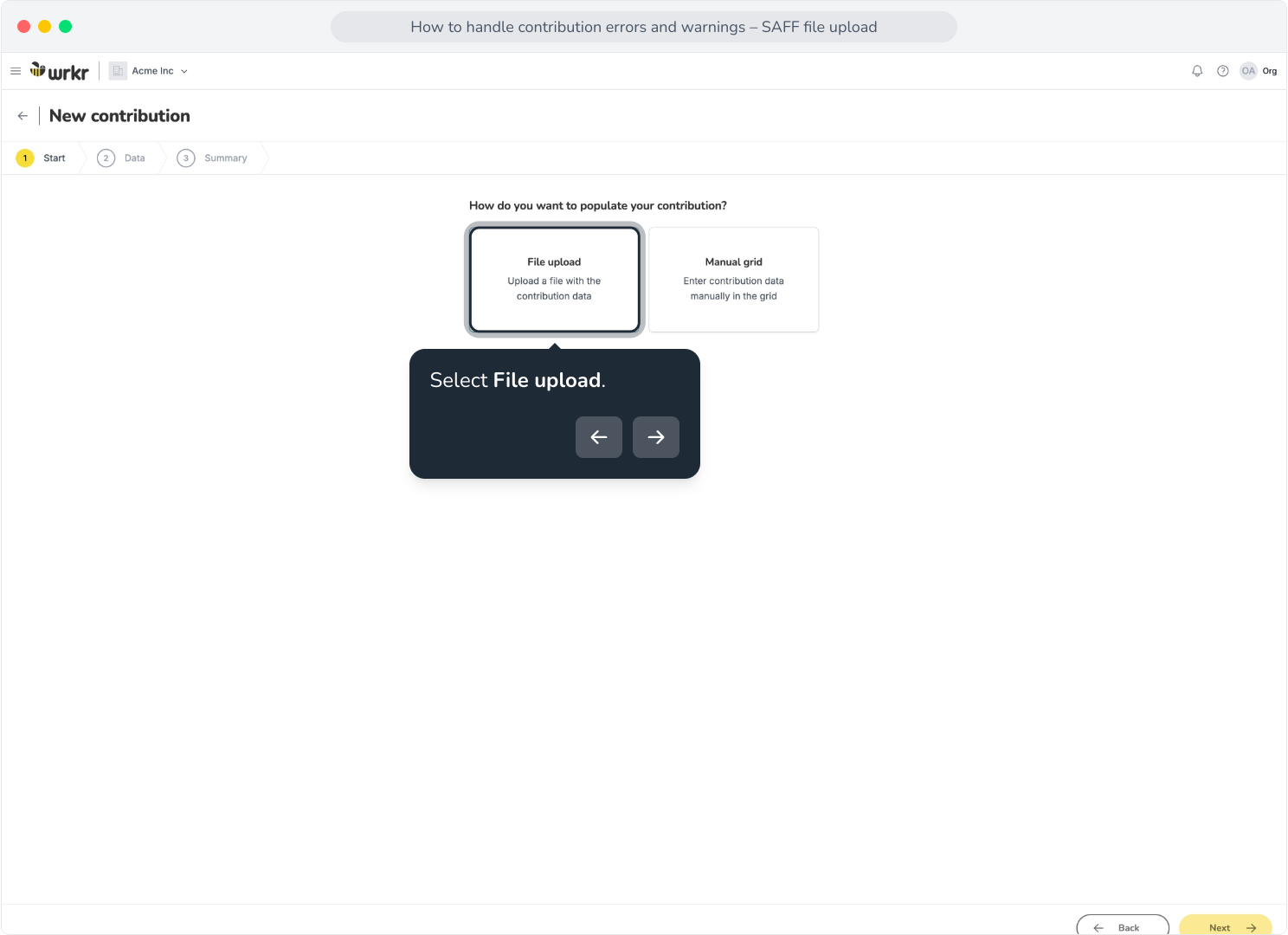
3. Select File upload.
4. Upload your file and click Next.
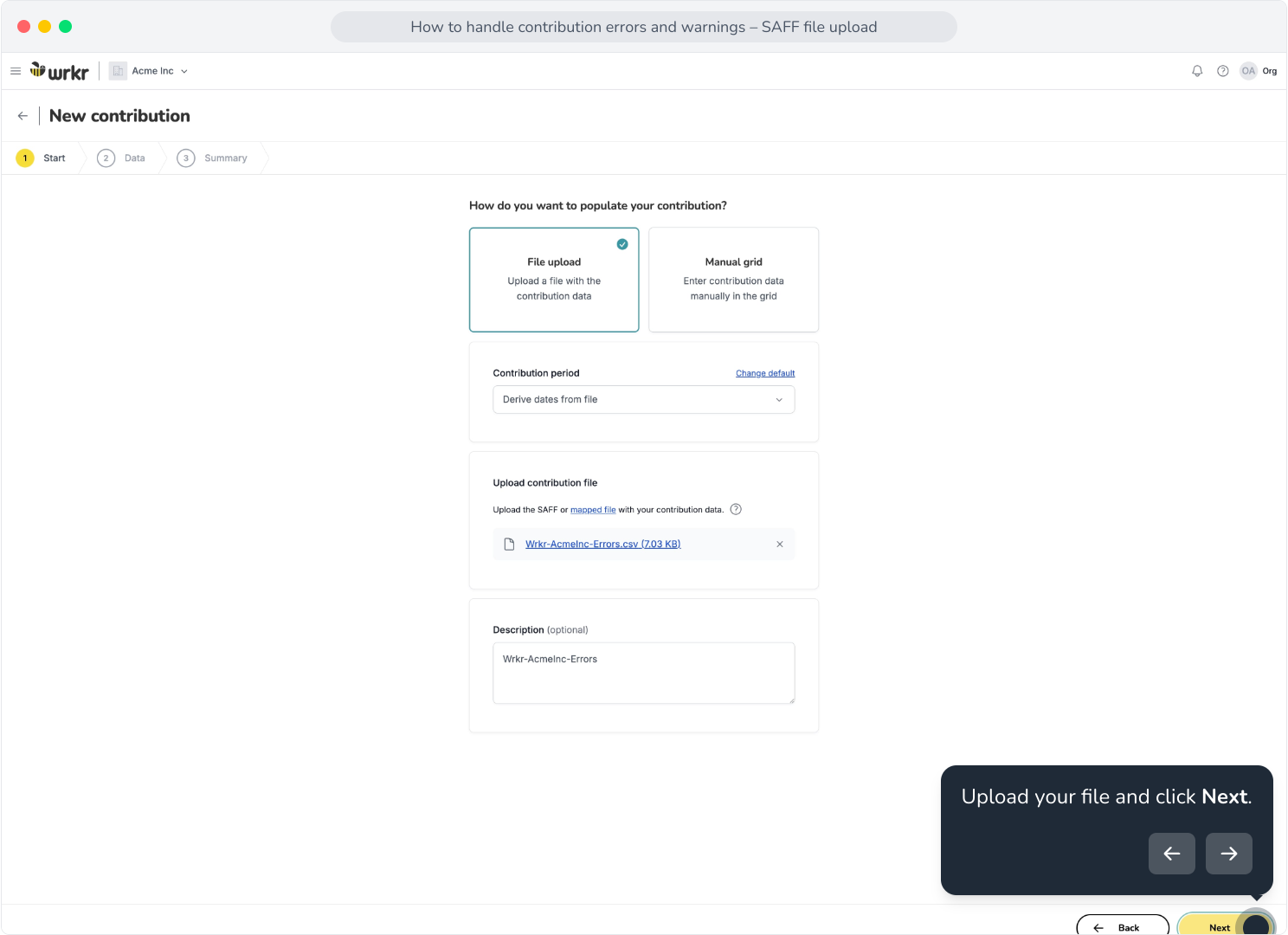
5. Once the grid loads, any errors or warnings present in your file will be highlighted at the top.
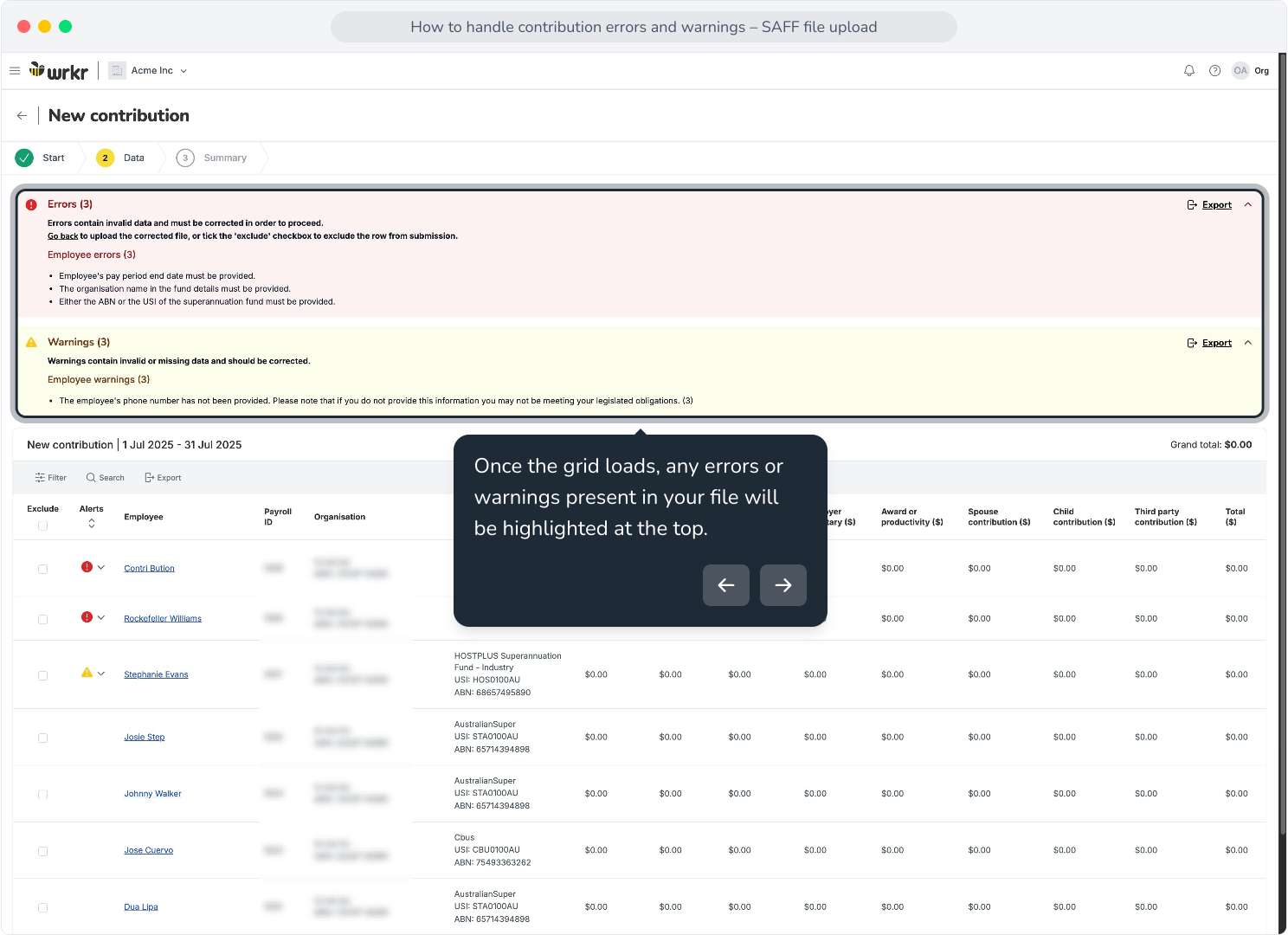
6. If you wish to export these errors to document updates required in your payroll system, you can Export only the errors in the file.
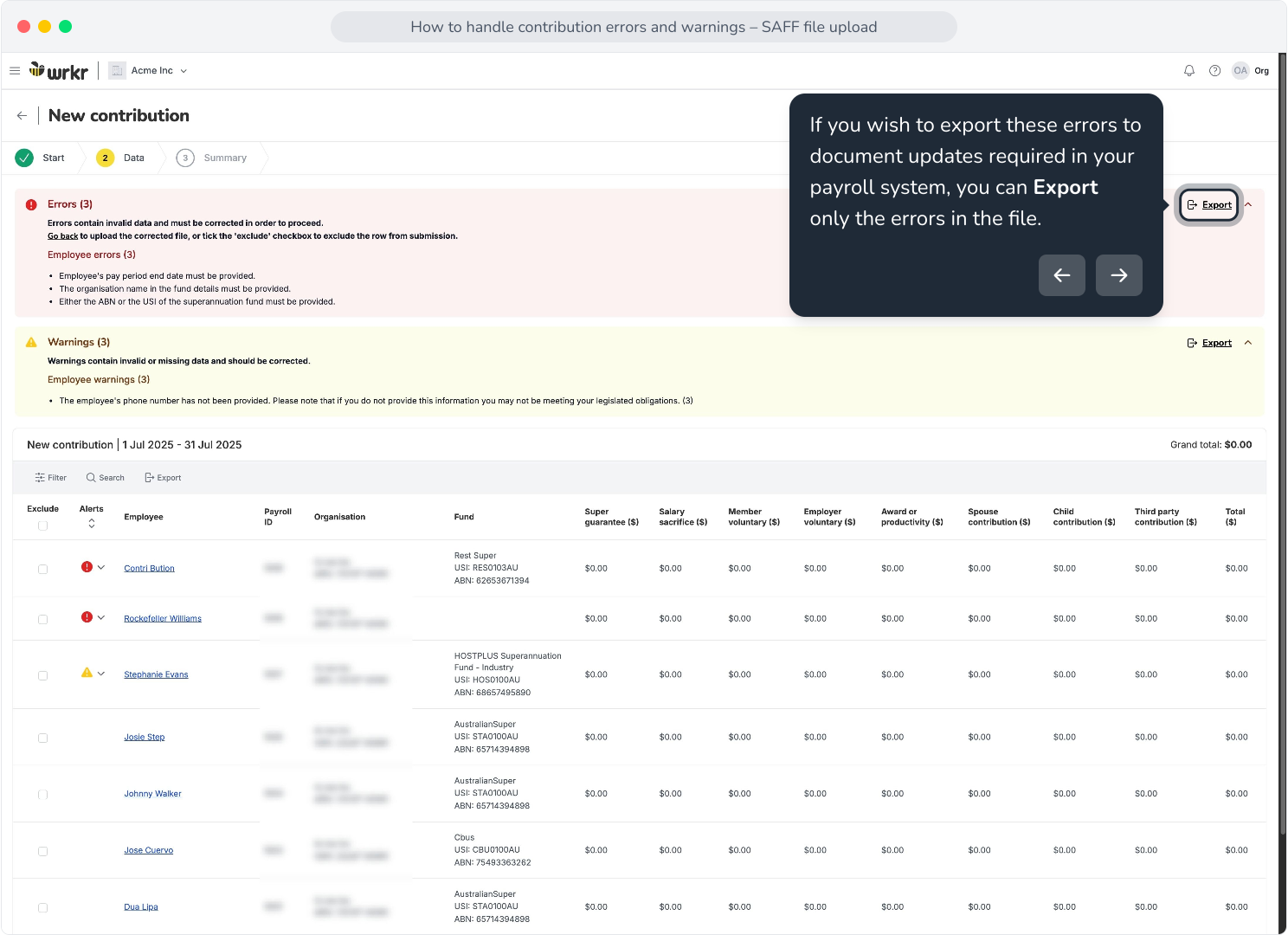
7. The same can be done for warnings.
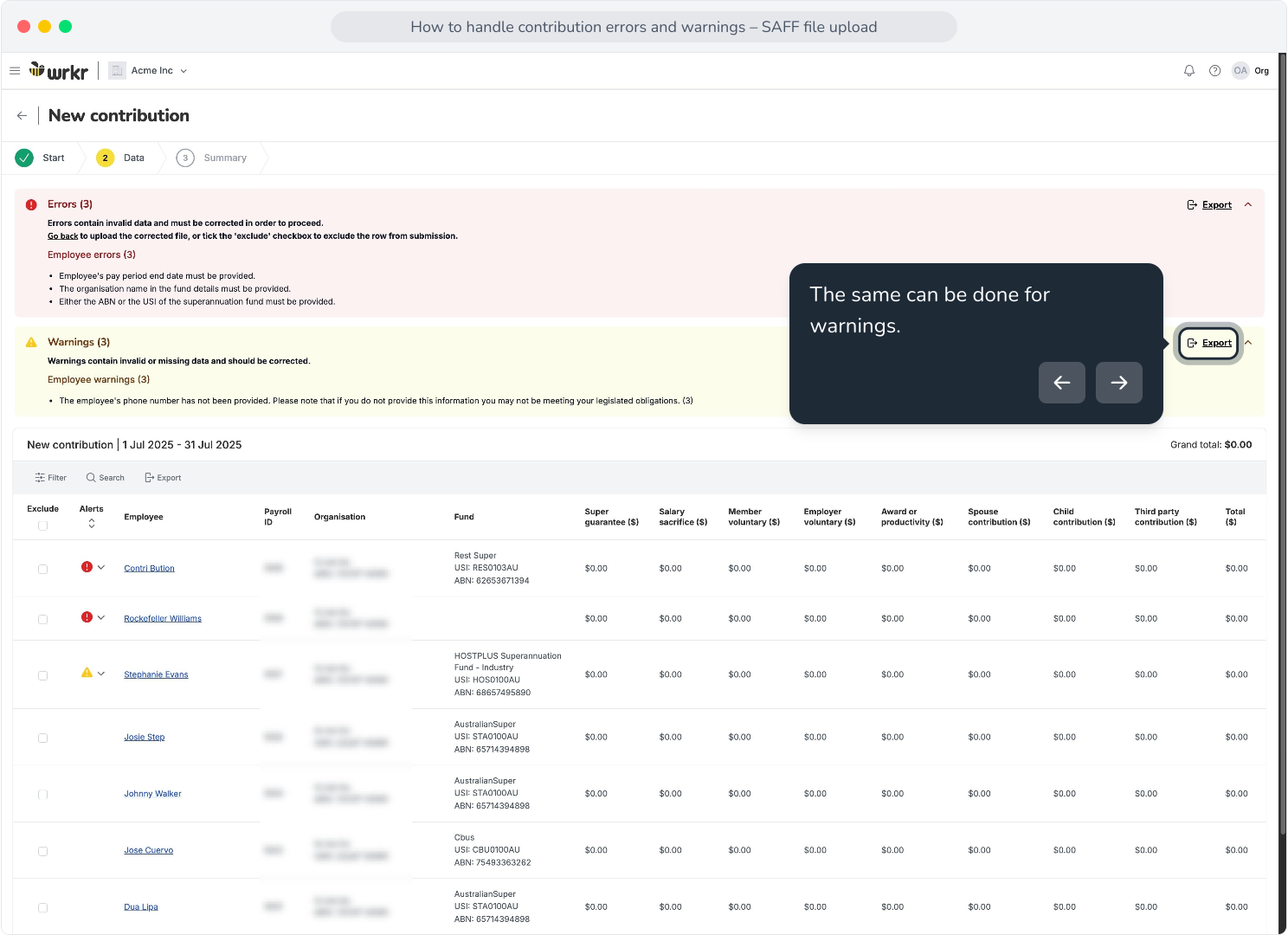
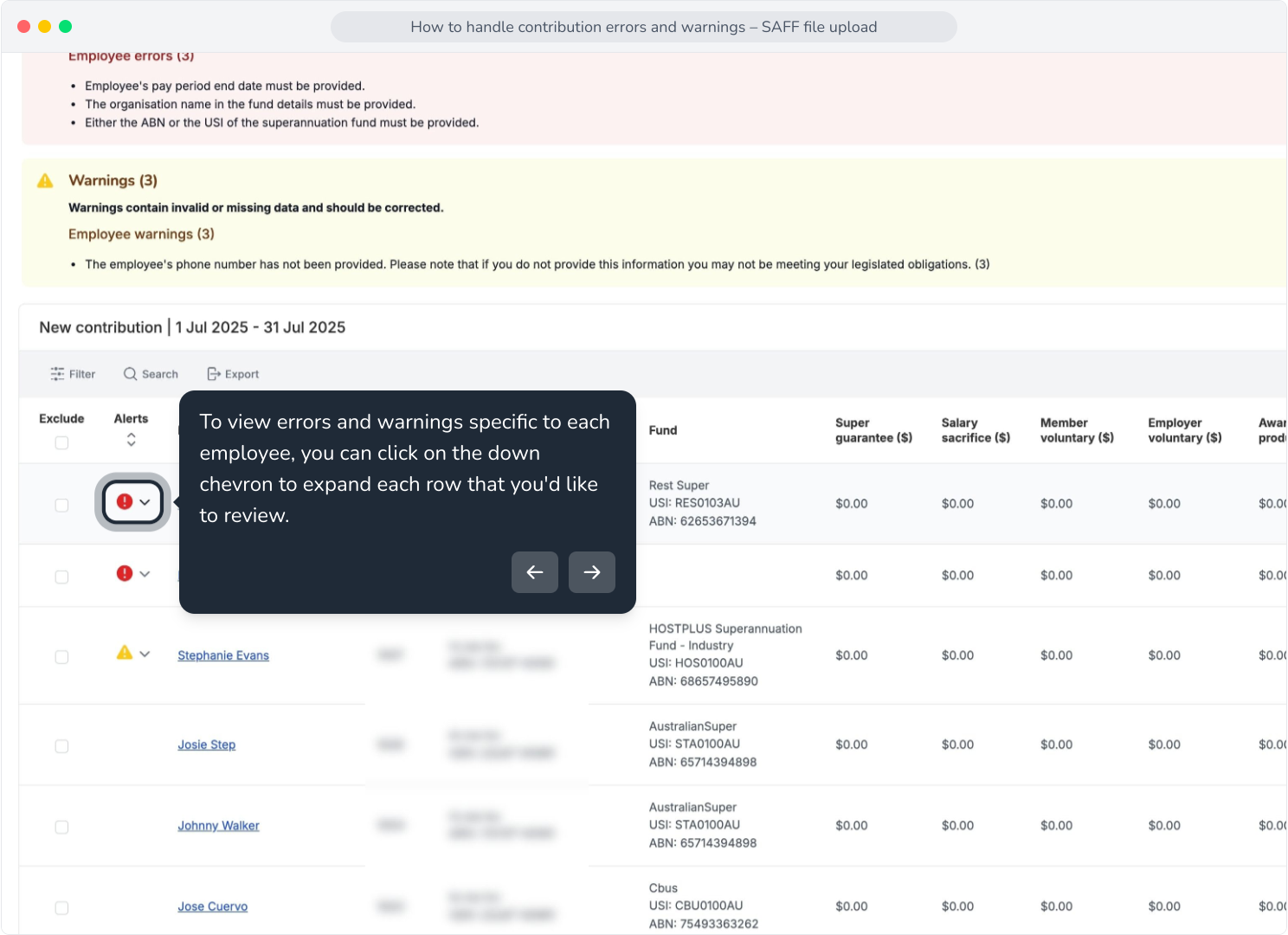
8. To view errors and warnings specific to each employee, you can click on the down chevron to expand each row that you'd like to review.
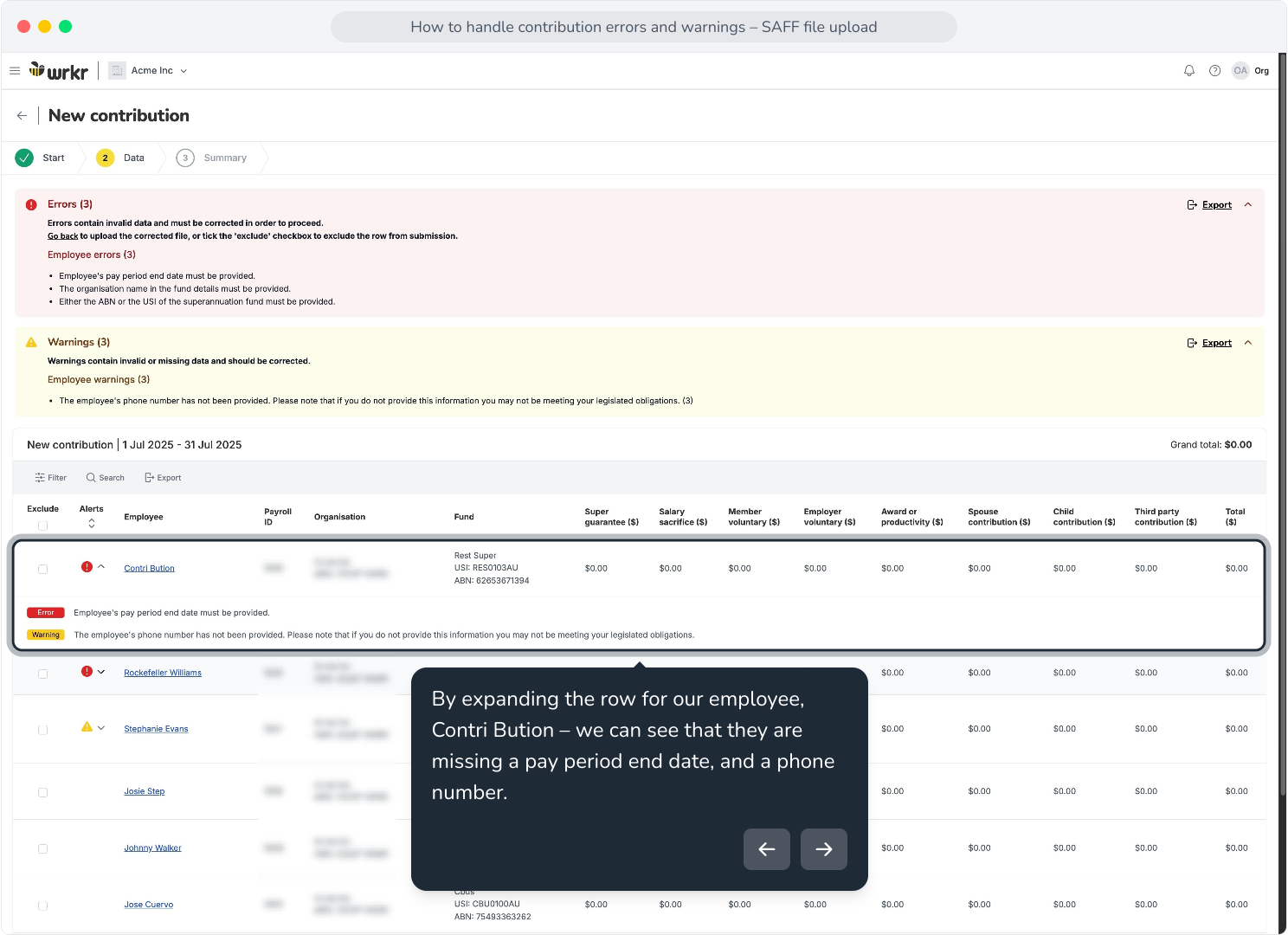
9. By expanding the row for our employee, Contri Bution – we can see that they are missing a pay period end date, and a phone number.
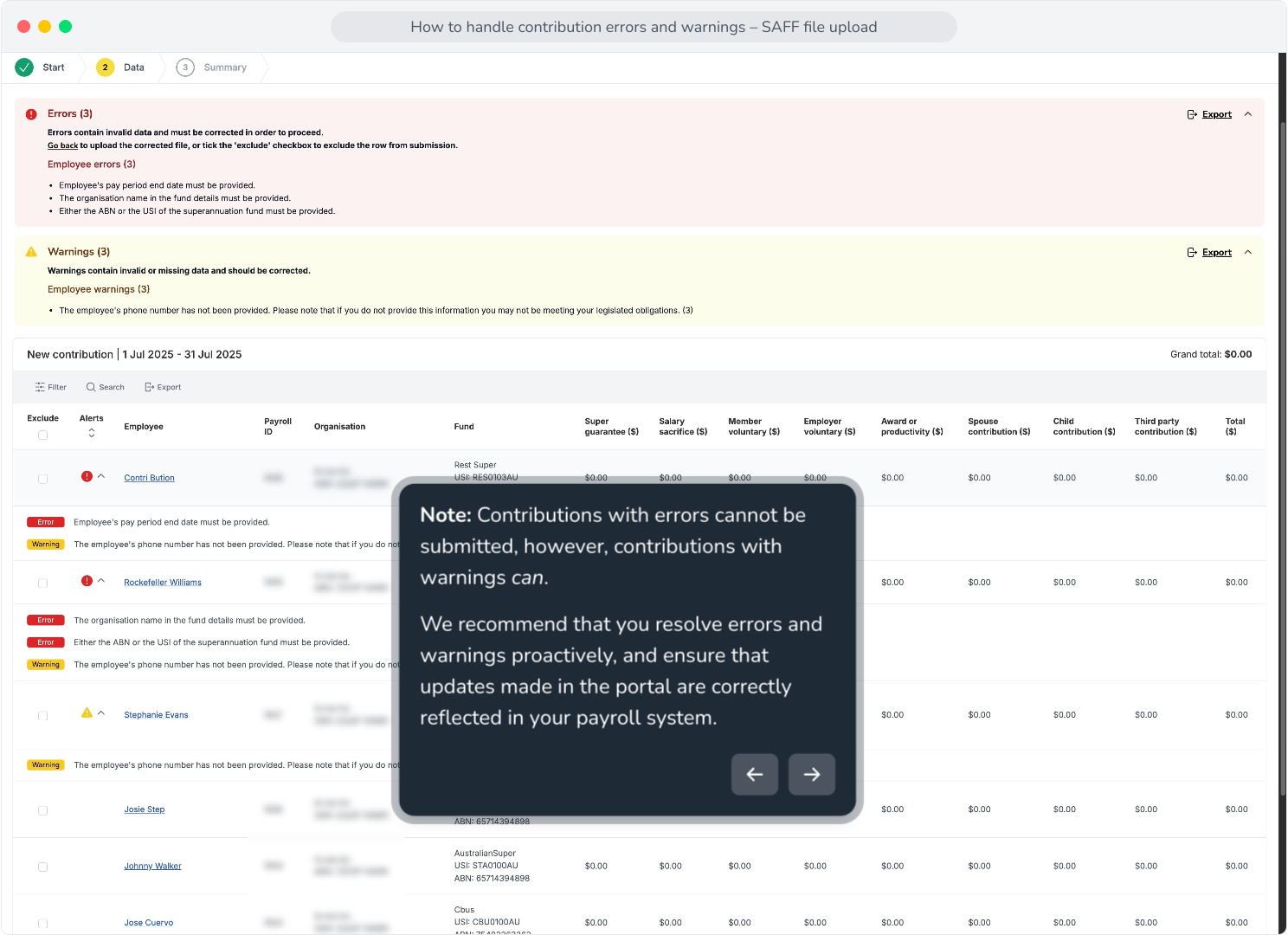
10. Note: Contributions with errors cannot be submitted, however, contributions with warnings can.We recommend that you resolve errors and warnings proactively, and ensure that updates made in the portal are correctly reflected in your payroll system.
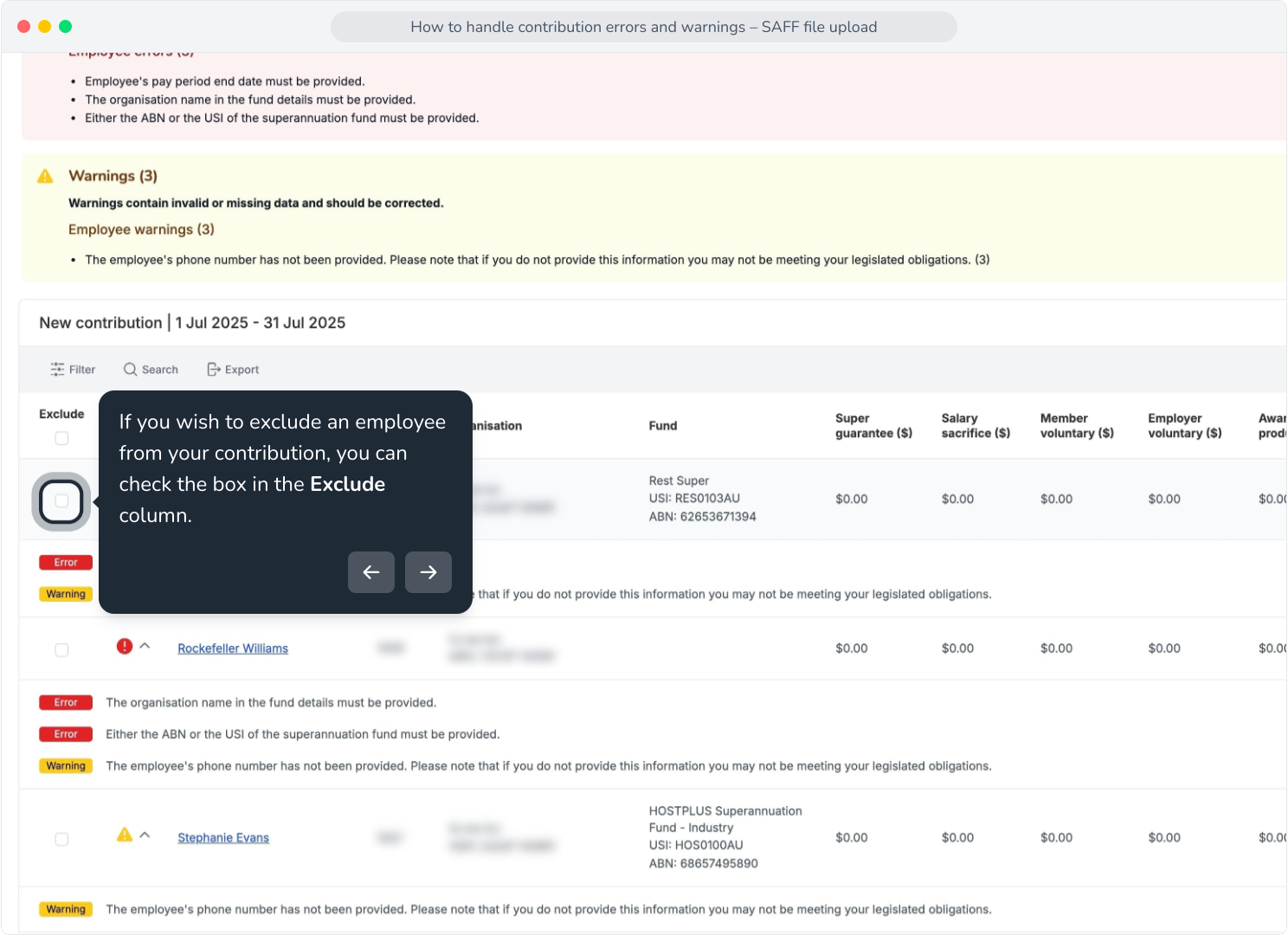
11. If you wish to exclude an employee from your contribution, you can check the box in the Exclude column.
12. Clicking on the Export button, you will now see an option to export the entire grid or only the excluded rows.
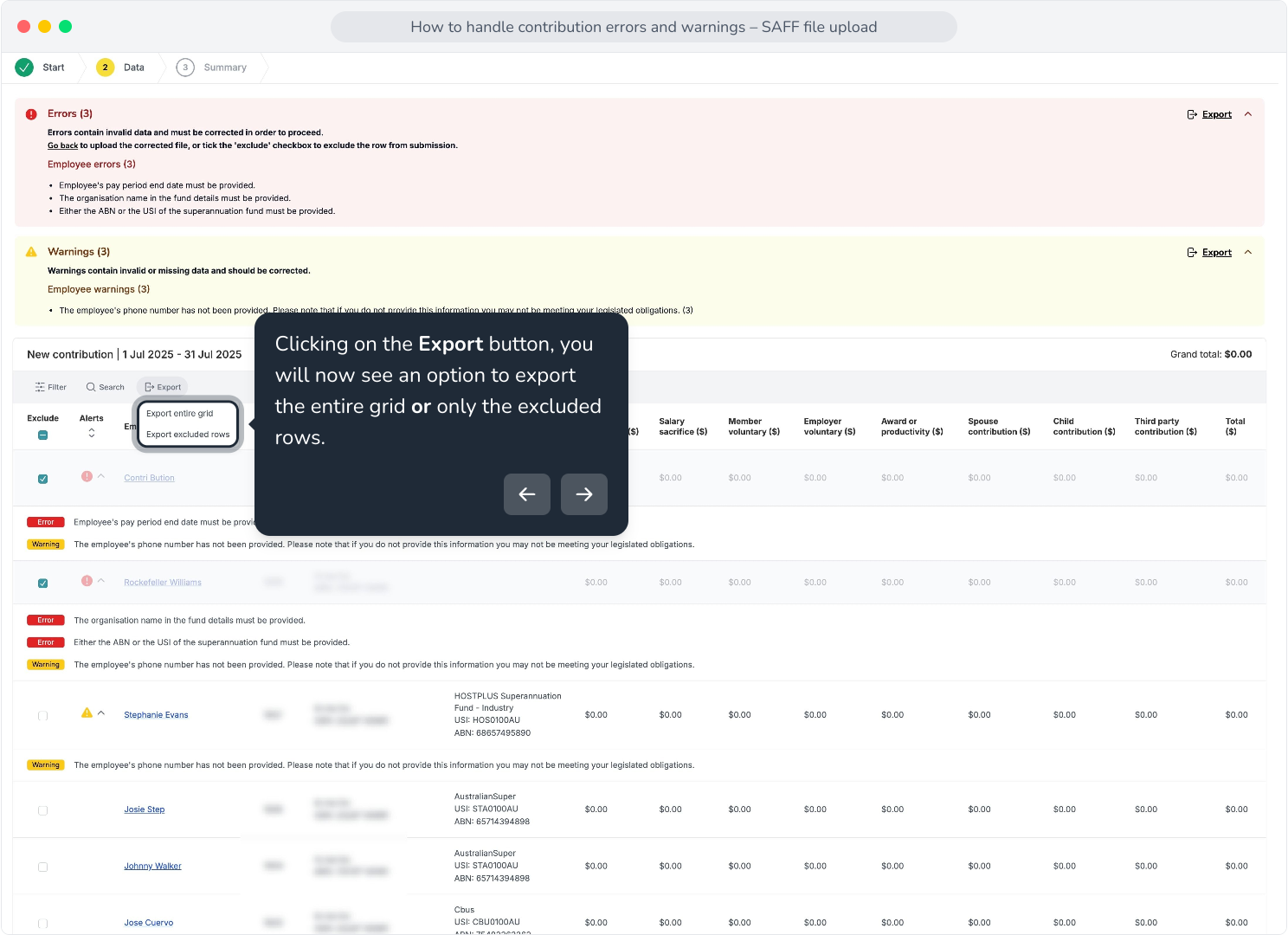
13. This is a great reference if you choose to exclude any additional employees, who will then require a new contribution to be submitted once updates have been made.
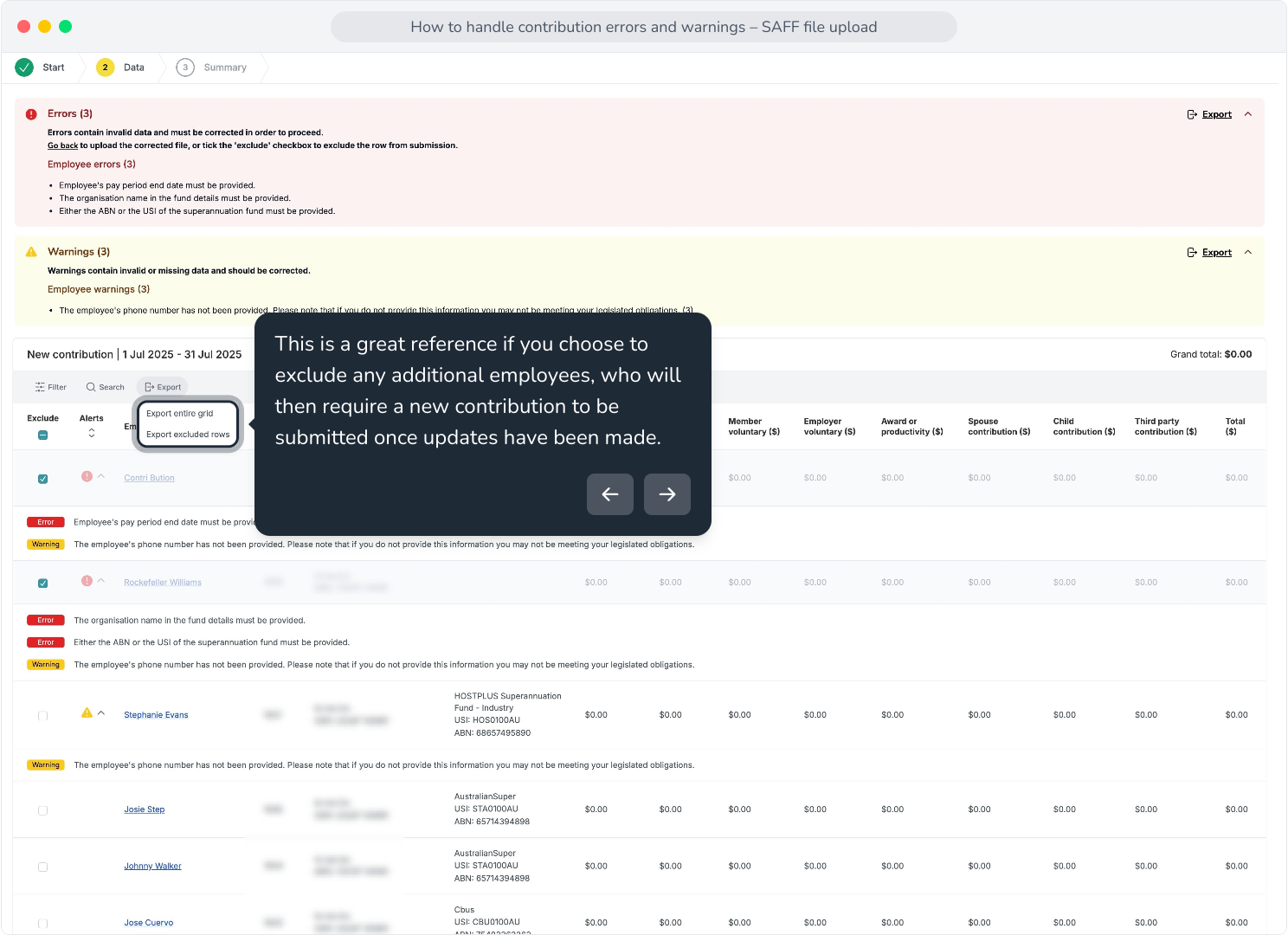
14. If you wish to see more details about an employee, you can click on their name to reveal a details panel.
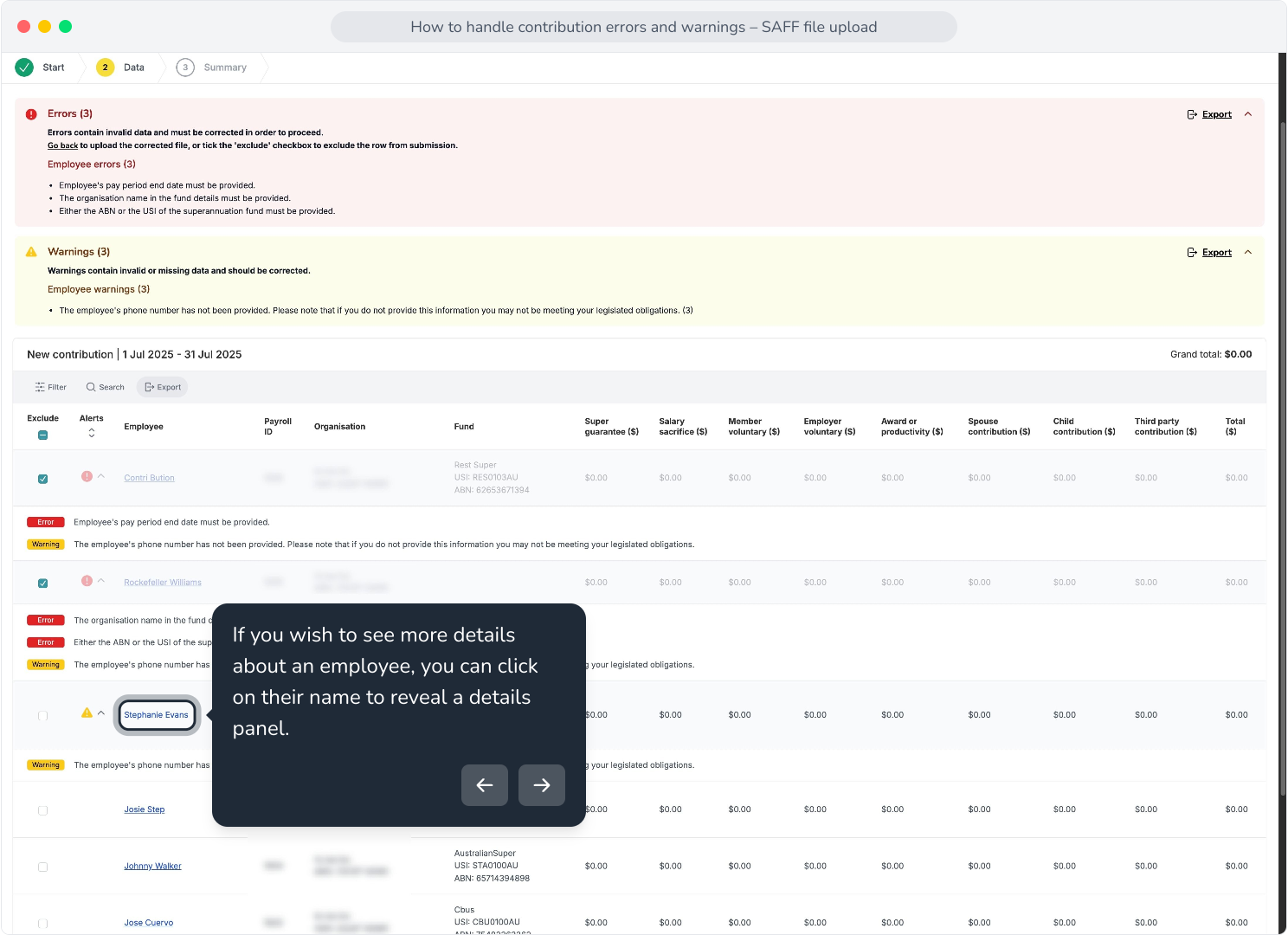
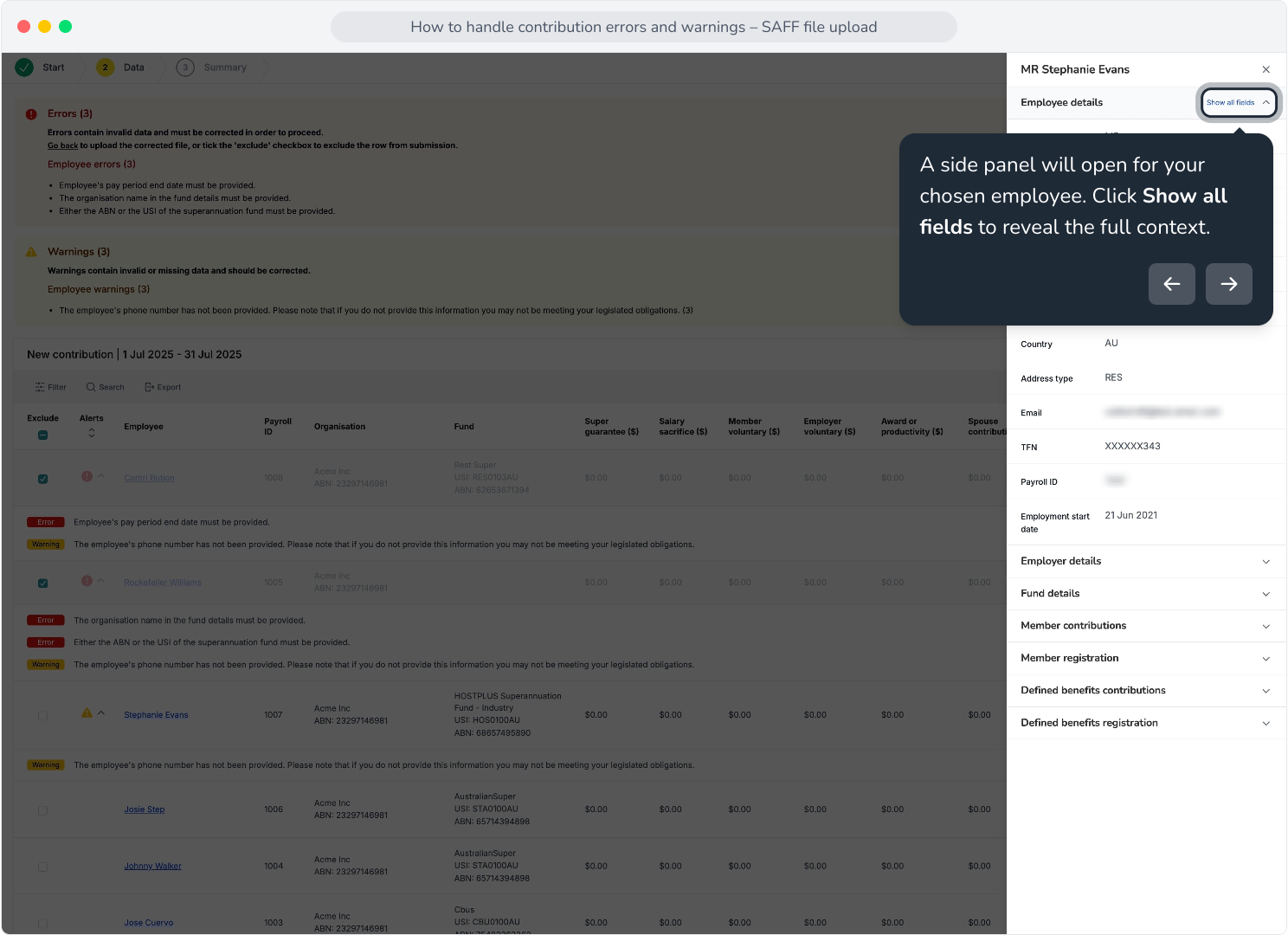
15. A side panel will open for your chosen employee. Click Show all fields to reveal the full context.
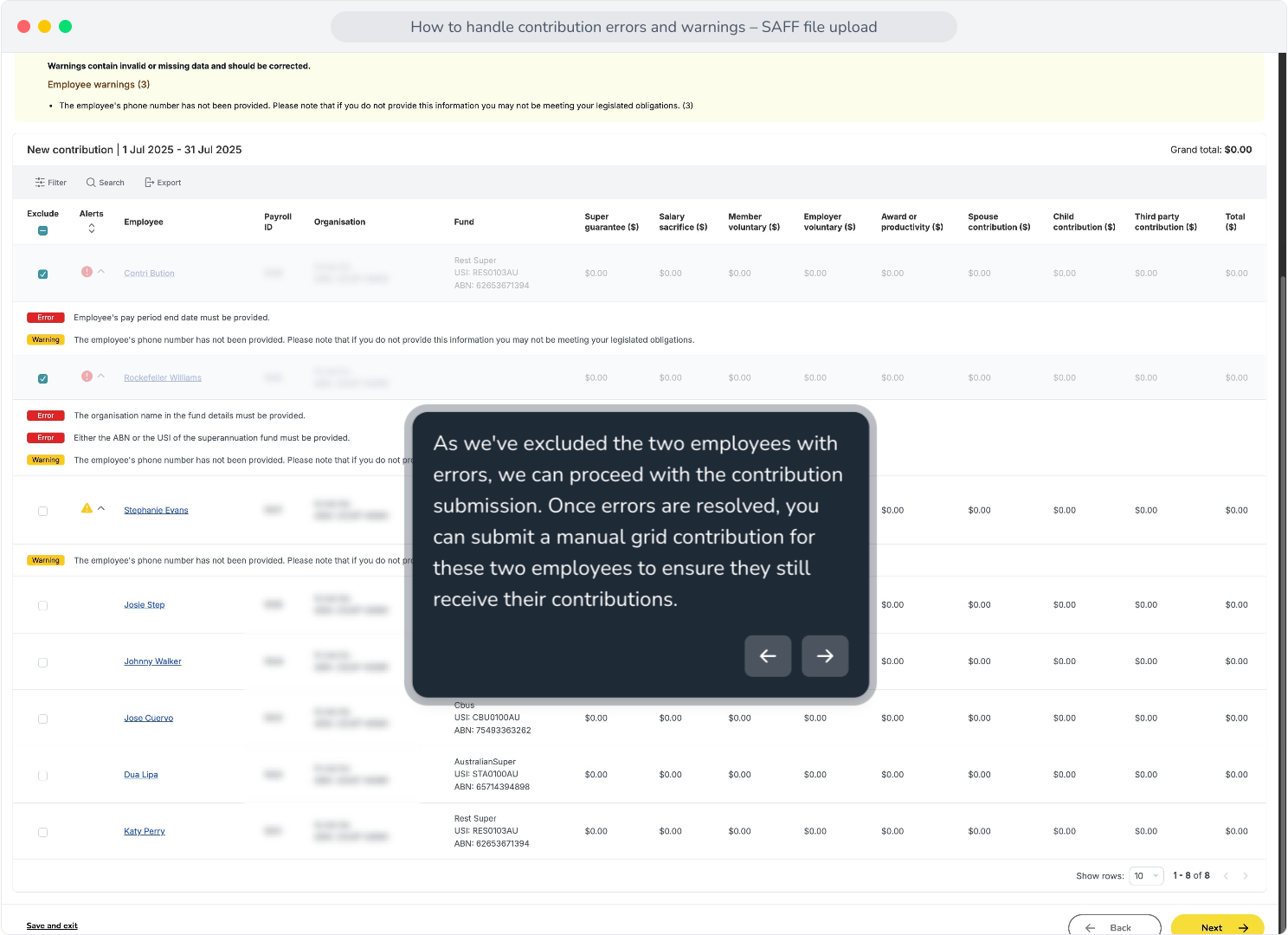
16. As we've excluded the two employees with errors, we can proceed with the contribution submission. Once errors are resolved, you can submit a manual grid contribution for these two employees to ensure they still receive their contributions.
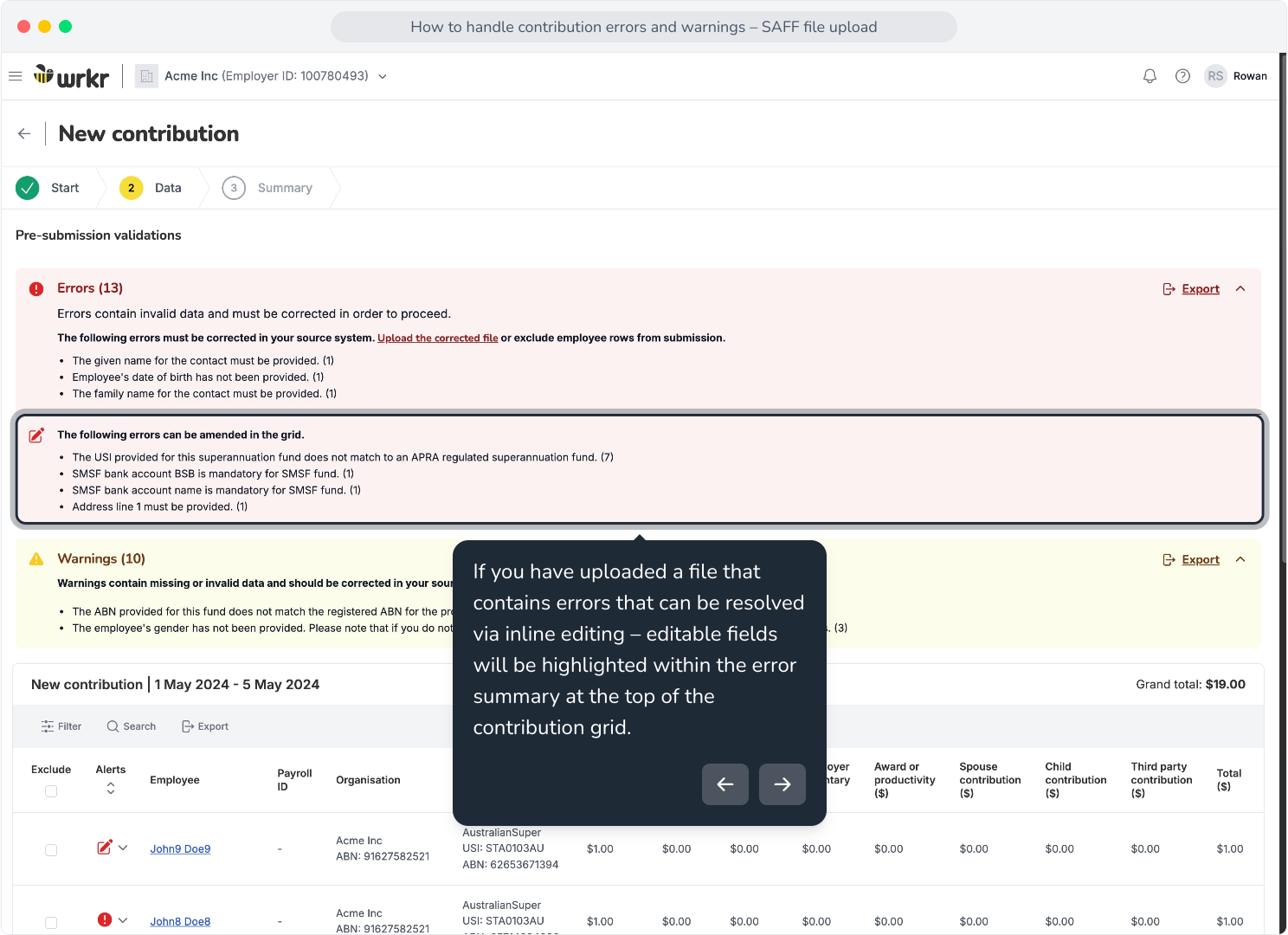
17. If you have uploaded a file that contains errors that can be resolved via inline editing – editable fields will be highlighted within the error summary at the top of the contribution grid.
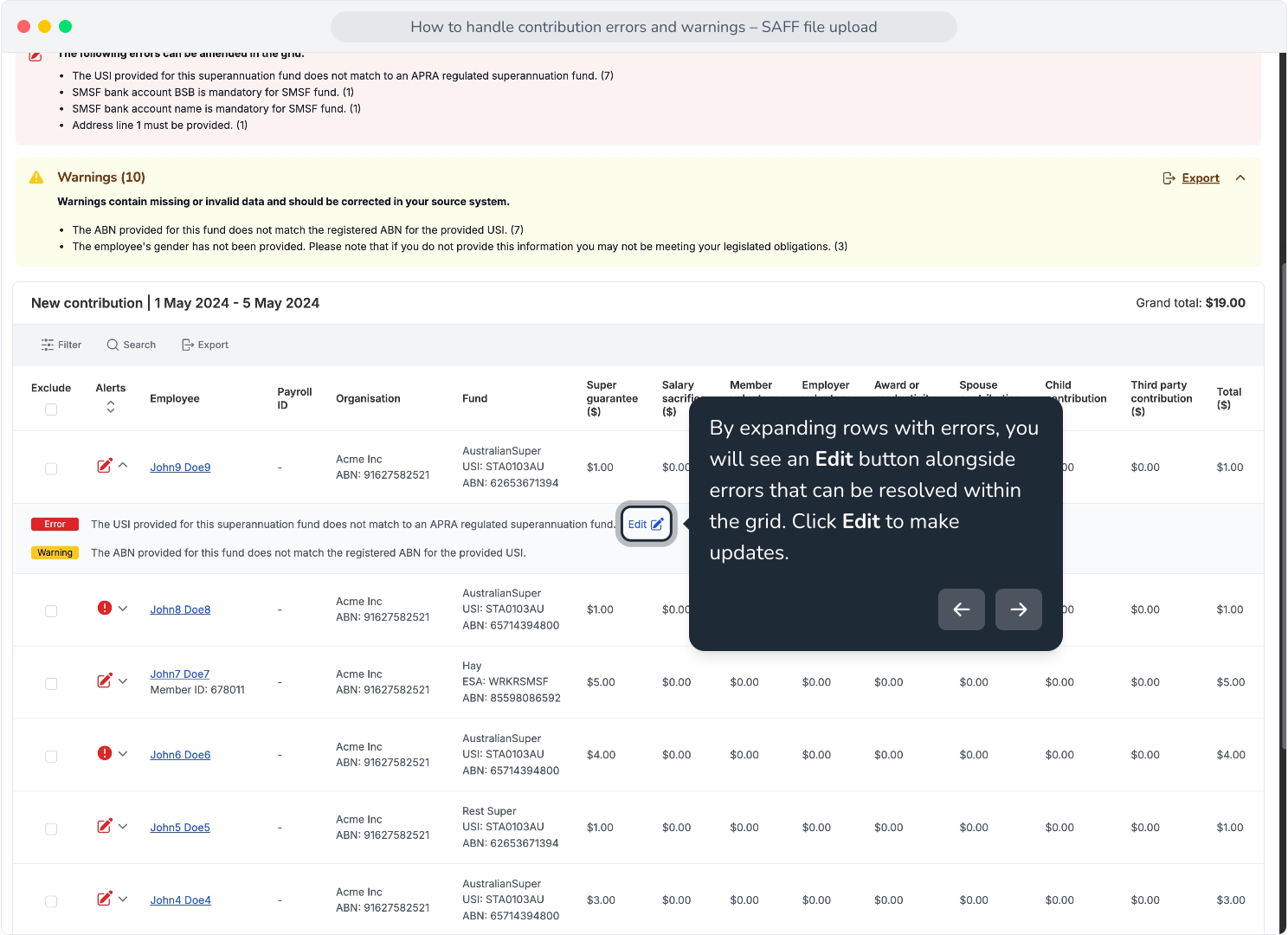
18. By expanding rows with errors, you will see an Edit button alongside errors that can be resolved within the grid. Click Edit to make updates.
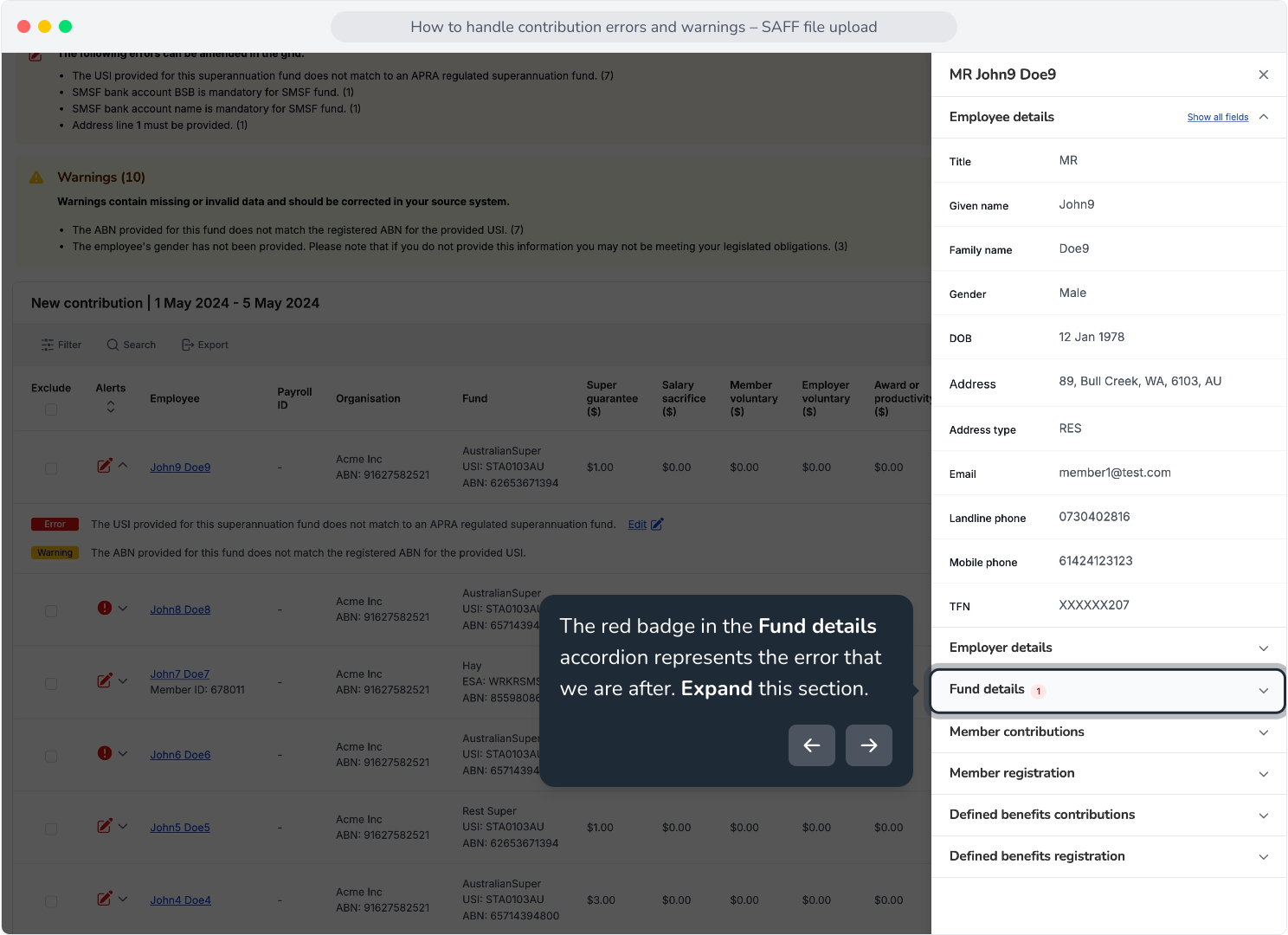
19. The red badge in the Fund details accordion represents the error that we are after. Expand this section.
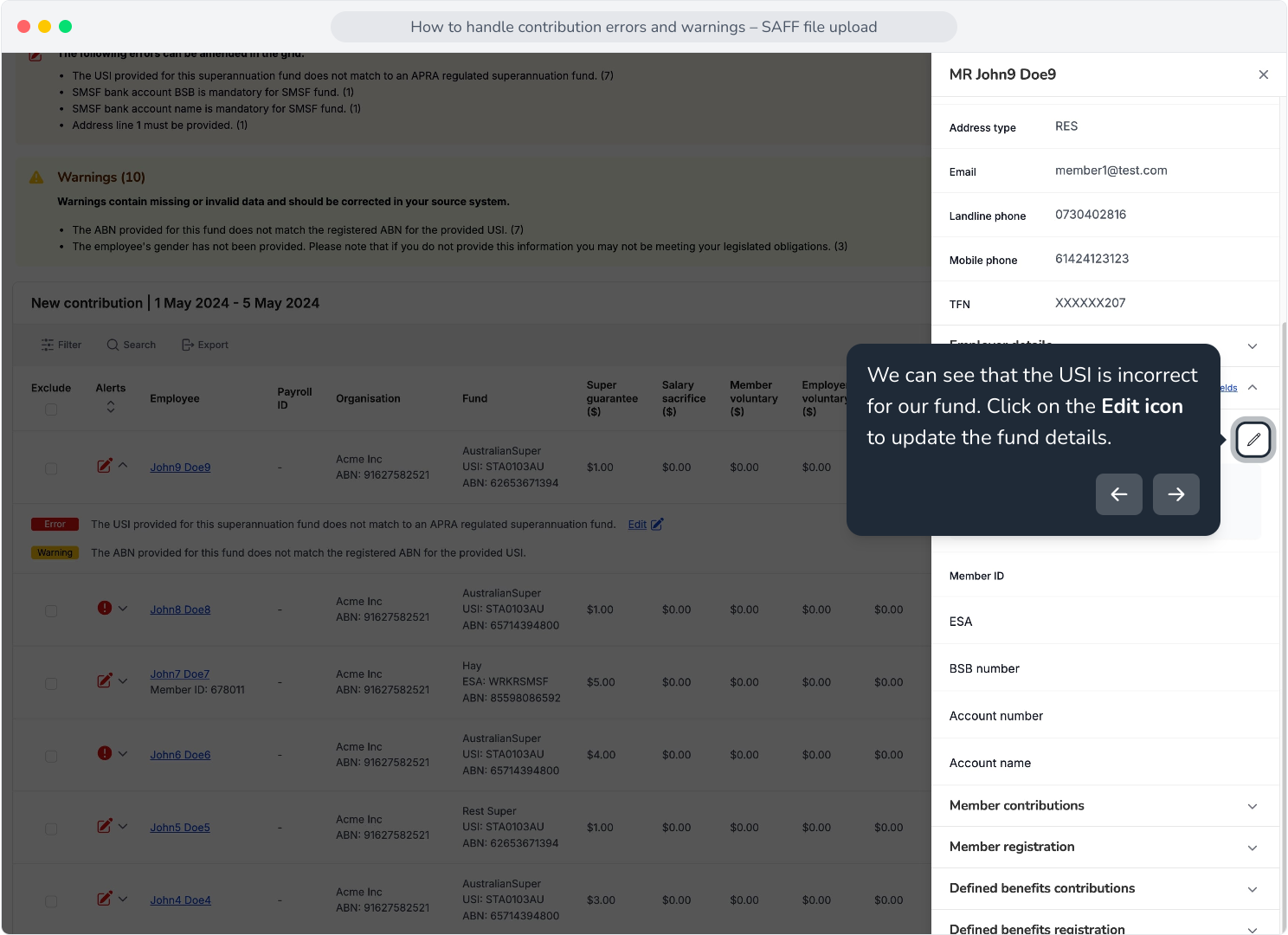
20. We can see that the USI is incorrect for our fund. Click on the Edit icon to update the fund details.
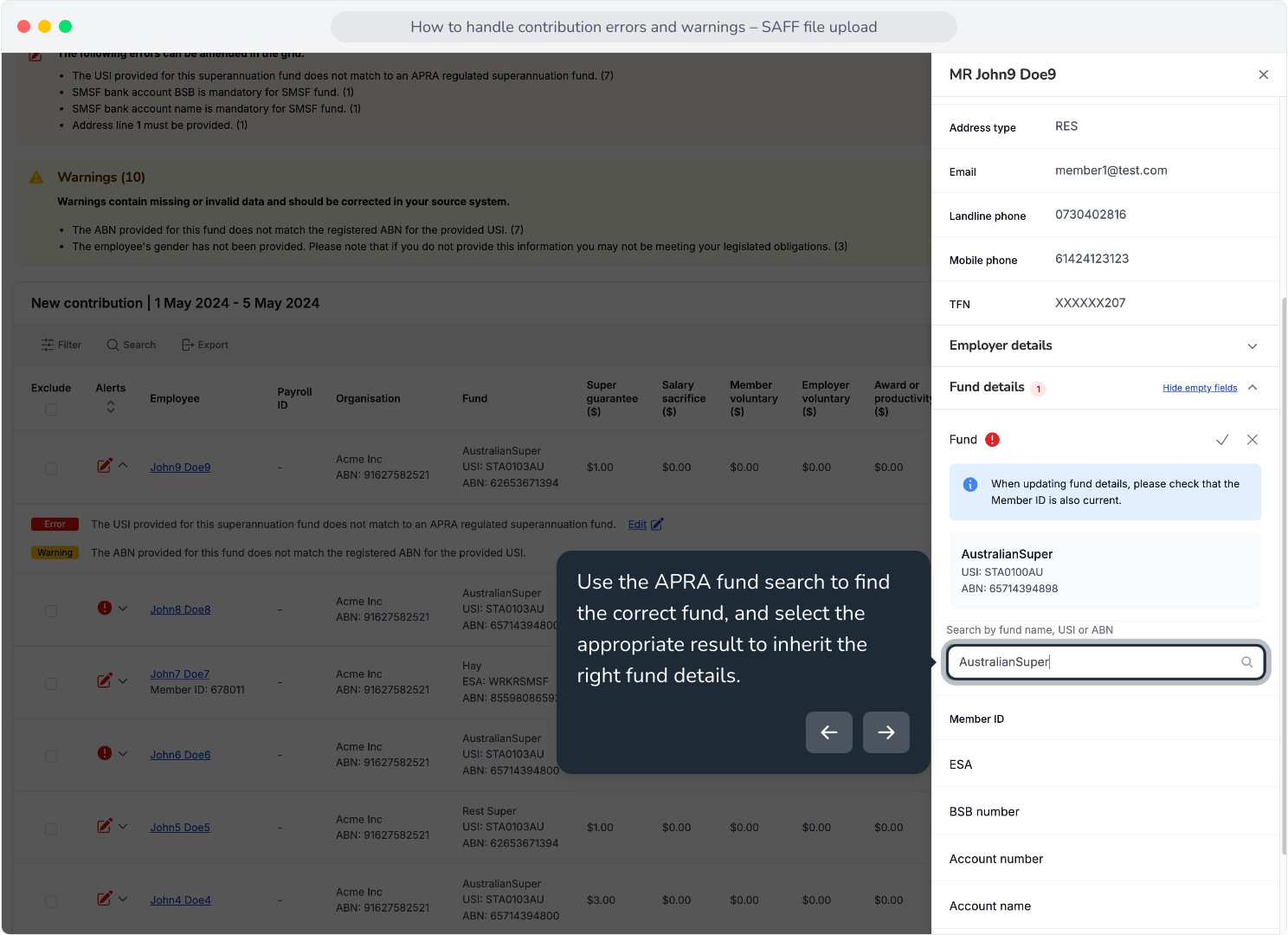
21. Use the APRA fund search to find the correct fund, and select the appropriate result to inherit the right fund details.
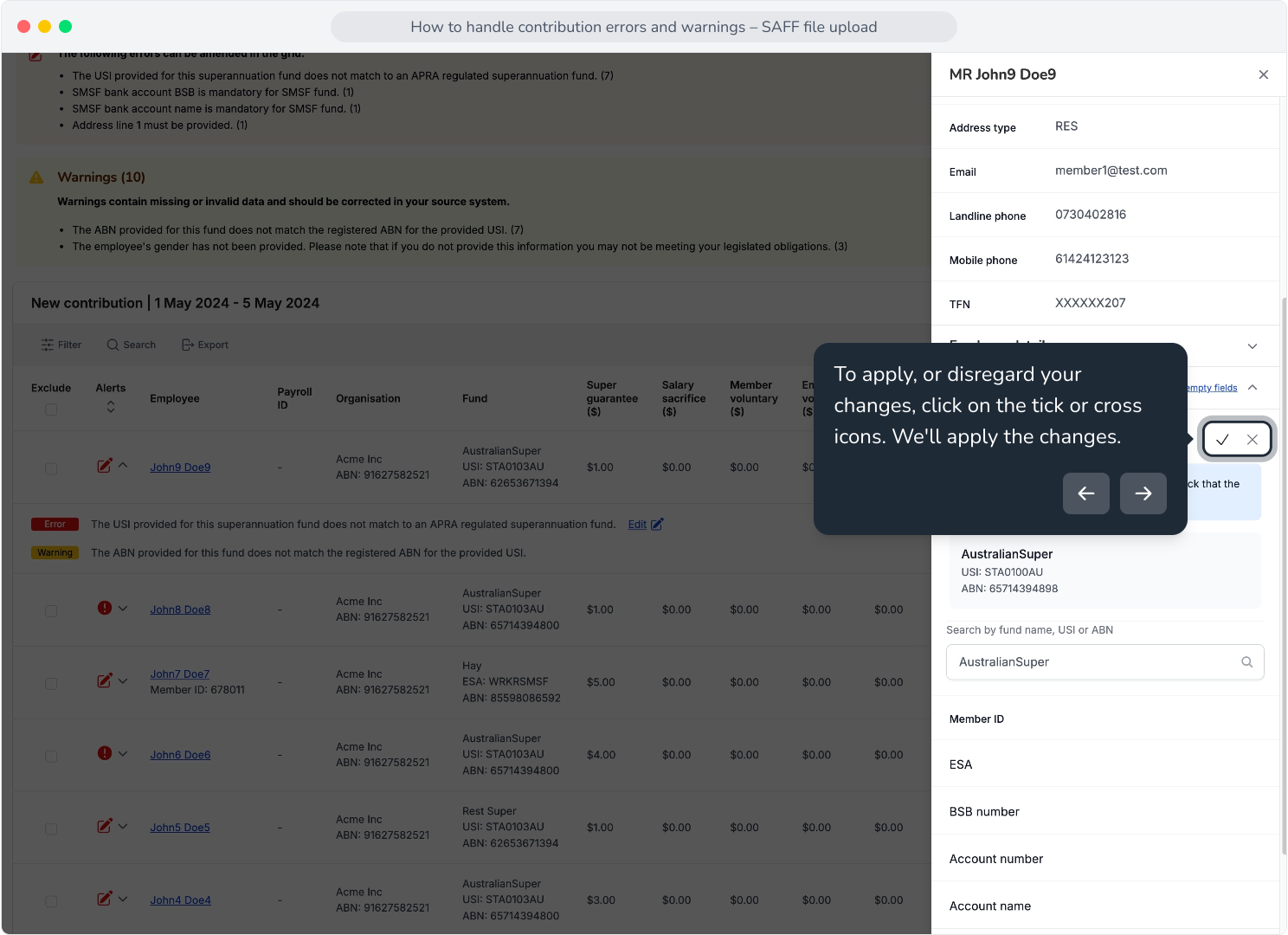
22. To apply, or disregard your changes, click on the tick or cross icons. We'll apply the changes.
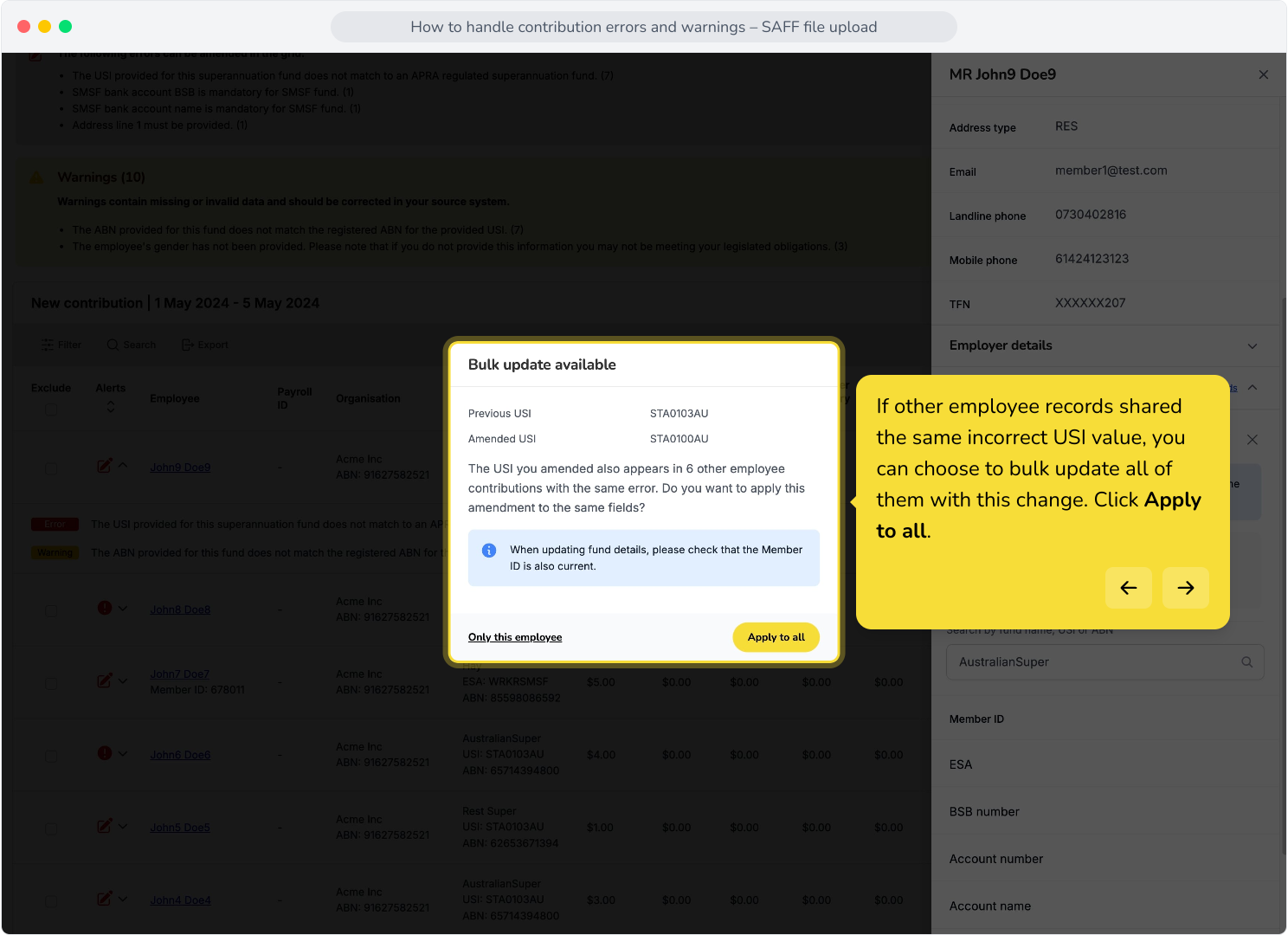
23. If other employee records shared the same incorrect USI value, you can choose to bulk update all of them with this change. Click Apply to all.
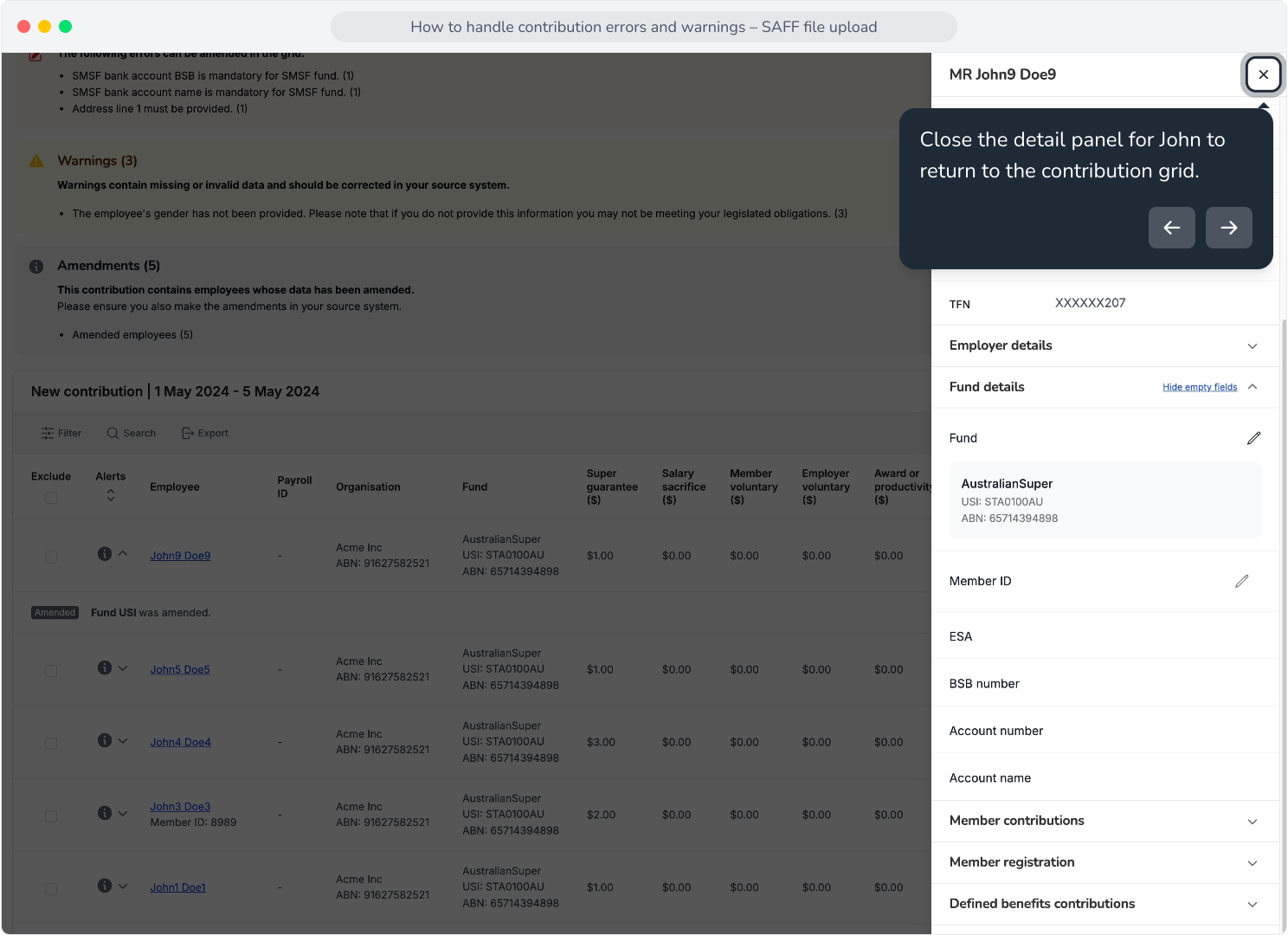
24. Close the detail panel for John to return to the contribution grid.
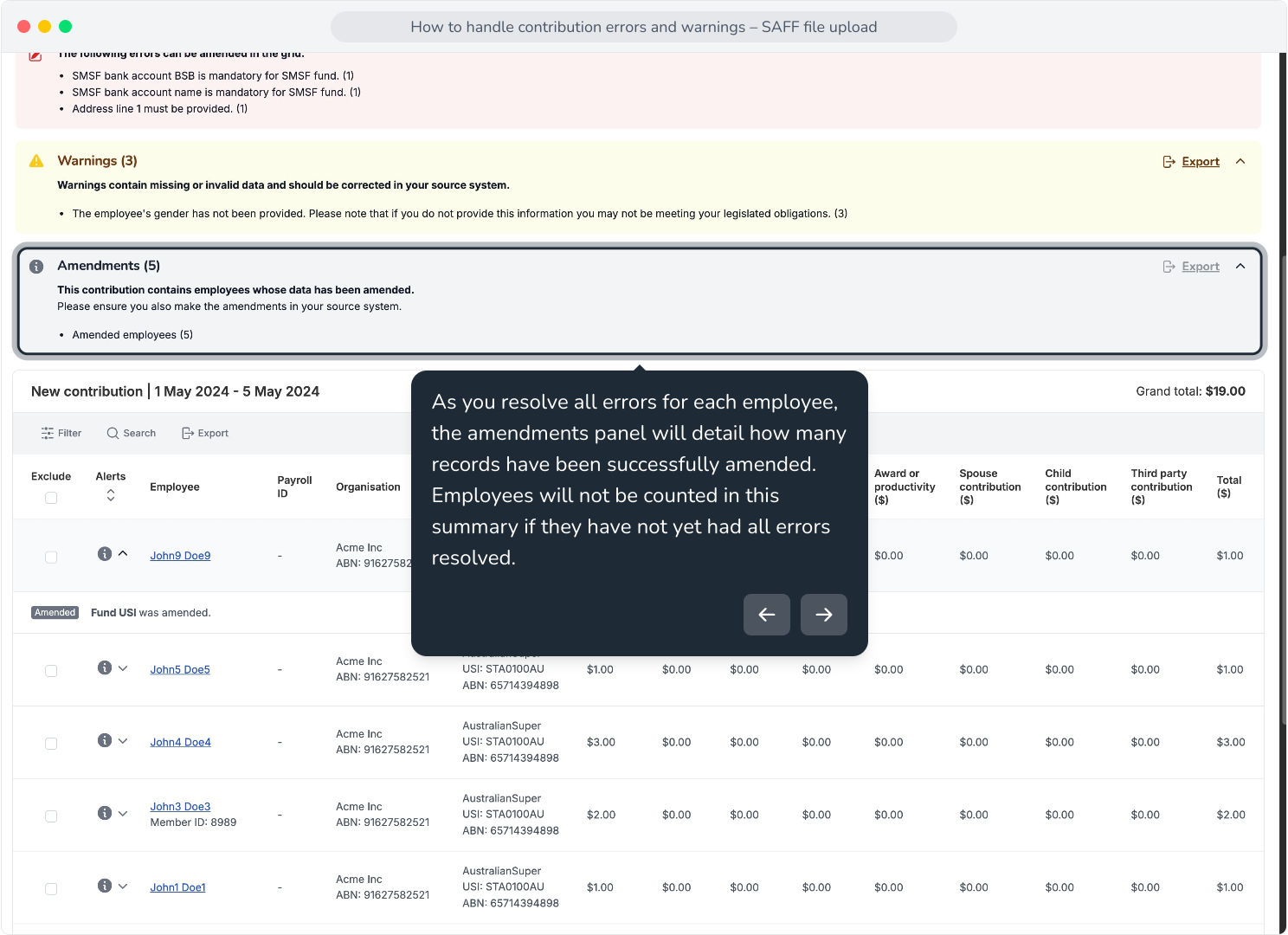
25. As you resolve all errors for each employee, the amendments panel will detail how many records have been successfully amended. Employees will not be counted in this summary if they have not yet had all errors resolved.
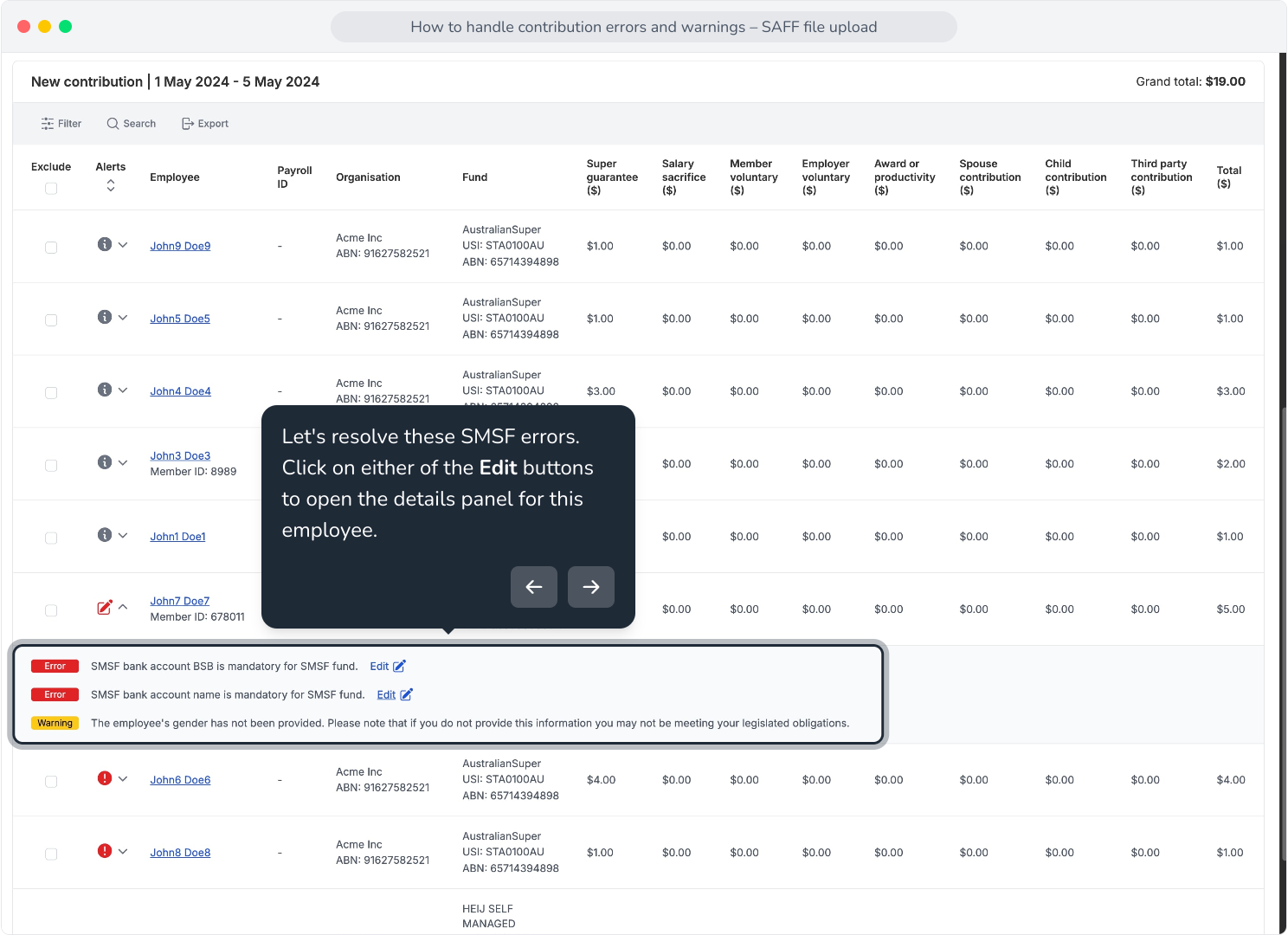
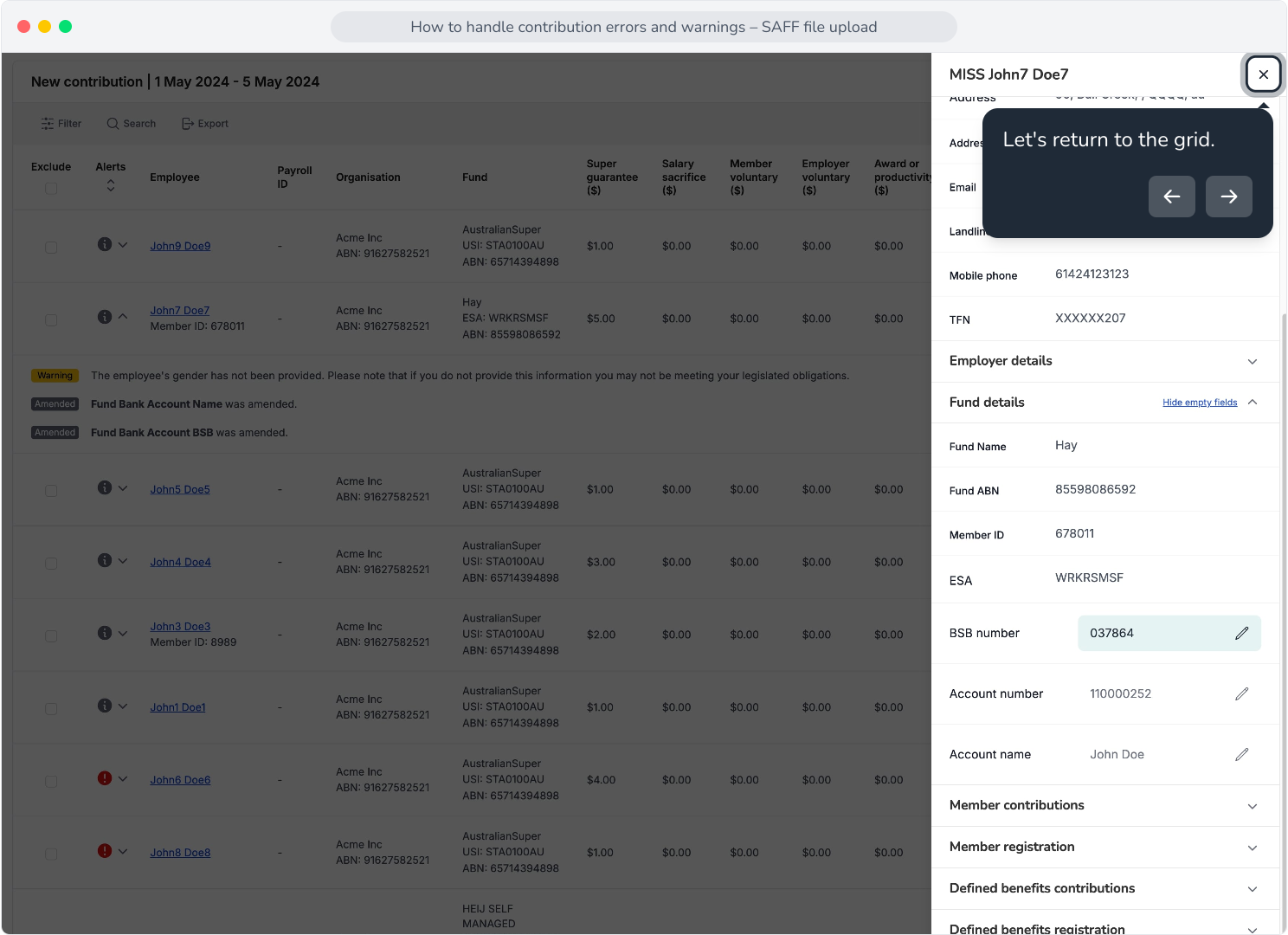
26. Let's resolve these SMSF errors. Click on either of the Edit buttons to open the details panel for this employee.
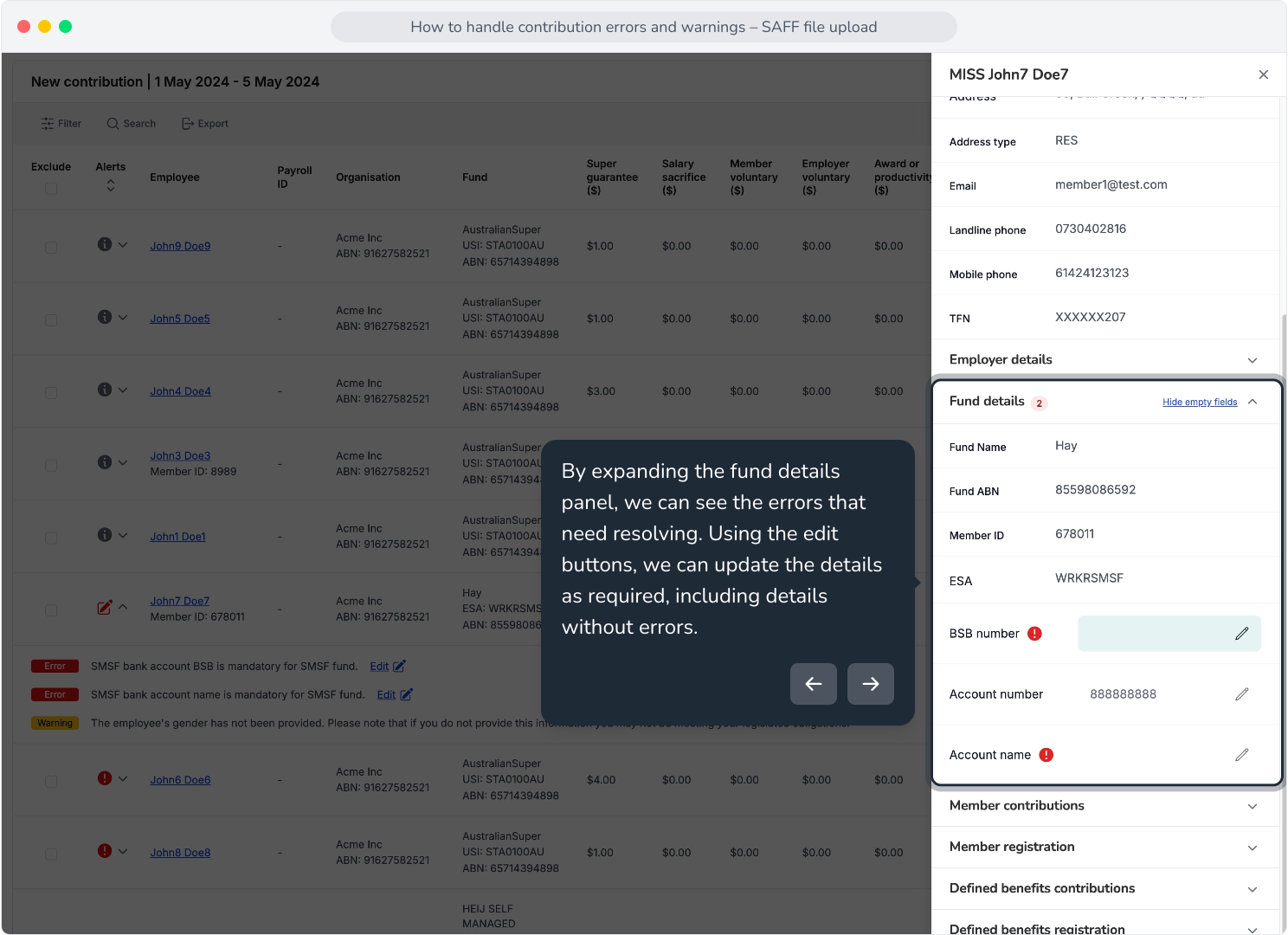
27. By expanding the fund details panel, we can see the errors that need resolving. Using the edit buttons, we can update the details as required, including details without errors.
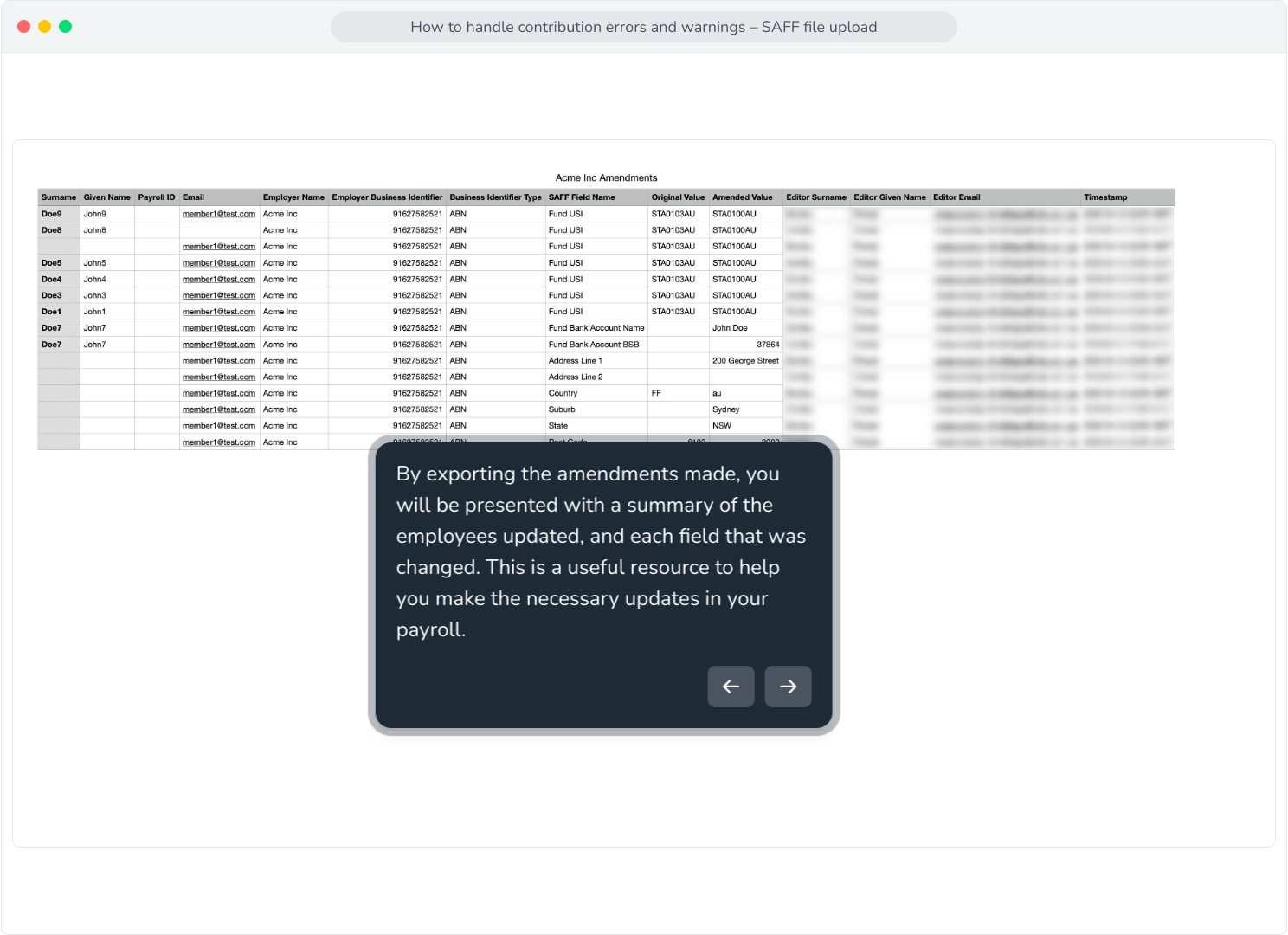
28. Let's return to the grid.
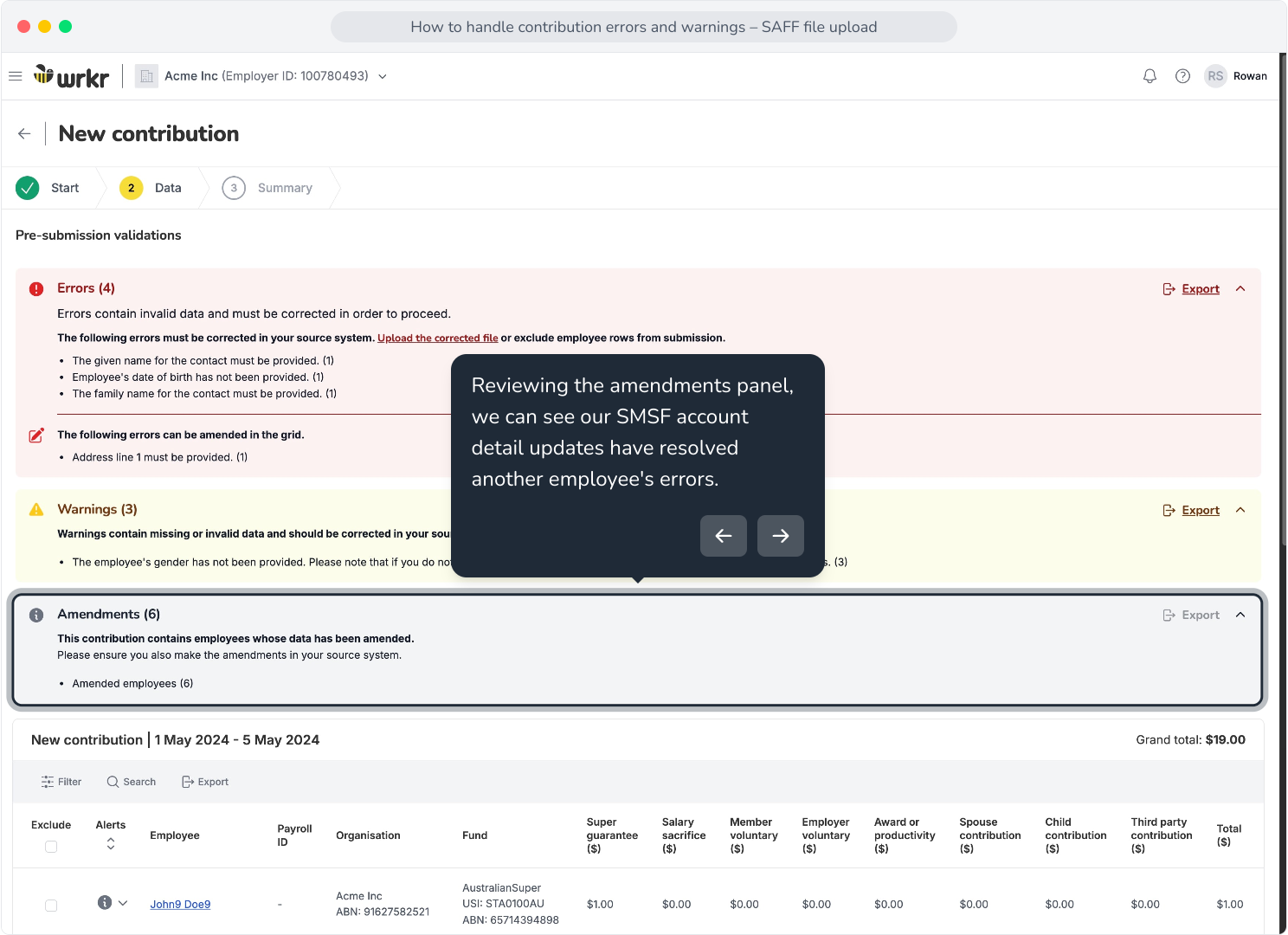
29. Reviewing the amendments panel, we can see our SMSF account detail updates have resolved another employee's errors.
30. Similar to the error and warning export functions, after the contribution has been submitted, you will be able to export these amendments to see the changes that are needed to be applied to your payroll system ahead of future contribution payments.
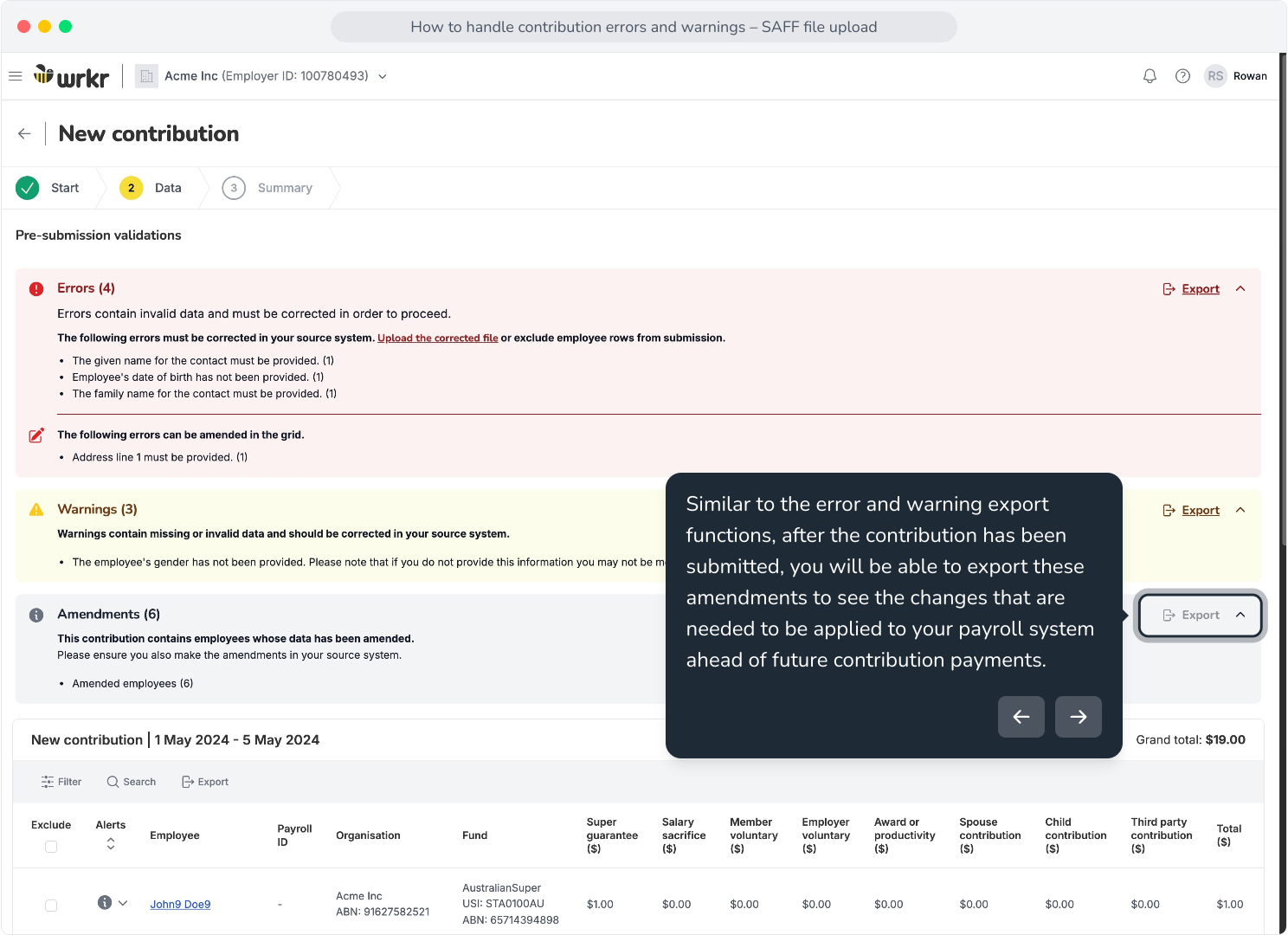
31. By exporting the amendments made, you will be presented with a summary of the employees updated, and each field that was changed. This is a useful resource to help you make the necessary updates in your payroll.