Context: This guide documents the notifications function within the Wrkr Portal – How to find them, and the actions that can be performed.
Interactive Demo
Note: Make the demo full-screen for a better experience. You can mute/un-mute narration to suit your preferences.
Step by Step
1. Notifications for Contributions
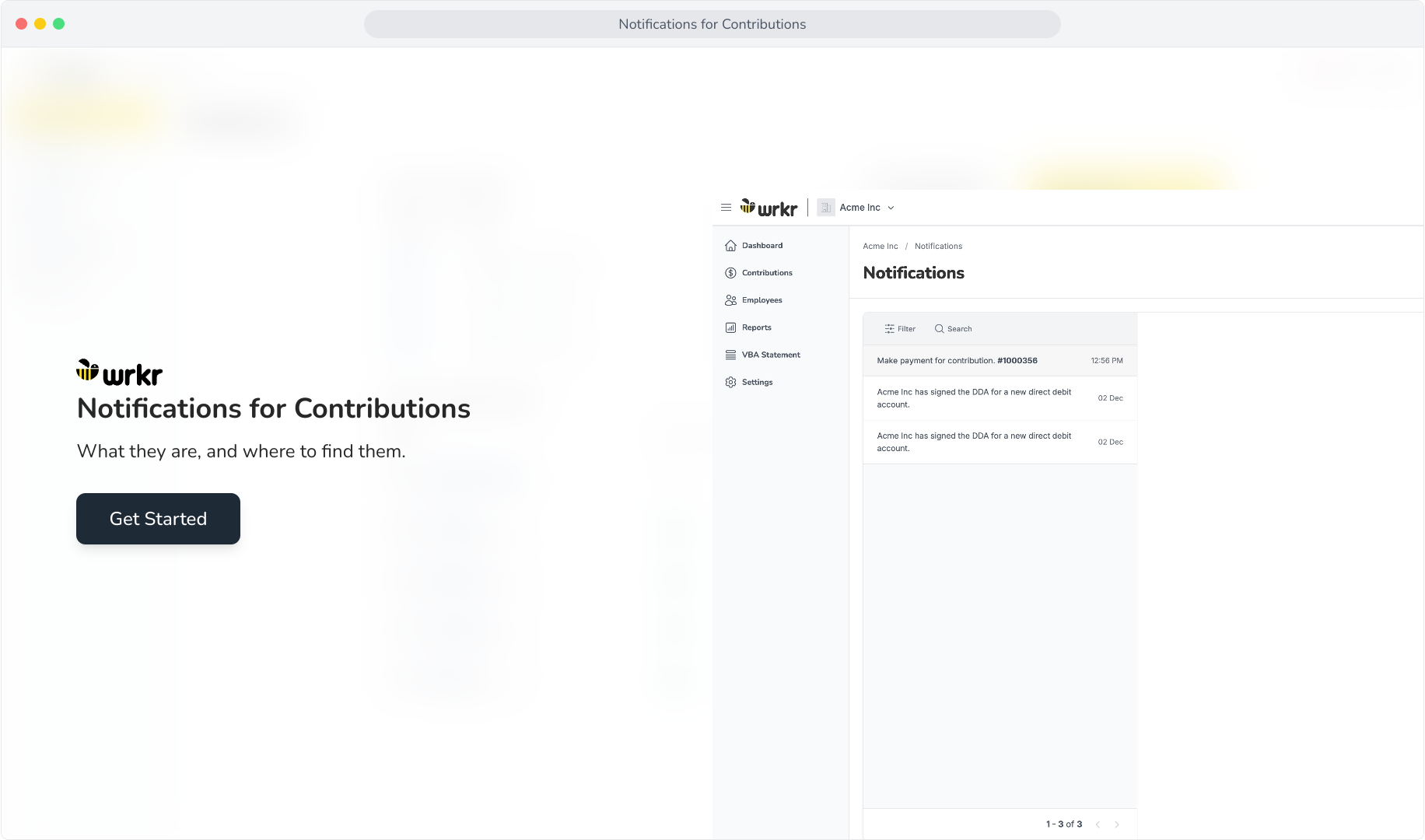
2. Within the portal, click on the notifications bell in the top navigation bar.
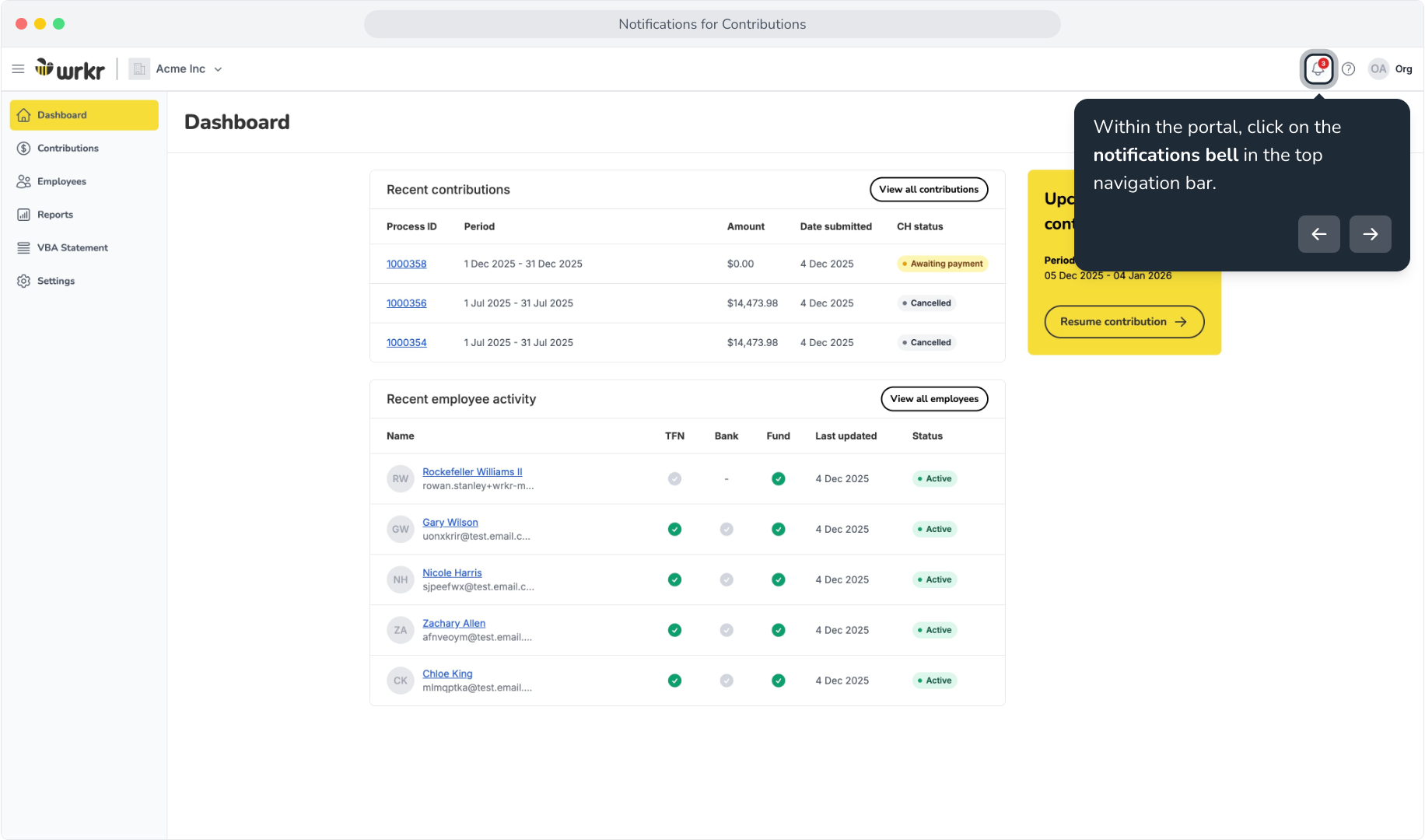
3. You will be taken to the Notifications screen, showing notifications relating to your contributions and organisation.
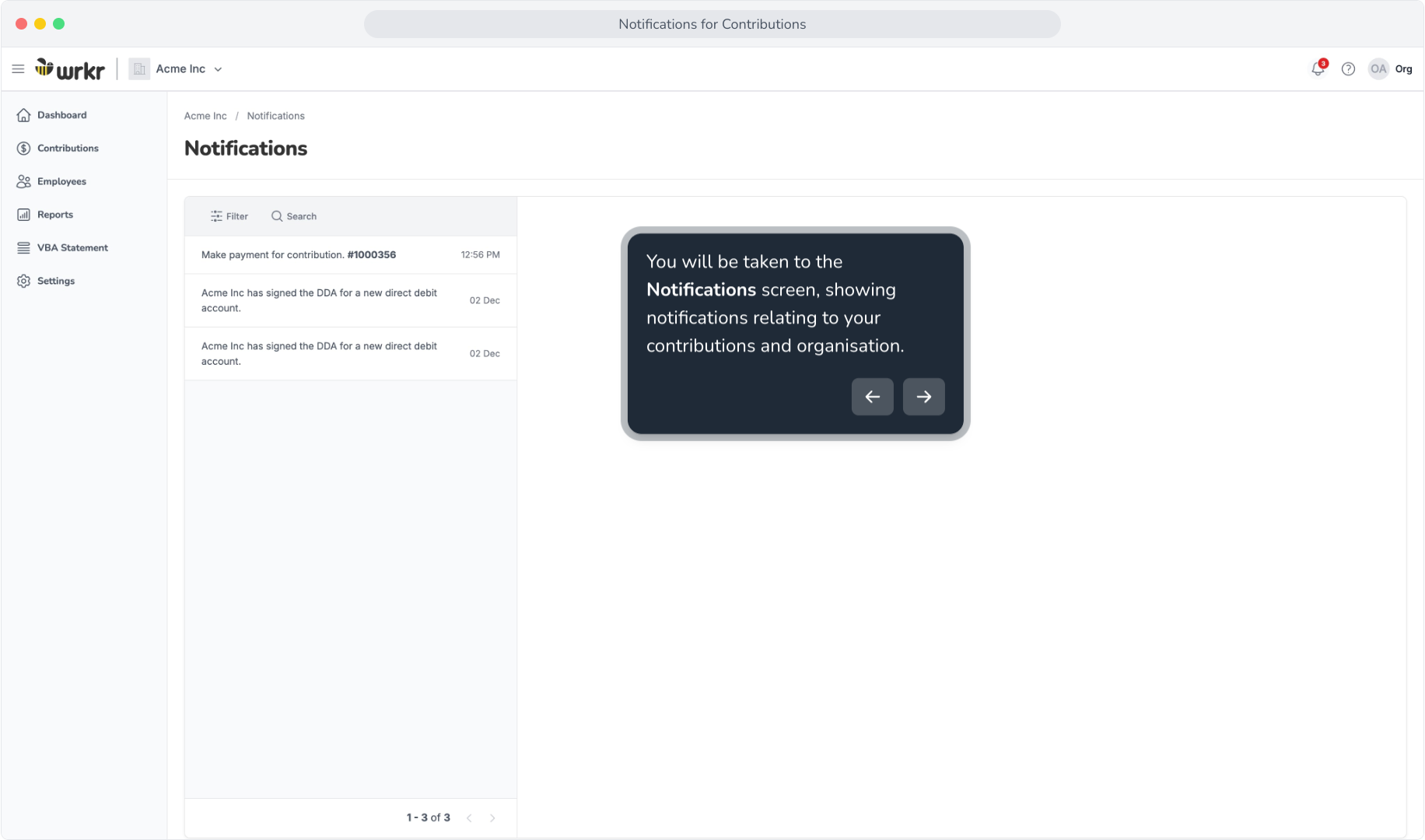
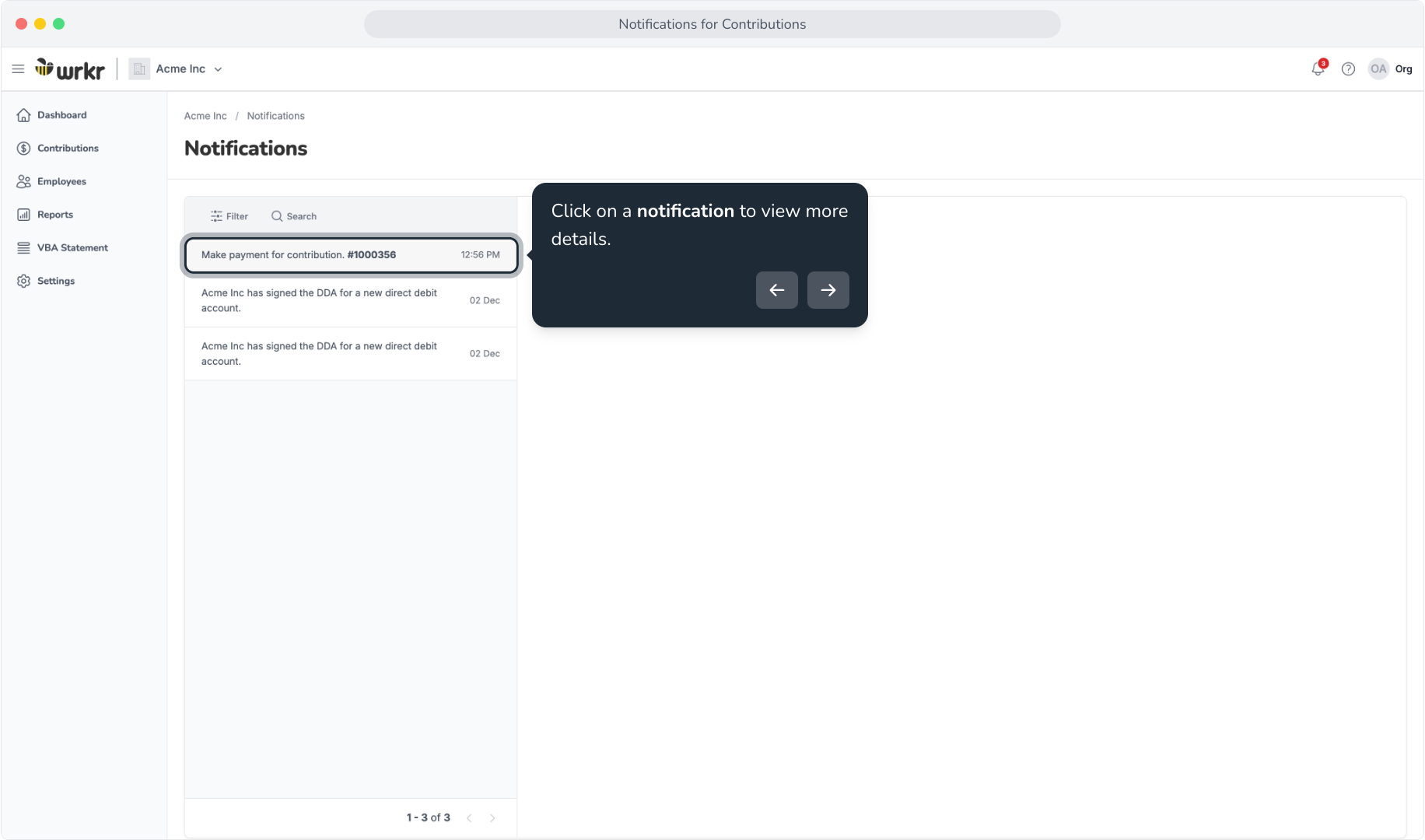
4. Click on a notification to view more details.
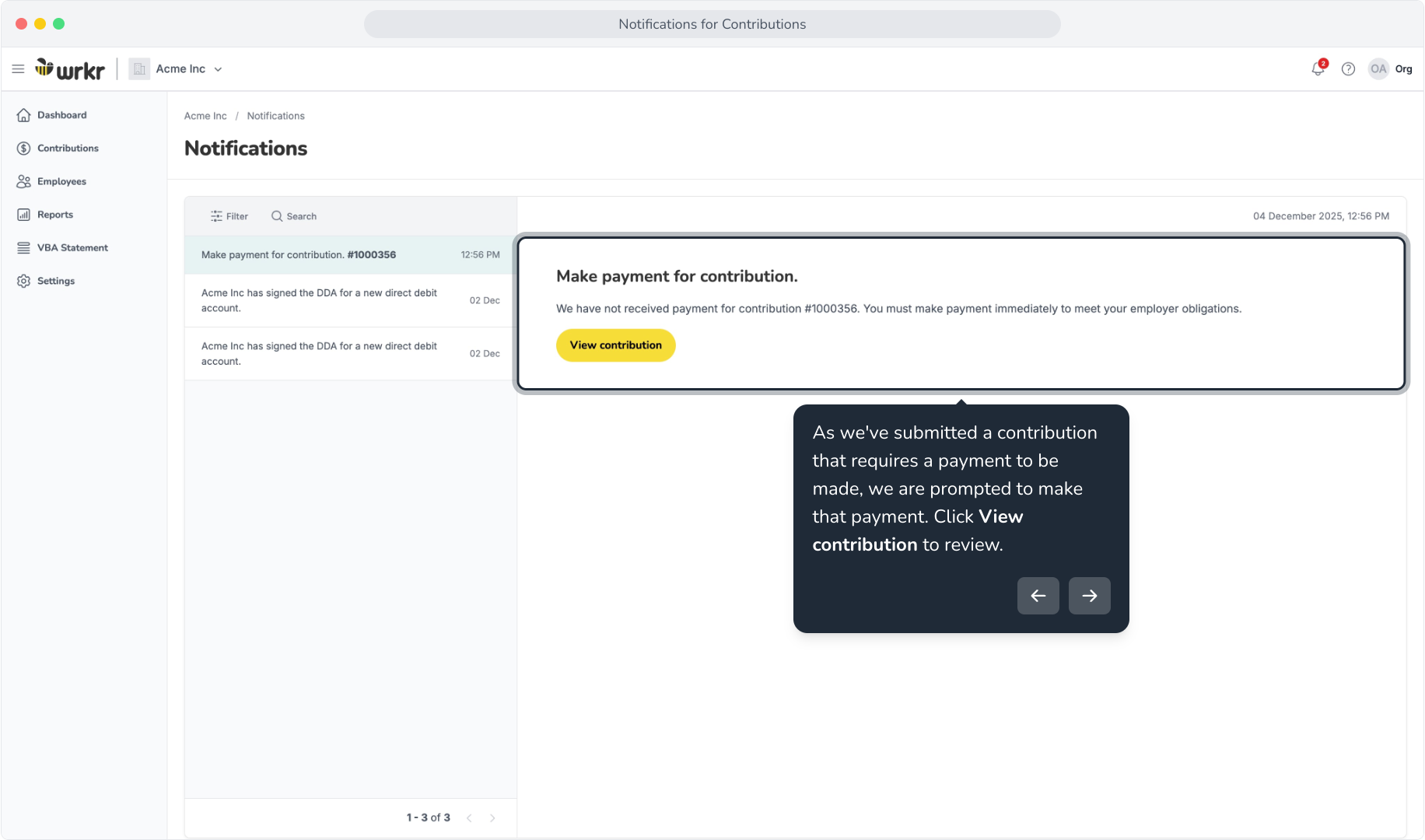
5. As we've submitted a contribution that requires a payment to be made, we are prompted to make that payment. Click View contribution to review.
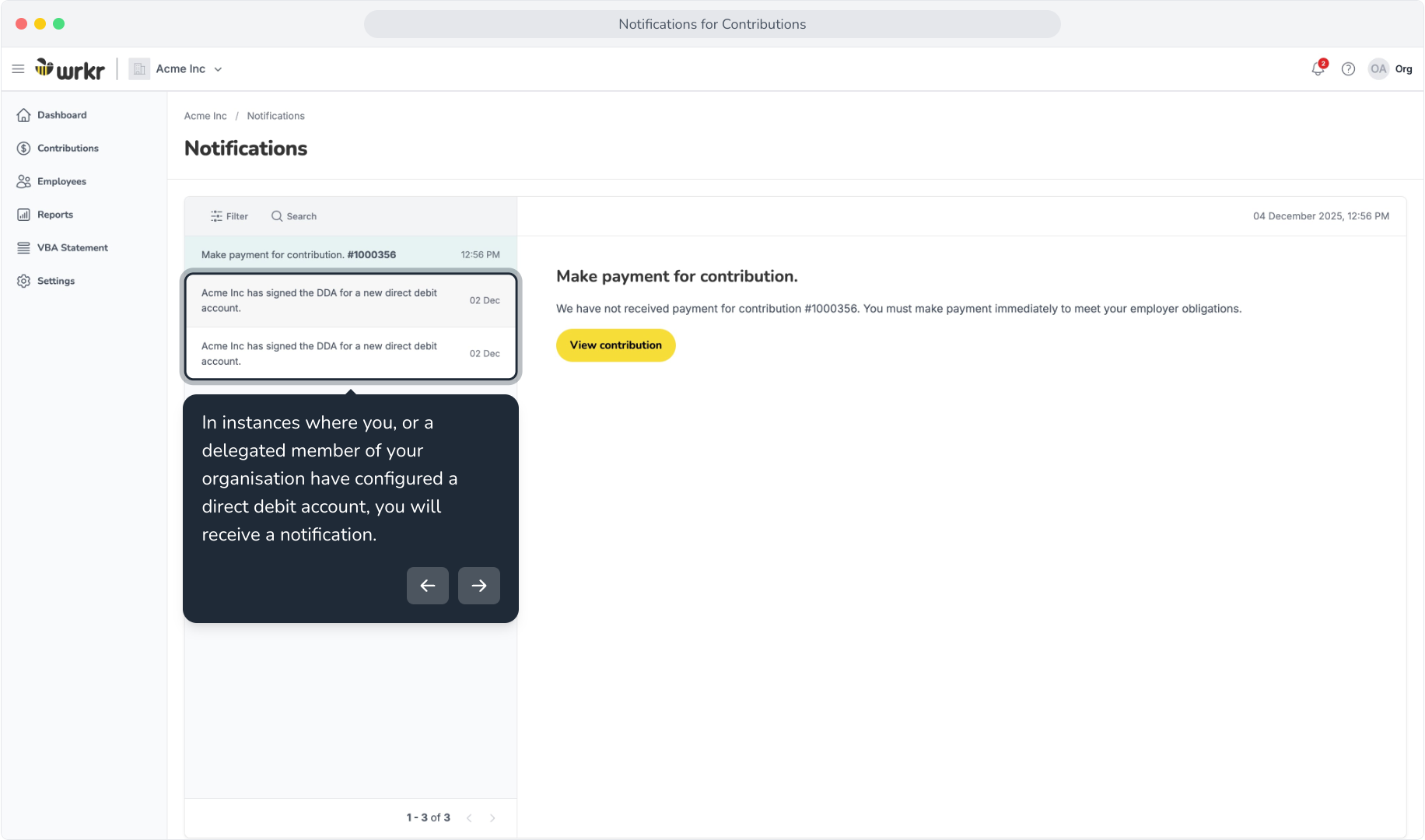
6. In instances where you, or a delegated member of your organisation have configured a direct debit account, you will receive a notification.
7. For larger organisations with numerous users, this can help provide visibility of changes or additions to available bank accounts for your organisation.
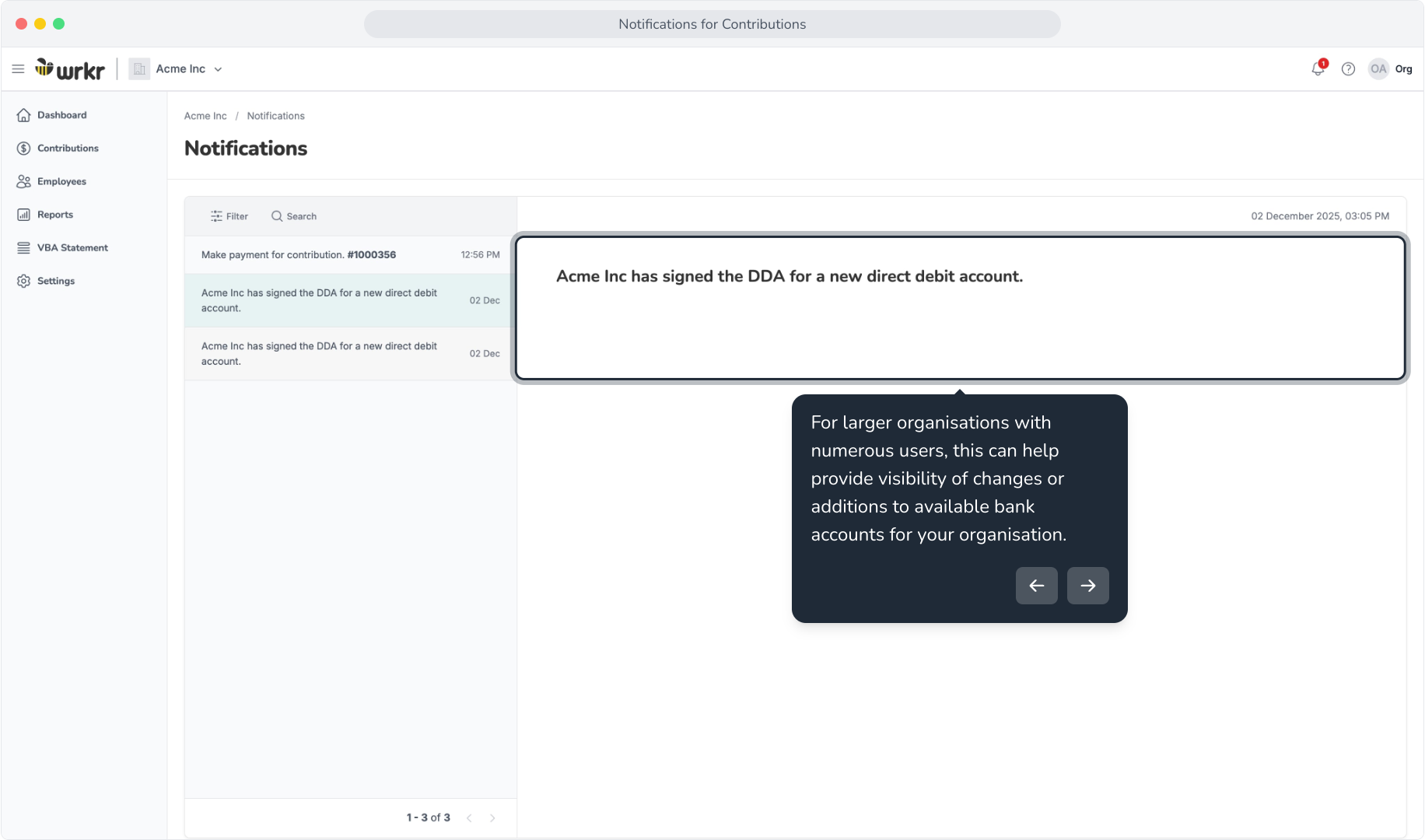
8. As you view unread notifications, the badge count will decrement, disappearing once all notifications have been reviewed.As new notifications are triggered, this number will increment.