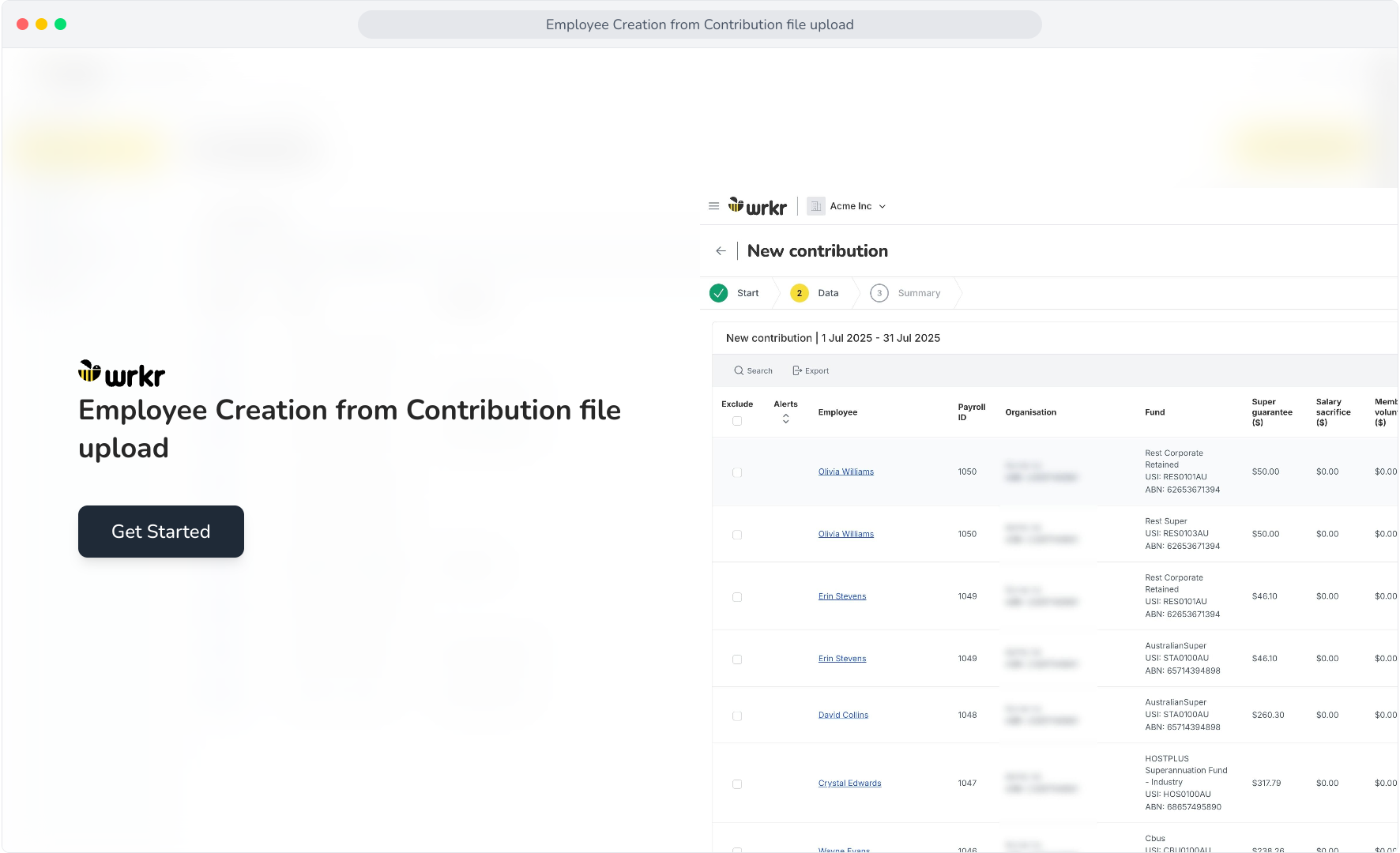
Context: This guide demonstrates how the Wrkr Portal manages new and existing employees with multiple funds when submitting a Contribution via file upload.
Interactive Demo
Note: Make the demo full-screen for a better experience. You can mute/un-mute narration to suit your preferences.
Step by Step
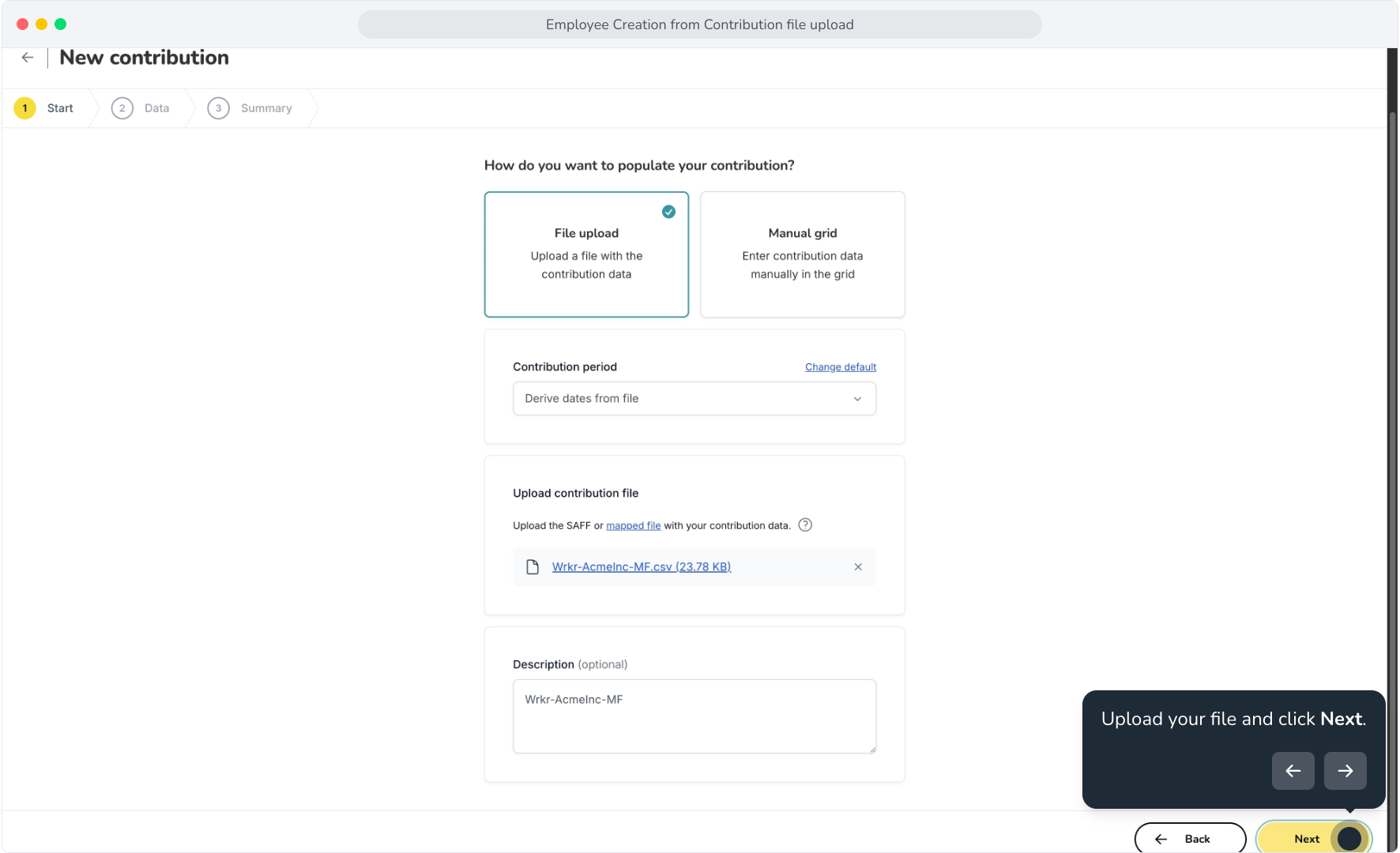
1. Employee Creation from Contribution file upload
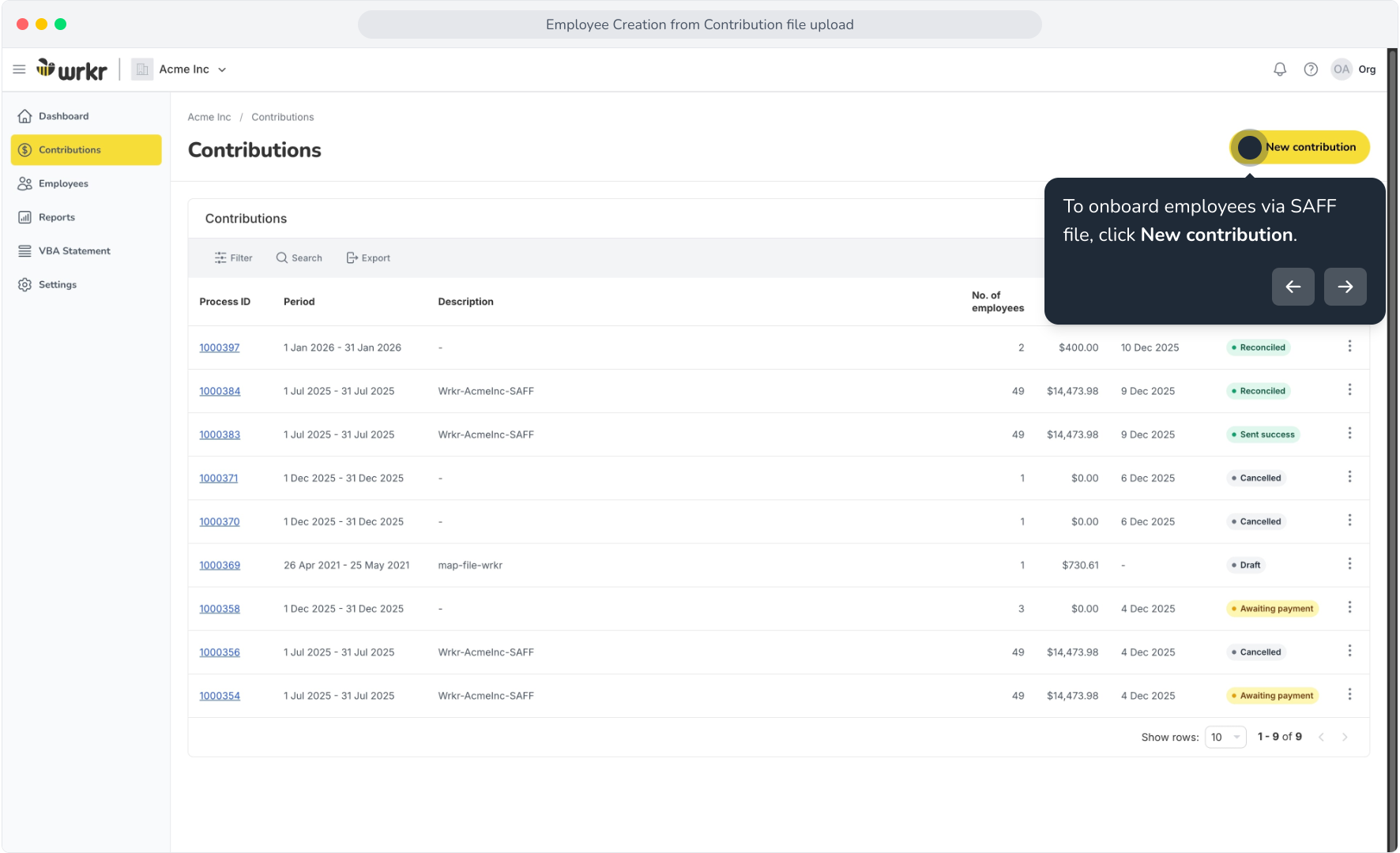
2. To onboard employees via SAFF file, click New contribution.
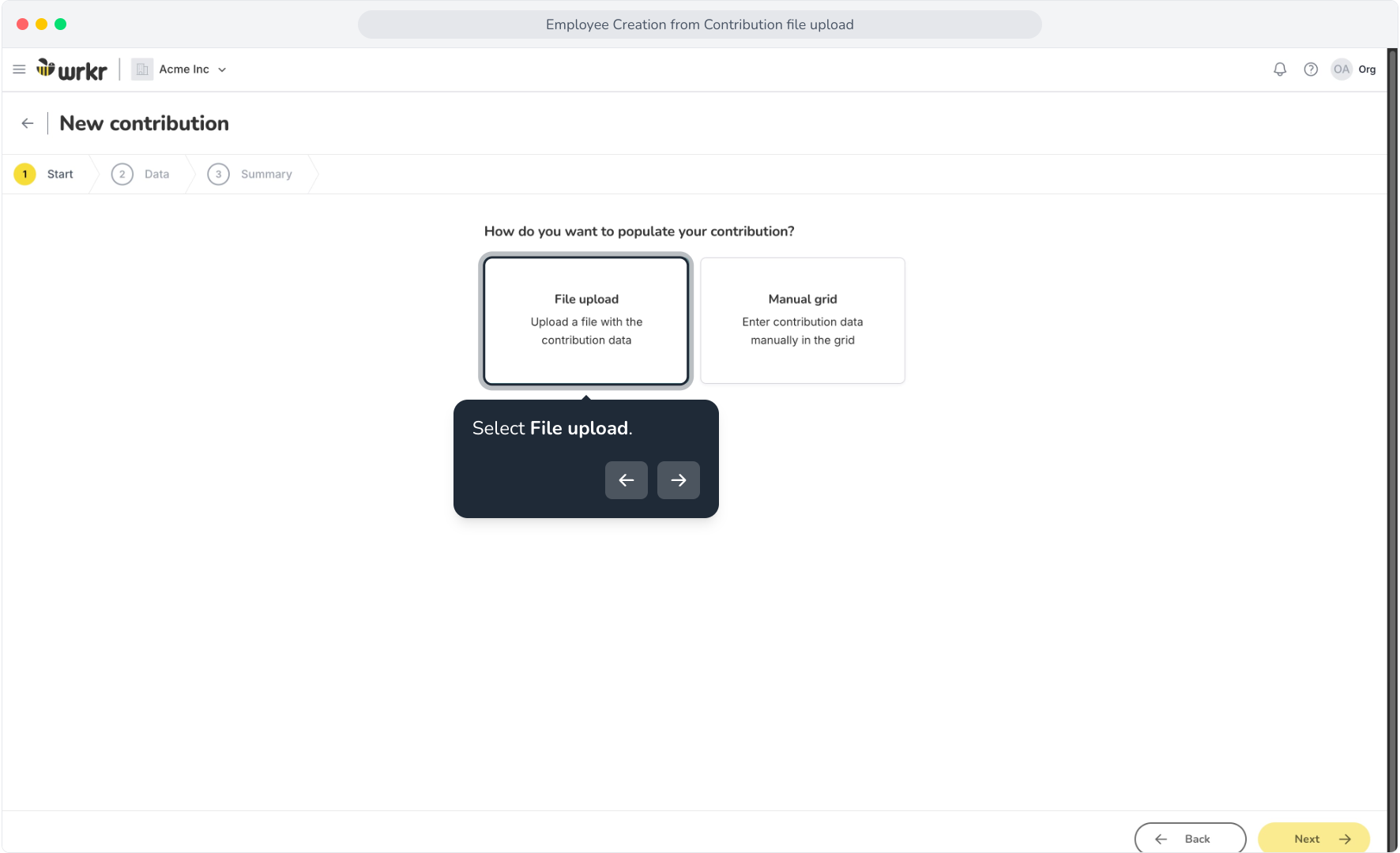
3. Select File upload.
4. Upload your file and click Next.
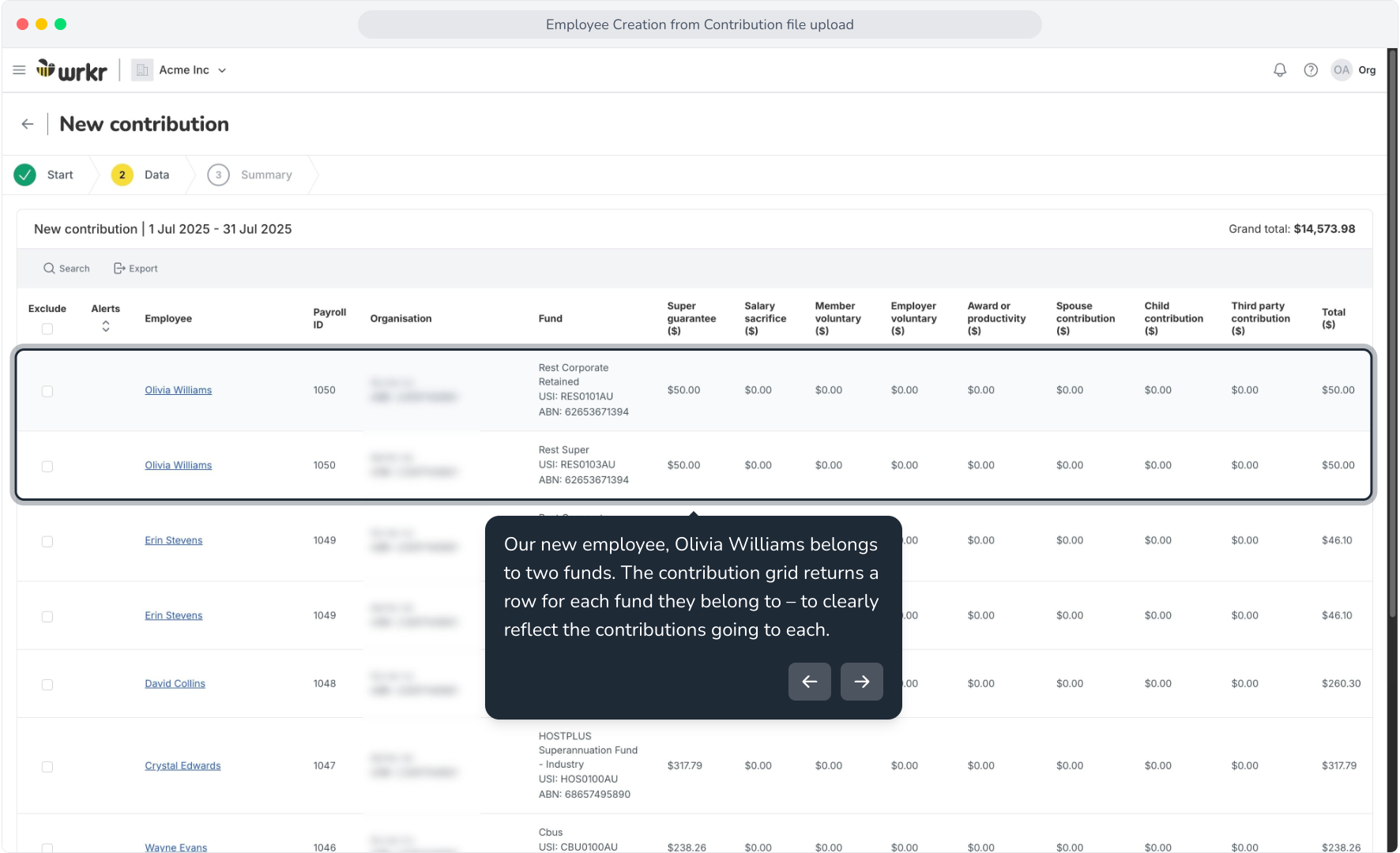
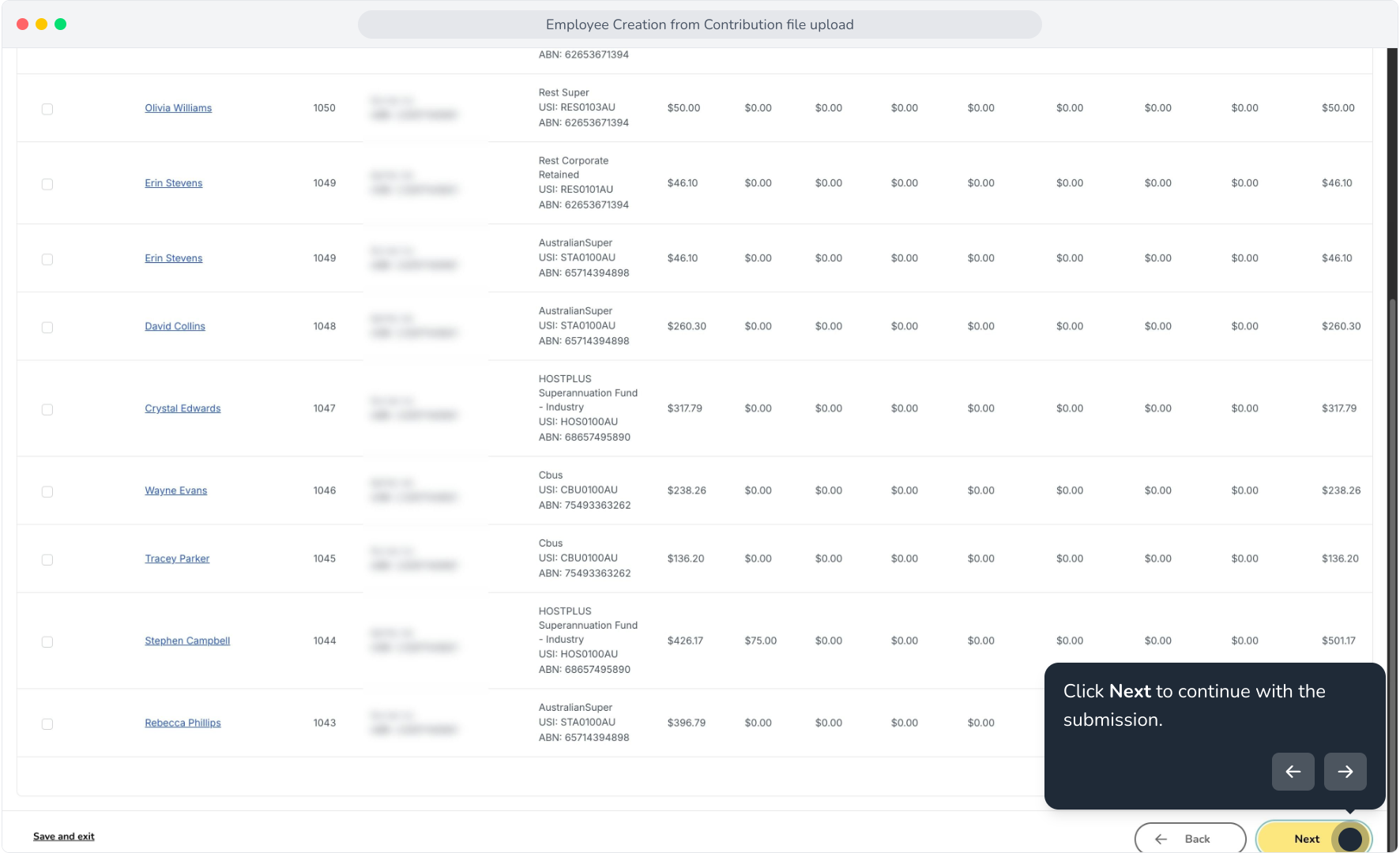
5. Our new employee, Olivia Williams belongs to two funds. The contribution grid returns a row for each fund they belong to – to clearly reflect the contributions going to each.
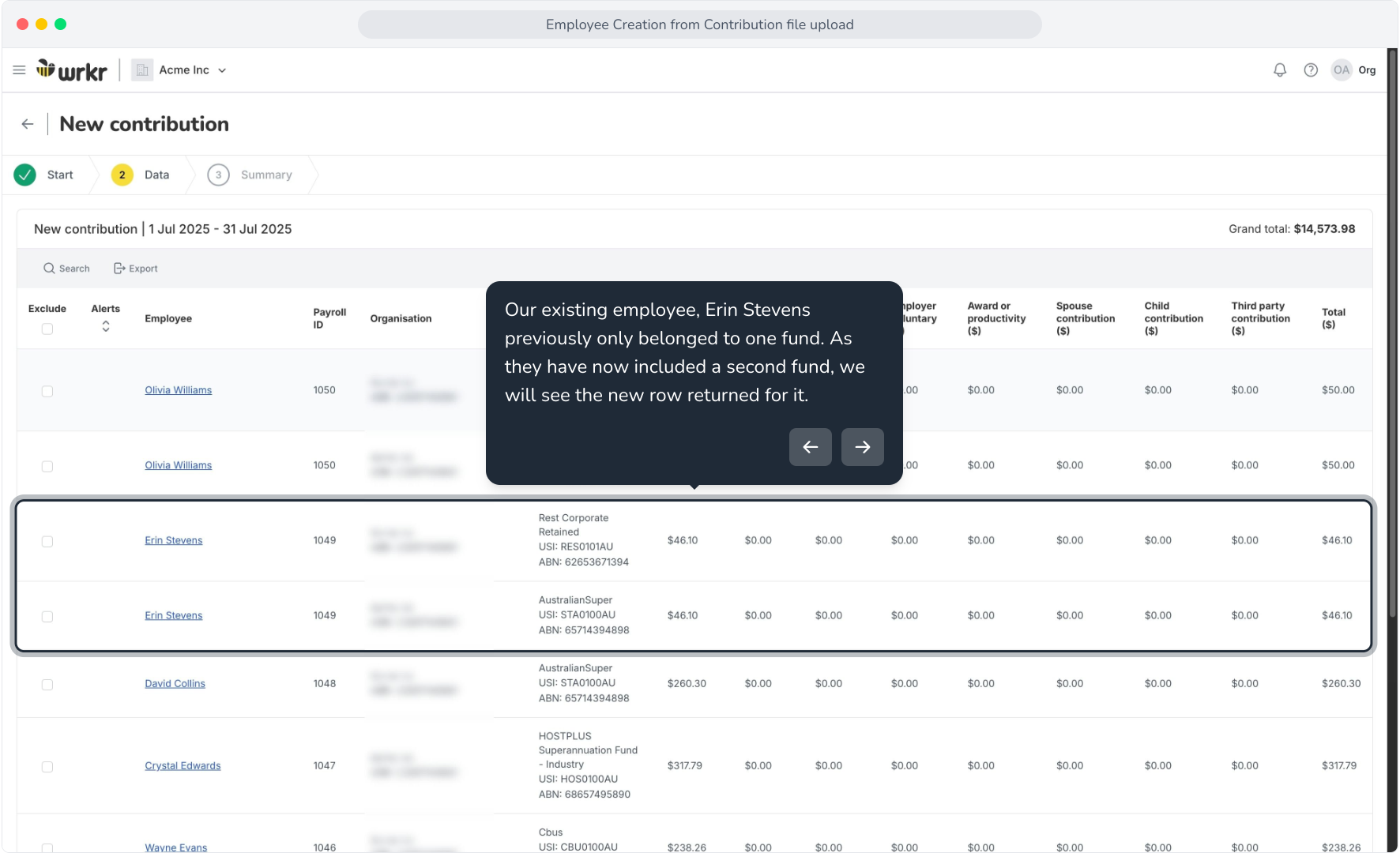
6. Our existing employee, Erin Stevens previously only belonged to one fund. As they have now included a second fund, we will see the new row returned for it.
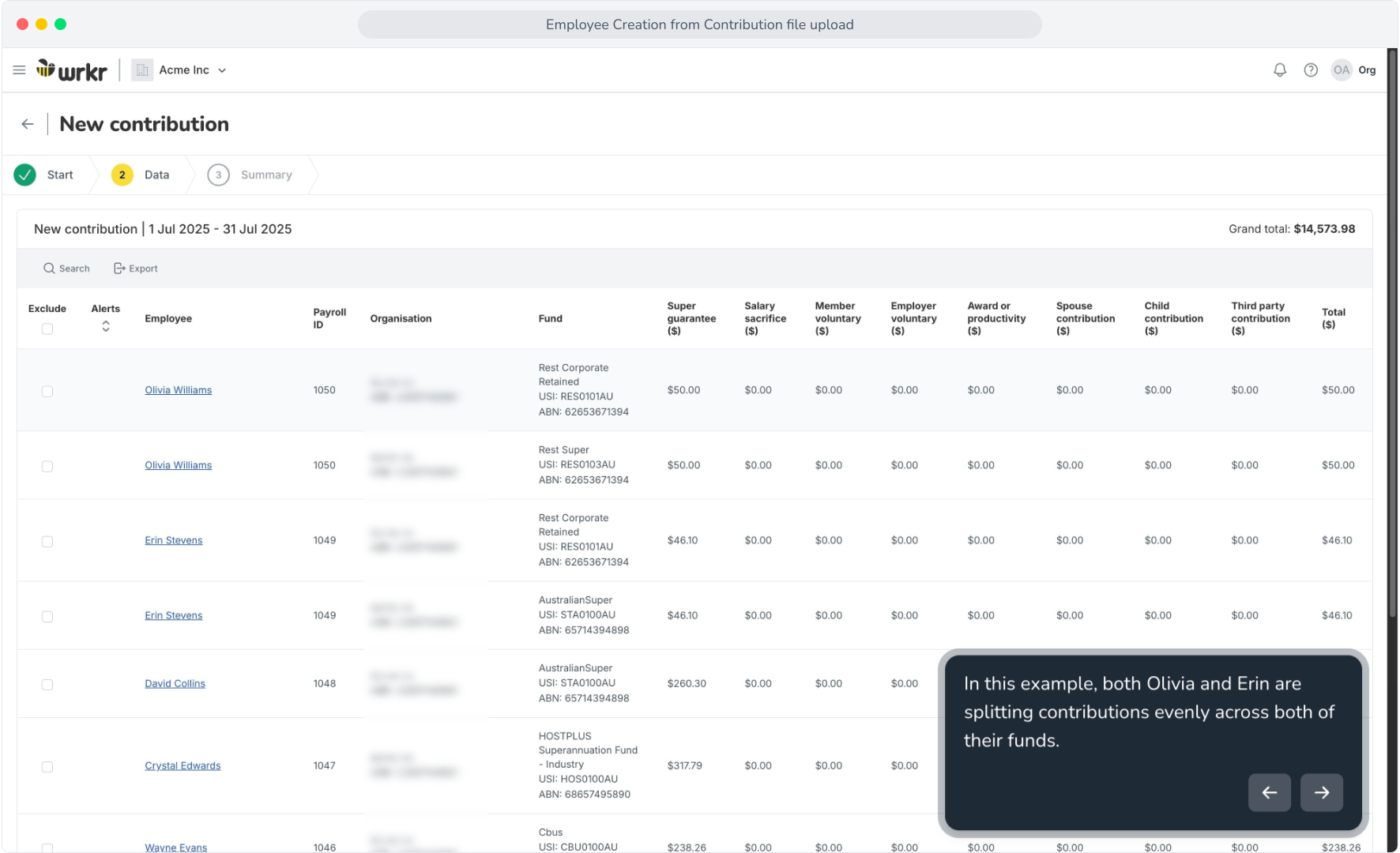
7. In this example, both Olivia and Erin are splitting contributions evenly across both of their funds.
8. Click Next to continue with the submission.
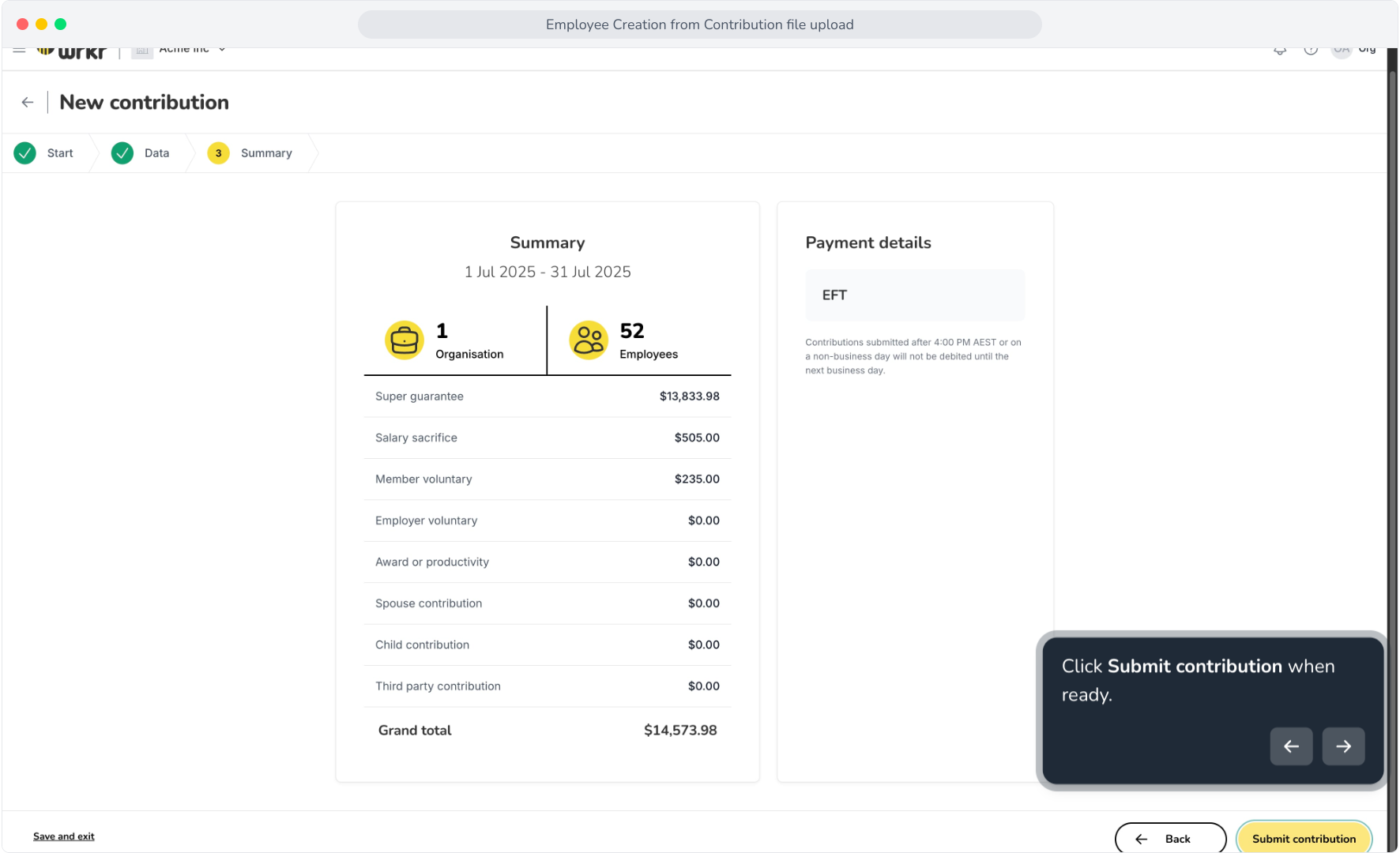
9. Click Submit contribution when ready.
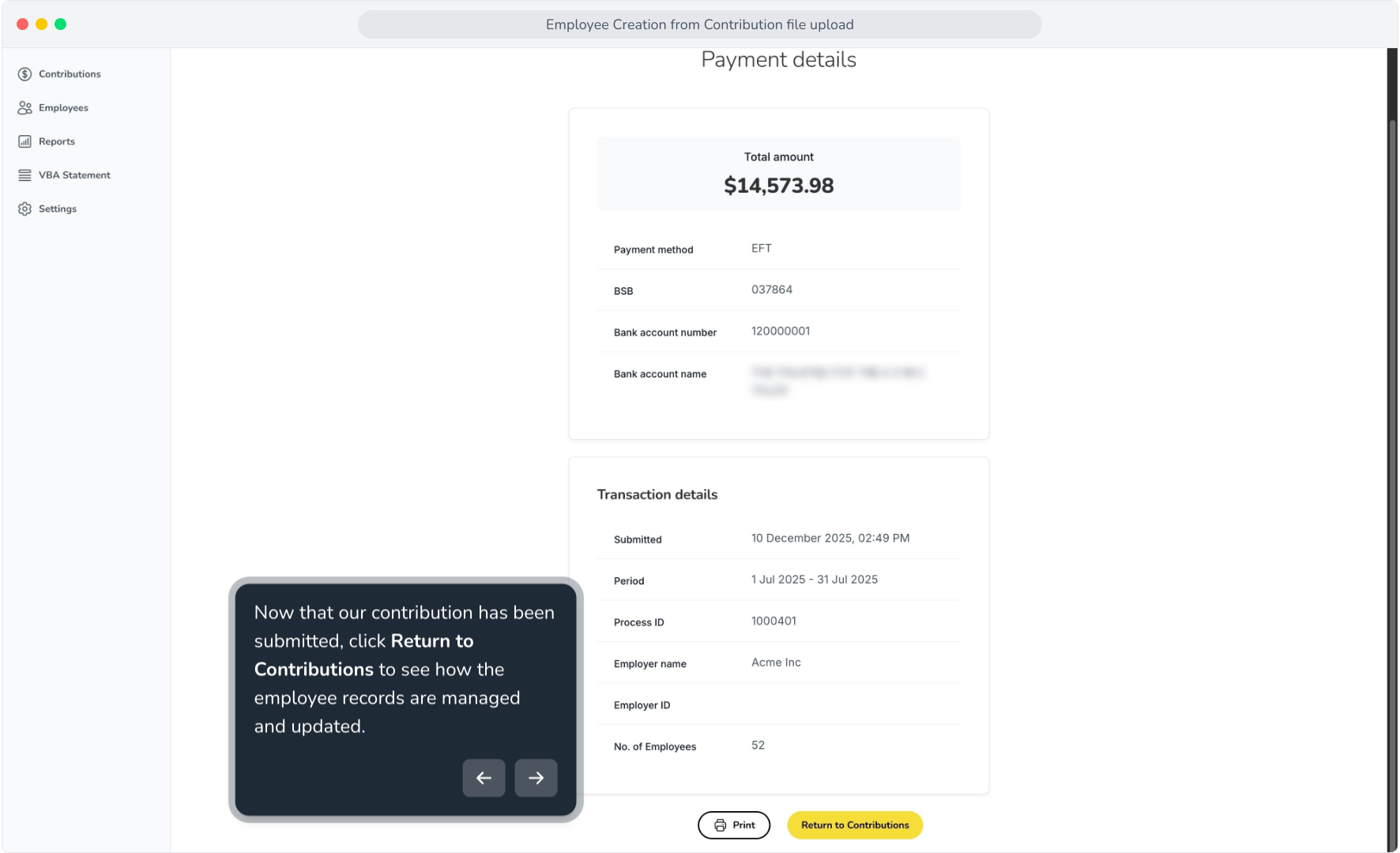
10. Now that our contribution has been submitted, click Return to Contributions to see how the employee records are managed and updated.
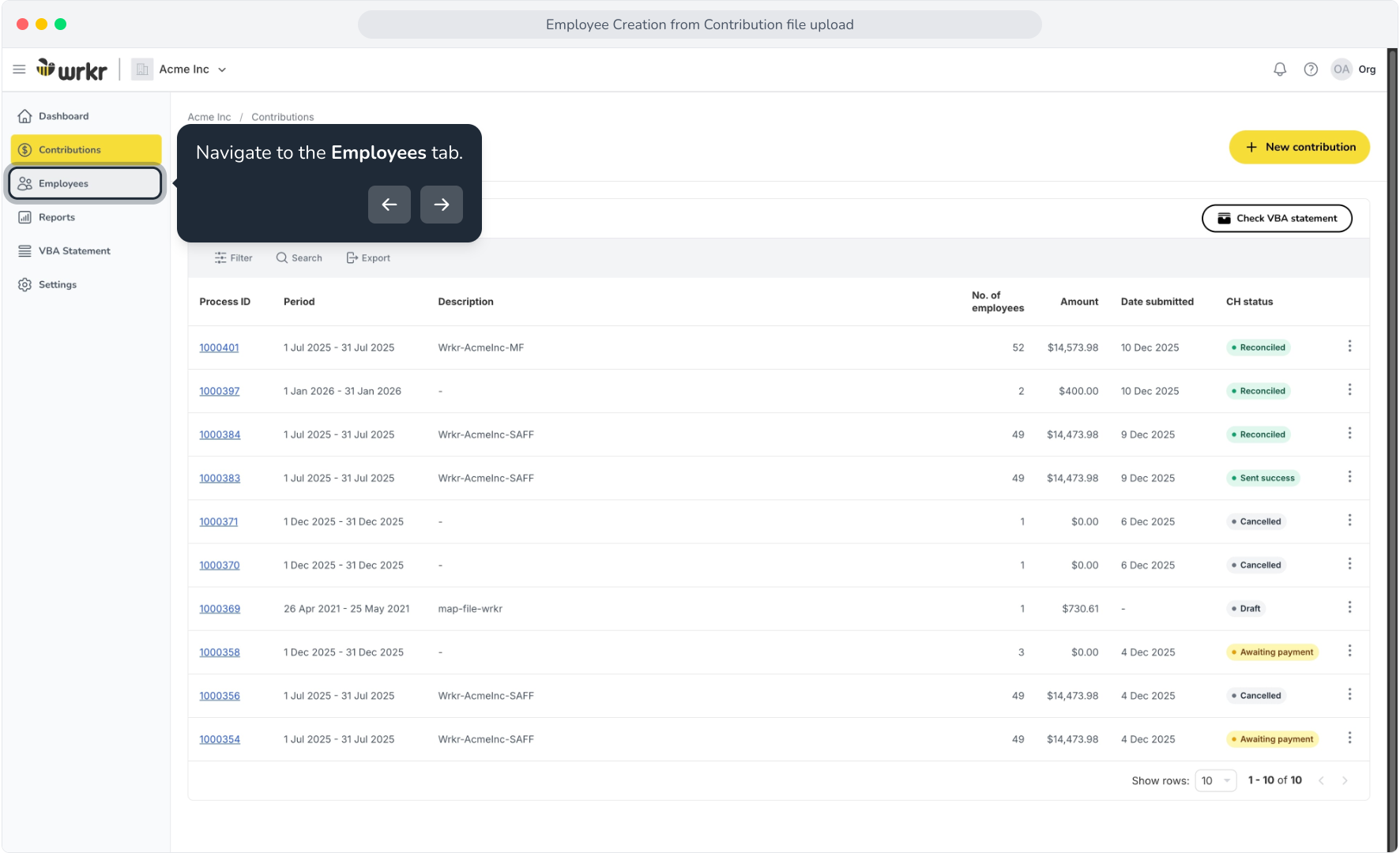
11. Navigate to the Employees tab.
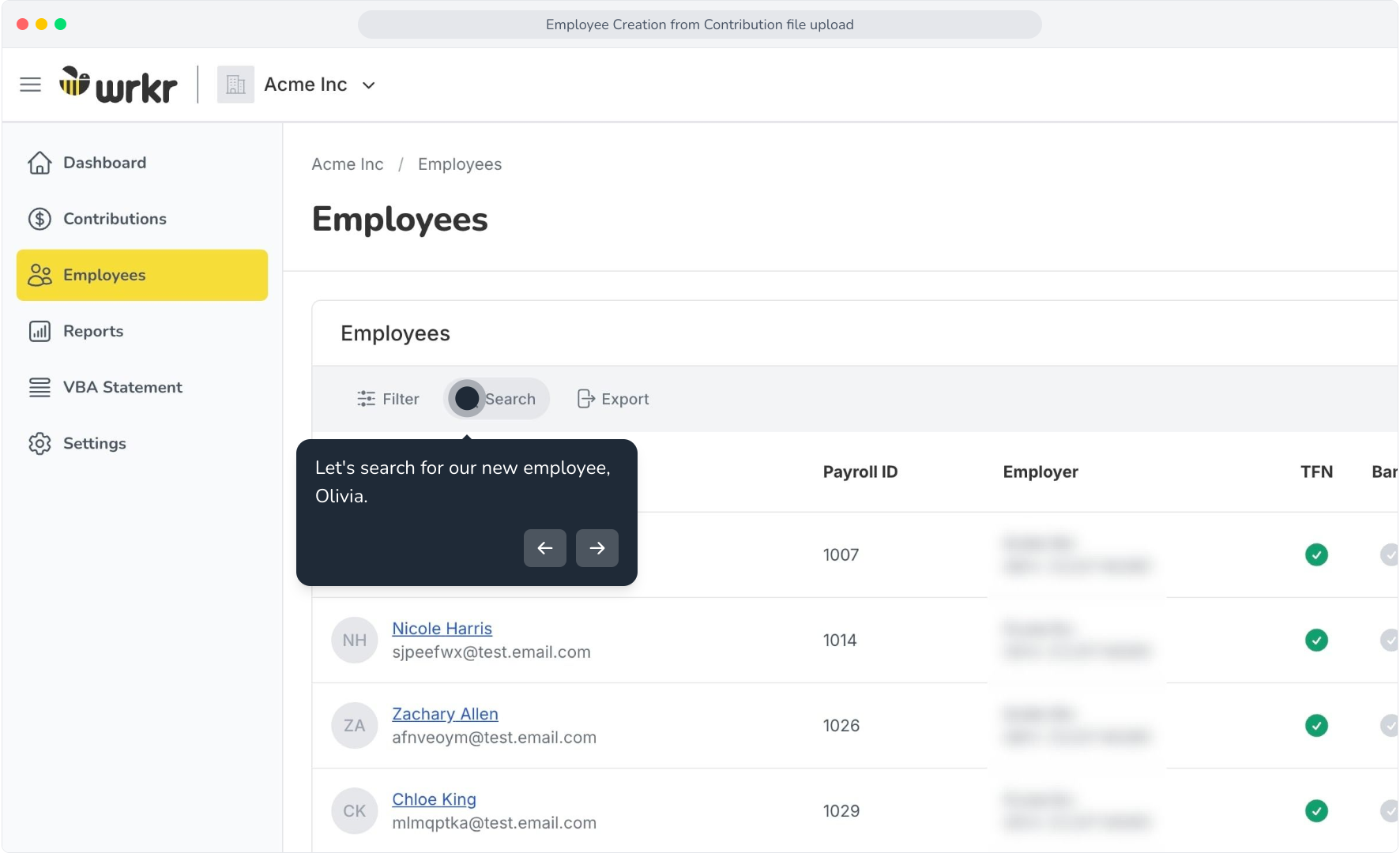
12. Let's search for our new employee, Olivia.
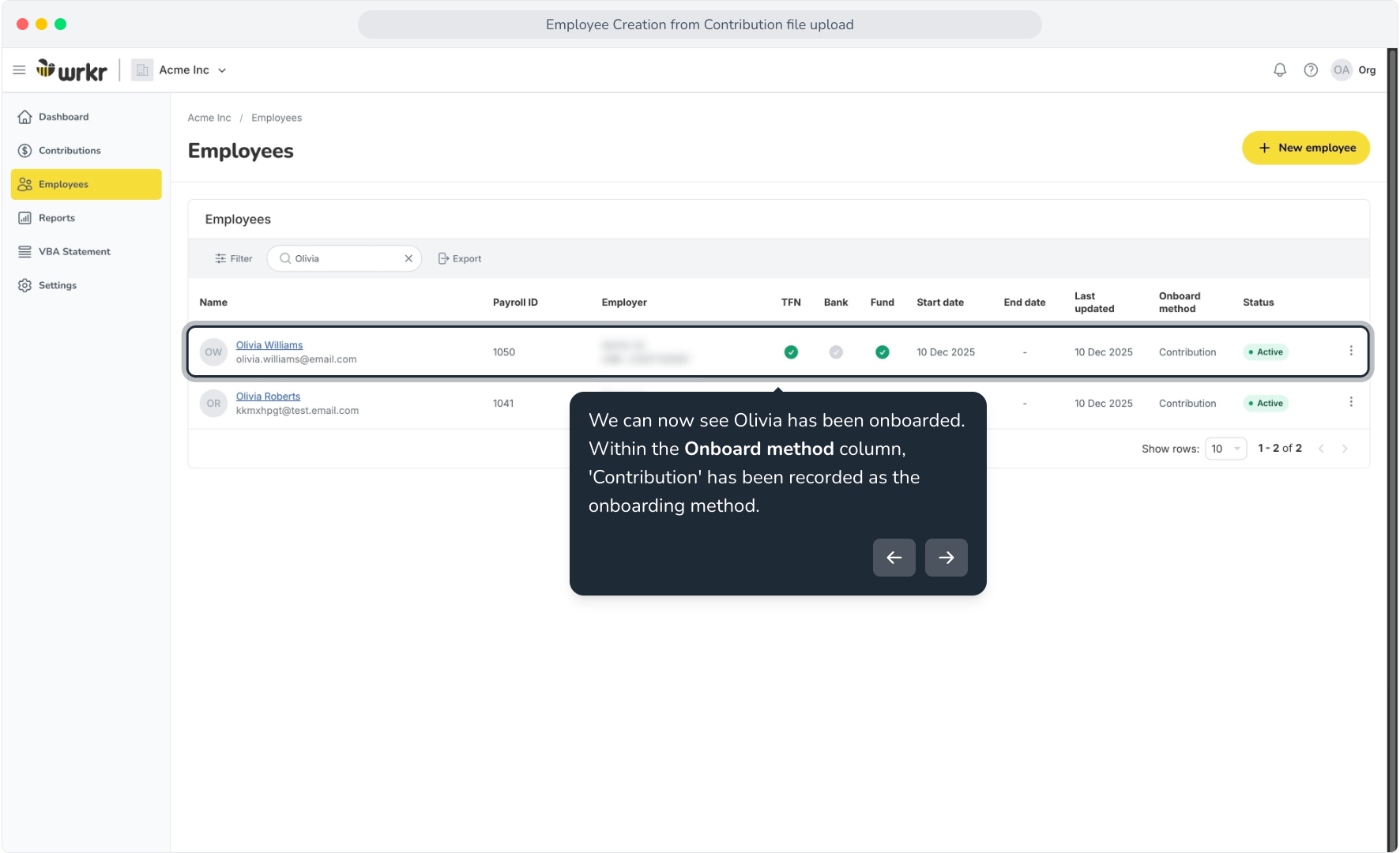
13. We can now see Olivia has been onboarded. Within the Onboard method column, 'Contribution' has been recorded as the onboarding method.
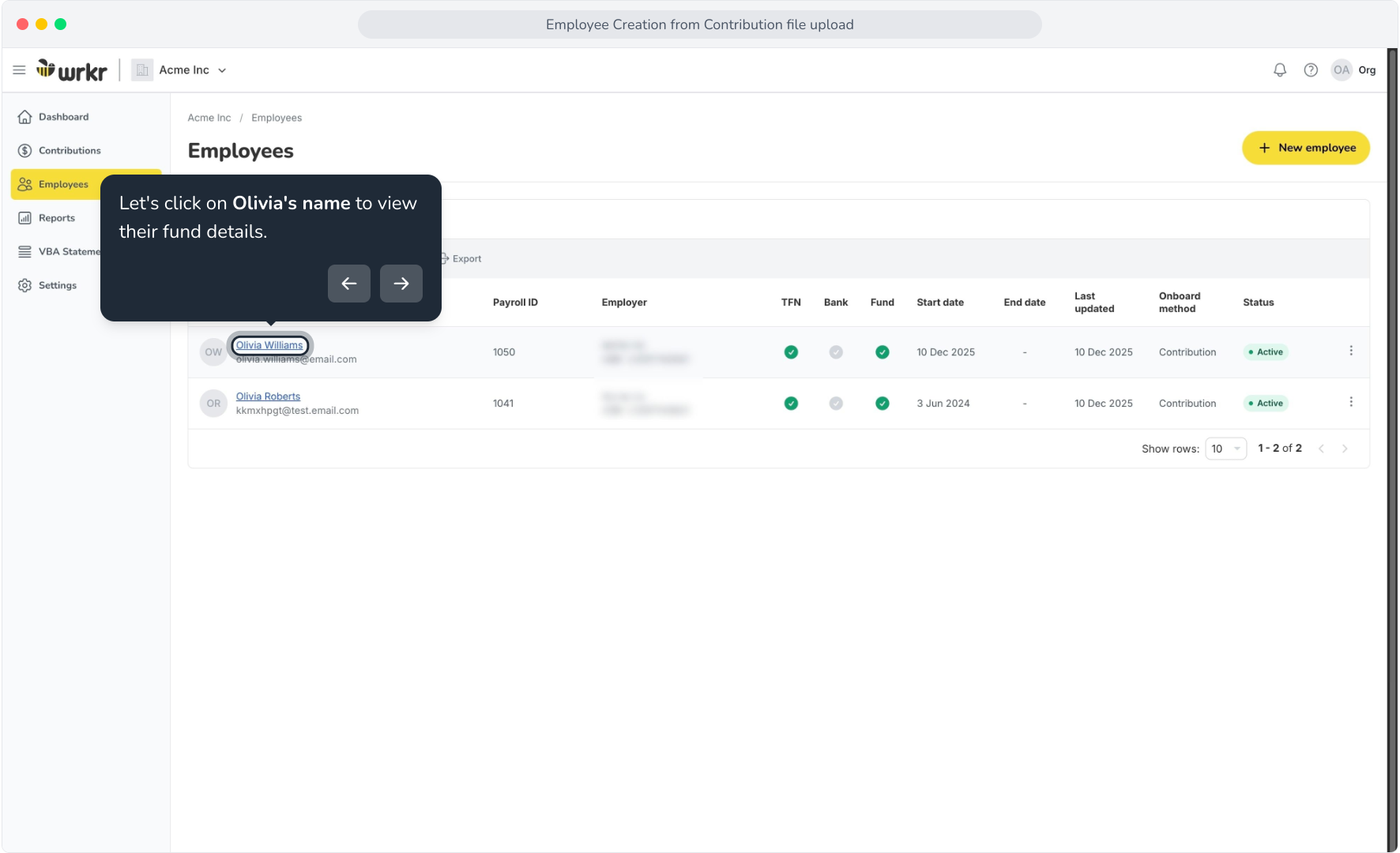
14. Let's click on Olivia's name to view their fund details.
15. Within the Fund choice section of Olivia's employee record, we can see that the Portal has correctly associated both super funds from the contribution file.
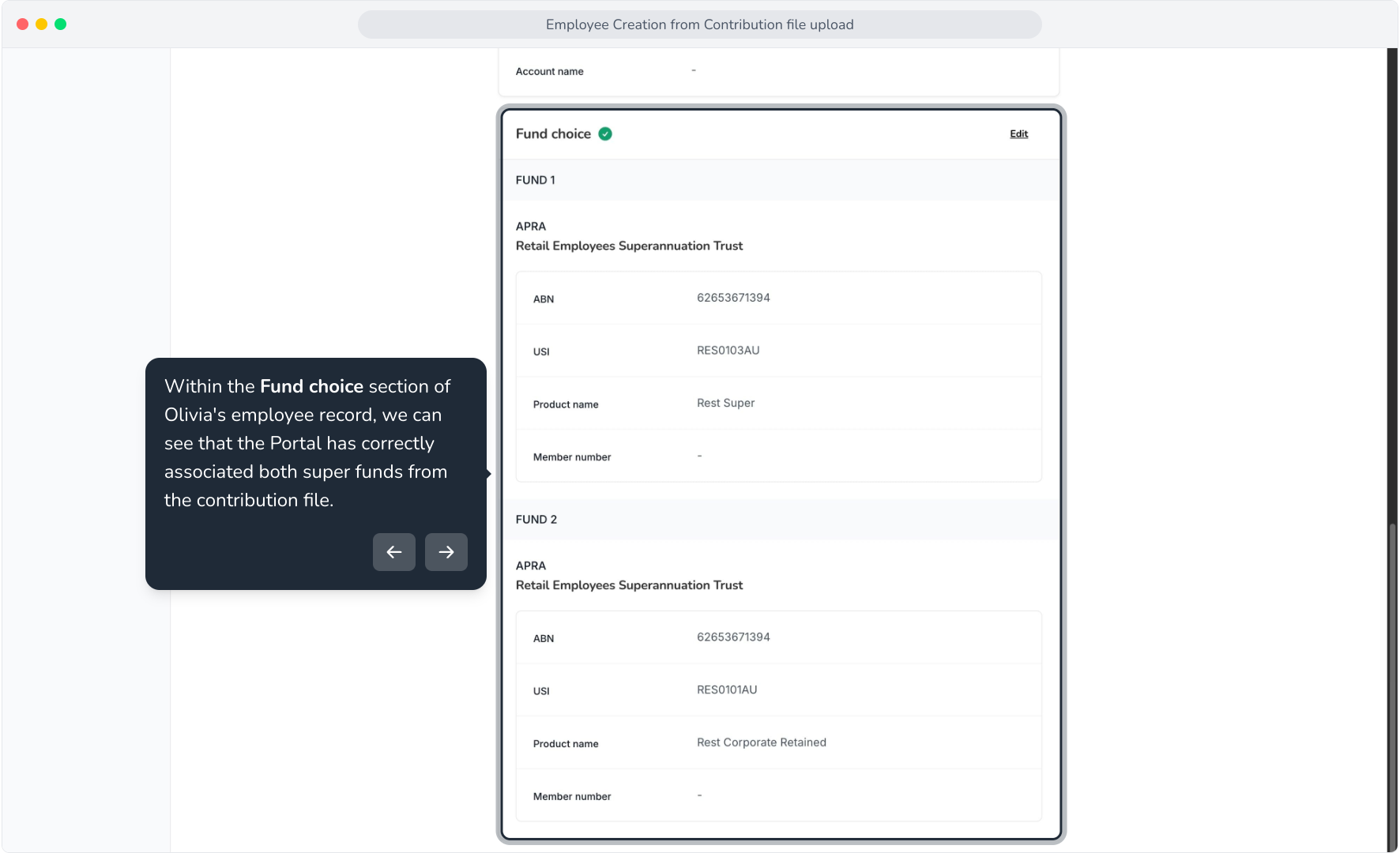
16. In this example, we forgot their member numbers.
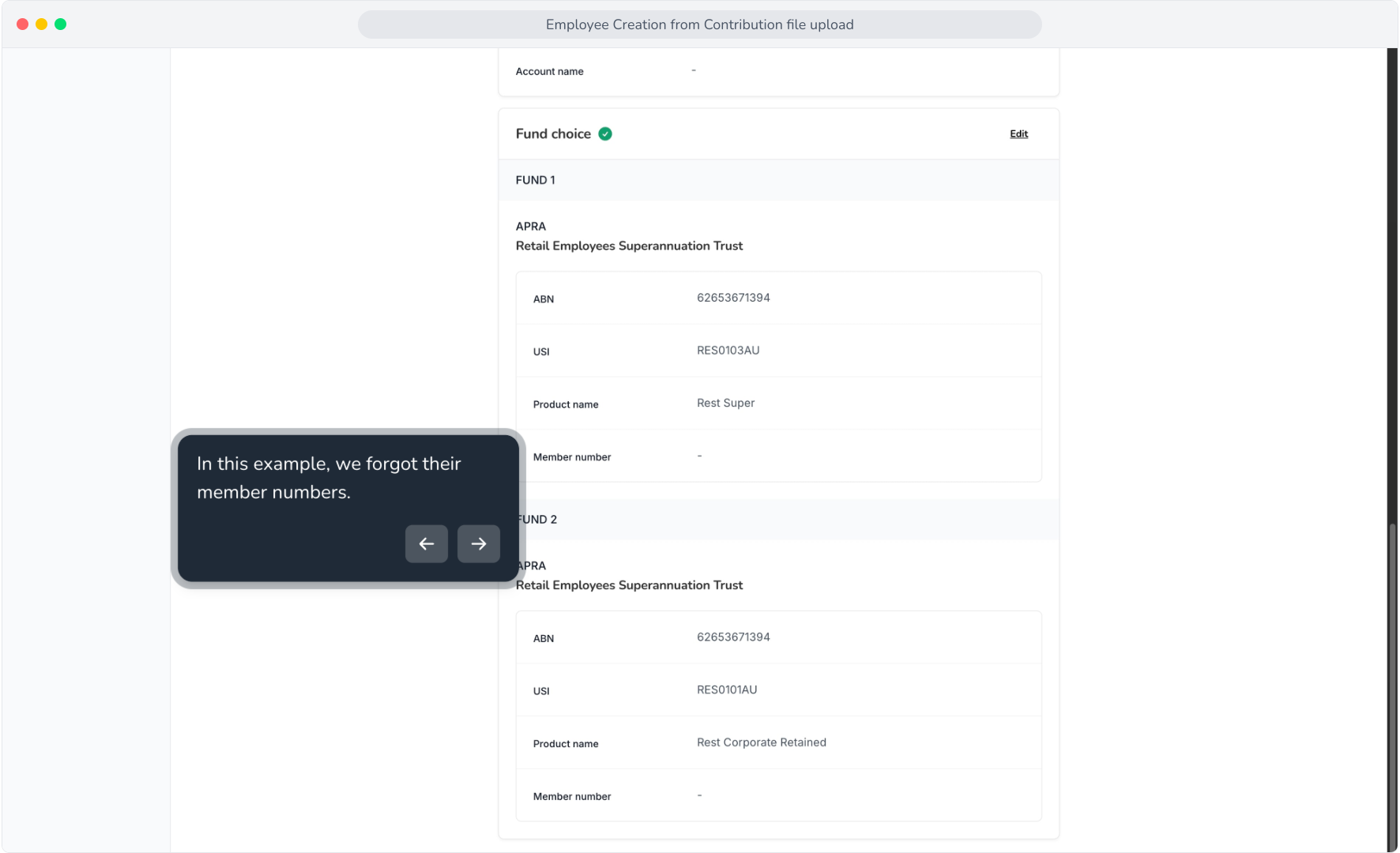
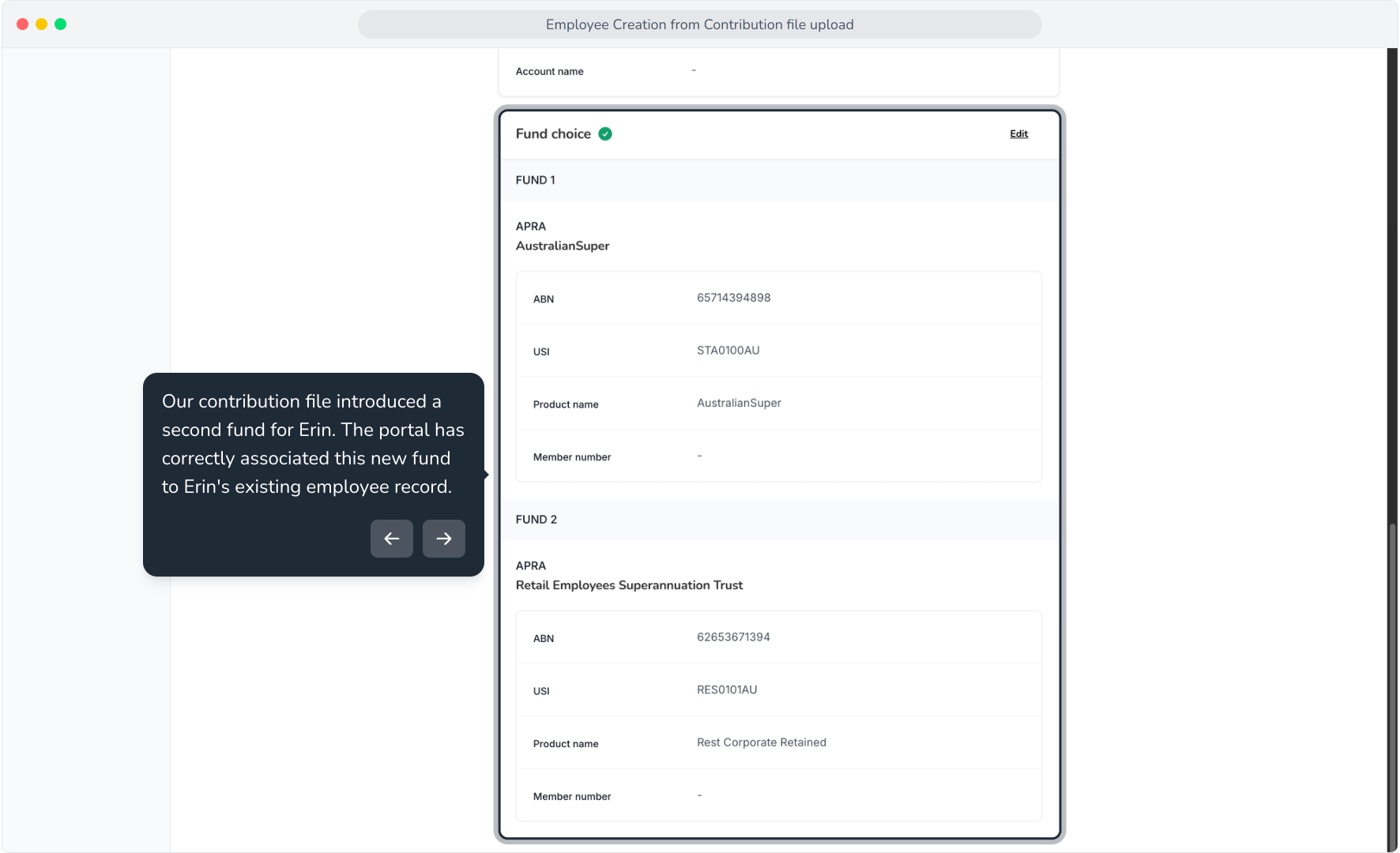
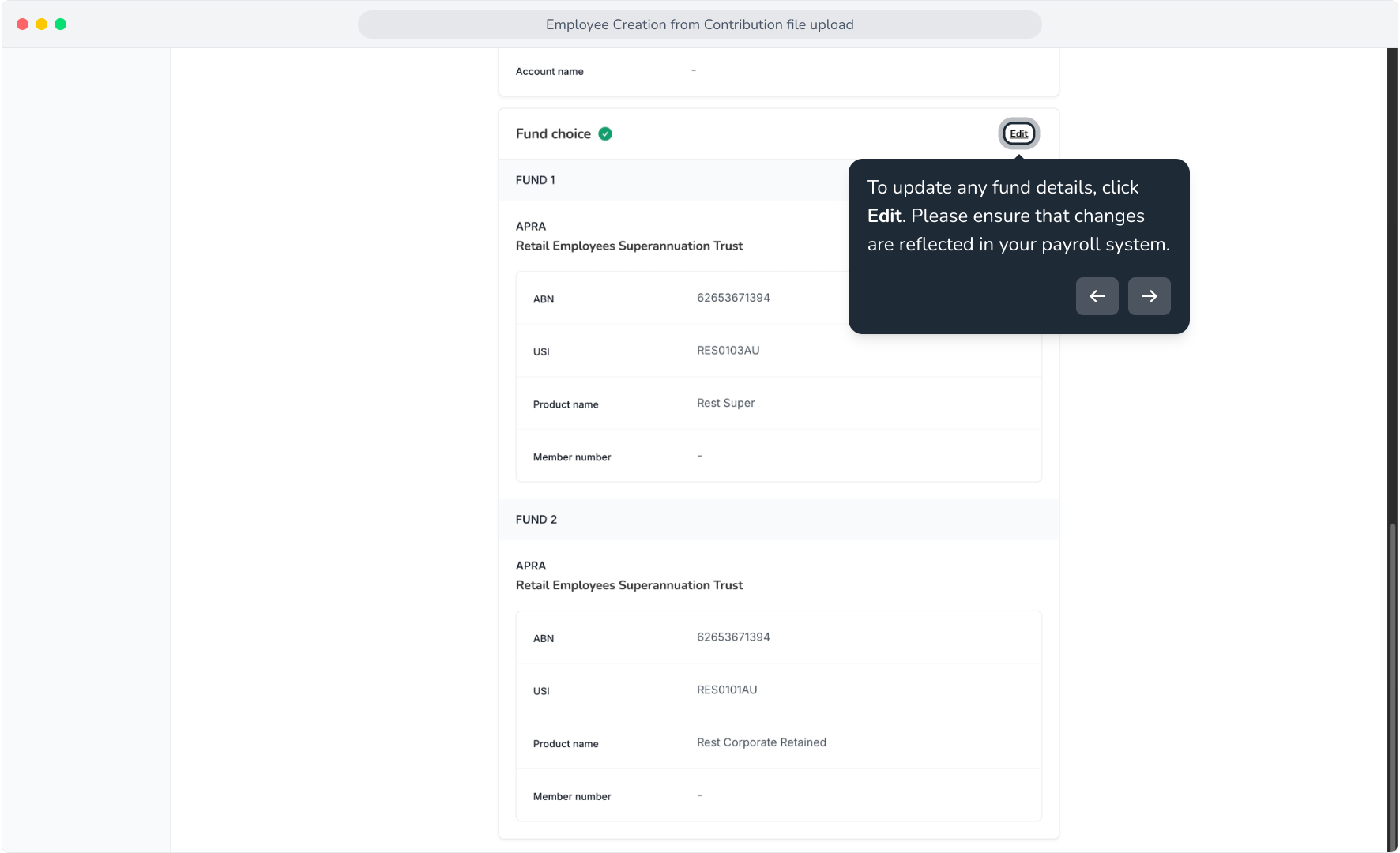
17. To update any fund details, click Edit. Please ensure that changes are reflected in your payroll system.
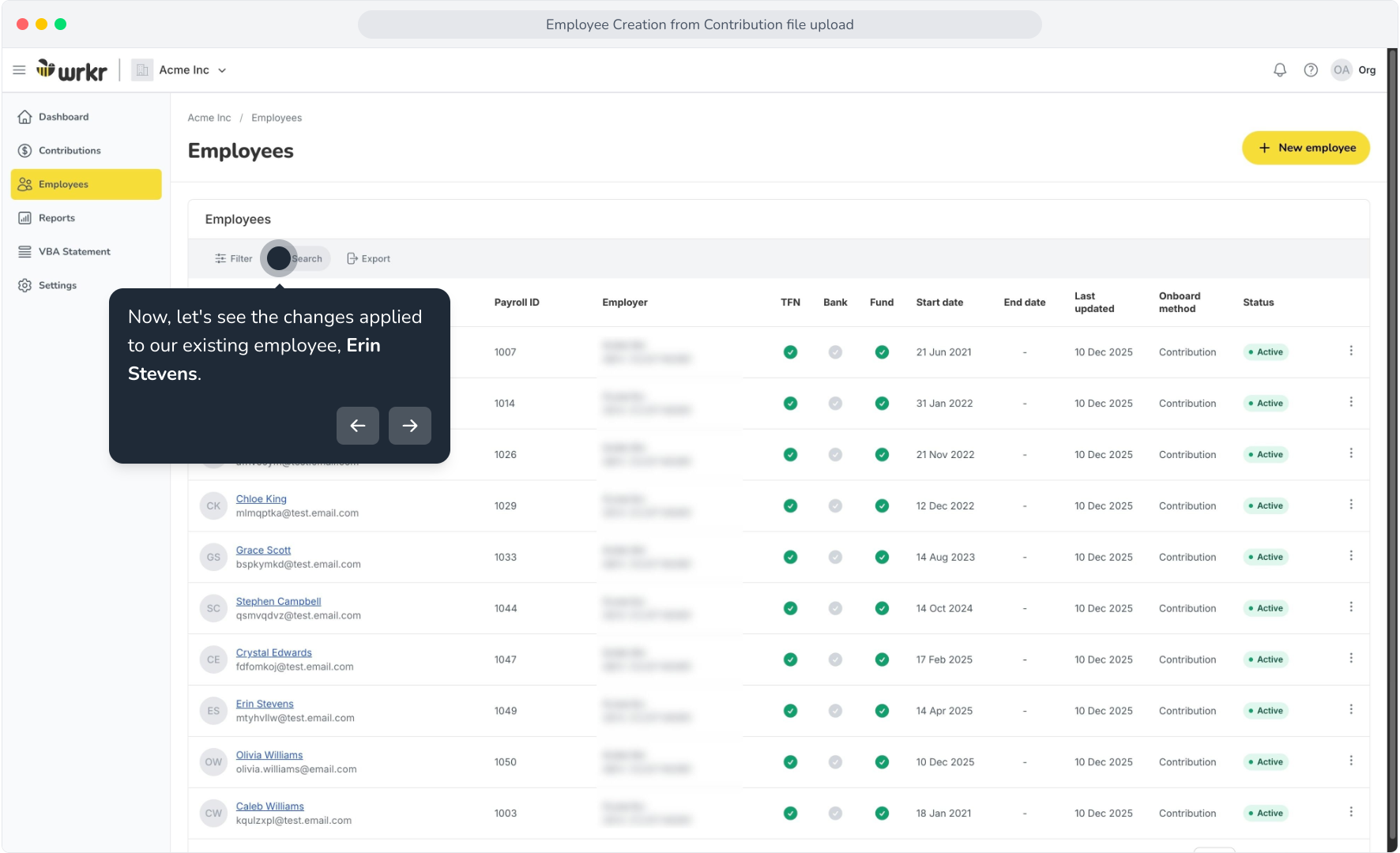
18. Now, let's see the changes applied to our existing employee, Erin Stevens.
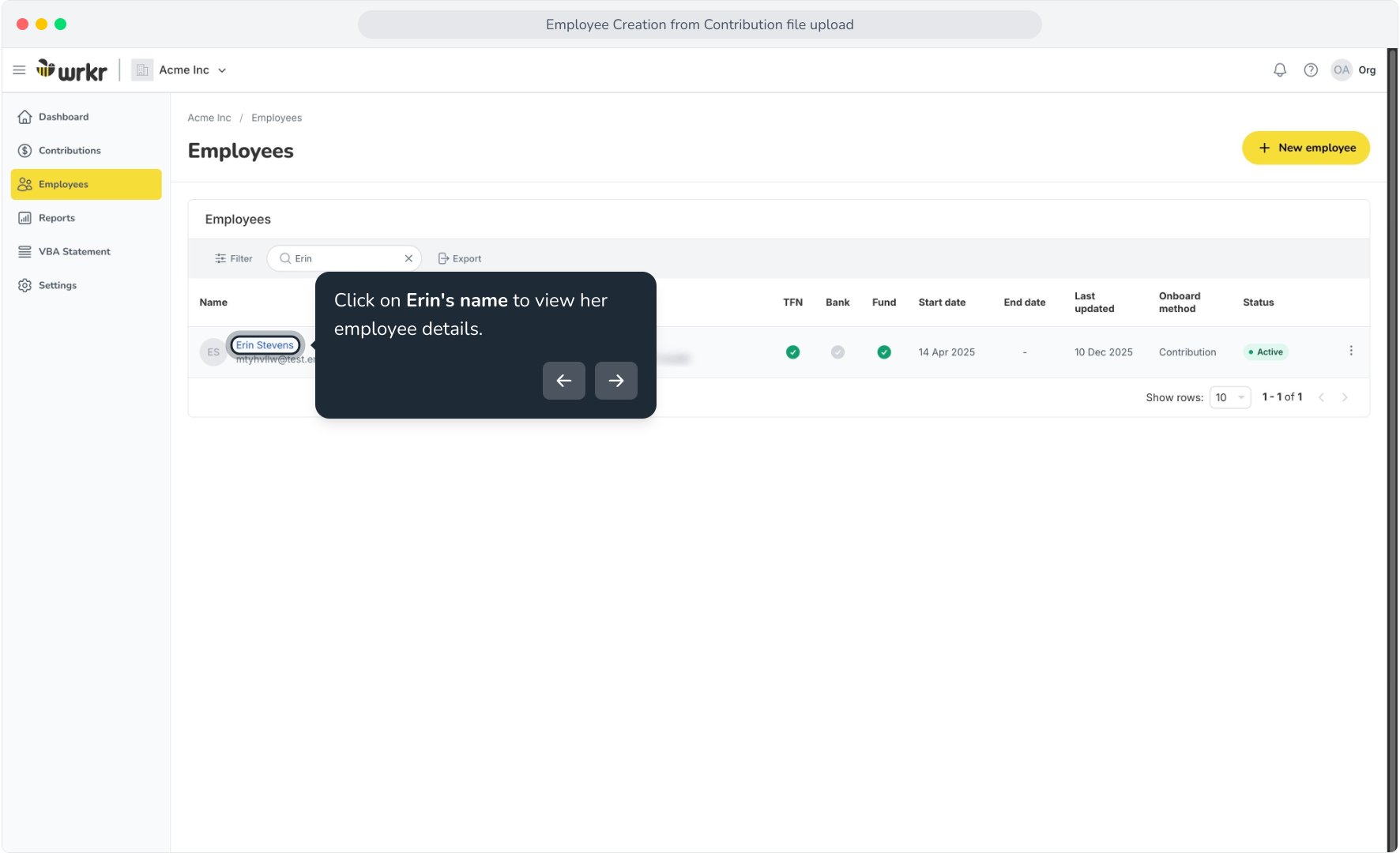
19. Click on Erin's name to view her employee details.
20. Our contribution file introduced a second fund for Erin. The portal has correctly associated this new fund to Erin's existing employee record.