Context: This guide demonstrates how to configure contribution authorisers within the Wrkr Portal, and walks through the approval process for a contribution.
Interactive Demo
Note: Make the demo full-screen for a better experience. You can mute/un-mute narration to suit your preferences.
Step by Step
1. Contribution Authorisation Flow
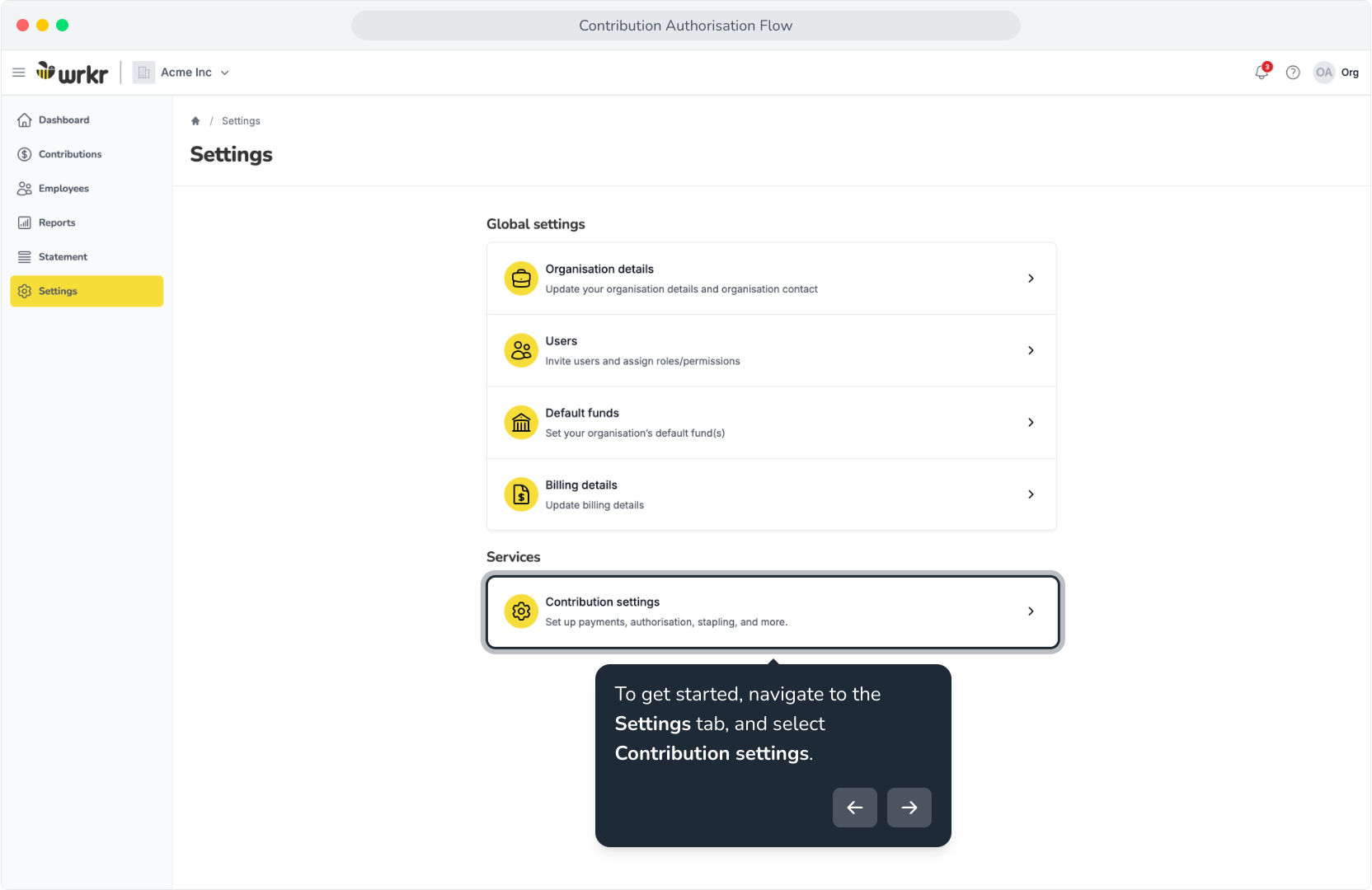
2. To get started, navigate to the Settings tab, and select Contribution settings.
3. Within the Contribution authorisation section, click Add.
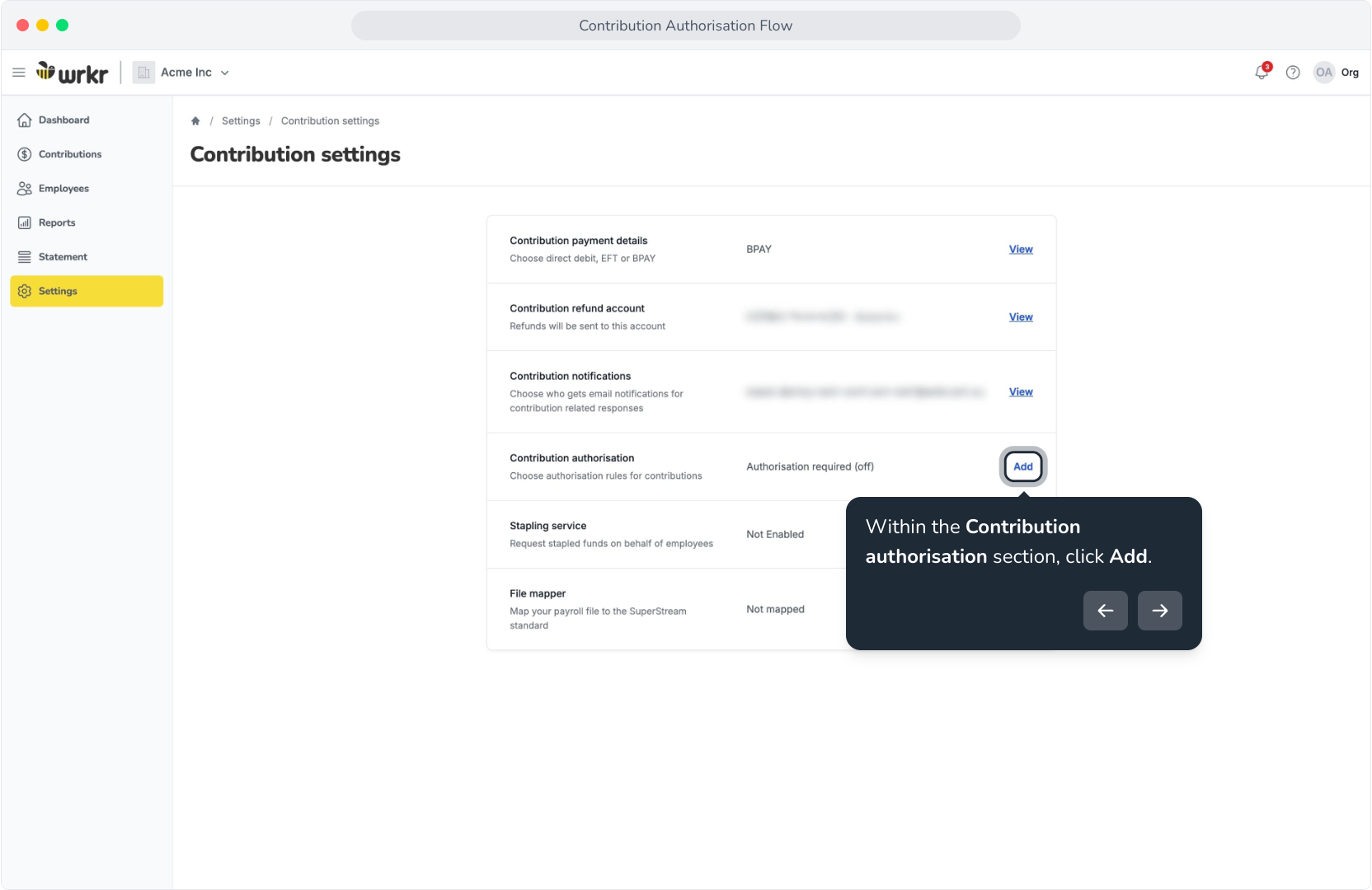
4. By default, Authorisation is disabled.
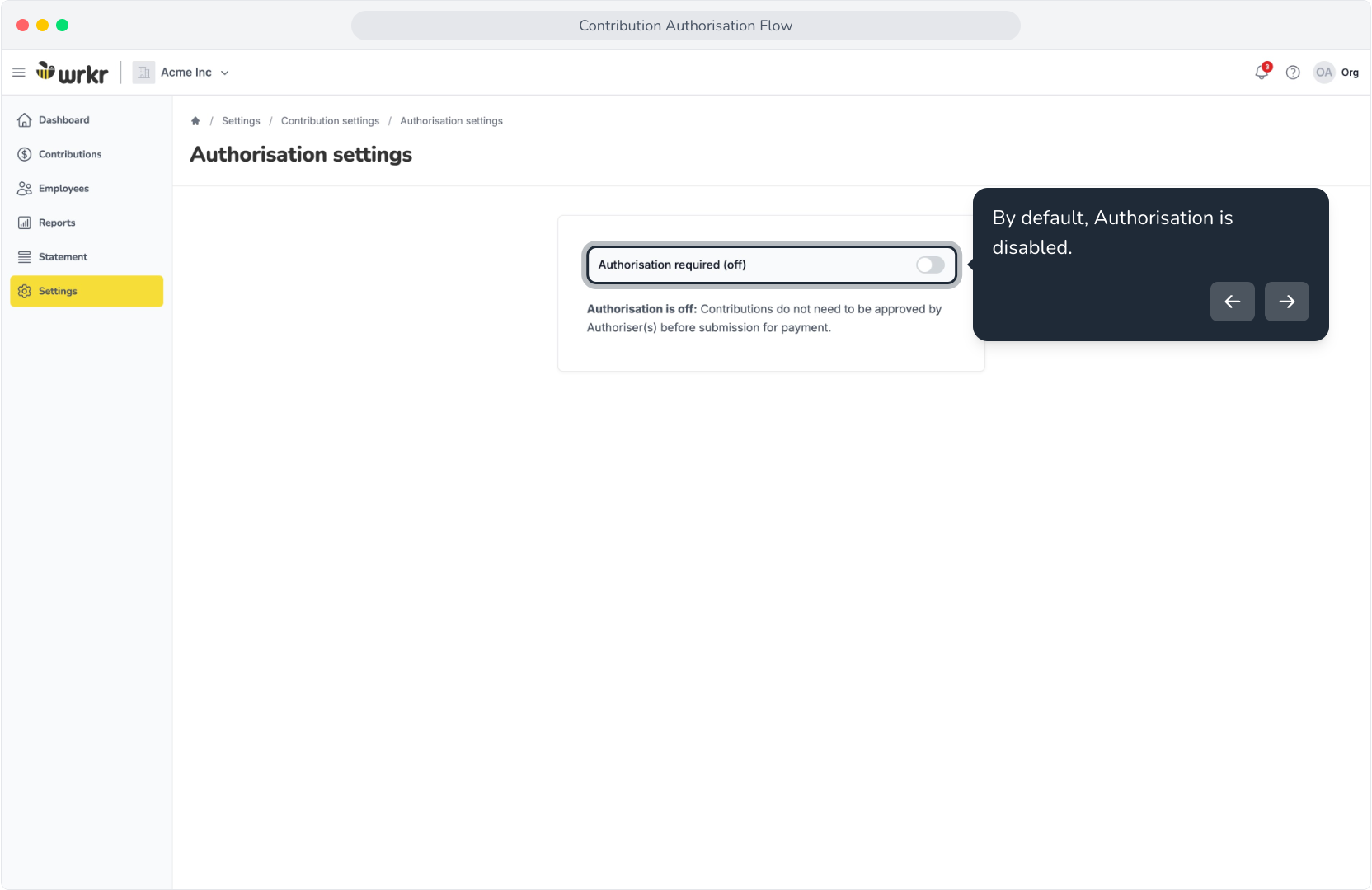
5. Once enabled, you can configure the number of authorisers needed for your contributions.
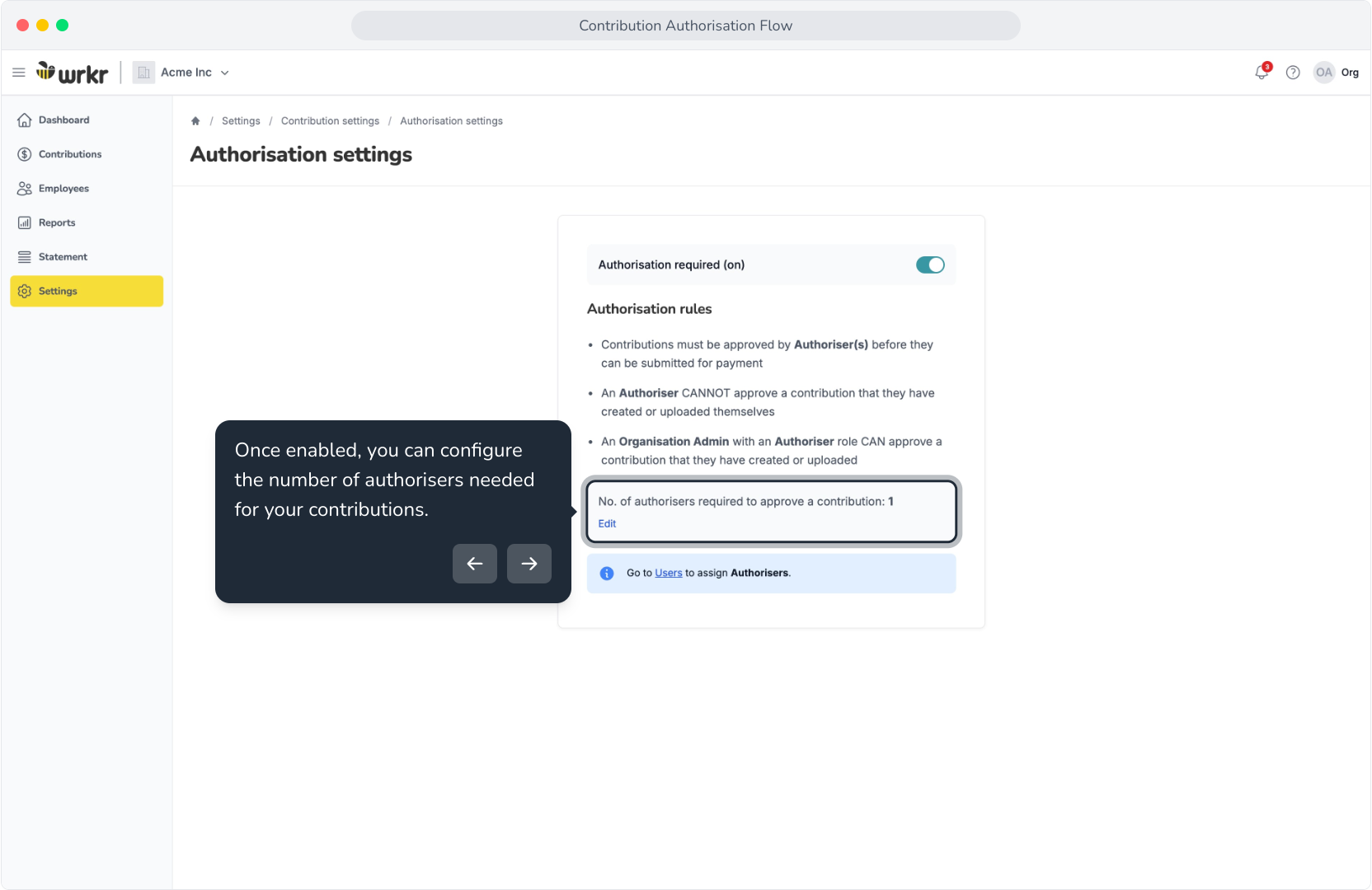
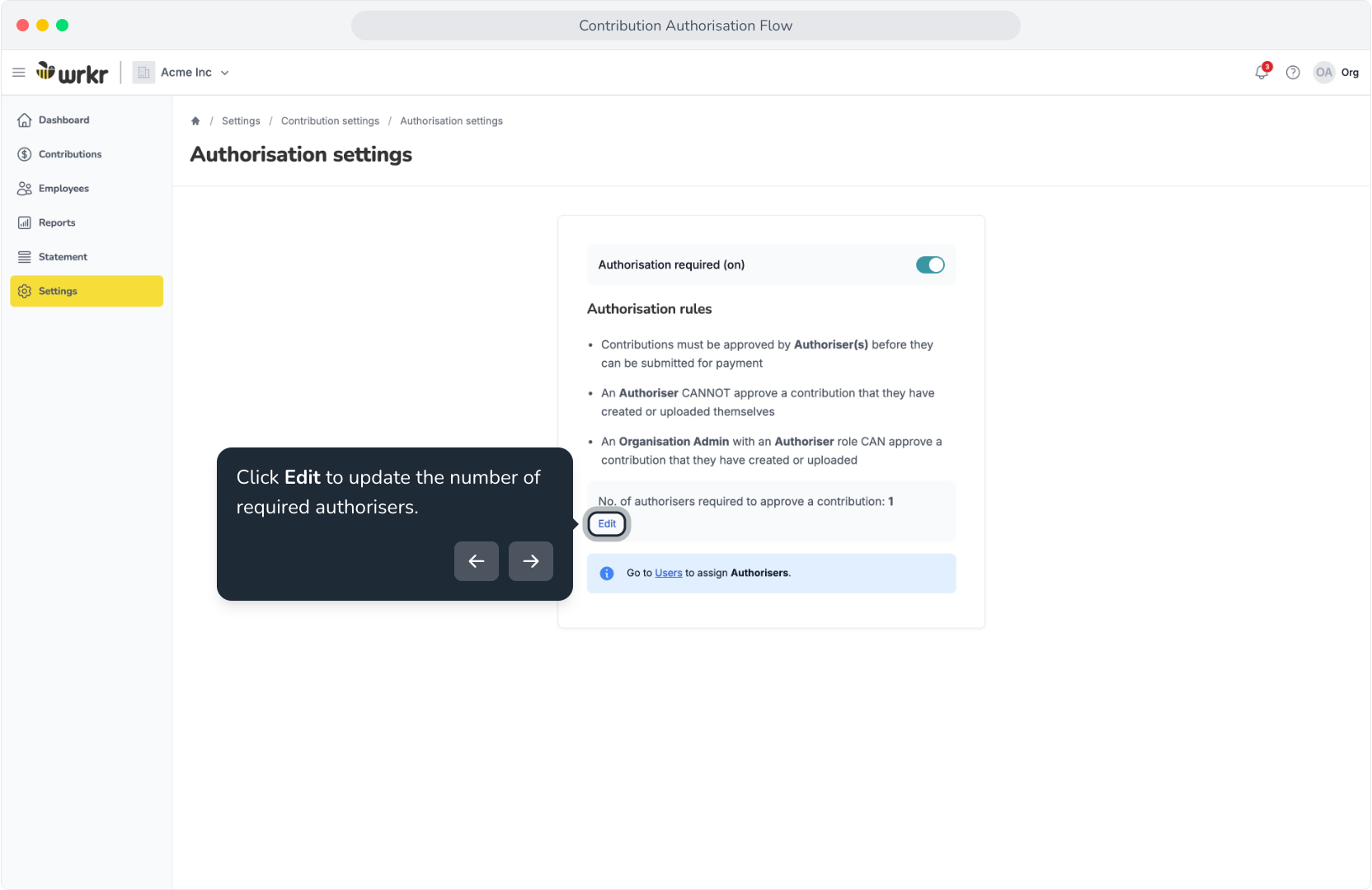
6. Click Edit to update the number of required authorisers.
7. Click on the drop-down to update. We'll keep it as one authoriser.
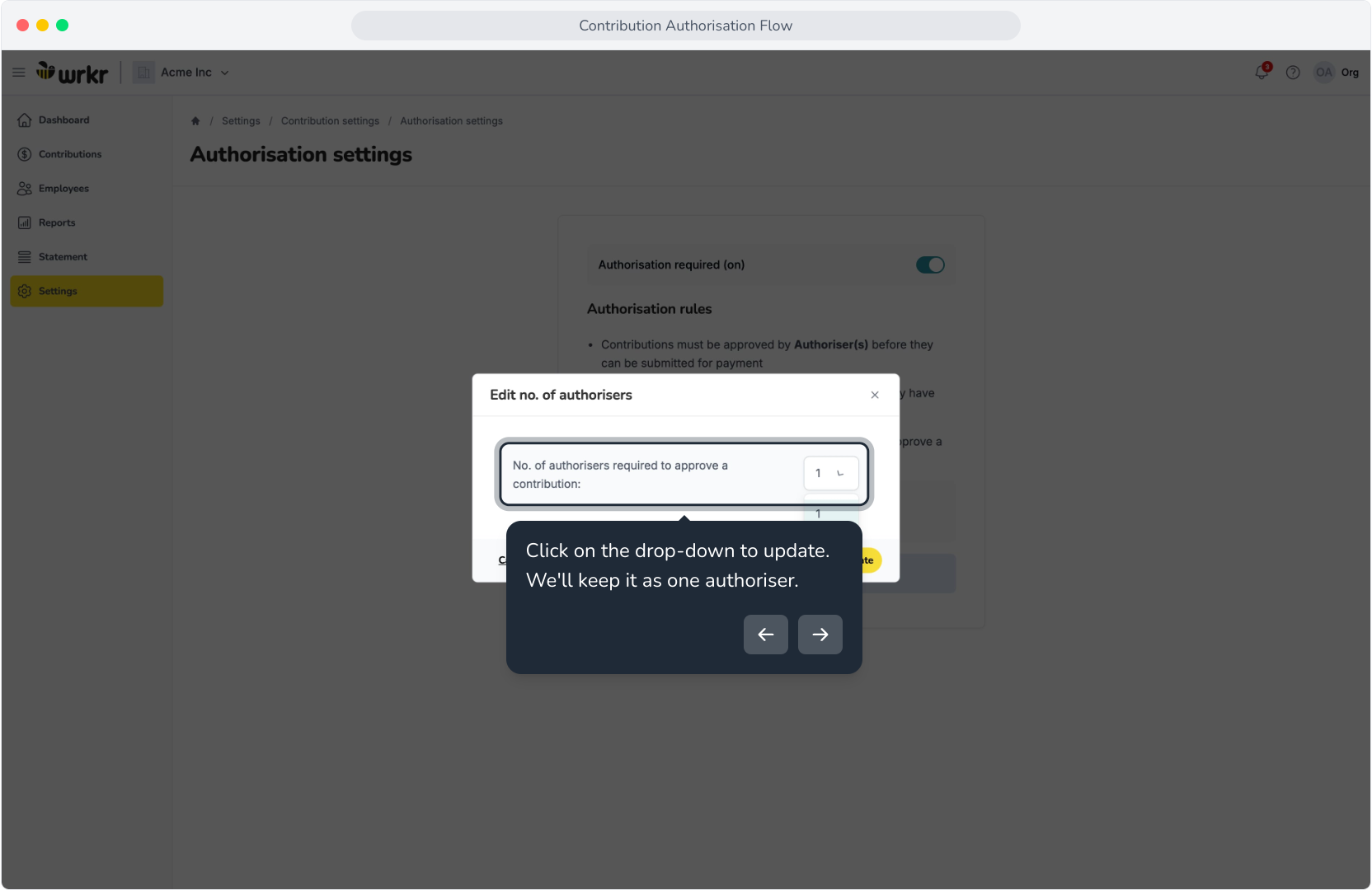
8. Click Update to save your changes.
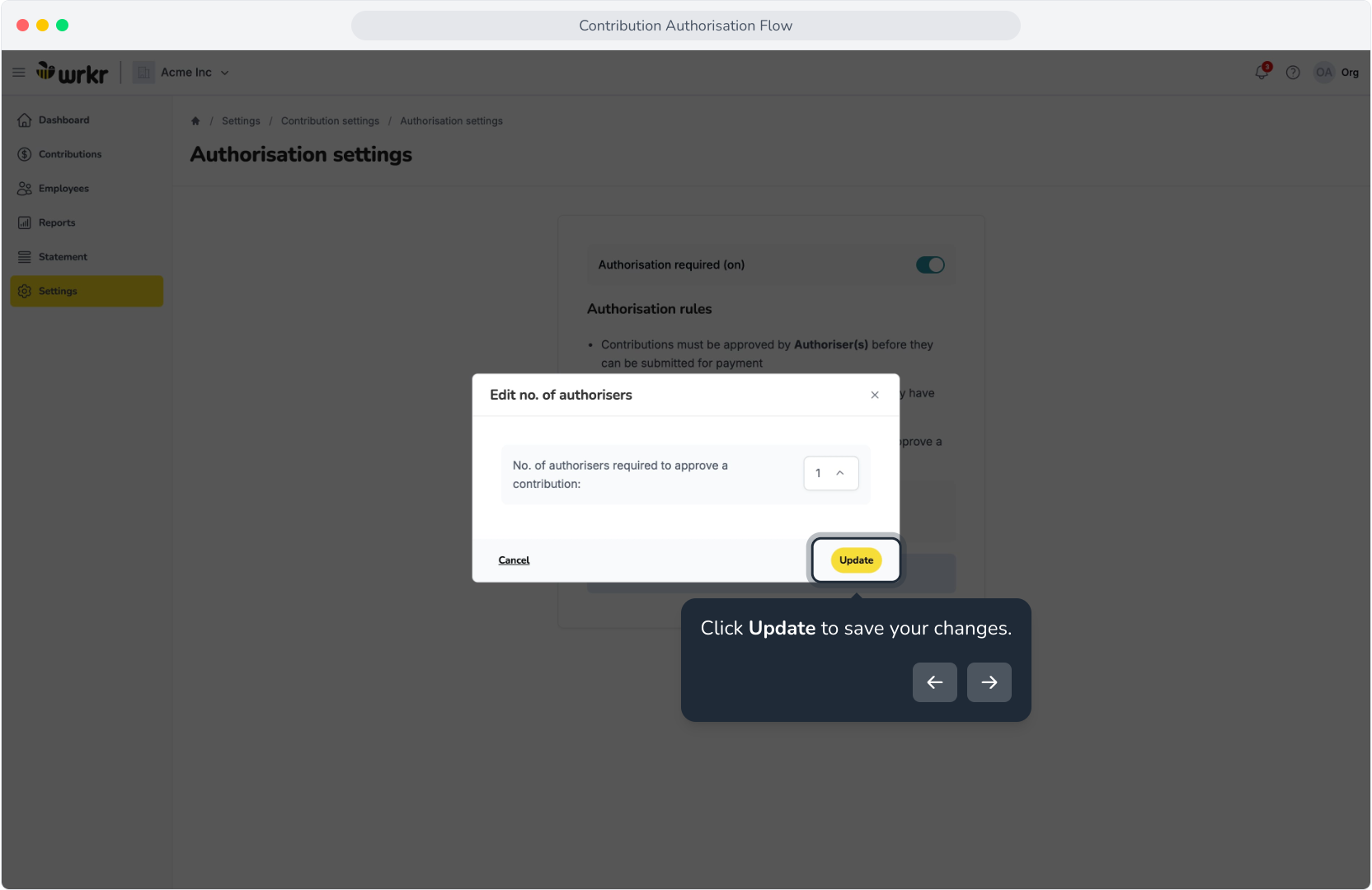
9. Now we need to ensure that we have Users configured as Authorisers within our org. Click on the Users hyperlink.
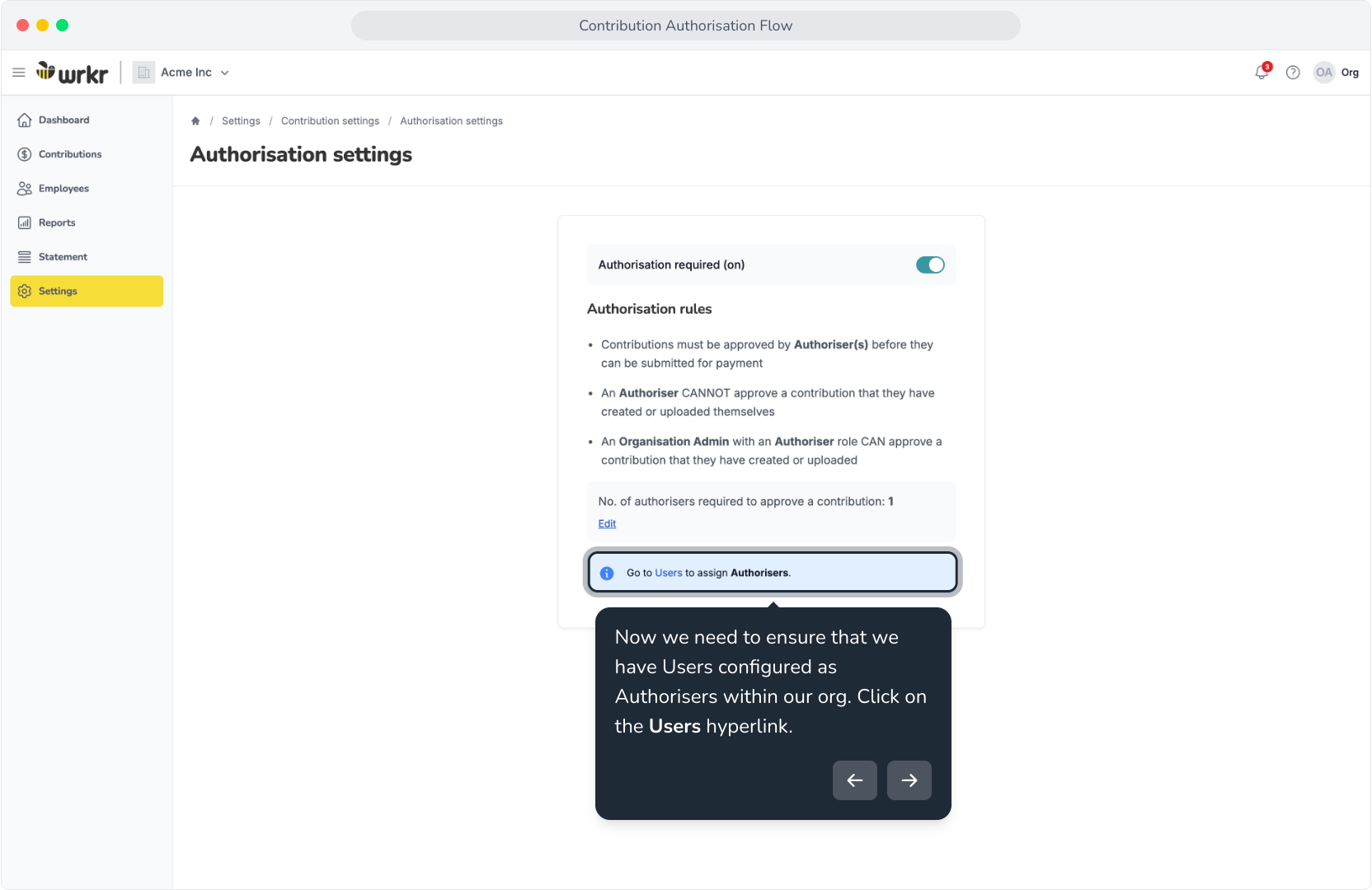
10. Select the action menu for the User you'd like to configure as an Authoriser.
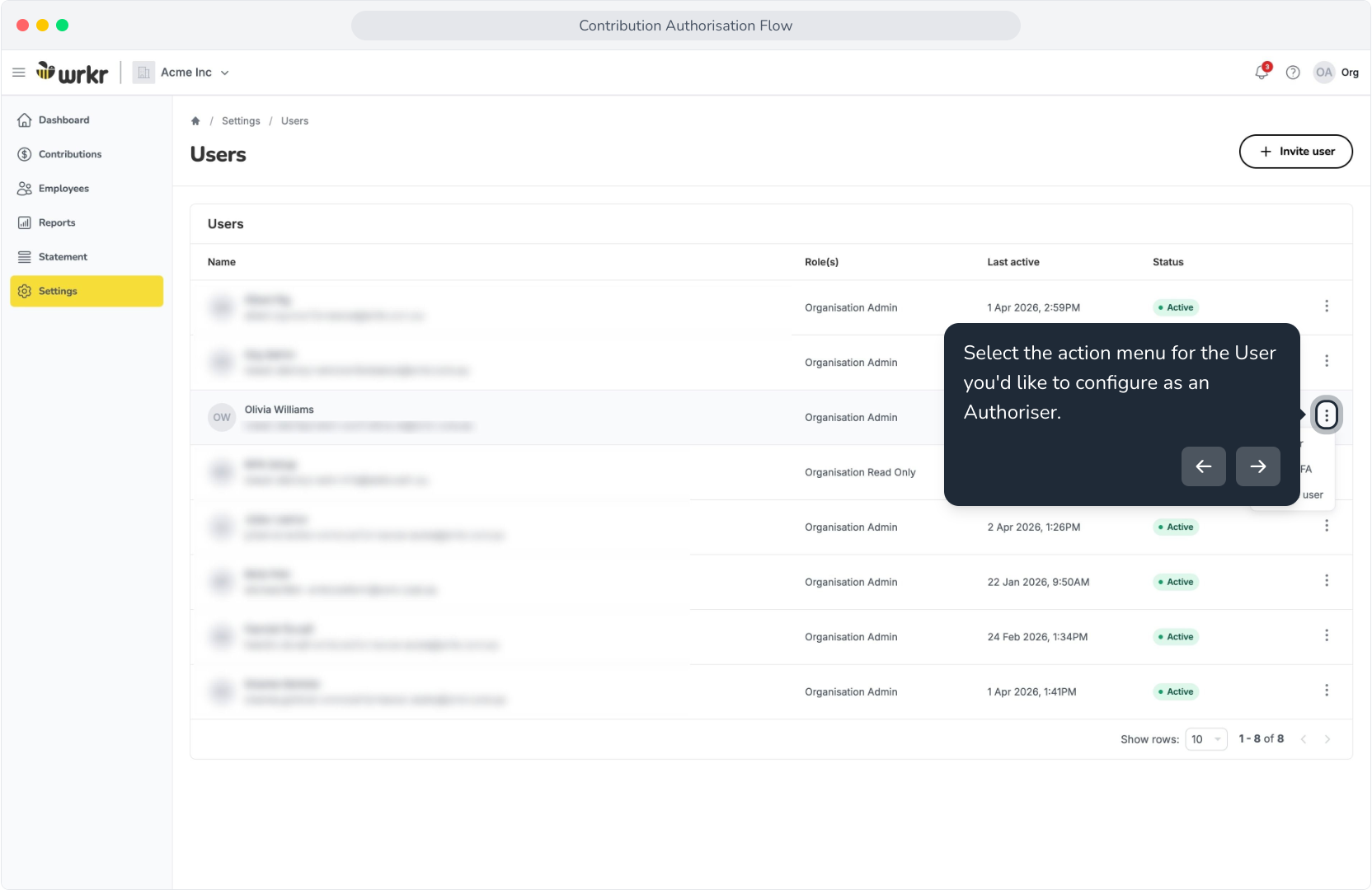
11. Select Edit user.
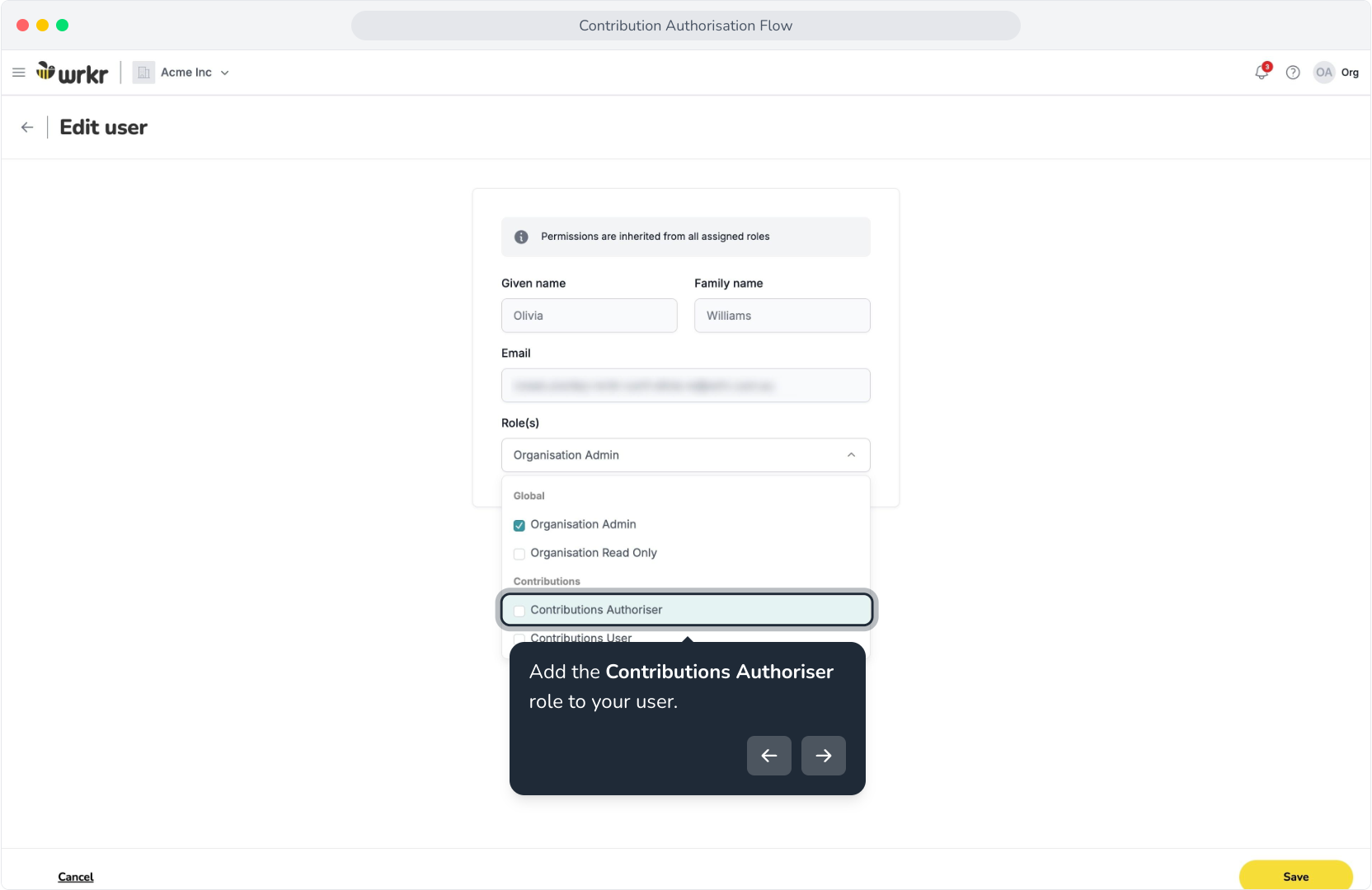
12. Add the Contributions Authoriser role to your user.
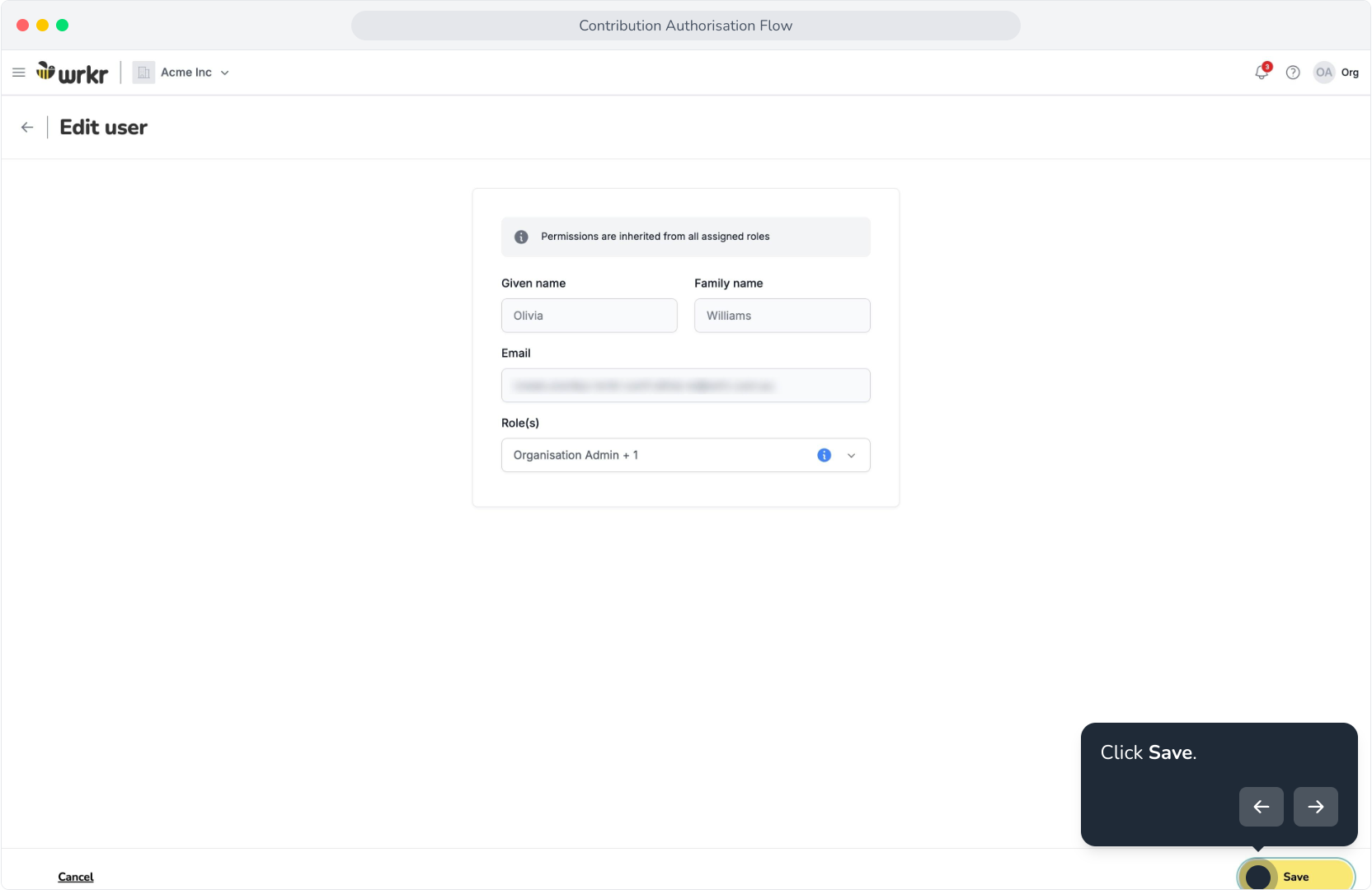
13. Click Save.
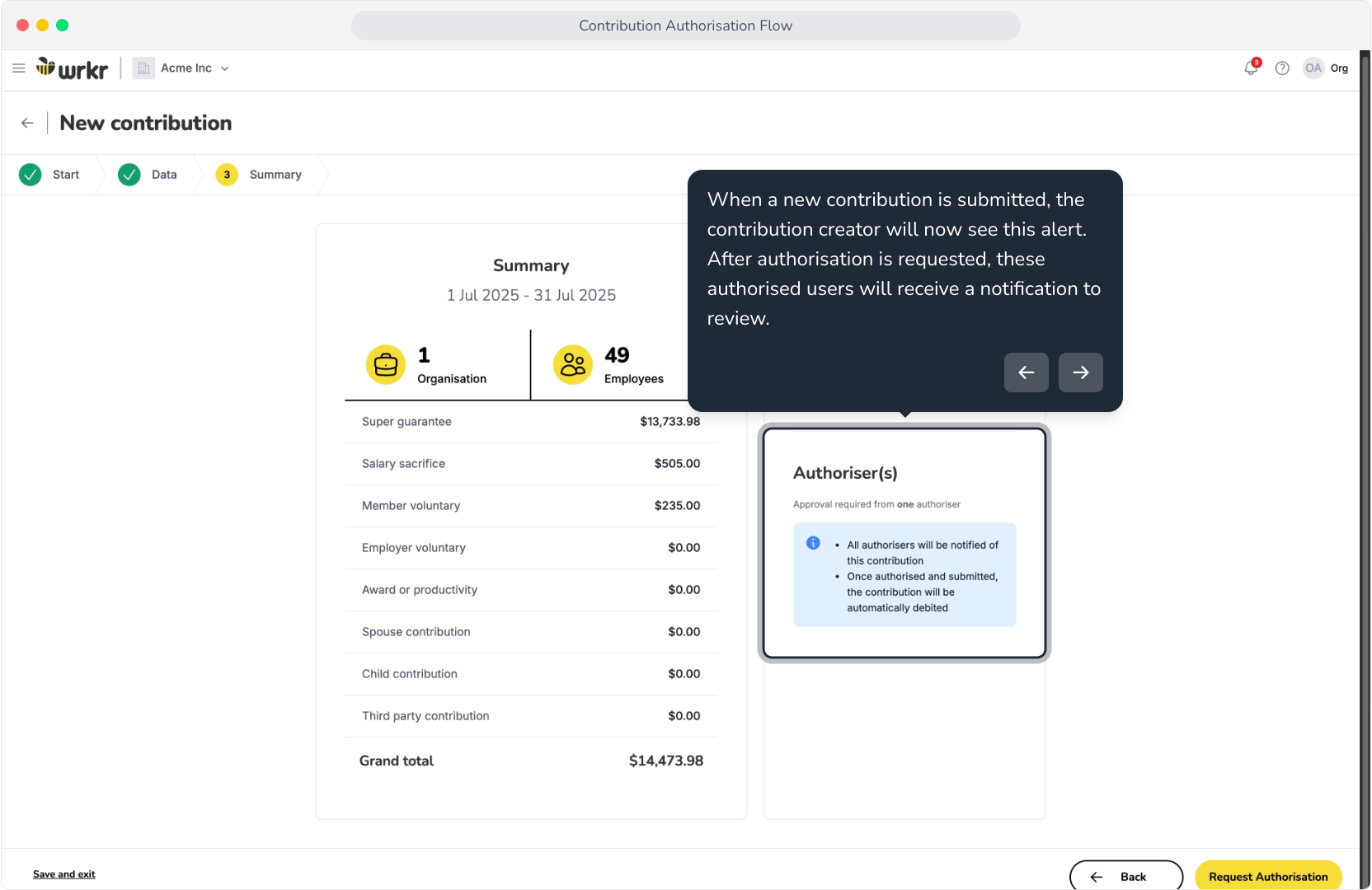
14. When a new contribution is submitted, the contribution creator will now see this alert. After authorisation is requested, these authorised users will receive a notification to review.
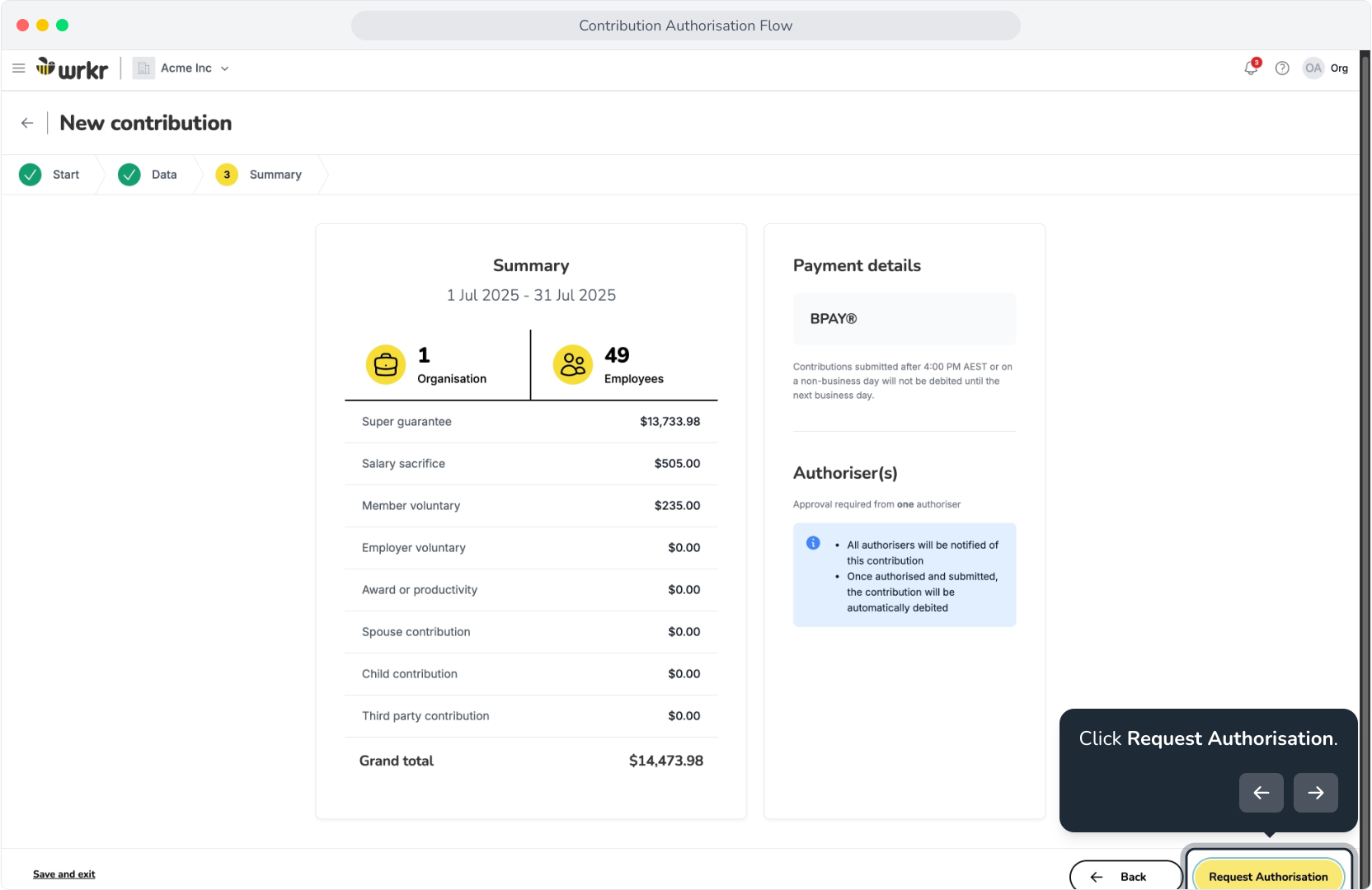
15. Click Request Authorisation.
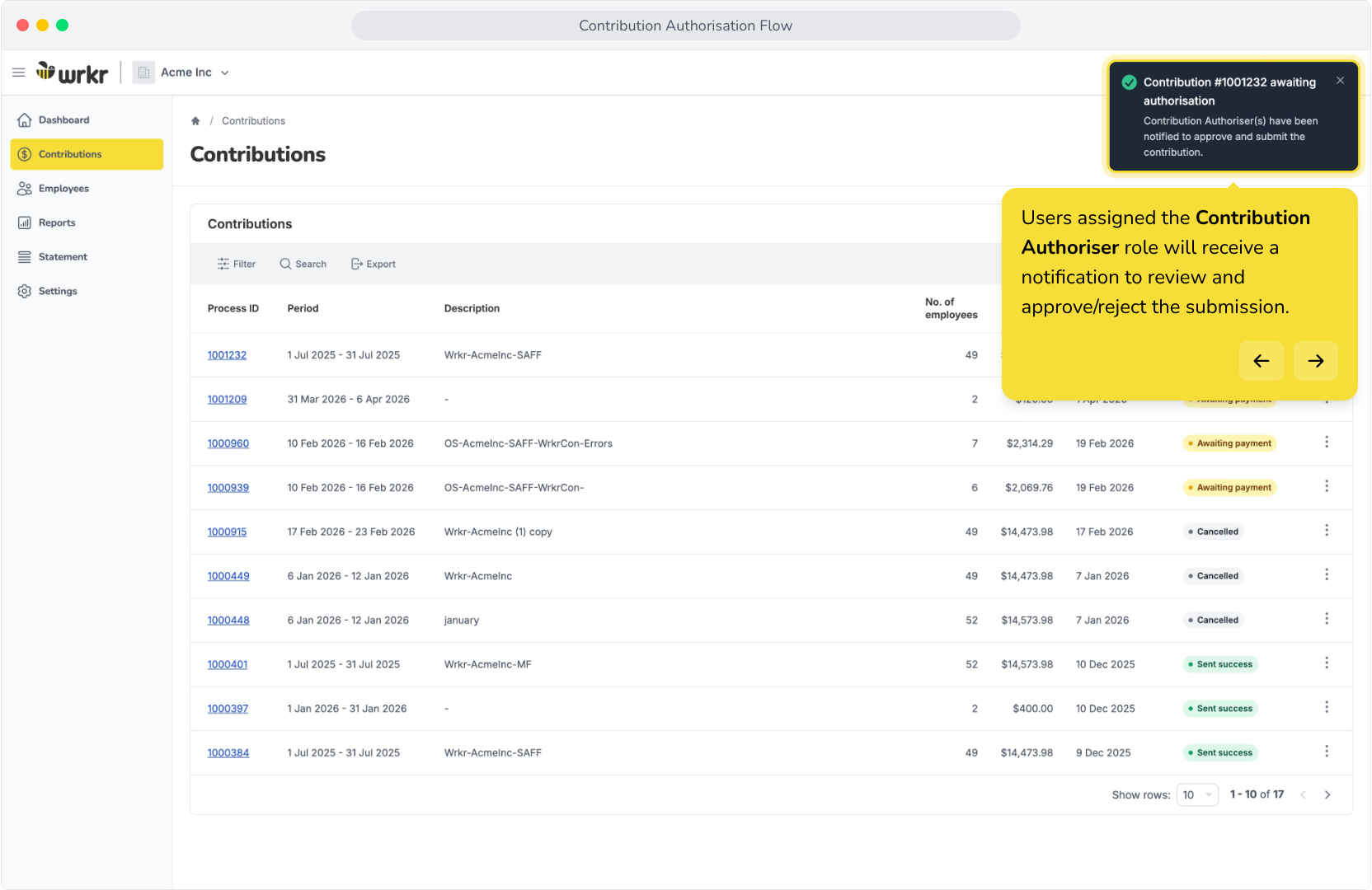
16. Users assigned the Contribution Authoriser role will receive a notification to review and approve/reject the submission.
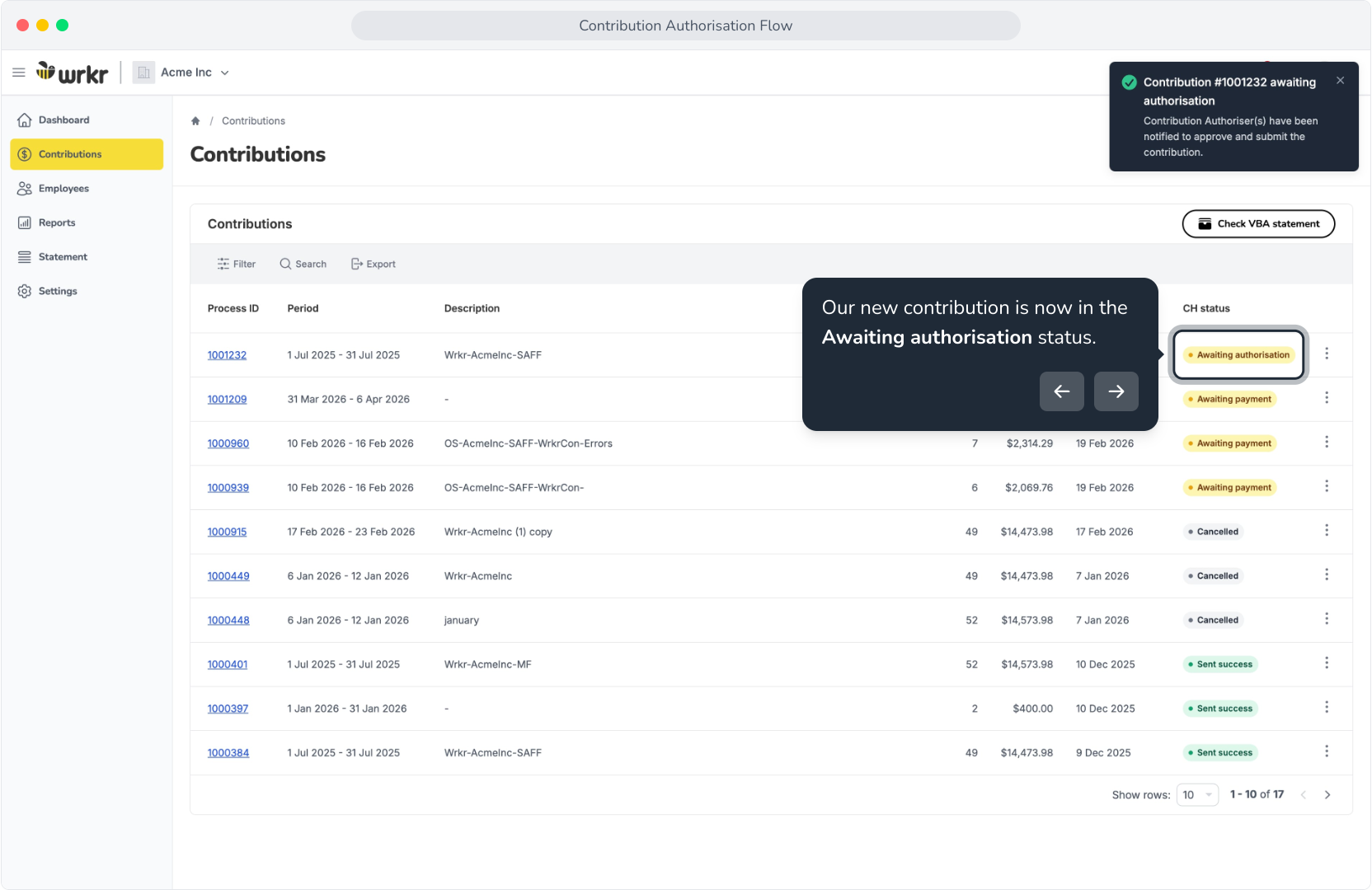
17. Our new contribution is now in the Awaiting authorisation status.
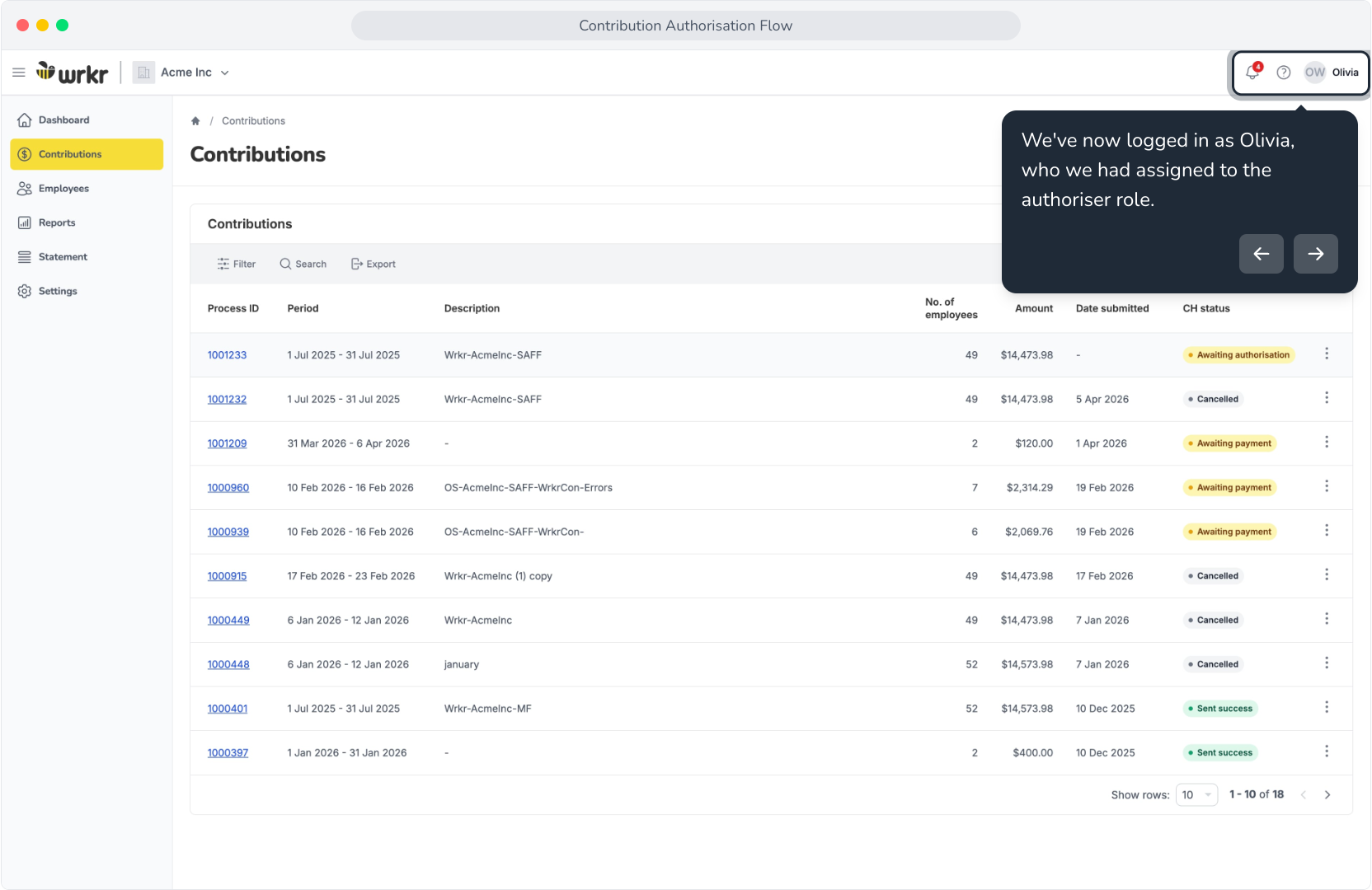
18. We've now logged in as Olivia, who we had assigned to the authoriser role.
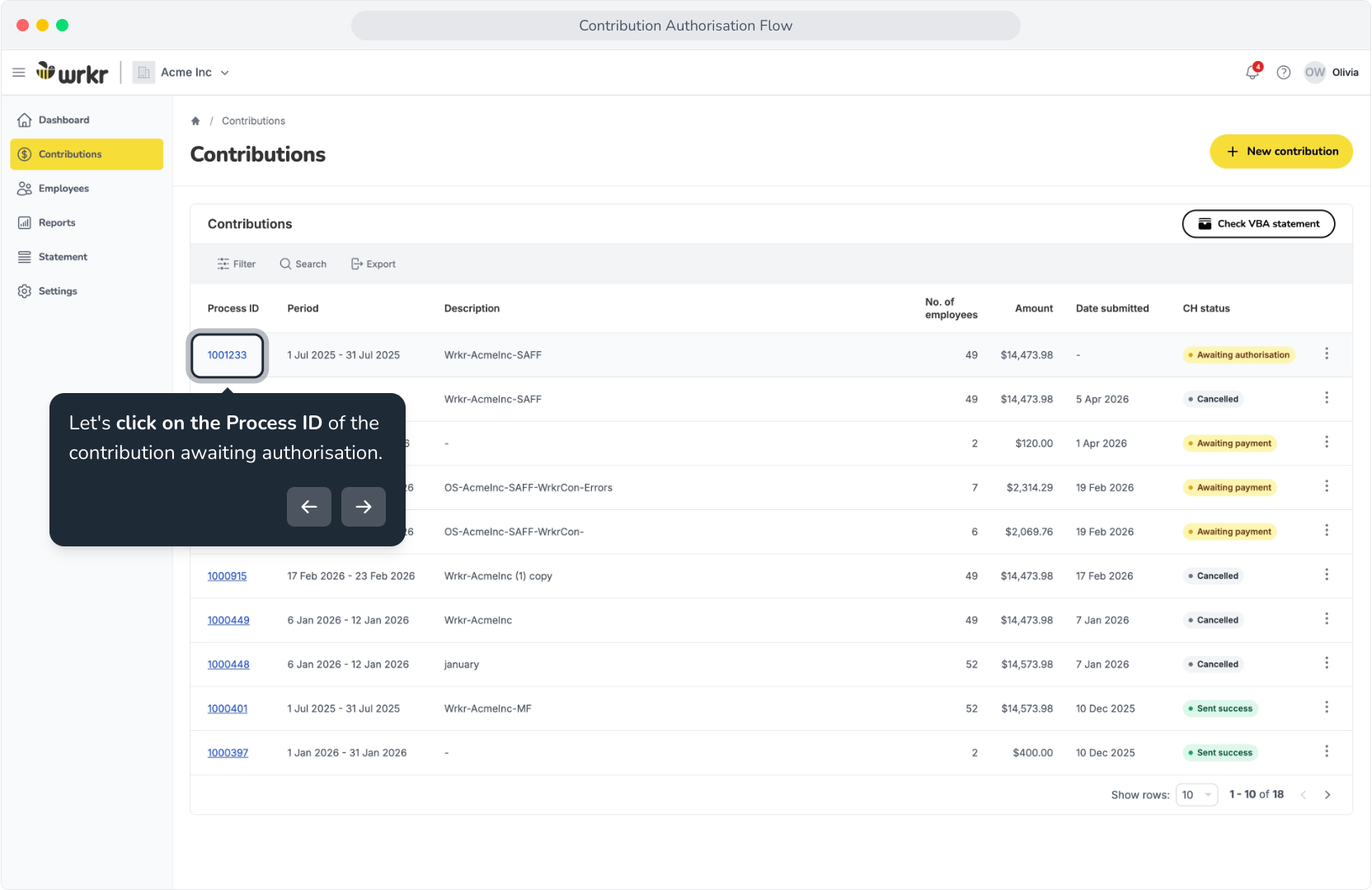
19. Let's click on the Process ID of the contribution awaiting authorisation.
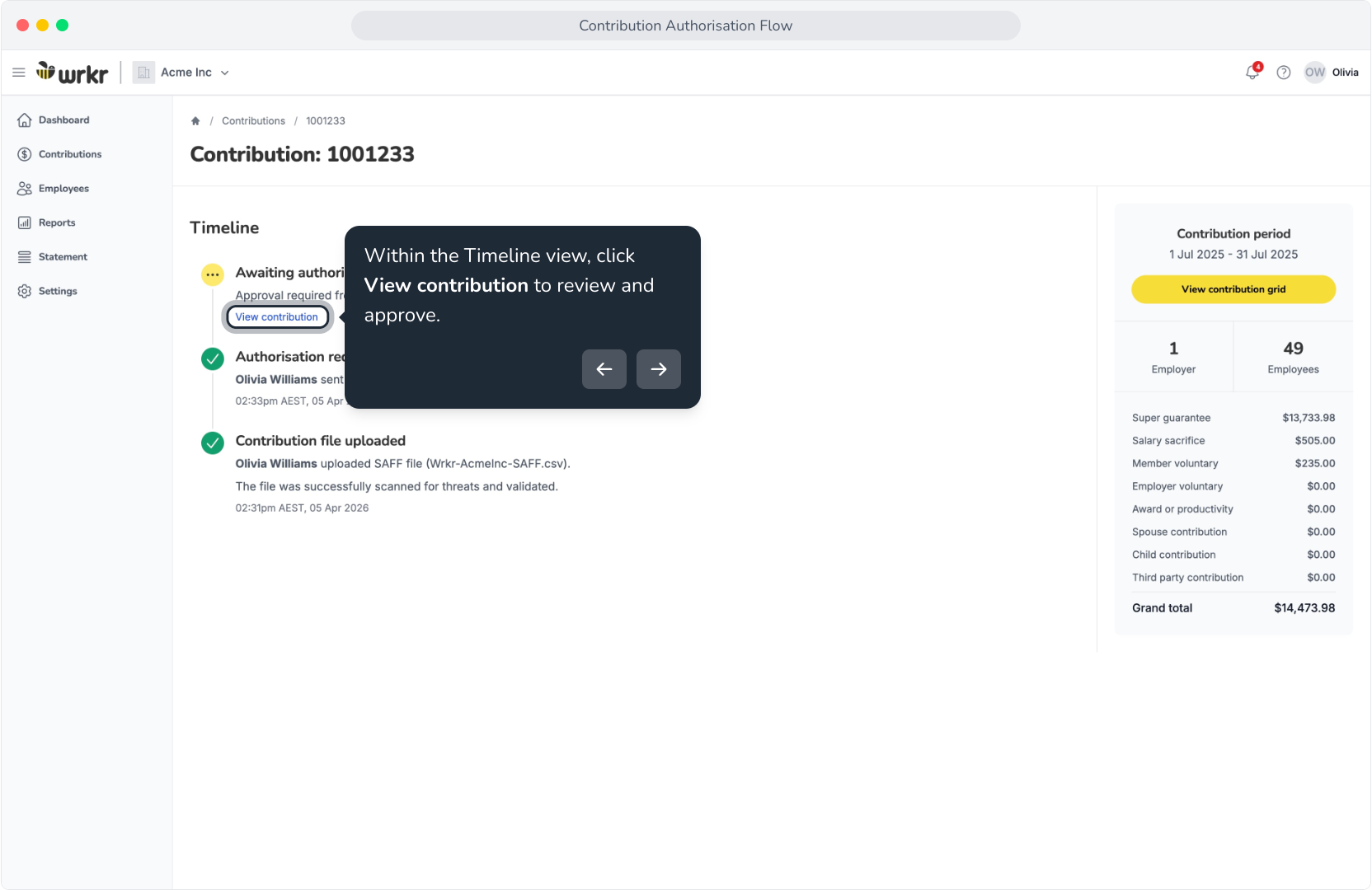
20. Within the Timeline view, click View contribution to review and approve.
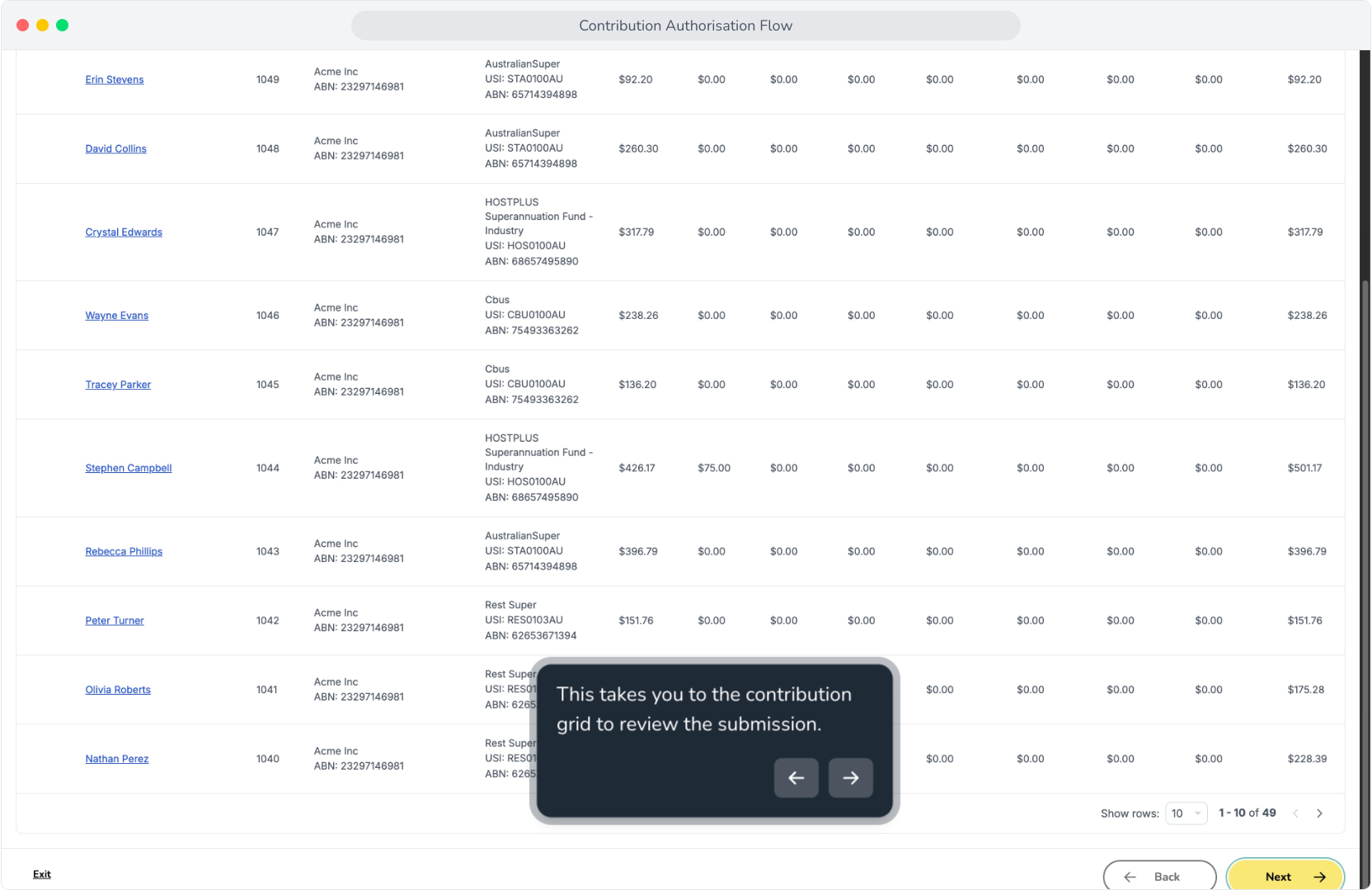
21. This takes you to the contribution grid to review the submission.
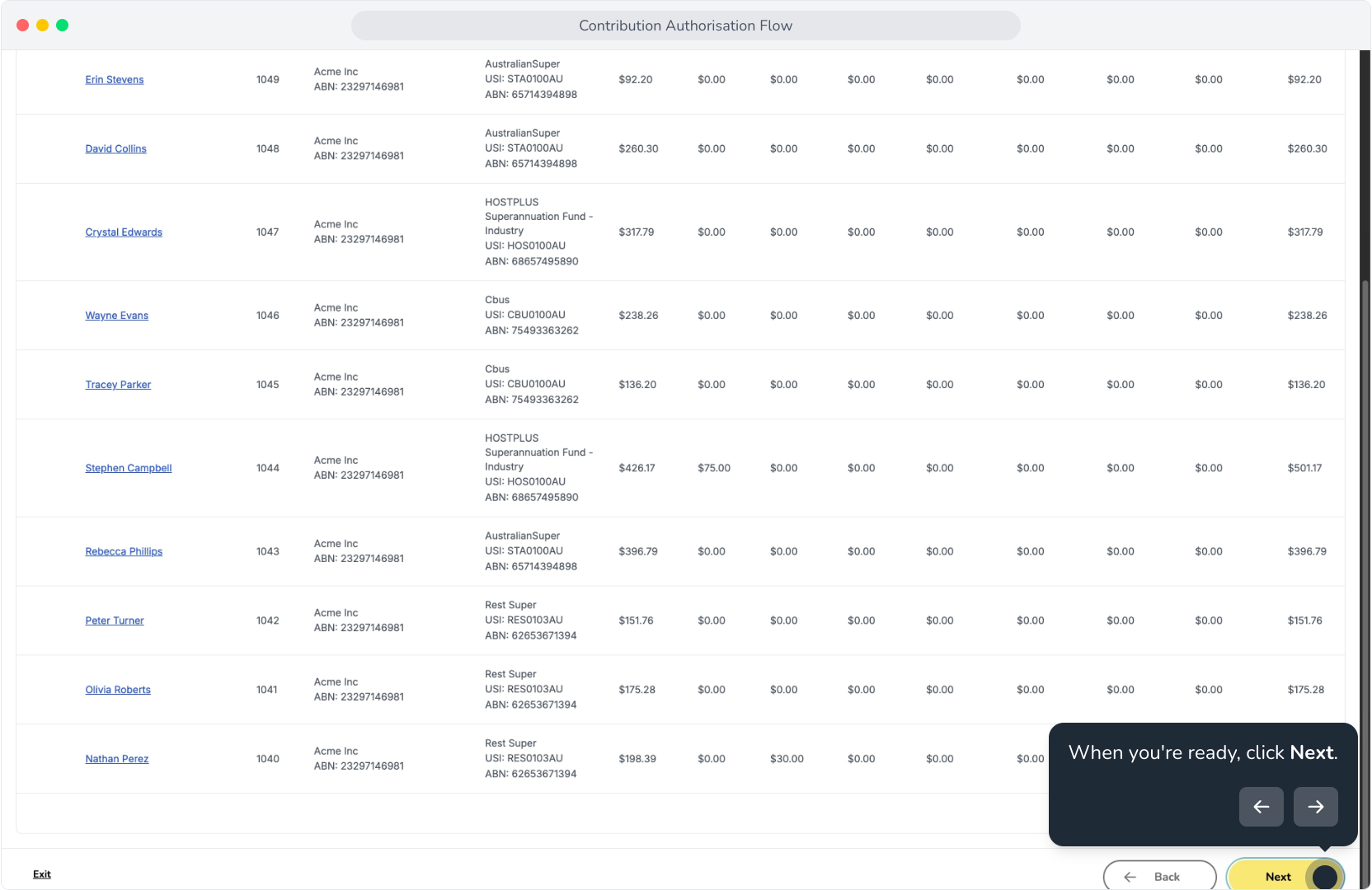
22. When you're ready, click Next.
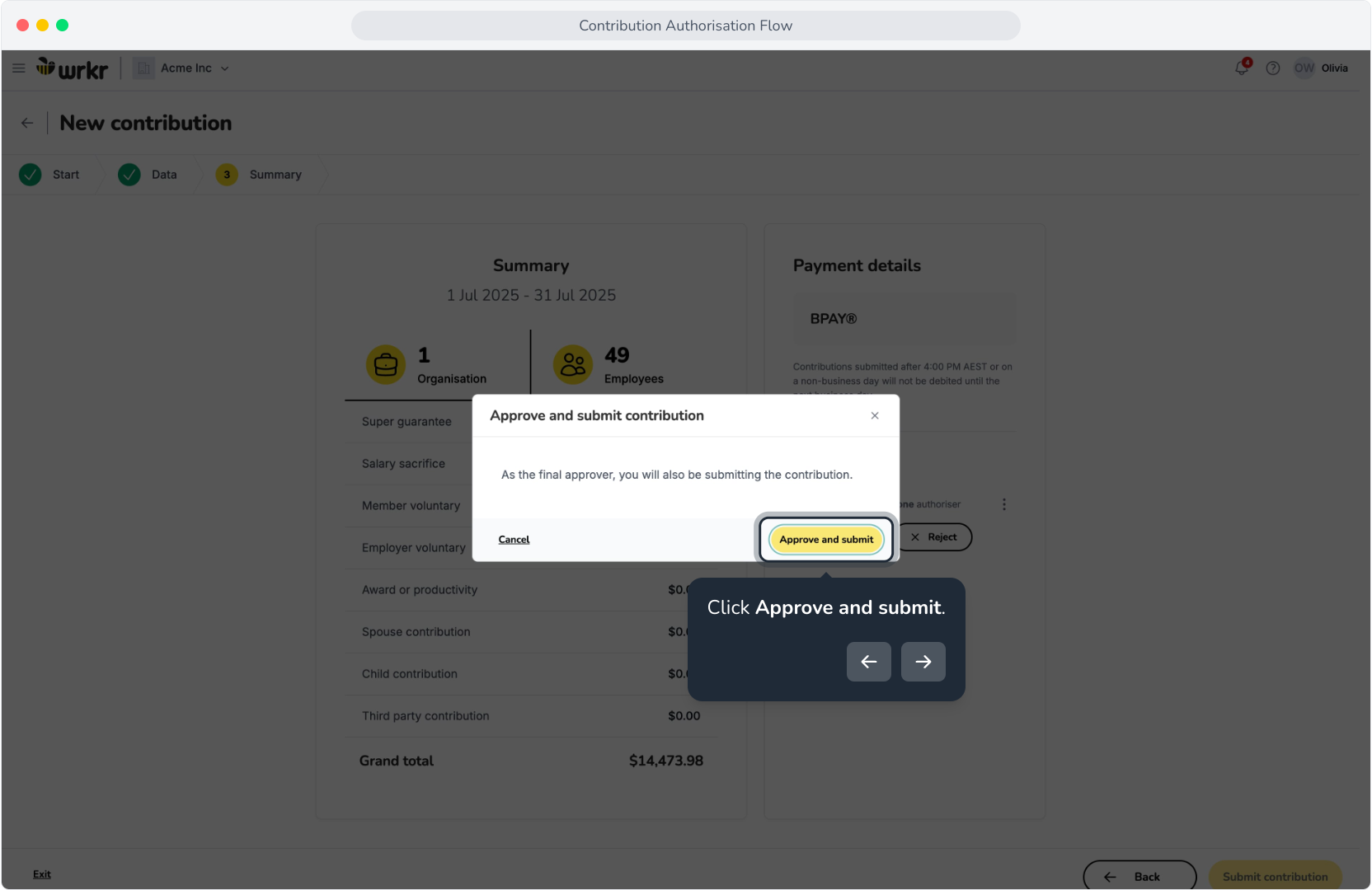
23. As an approved authoriser, you will now see the option to Approve or Reject contributions. We'll click Approve for this one.
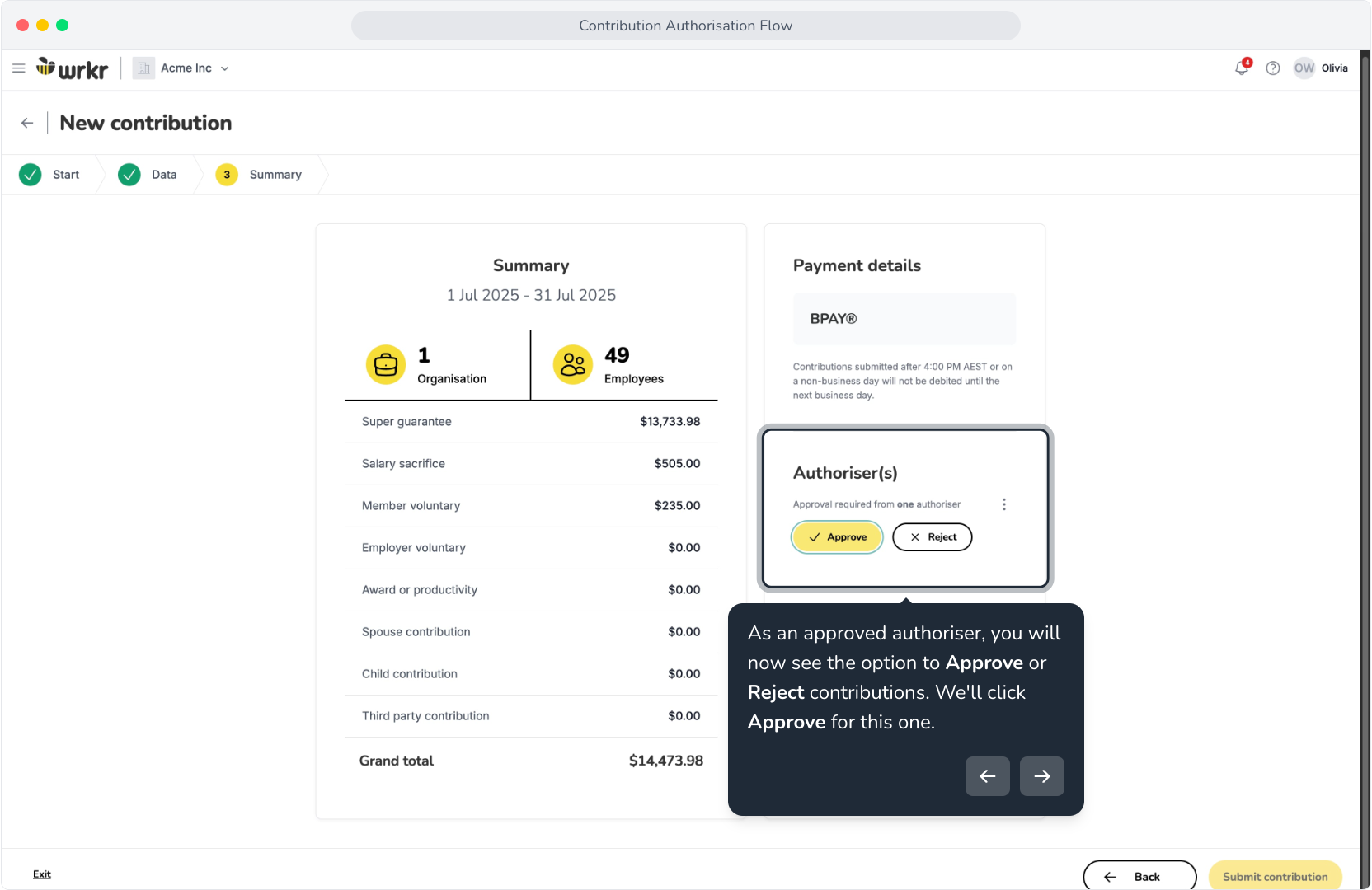
24. Click Approve and submit.
25. Now, we can return to the Contributions screen.
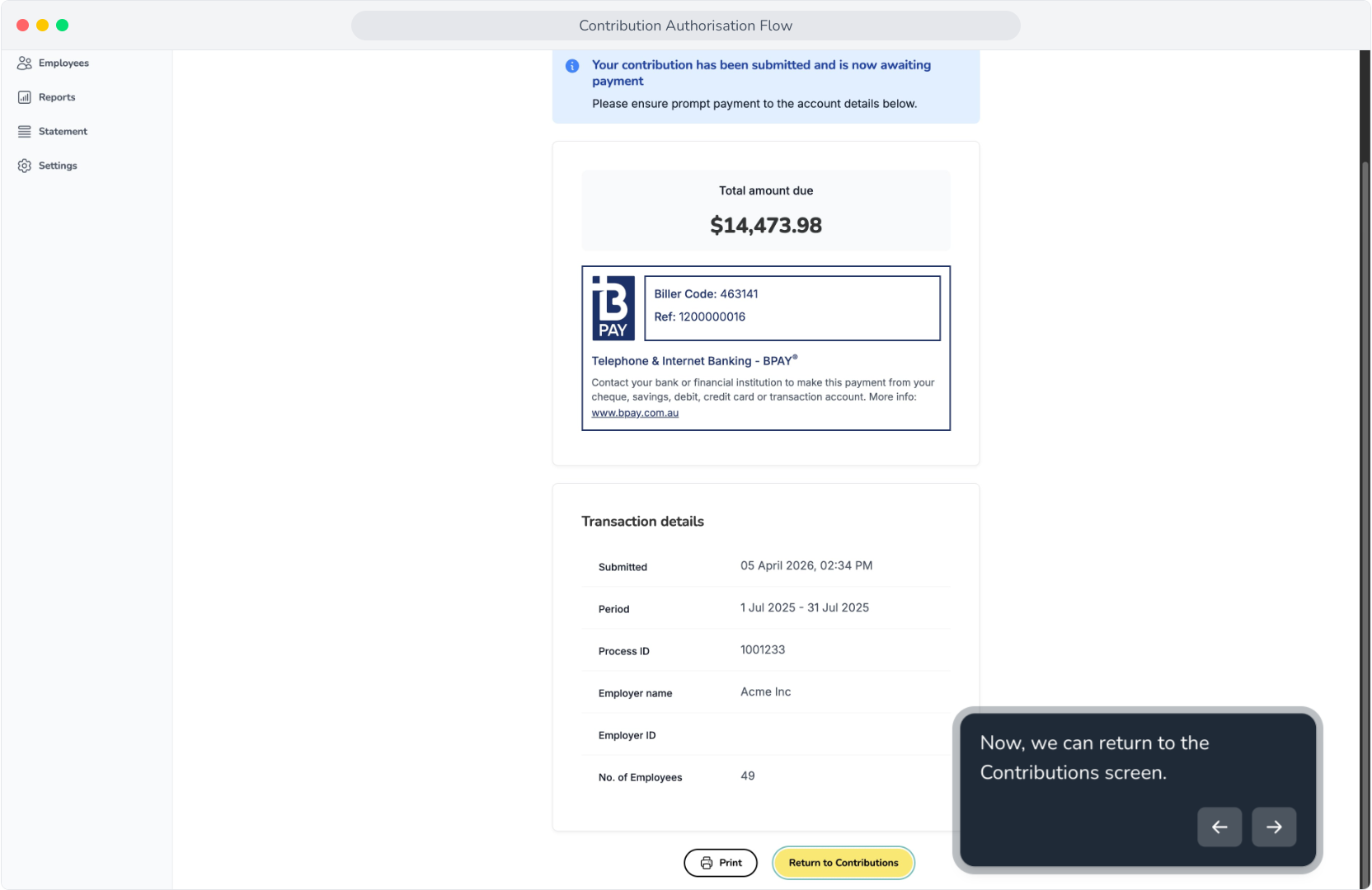
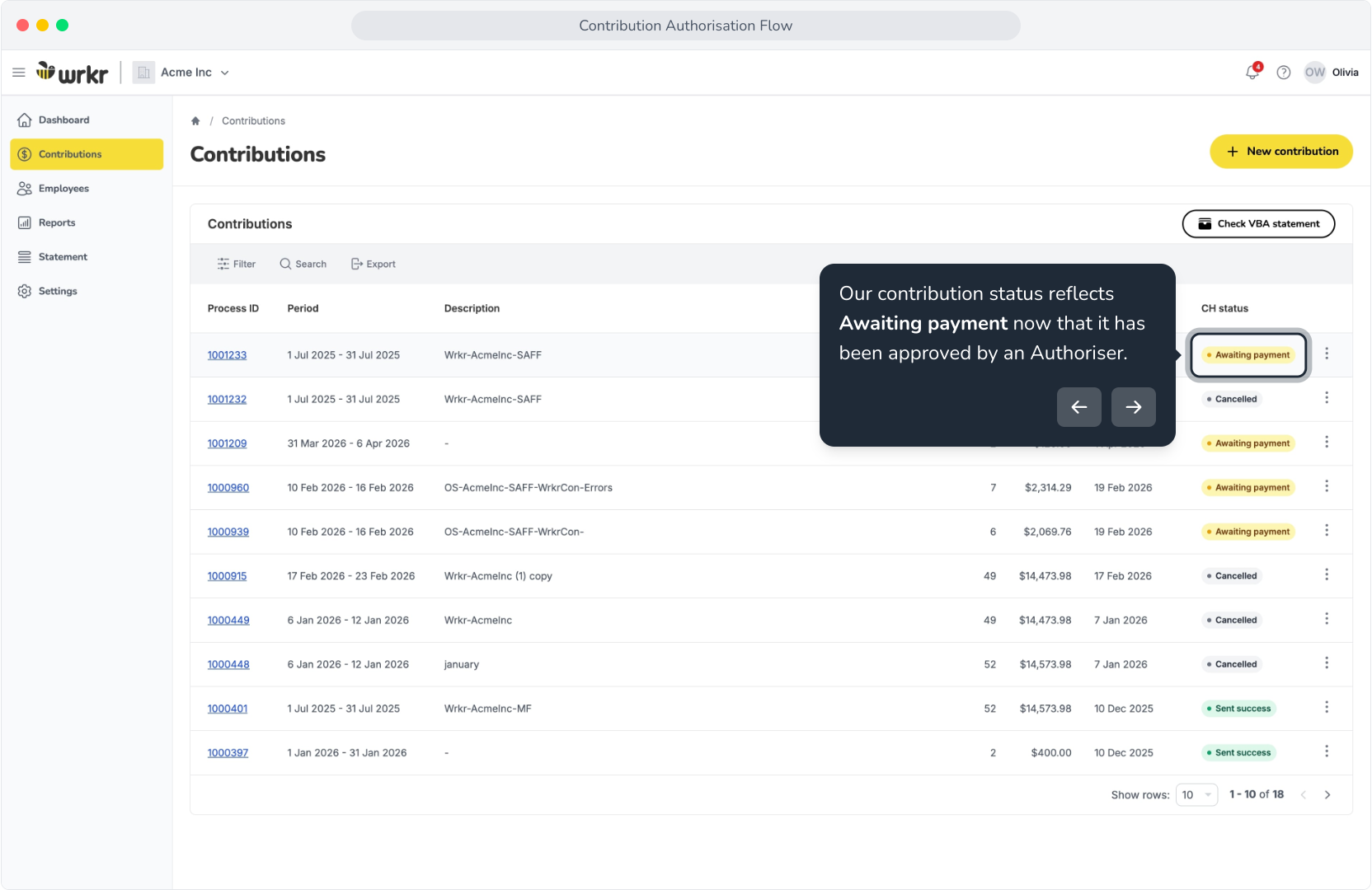
26. Our contribution status reflects Awaiting payment now that it has been approved by an Authoriser.