Context: This guide covers the File Mapper function within the Wrkr Portal, and how to mapp non-SAFF file formats.
Interactive Demo
Note: Make the demo full-screen for a better experience. You can mute/un-mute narration to suit your preferences.
Step by Step
1. How to Use File Mapper for Contributions
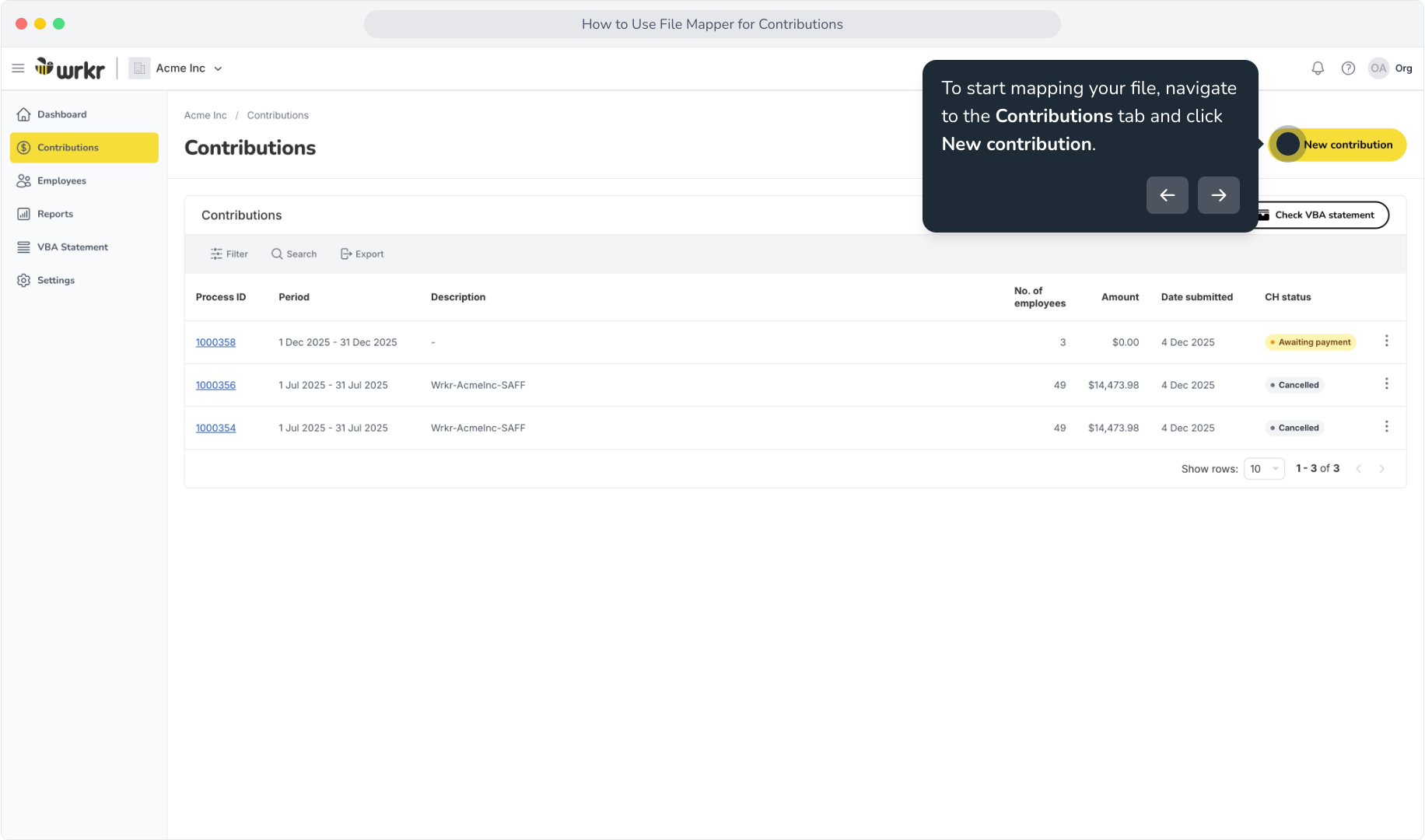
2. To start mapping your file, navigate to the Contributions tab and click New contribution.
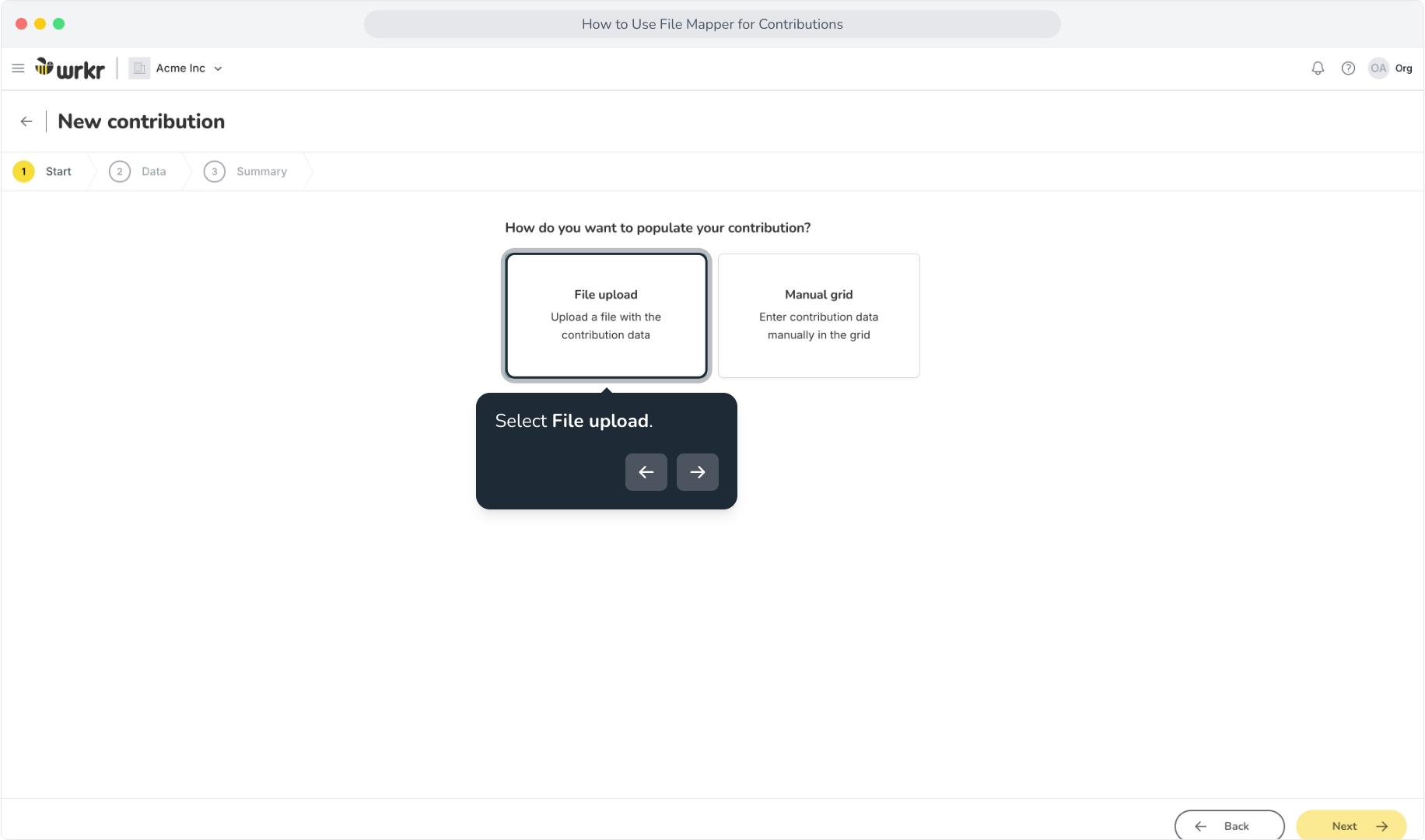
3. Select File upload.
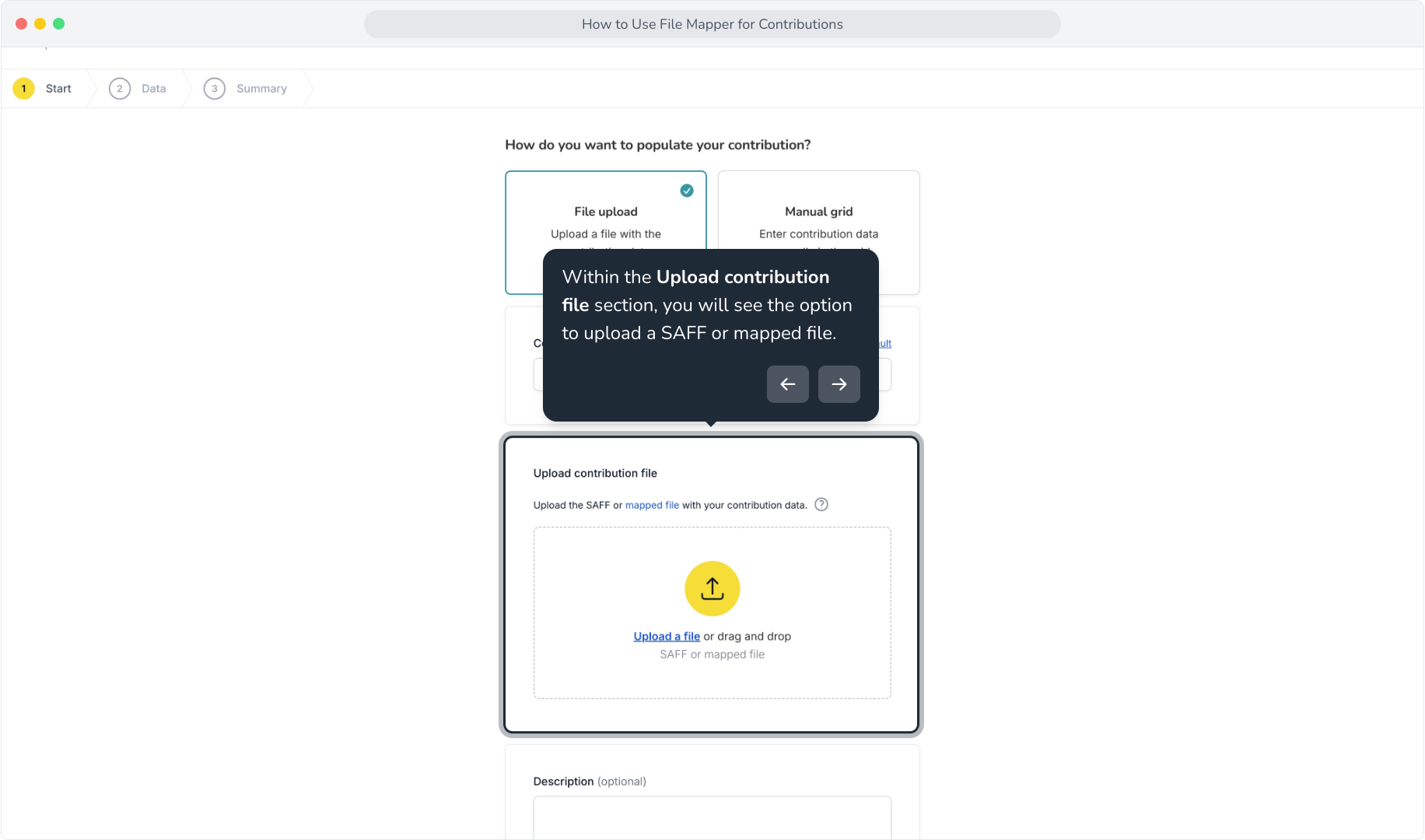
4. Within the Upload contribution file section, you will see the option to upload a SAFF or mapped file.
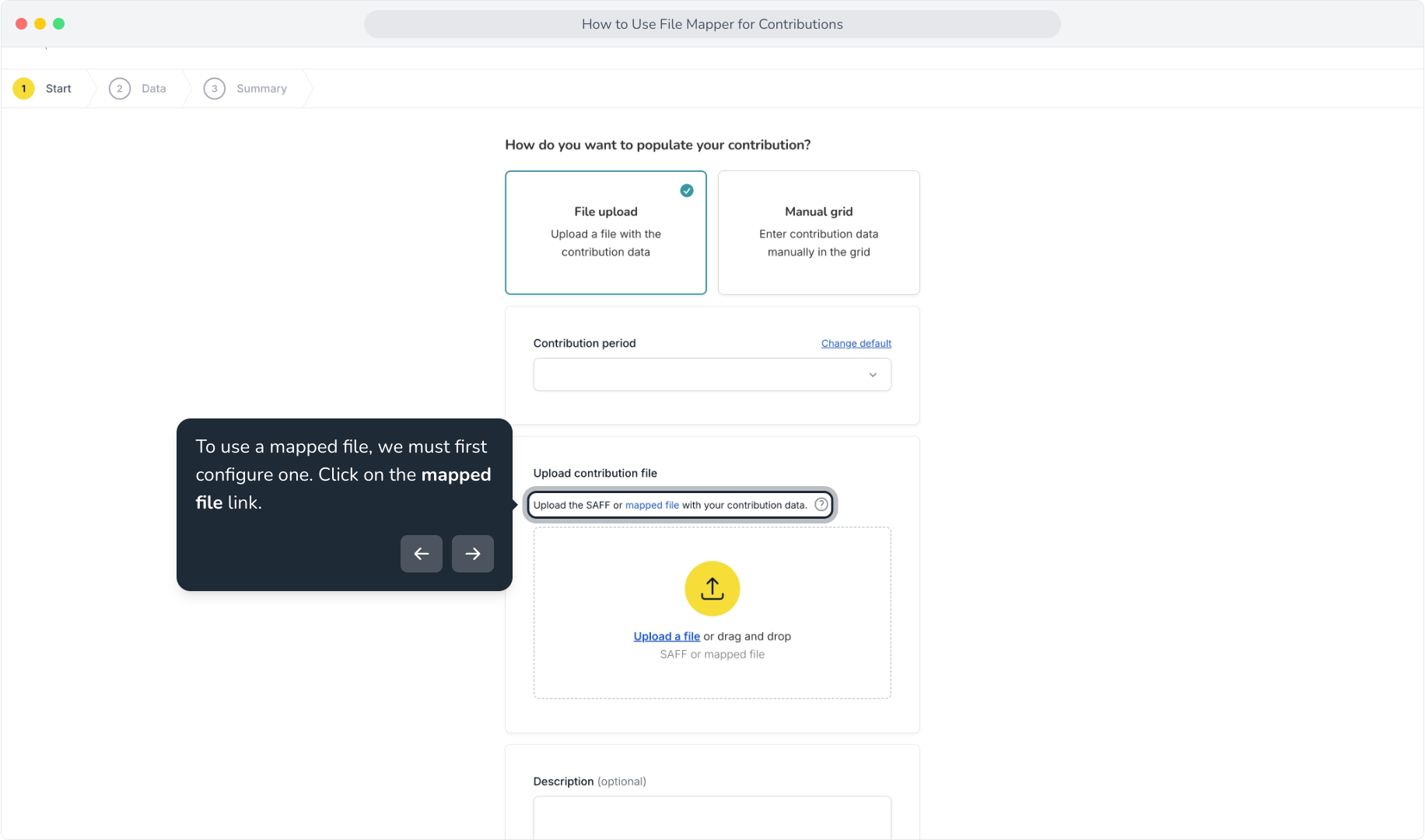
5. To use a mapped file, we must first configure one. Click on the mapped file link.
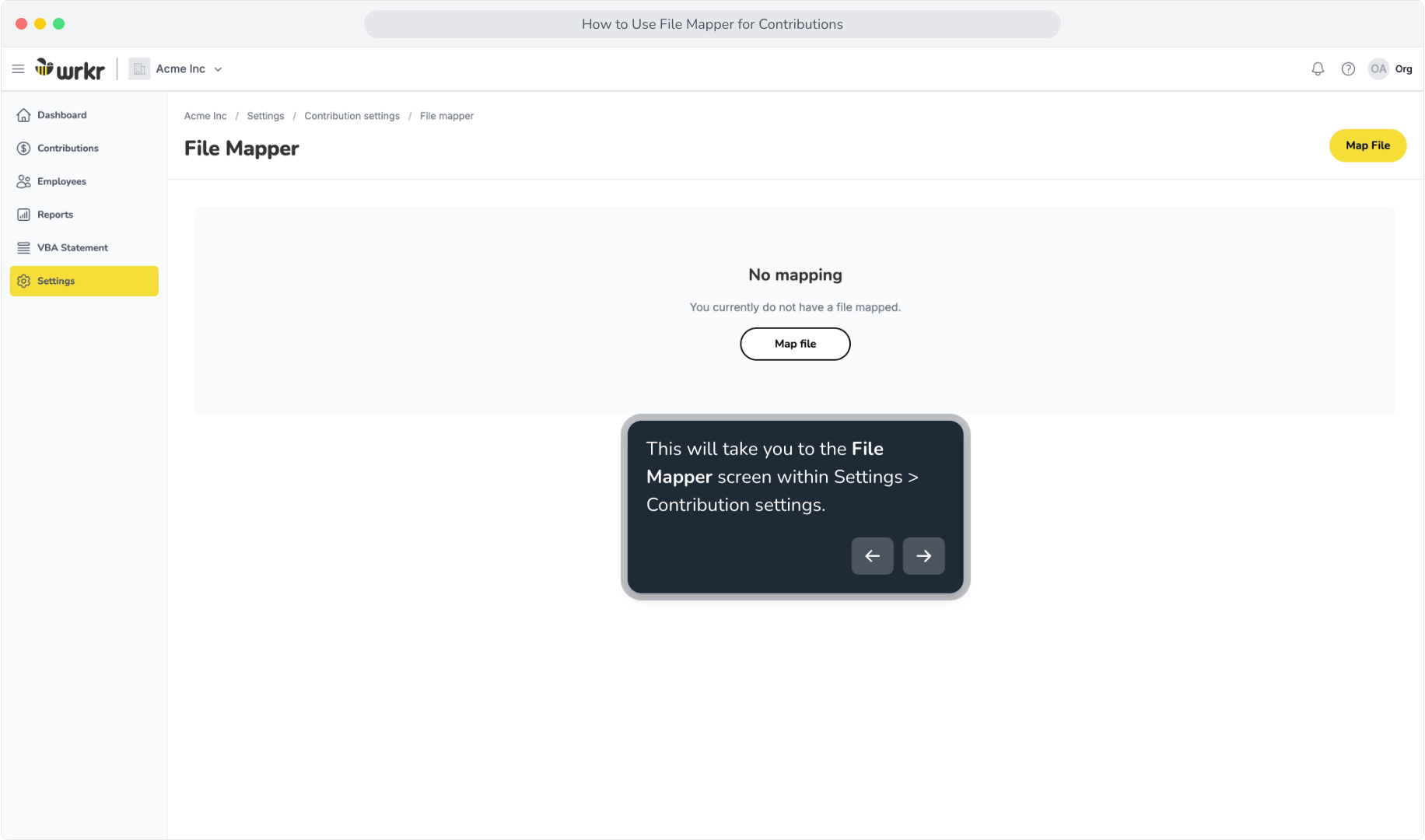
6. This will take you to the File Mapper screen within Settings > Contribution settings.
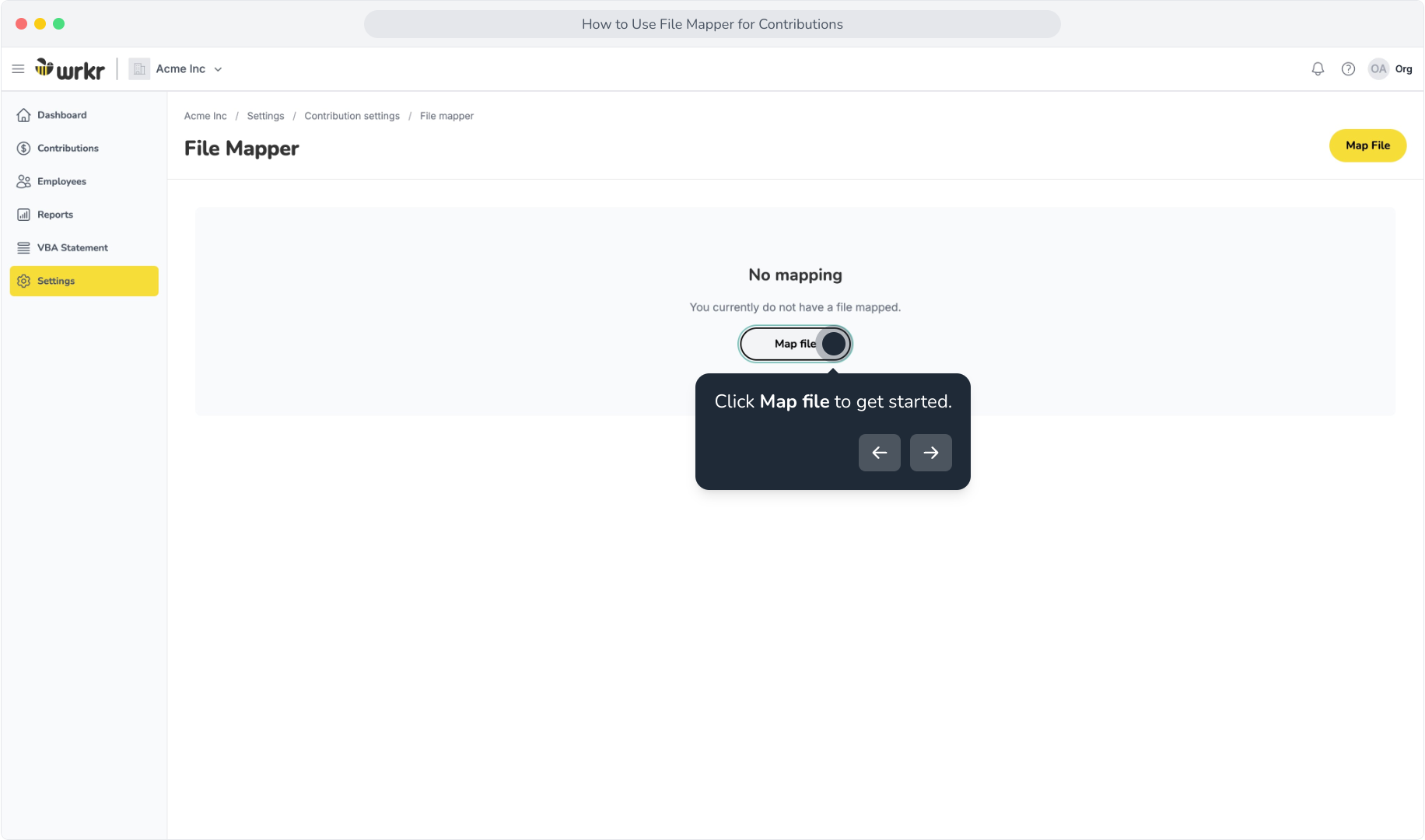
7. Click Map file to get started.
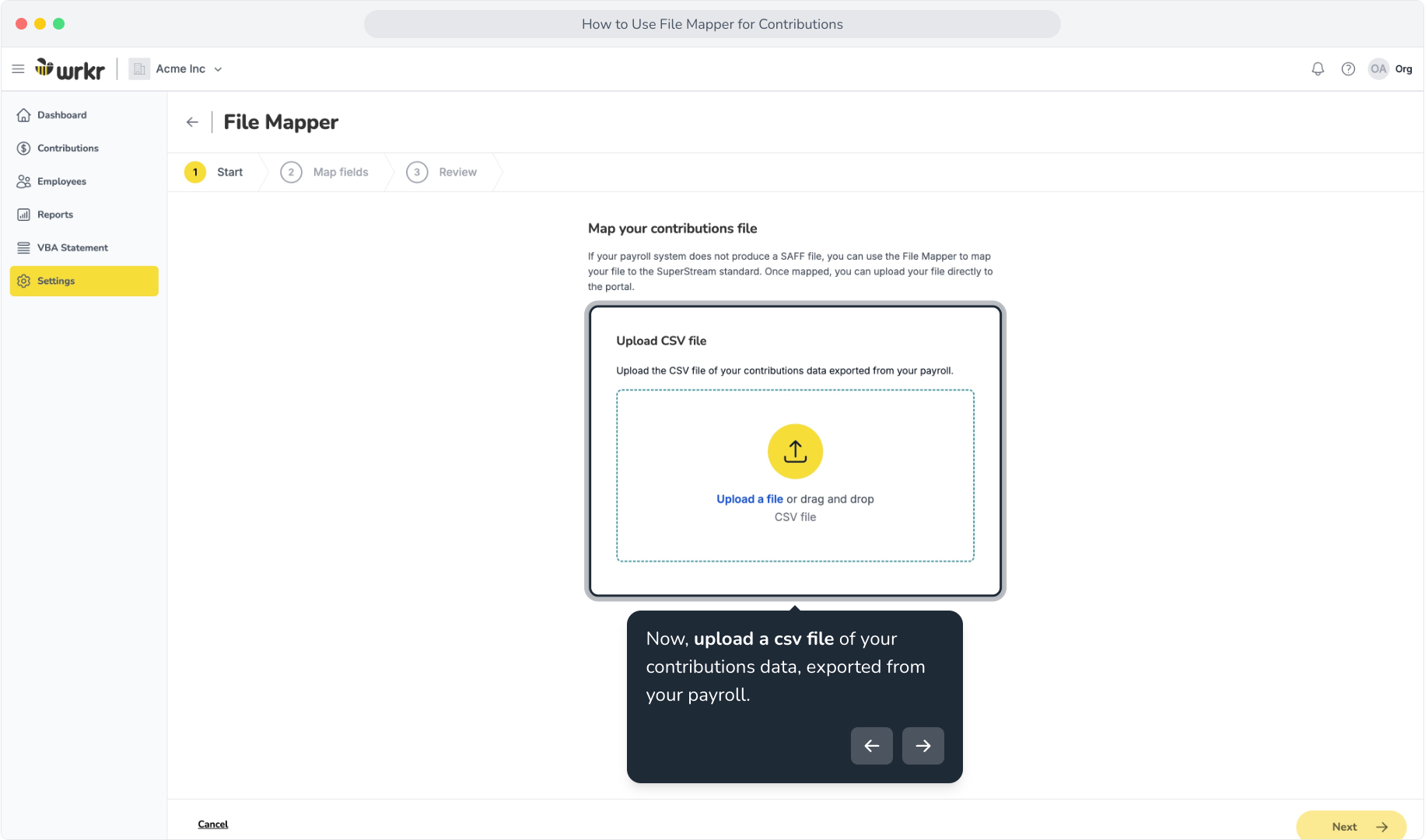
8. Now, upload a csv file of your contributions data, exported from your payroll.
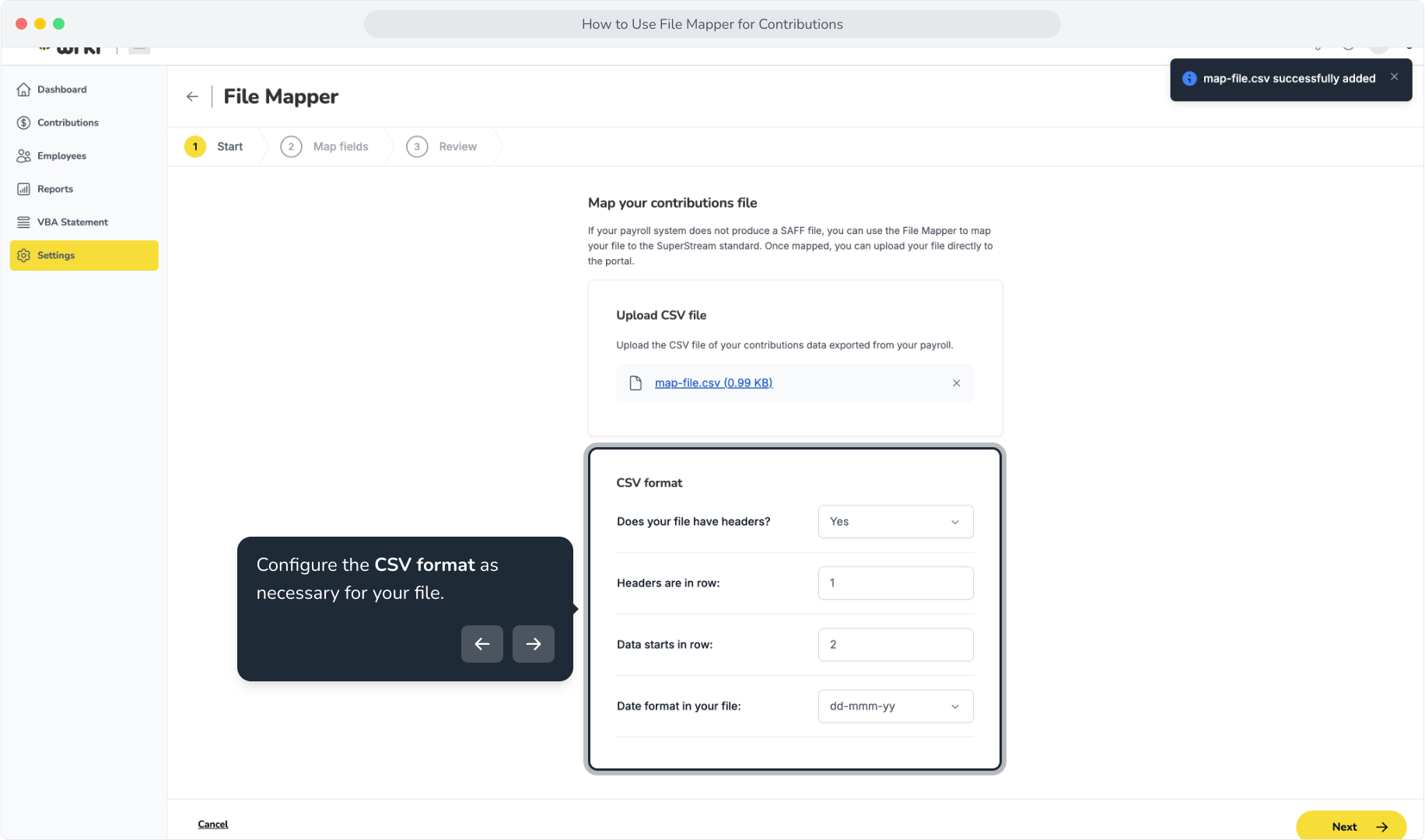
9. Configure the CSV format as necessary for your file.
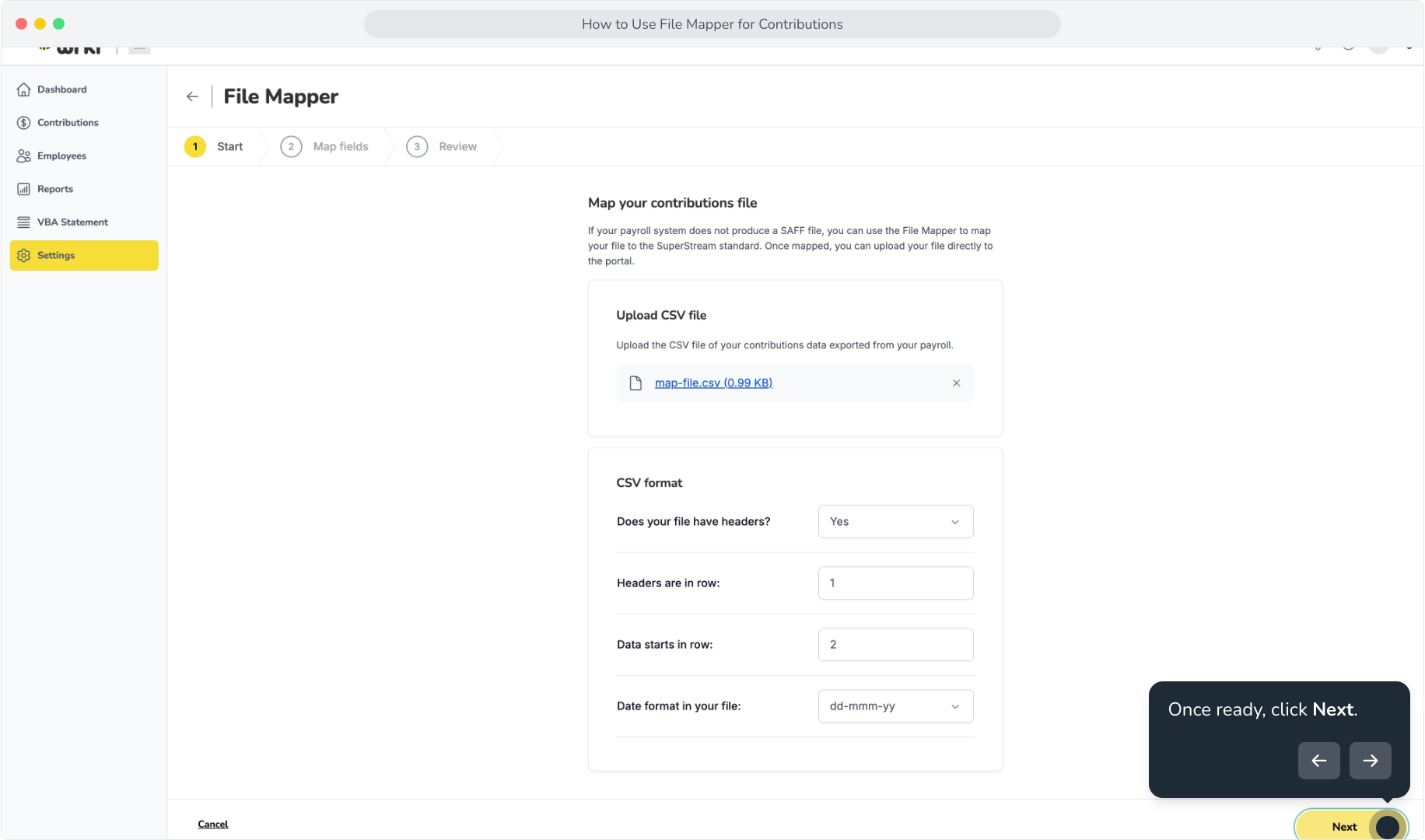
10. Once ready, click Next.
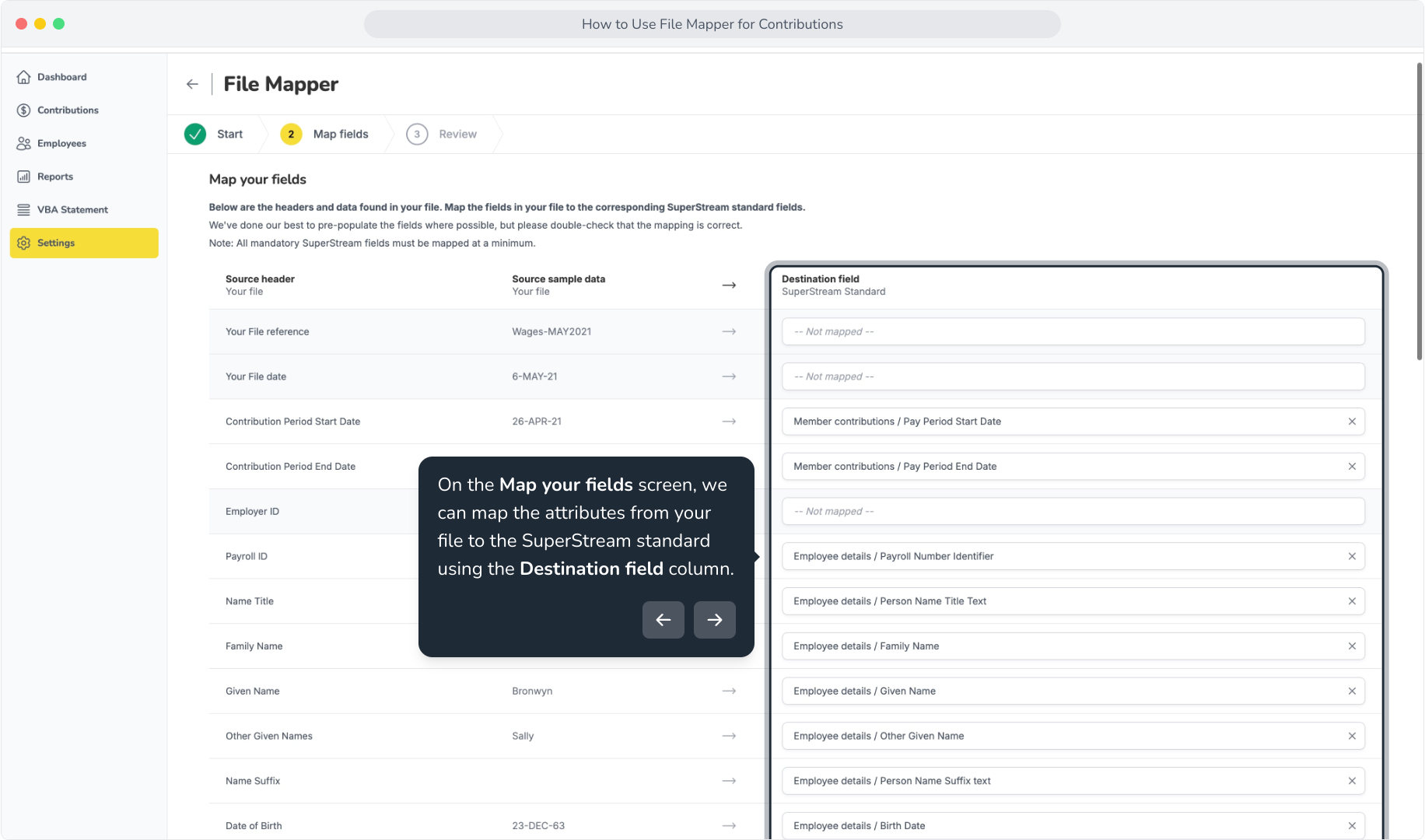
11. On the Map your fields screen, we can map the attributes from your file to the SuperStream standard using the Destination field column.
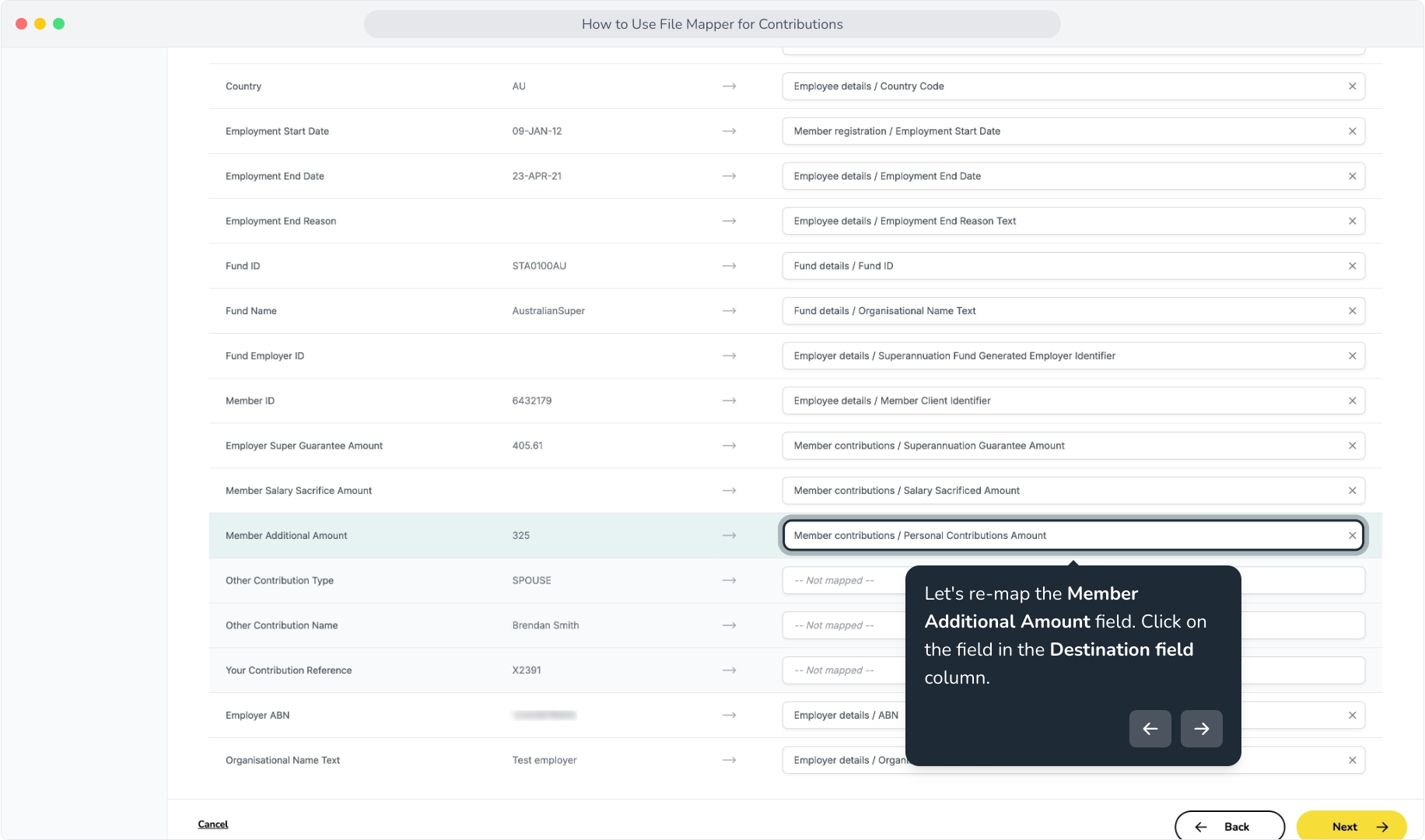
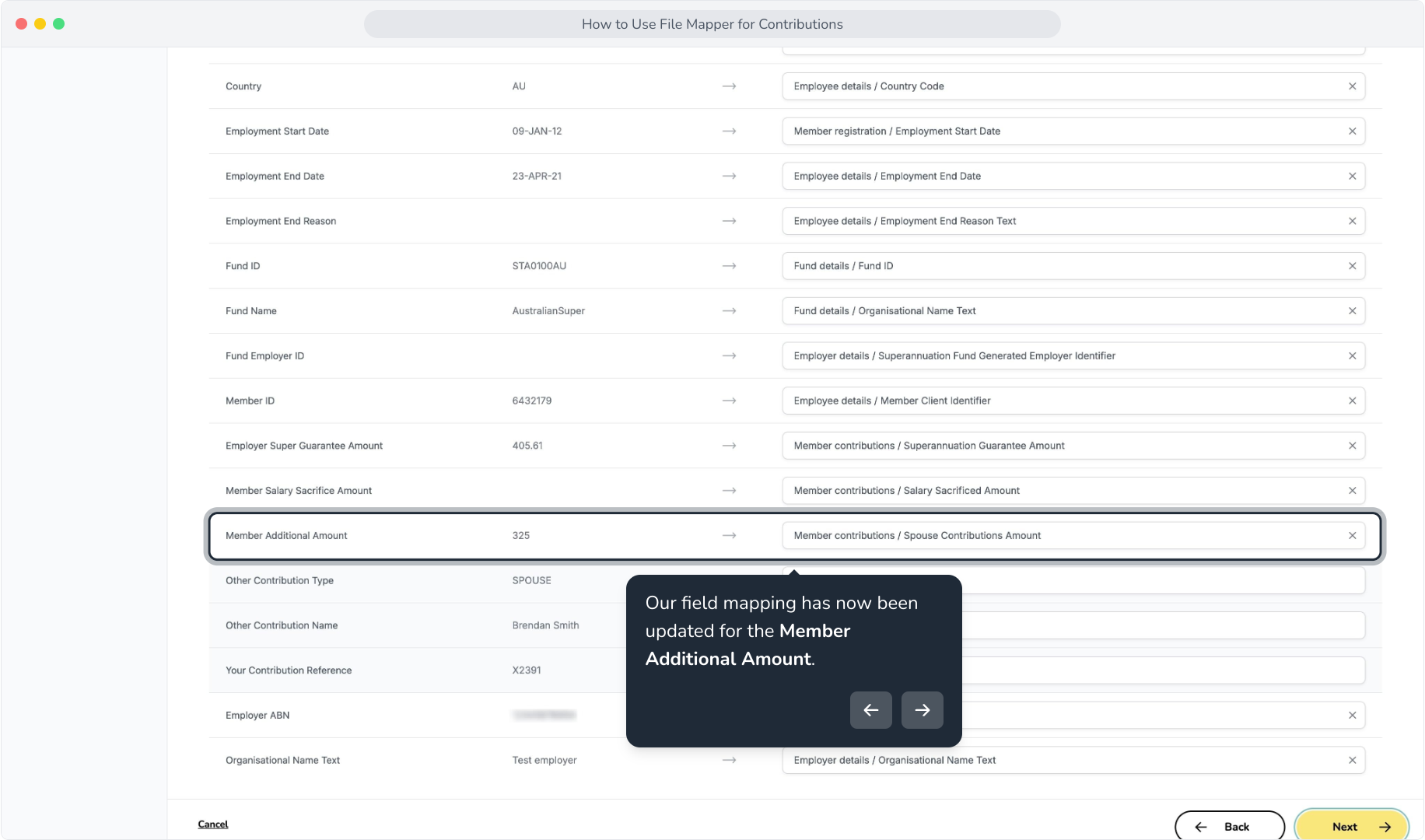
12. Let's re-map the Member Additional Amount field. Click on the field in the Destination field column.
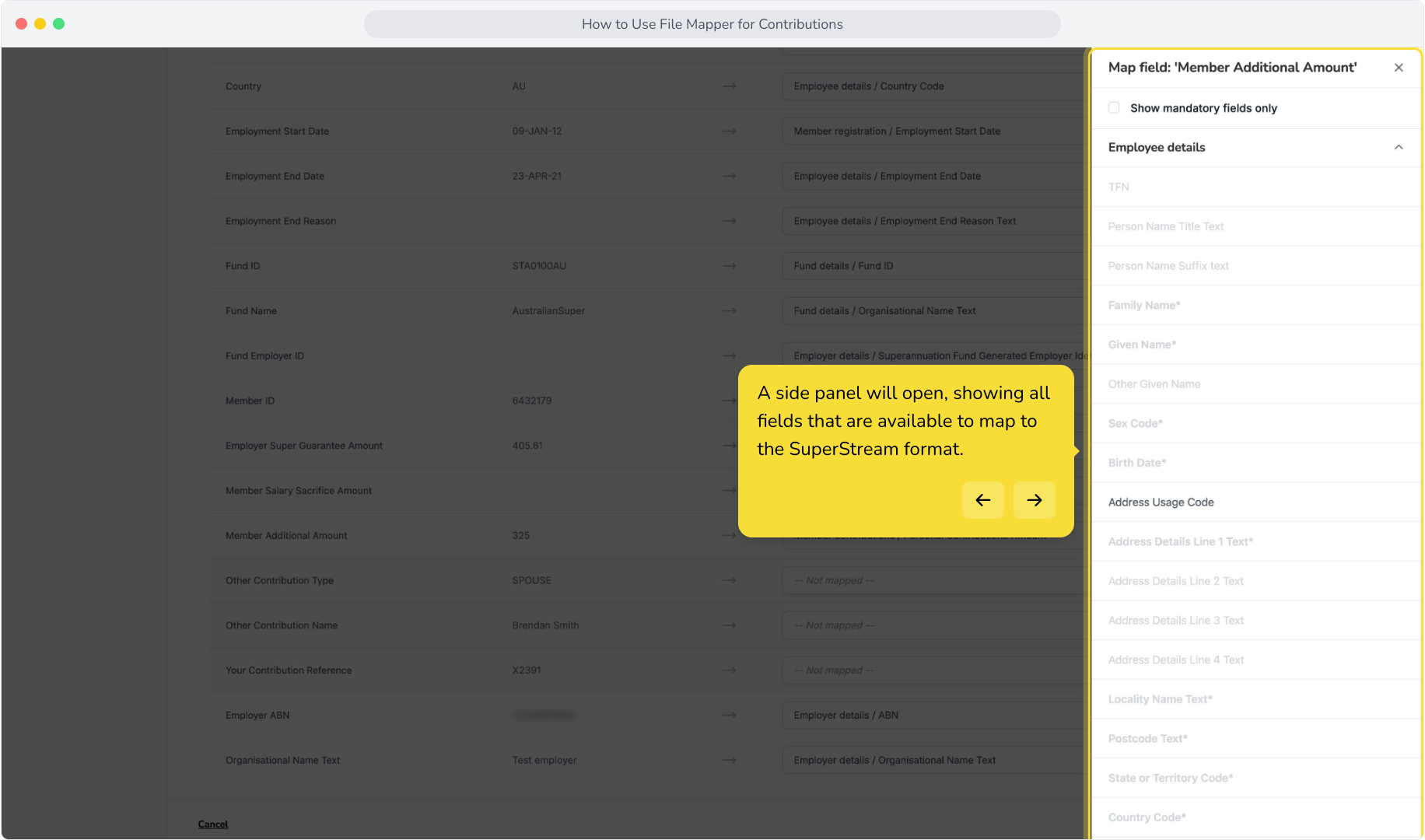
13. A side panel will open, showing all fields that are available to map to the SuperStream format.
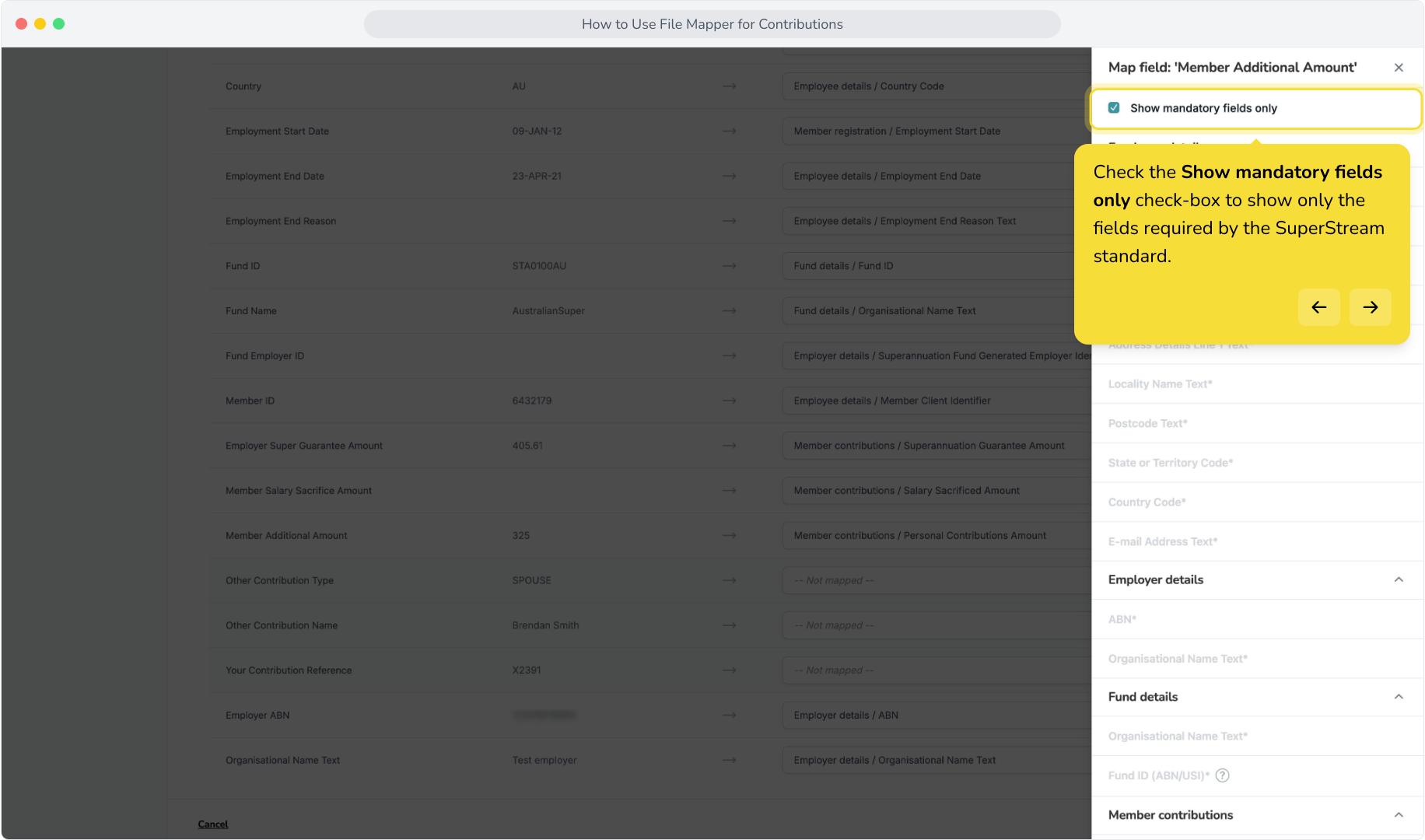
14. Check the Show mandatory fields only check-box to show only the fields required by the SuperStream standard.
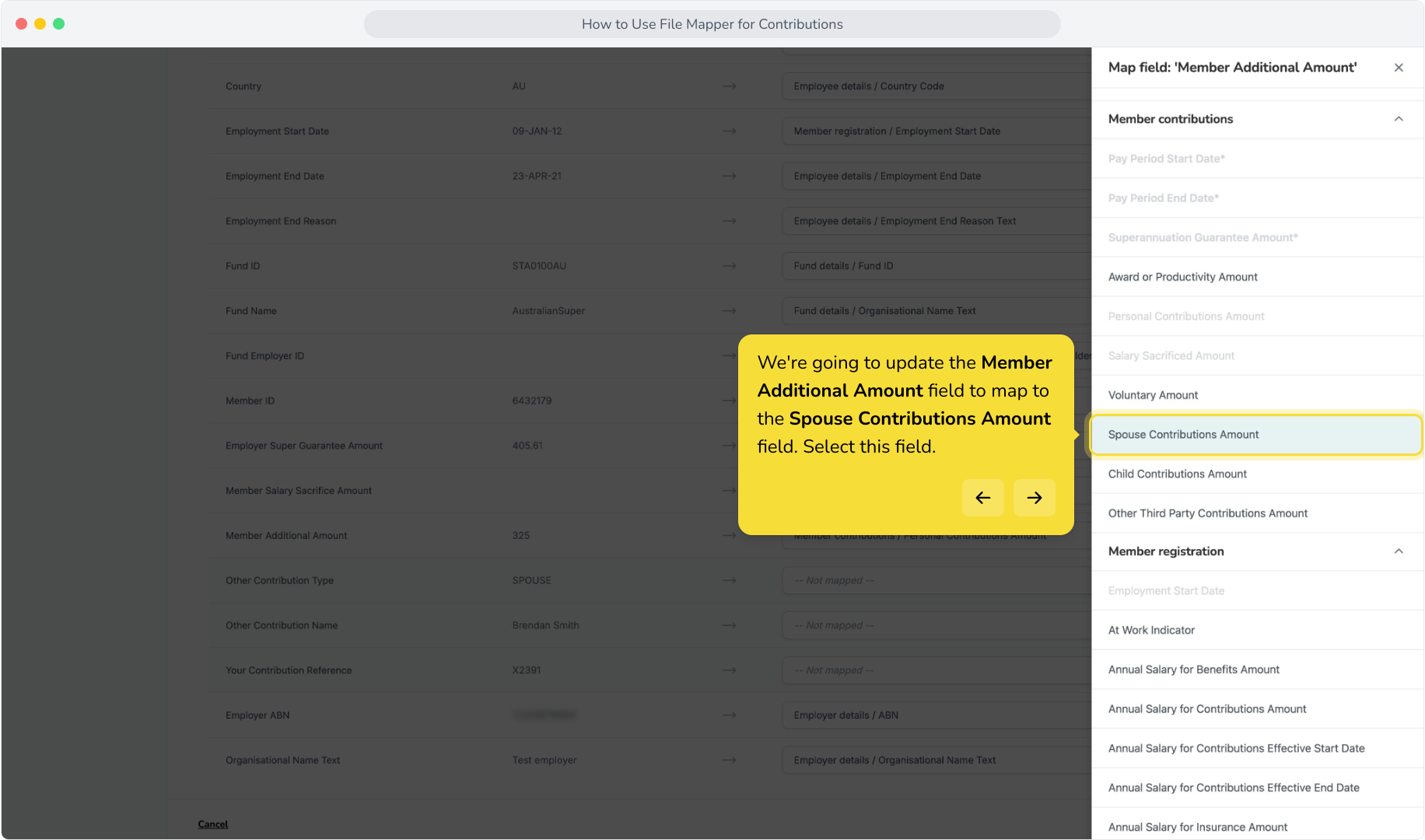
15. We're going to update the Member Additional Amount field to map to the Spouse Contributions Amount field. Select this field.
16. Our field mapping has now been updated for the Member Additional Amount.
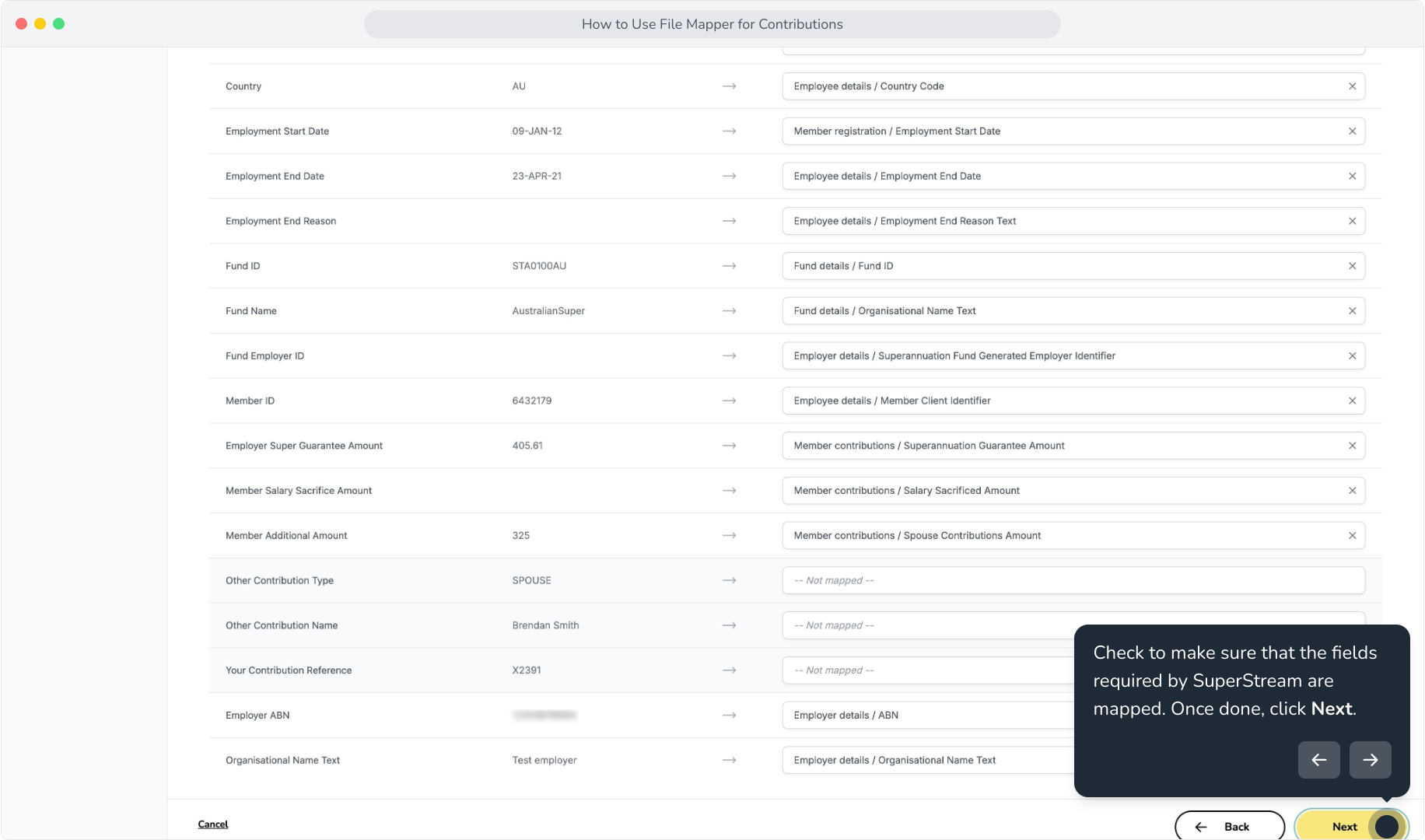
17. Check to make sure that the fields required by SuperStream are mapped. Once done, click Next.
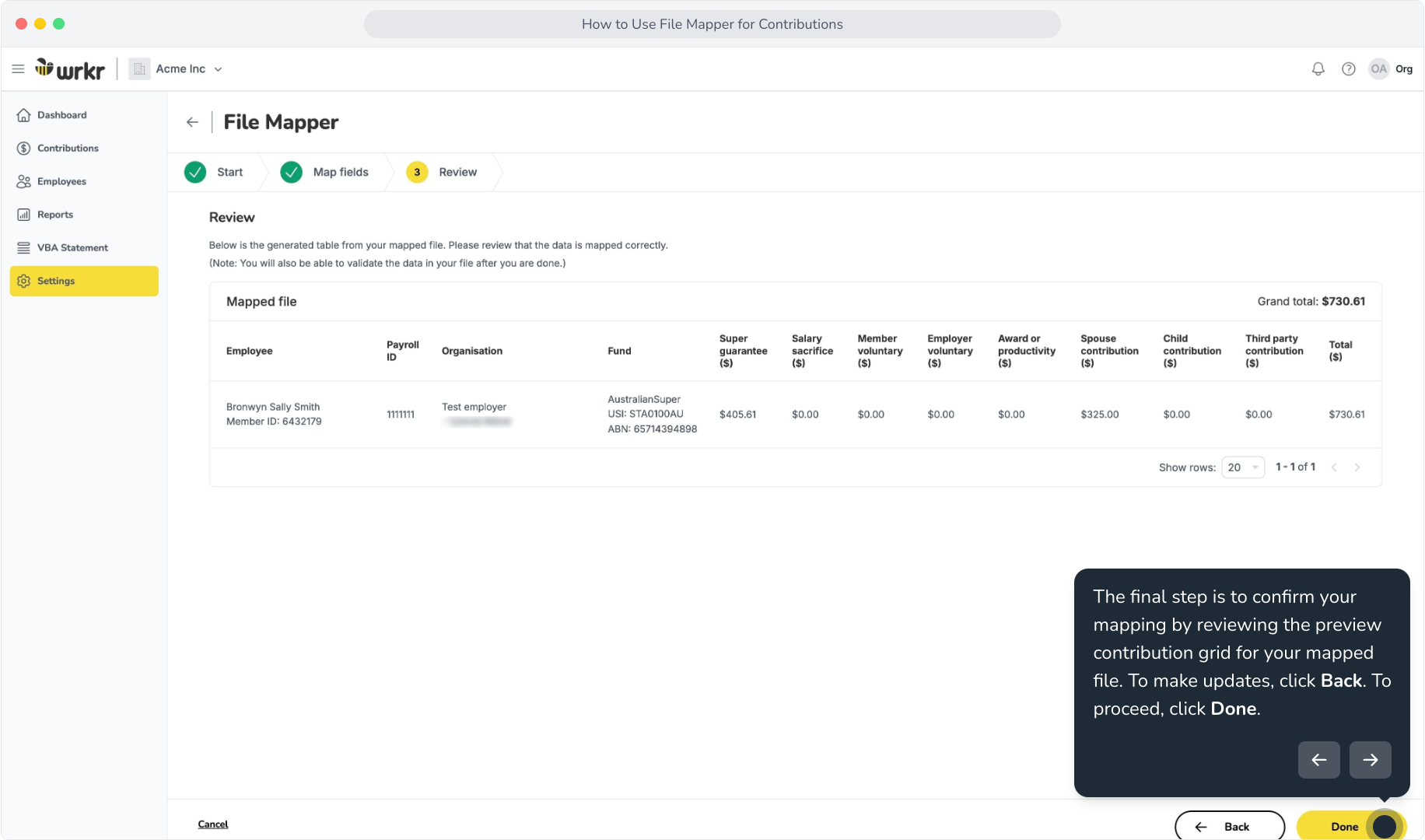
18. The final step is to confirm your mapping by reviewing the preview contribution grid for your mapped file. To make updates, click Back. To proceed, click Done.
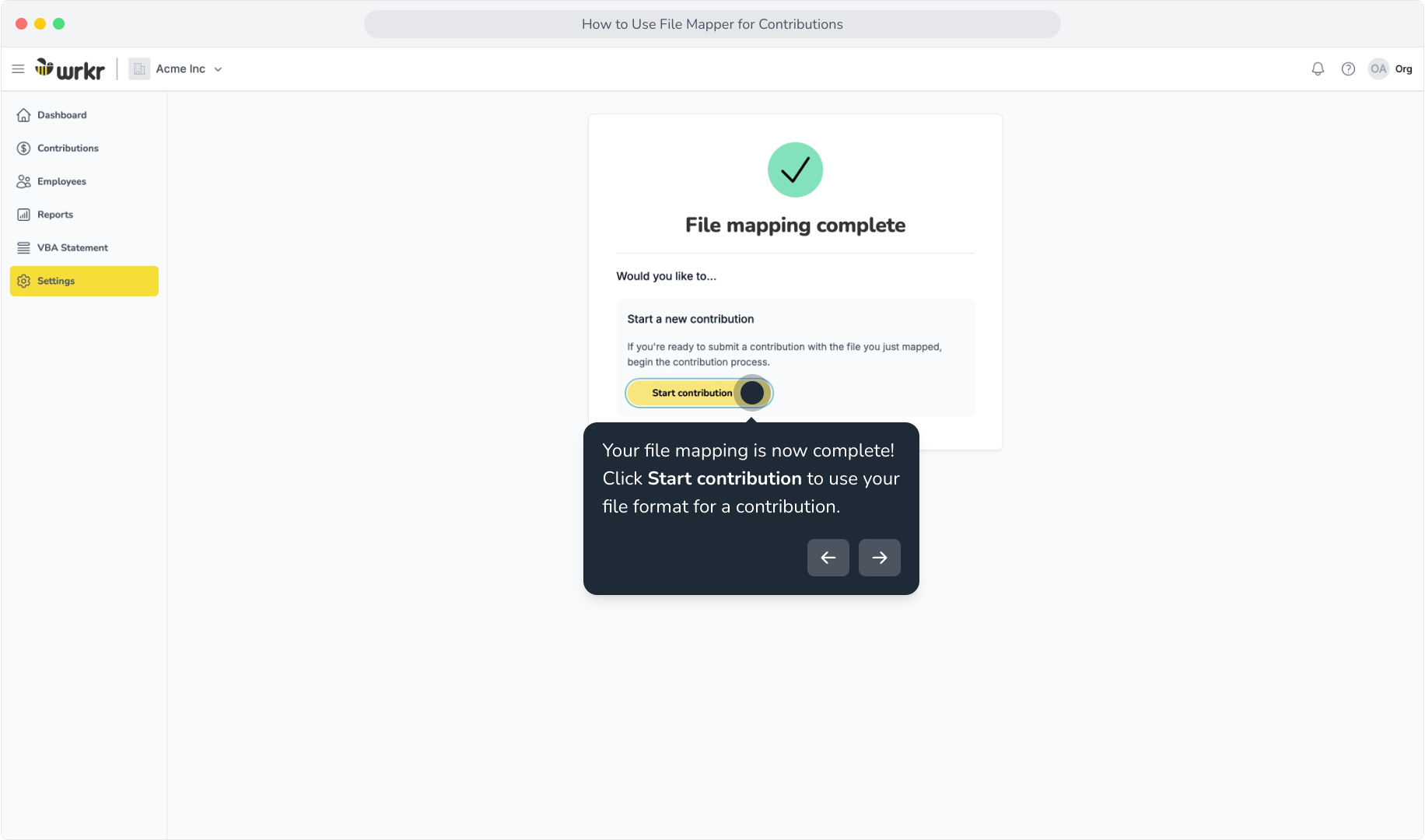
19. Your file mapping is now complete! Click Start contribution to use your file format for a contribution.
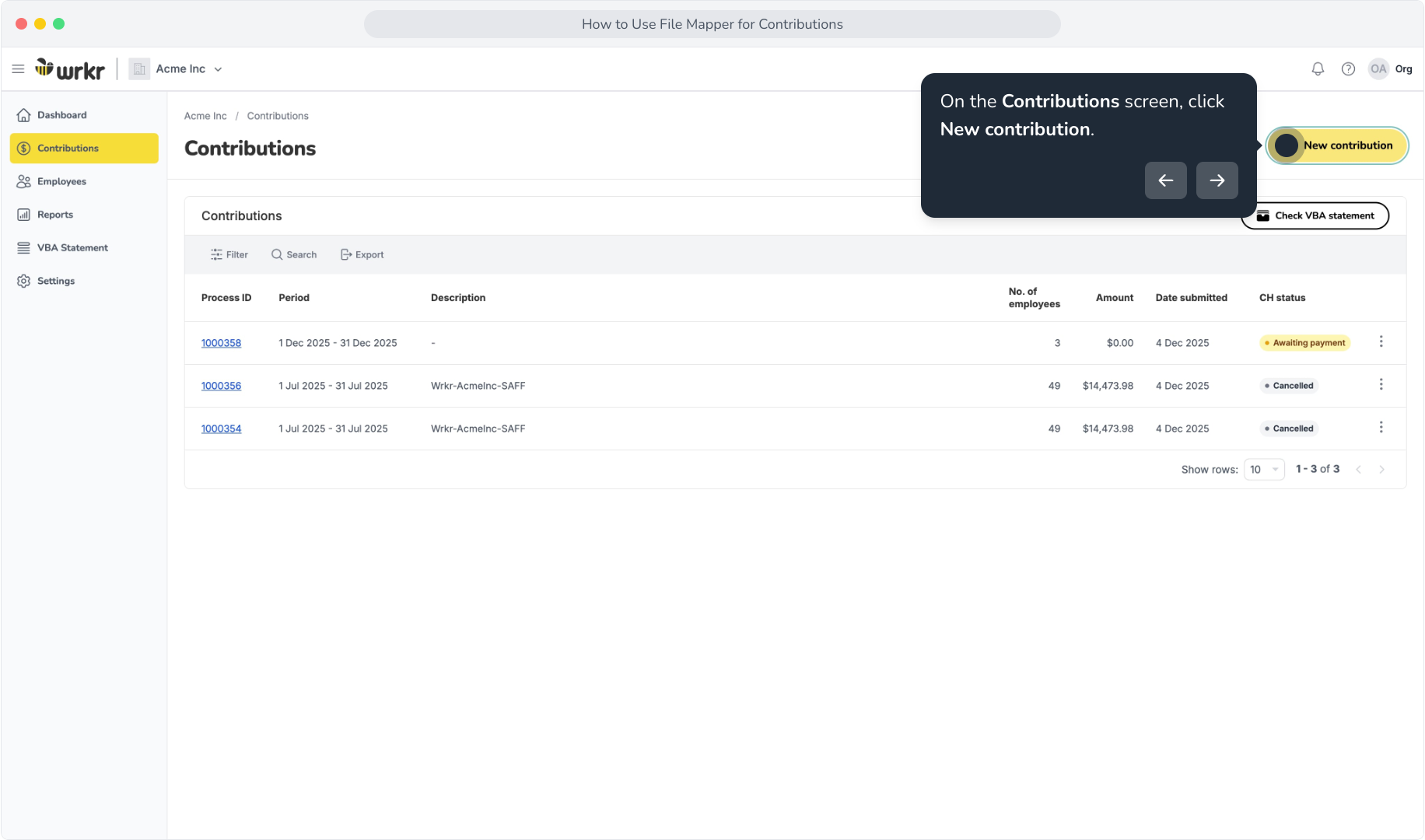
20. On the Contributions screen, click New contribution.
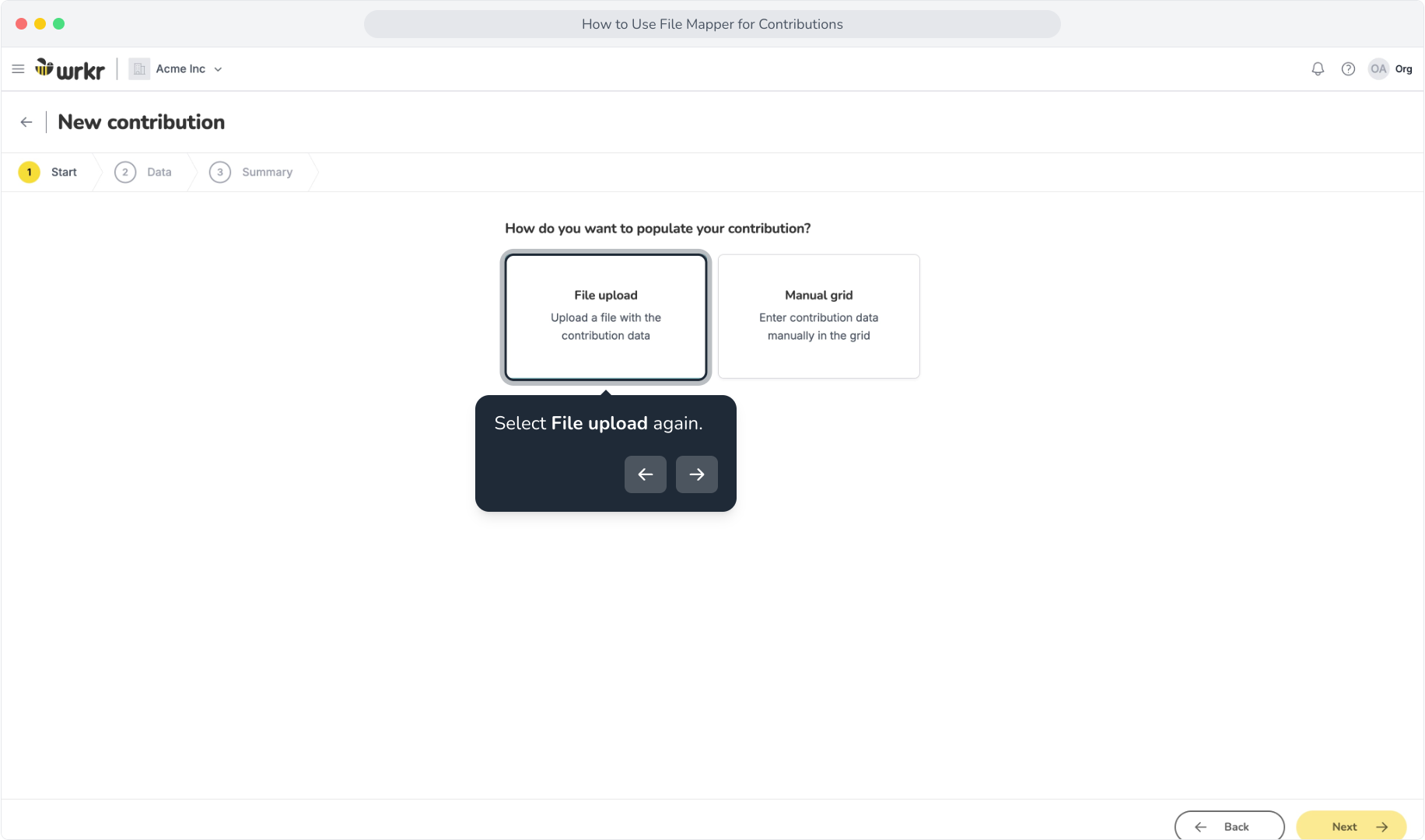
21. Select File upload again.
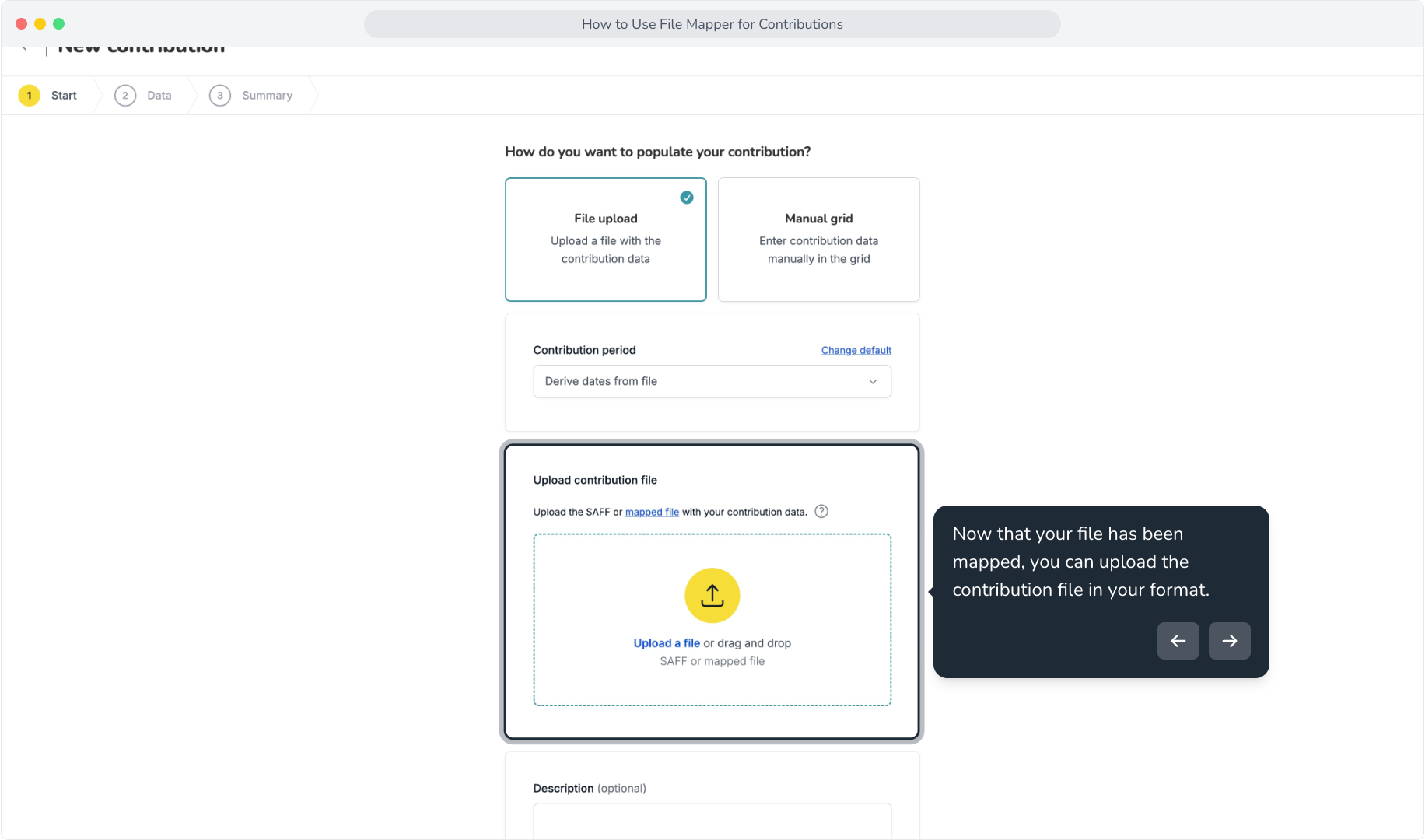
22. Now that your file has been mapped, you can upload the contribution file in your format.
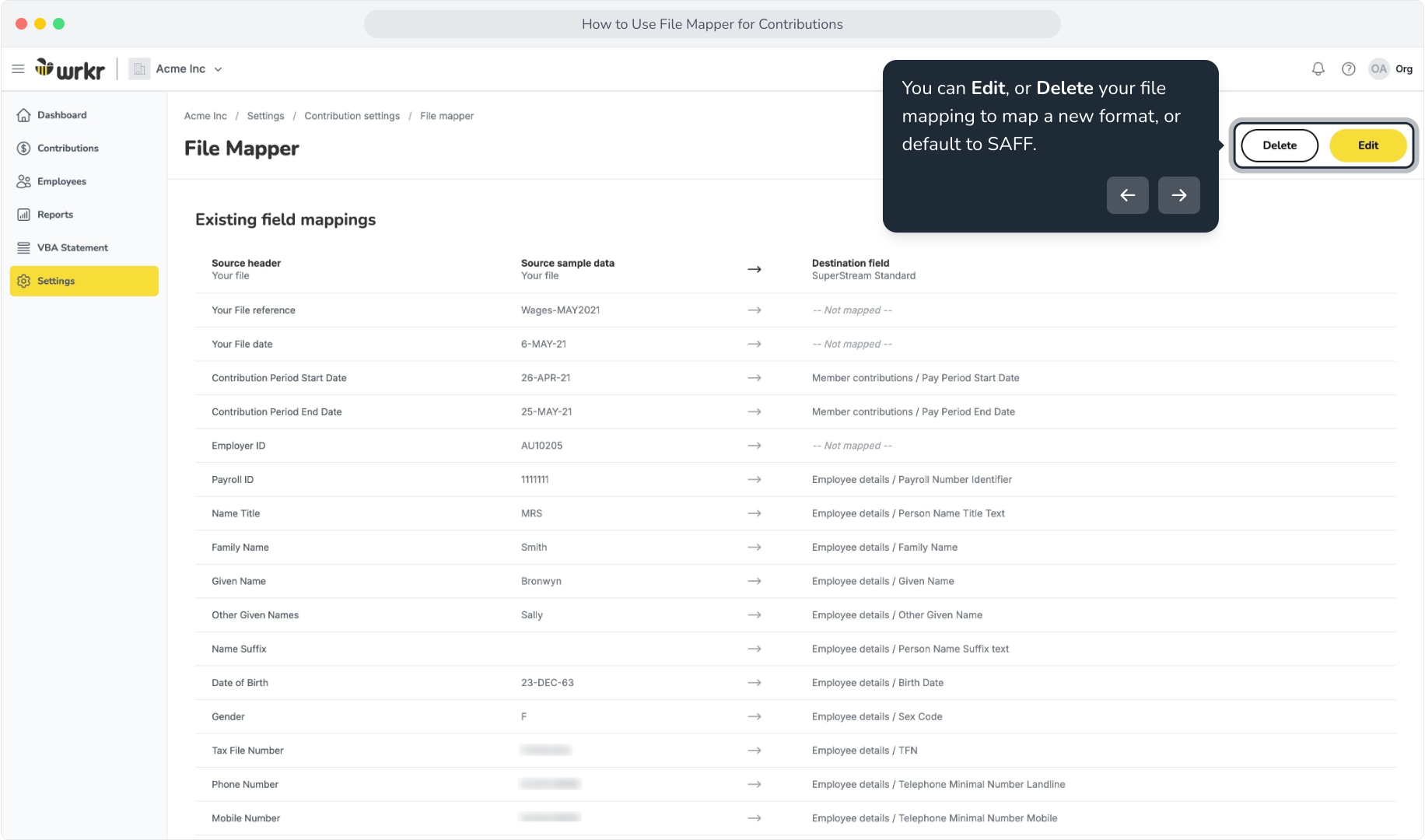
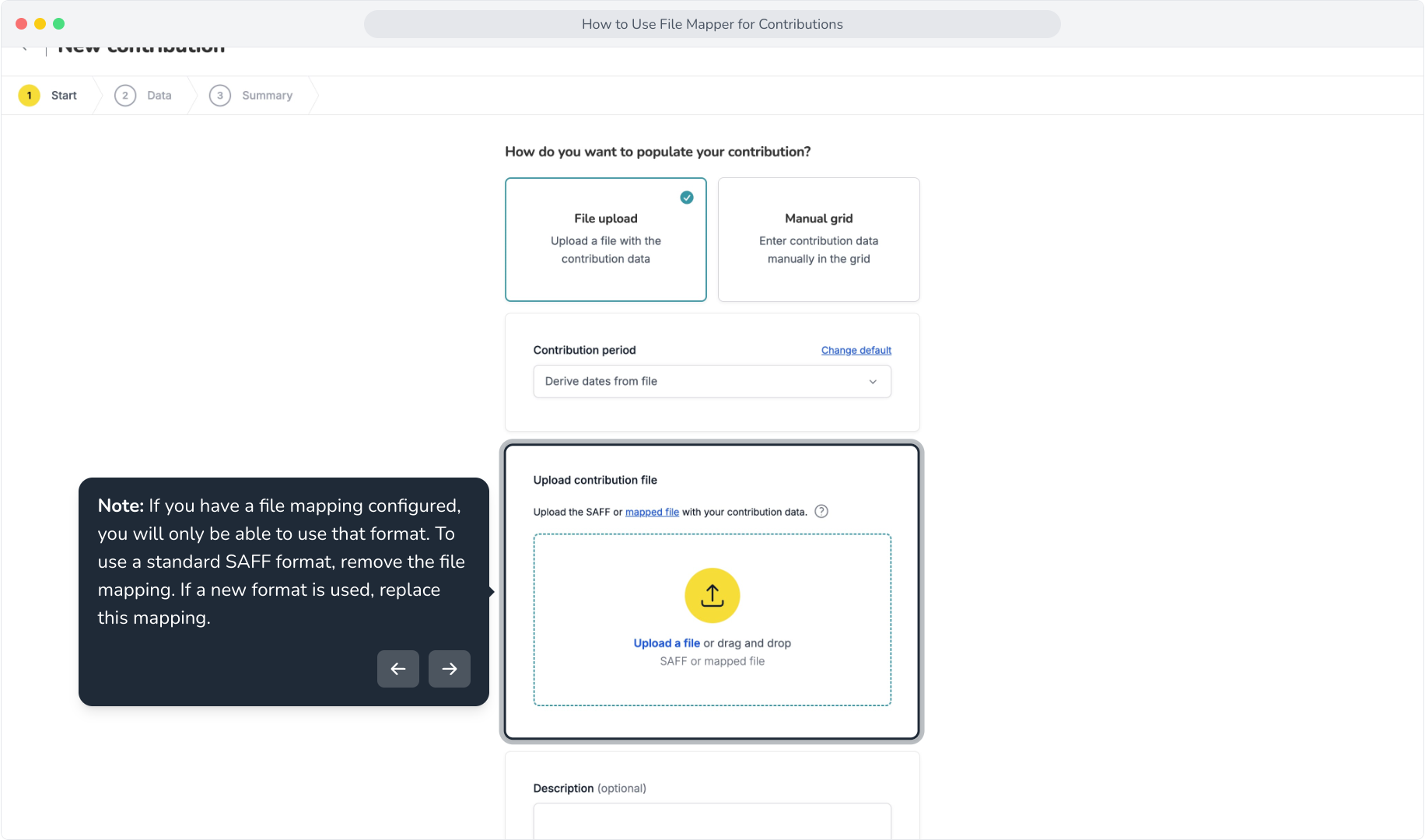
23. Note: If you have a file mapping configured, you will only be able to use that format. To use a standard SAFF format, remove the file mapping. If a new format is used, replace this mapping.
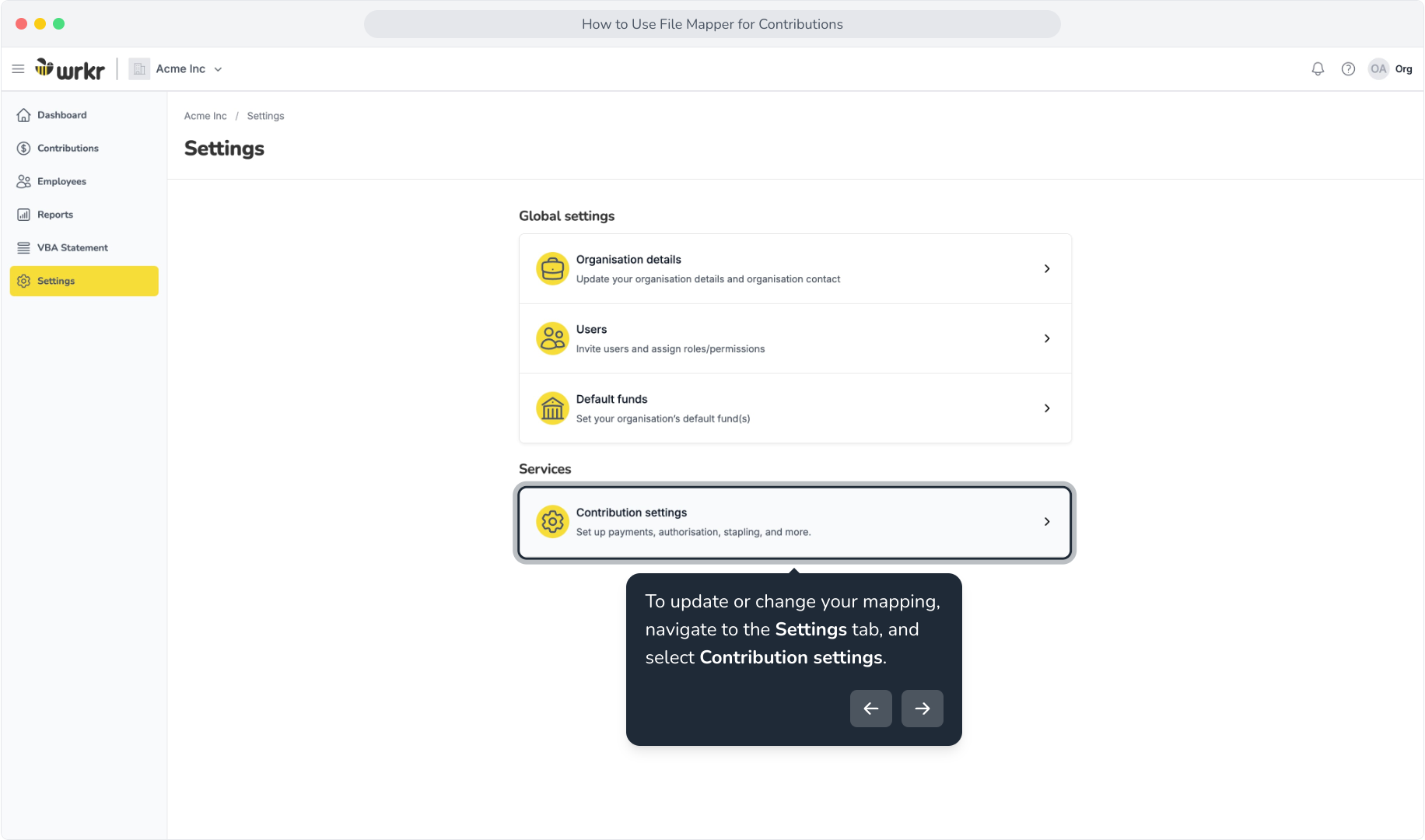
24. To update or change your mapping, navigate to the Settings tab, and select Contribution settings.
25. In the File mapper tile, click View.
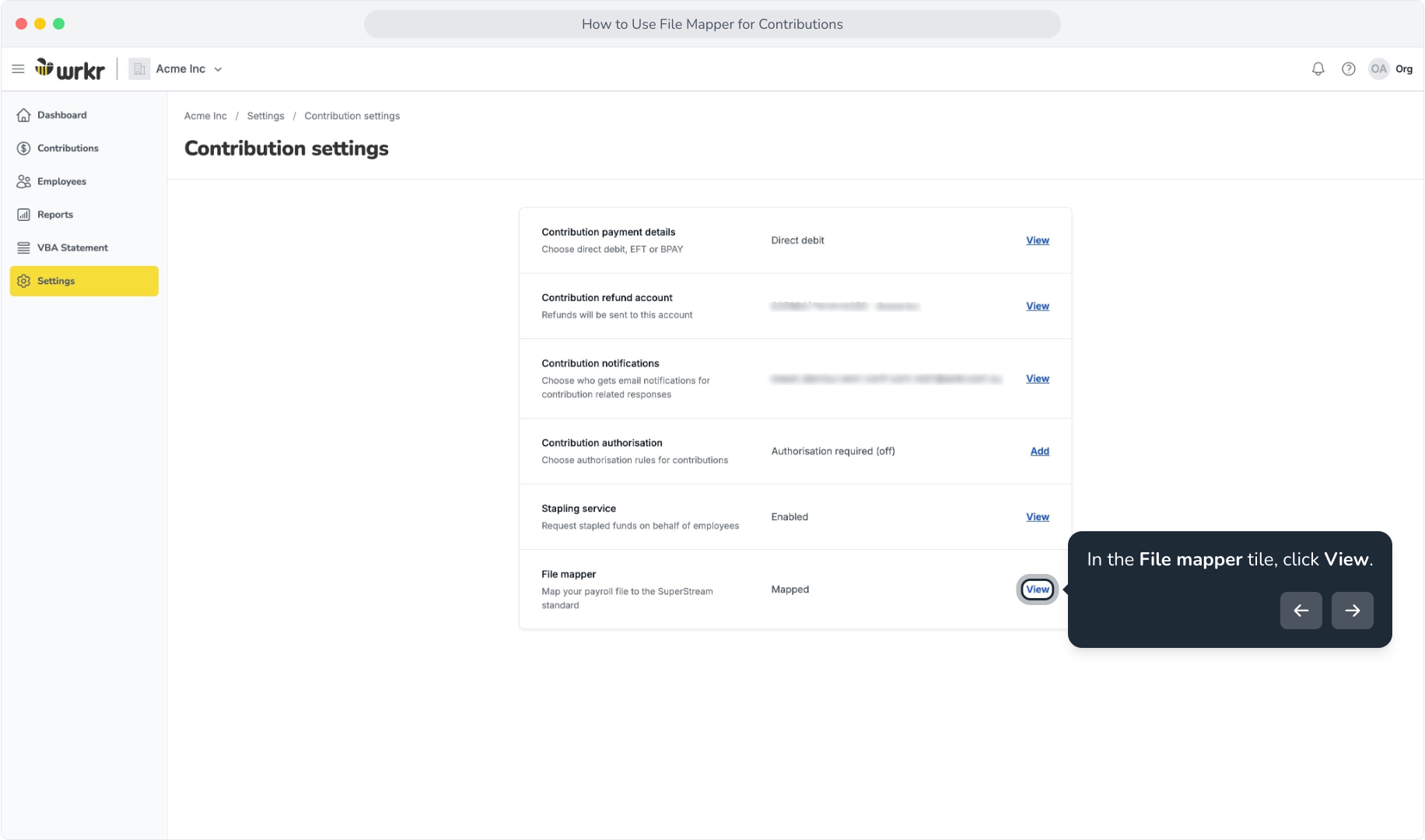
26. You can Edit, or Delete your file mapping to map a new format, or default to SAFF.