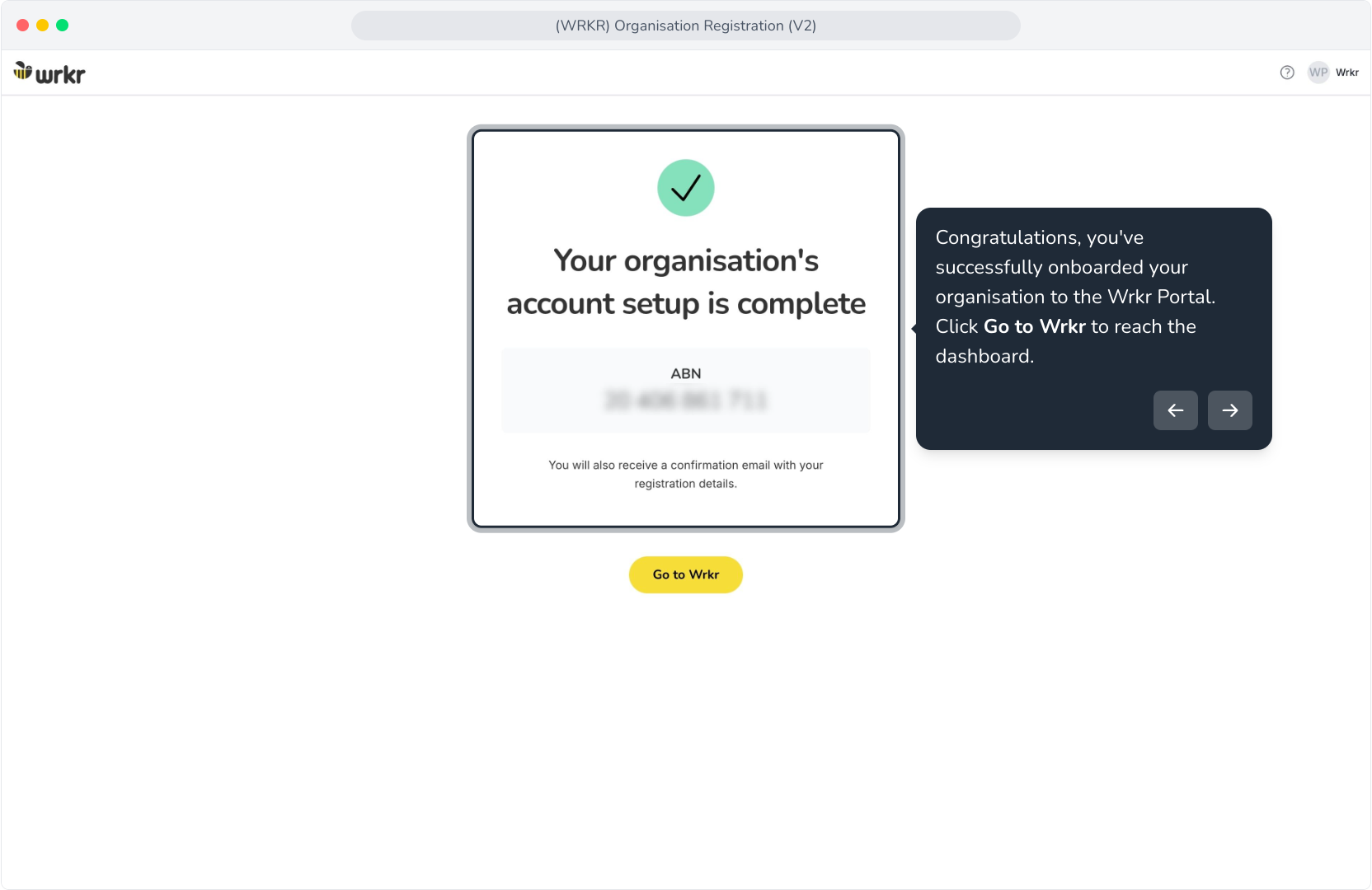
Context: This guide walks through the process of creating a new organisation from within the Wrkr Portal.
Interactive Demo
Note: Make the demo full-screen for a better experience. You can mute/un-mute narration to suit your preferences.
Written steps
1. Click the I Confirm tick box
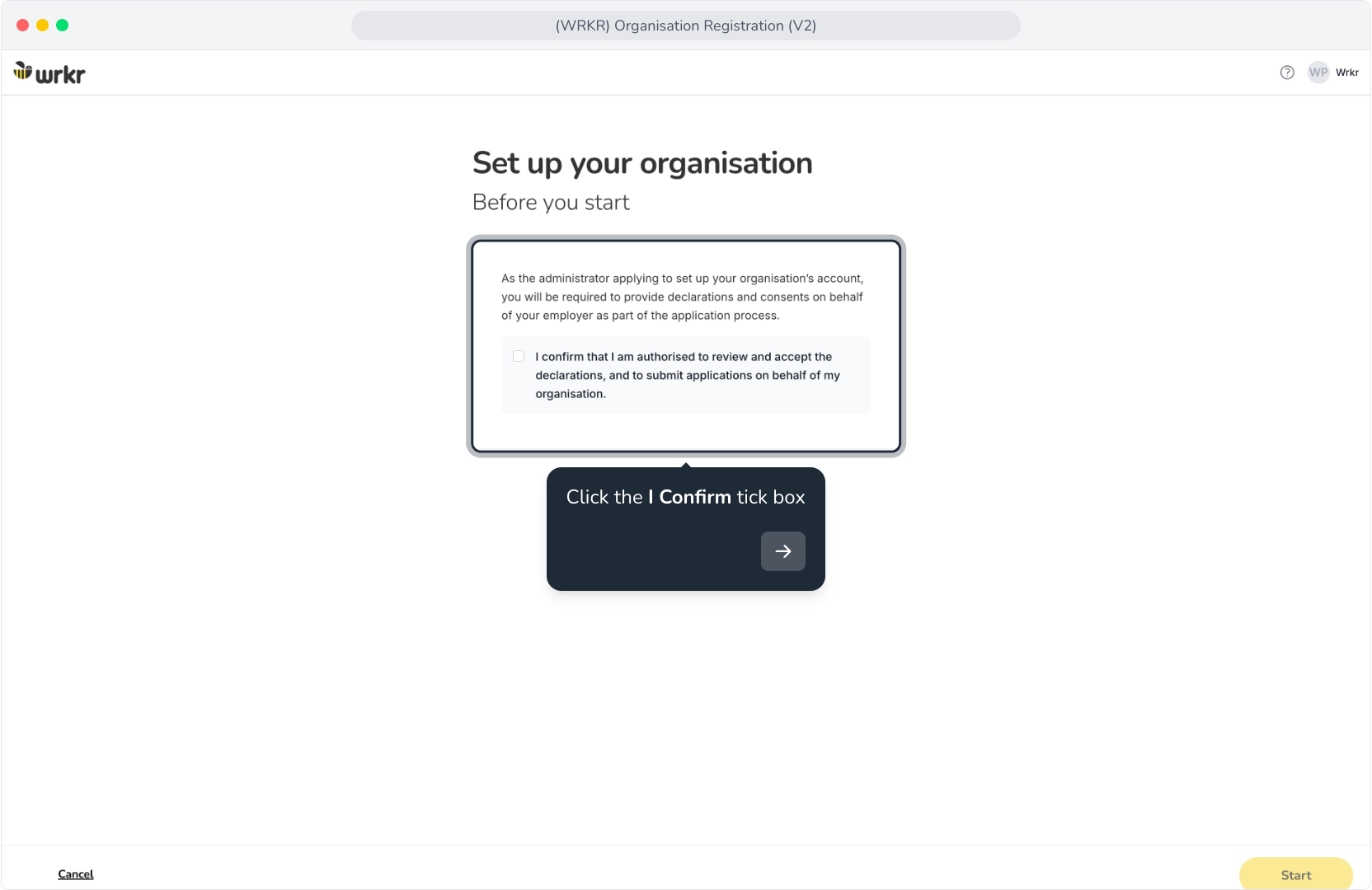
2. Click the Start button.
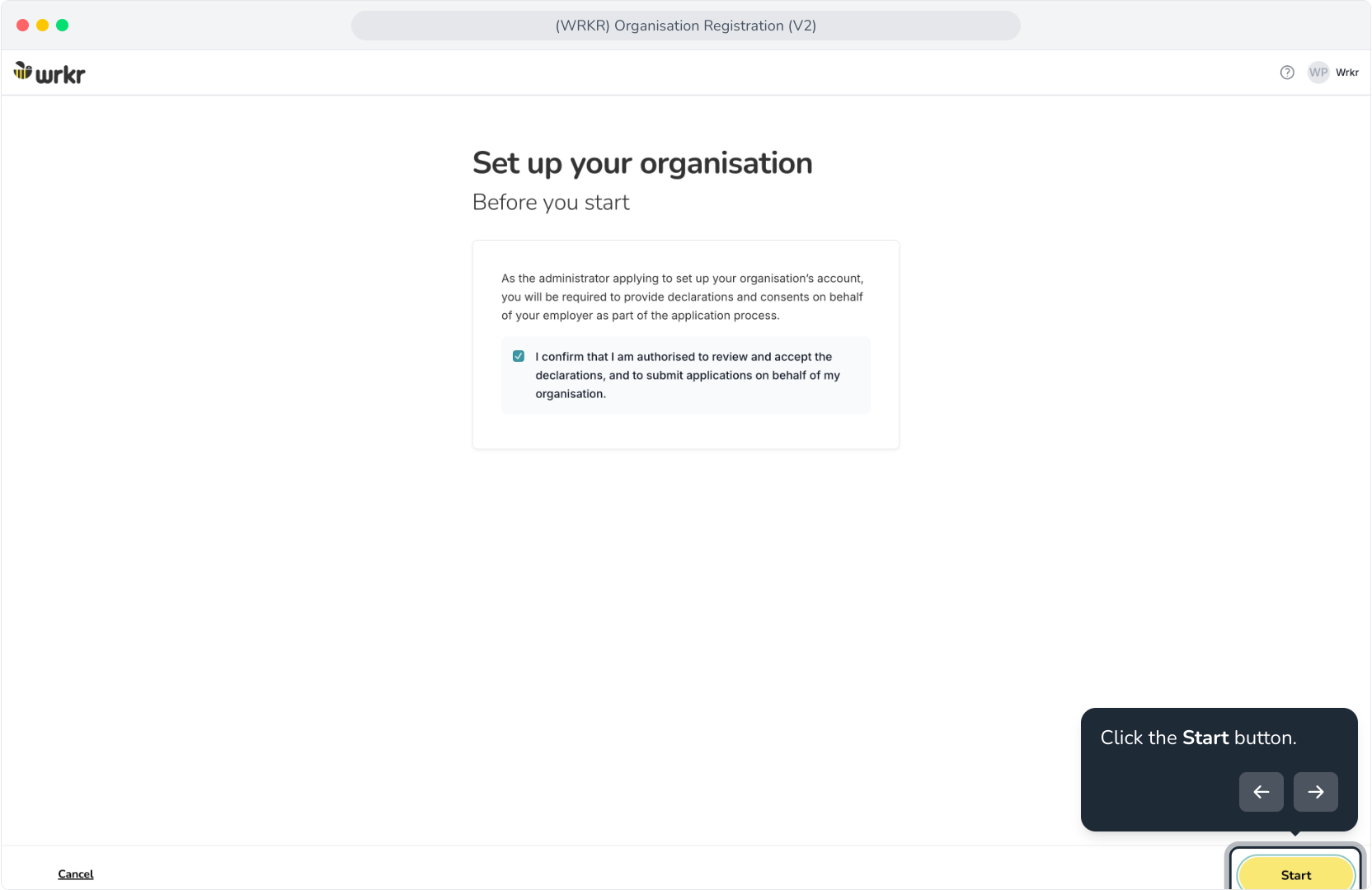
3. If your business has an ABN or ACN, you can search by those codes to find your business details.
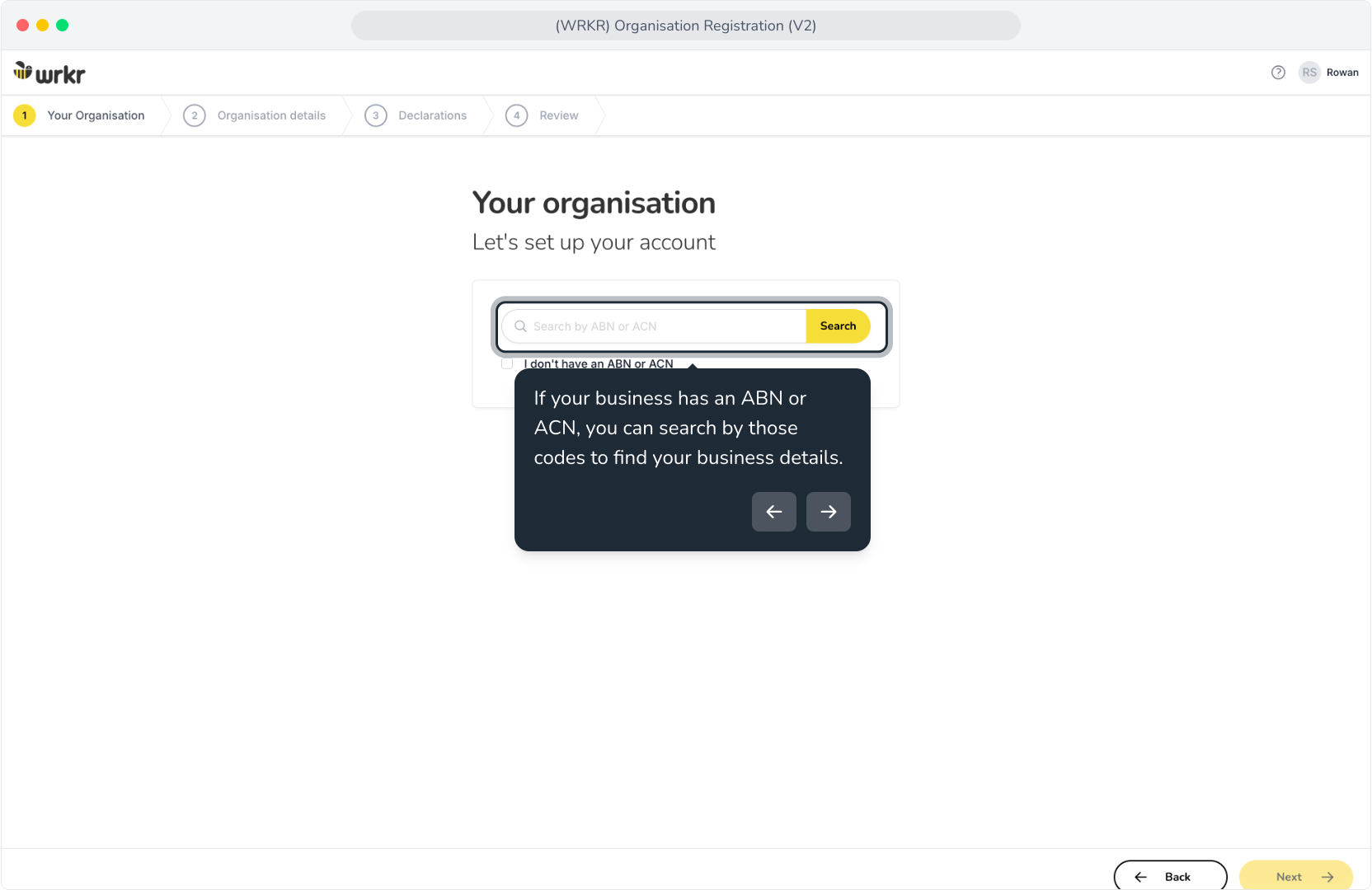
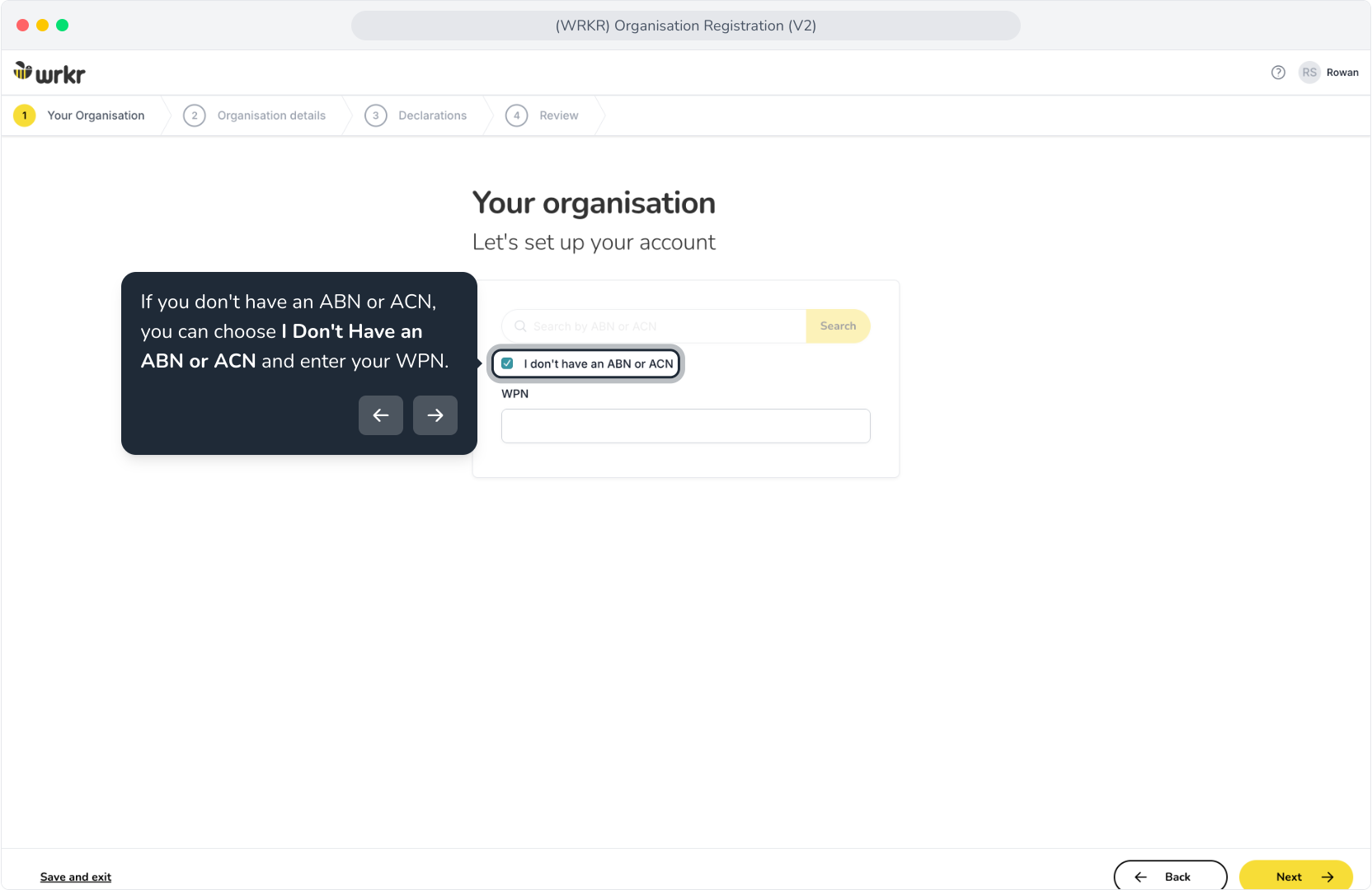
4. If you don't have an ABN or ACN, you can choose I Don't Have an ABN or ACN and enter your WPN.
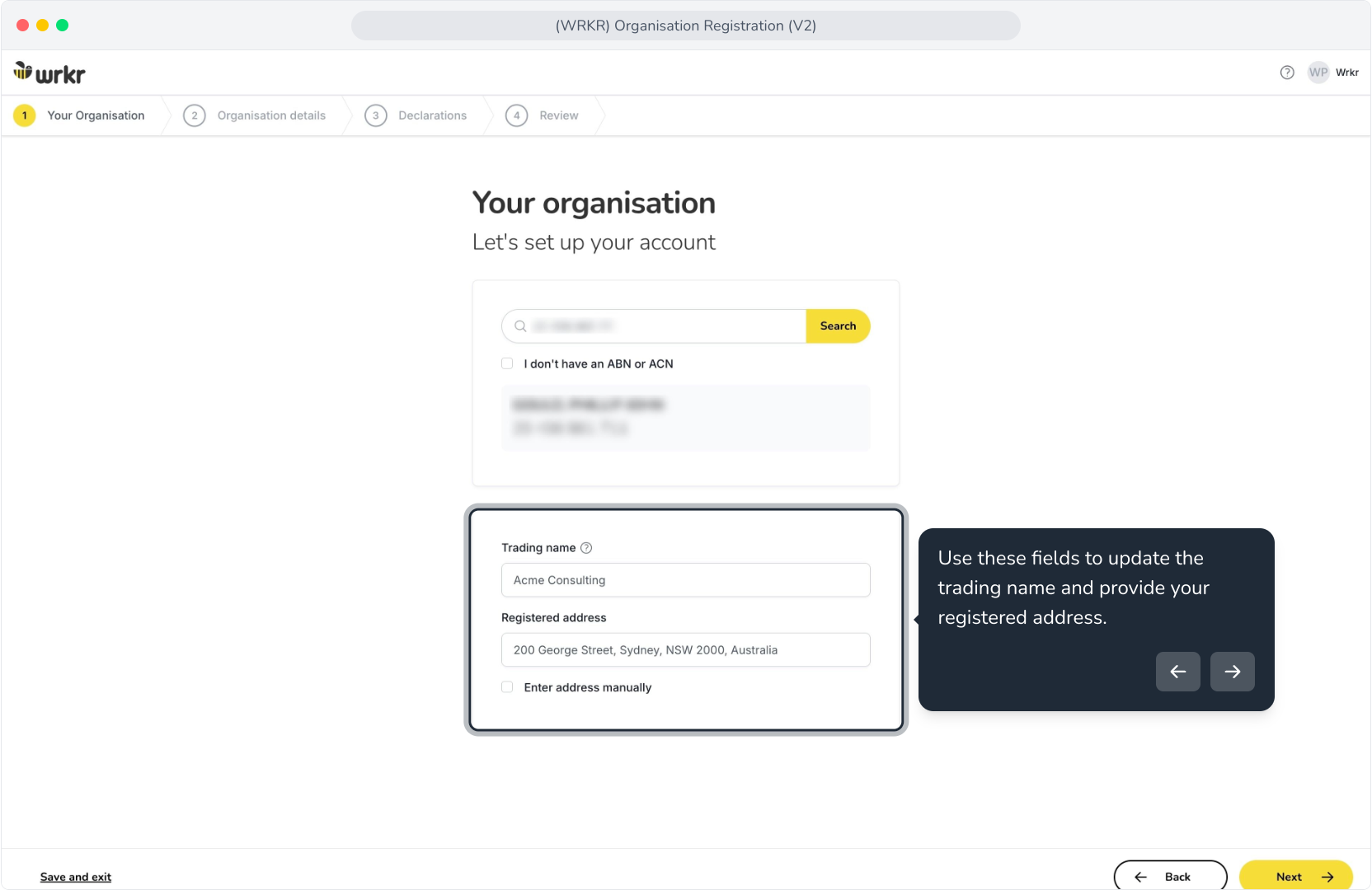
5. Use these fields to update the trading name and provide your registered address.
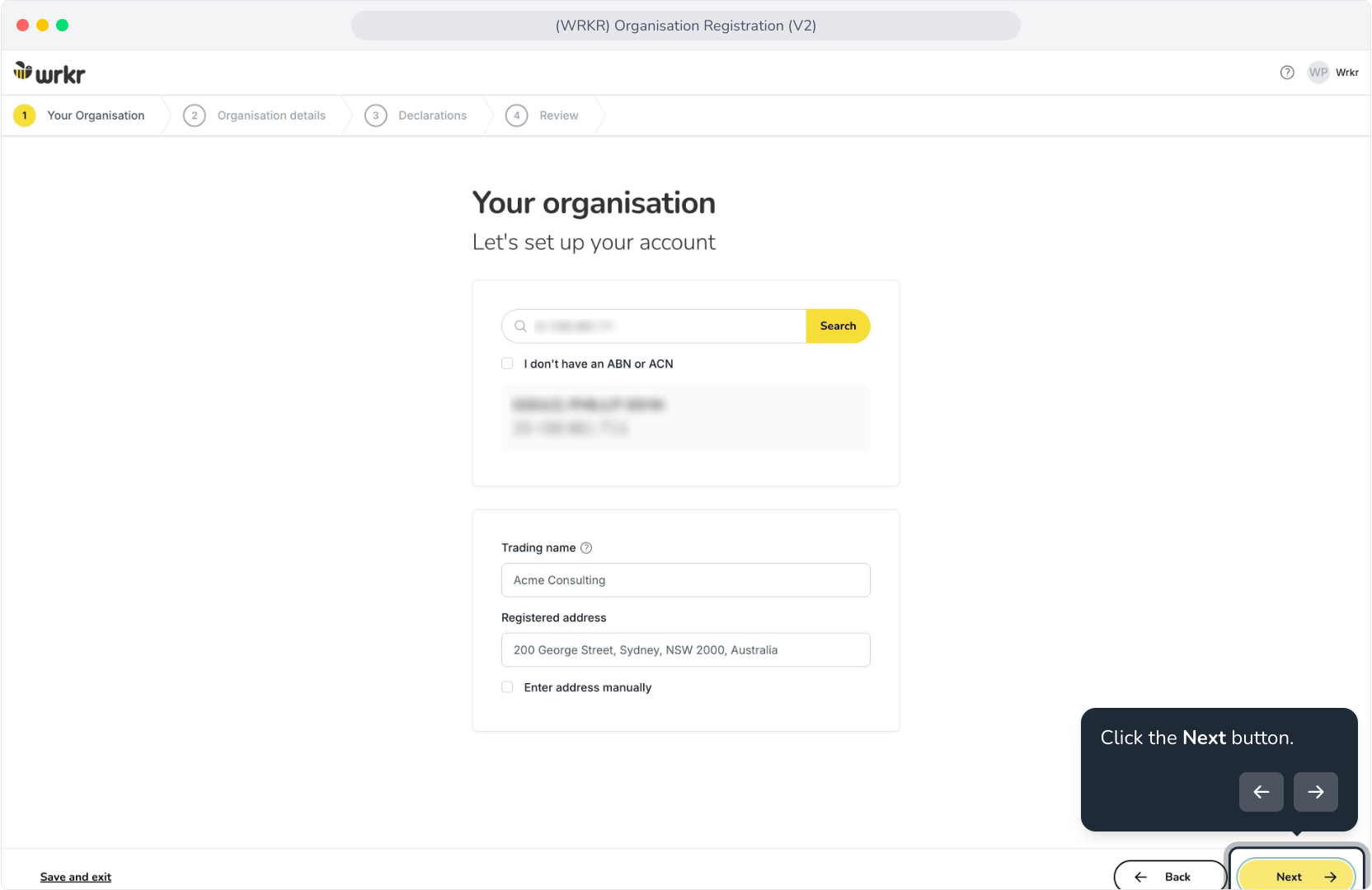
6. Click the Next button.
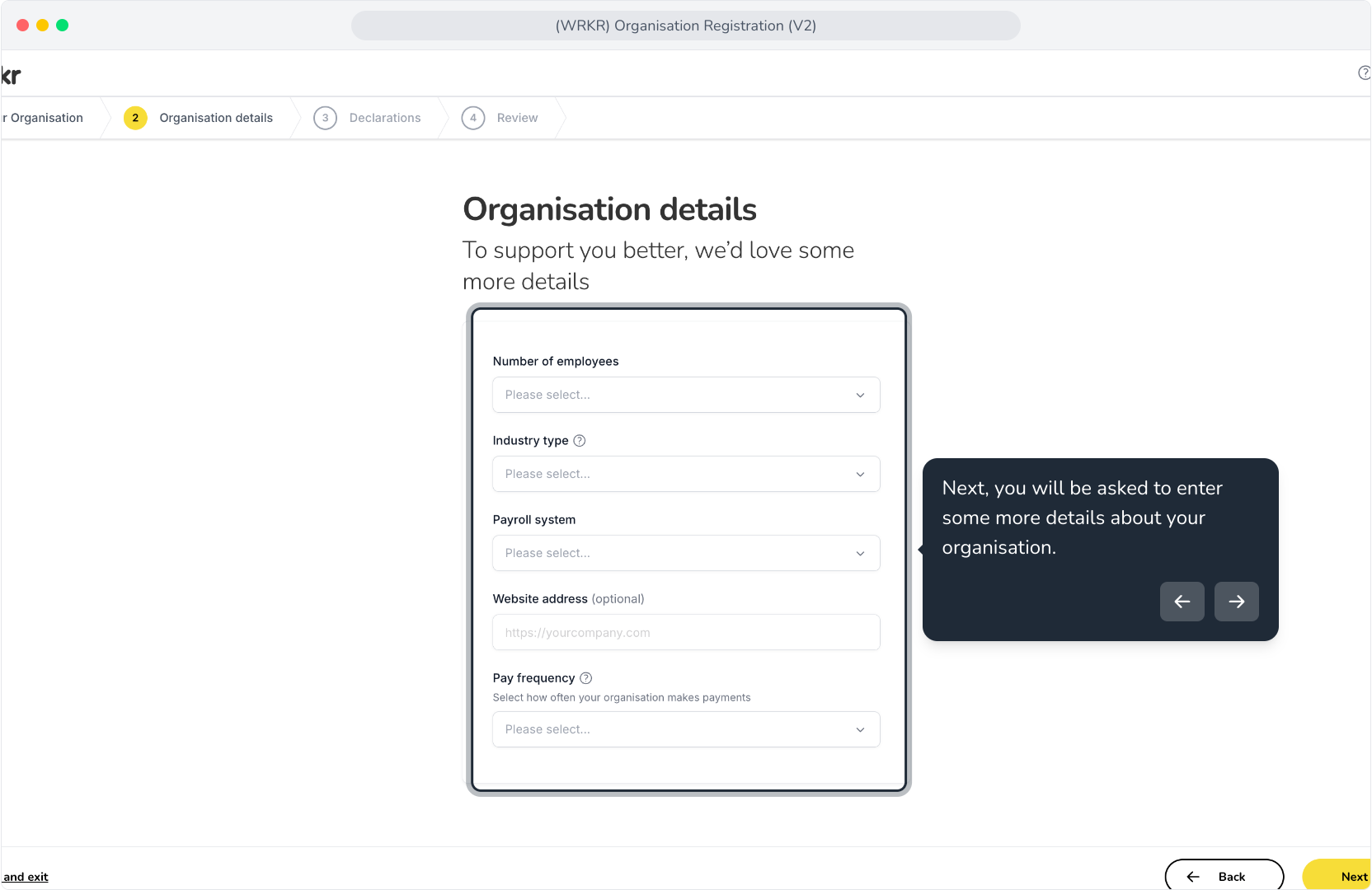
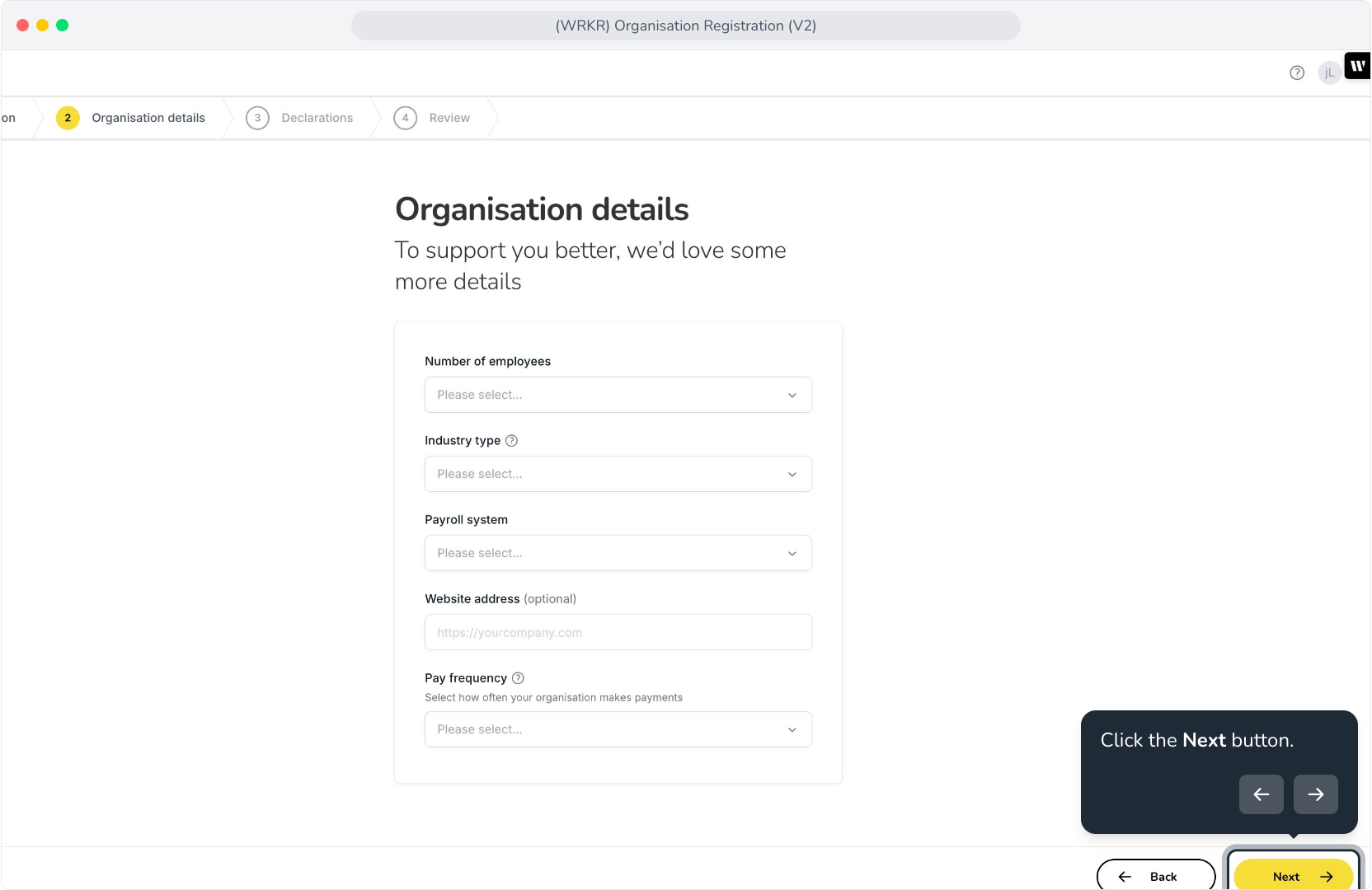
7. Next, you will be asked to enter some more details about your organisation.
8. Click the Next button.
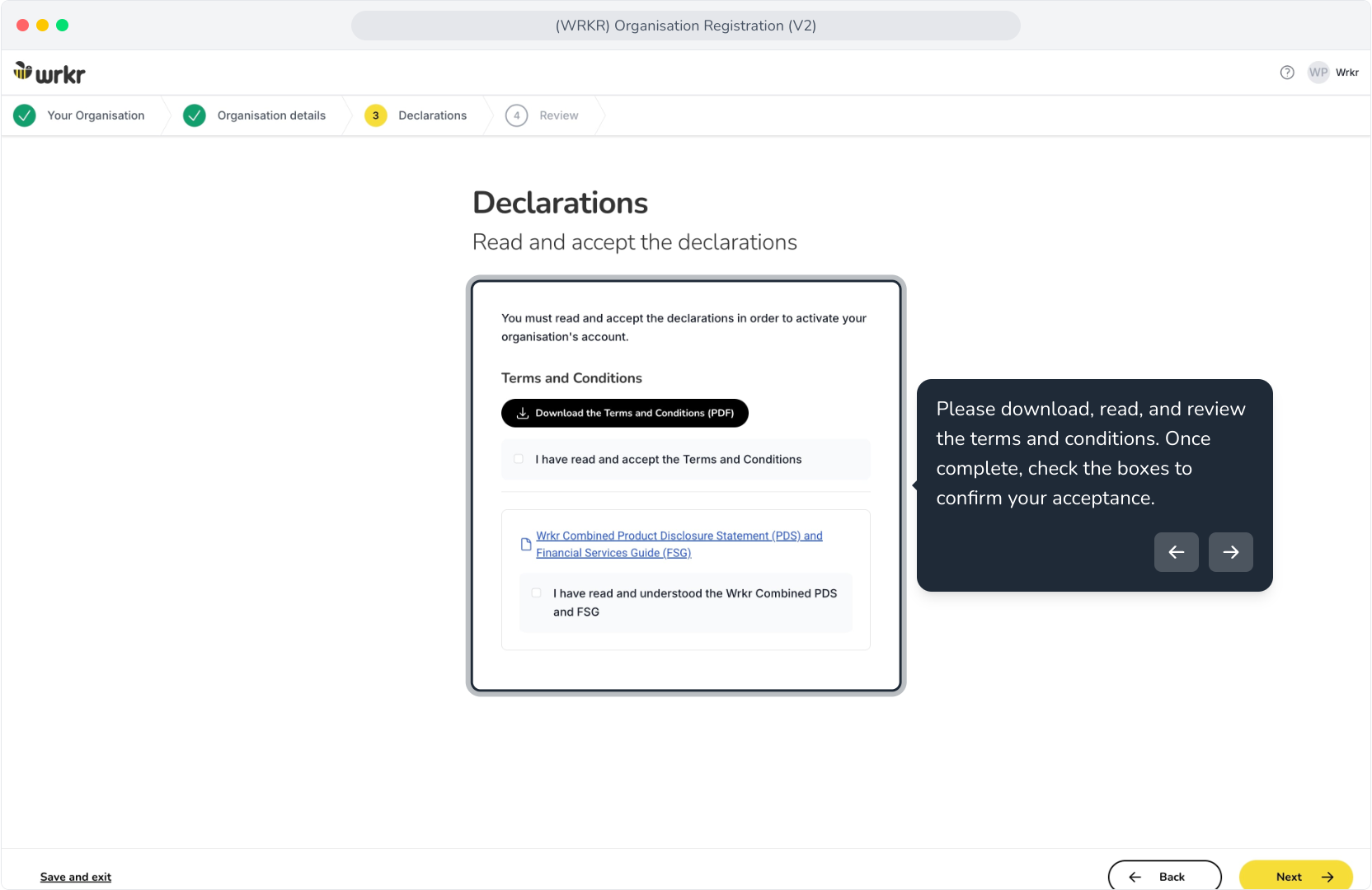
9. Please download, read, and review the terms and conditions. Once complete, check the boxes to confirm your acceptance.
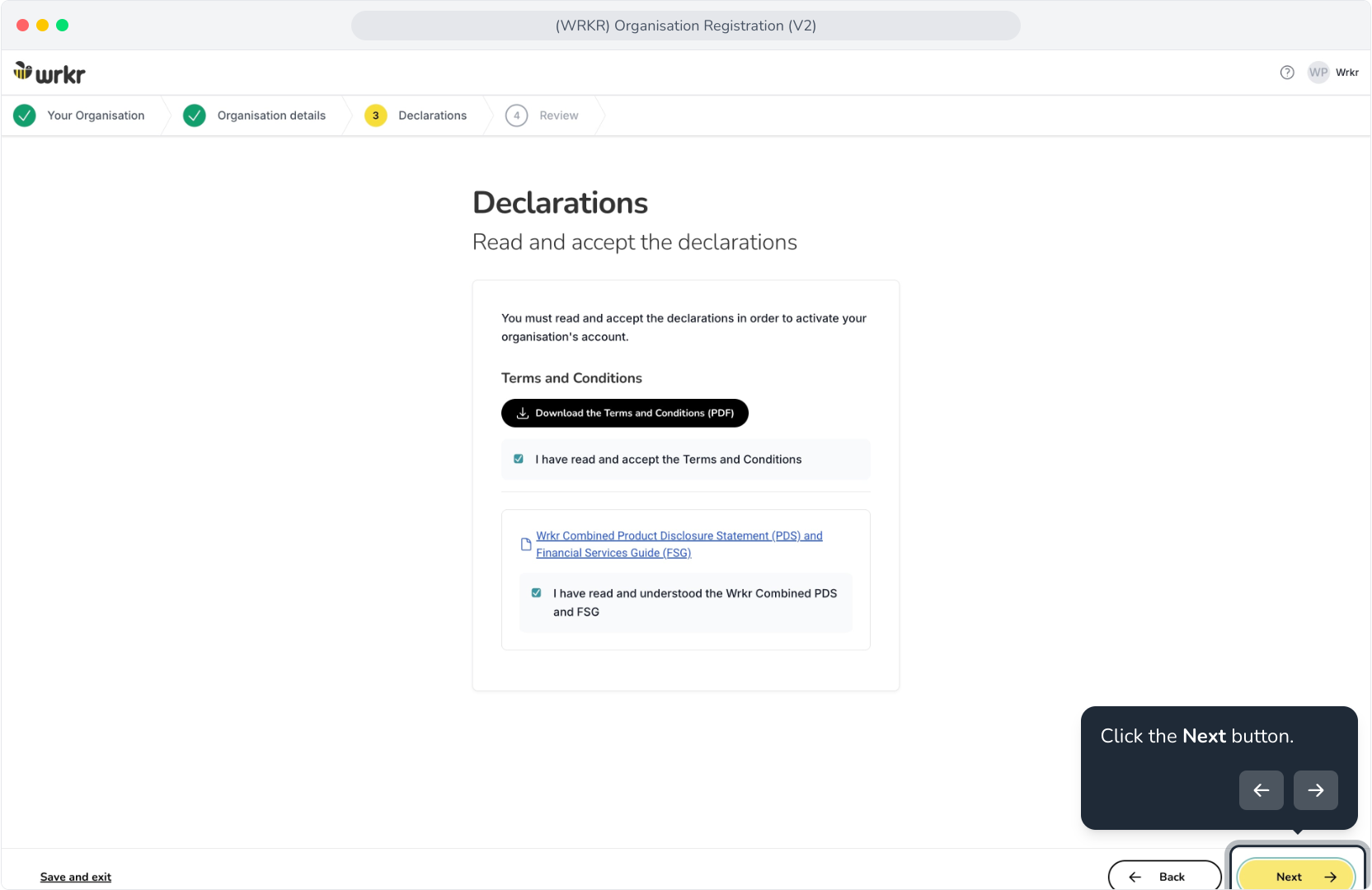
10. Click the Next button.
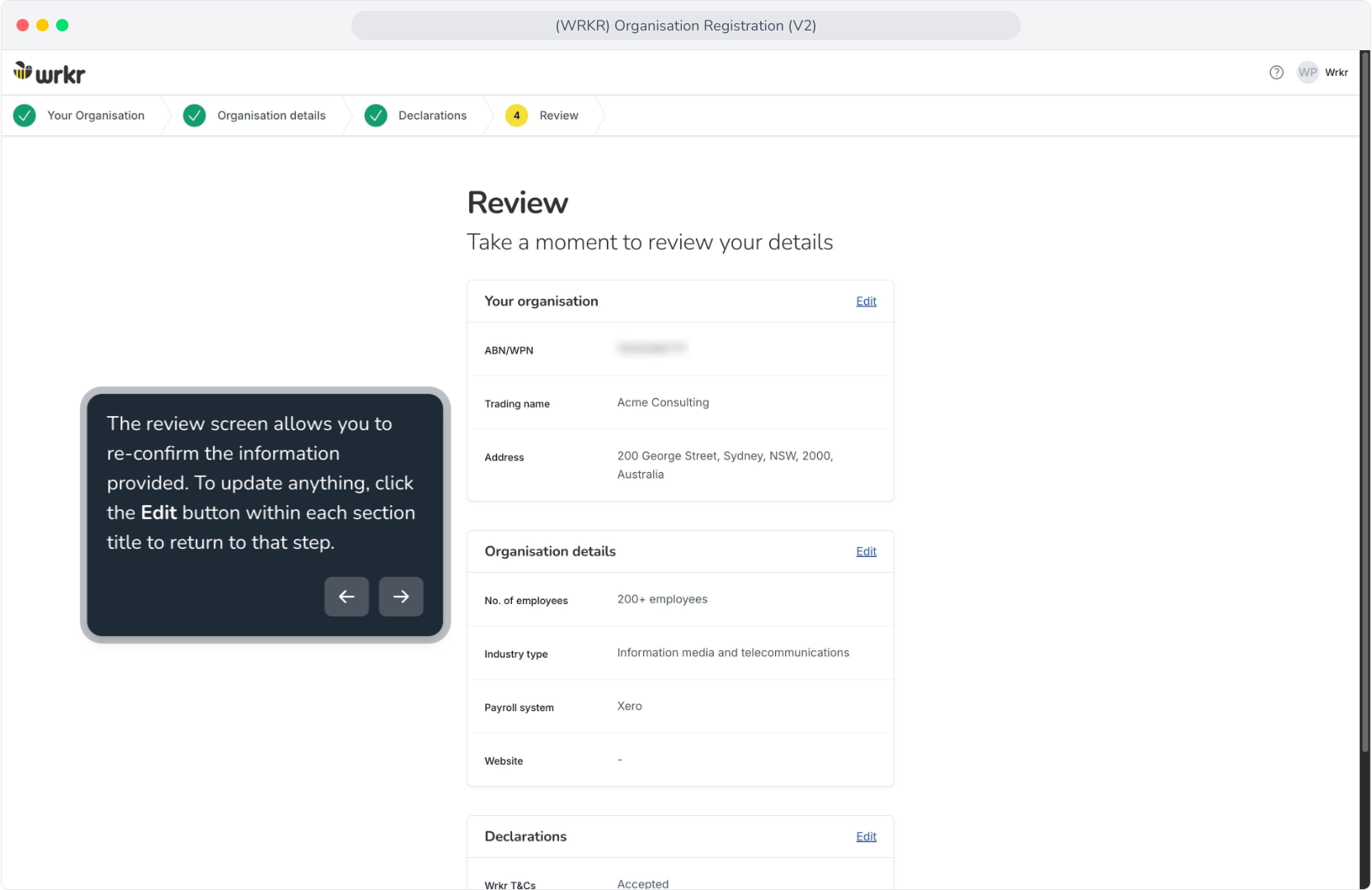
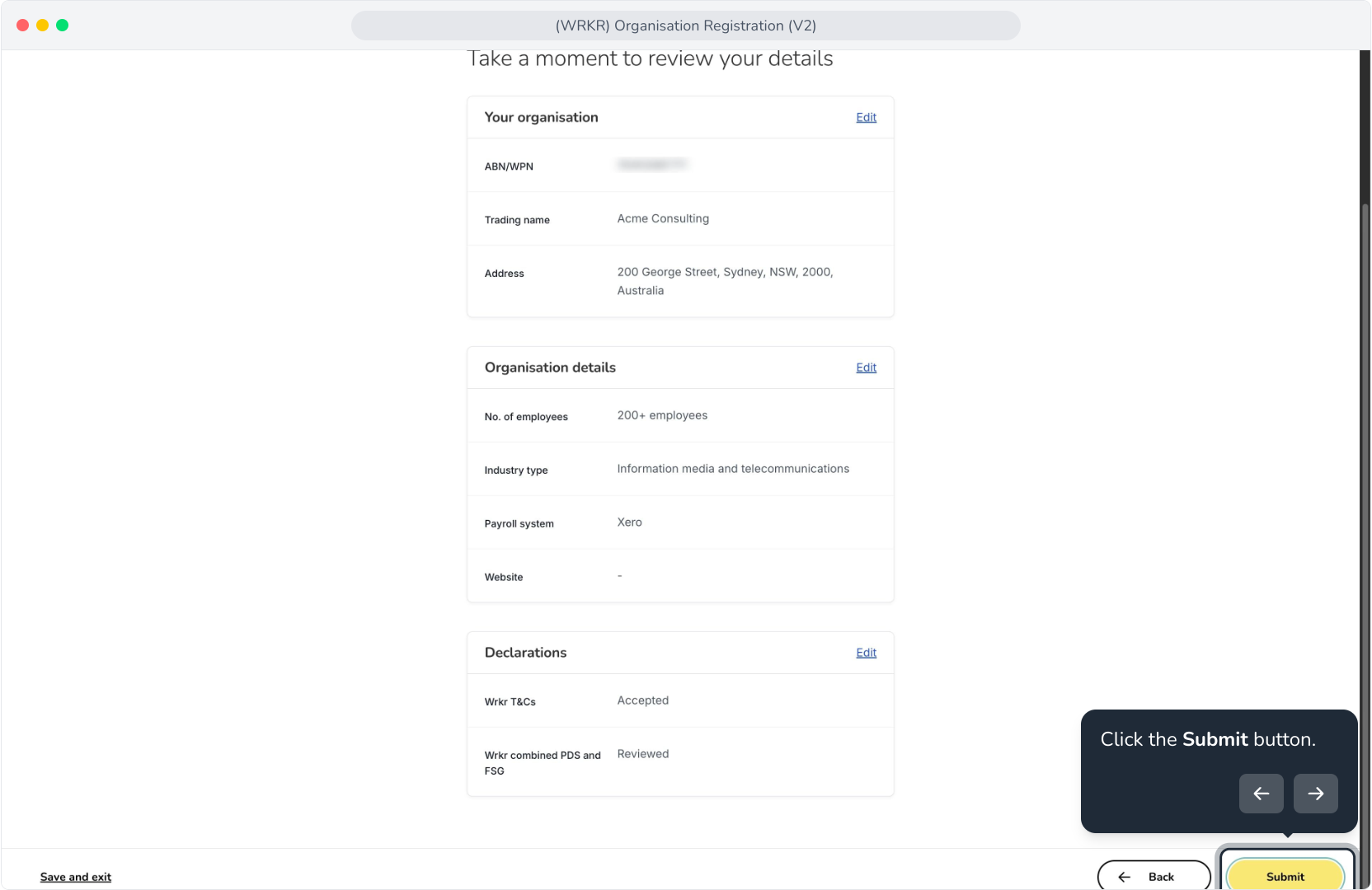
11. The review screen allows you to re-confirm the information provided. To update anything, click the Edit button within each section title to return to that step.
12. Click the Submit button.
13. Congratulations, you've successfully onboarded your organisation to the Wrkr Portal. Click Go to Wrkr to reach the dashboard.