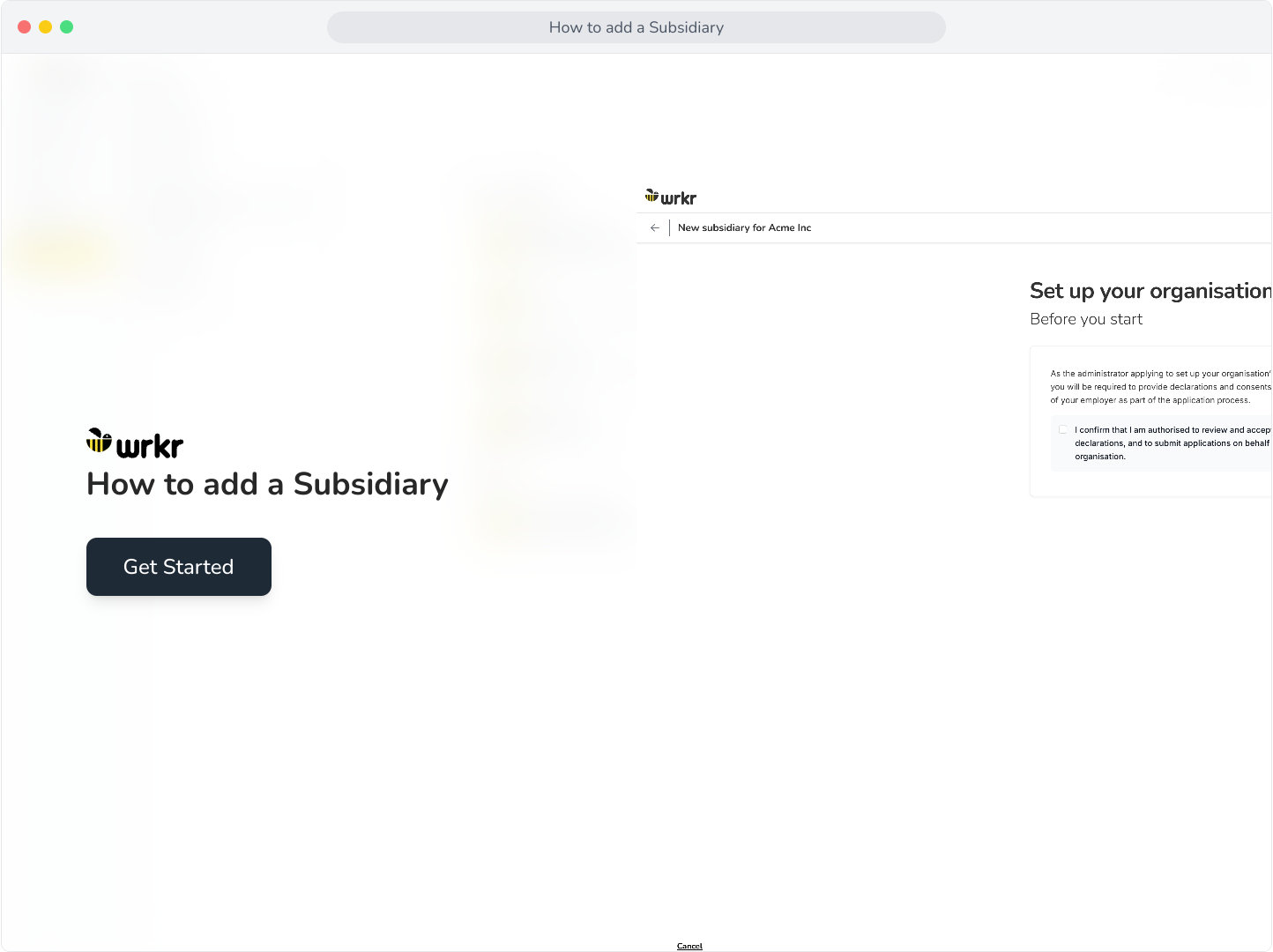
Context: This guide walks through the process of creating a subsidiary within the Wrkr Portal.
Interactive Demo
Note: Make the demo full-screen for a better experience. You can mute/un-mute narration to suit your preferences.
Step by Step
1. How to add a Subsidiary
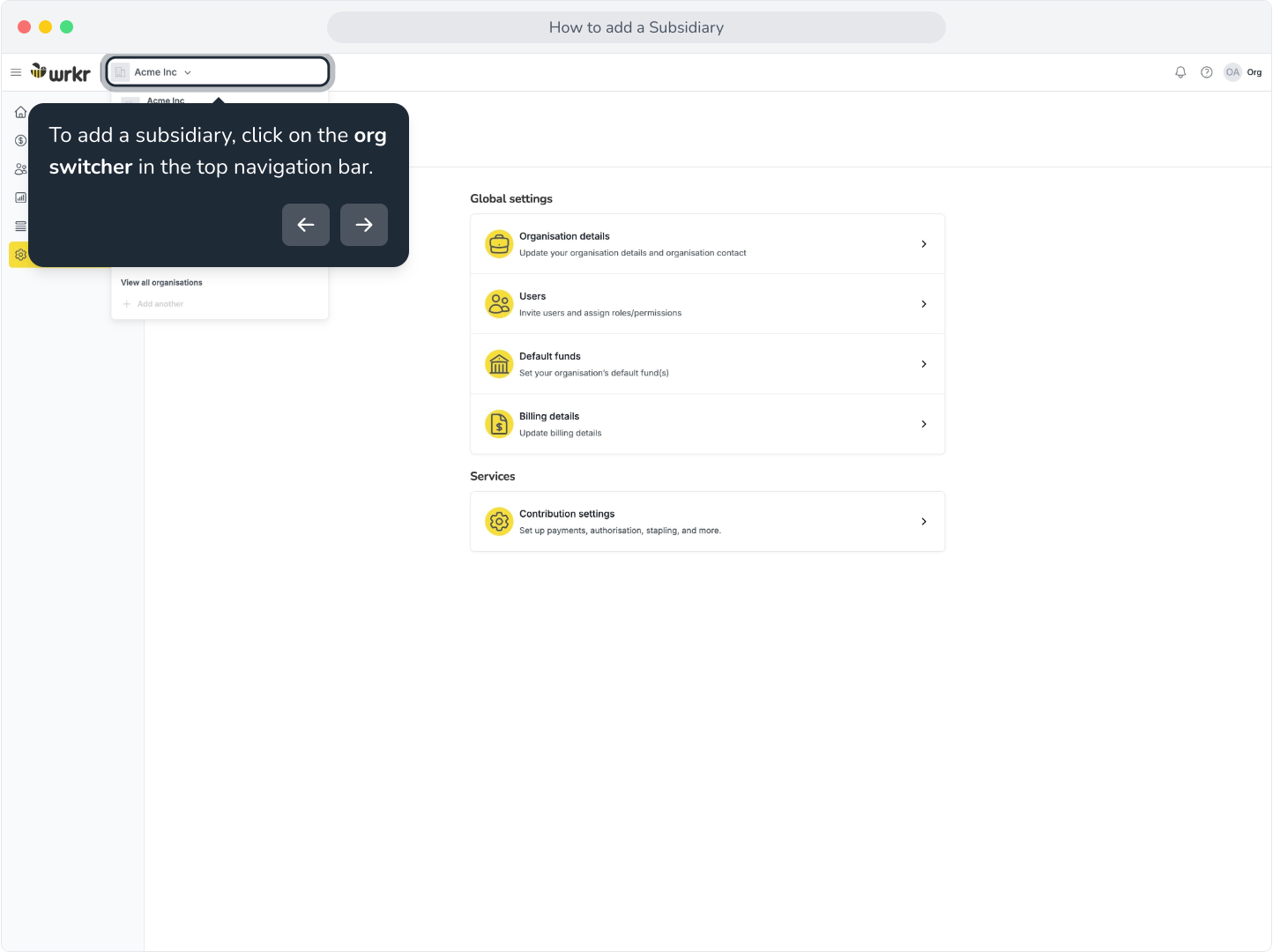
2. To add a subsidiary, click on the org switcher in the top navigation bar.
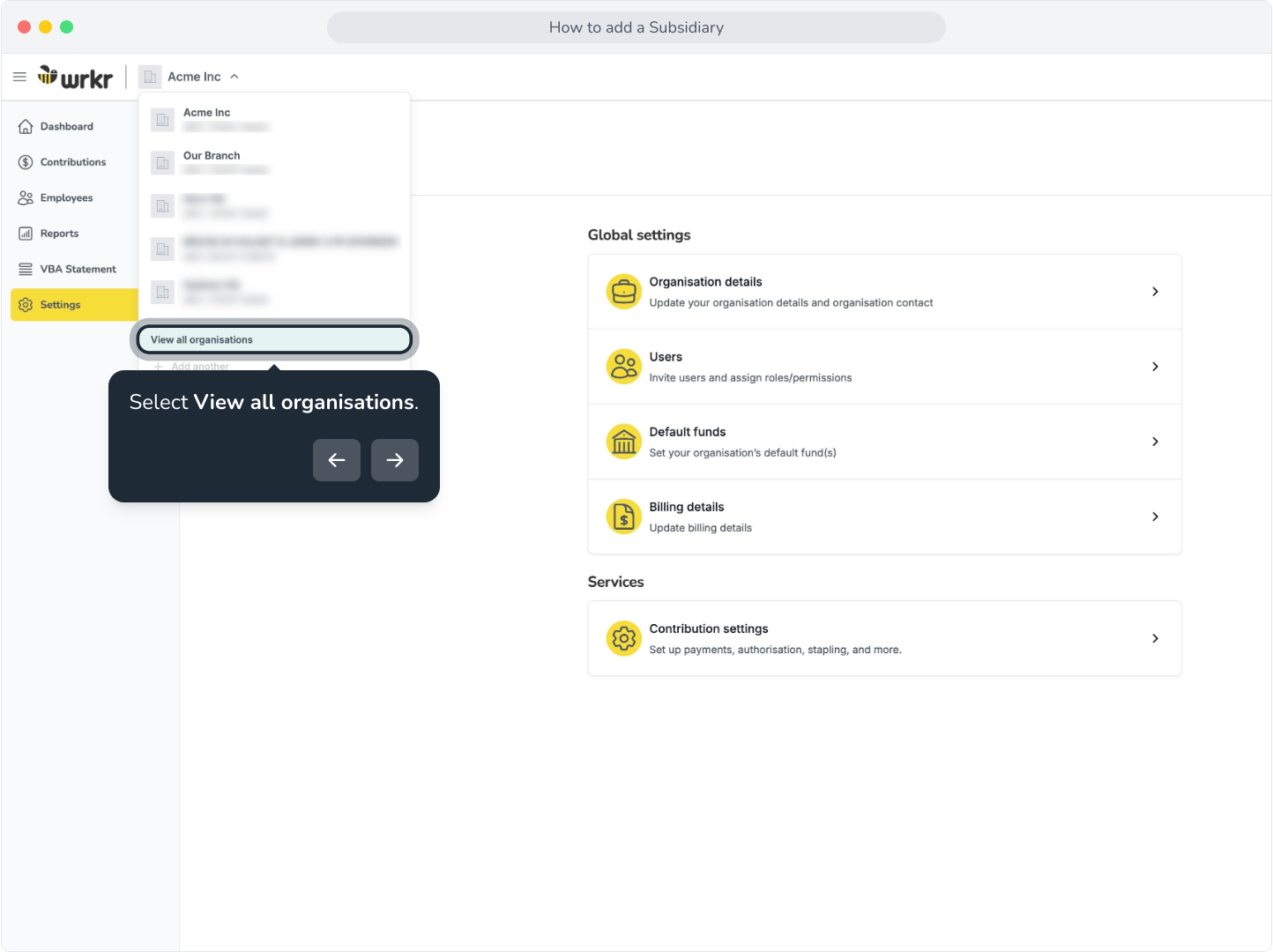
3. Select View all organisations.
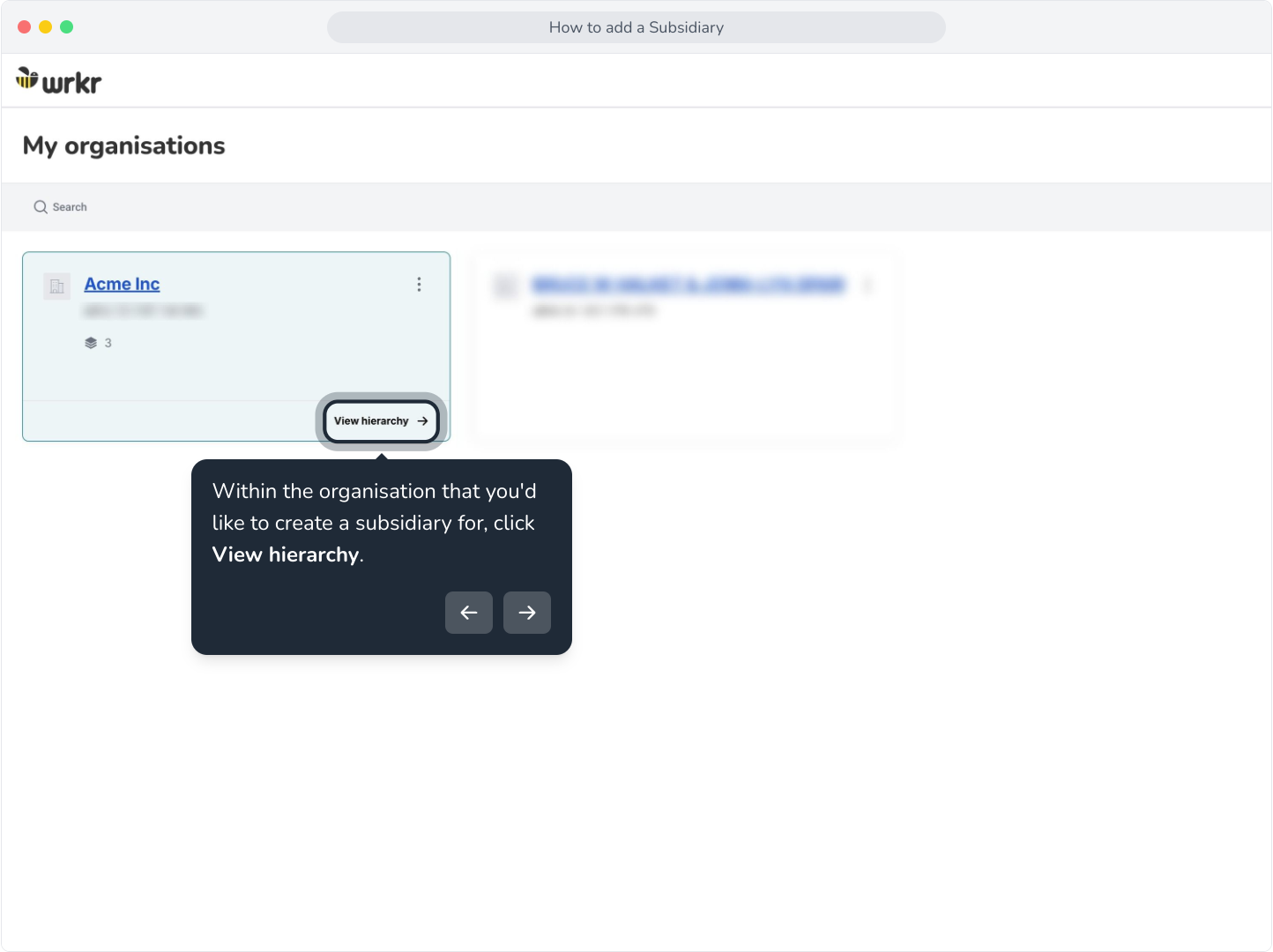
4. Within the organisation that you'd like to create a subsidiary for, click View hierarchy.
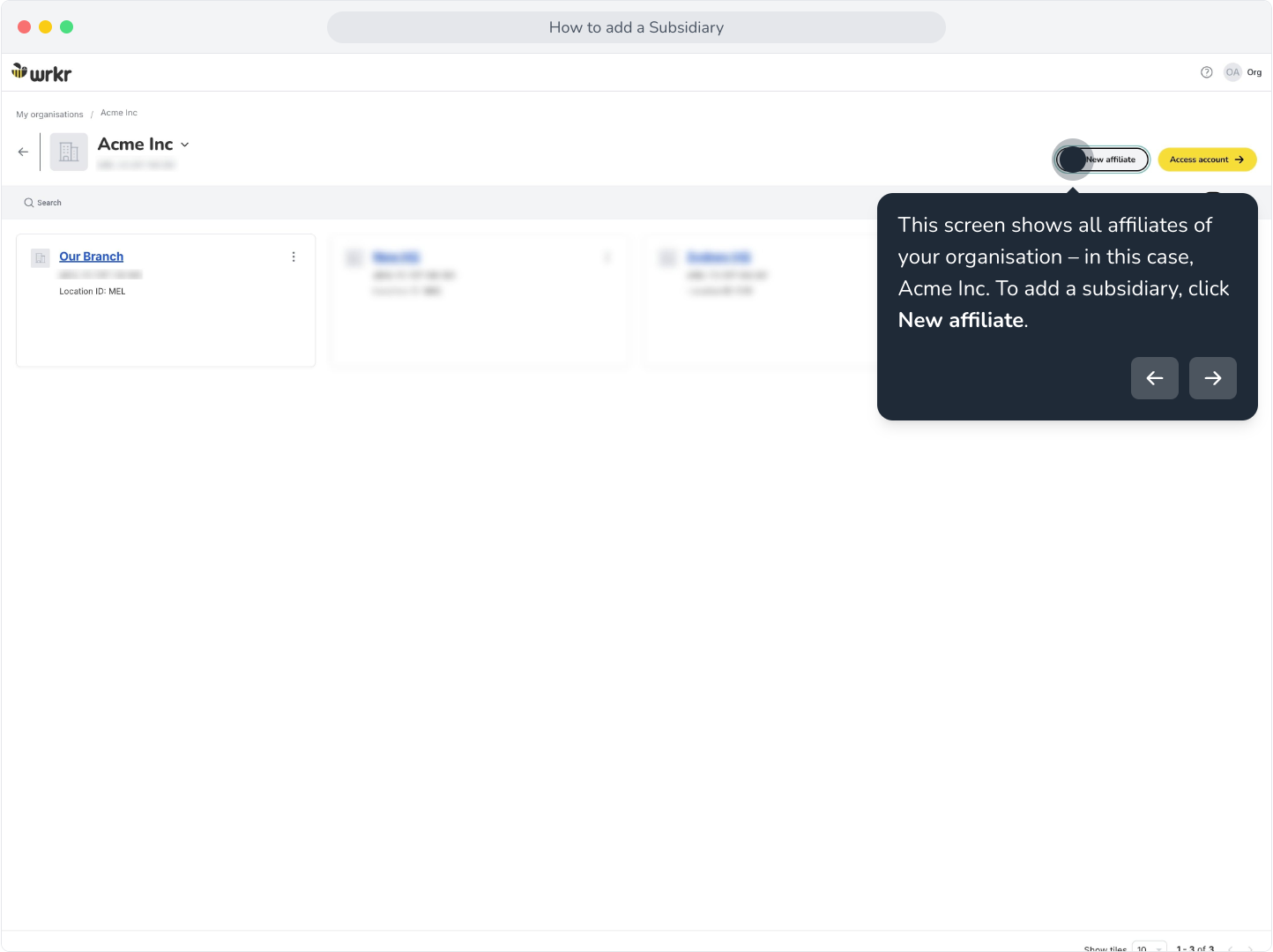
5. This screen shows all affiliates of your organisation – in this case, Acme Inc. To add a subsidiary, click New affiliate.
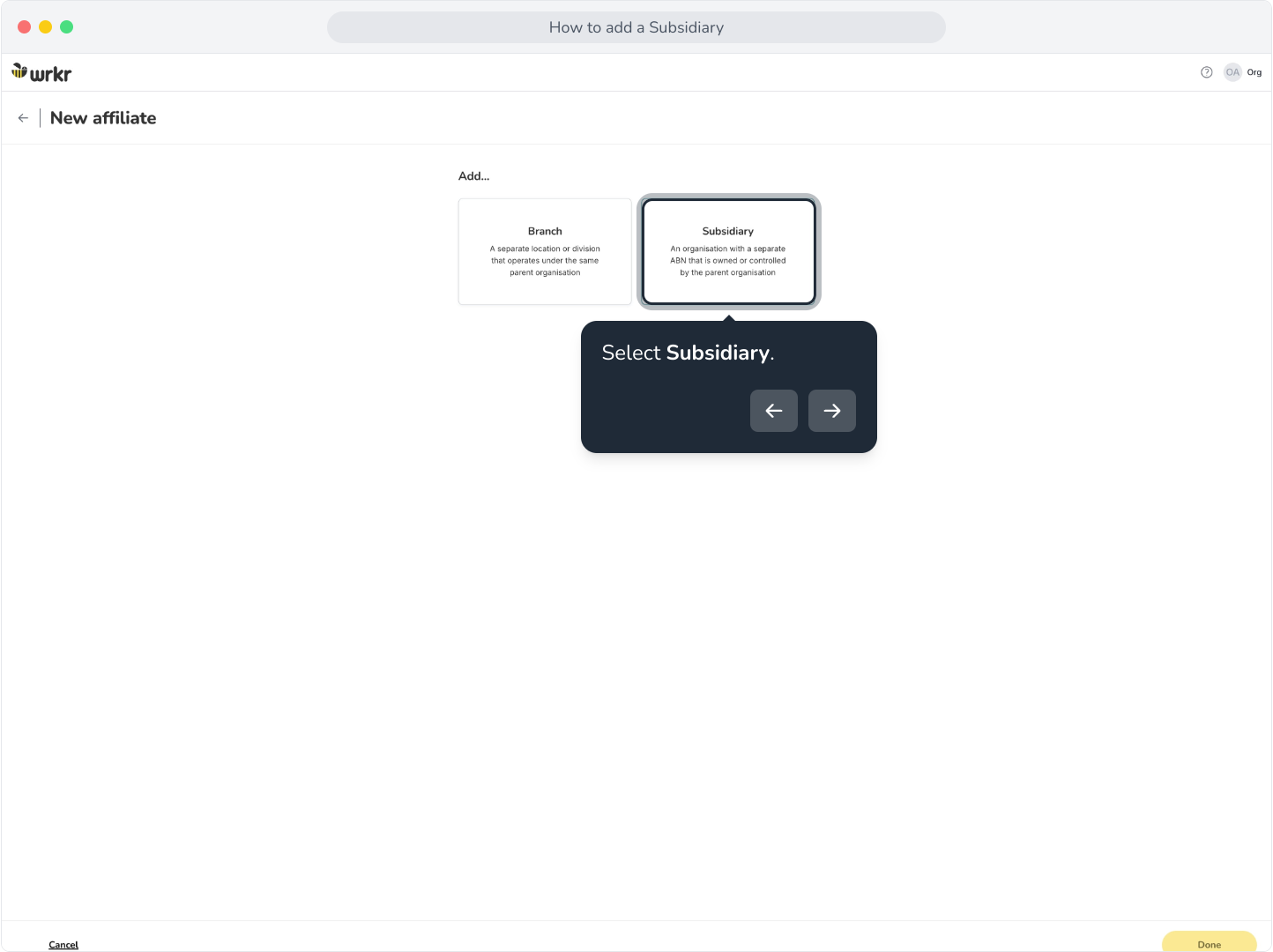
6. Select Subsidiary.
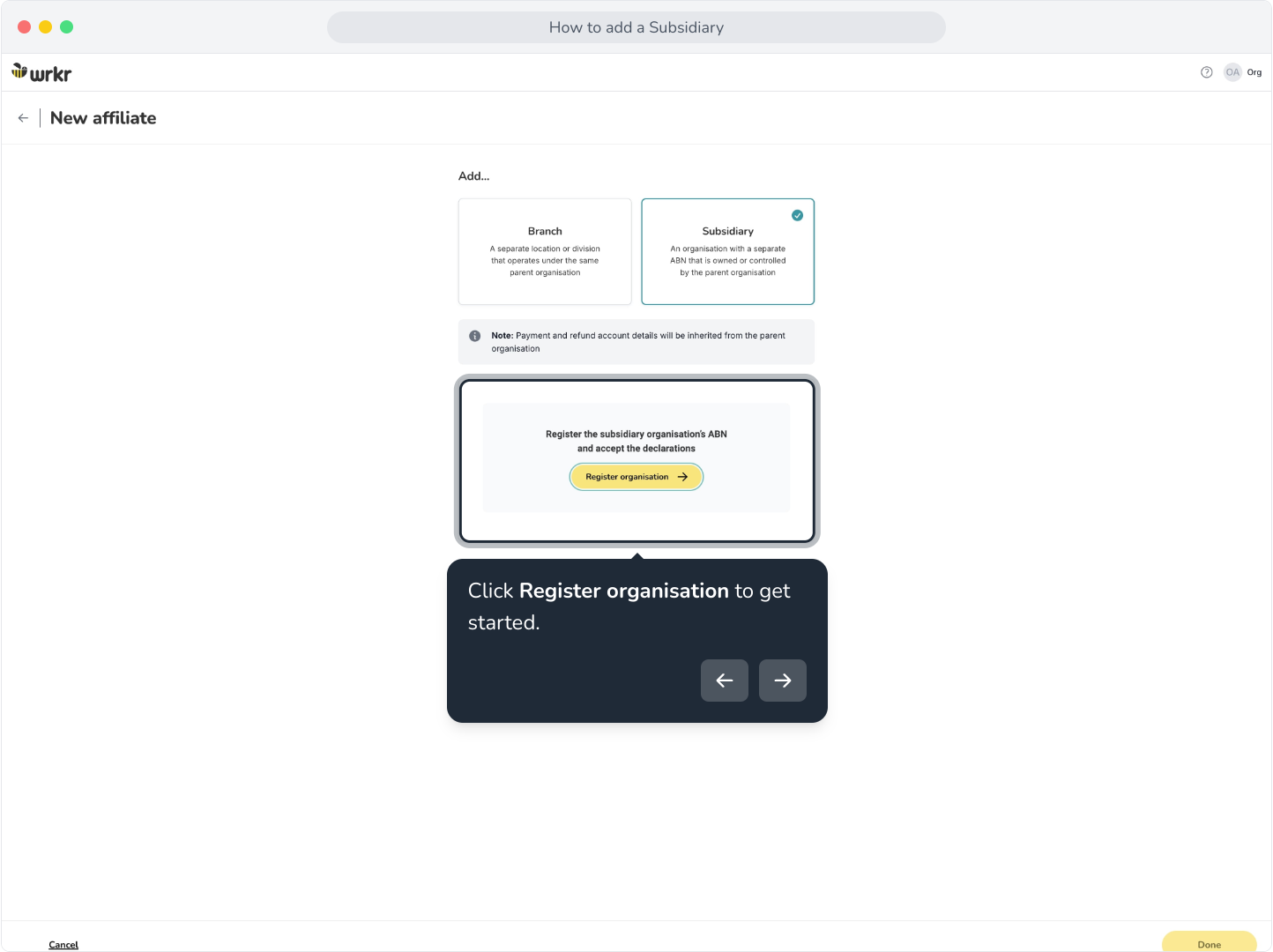
7. Subsidiaries will inherit payment and refund account details from the parent – Acme Inc.
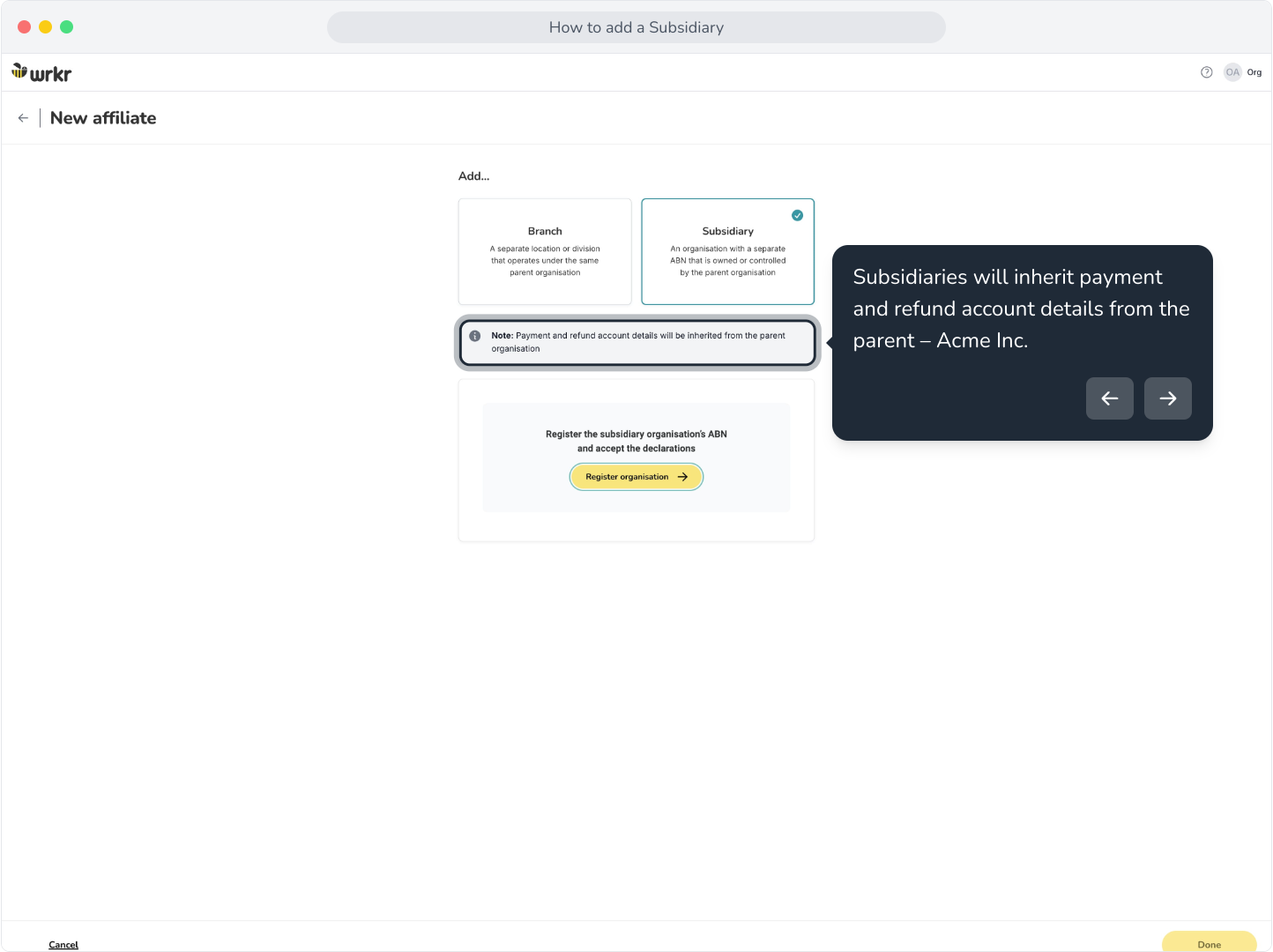
8. Click Register organisation to get started.
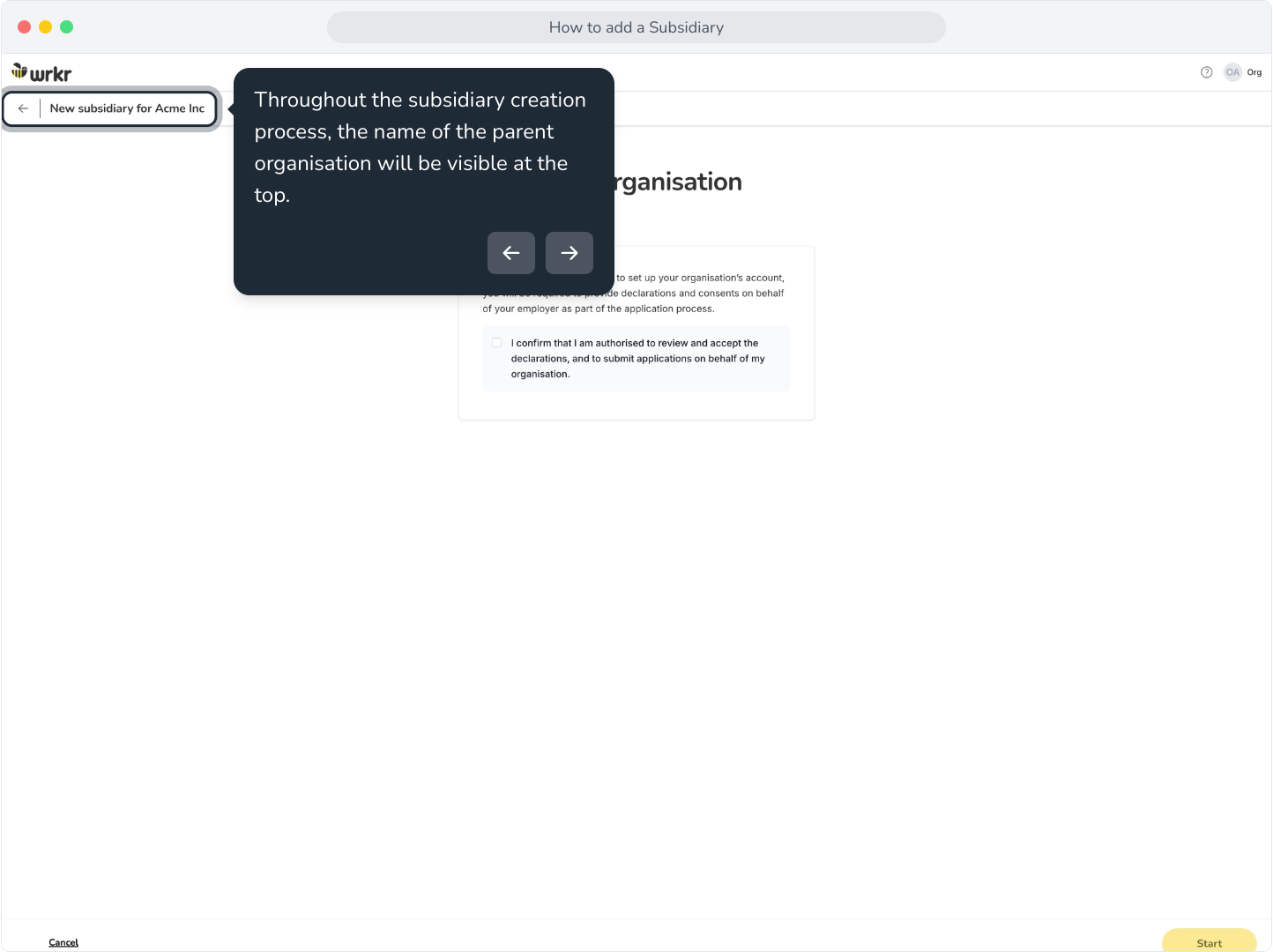
9. Throughout the subsidiary creation process, the name of the parent organisation will be visible at the top.
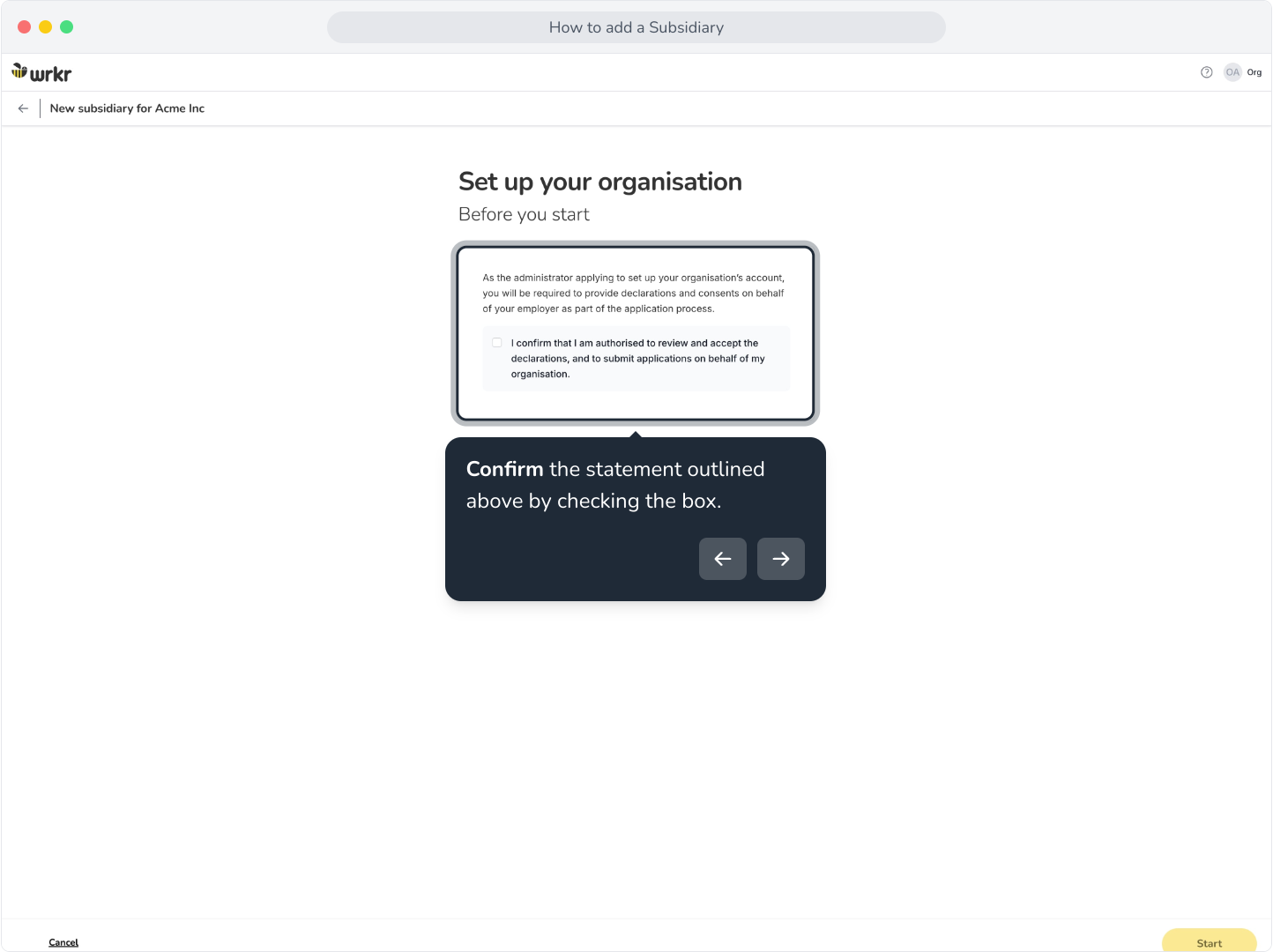
10. Confirm the statement outlined above by checking the box.
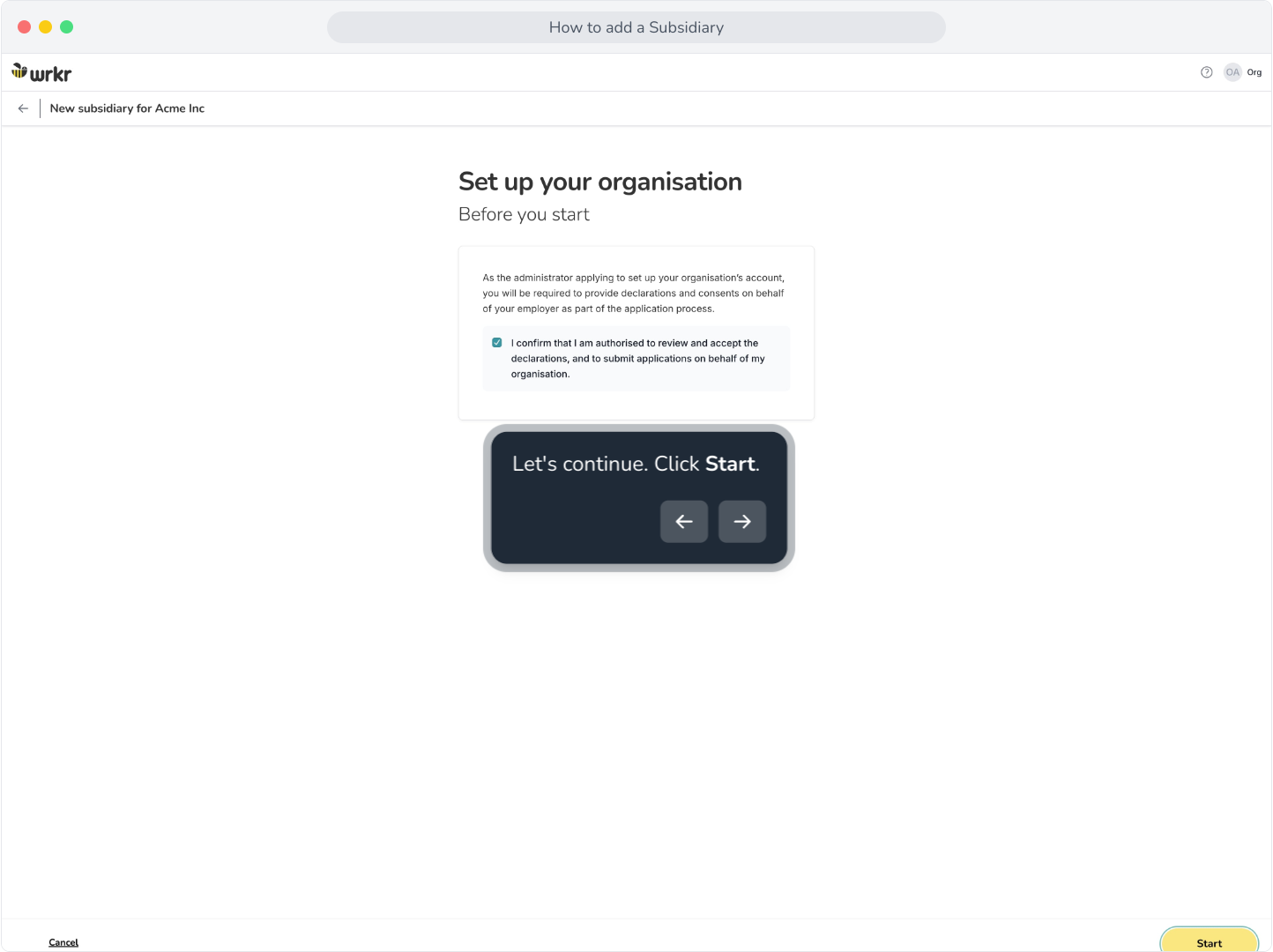
11. Let's continue. Click Start.
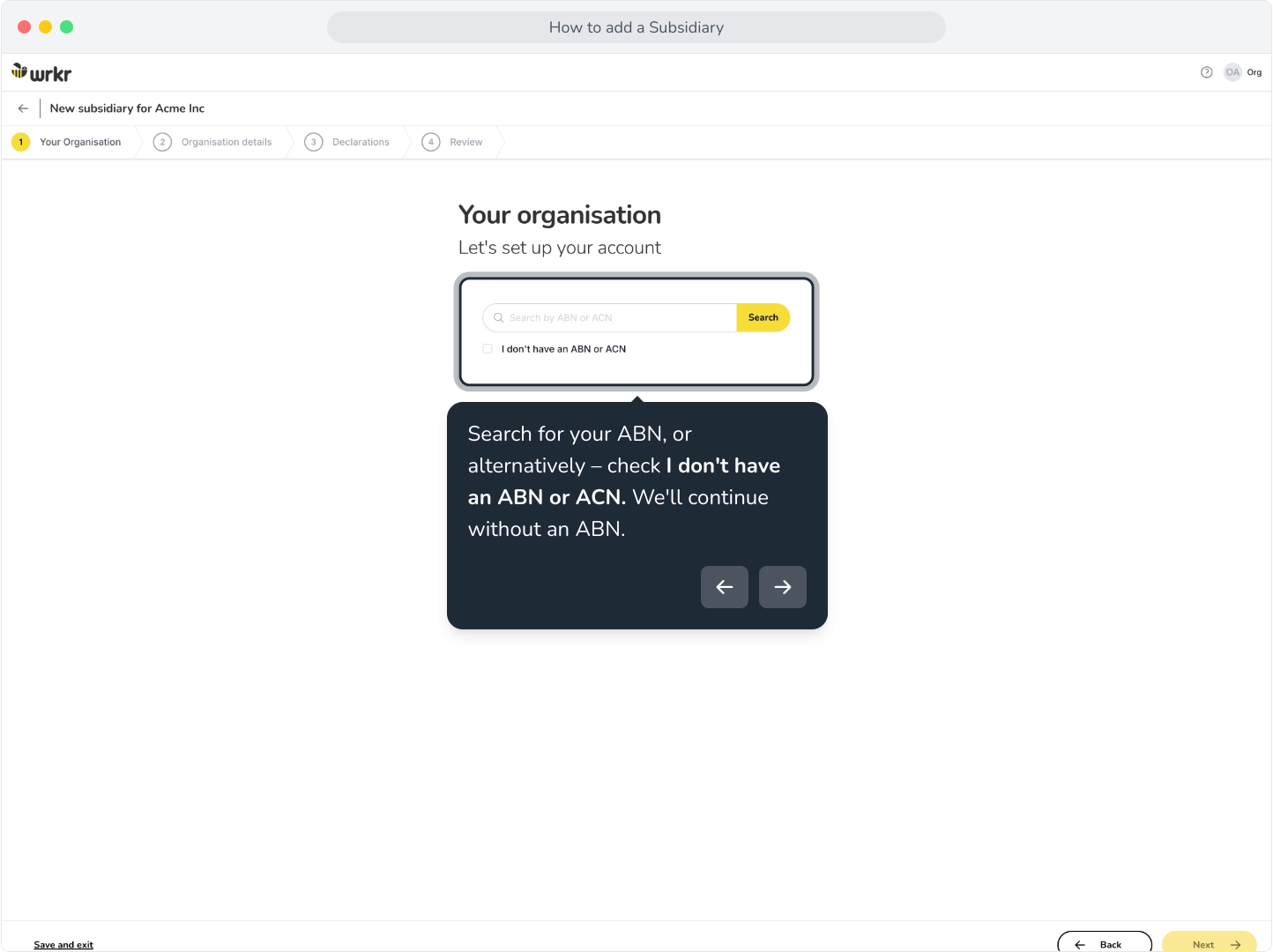
12. Search for your ABN, or alternatively – check I don't have an ABN or ACN. We'll continue without an ABN.
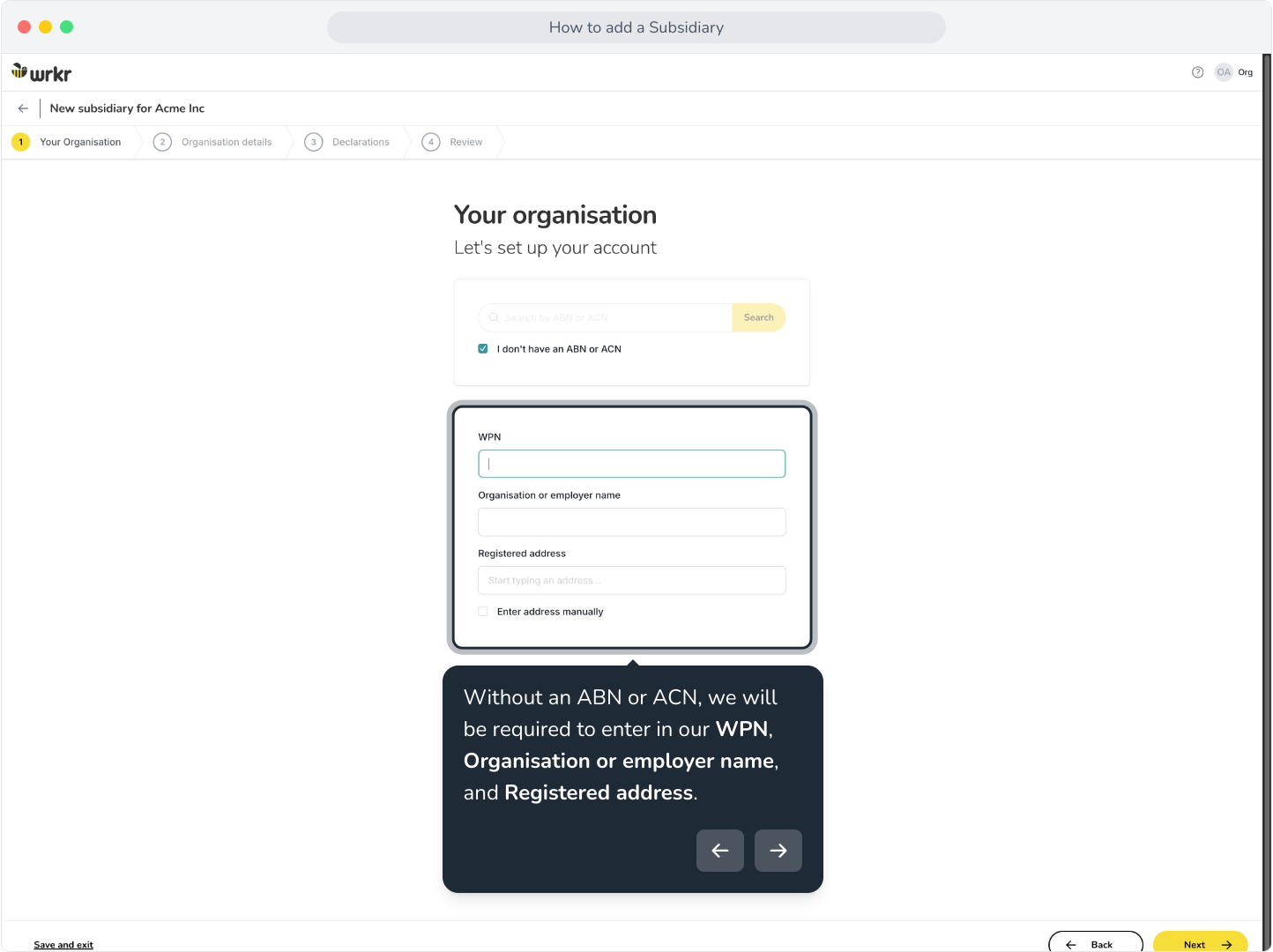
13. Without an ABN or ACN, we will be required to enter in our WPN, Organisation or employer name, and Registered address.
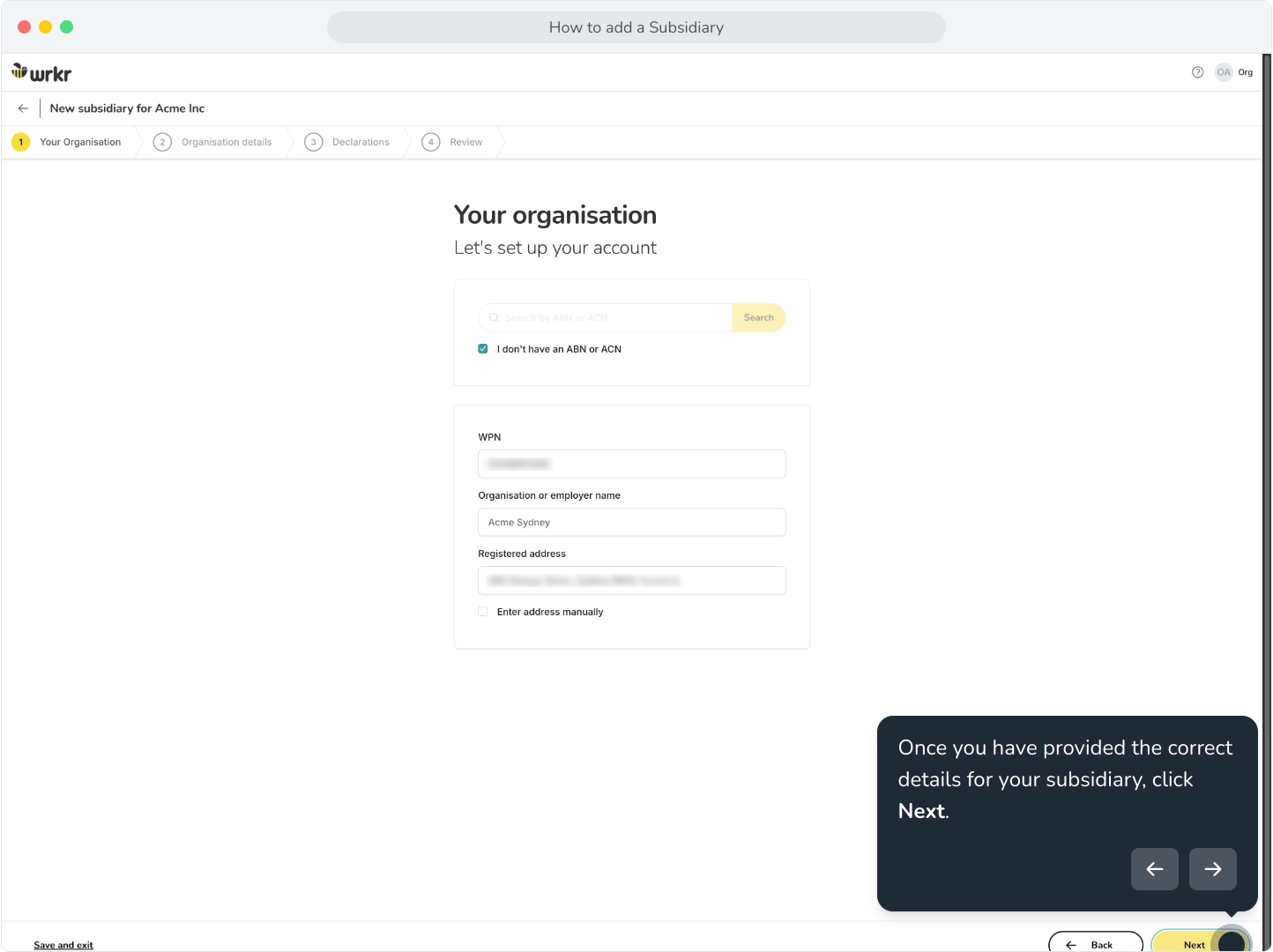
14. Once you have provided the correct details for your subsidiary, click Next.
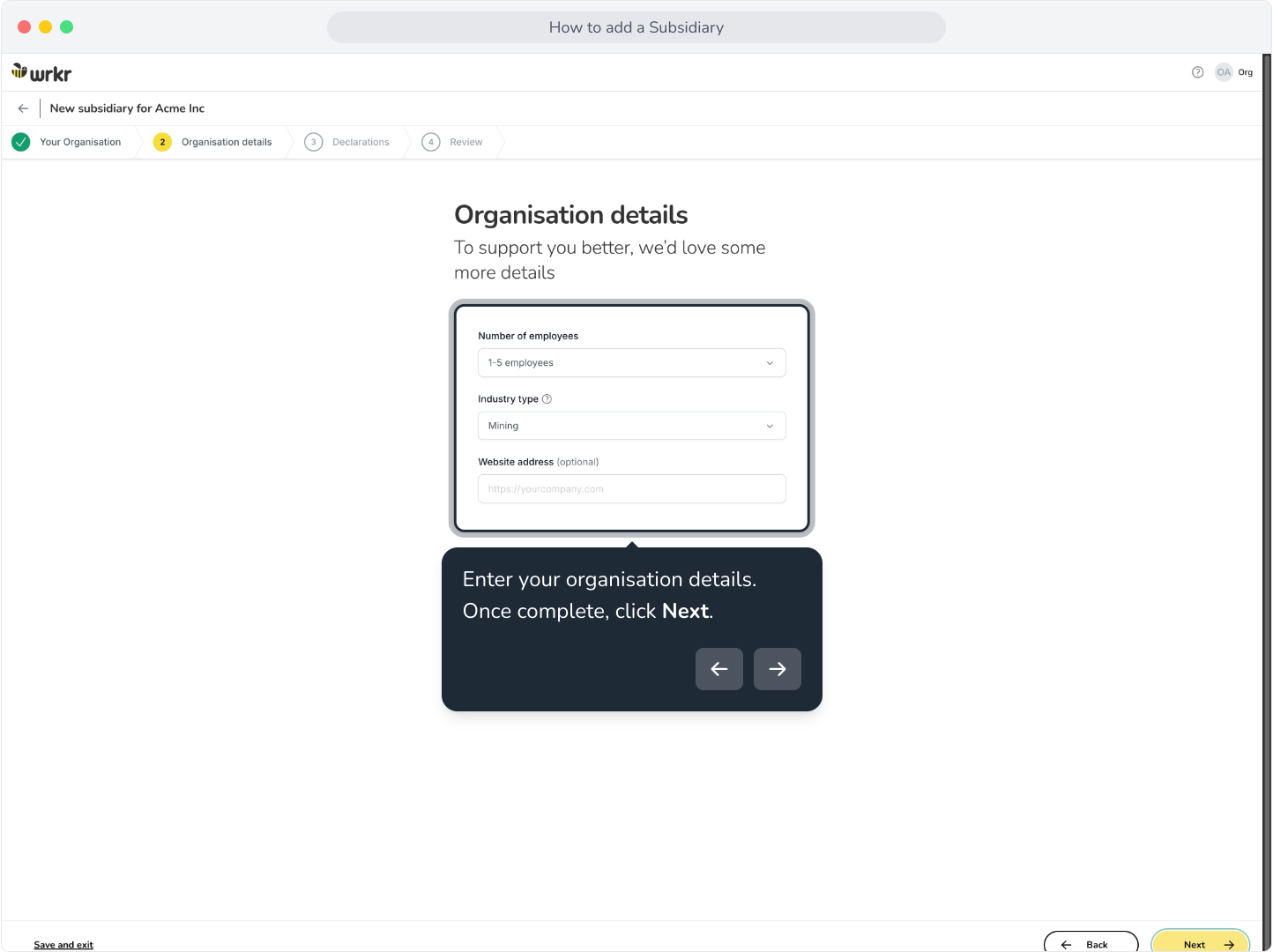
15. Enter your organisation details. Once complete, click Next.
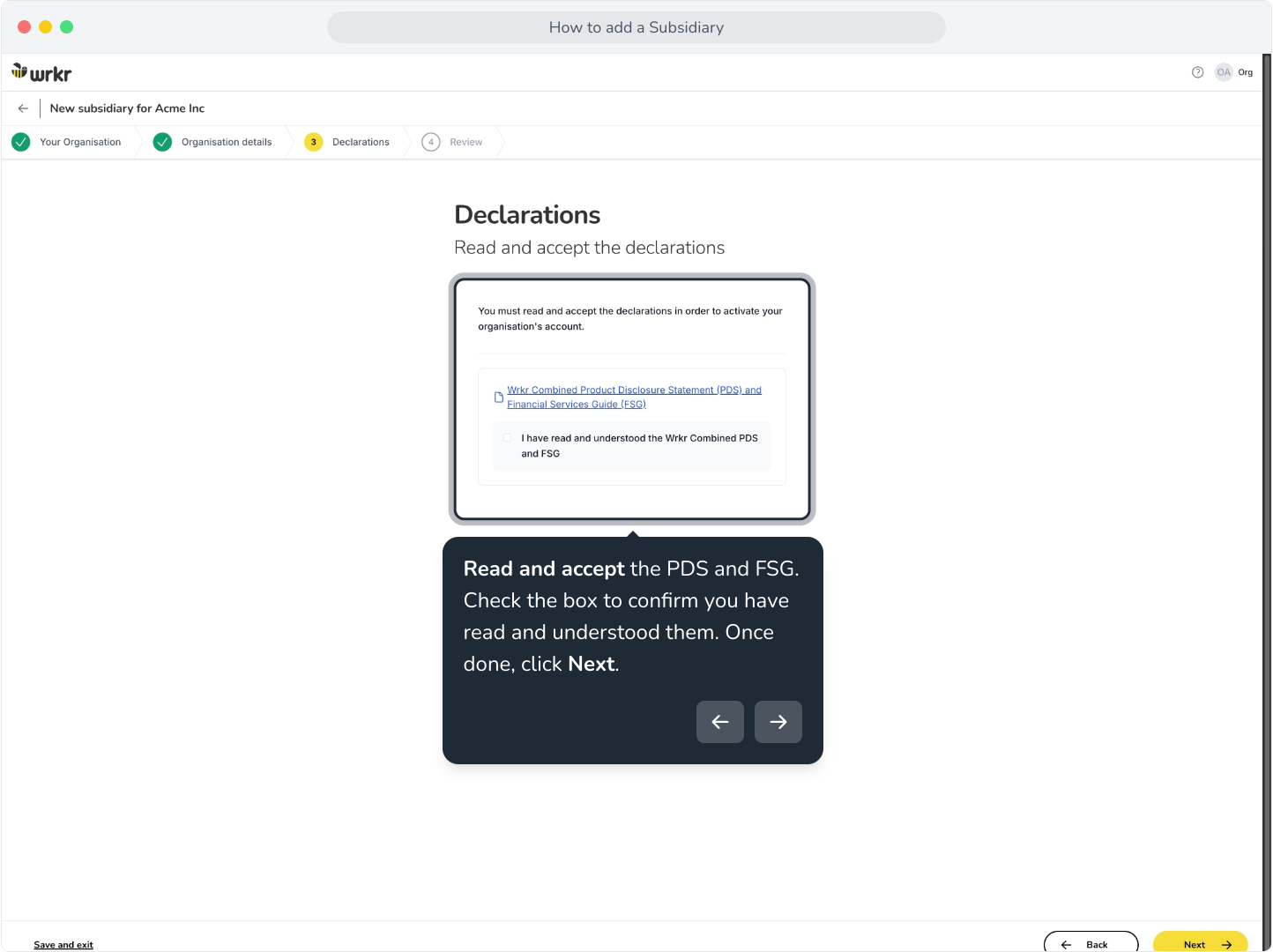
16. Read and accept the PDS and FSG. Check the box to confirm you have read and understood them. Once done, click Next.
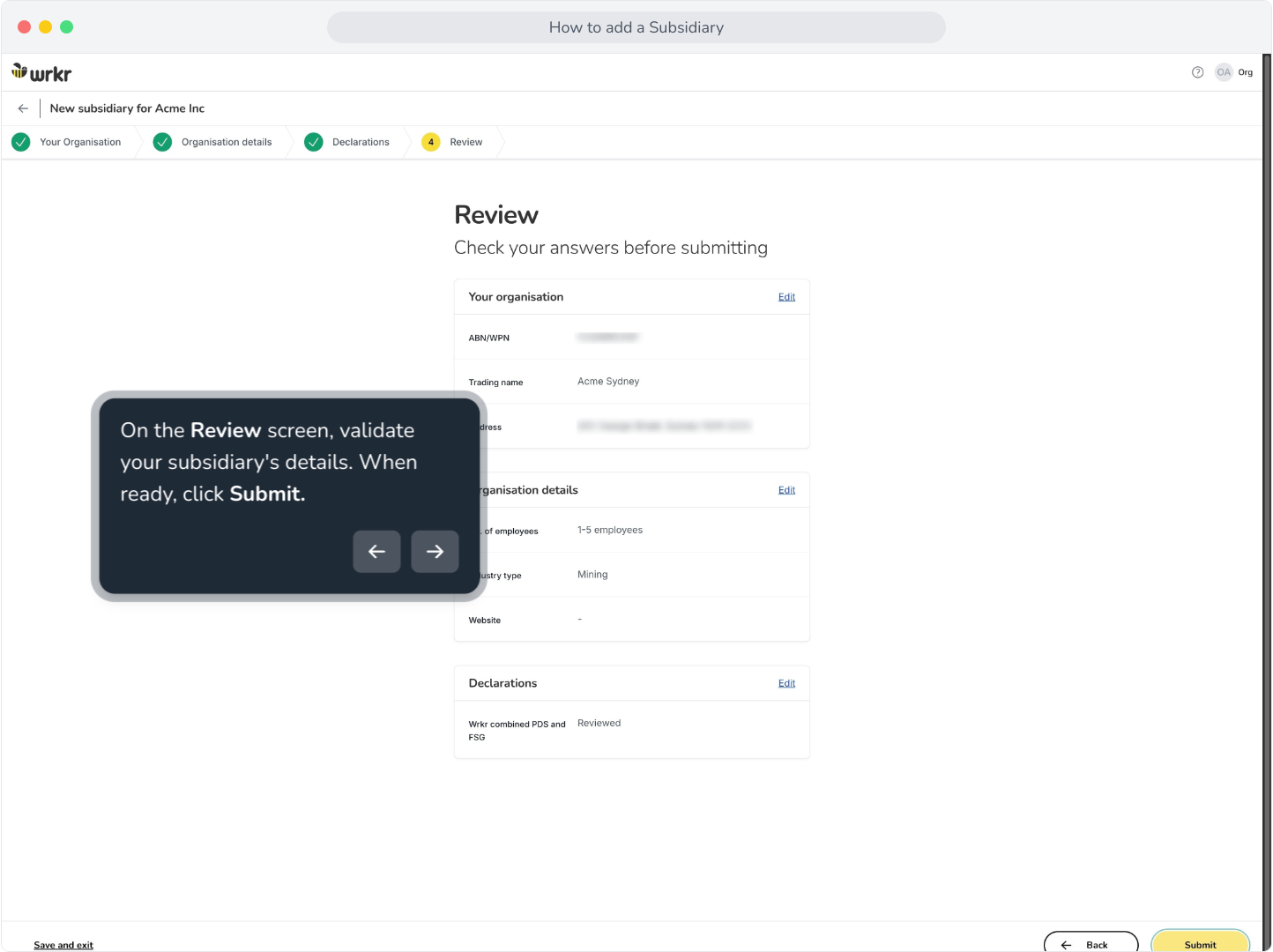
17. On the Review screen, validate your subsidiary's details. When ready, click Submit.
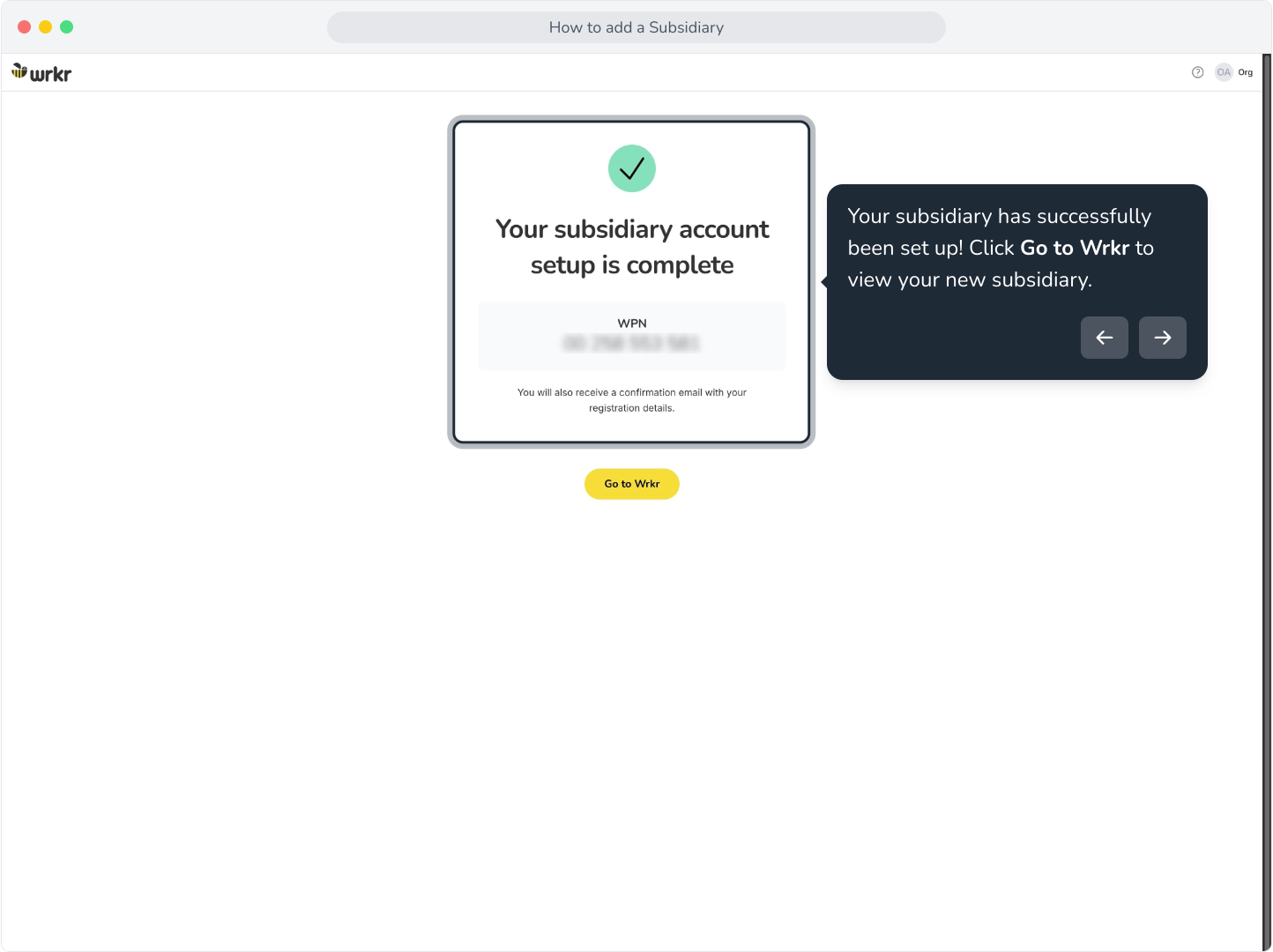
18. Your subsidiary has successfully been set up! Click Go to Wrkr to view your new subsidiary.