Context: This guide walks through the process to reset your password in the Wrkr Portal.
Interactive Demo
Note: Make the demo full-screen for a better experience. You can mute/un-mute narration to suit your preferences.
Step by Step
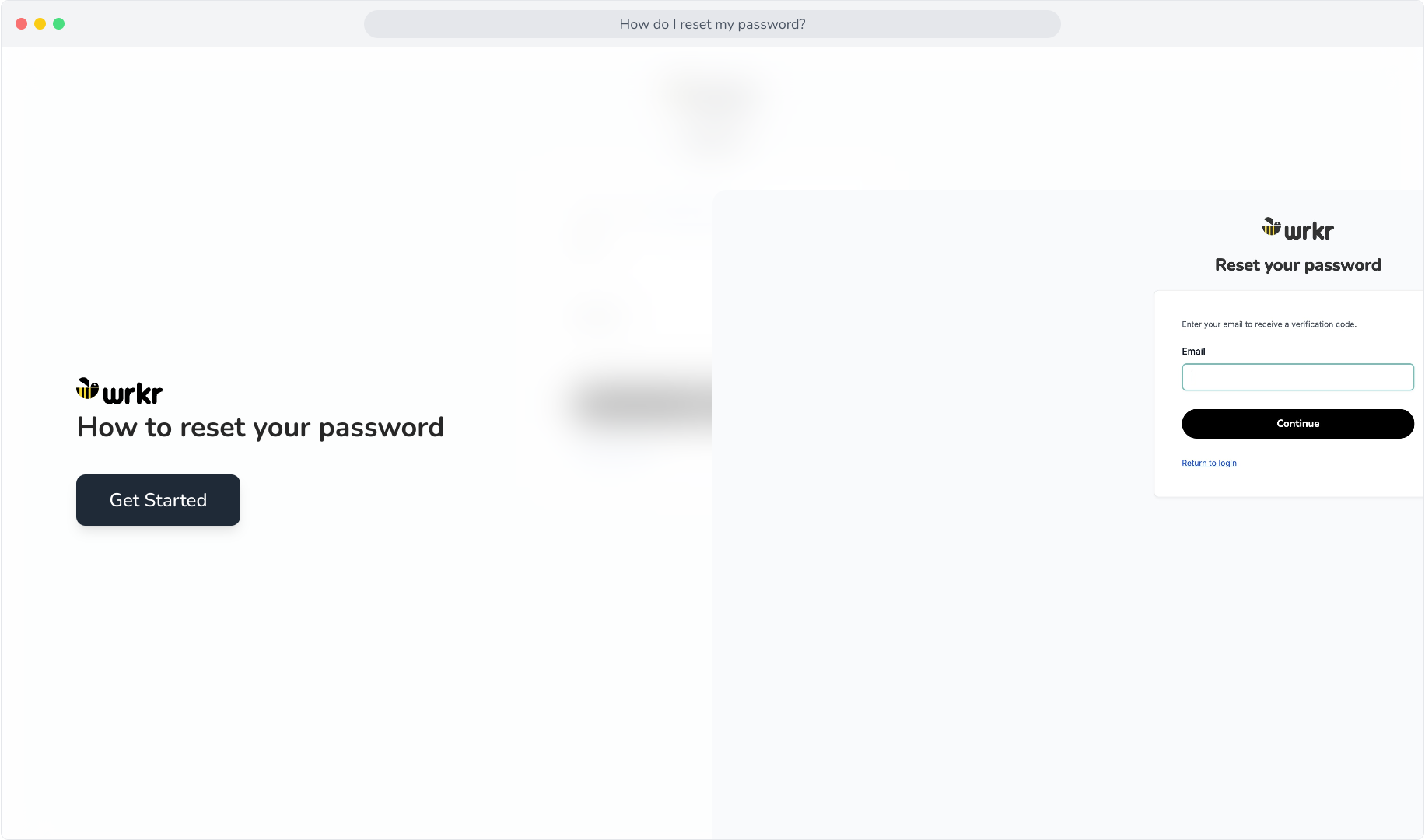
1. How to reset your password
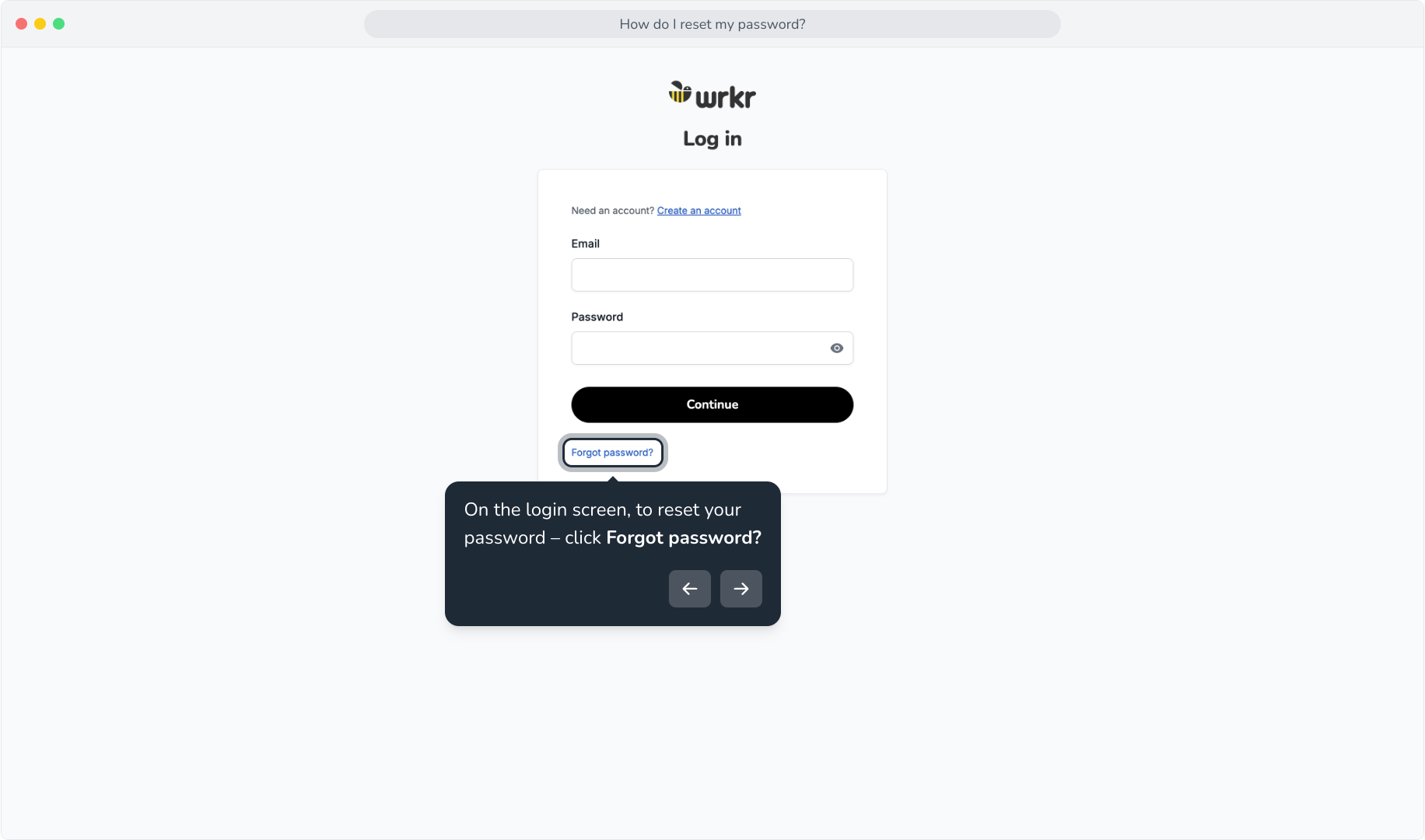
2. On the login screen, to reset your password – click Forgot password?
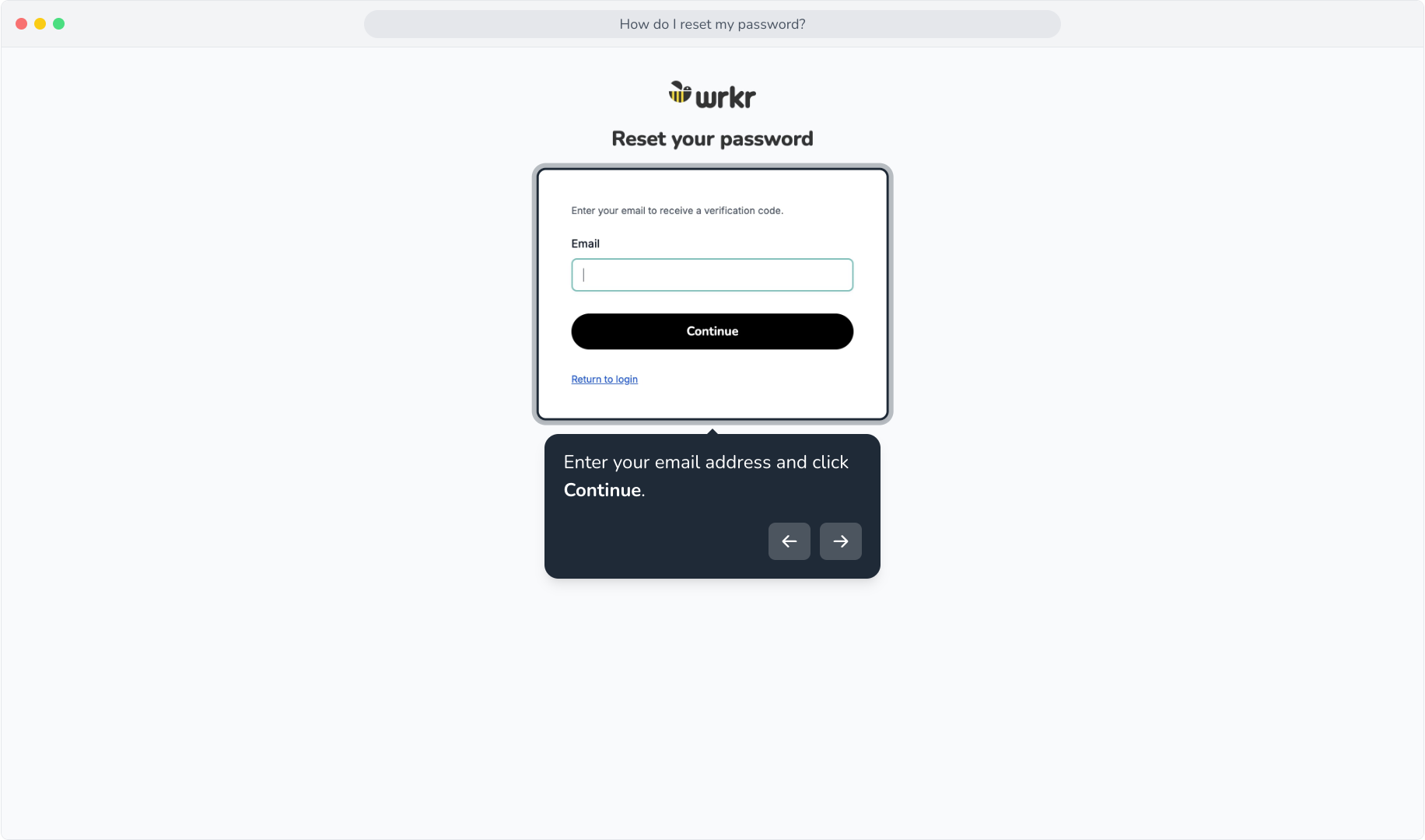
3. Enter your email address and click Continue.
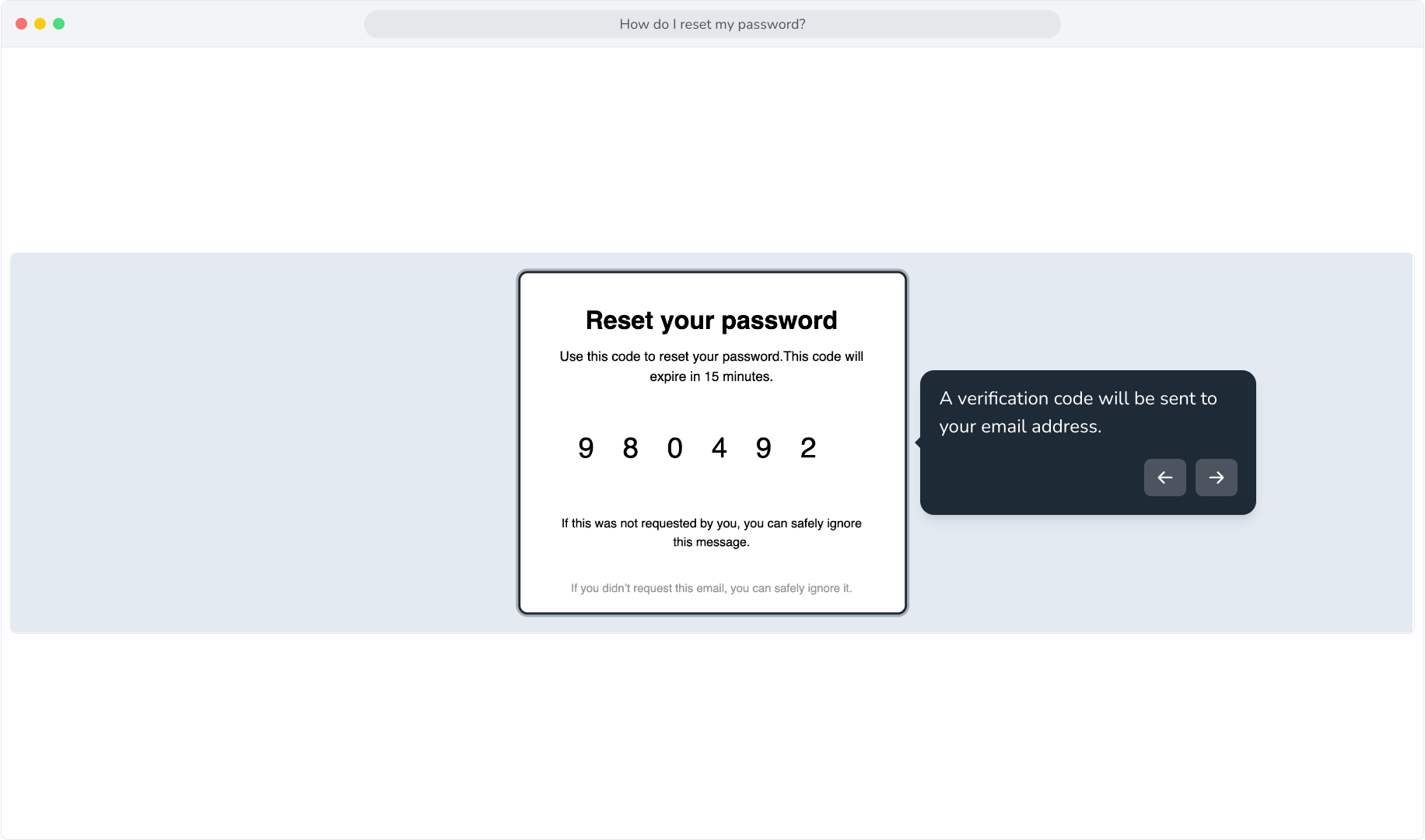
4. A verification code will be sent to your email address.
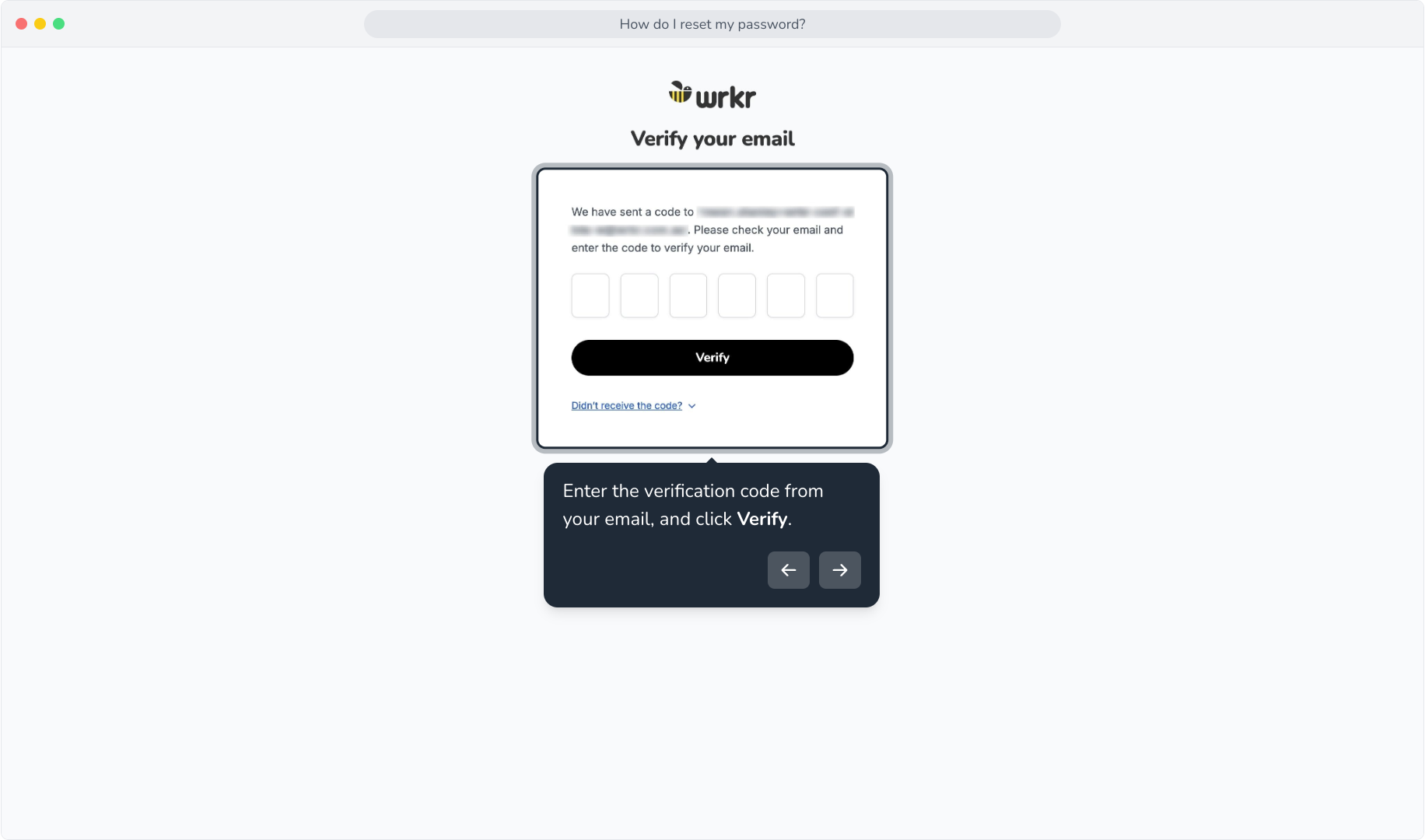
5. Enter the verification code from your email, and click Verify.
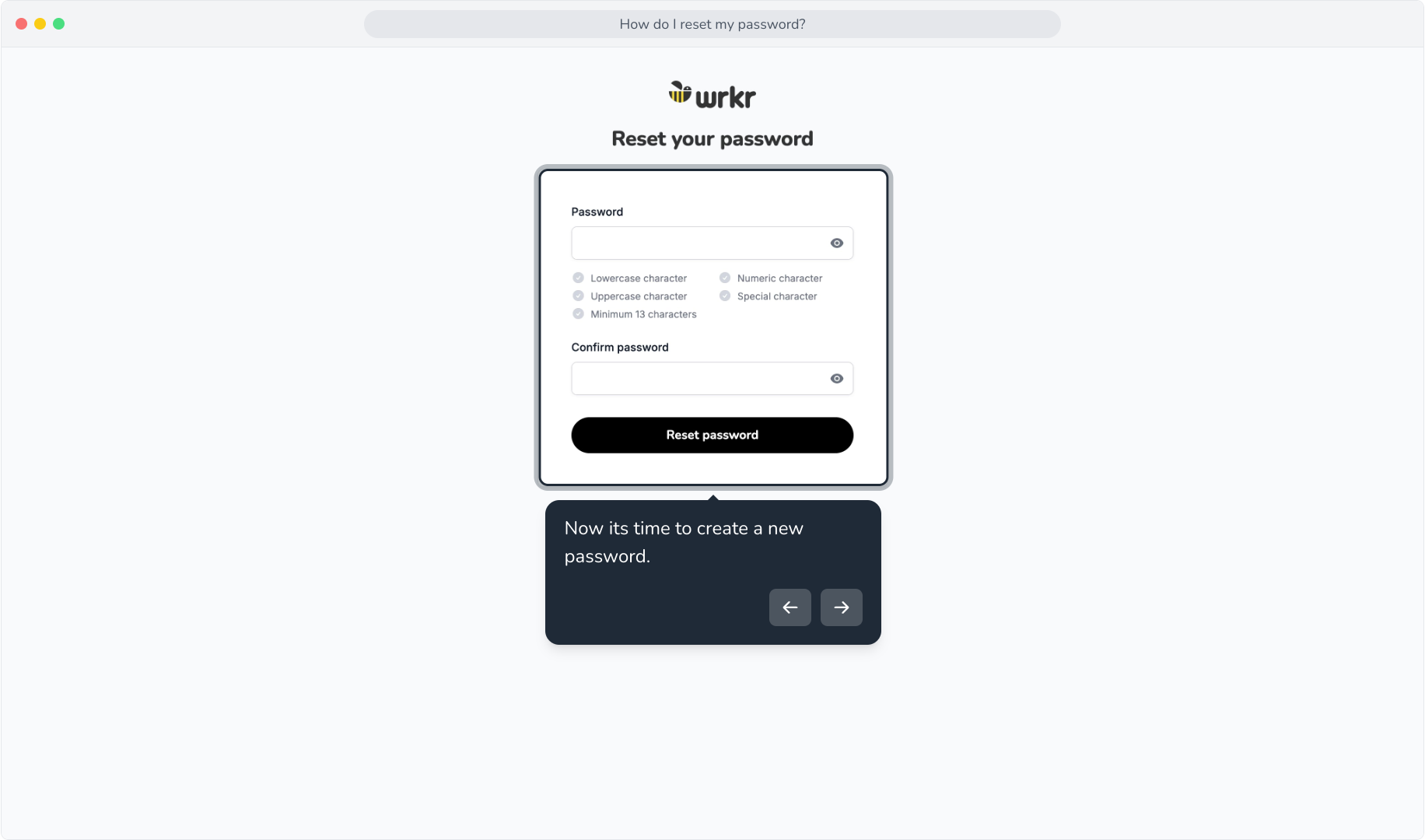
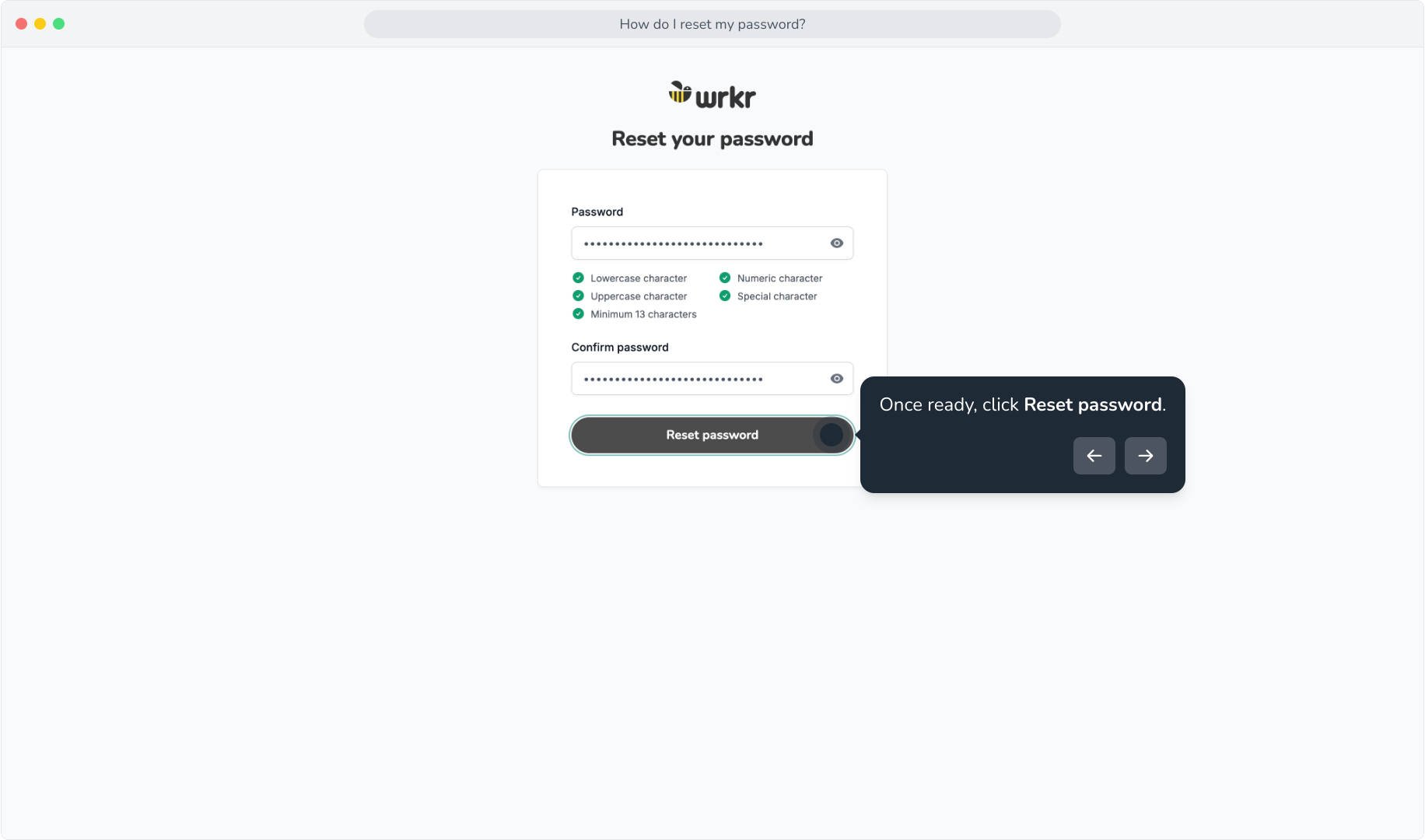
6. Now its time to create a new password.
7. Note: Password criteria is subject to change in order to increase account security. Any changes will be reflected in the criteria on this screen.
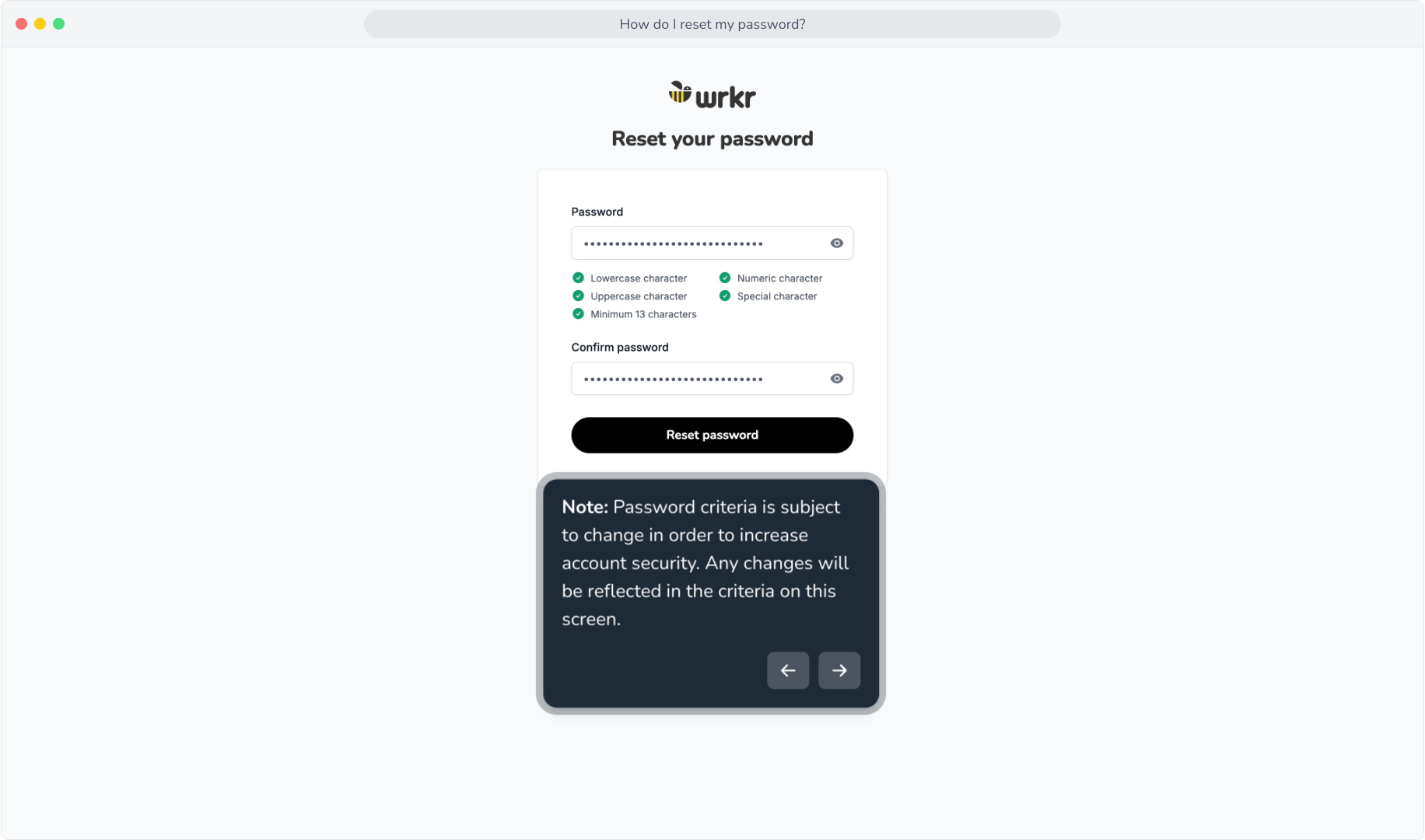
8. Once ready, click Reset password.
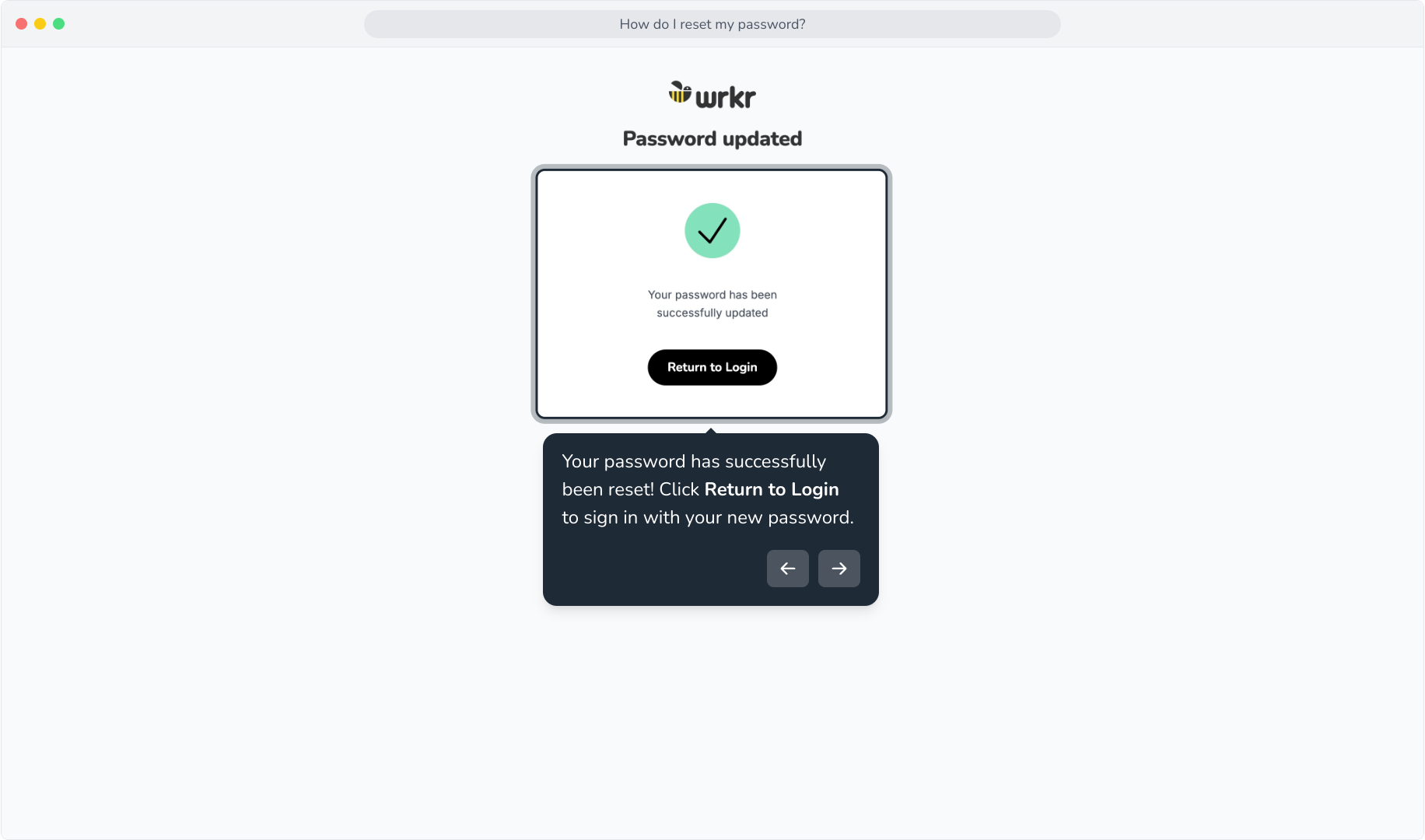
9. Your password has successfully been reset! Click Return to Login to sign in with your new password.