Context: This guide demonstrates how to configure a contribution refund account within the Wrkr Portal.
Interactive Demo
Note: Make the demo full-screen for a better experience. You can mute/un-mute narration to suit your preferences.
Step by Step
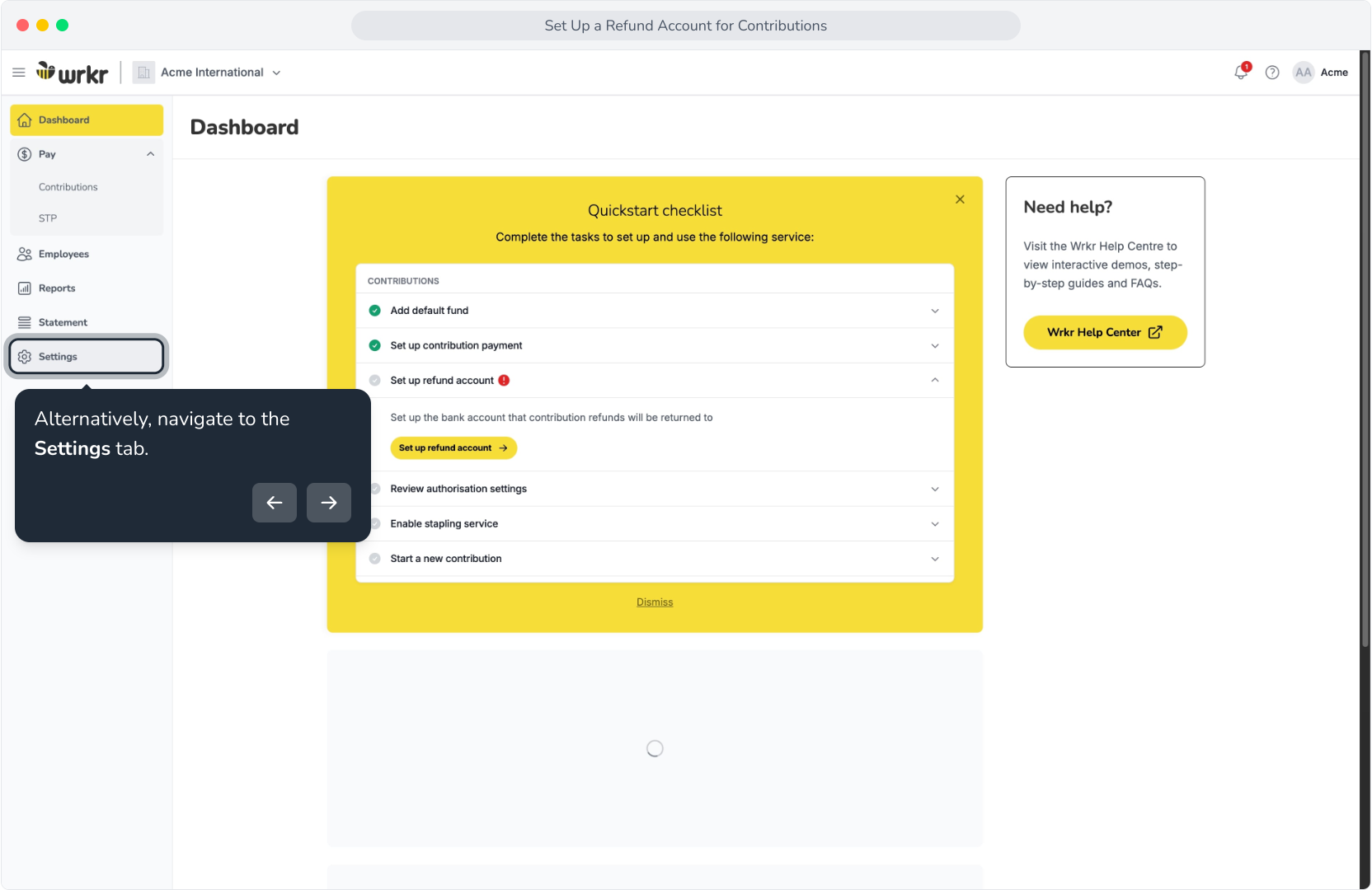
1. To set up a refund account, expand the accordion in the quick start checklist.
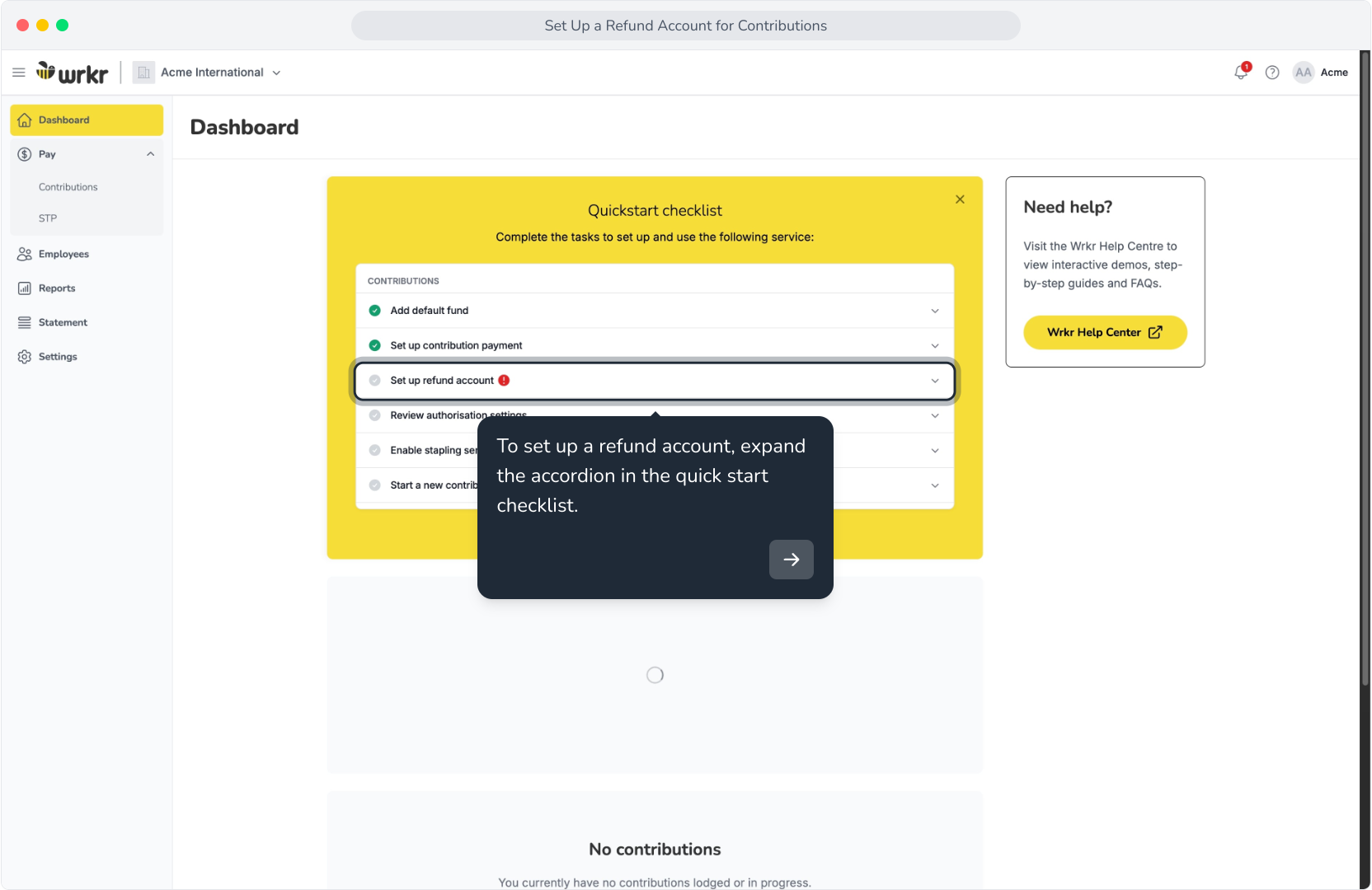
2. Click Set up refund account.
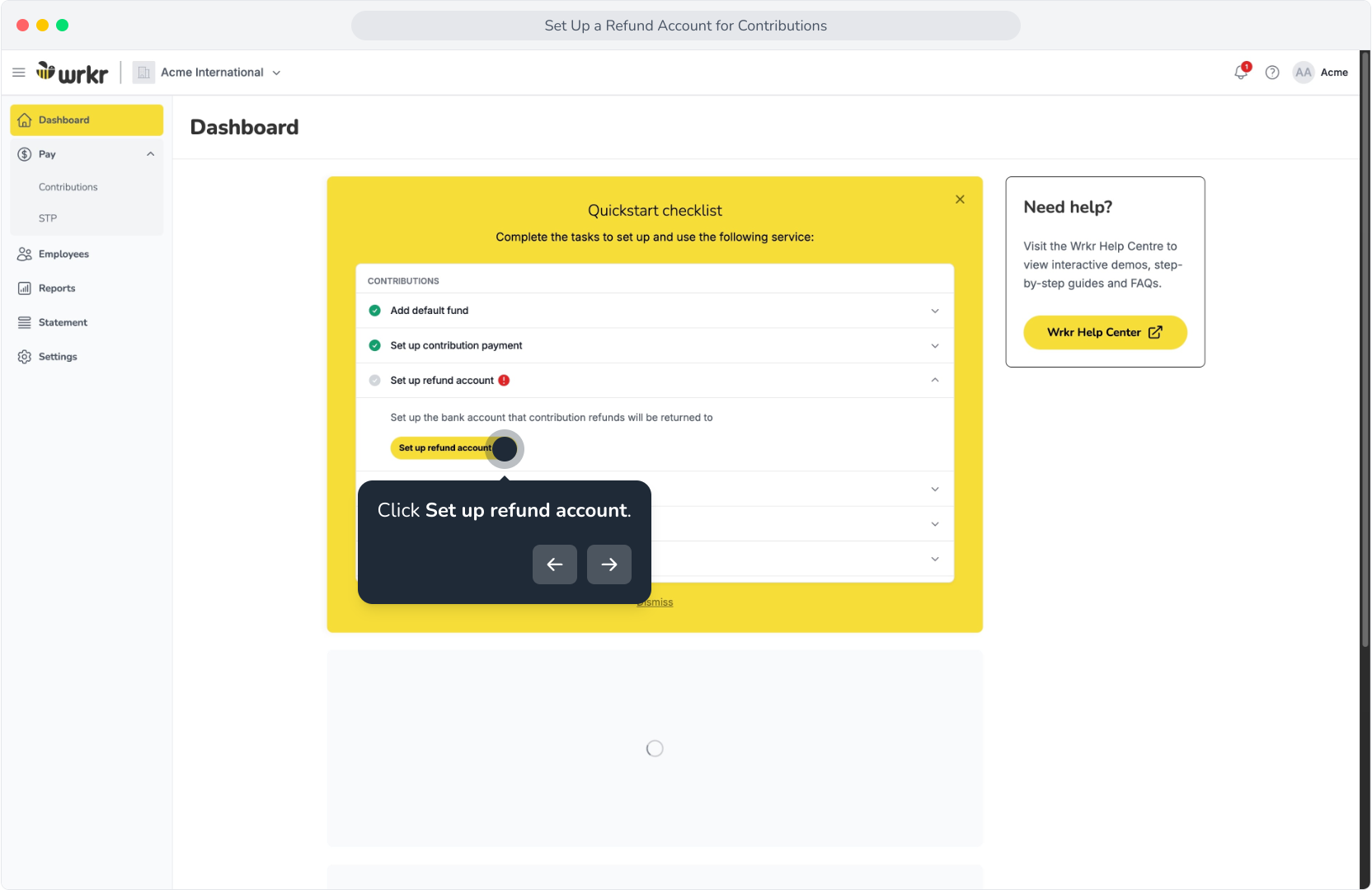
3. Alternatively, navigate to the Settings tab.
4. Select Contribution settings.
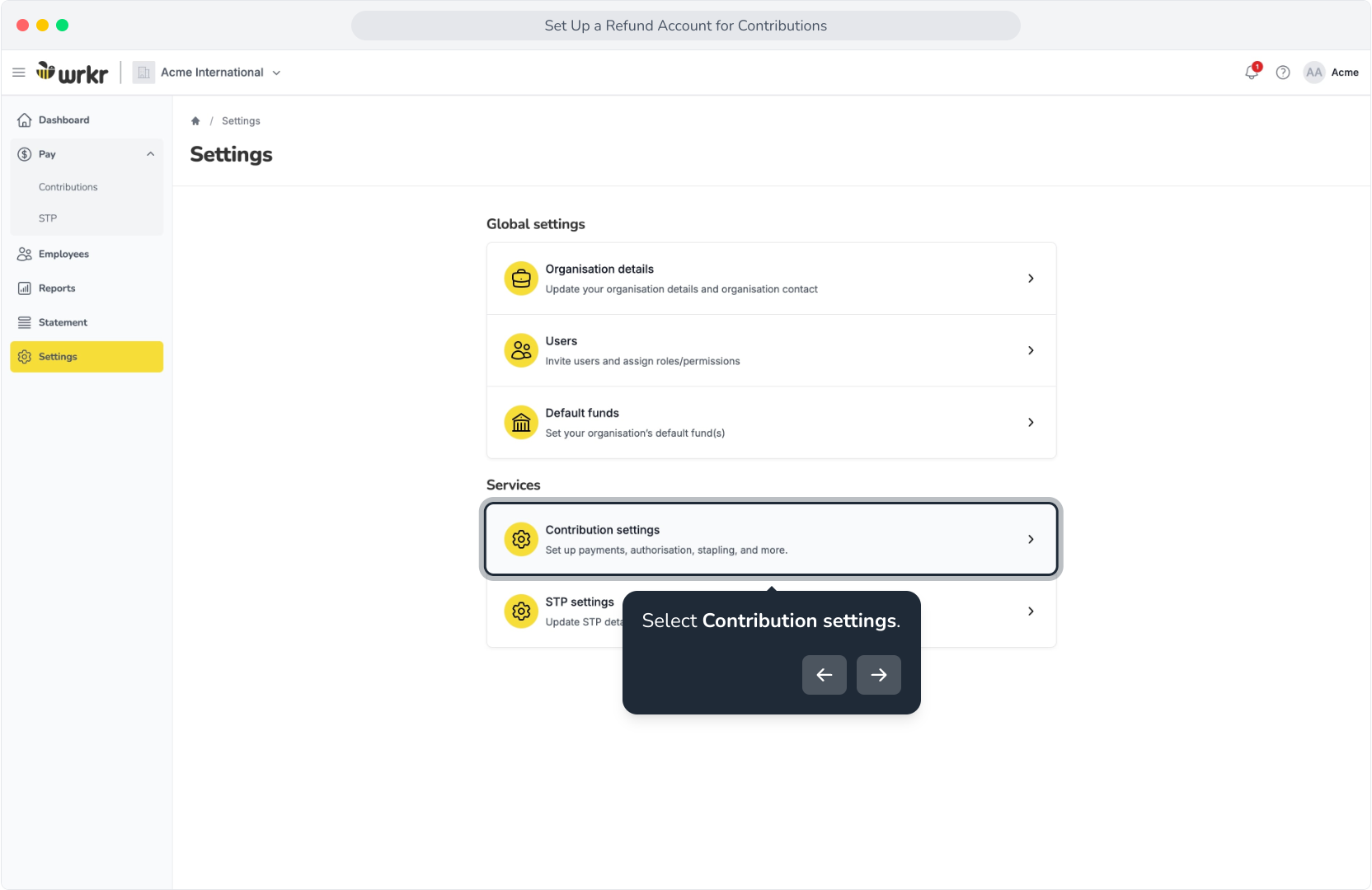
5. In the Contribution refund account list option, click Add.
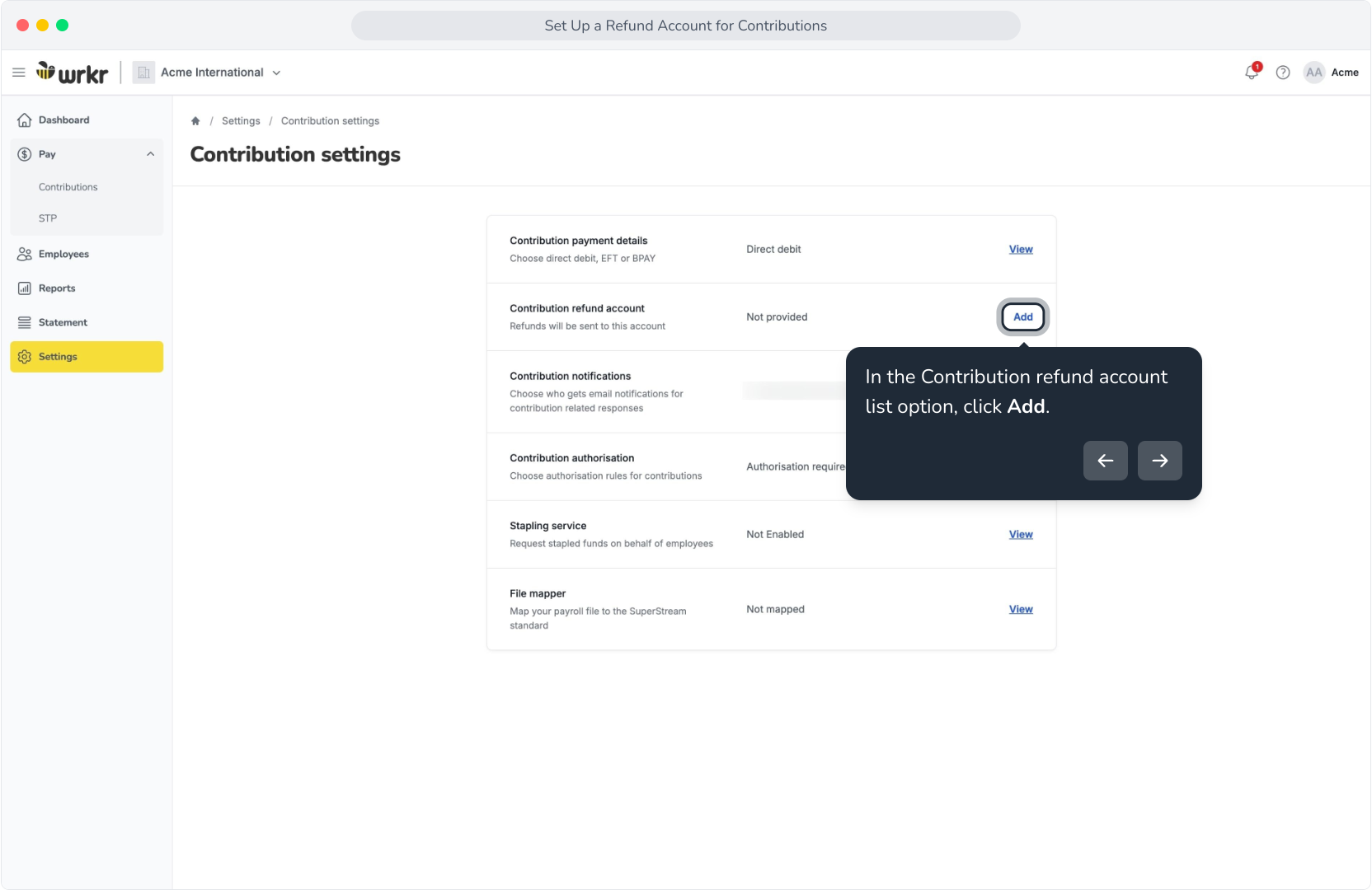
6. On the Contribution refund account screen, click Add a Refund Account.
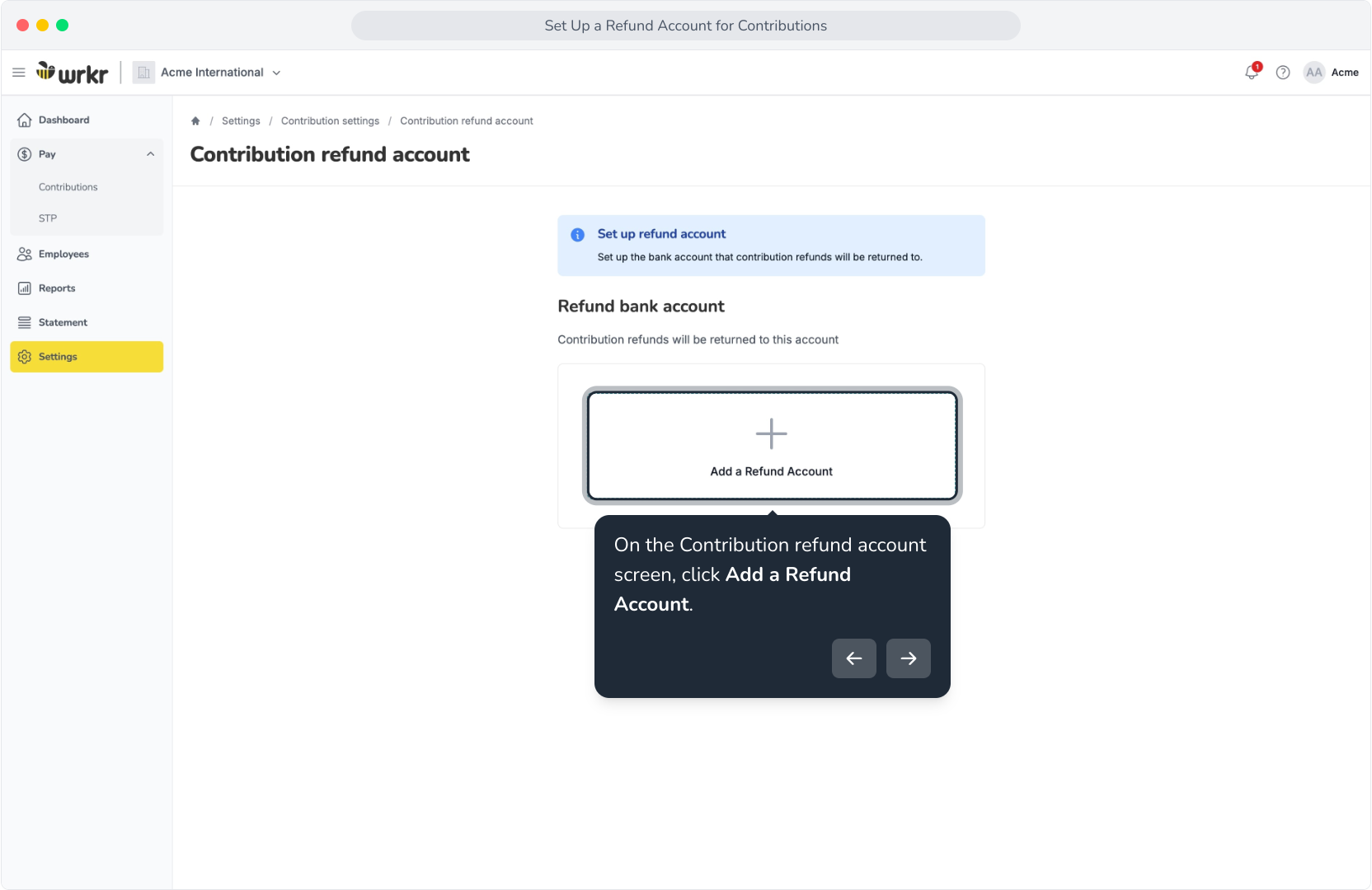
7. Within the Refund bank account modal, any existing direct debit accounts added to your organisation will be available to select. Choosing an existing direct debit account does not require further verification.
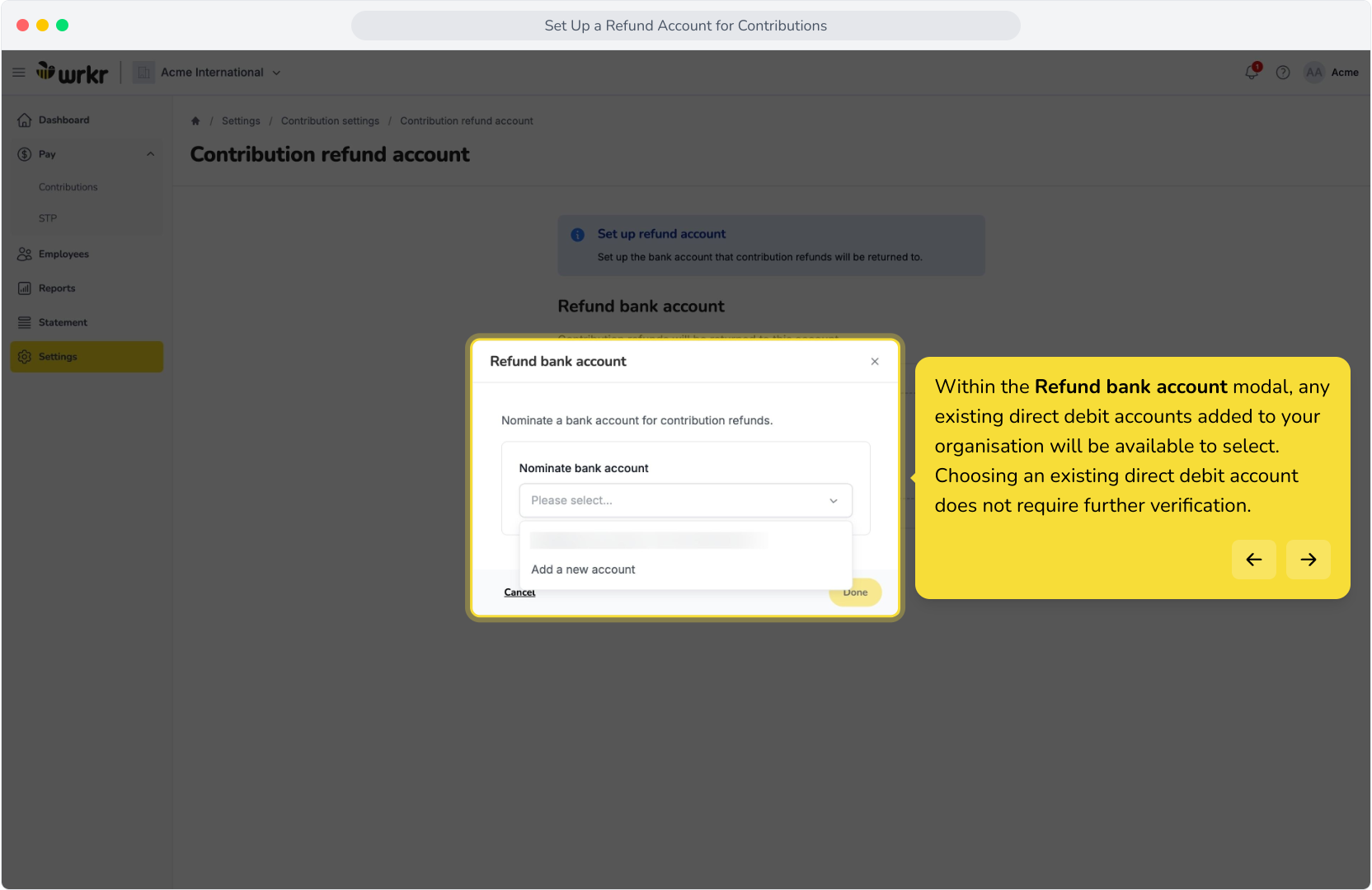
8. You can add a new bank account via the drop-down selection.
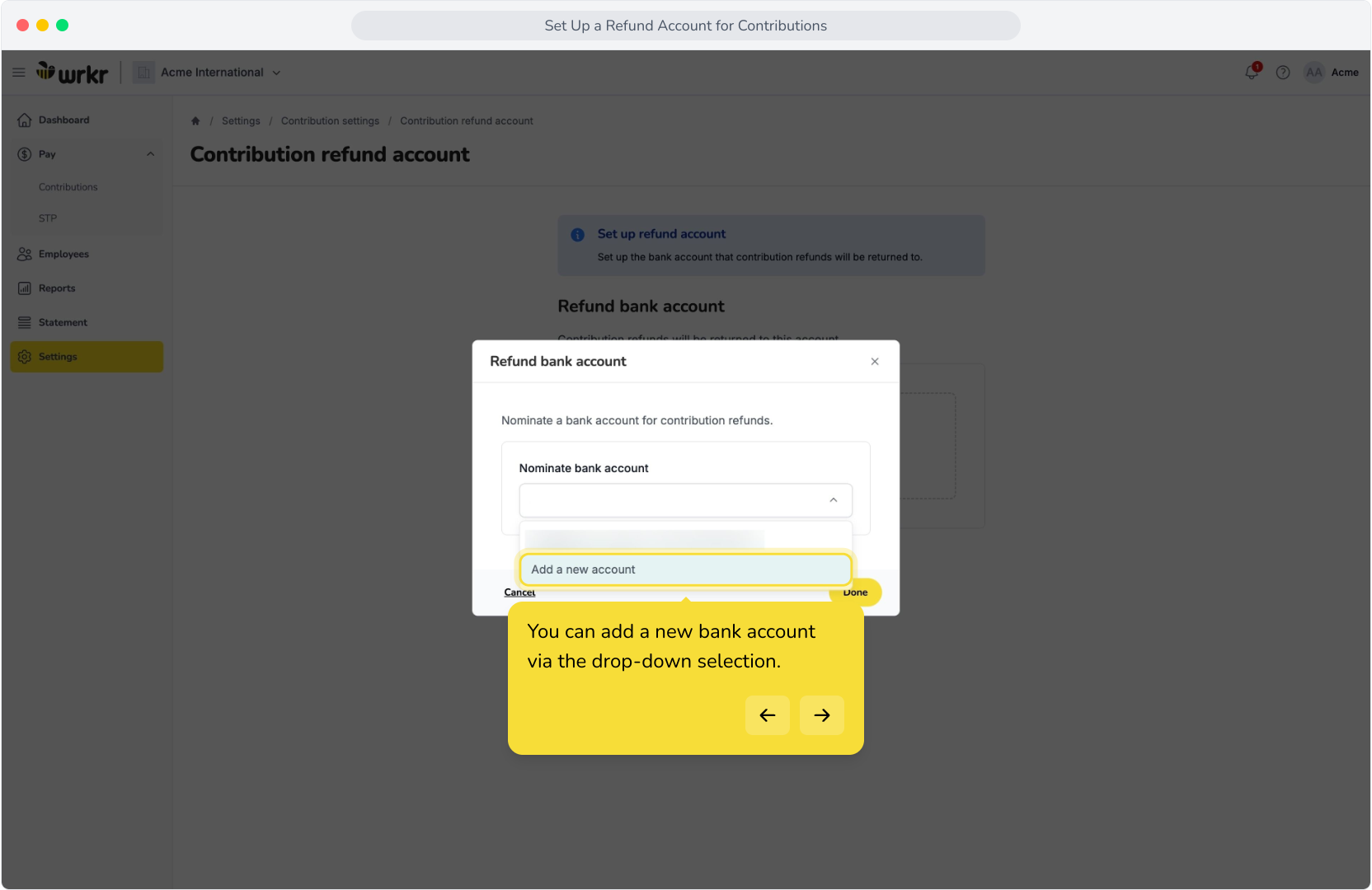
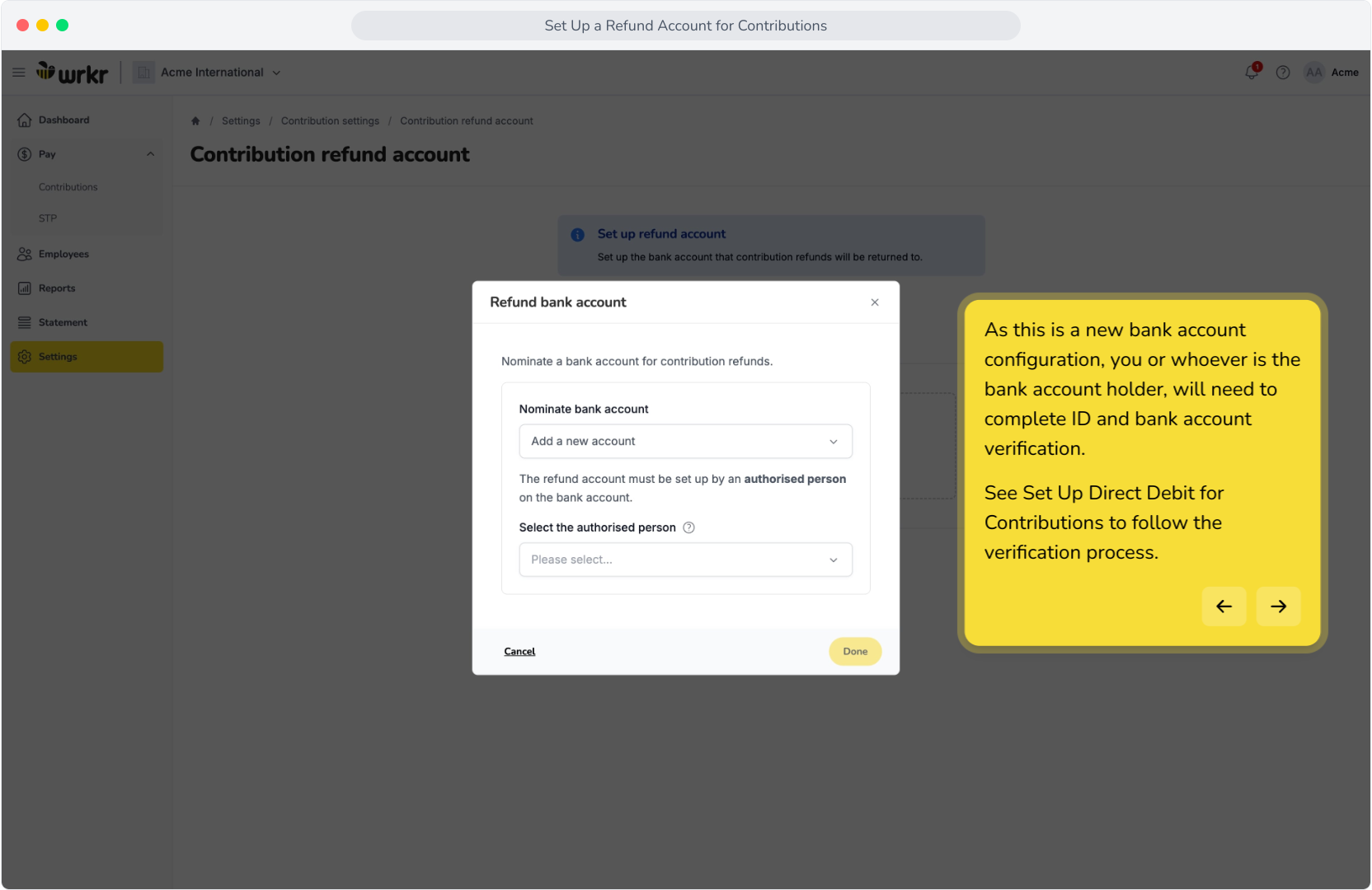
9. As this is a new bank account configuration, you or whoever is the bank account holder, will need to complete ID and bank account verification.See Set Up Direct Debit for Contributions to follow the verification process.
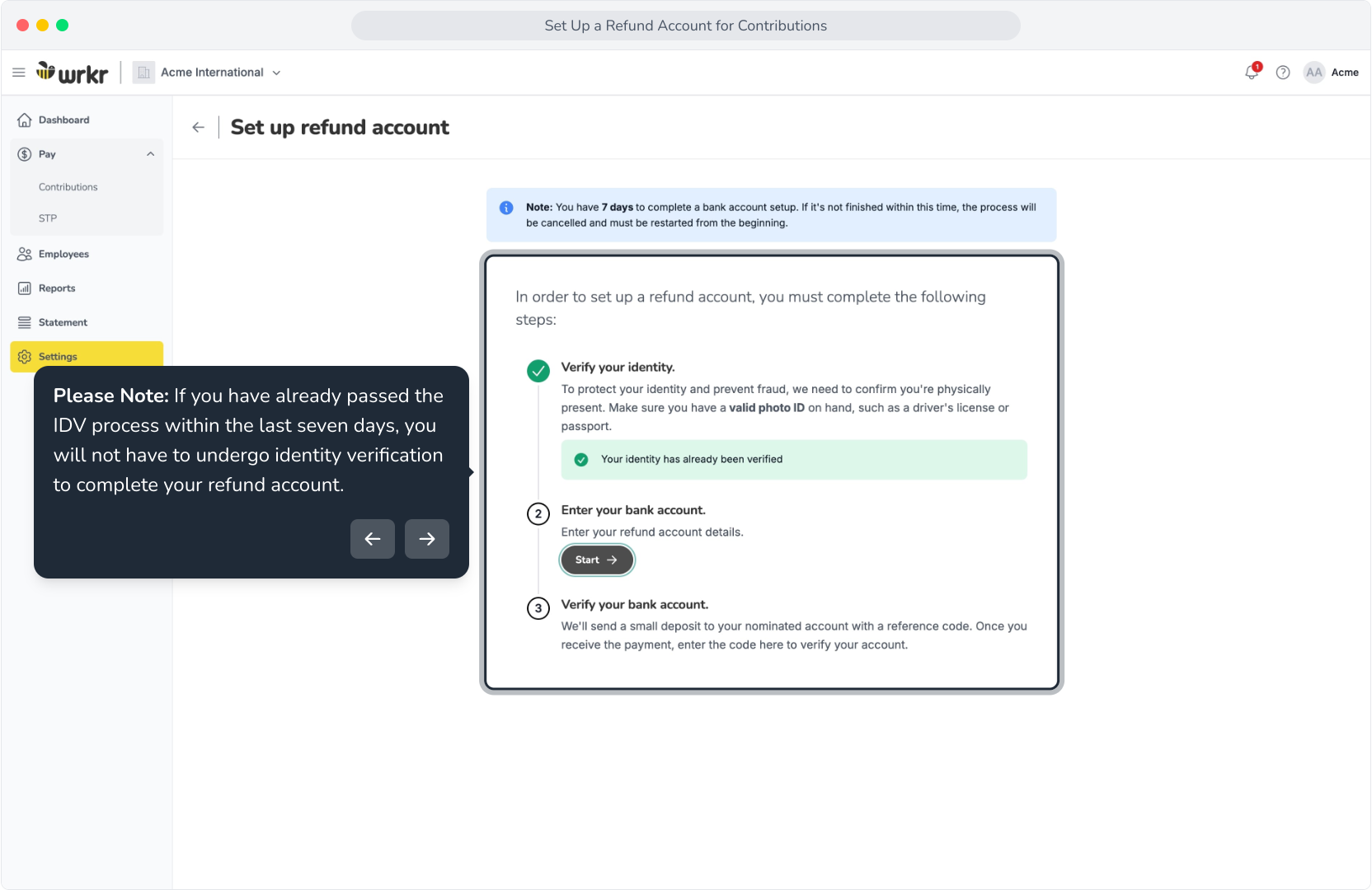
10. Please Note: If you have already passed the IDV process within the last seven days, you will not have to undergo identity verification to complete your refund account.
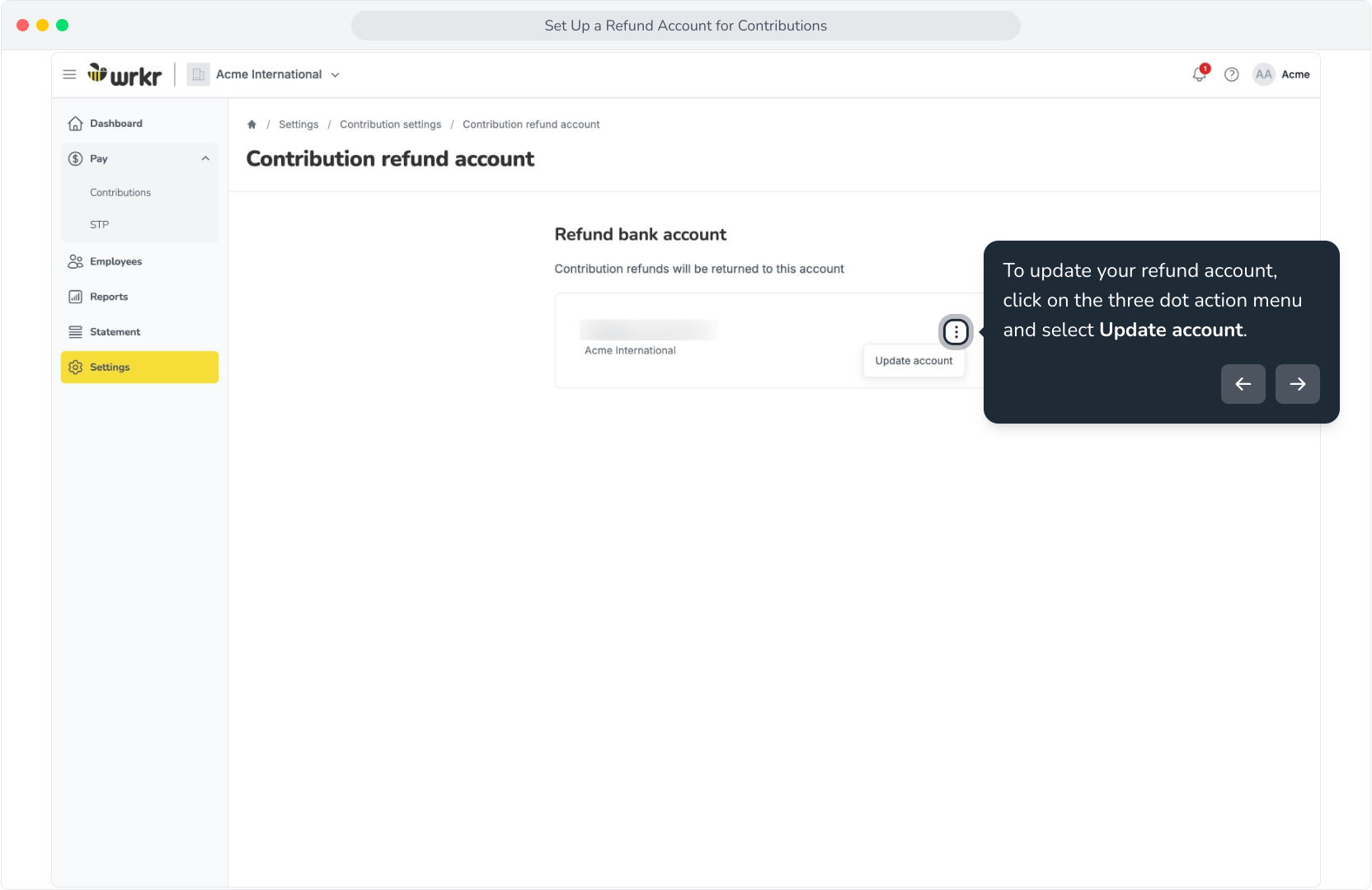
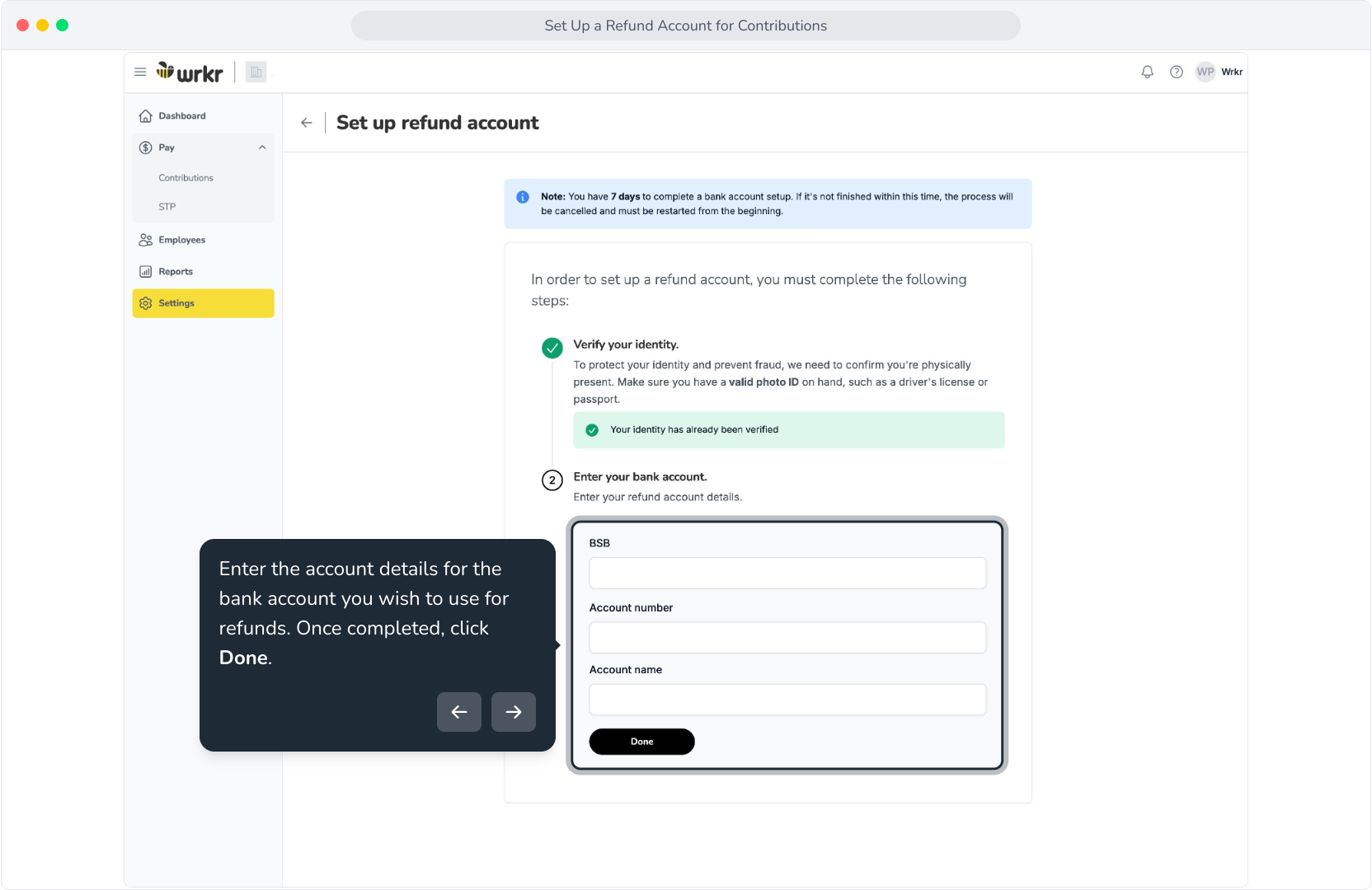
11. Enter the account details for the bank account you wish to use for refunds. Once completed, click Done.
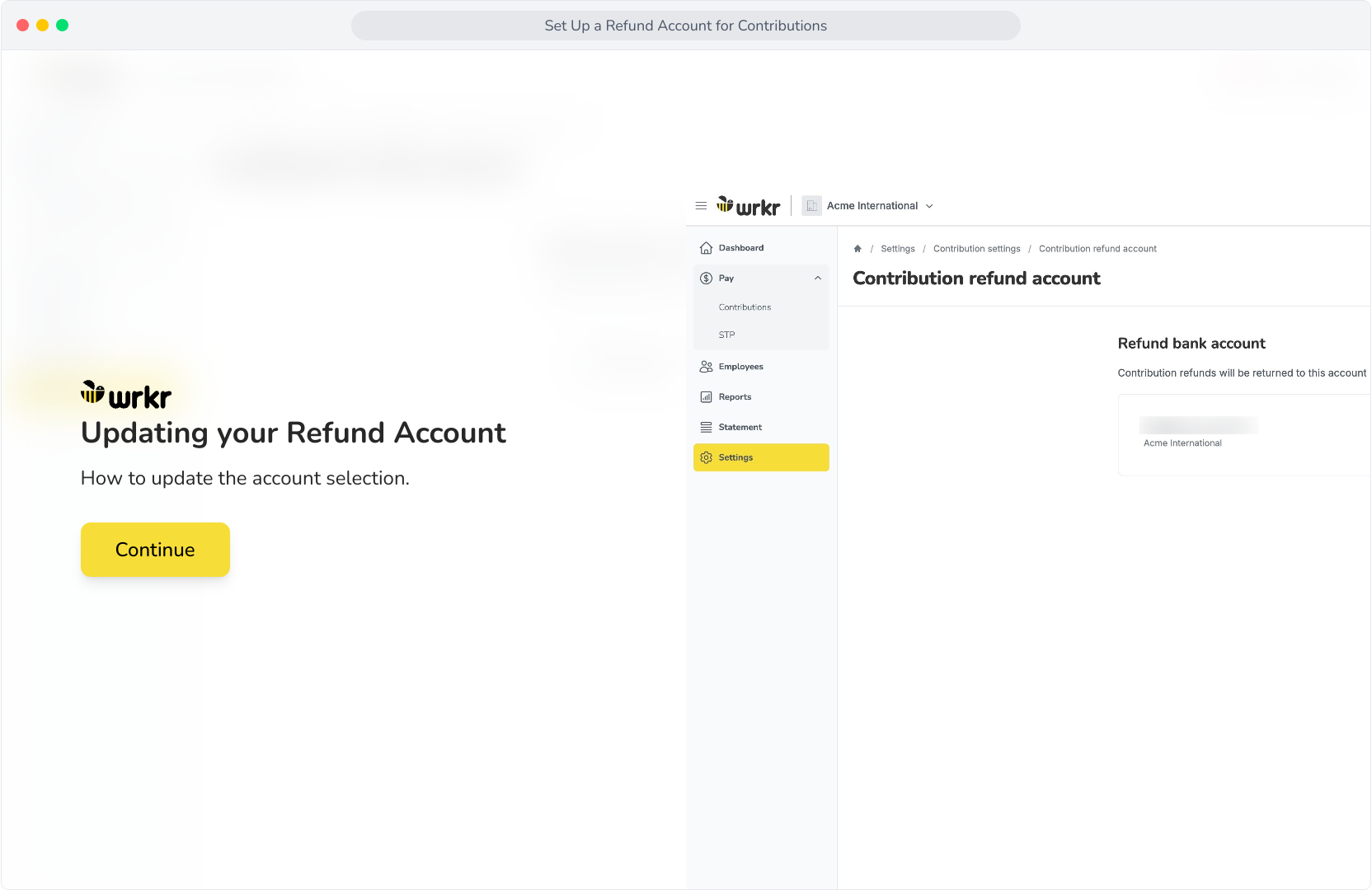
12. Updating your Refund Account
13. If you wish to update your refund account, you can do so via this tile. Please note that you cannot remove a refund account, however, you can replace it with another bank account.
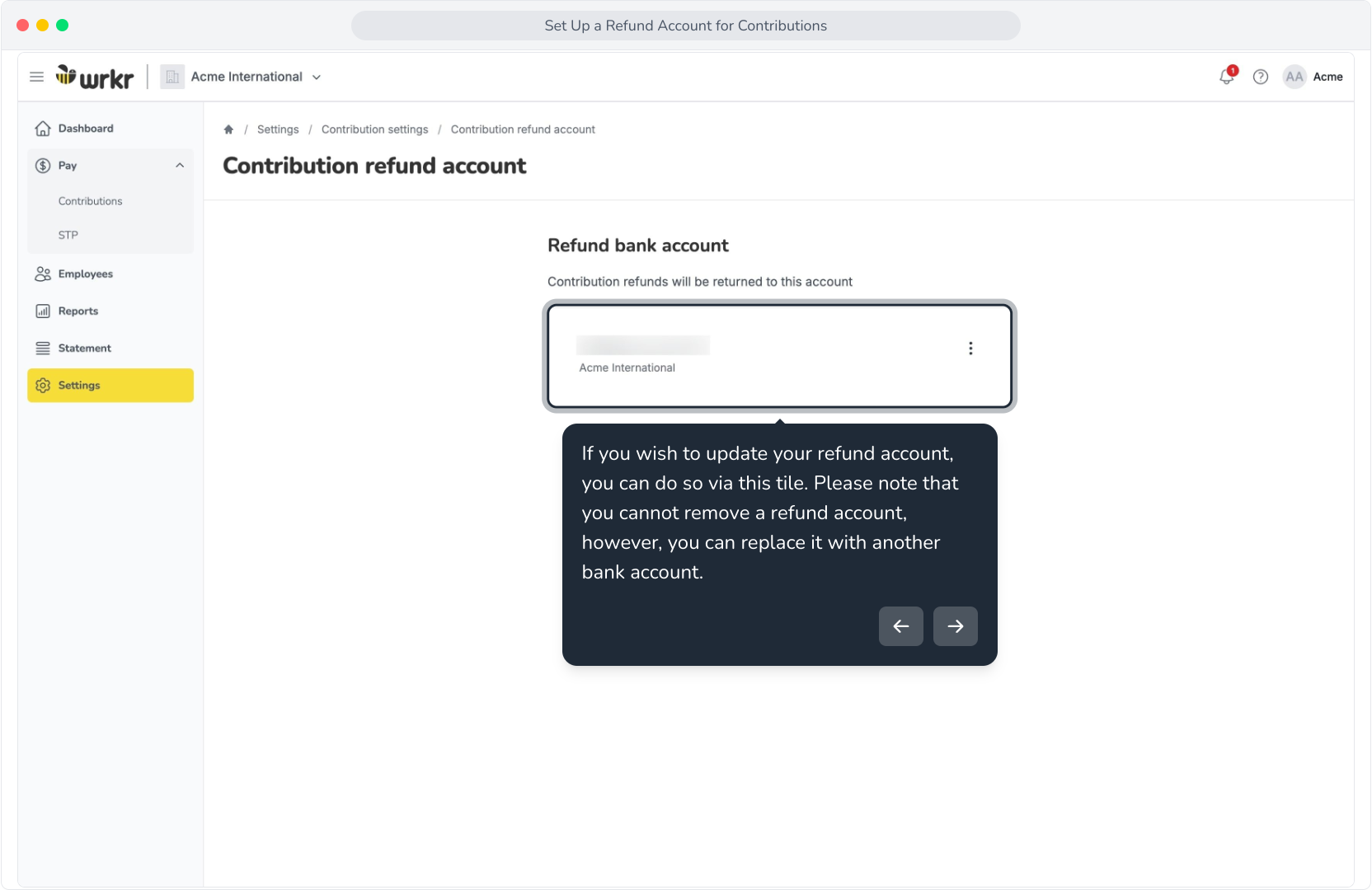
14. To update your refund account, click on the three dot action menu and select Update account.