Context: This guide demonstrates how to invite bookkeepers into your organisations within the Wrkr Portal.
Interactive Demo
Note: Make the demo full-screen for a better experience. You can mute/un-mute narration to suit your preferences.
Step by Step
1. How to Invite Bookkeepers to your Organisation
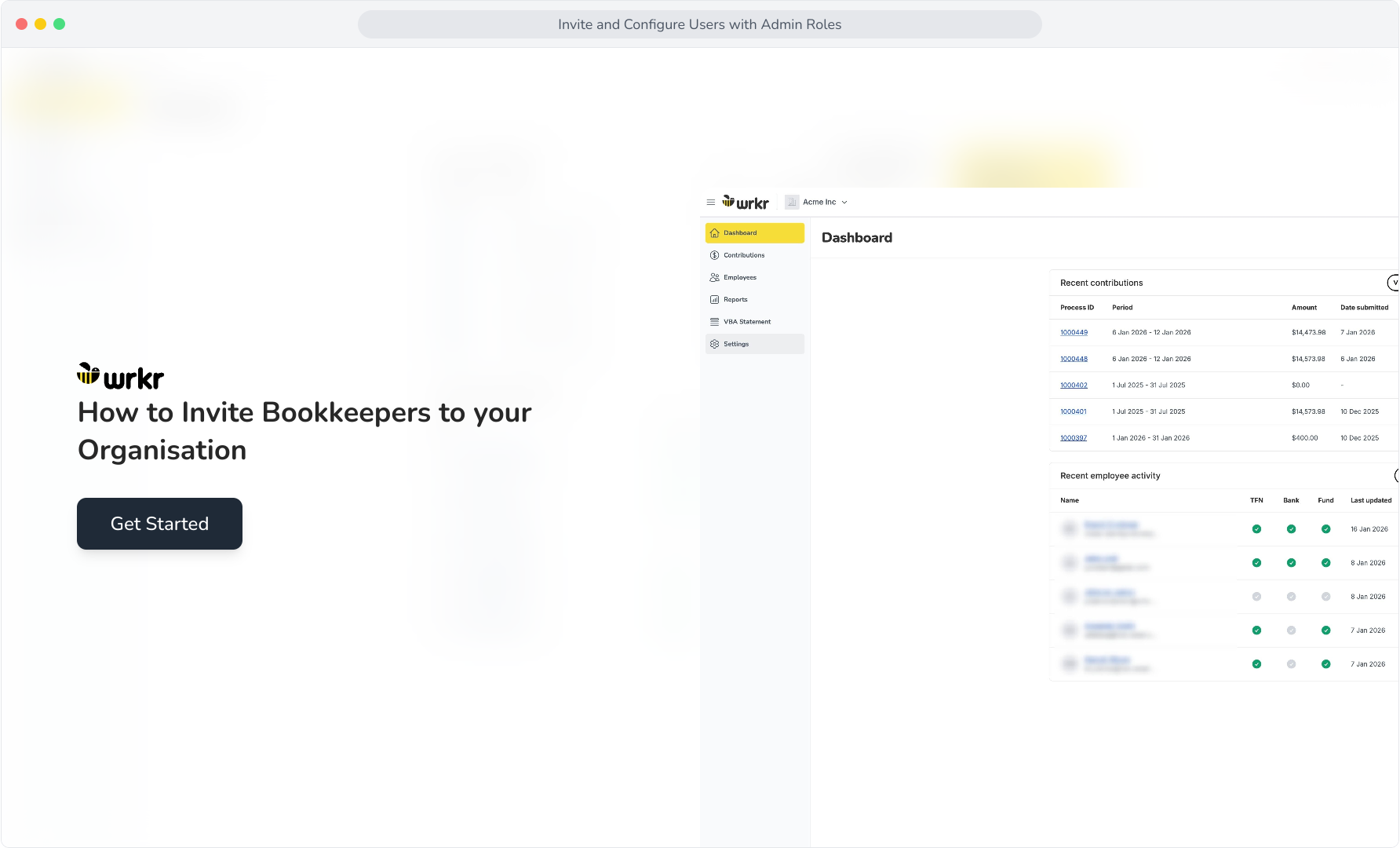
2. To add a bookkeeper to your organisation, first confirm that you are in the org you intend to provision access to.
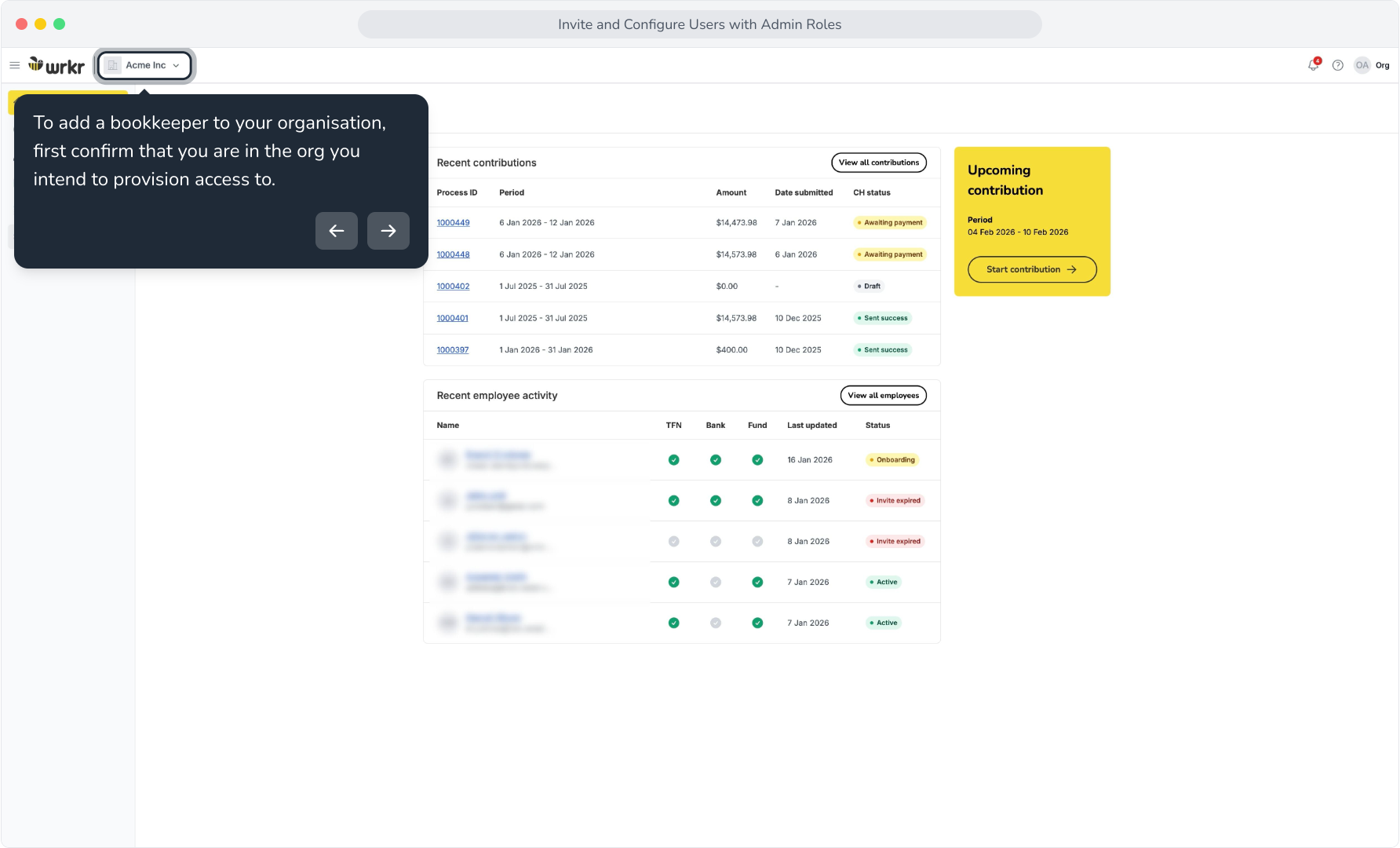
3. Now, navigate to the Settings tab.
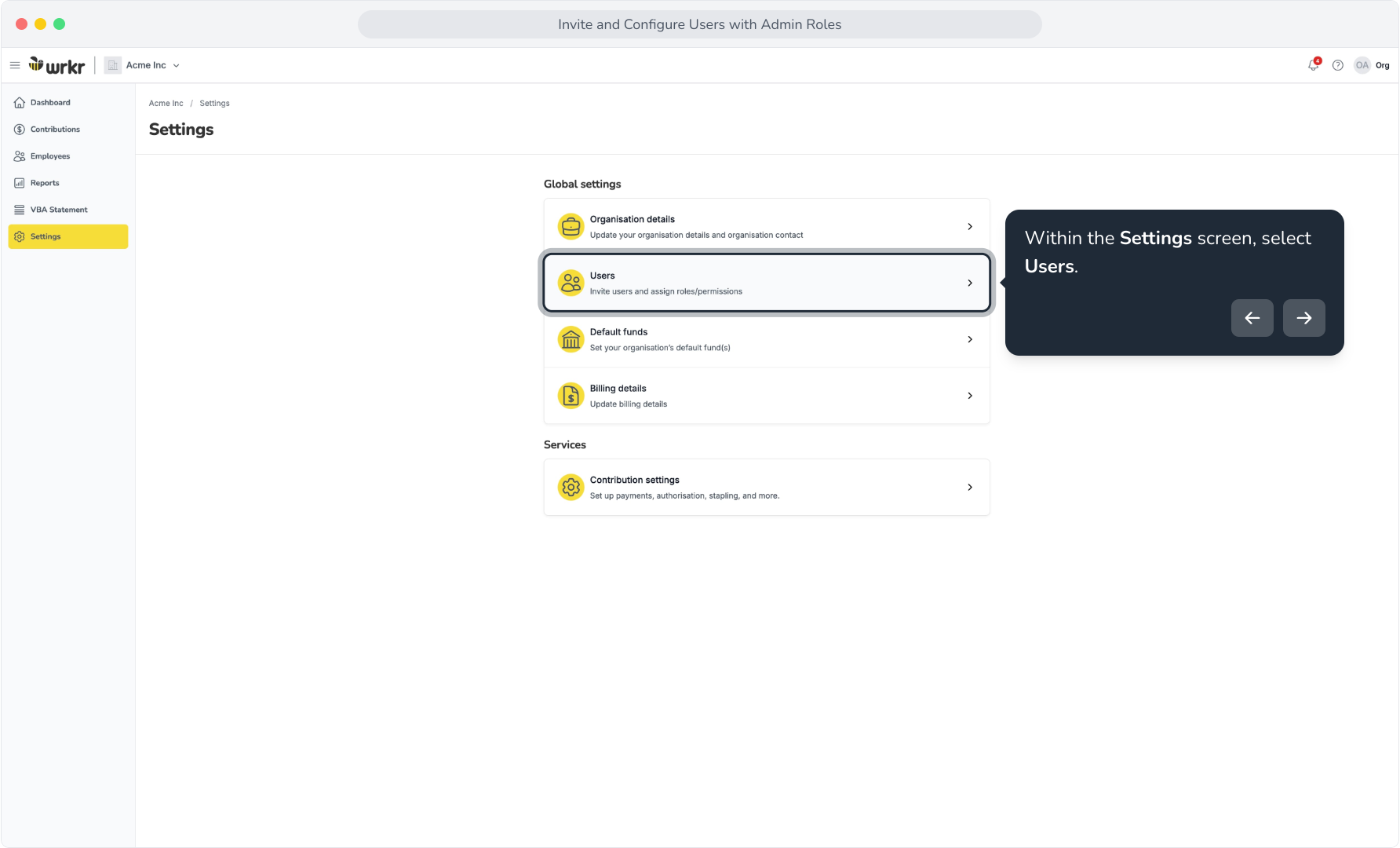
4. Within the Settings screen, select Users.
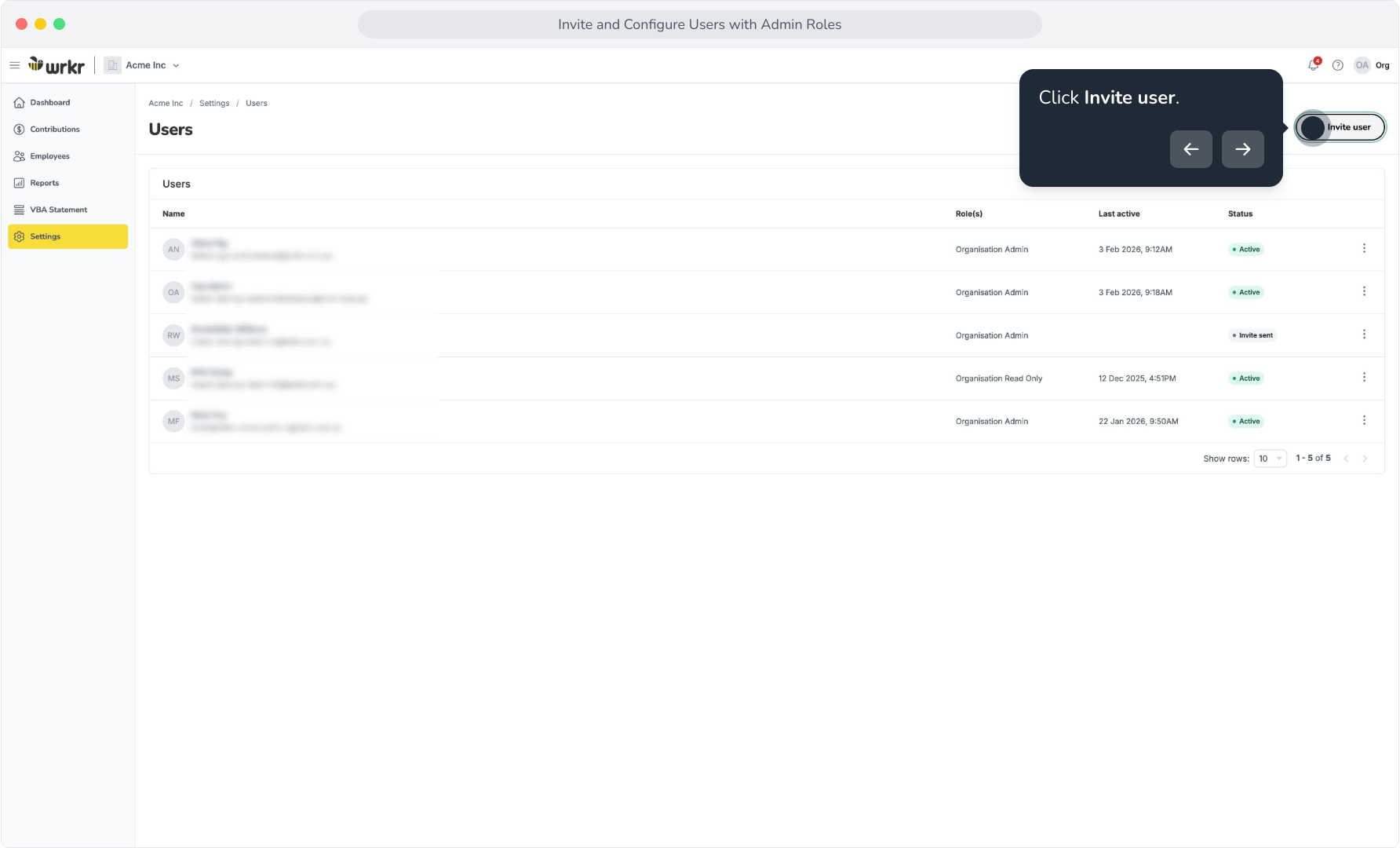
5. Click Invite user.
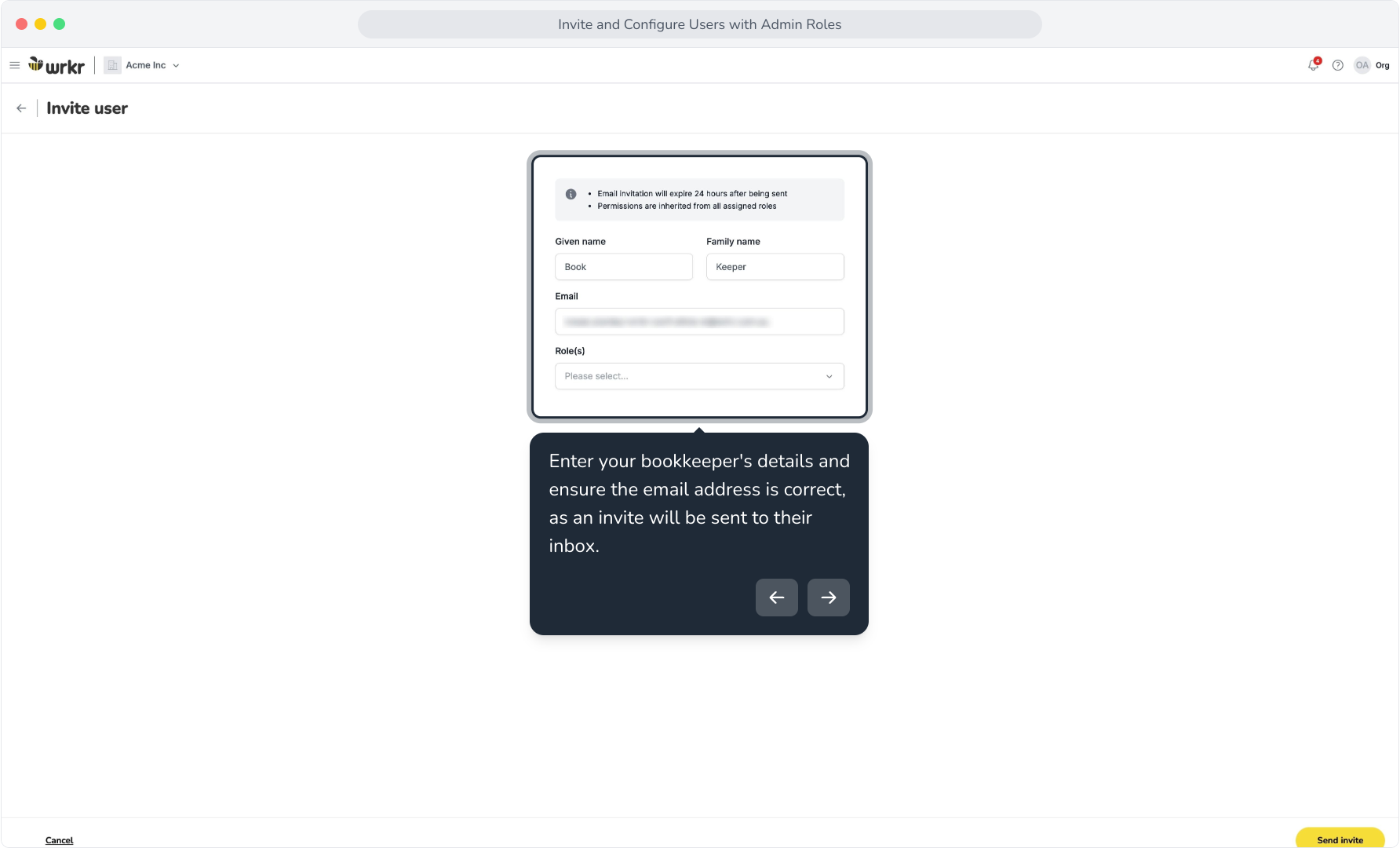
6. Enter your bookkeeper's details and ensure the email address is correct, as an invite will be sent to their inbox.
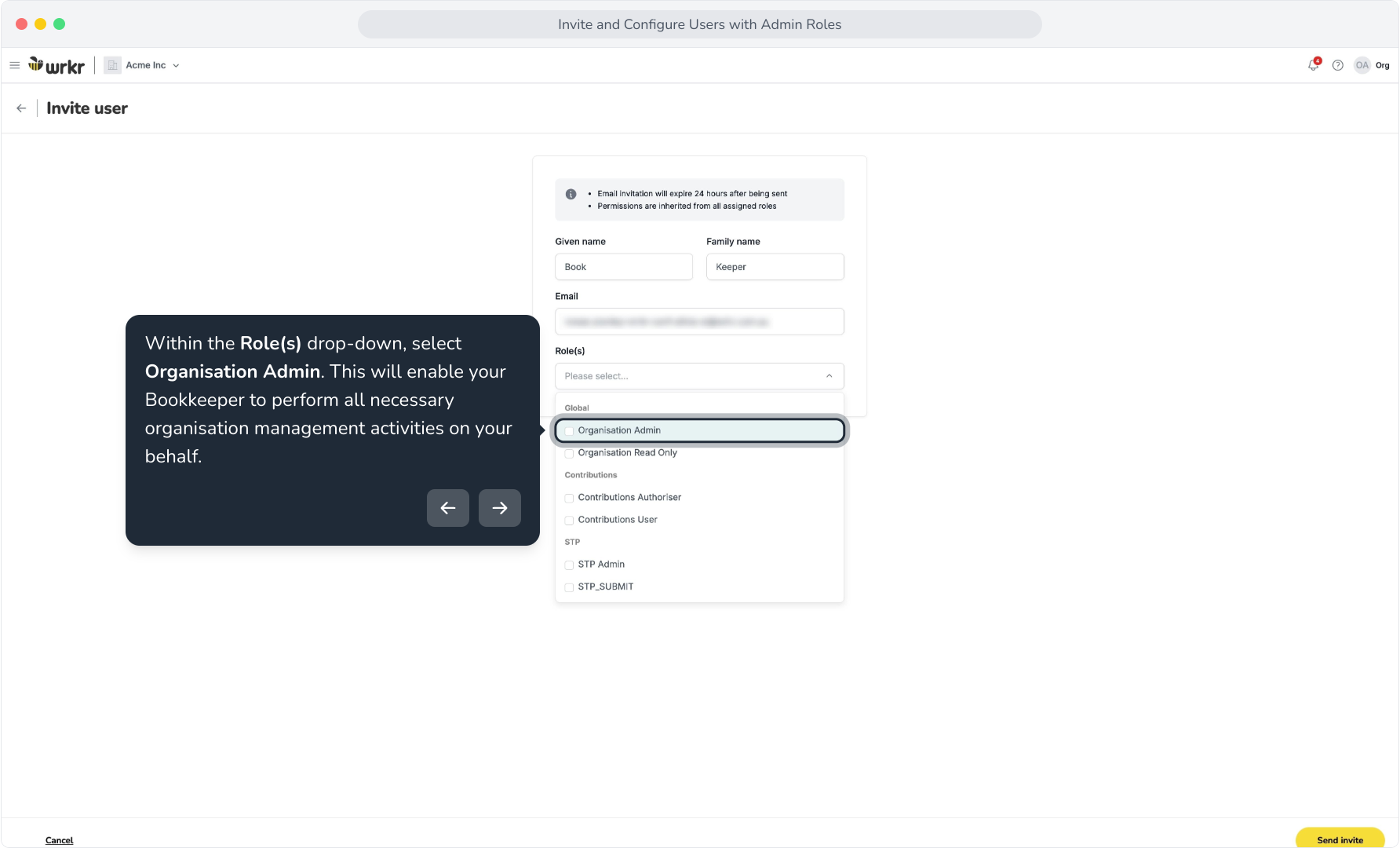
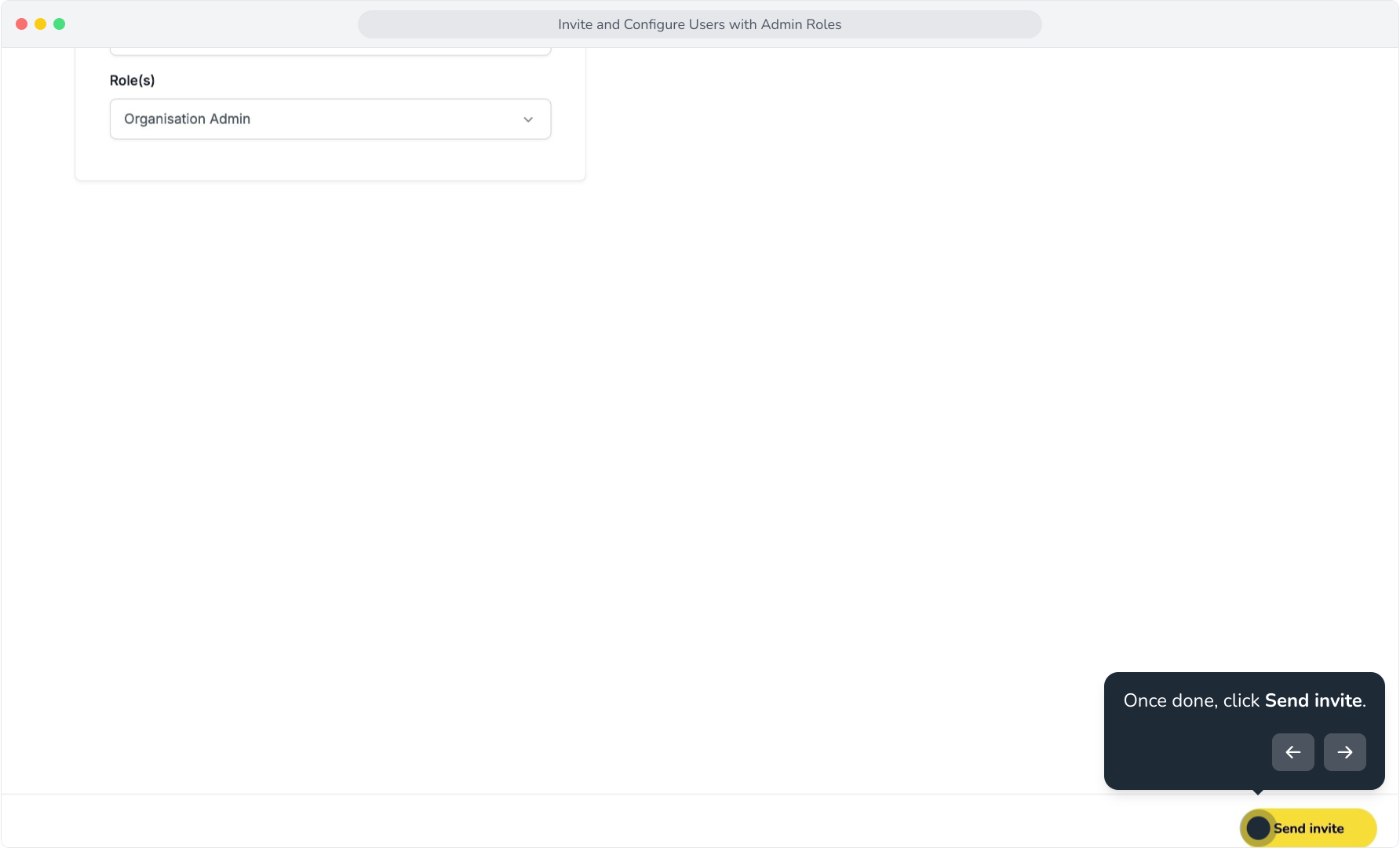
7. Within the Role(s) drop-down, select Organisation Admin. This will enable your Bookkeeper to perform all necessary organisation management activities on your behalf.
8. Once done, click Send invite.
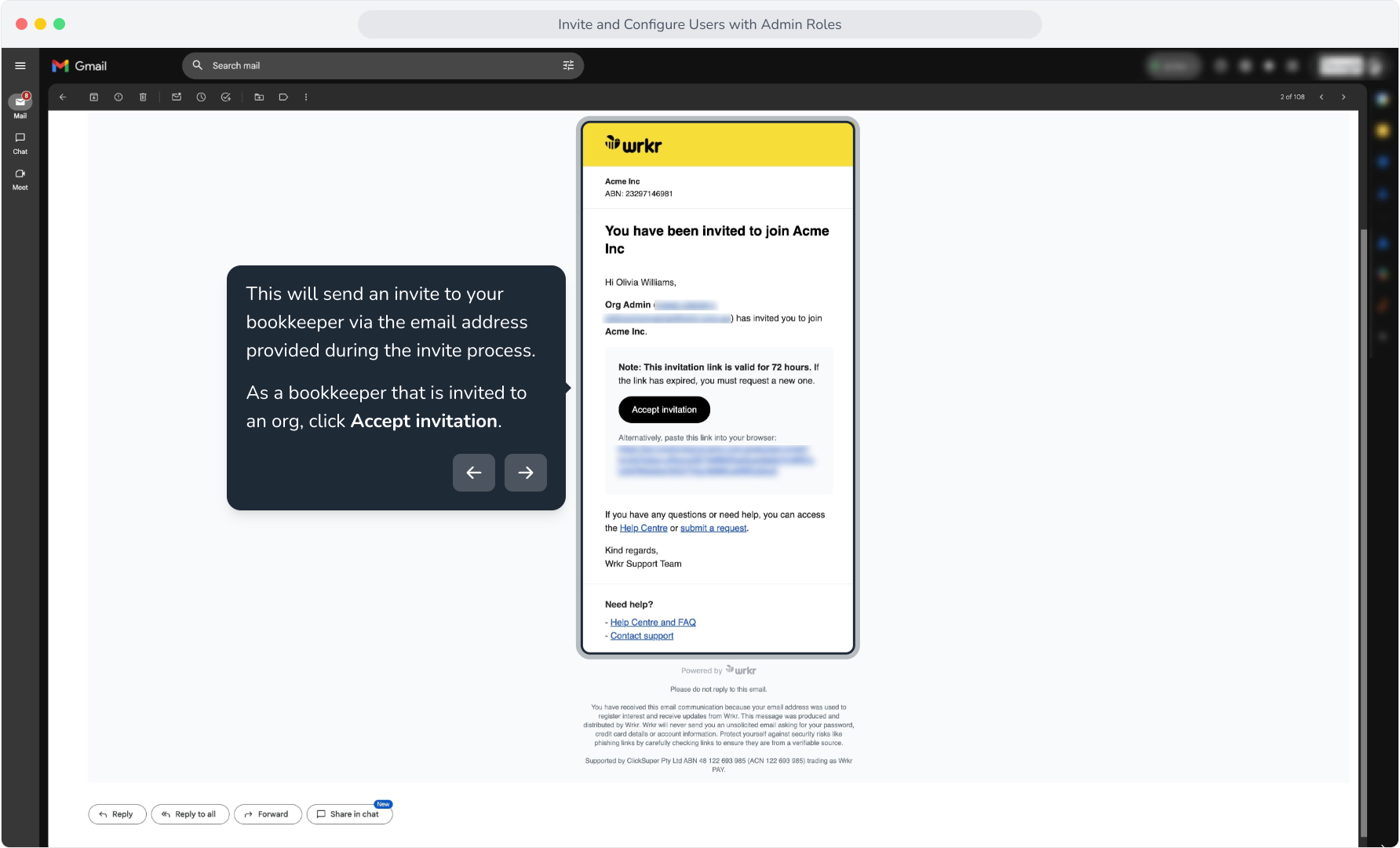
9. This will send an invite to your bookkeeper via the email address provided during the invite process.As a bookkeeper that is invited to an org, click Accept invitation.
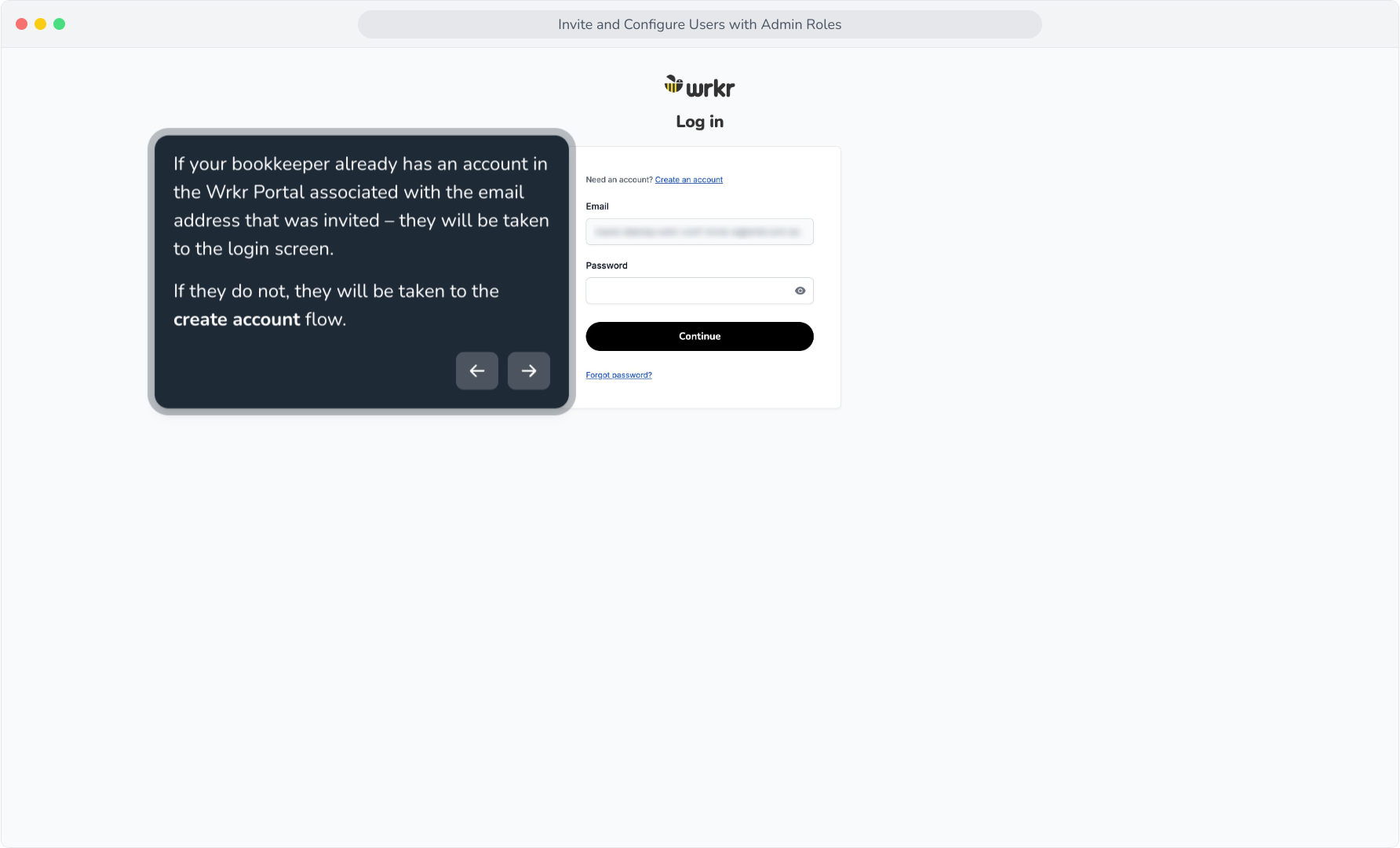
10. If your bookkeeper already has an account in the Wrkr Portal associated with the email address that was invited – they will be taken to the login screen.If they do not, they will be taken to the create account flow.
11. Please Note: If you, as a bookkeeper, wish to have all client orgs associated with one account – please ensure that you provide the same email associated with this account to your customers.
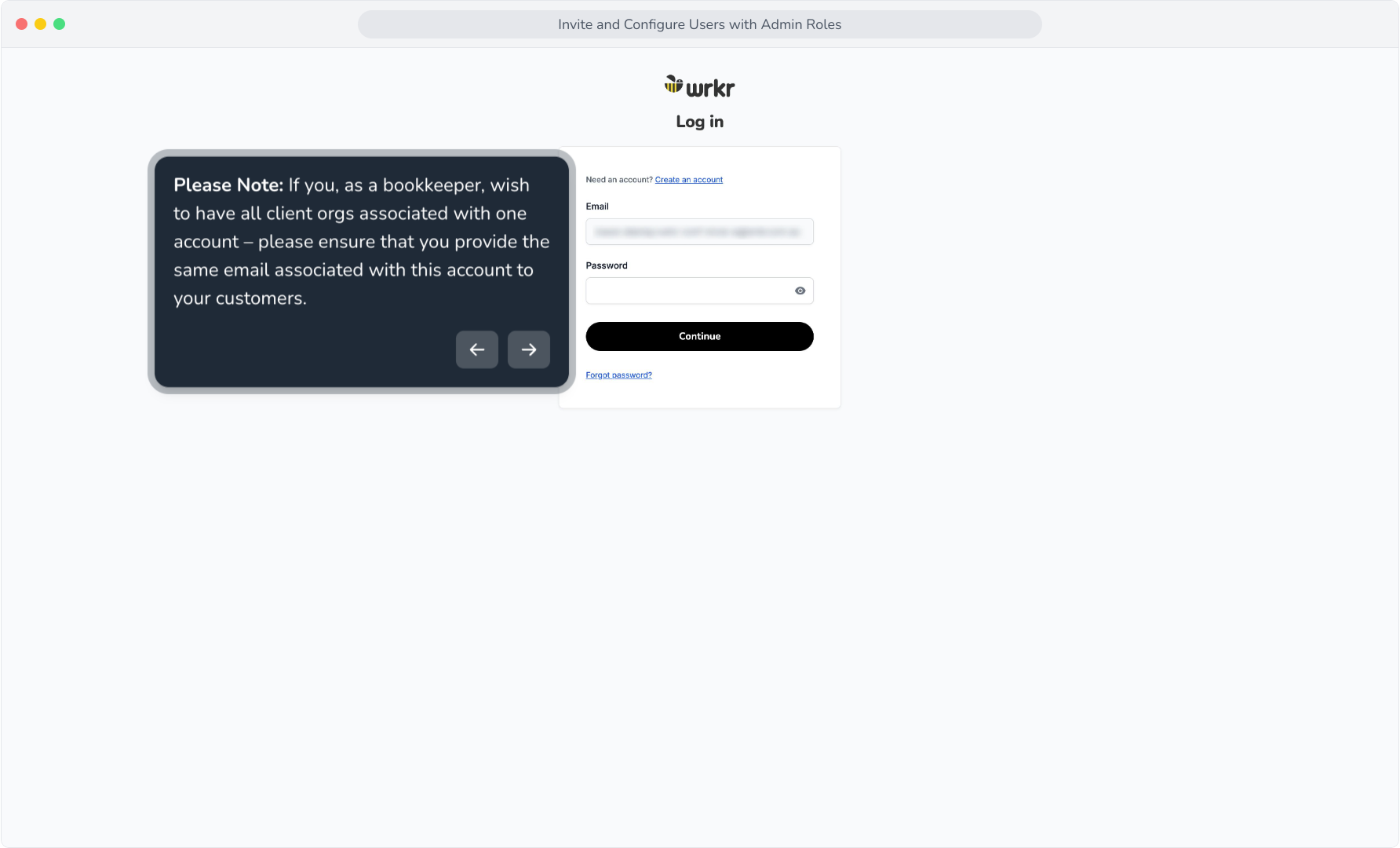
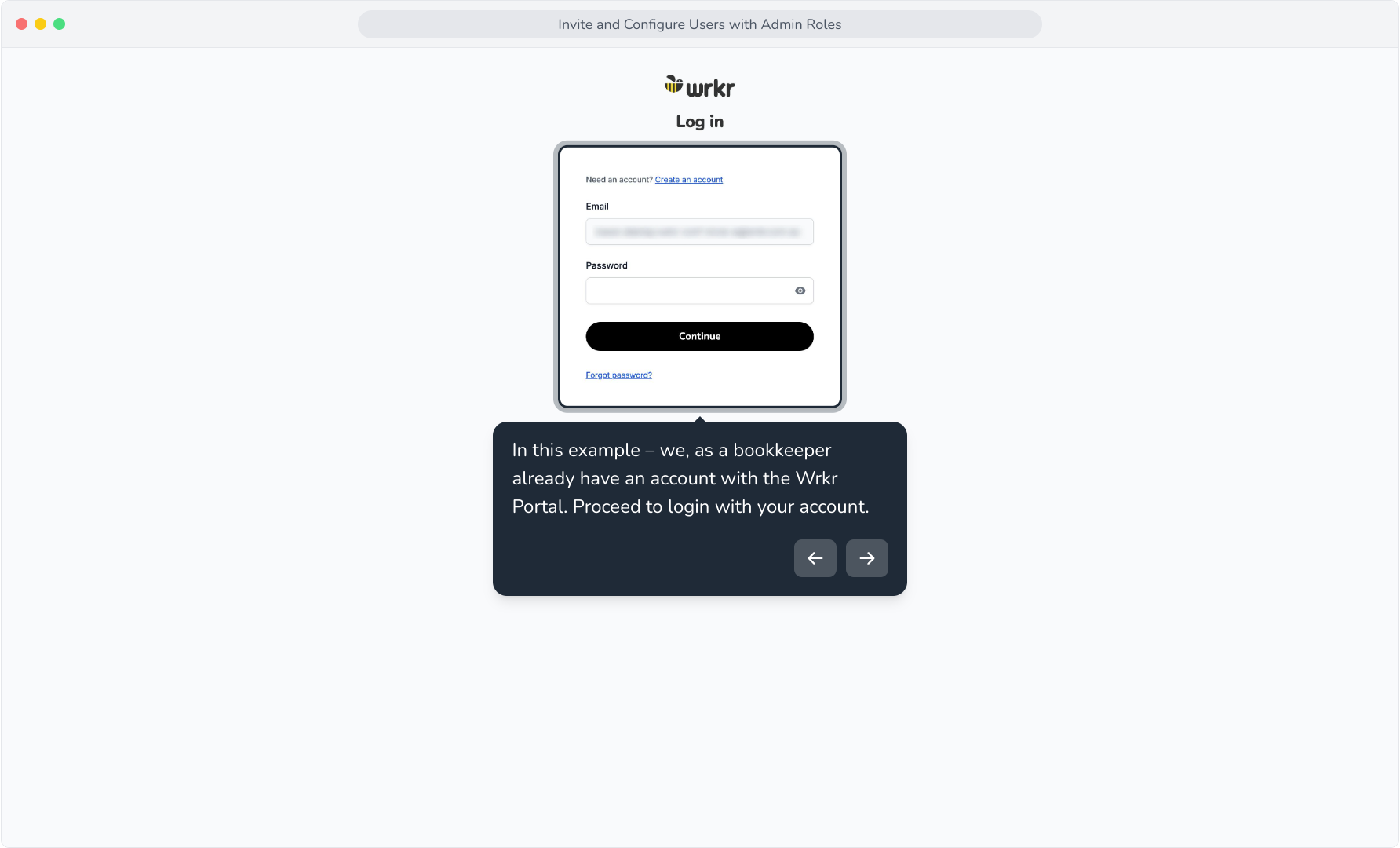
12. In this example – we, as a bookkeeper already have an account with the Wrkr Portal. Proceed to login with your account.
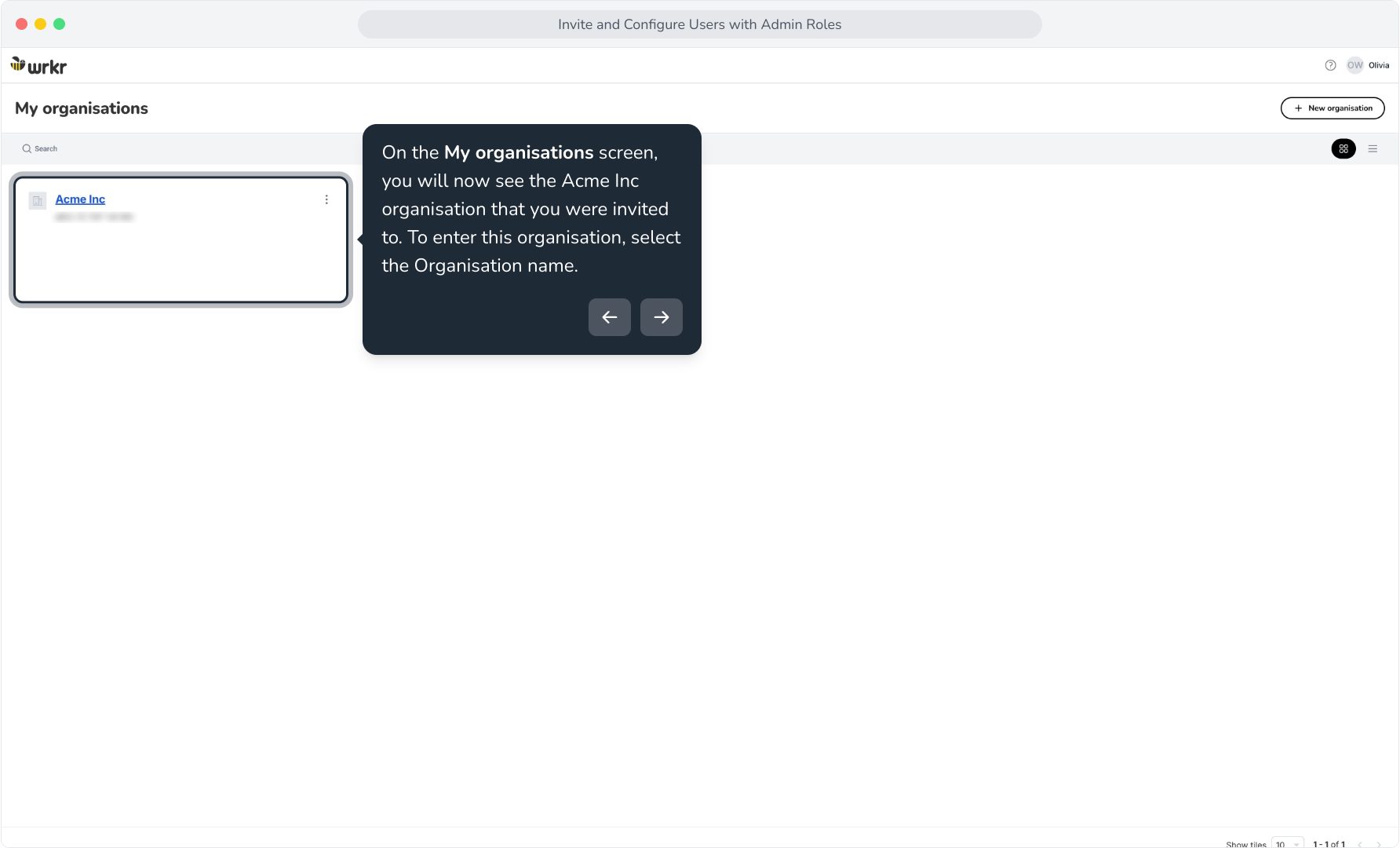
13. On the My organisations screen, you will now see the Acme Inc organisation that you were invited to. To enter this organisation, select the Organisation name.
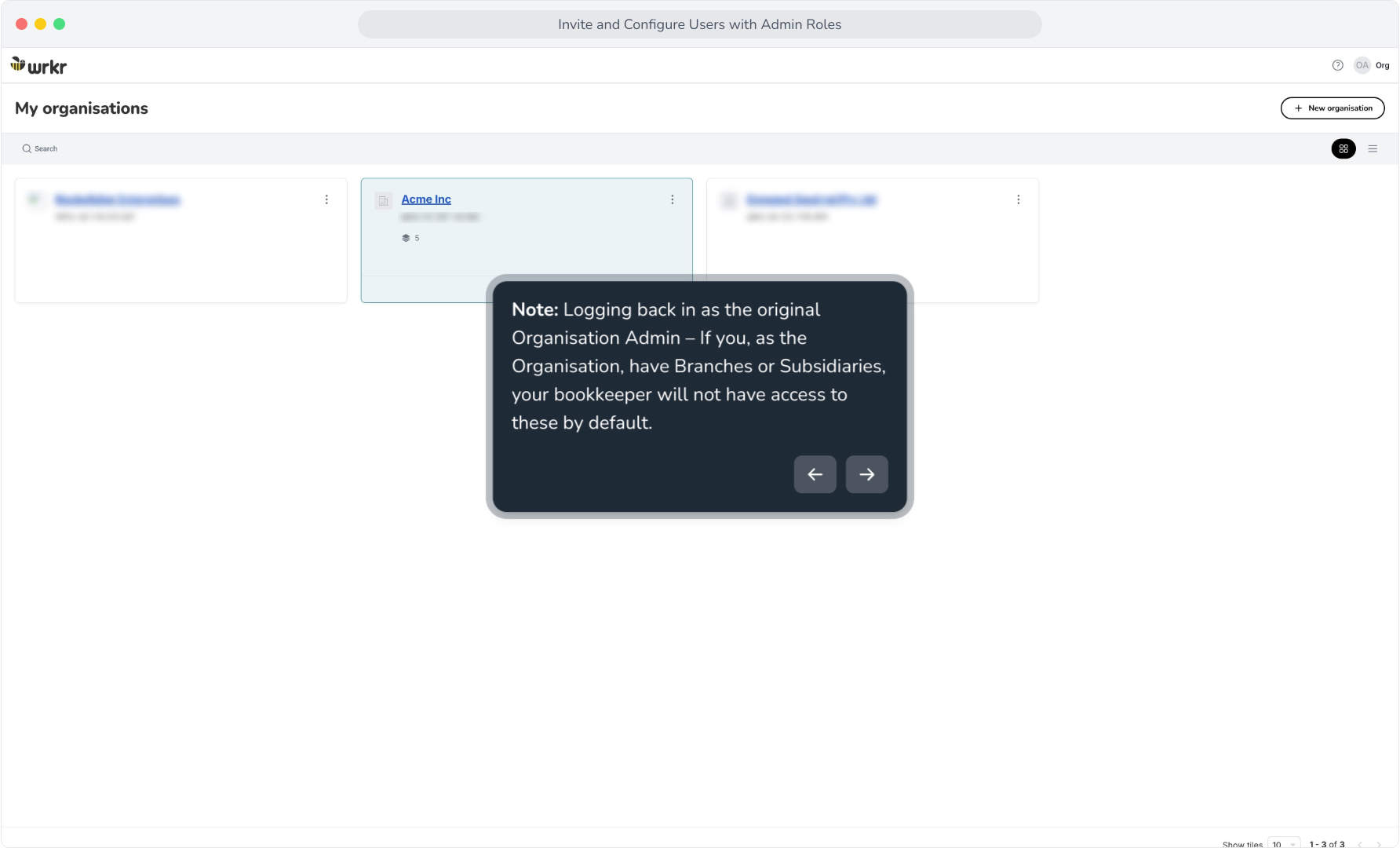
14. Note: Logging back in as the original Organisation Admin – If you, as the Organisation, have Branches or Subsidiaries, your bookkeeper will not have access to these by default.
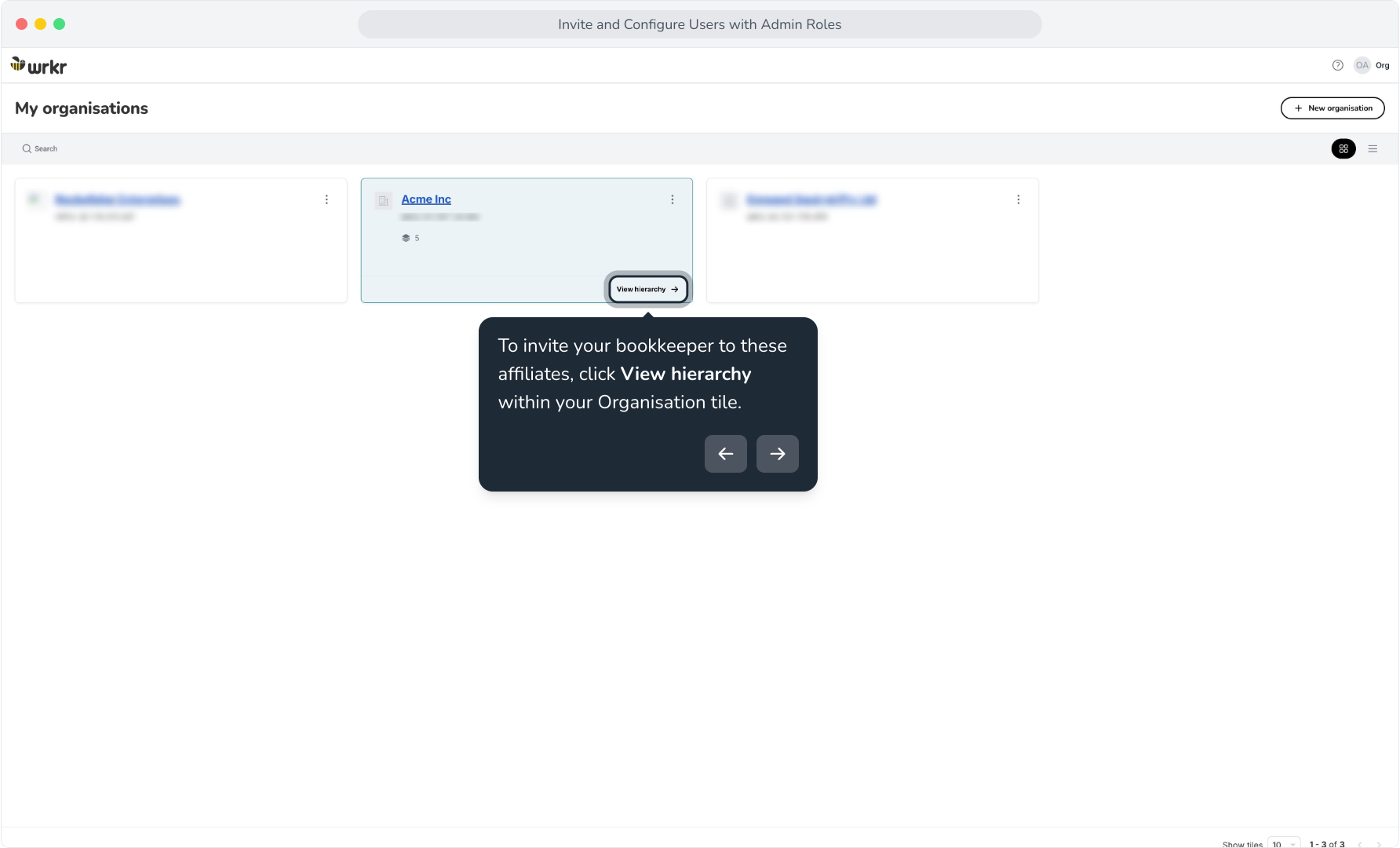
15. To invite your bookkeeper to these affiliates, click View hierarchy within your Organisation tile.
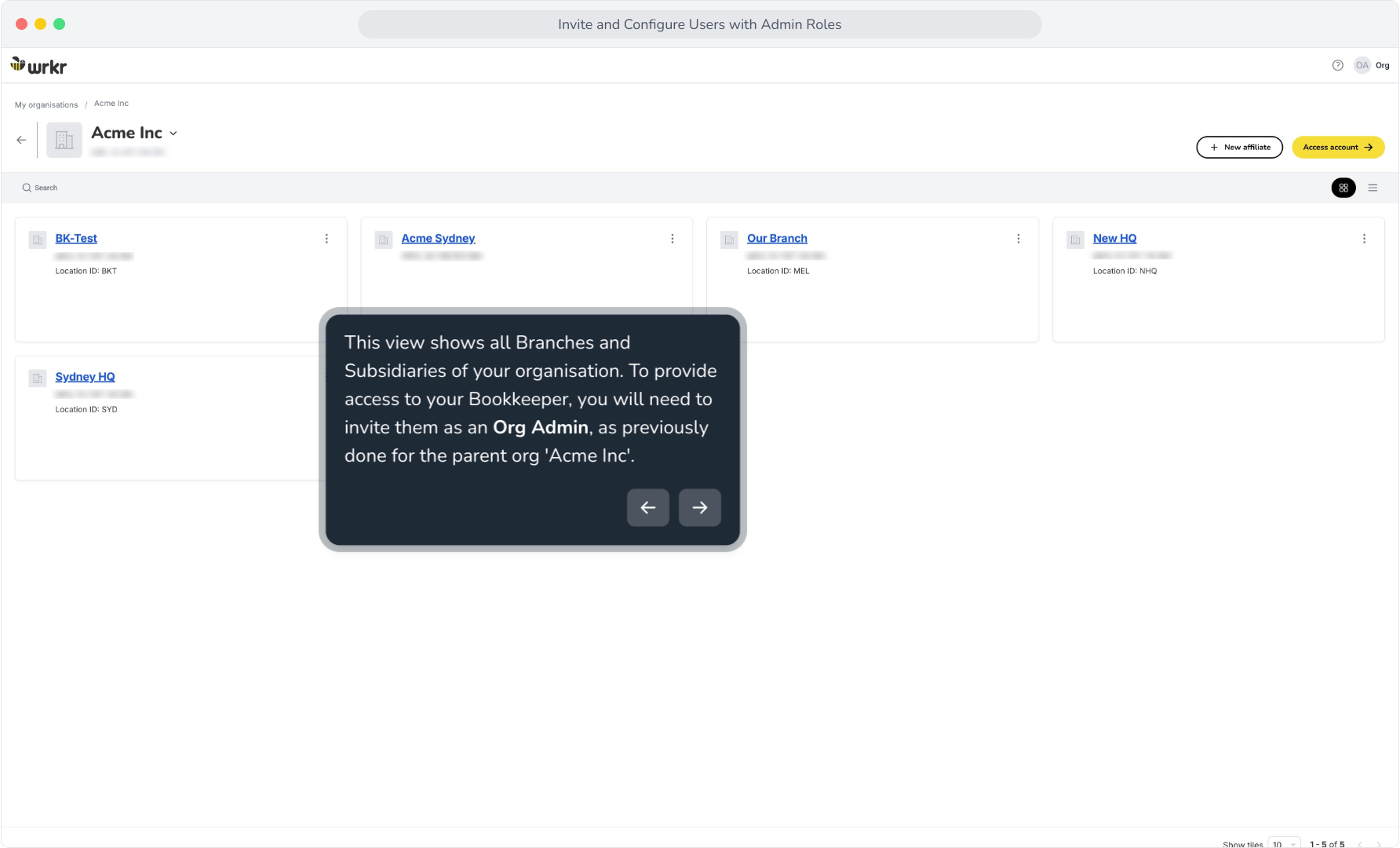
16. This view shows all Branches and Subsidiaries of your organisation. To provide access to your Bookkeeper, you will need to invite them as an Org Admin, as previously done for the parent org 'Acme Inc'.
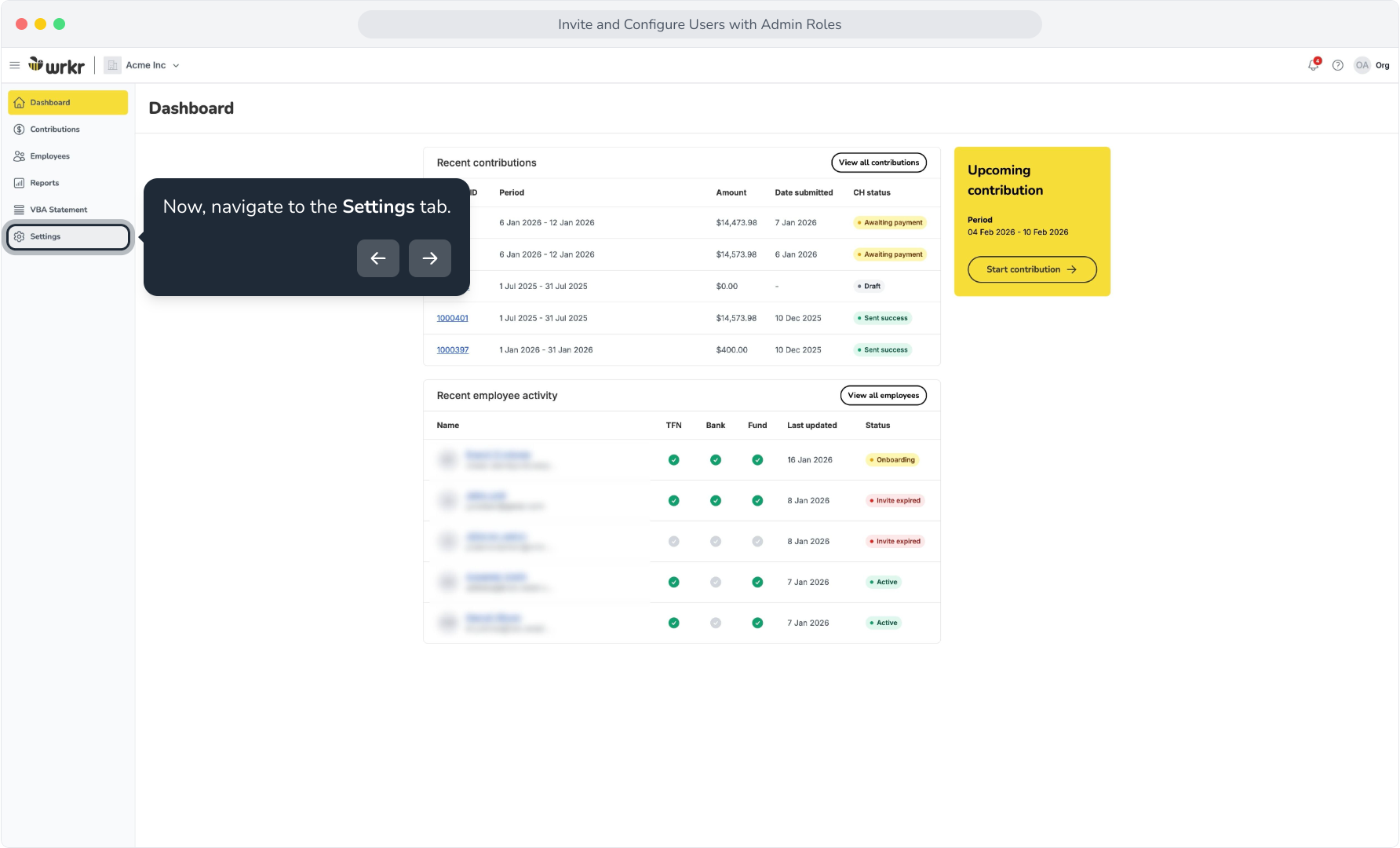
17. Logging back in as the bookkeeper, subsidiaries and branches will be visible to you once you have accepted the subsequent invites from the employer. To view these, click View hierarchy.