Context: This guide covers the ability to add and manage users and their roles within your organisation.
Help: Looking to onboard employees instead? Here are your options.
Interactive Demo
Note: Make the demo full-screen for a better experience. You can mute/un-mute narration to suit your preferences.
Step by Step
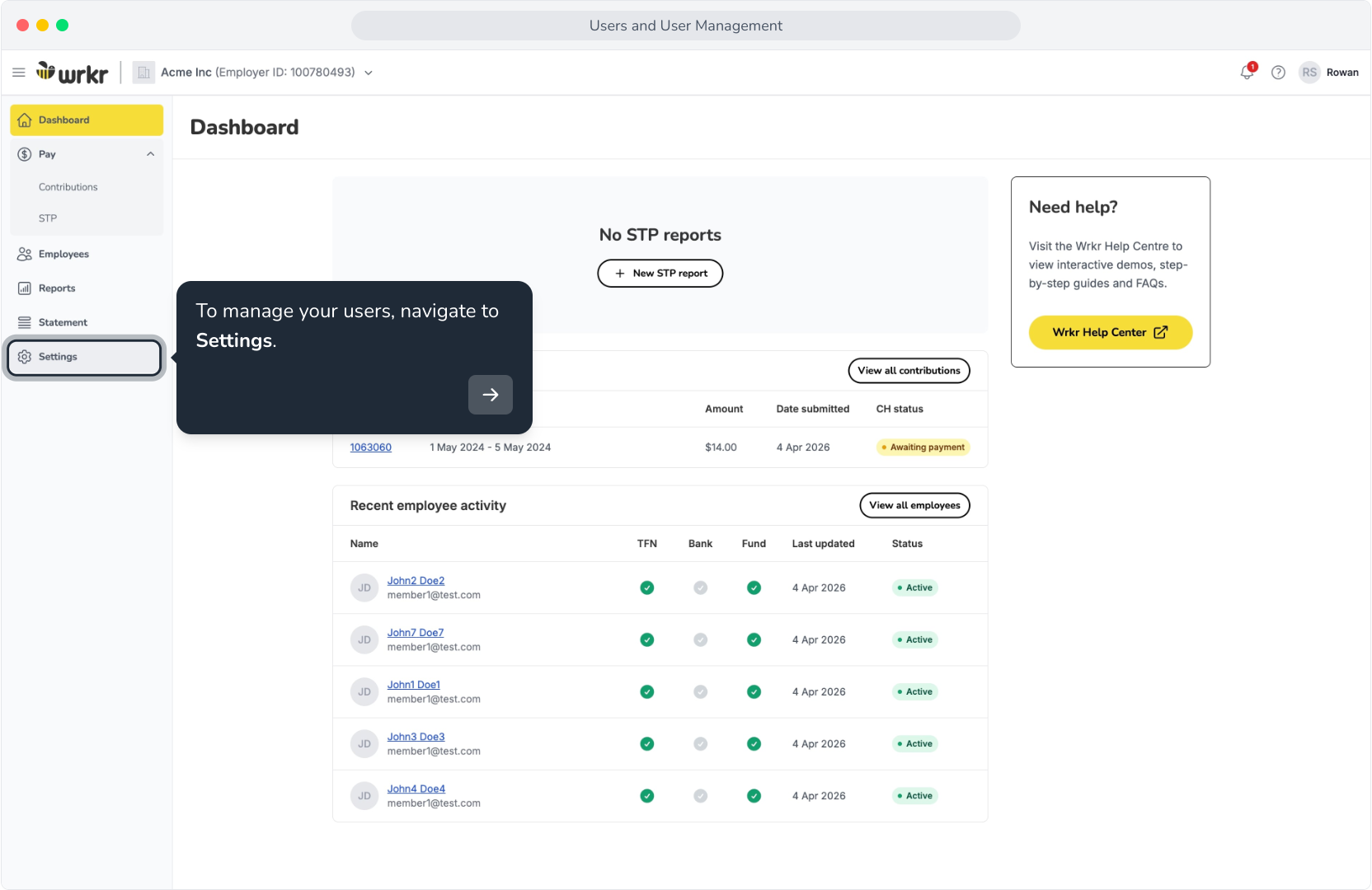
1. To manage your users, navigate to Settings.
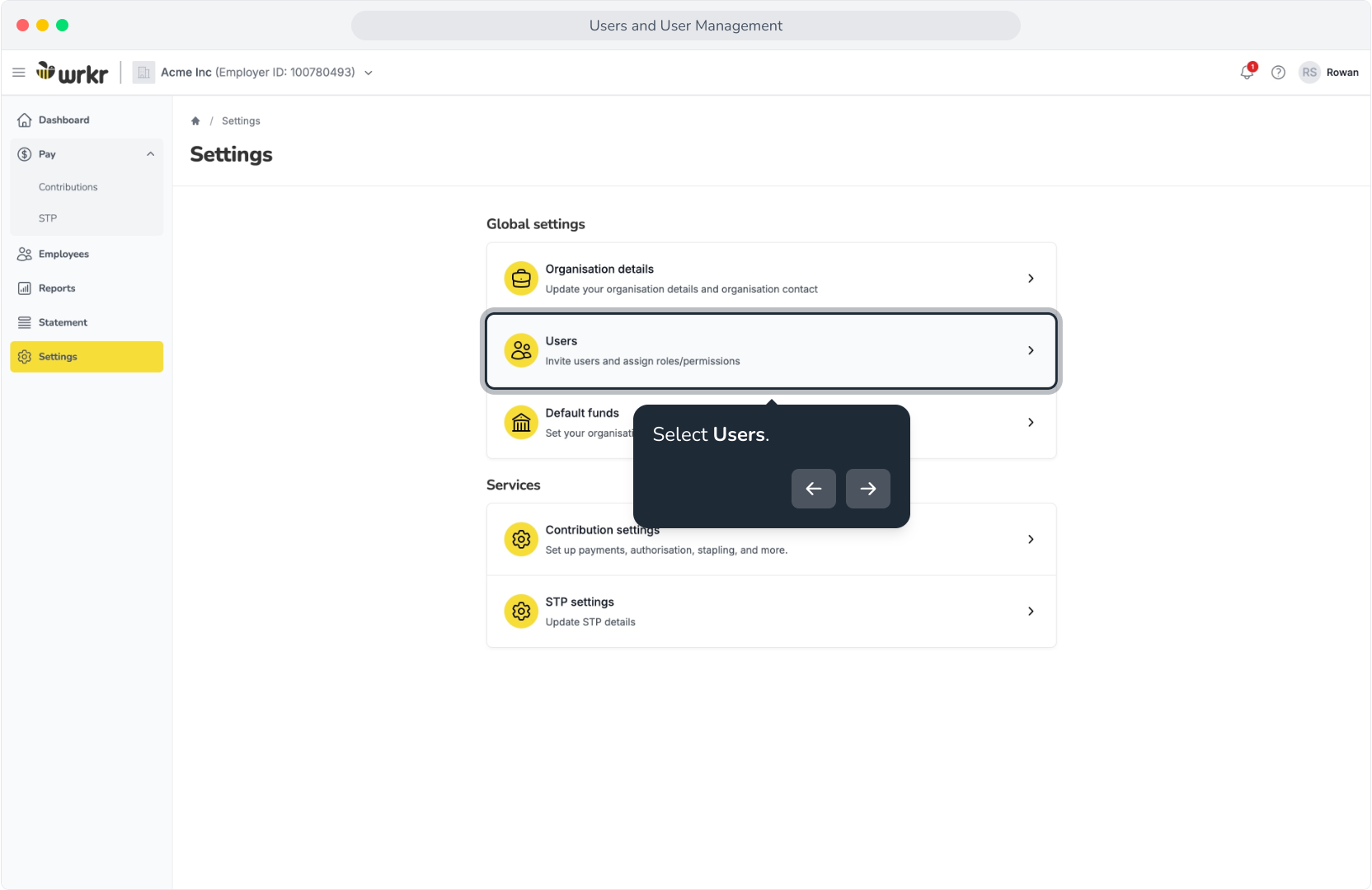
2. Select Users.
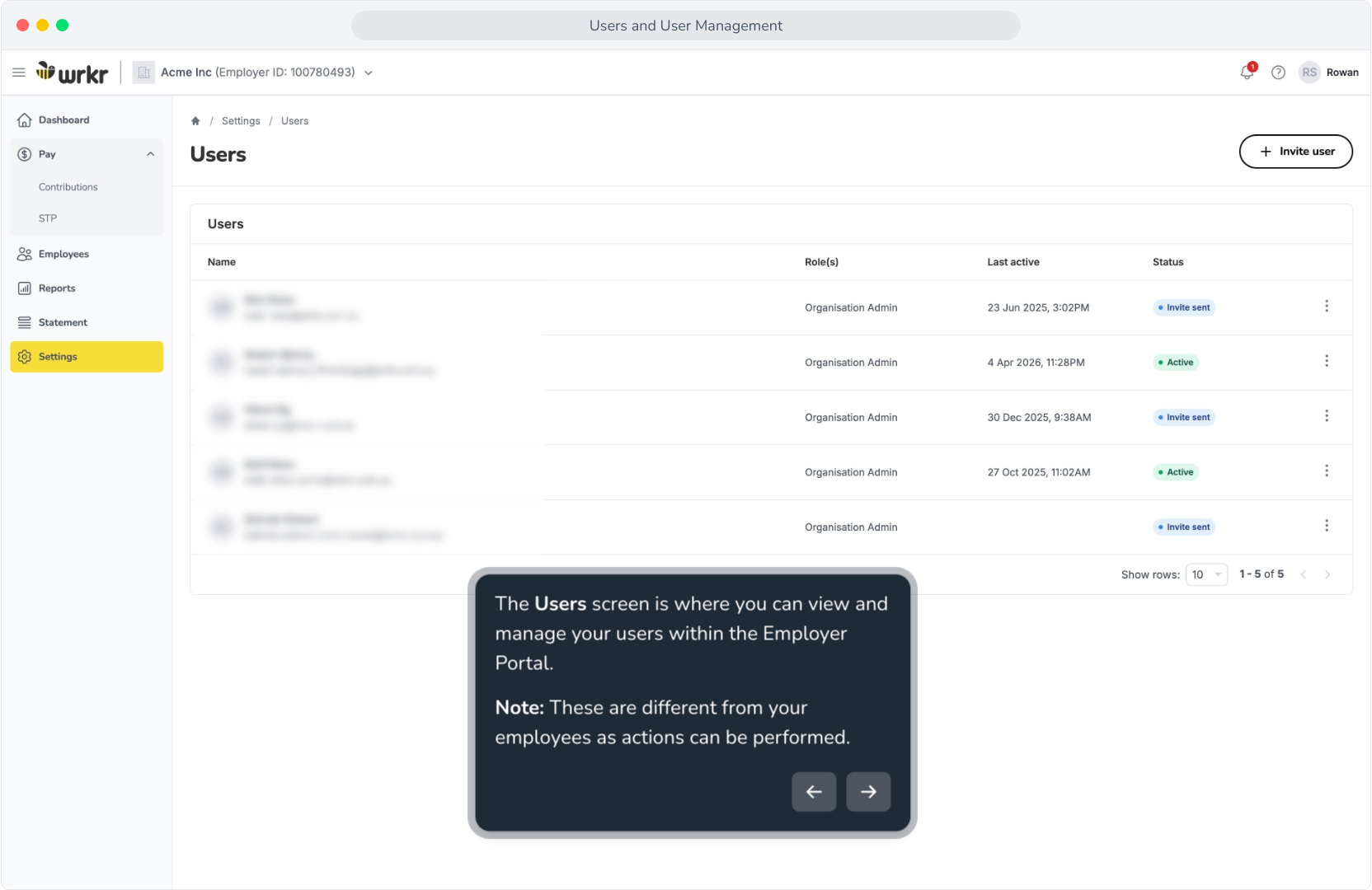
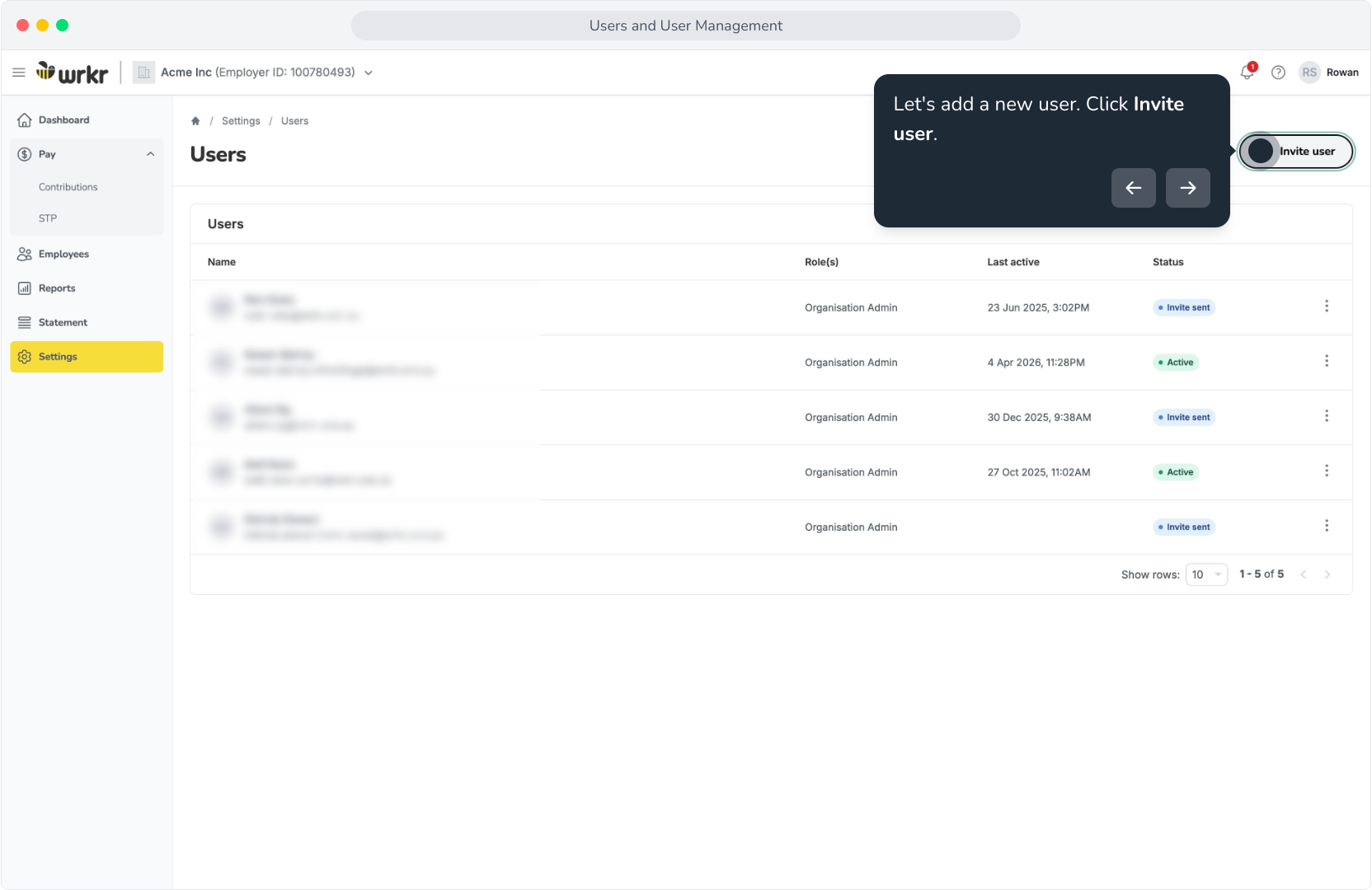
3. The Users screen is where you can view and manage your users within the Employer Portal.Note: These are different from your employees as actions can be performed.
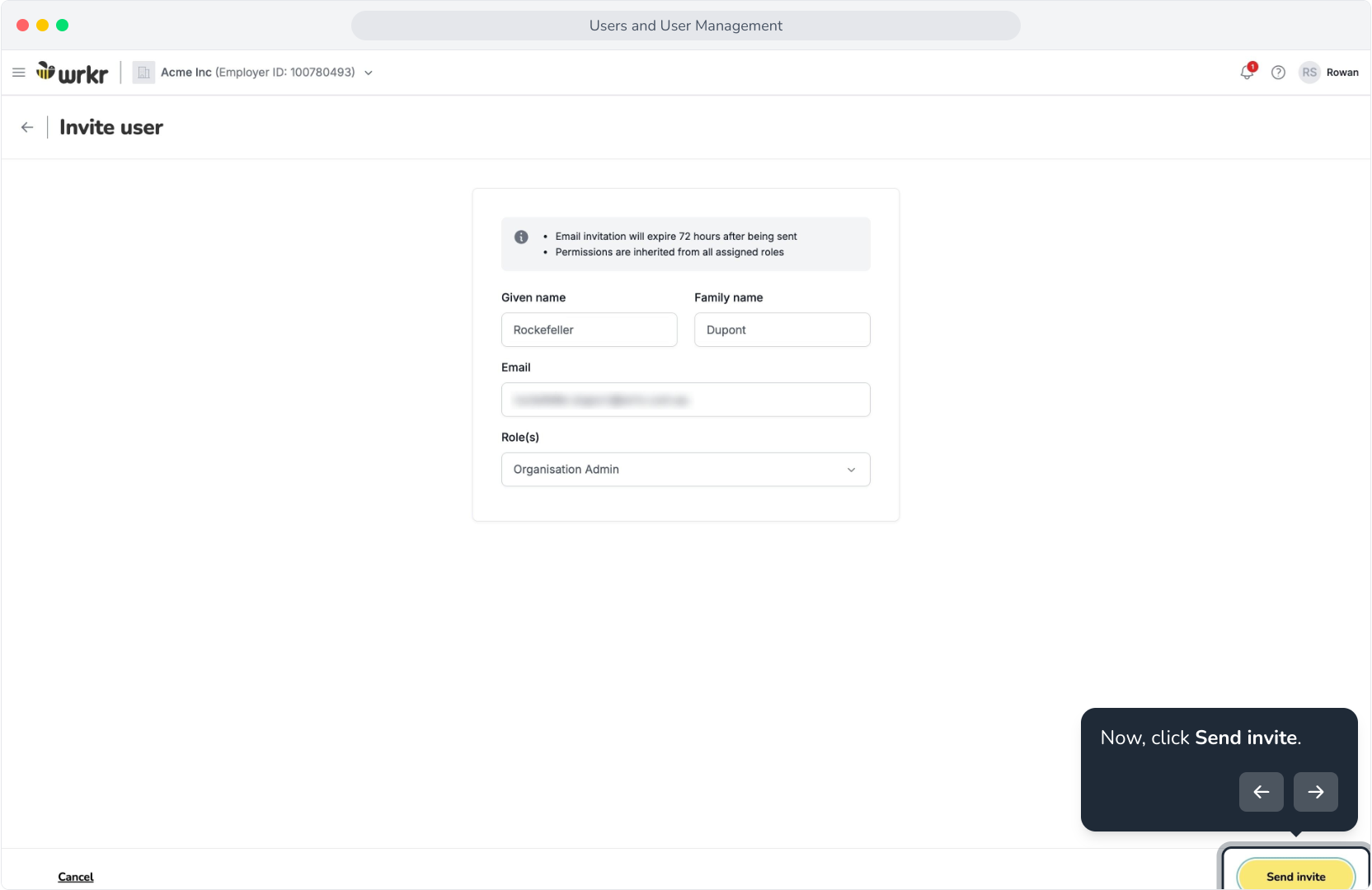
4. Let's add a new user. Click Invite user.
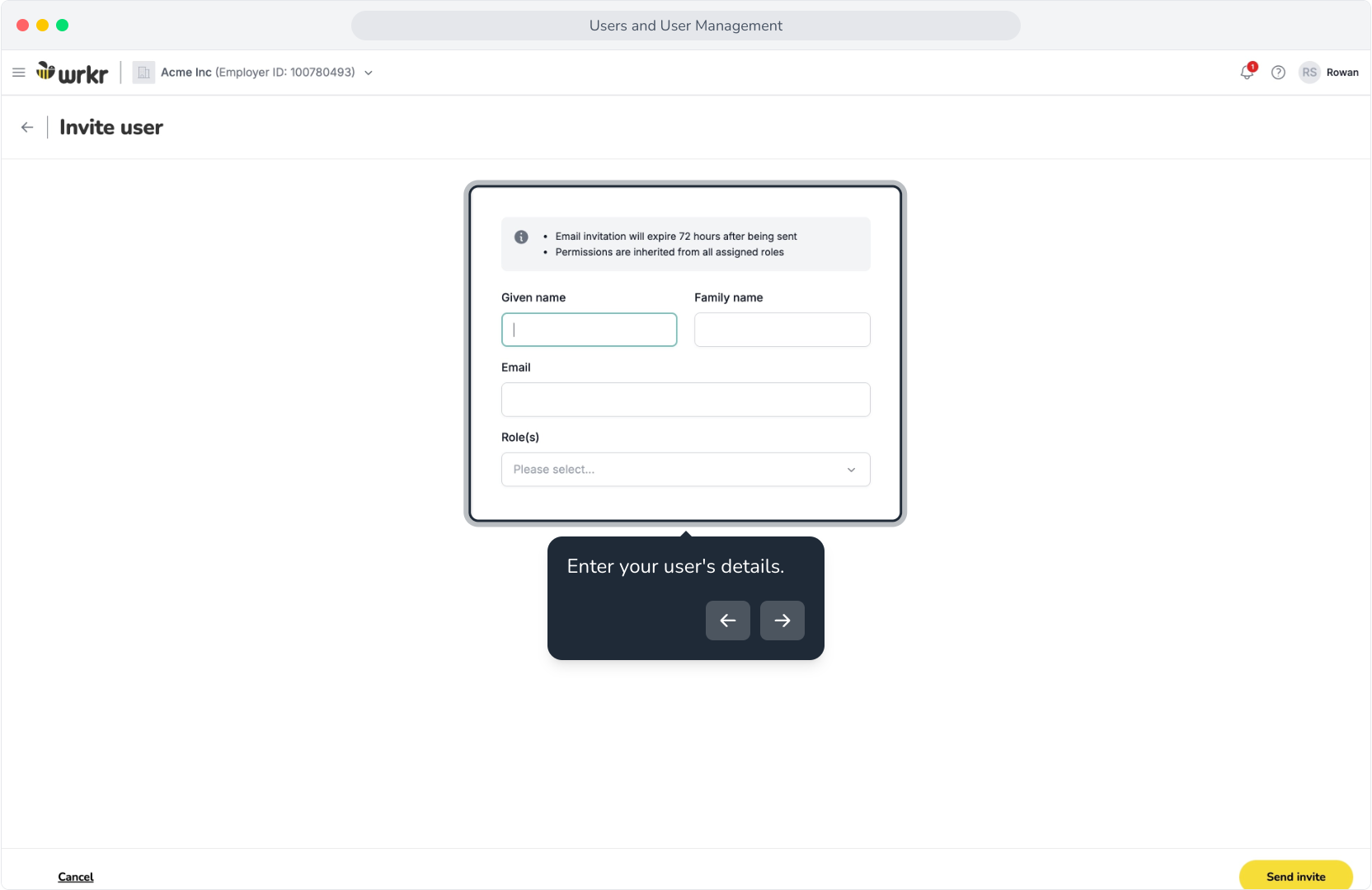
5. Enter your user's details.
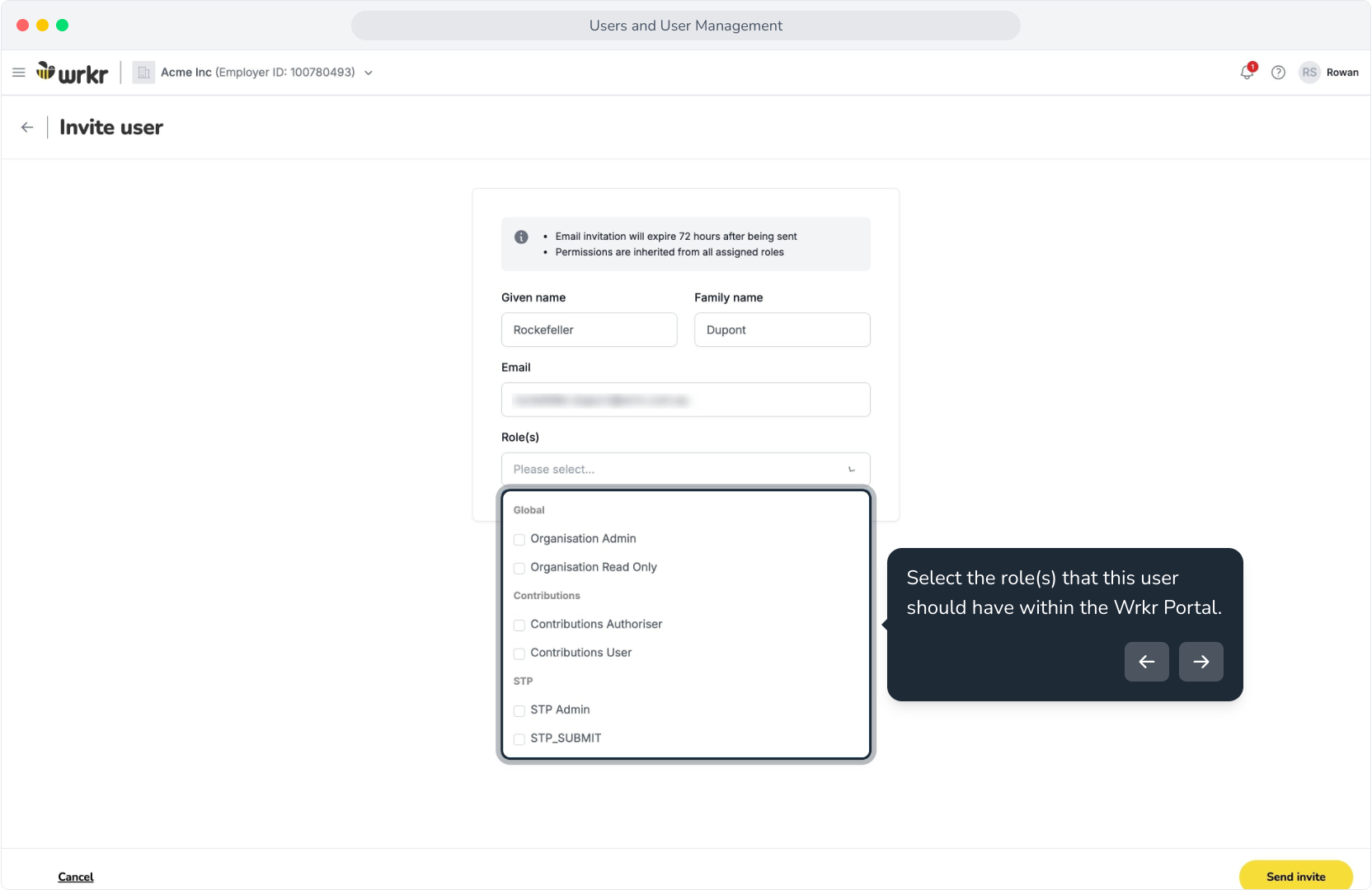
6. Select the role(s) that this user should have within the Wrkr Portal.
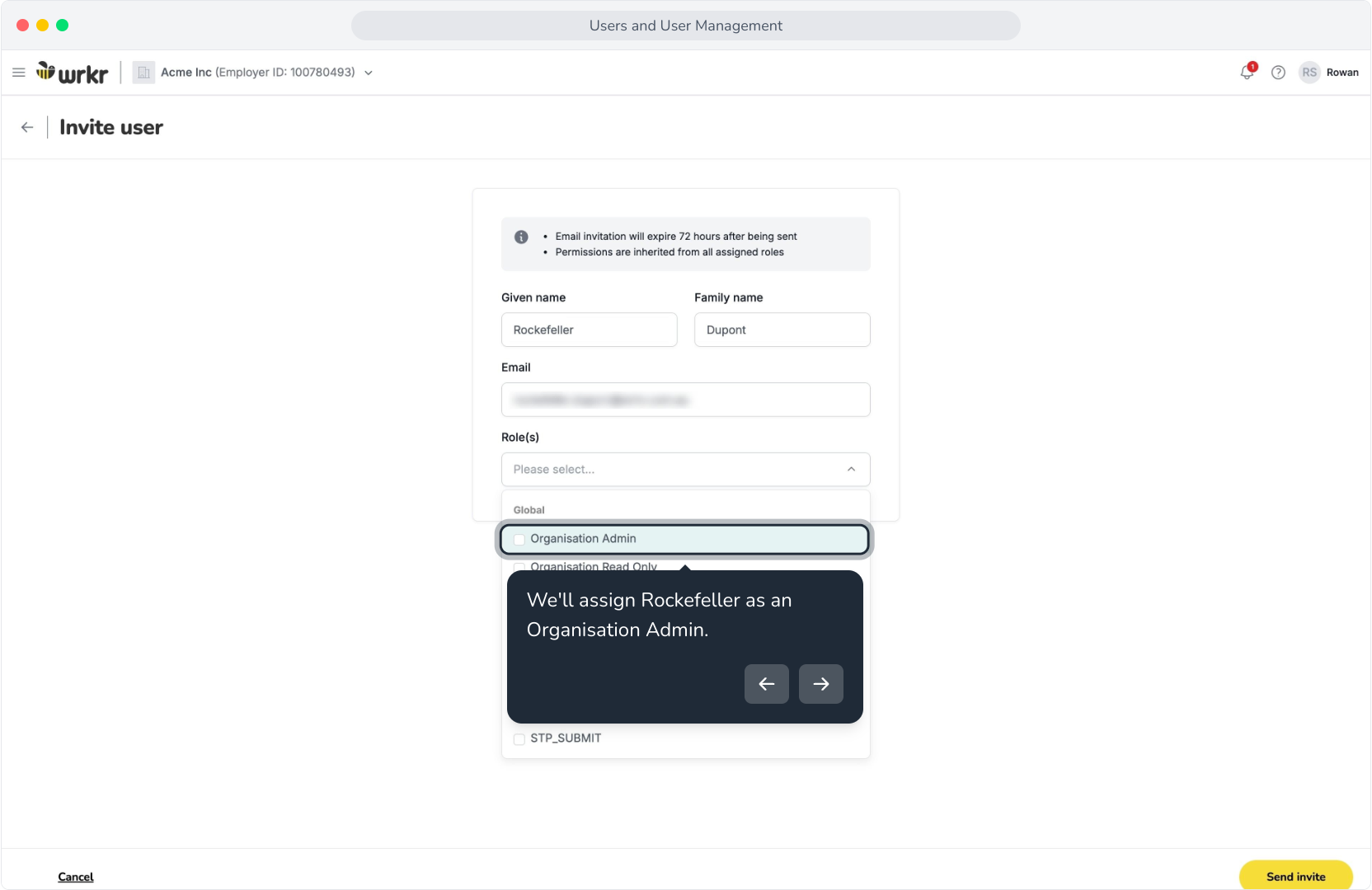
7. We'll assign Rockefeller as an Organisation Admin.
8. Now, click Send invite.
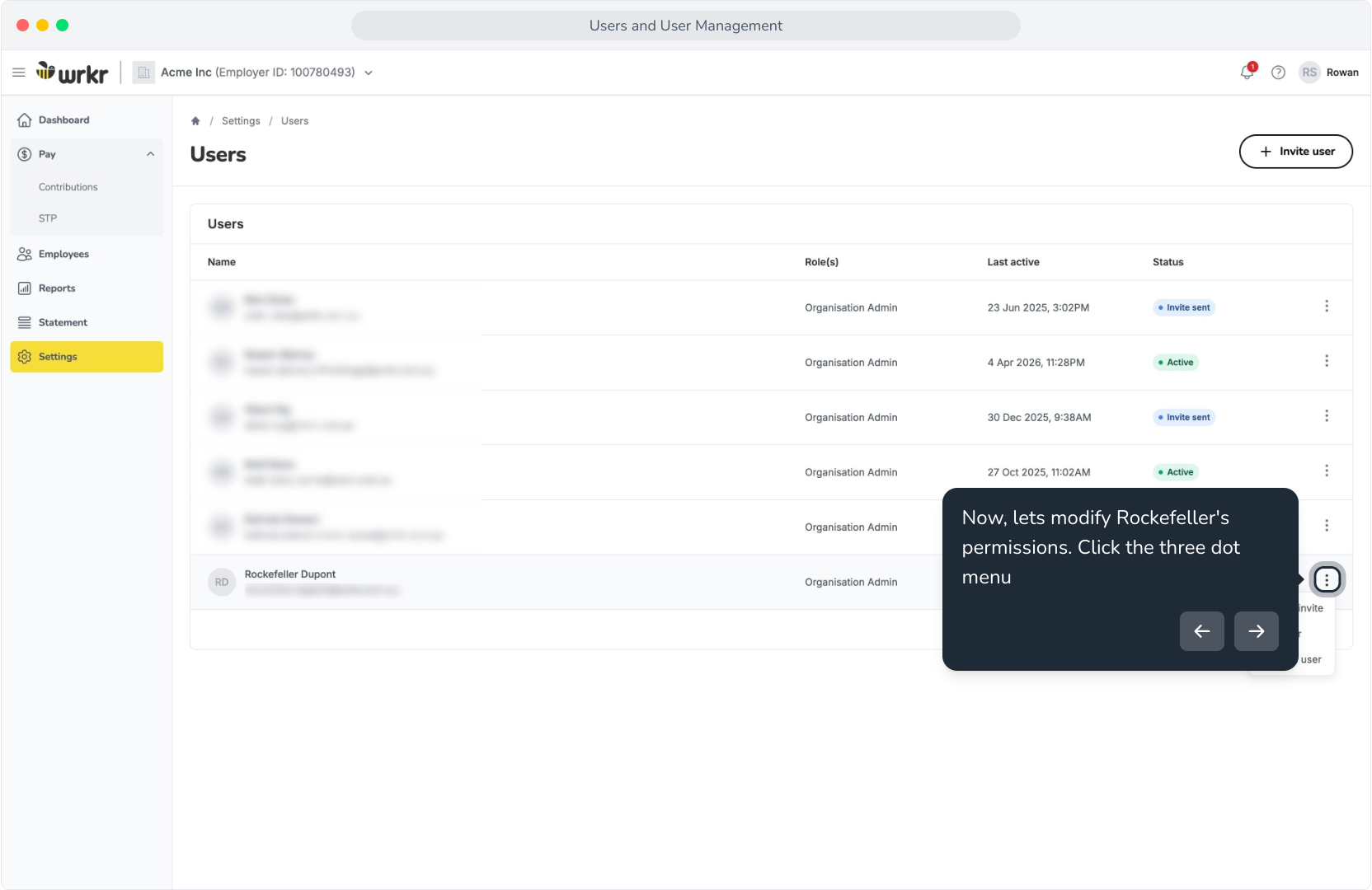
9. Now, lets modify Rockefeller's permissions. Click the three dot menu
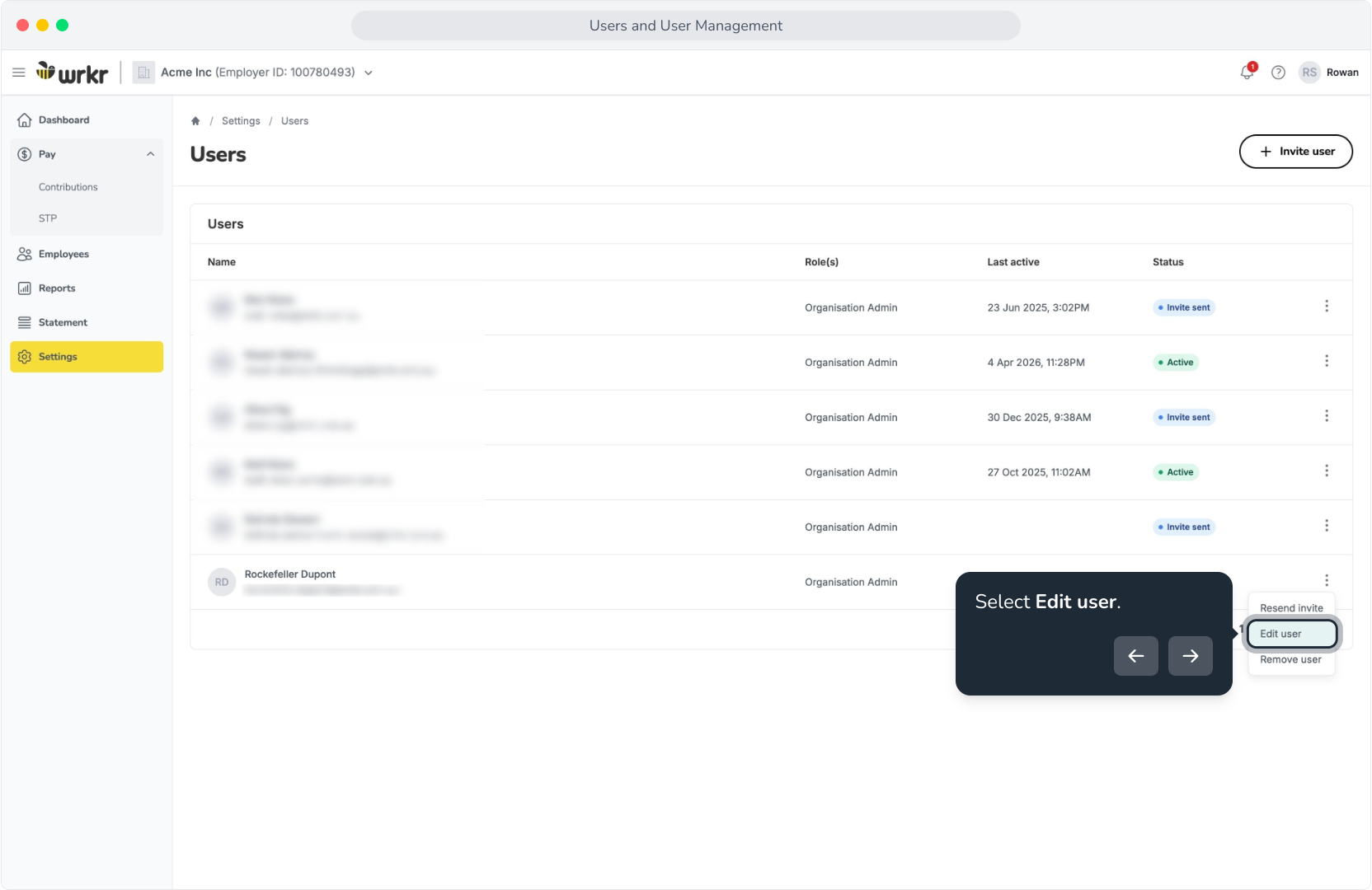
10. Select Edit user.
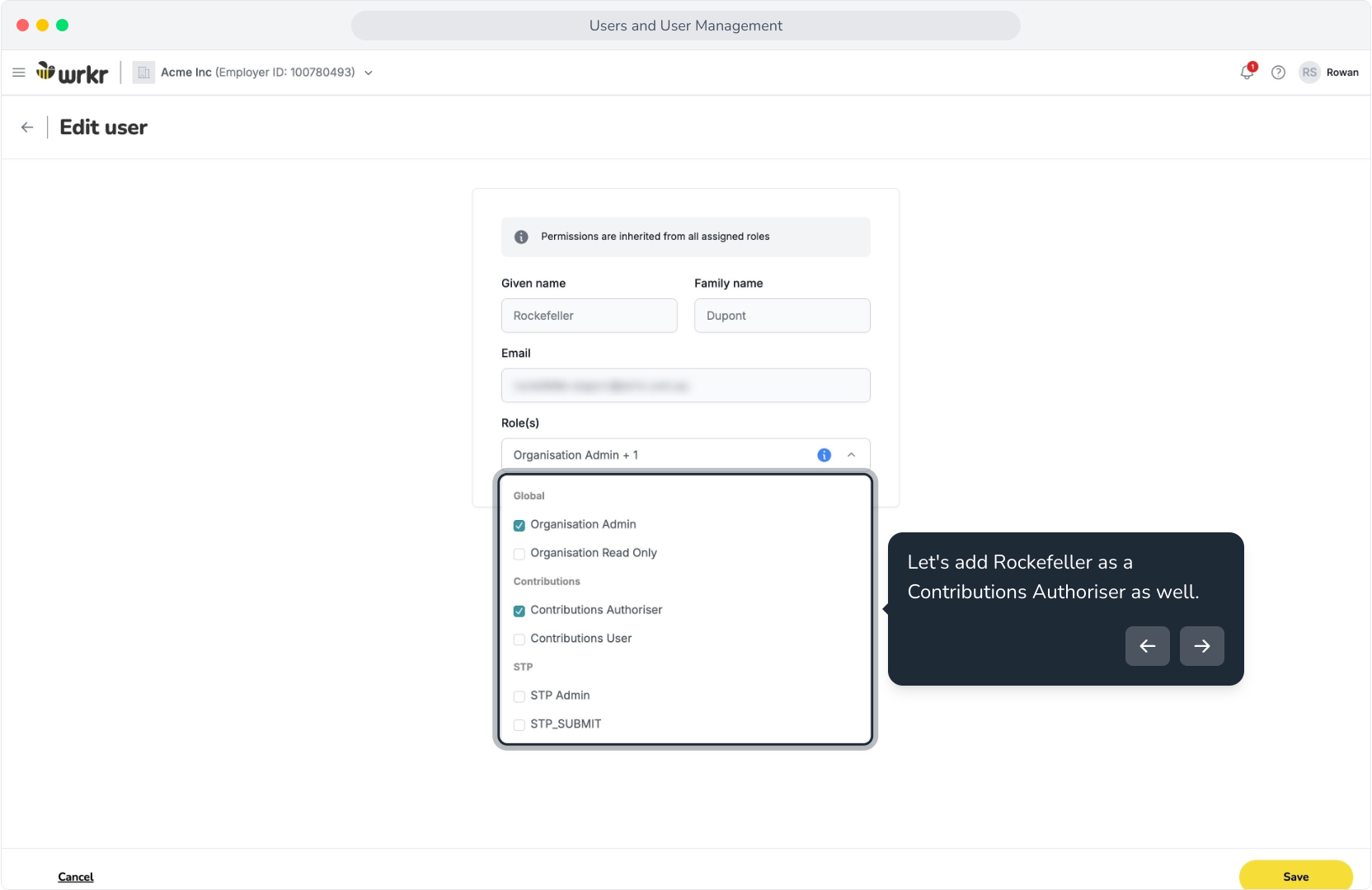
11. Now, let's re-configure their user roles
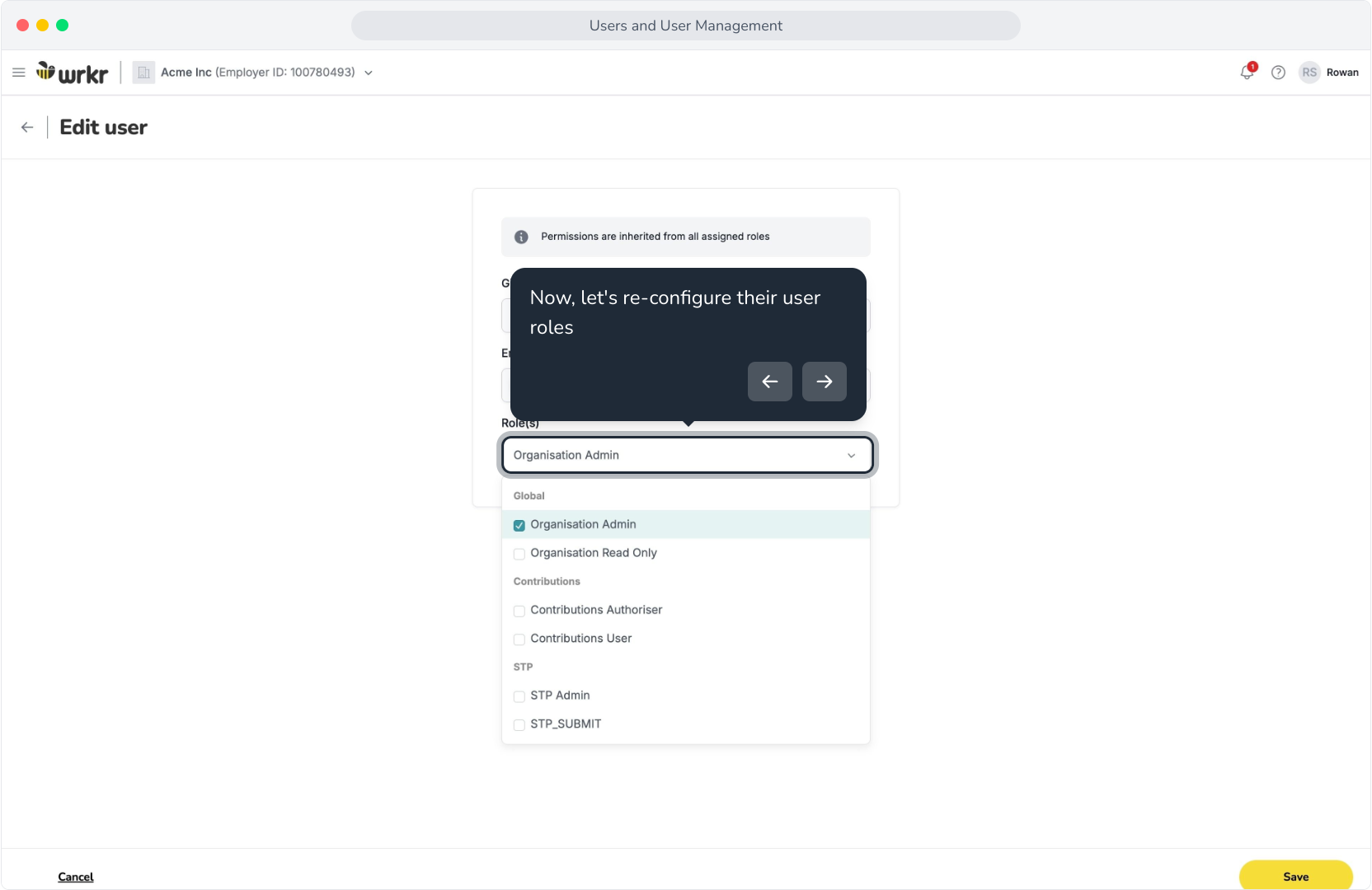
12. Let's add Rockefeller as a Contributions Authoriser as well.
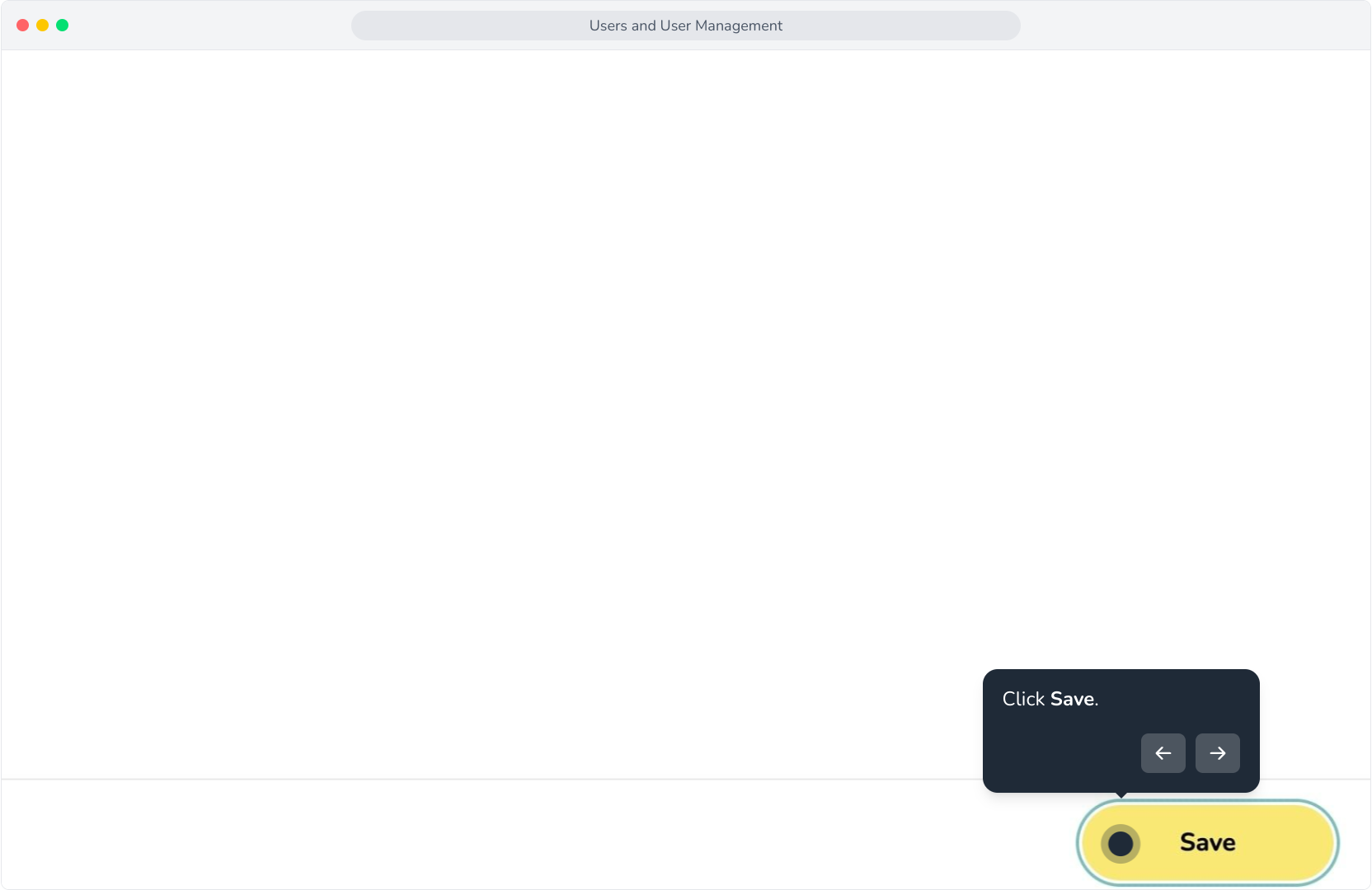
13. Click Save.
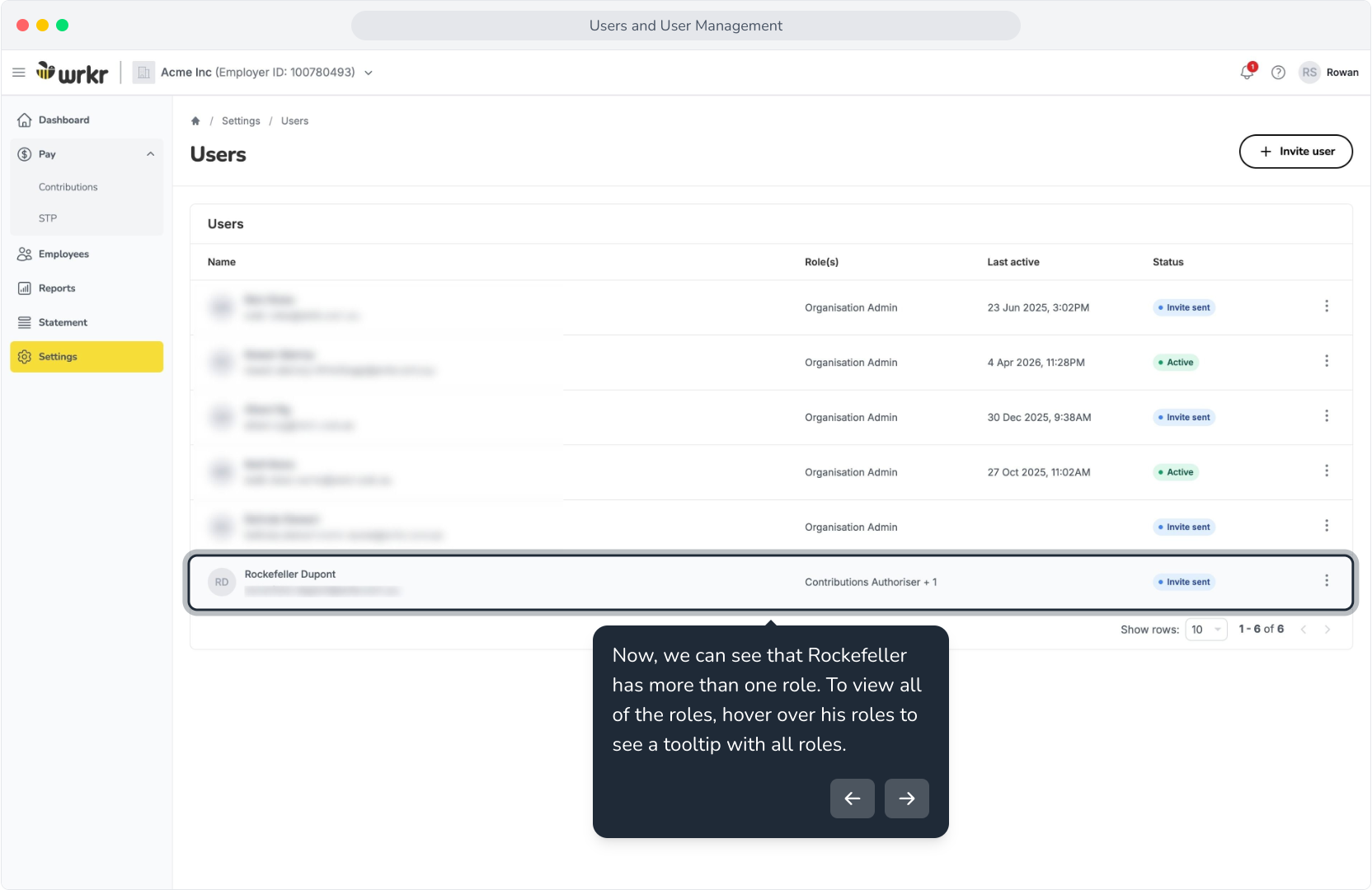
14. Now, we can see that Rockefeller has more than one role. To view all of the roles, hover over his roles to see a tooltip with all roles.
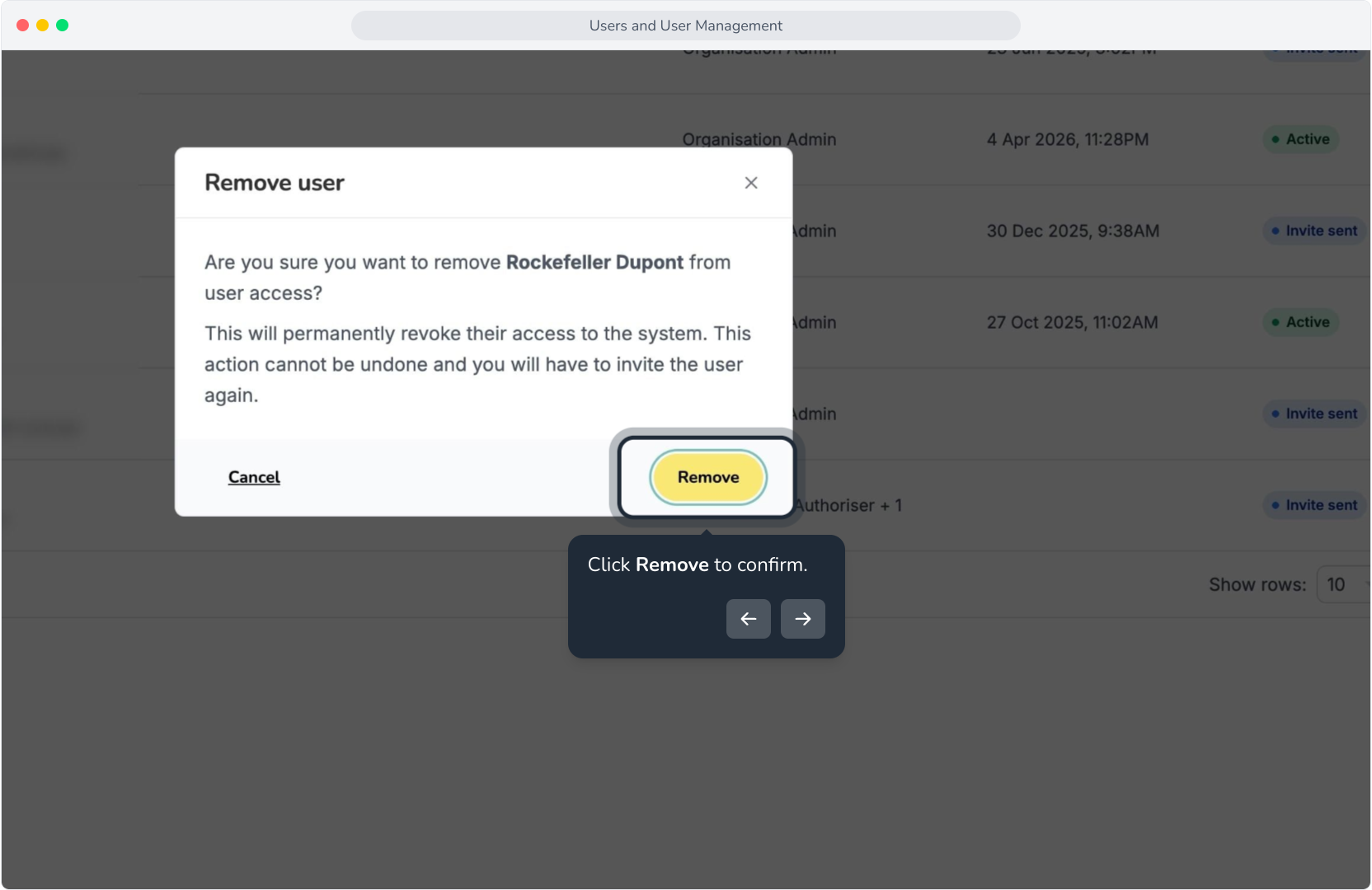
15. Rockefeller hasn't accepted the invite. Let's remove them.
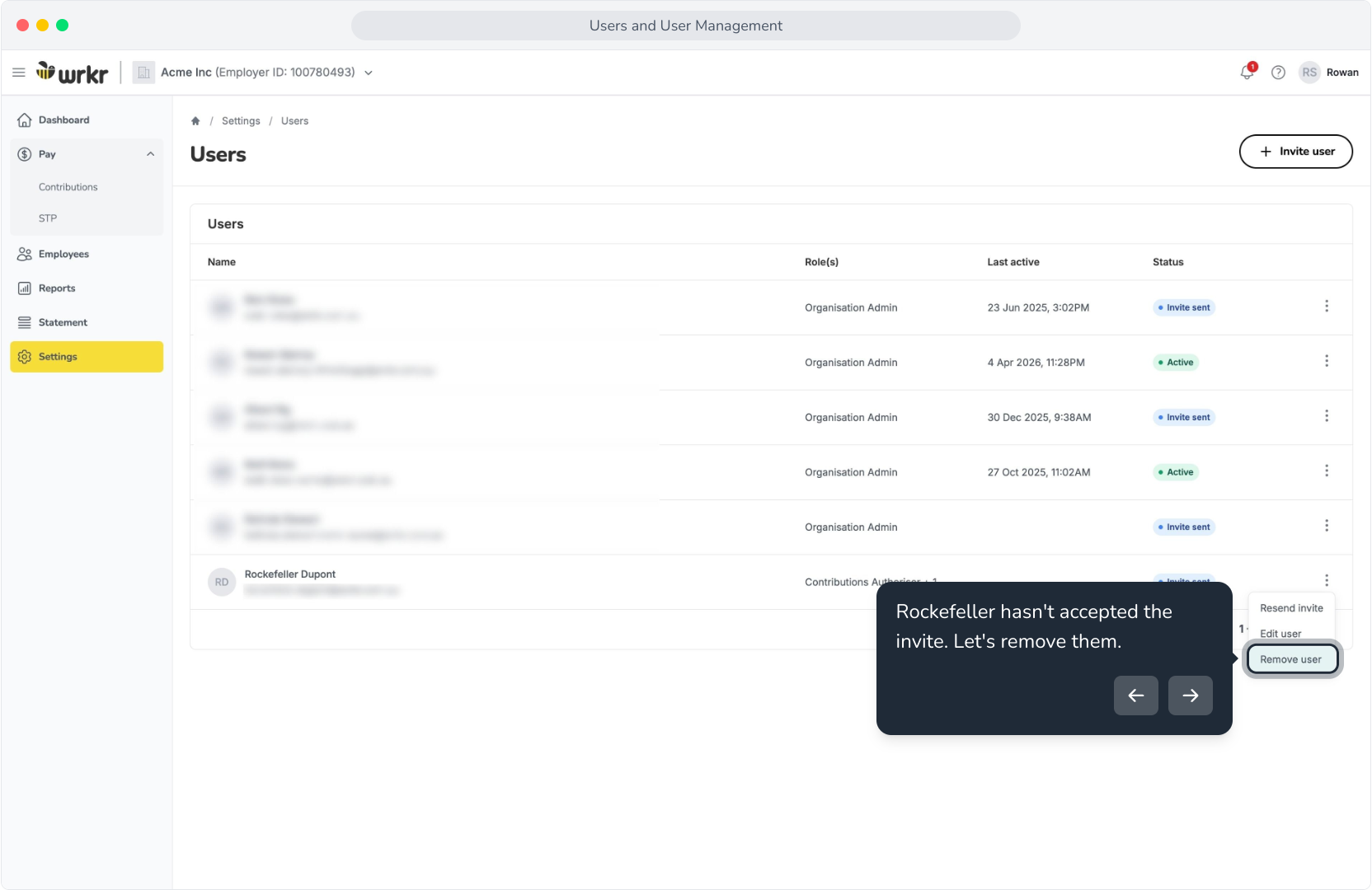
16. Click Remove to confirm.