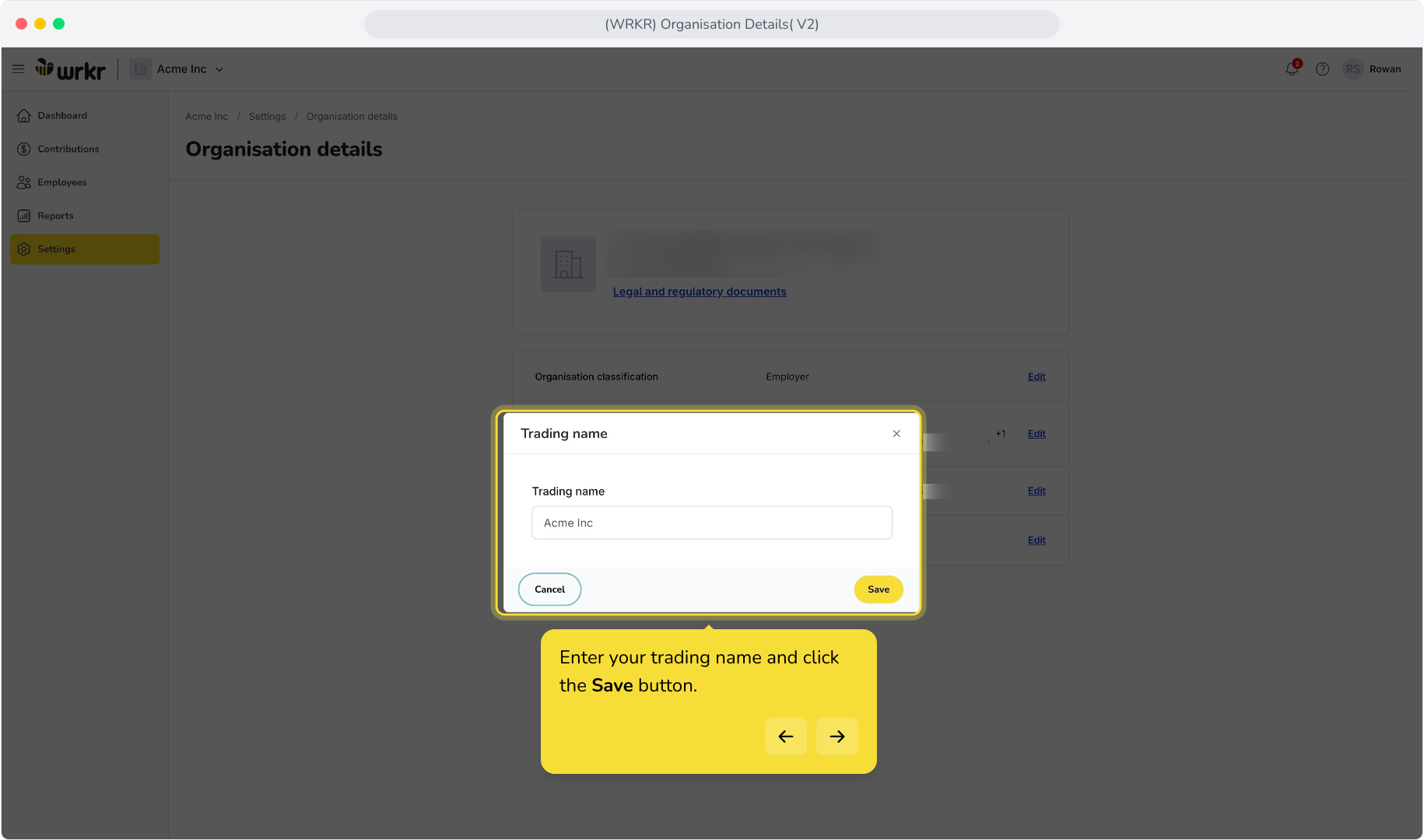
Context: This guide covers organisation details and the ability to update the trading name, registered address, organisation classification, and organisation contact details. This guide also covers the addition of a new organisation contact.
Glossary
Interactive Demo
Note: Make the demo full-screen for a better experience. You can mute/un-mute narration to suit your preferences.
Written Steps
Edit Organisational Classification
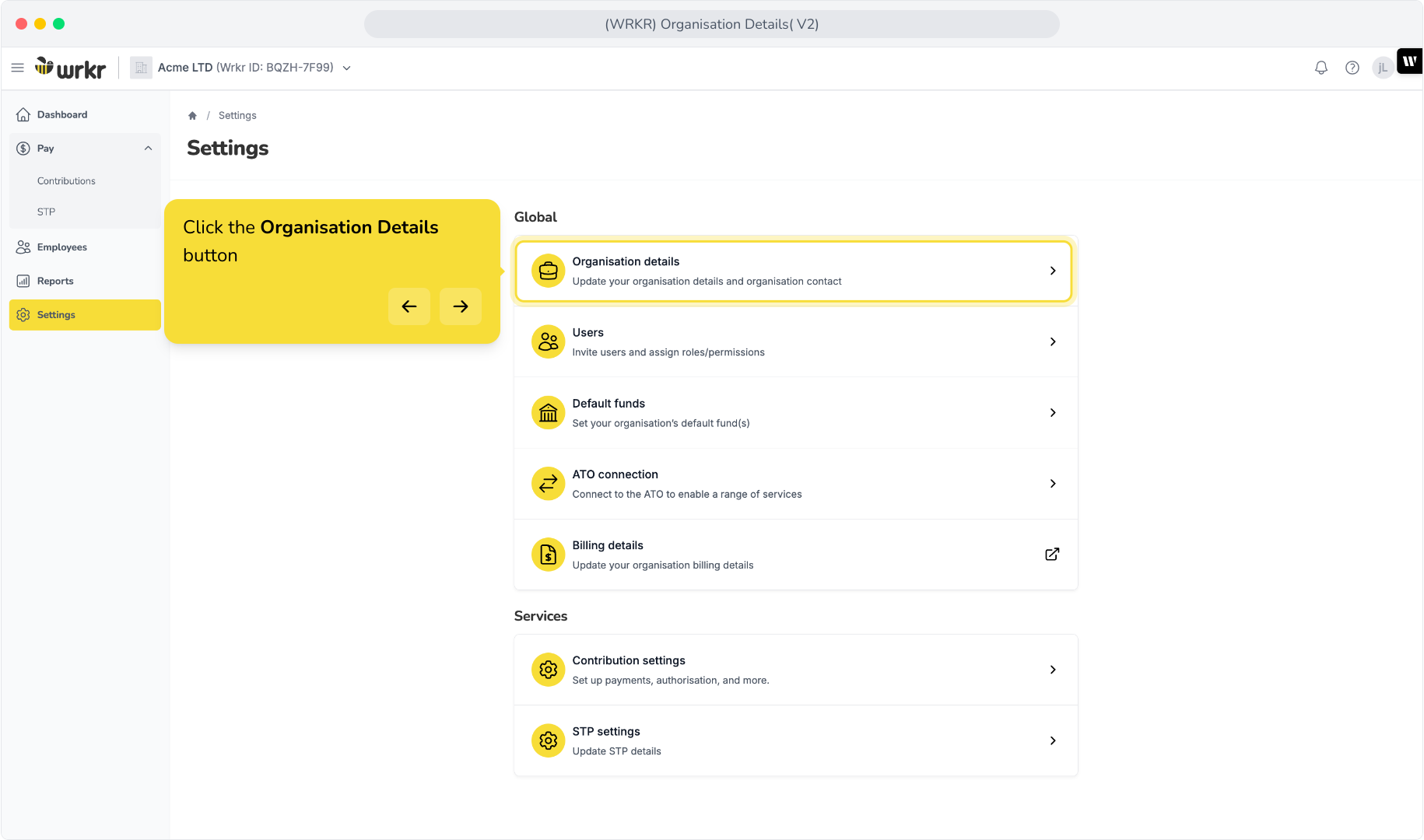
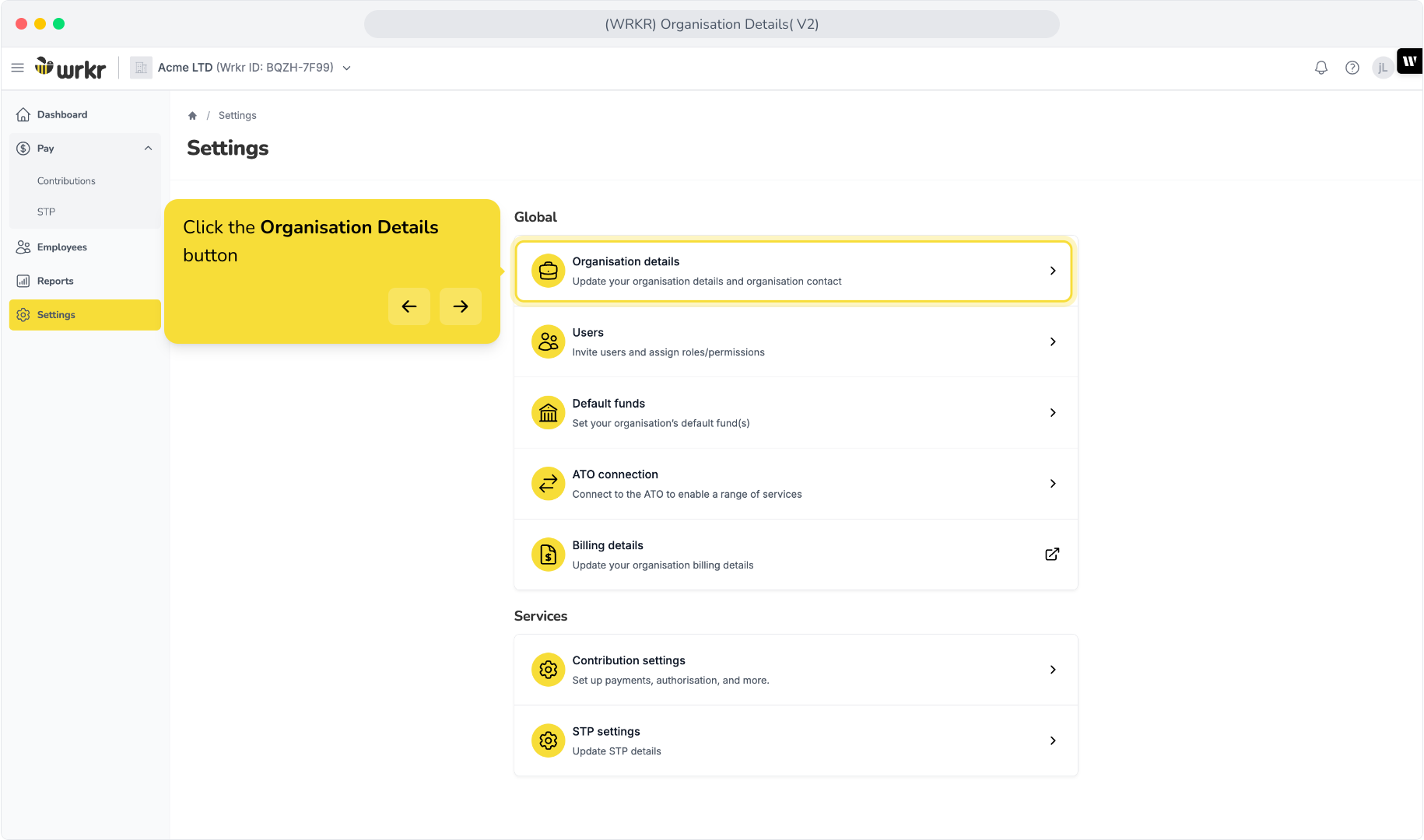
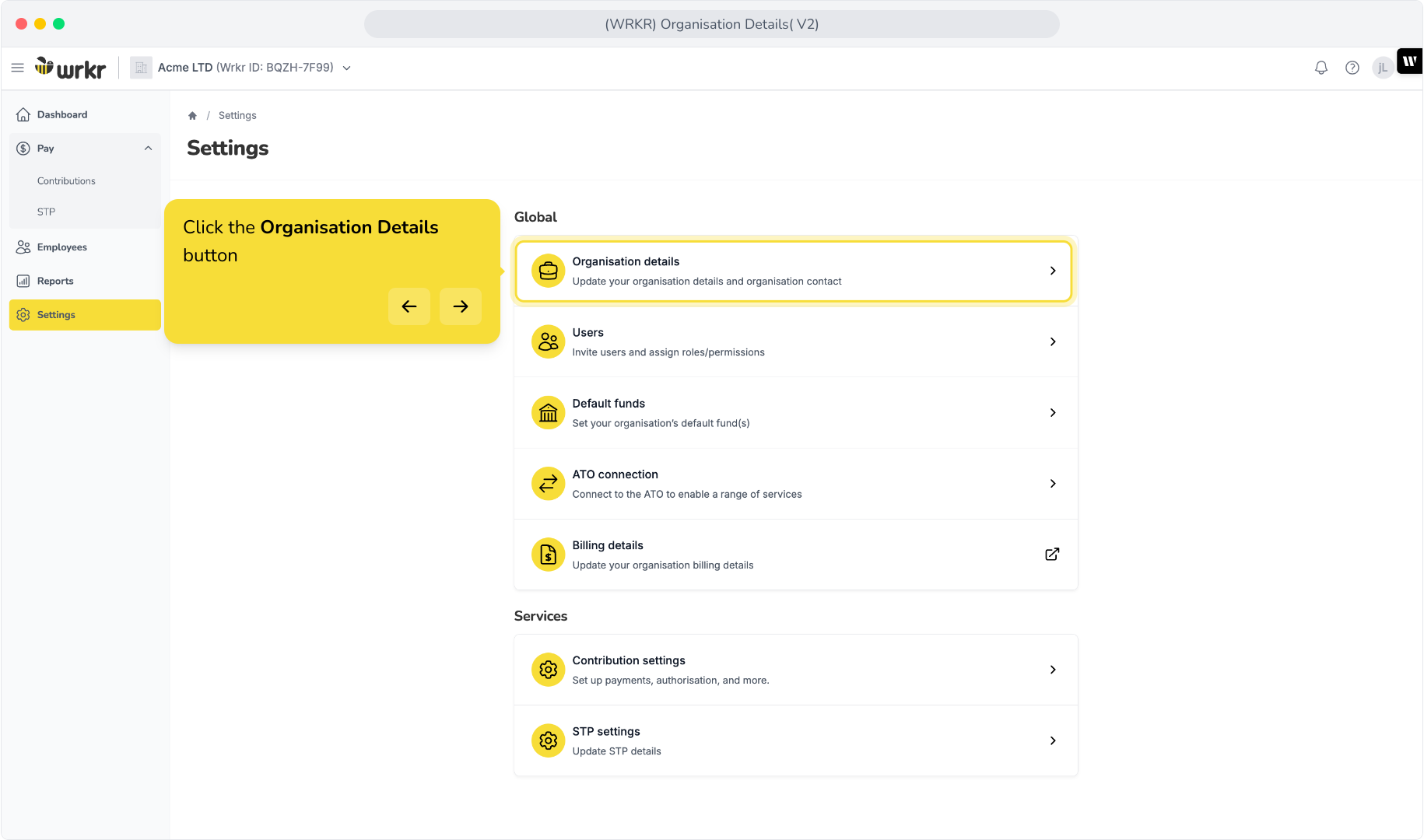
1. Click the Organisation Details button
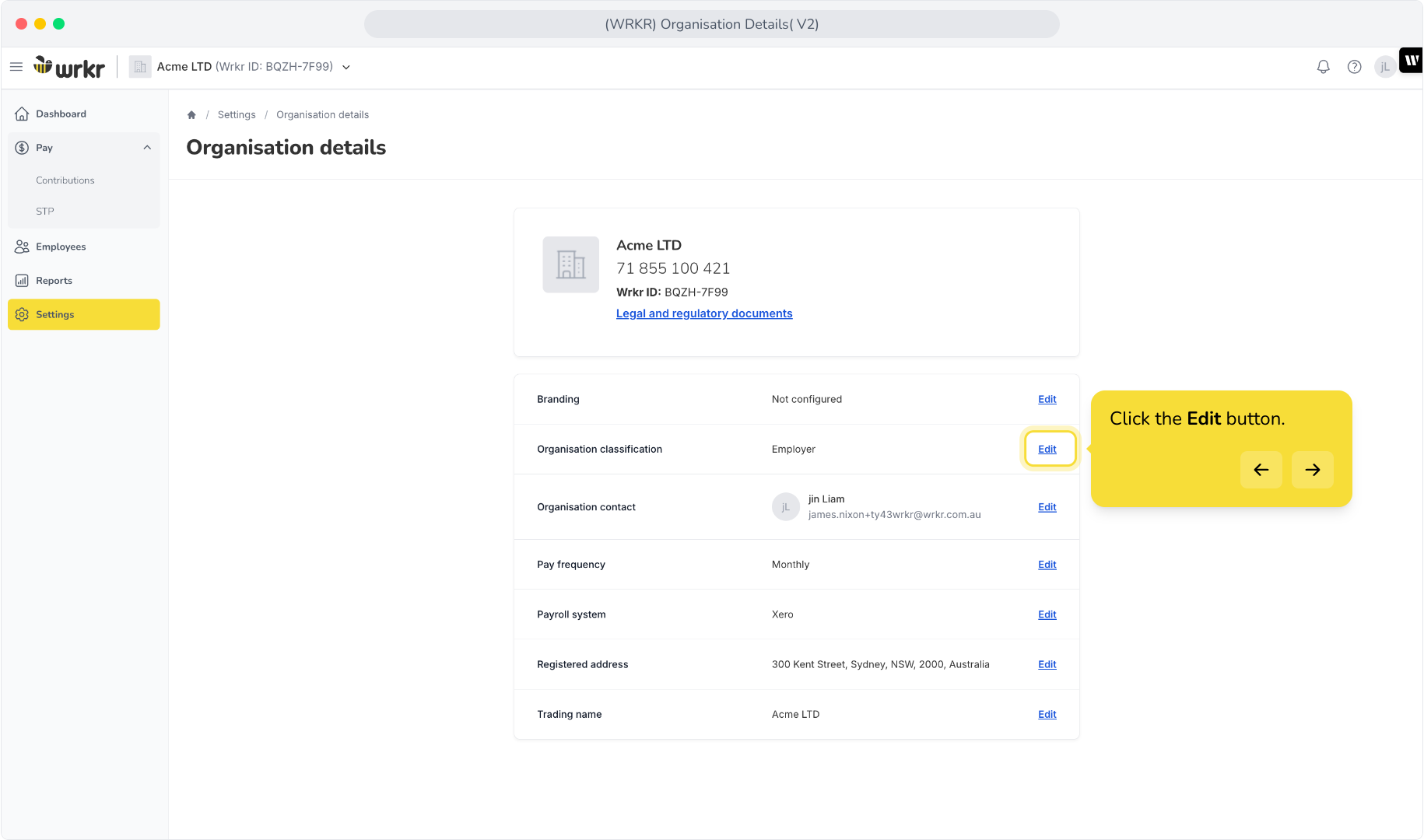
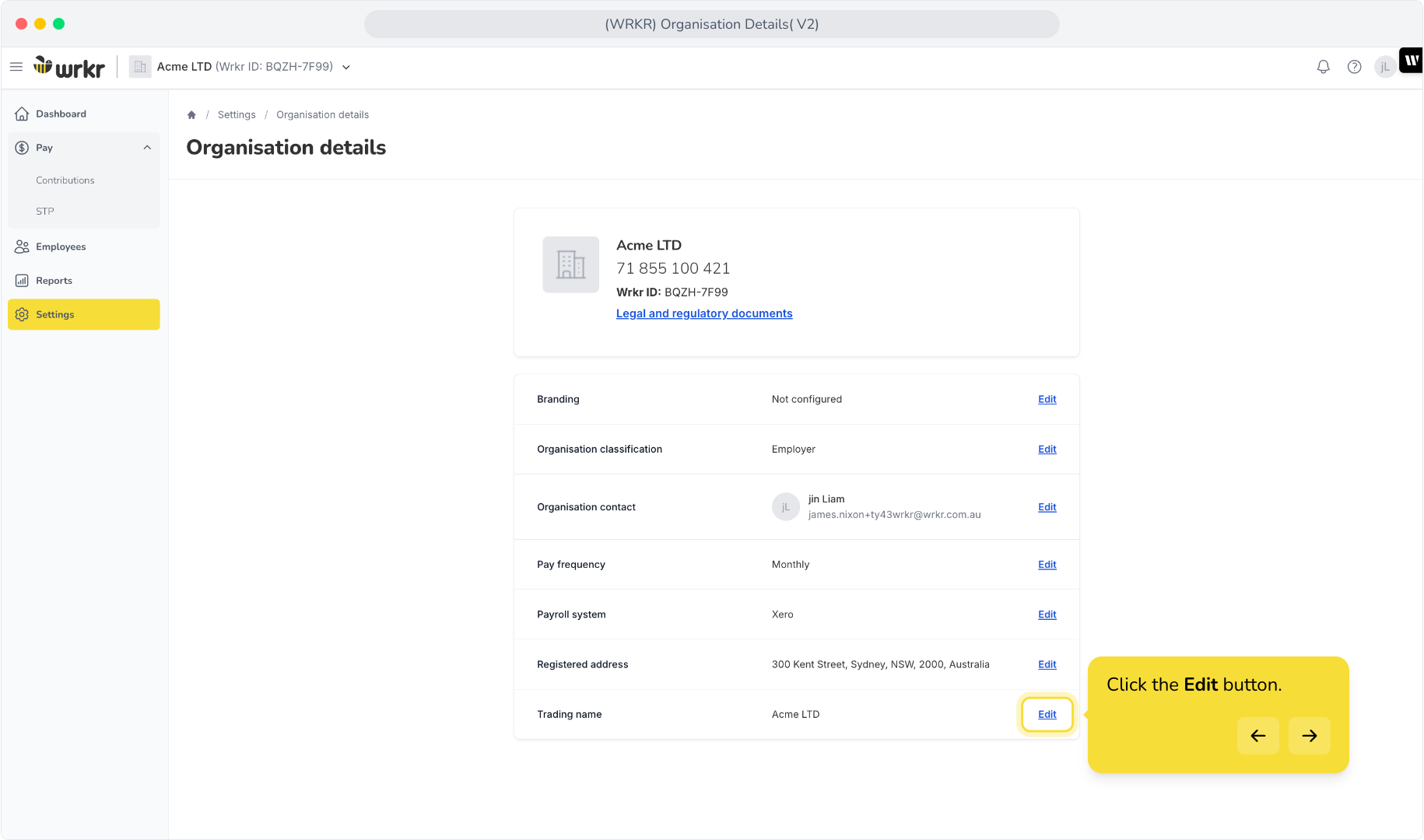
2. Click the Edit button.
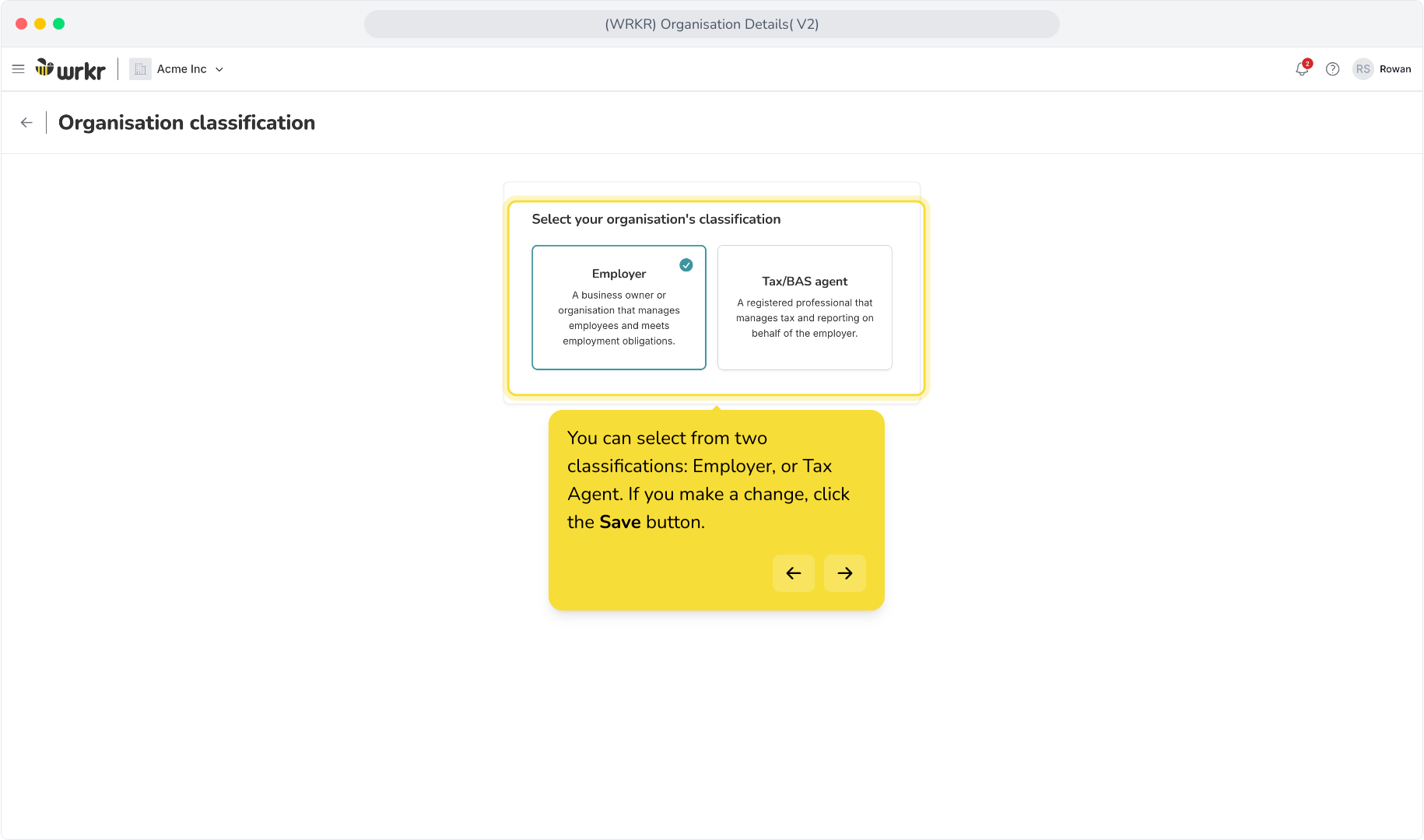
3. You can select from two classifications: Employer, or Tax Agent. If you make a change, click the Save button.
Edit Organisation Contact
1. Click the Organisation Details button
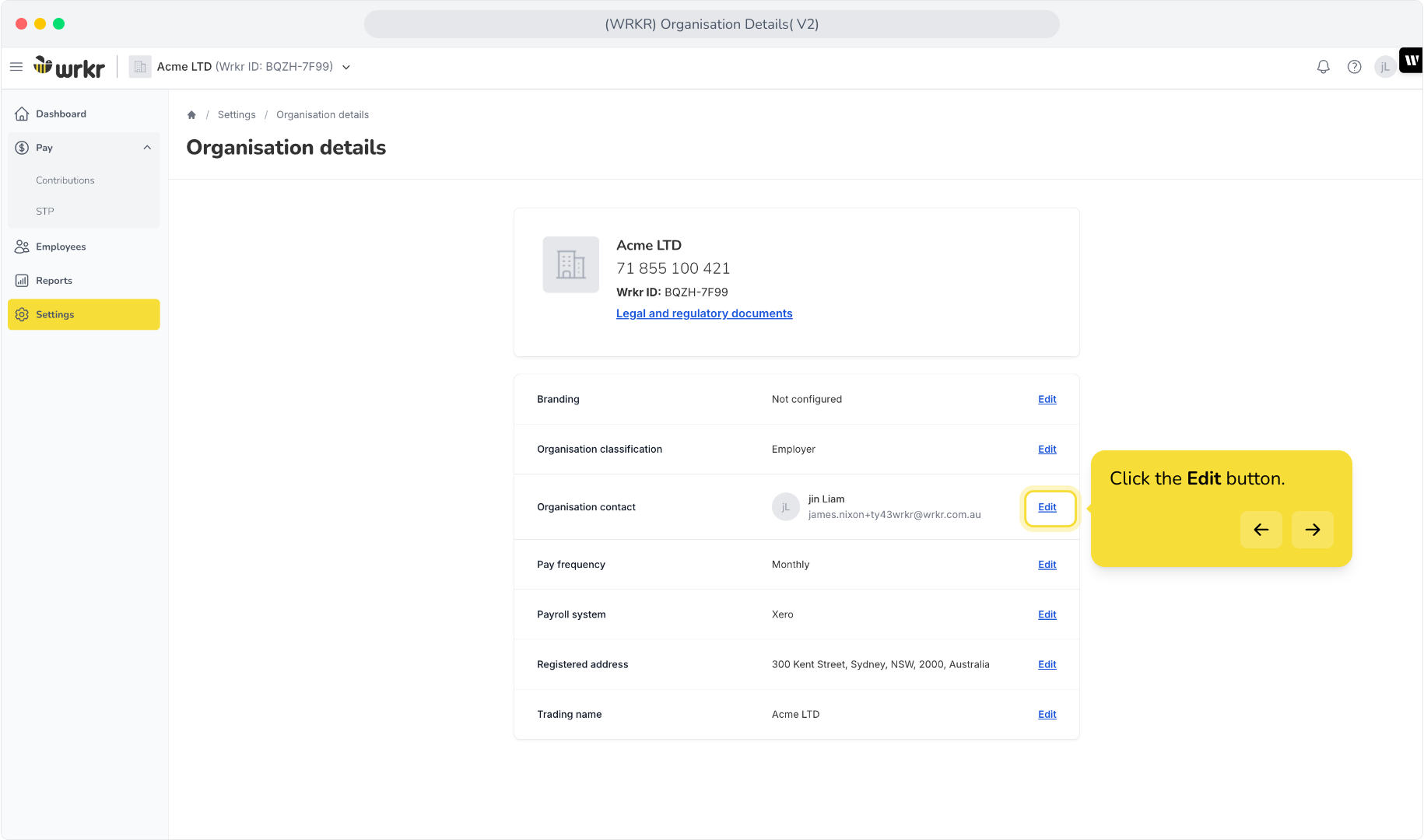
2. Click the Edit button.
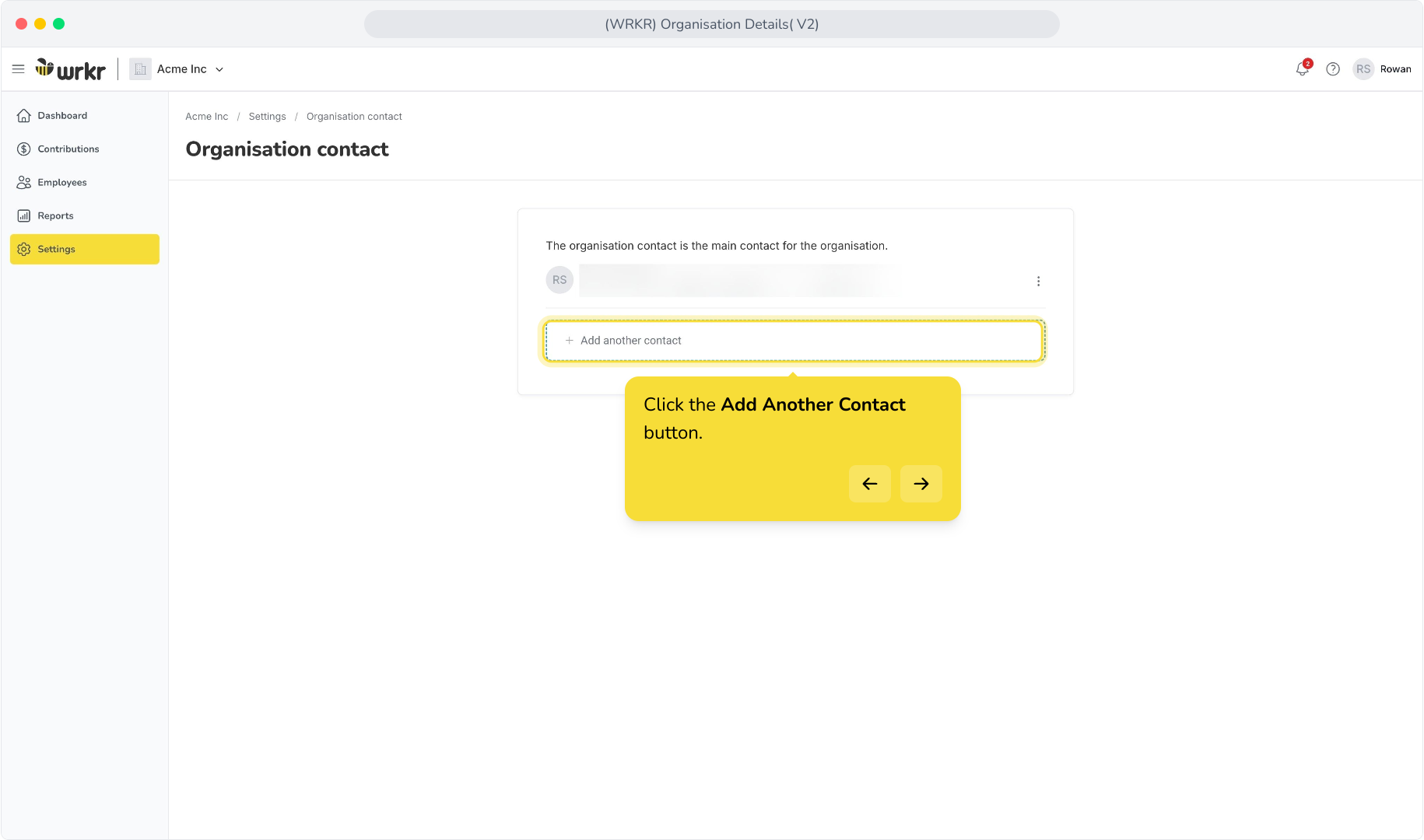
3. Click the Add Another Contact button.
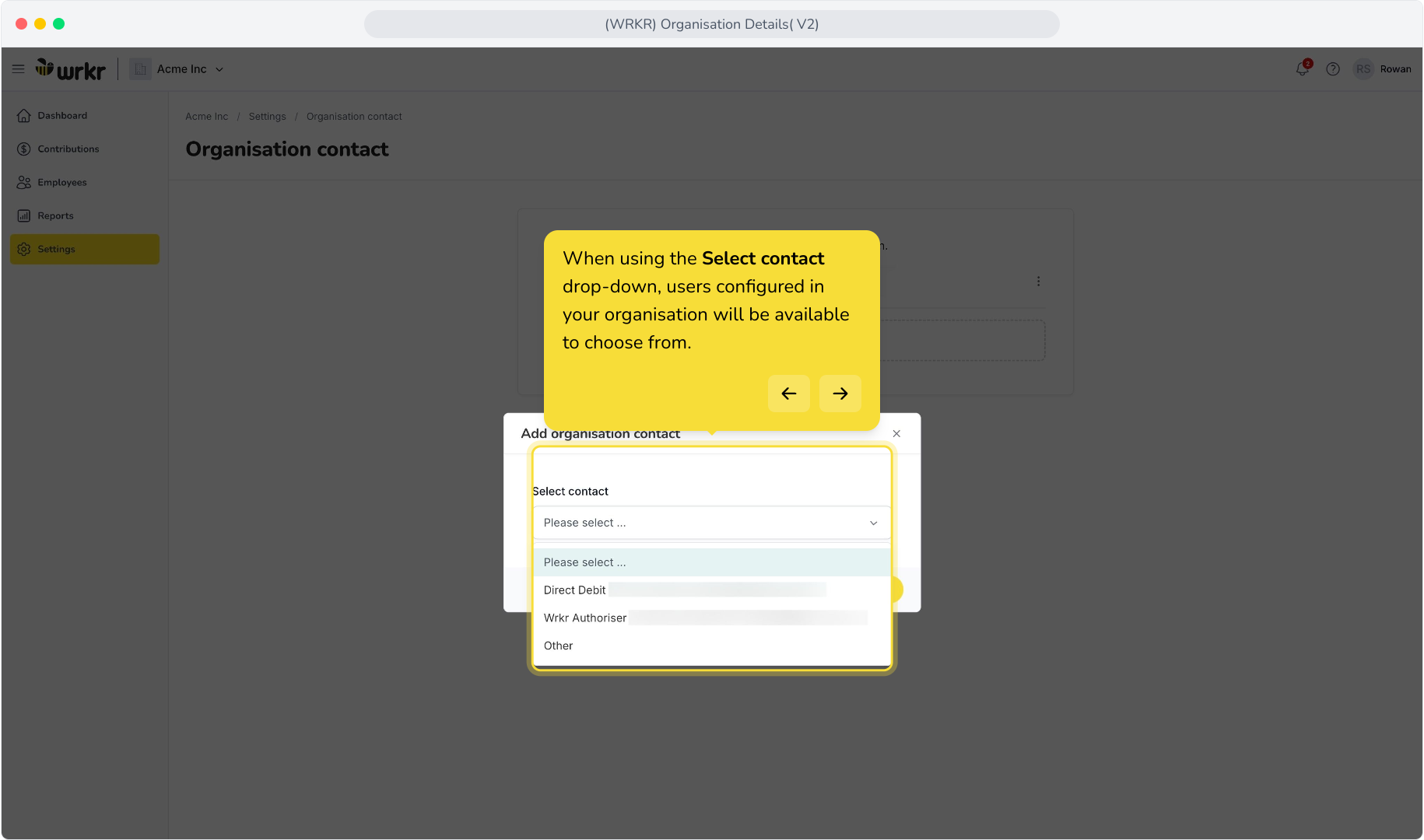
4. When using the Select contact drop-down, users configured in your organisation will be available to choose from.
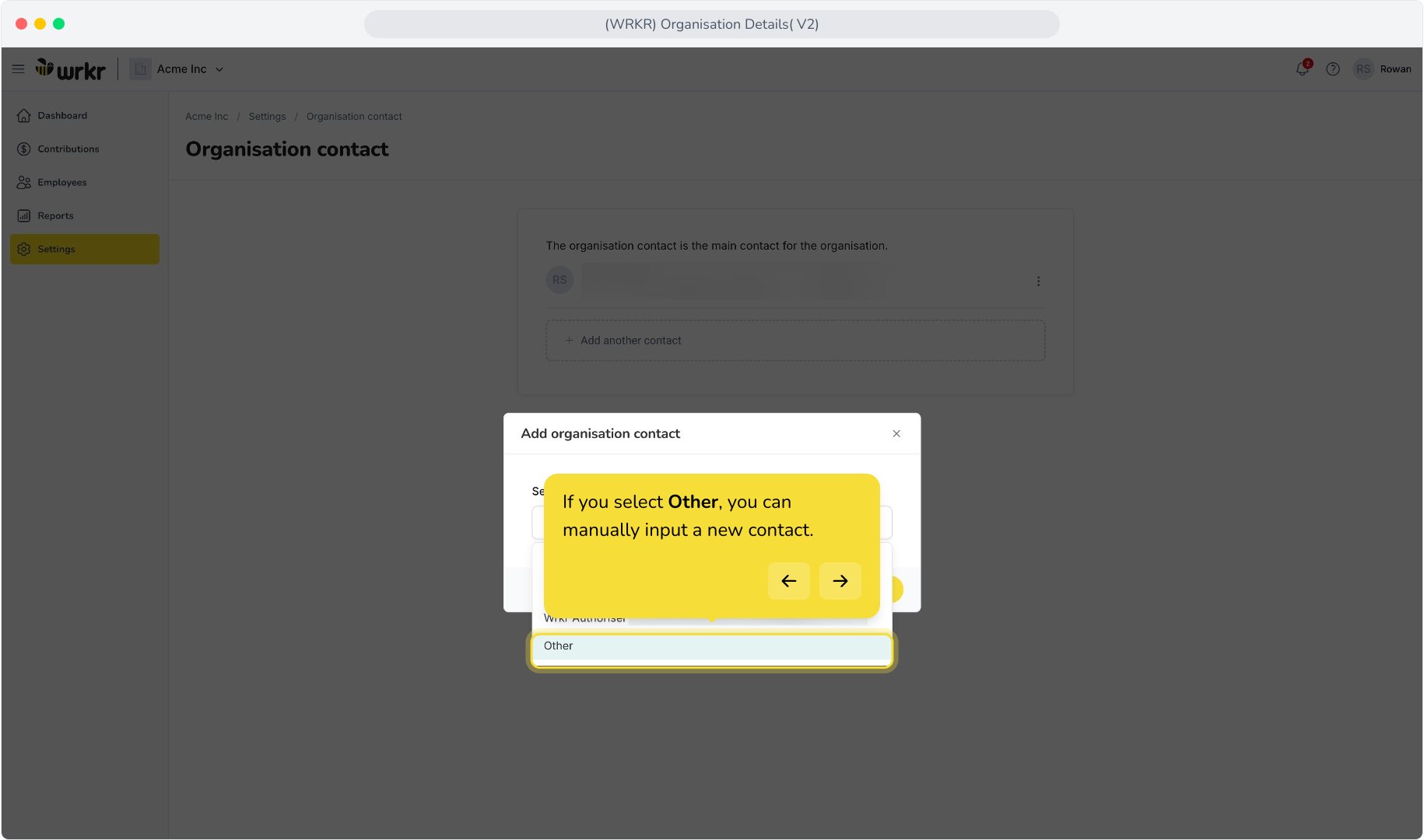
5. If you select Other, you can manually input a new contact.
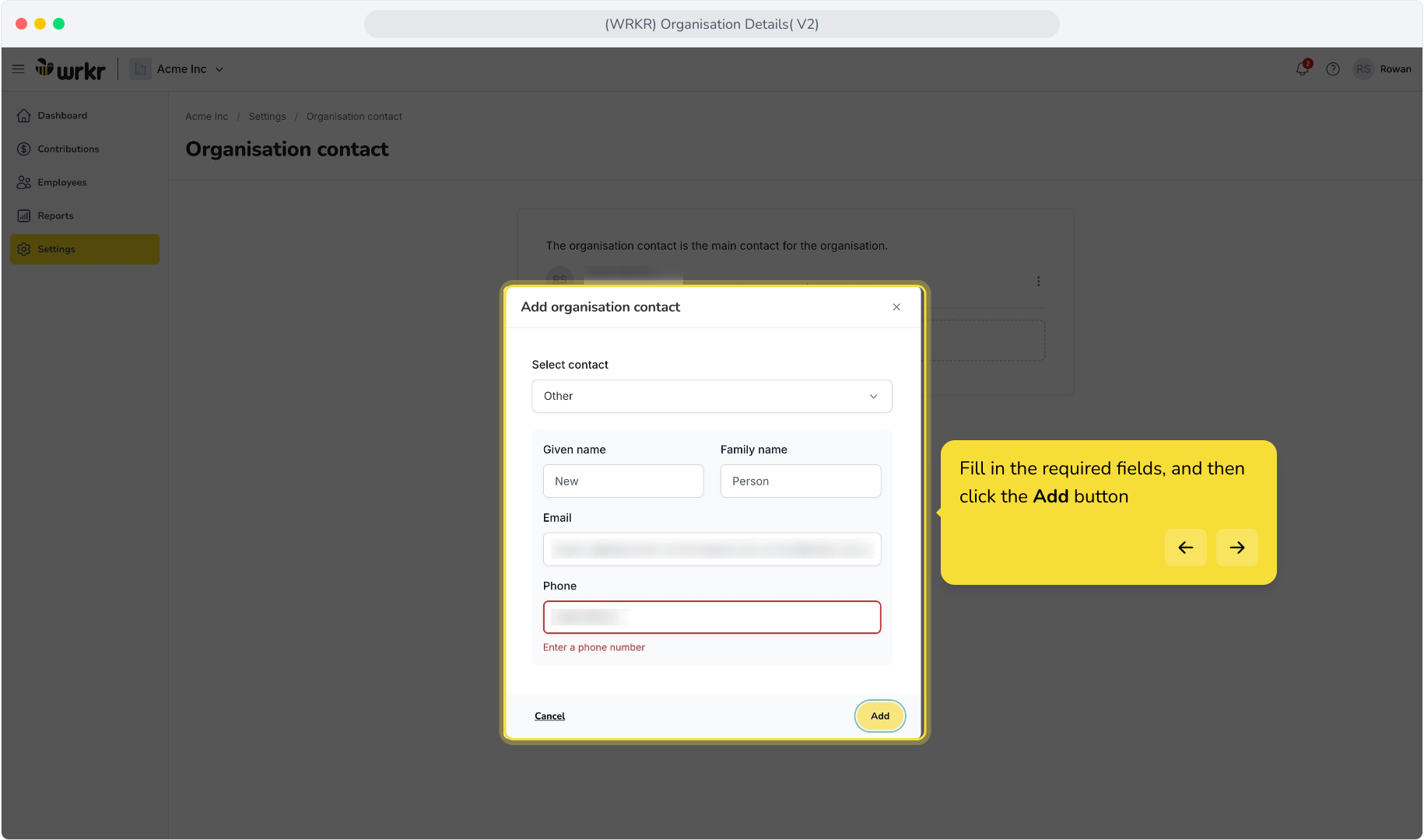
6 Fill in the required fields, and then click the Add button
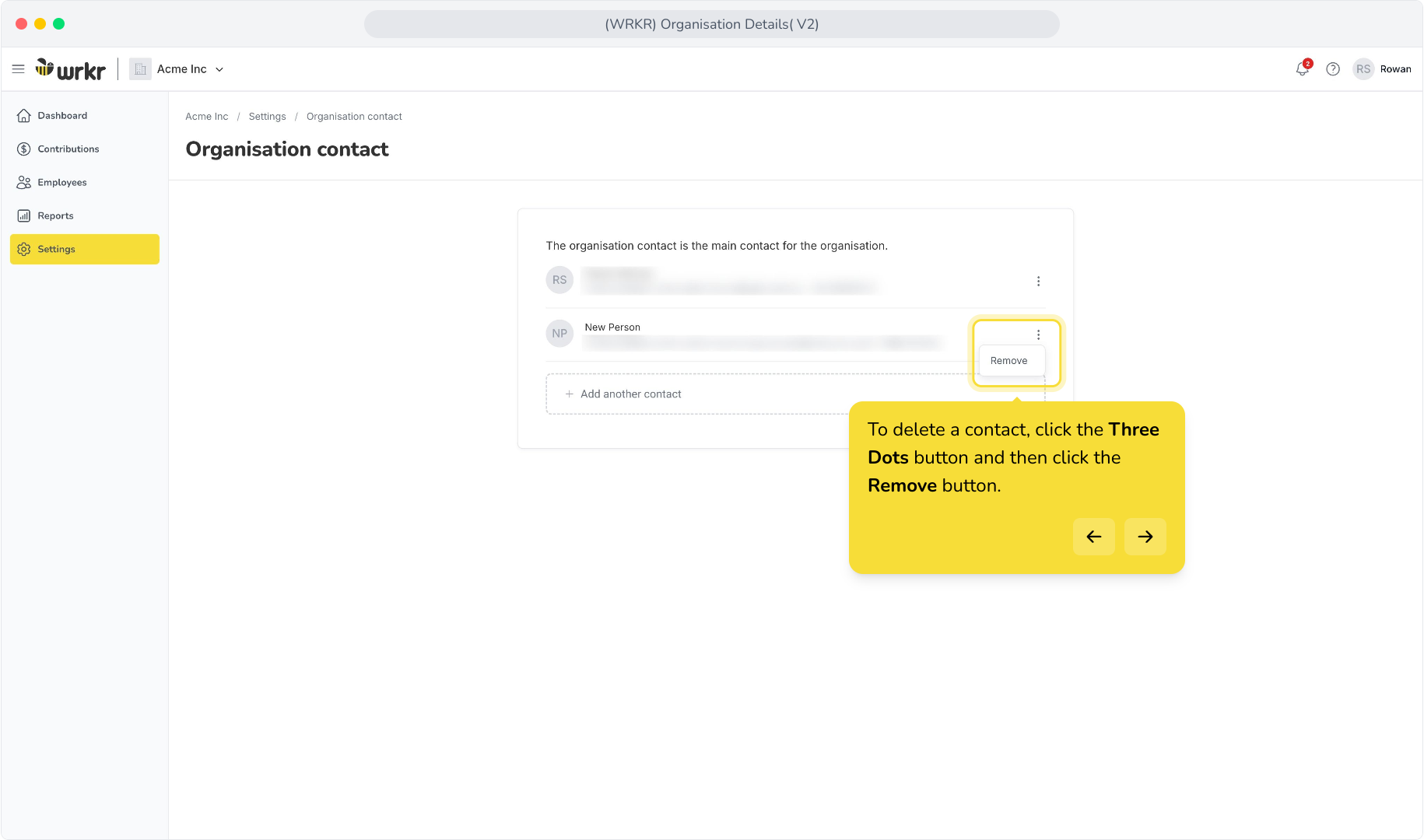
7. To delete a contact, click the Three Dots button and then click the Remove button.
Edit Pay Frequency
1. Click the Organisation Details button
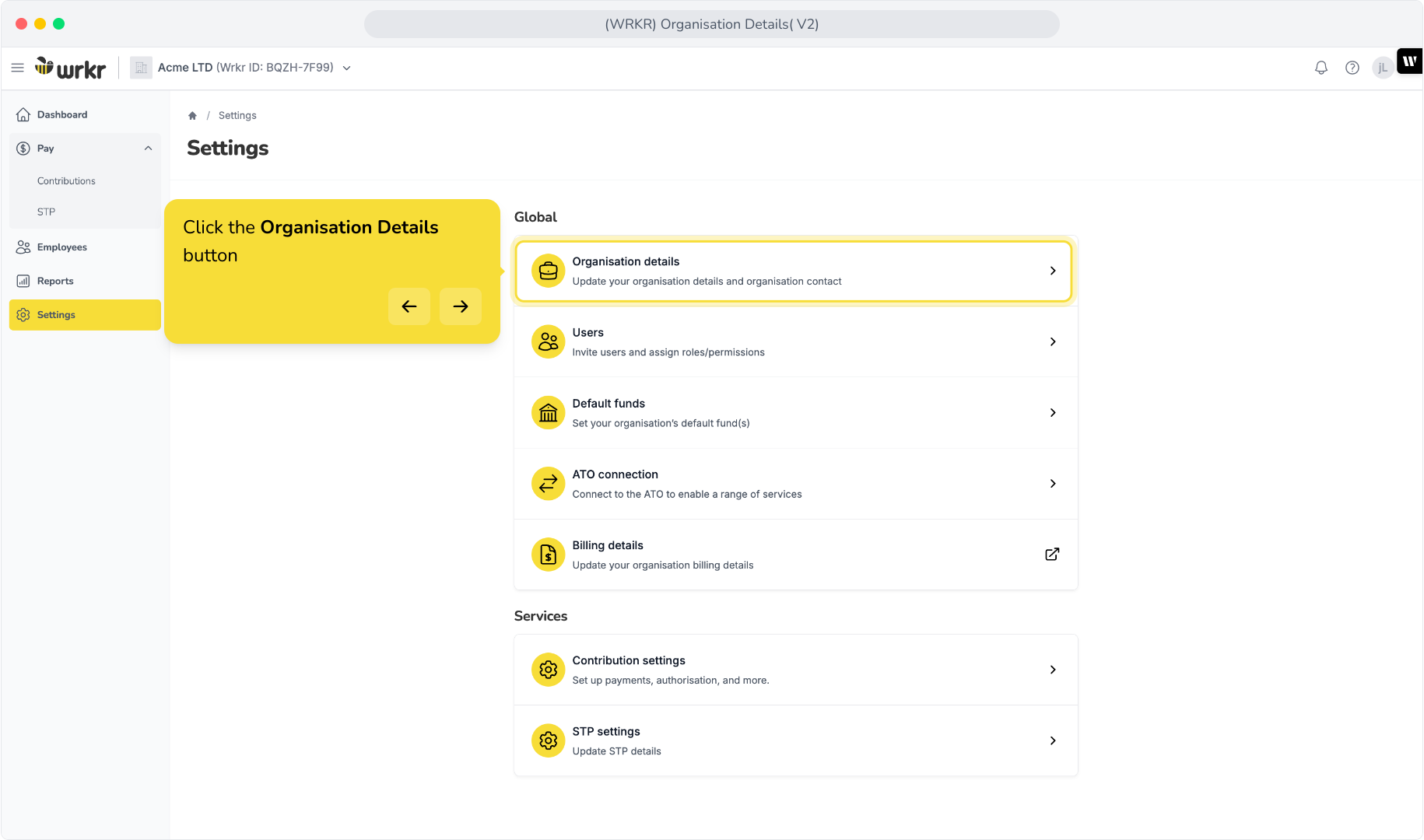
2. Click the Edit button.
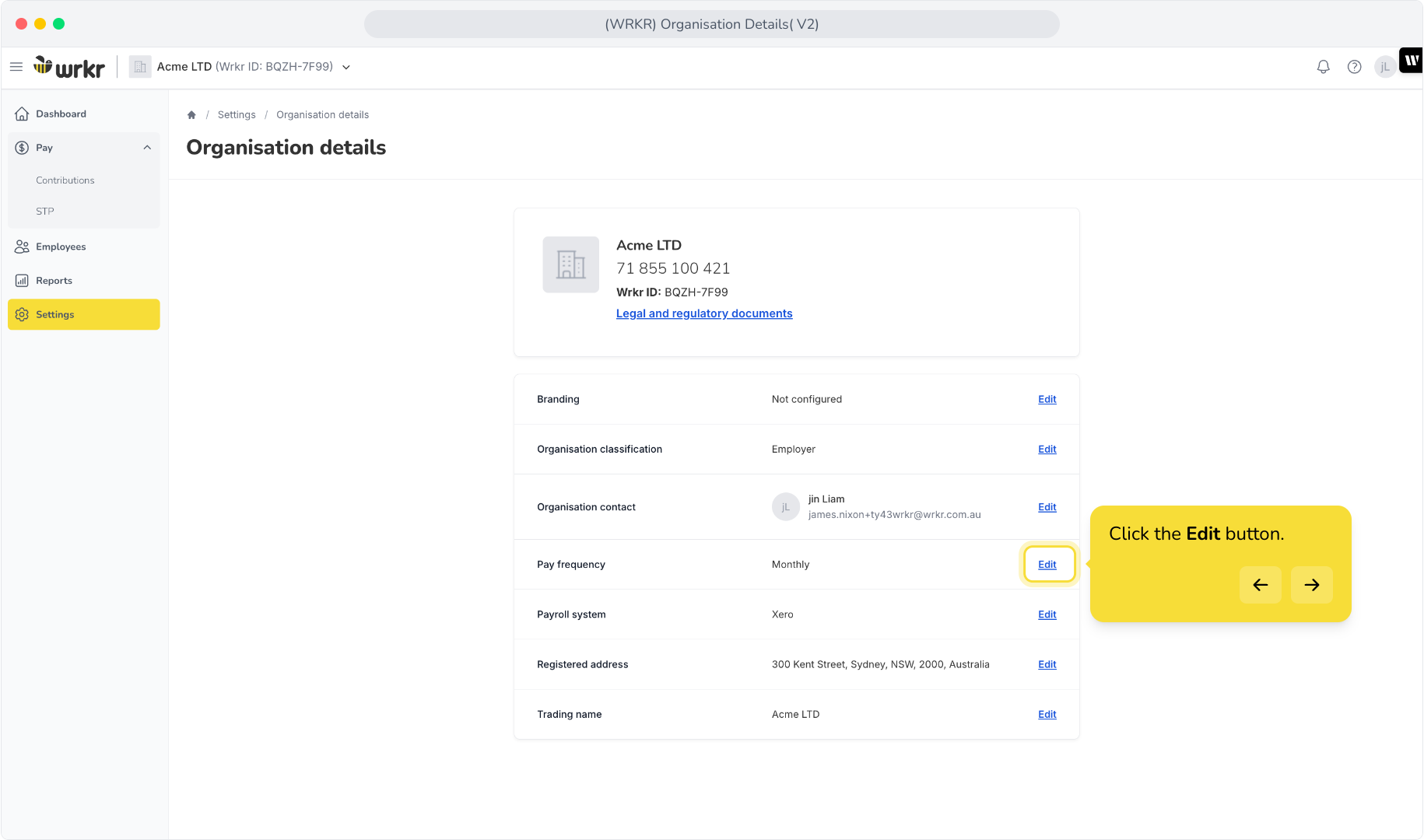
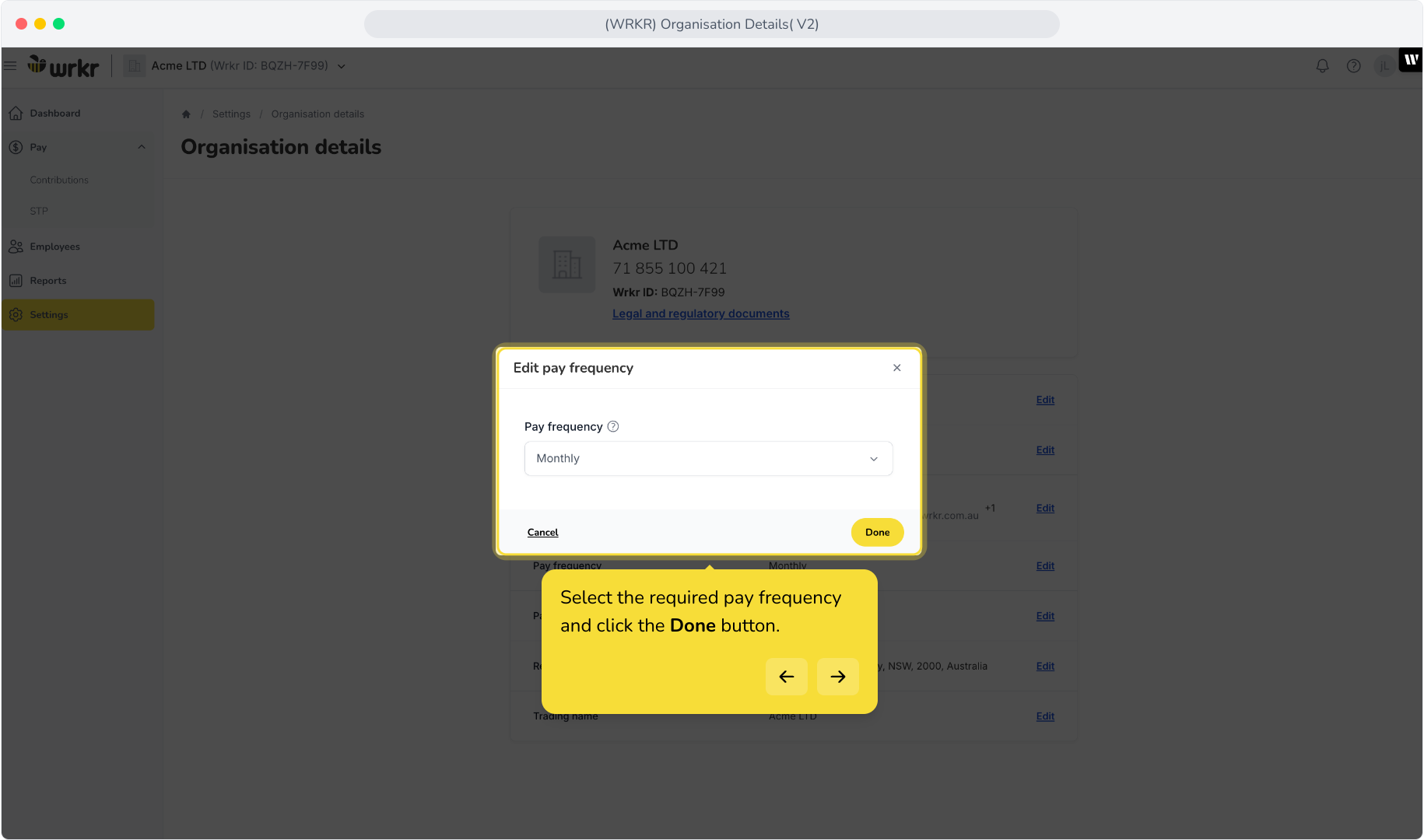
3. Select the required pay frequency and click the Done button.
Edit Payroll System
1. Click the Organisation Details button
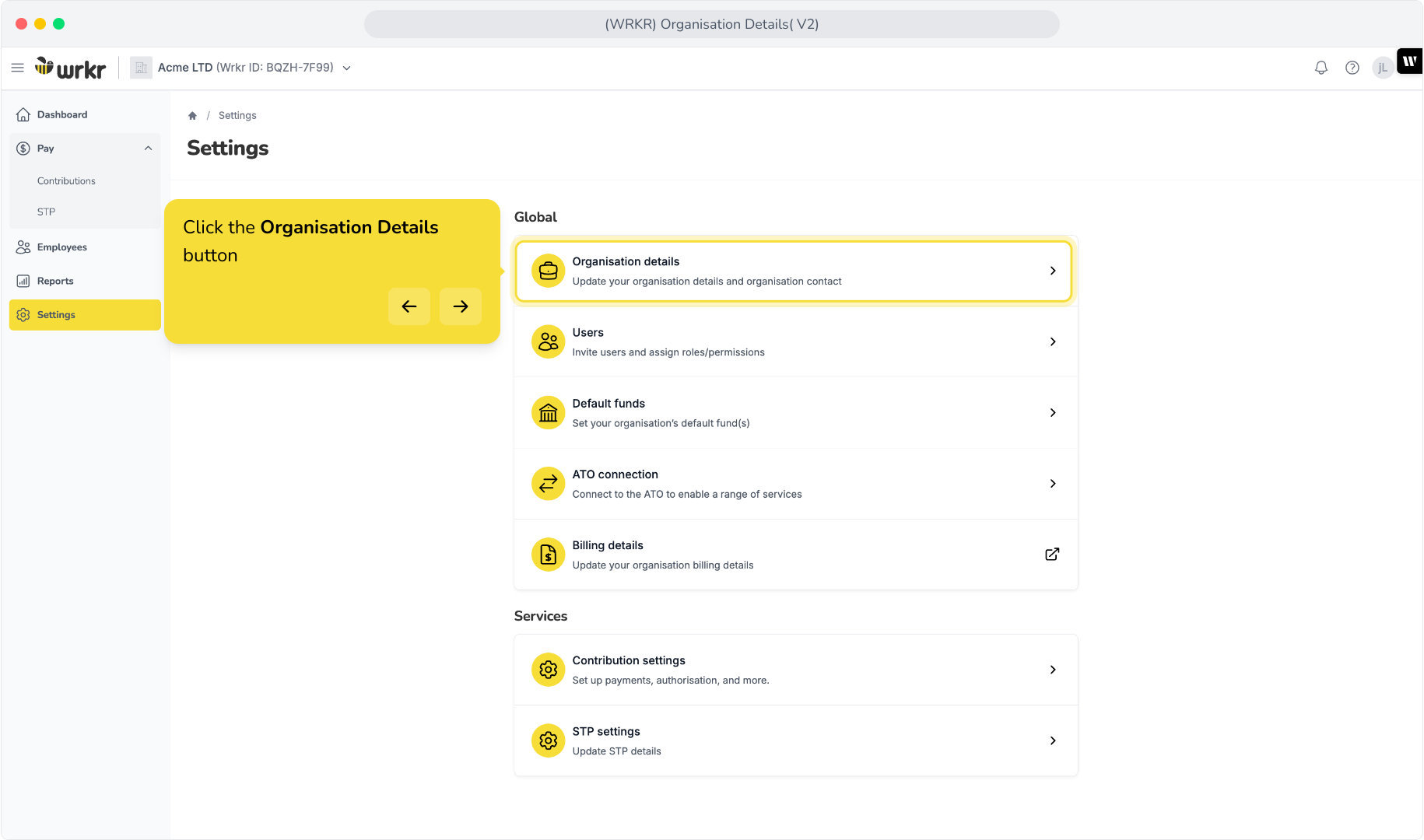
2. Click the Edit button.
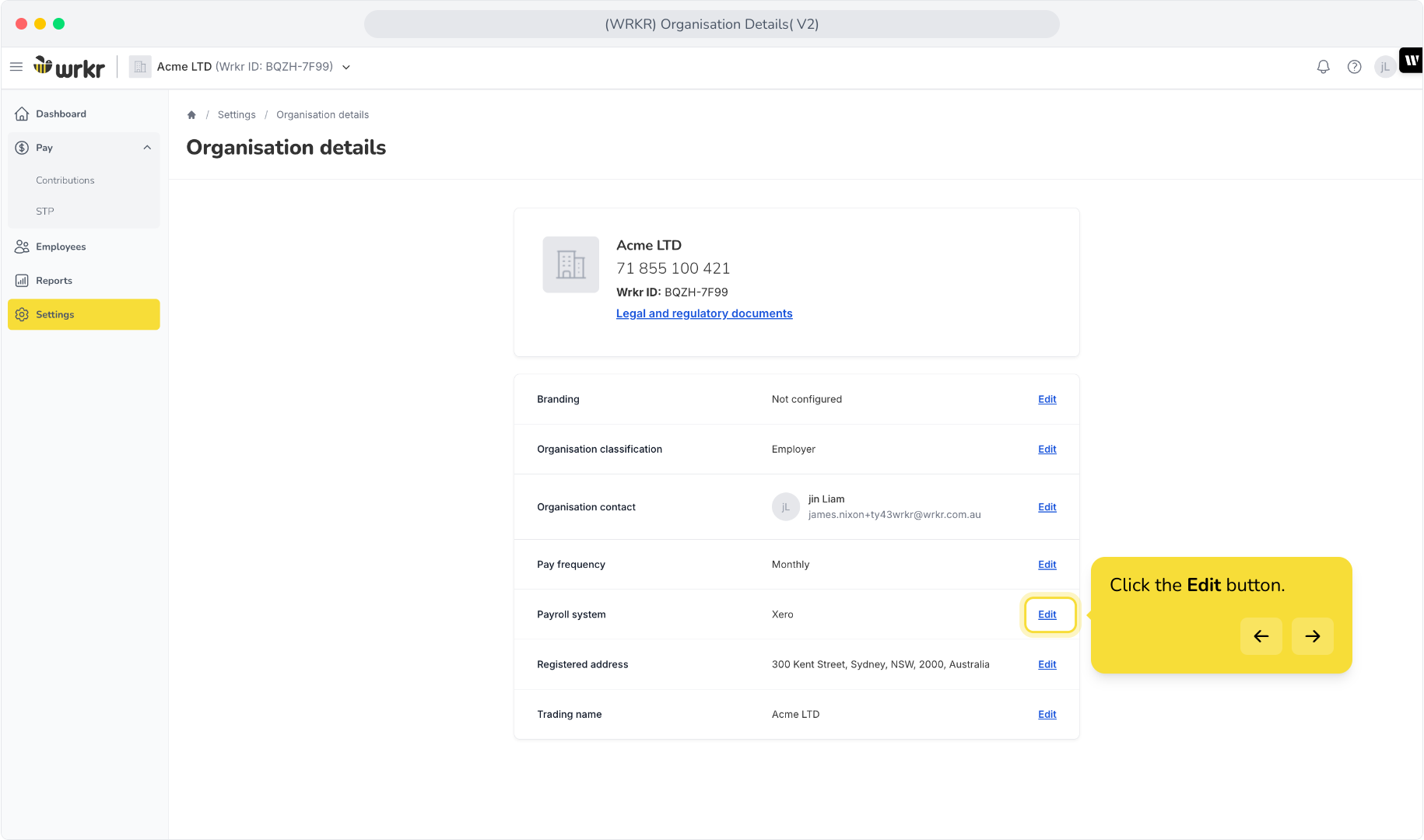
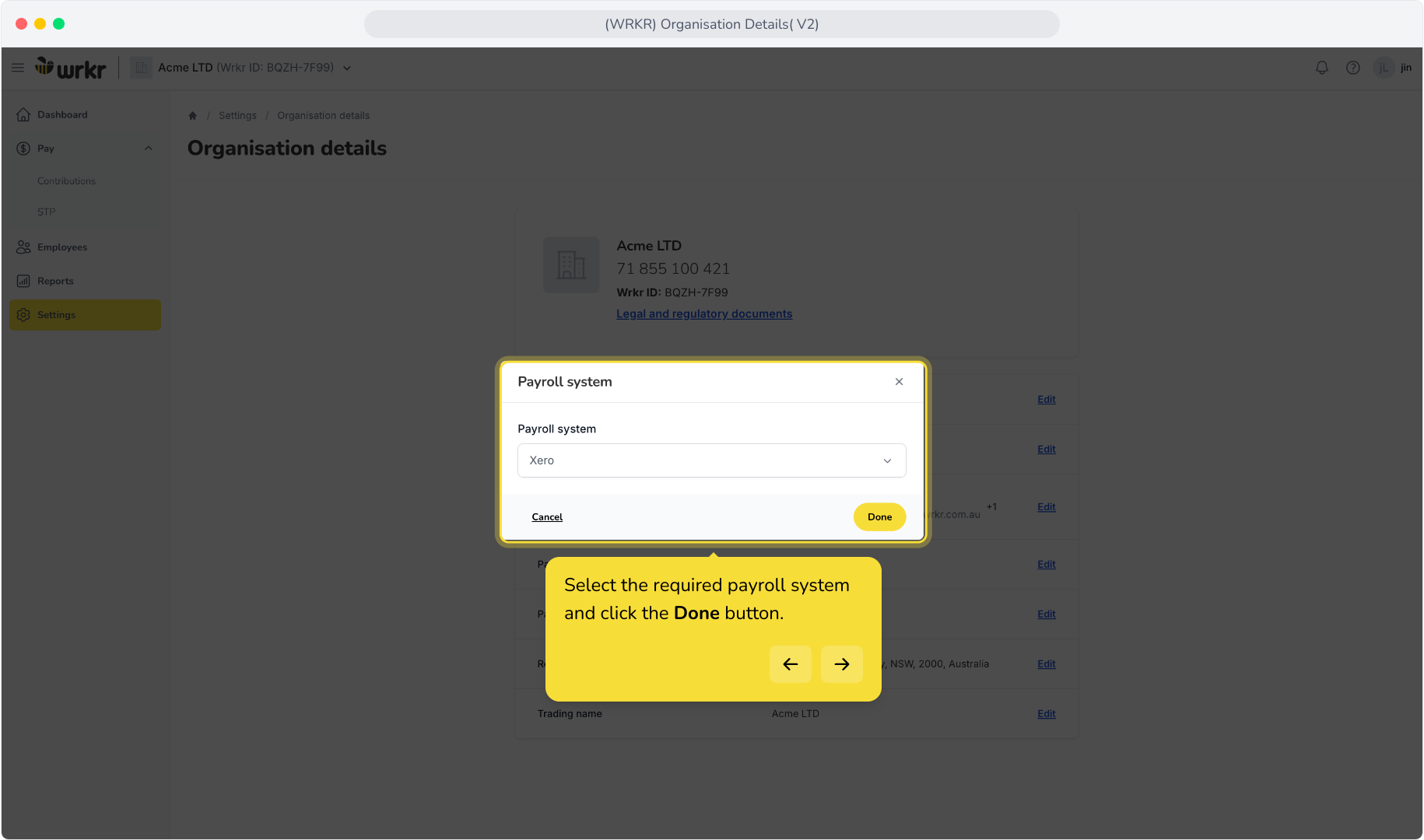
3. Select the required payroll system and click the Done button.
Edit Registered Address
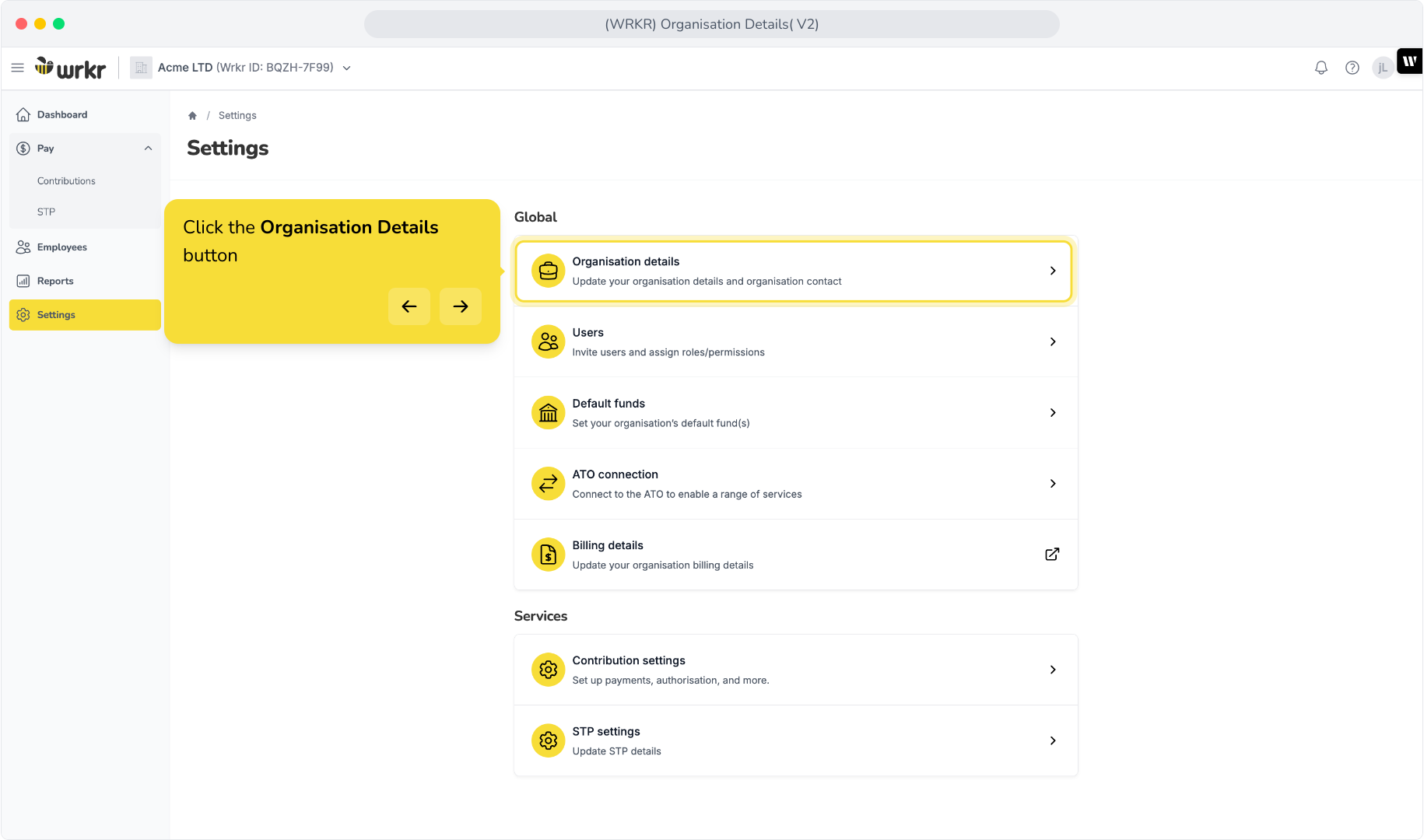
1. Click the Organisation Details button
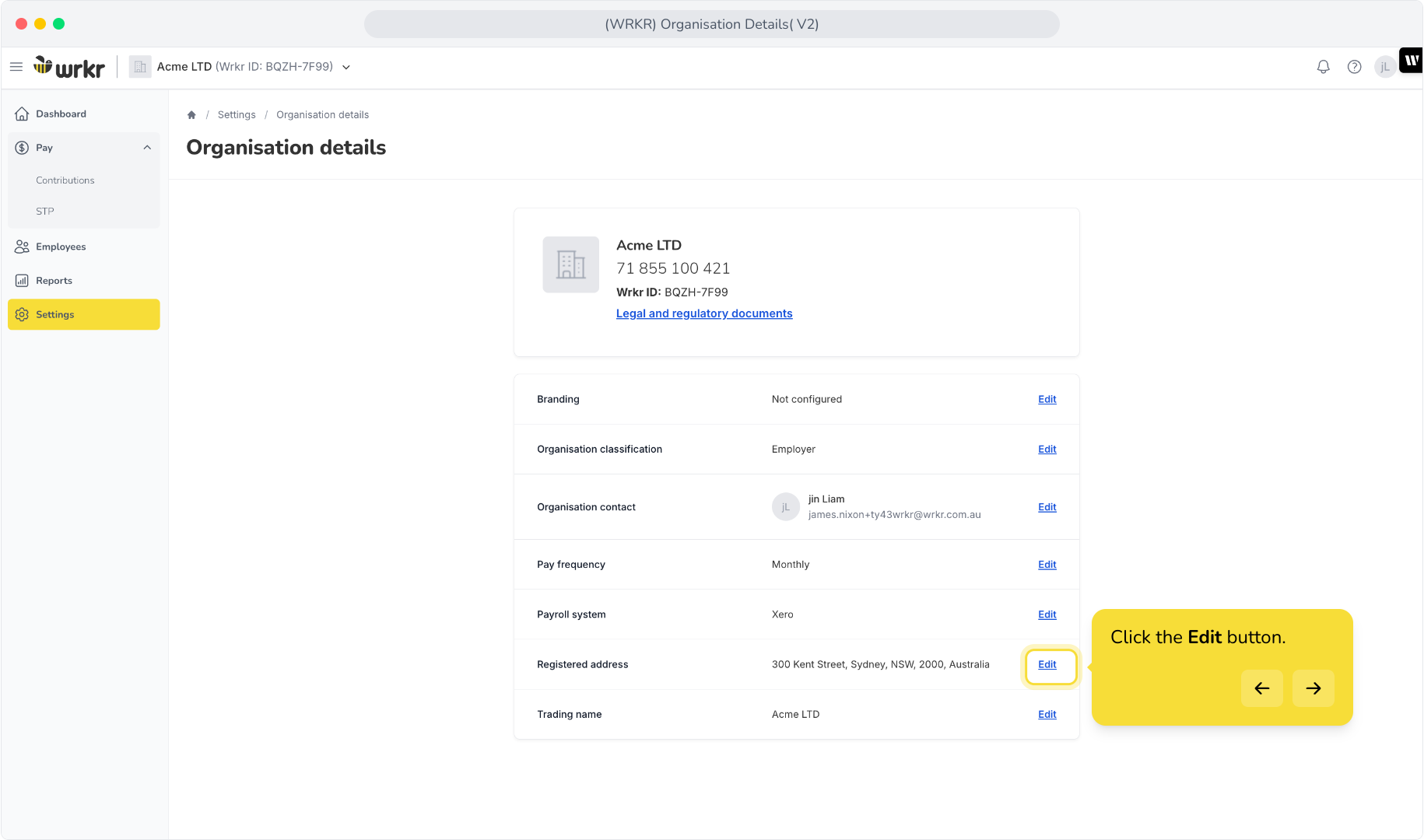
2. Click the Edit button.
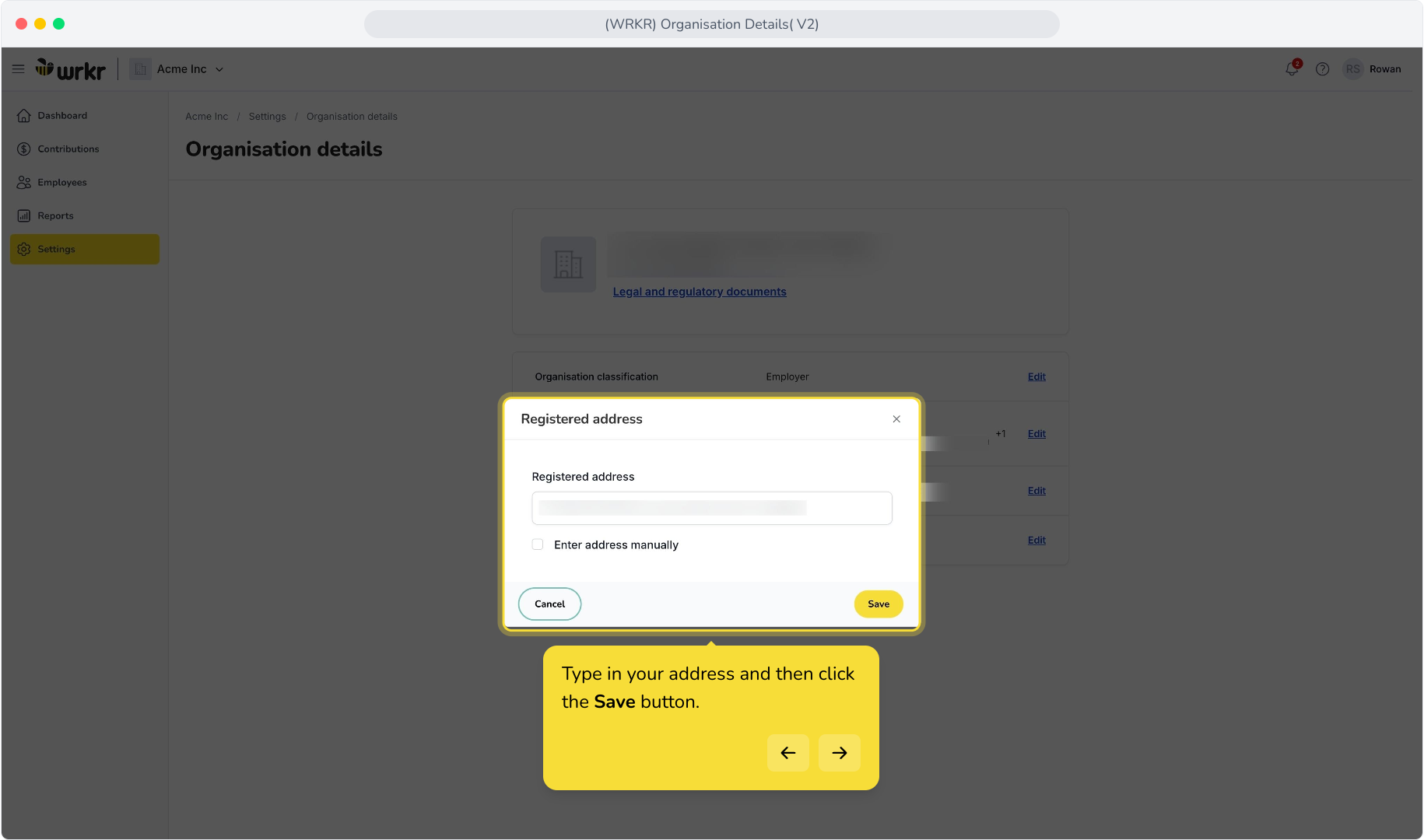
3. Type in your address and then click the Save button.
Edit Trading Name
1. Click the Organisation Details button
2. Click the Edit button.
3 Enter your trading name and click the Save button.