Context: This guide demonstrates how to clear your cache and browsing data in Chrome, Firefox, Safari, and Edge.
Interactive Demo
Note: Make the demo full-screen for a better experience. You can mute/un-mute narration to suit your preferences.
Step by Step
1. Google Chrome
2. Click on the three dot menu.

3. Select Settings.

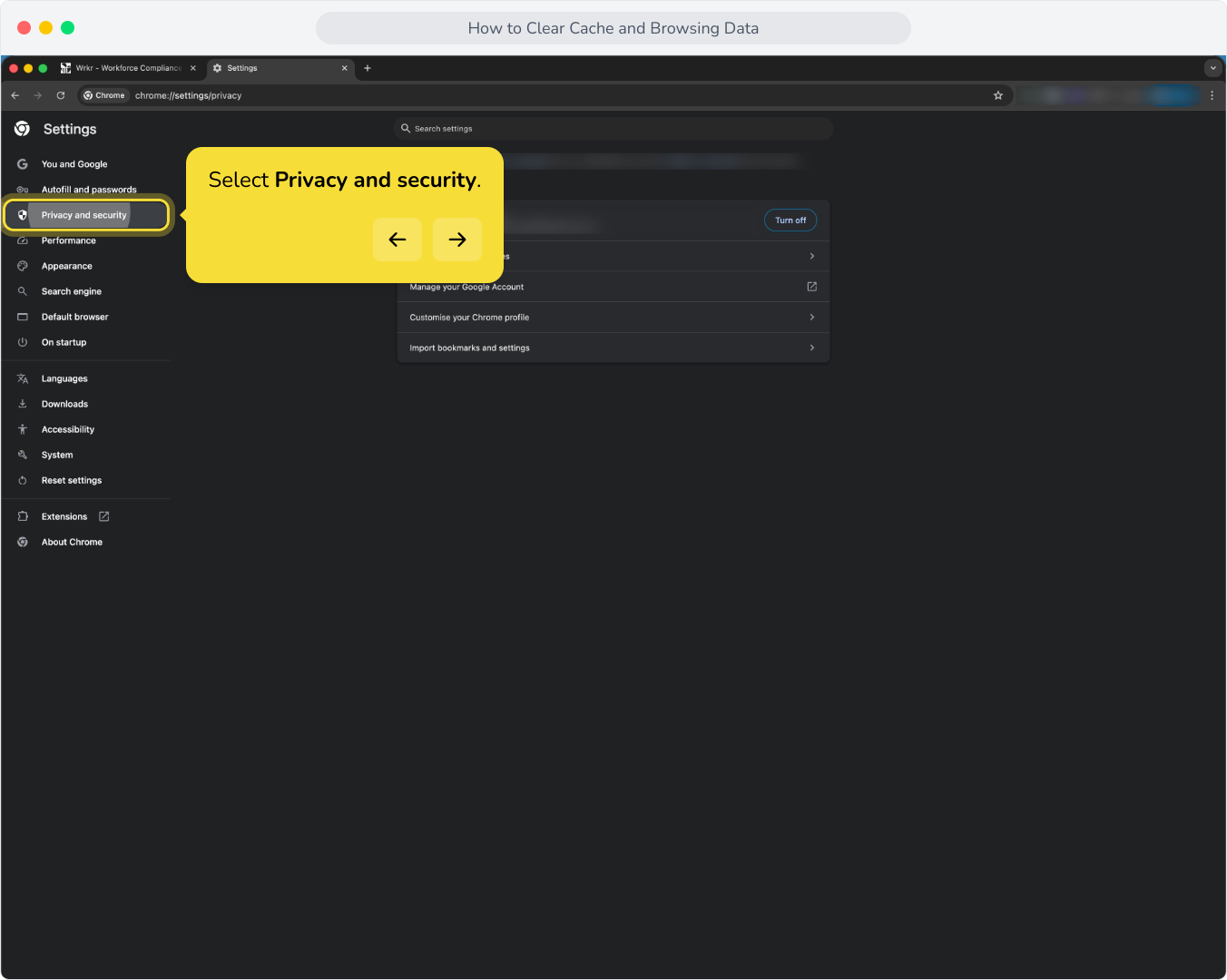
4. Select Privacy and security.
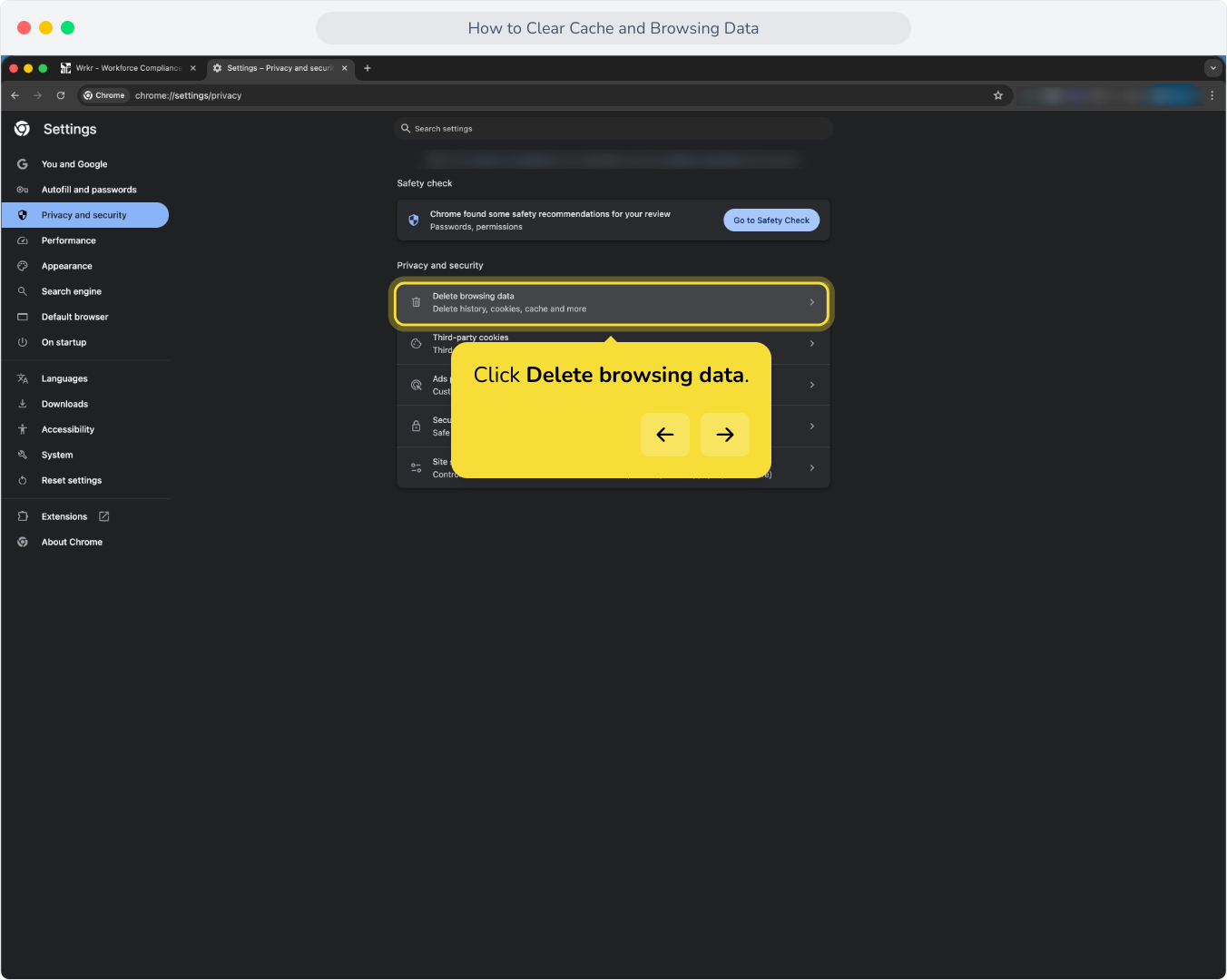
5. Click Delete browsing data.
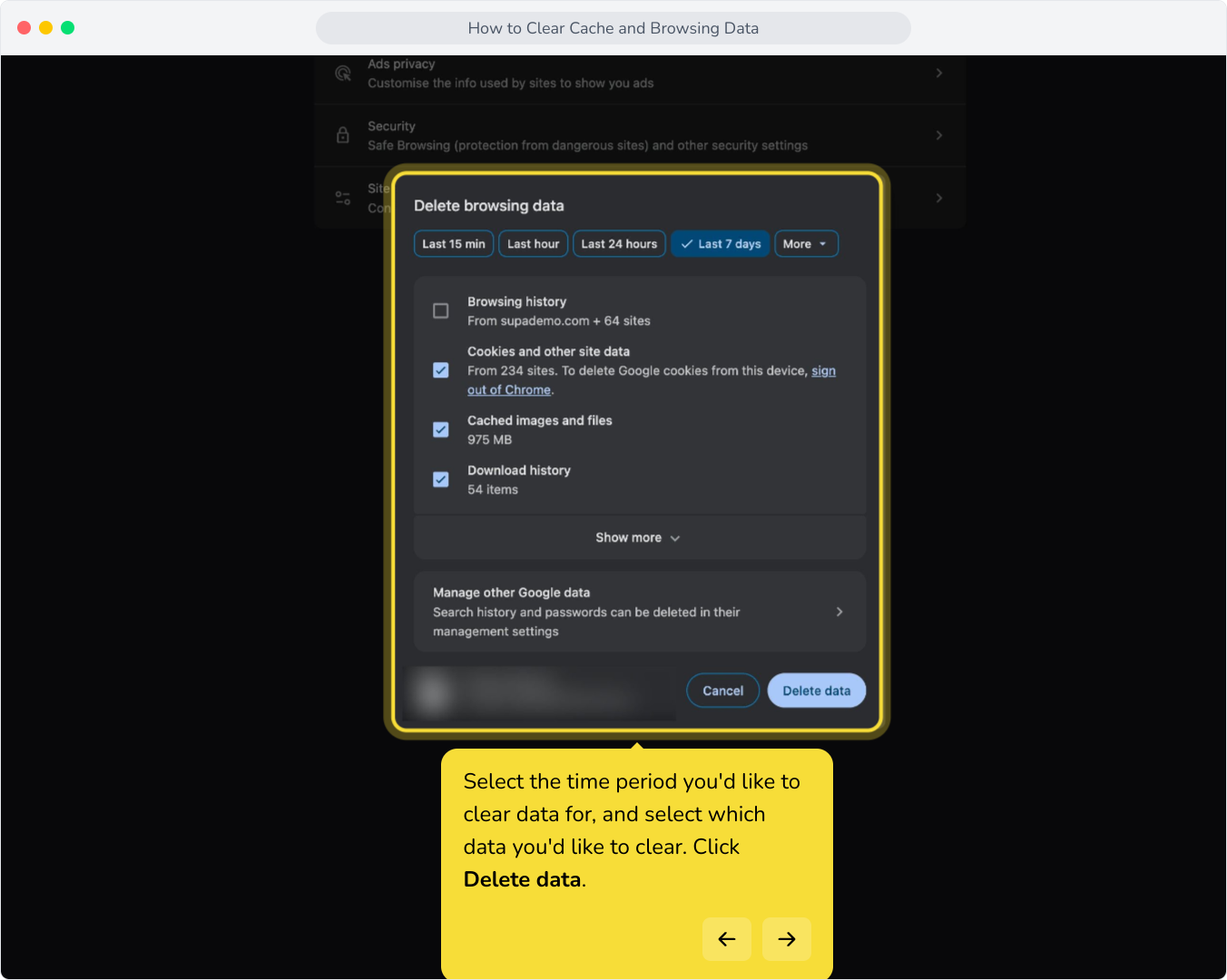
6. Select the time period you'd like to clear data for, and select which data you'd like to clear. Click Delete data.
7. Firefox
8. Click on the menu button.

9. Select Settings.

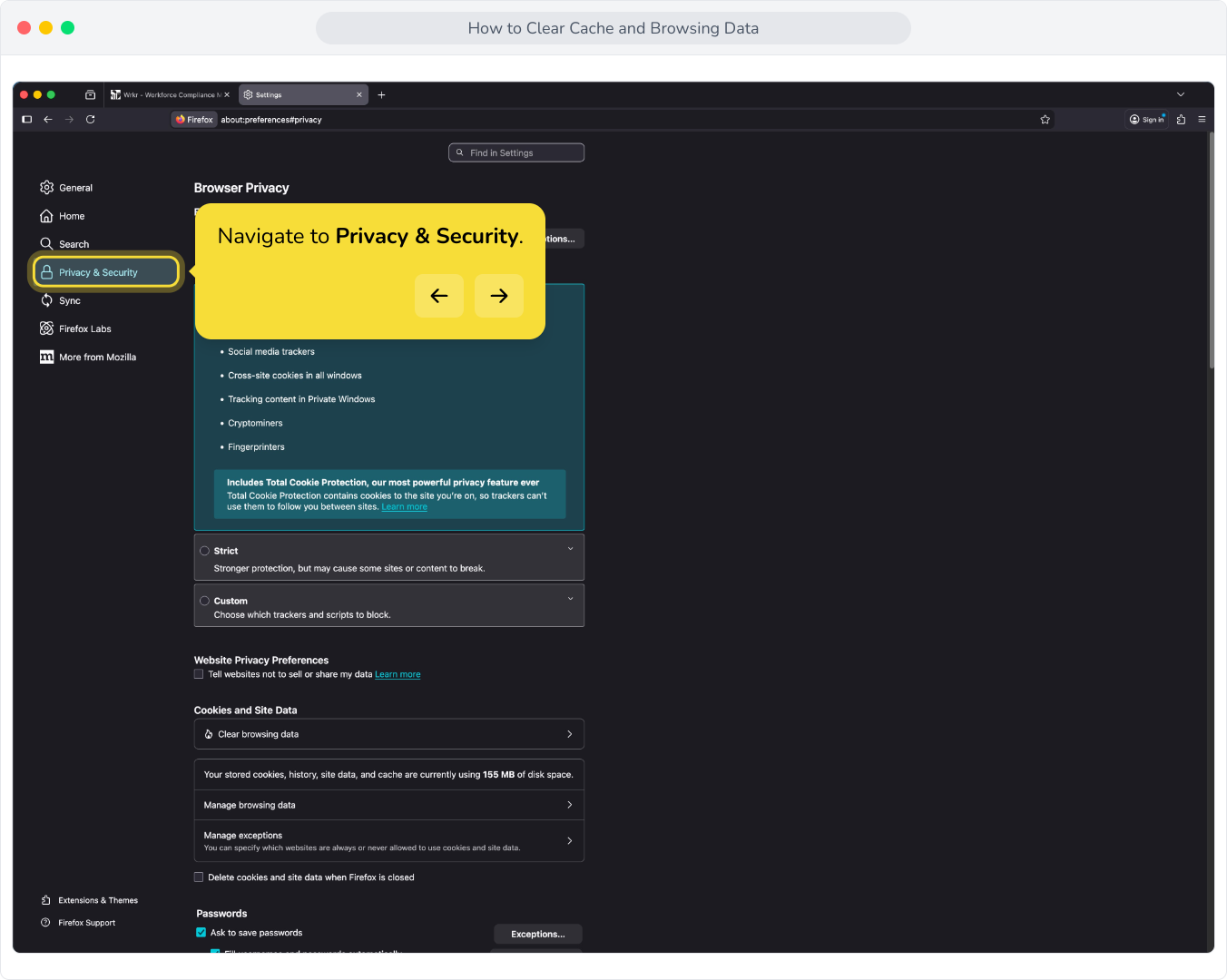
10. Navigate to Privacy & Security.
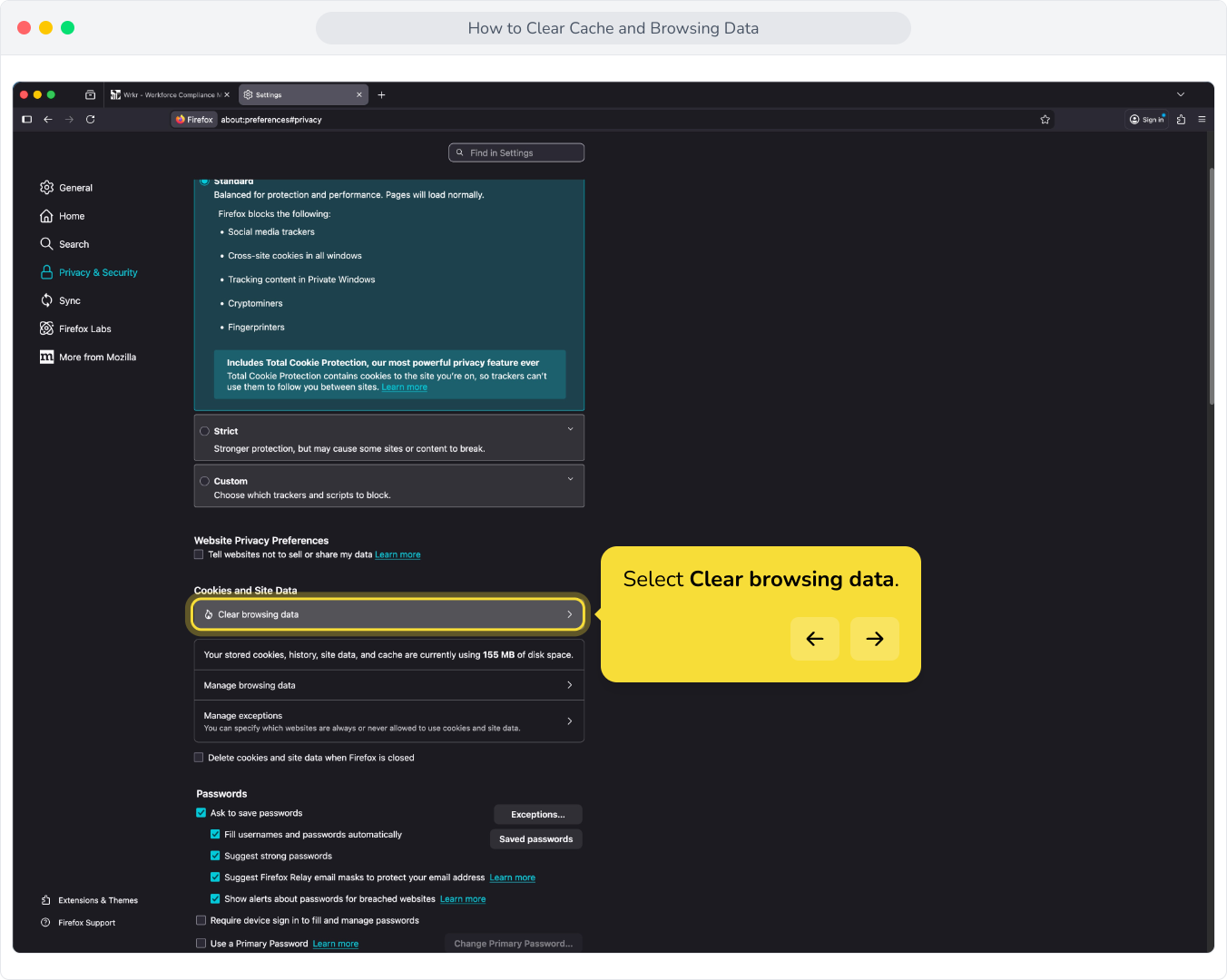
11. Select Clear browsing data.
12. Choose the time period you'd like to clear data for.
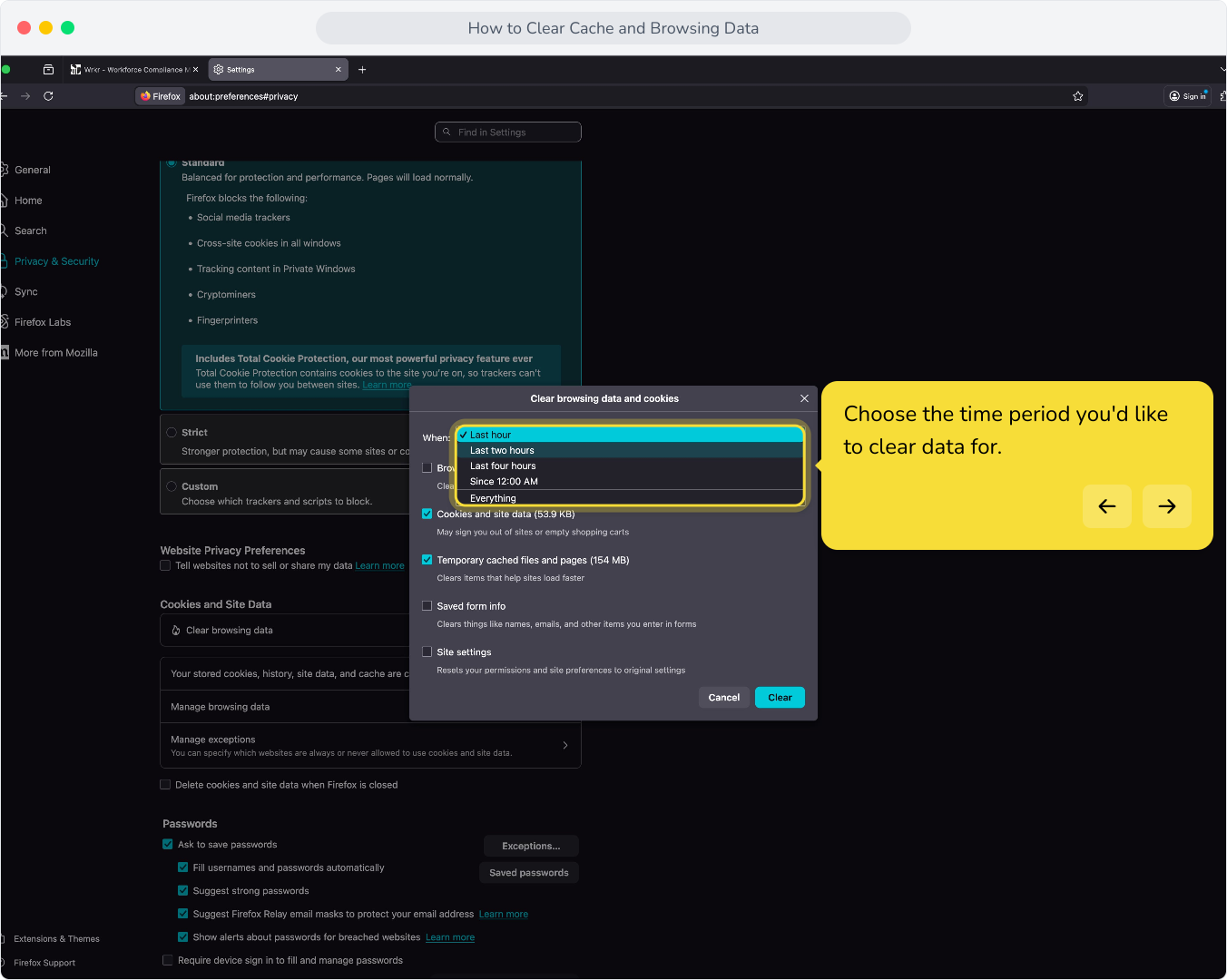
13. Select the data you'd like to clear e.g., Browsing & download history, cookies, and temporary cached files and images. Click Clear.

14. Safari
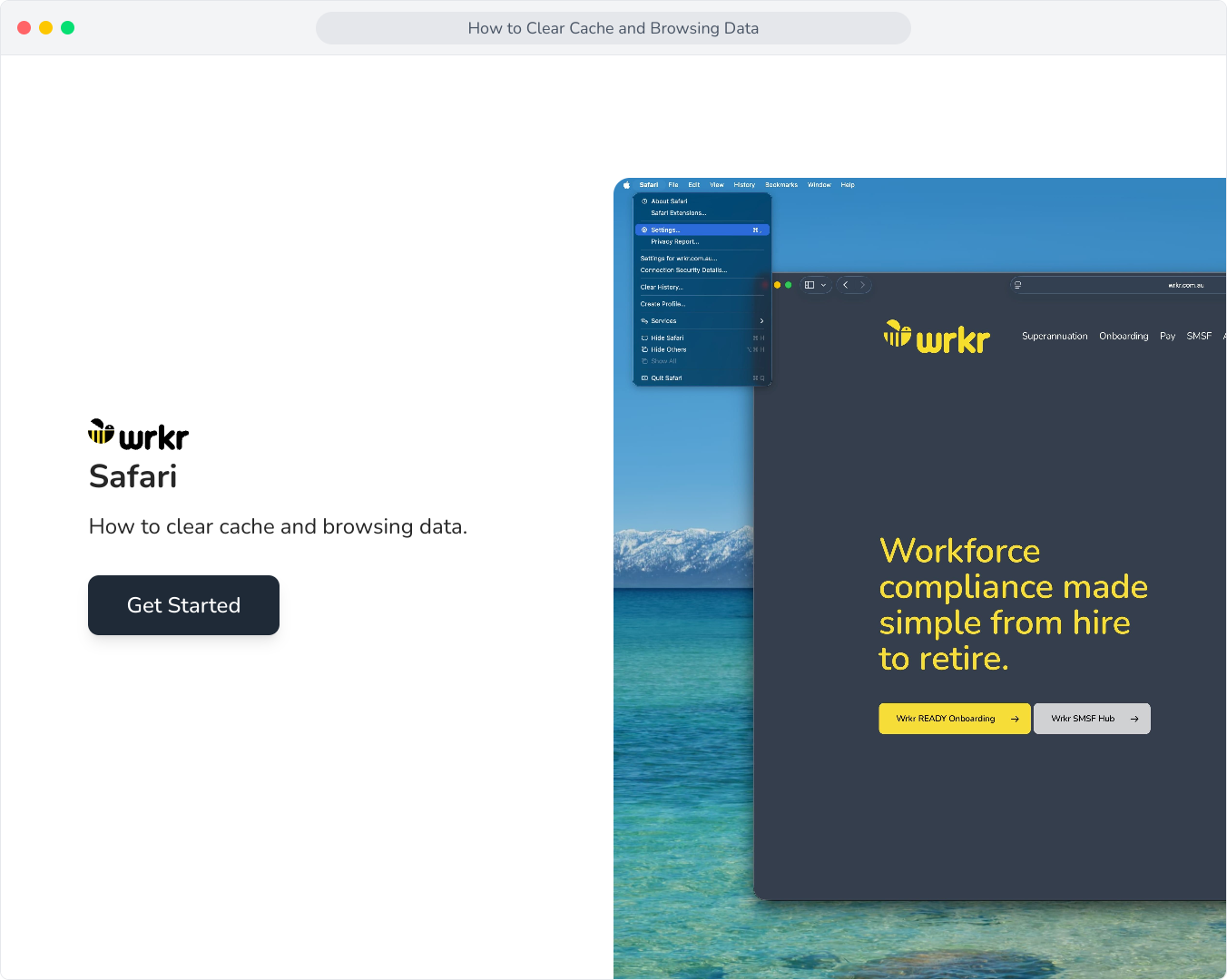
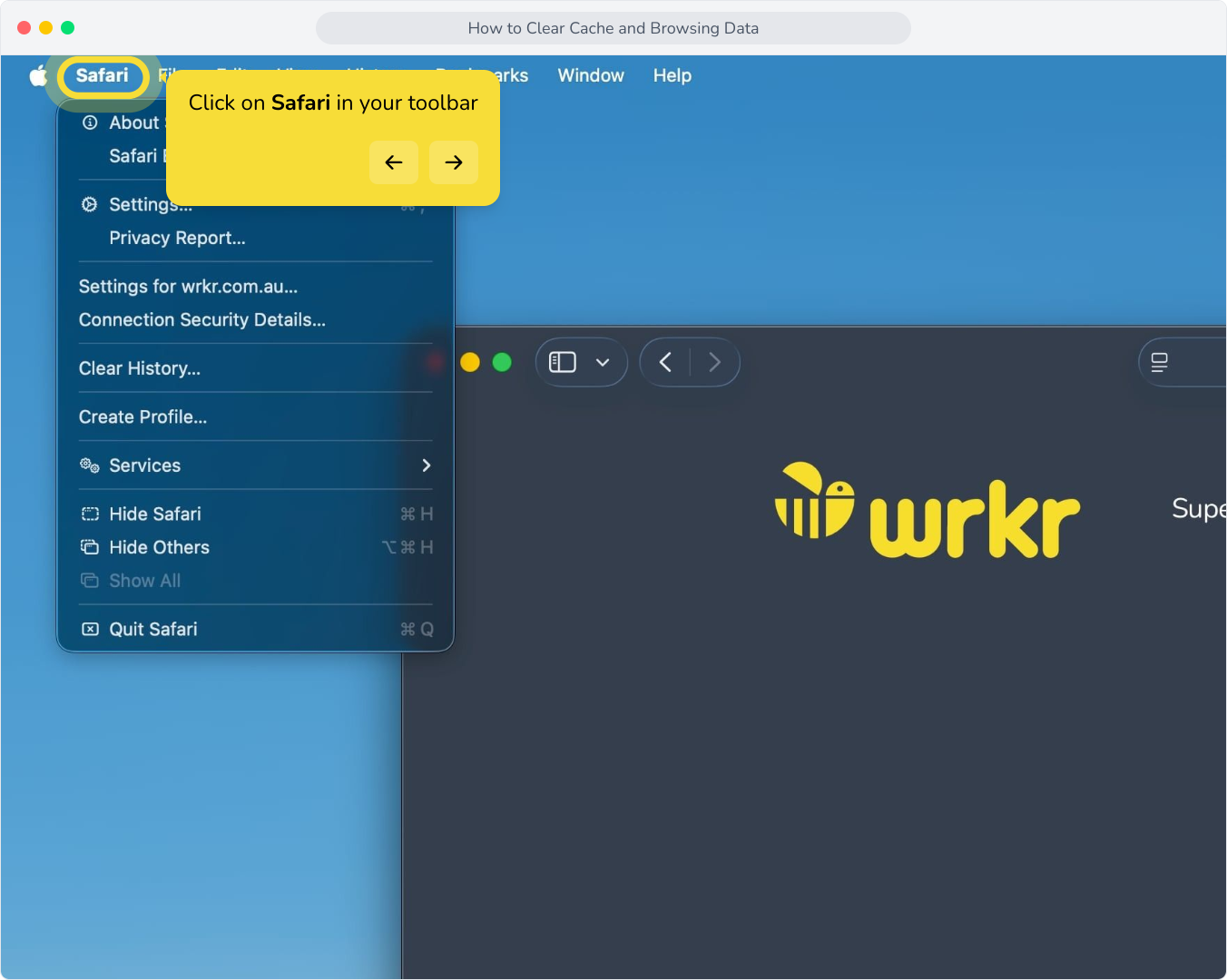
15. Click on Safari in your toolbar
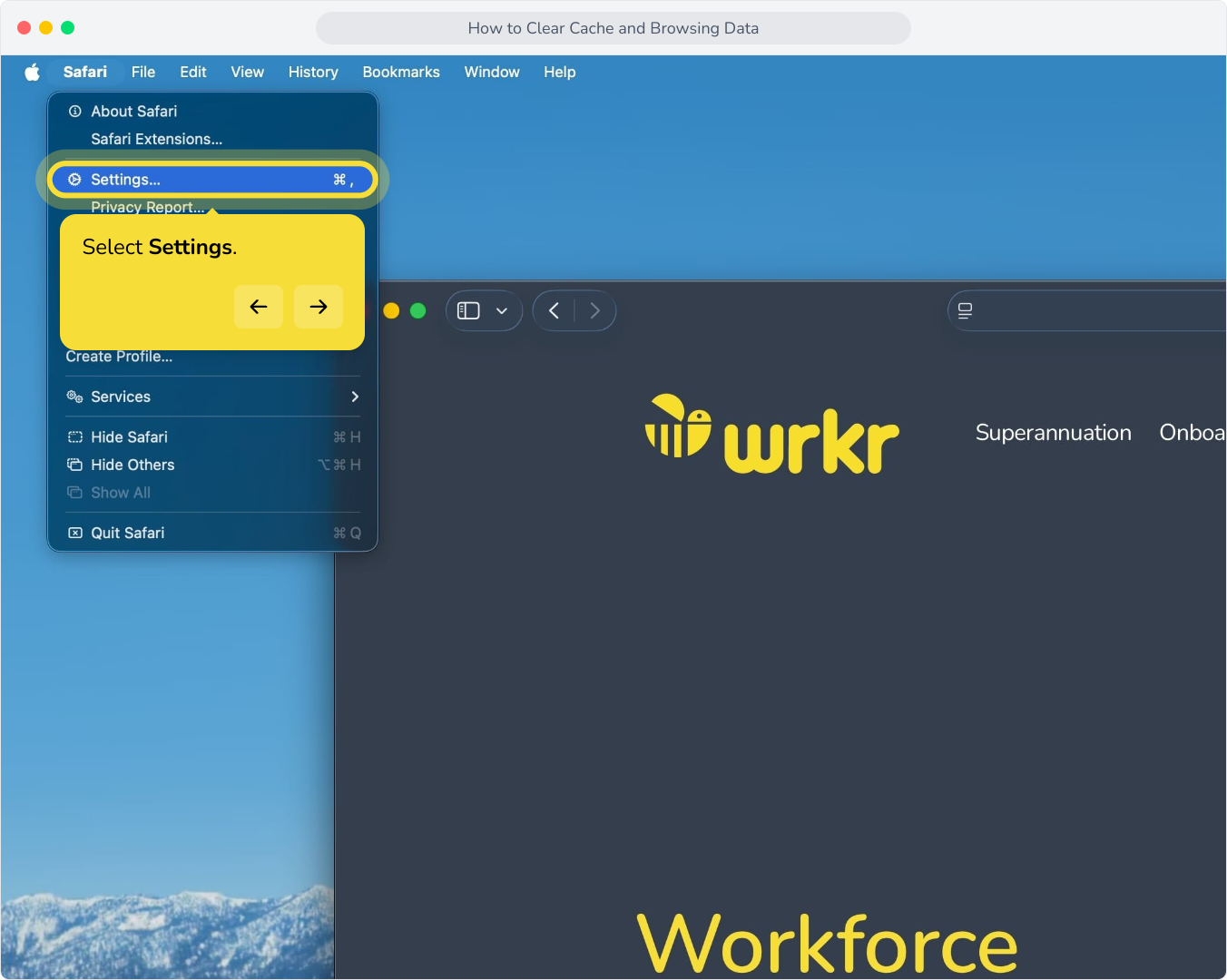
16. Select Settings.
17. Click on Advanced.
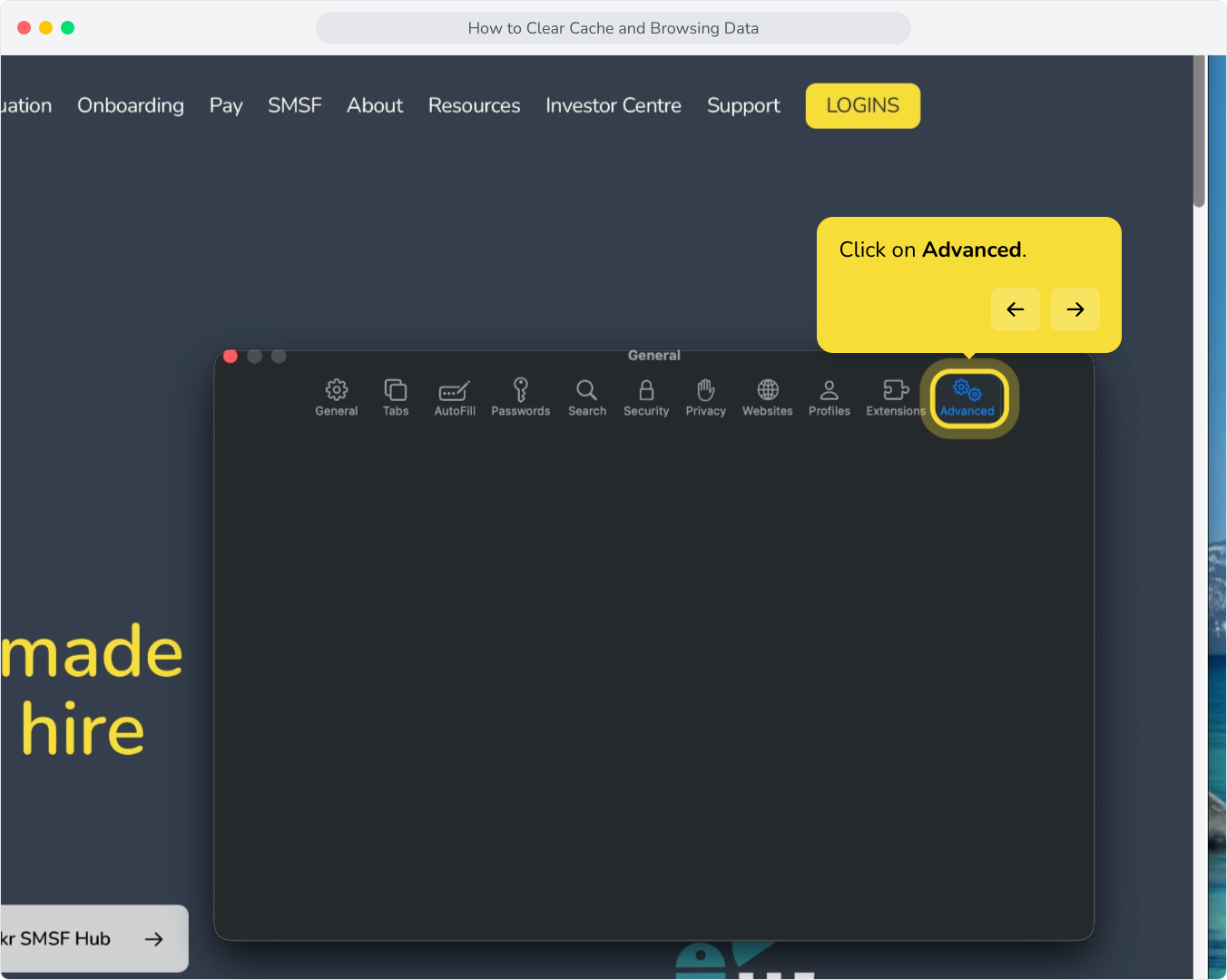
18. Check Show features for web developers.

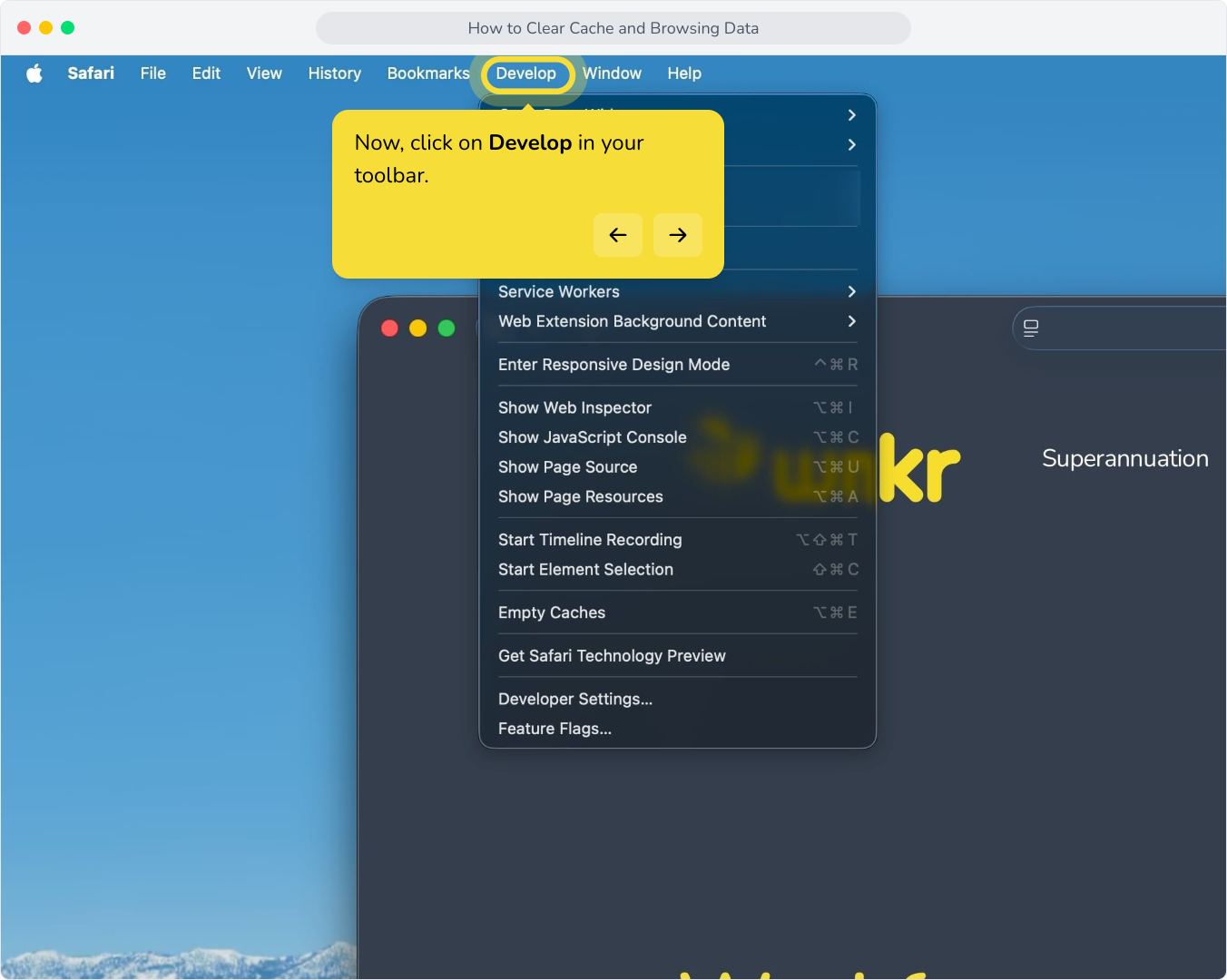
19. Now, click on Develop in your toolbar.
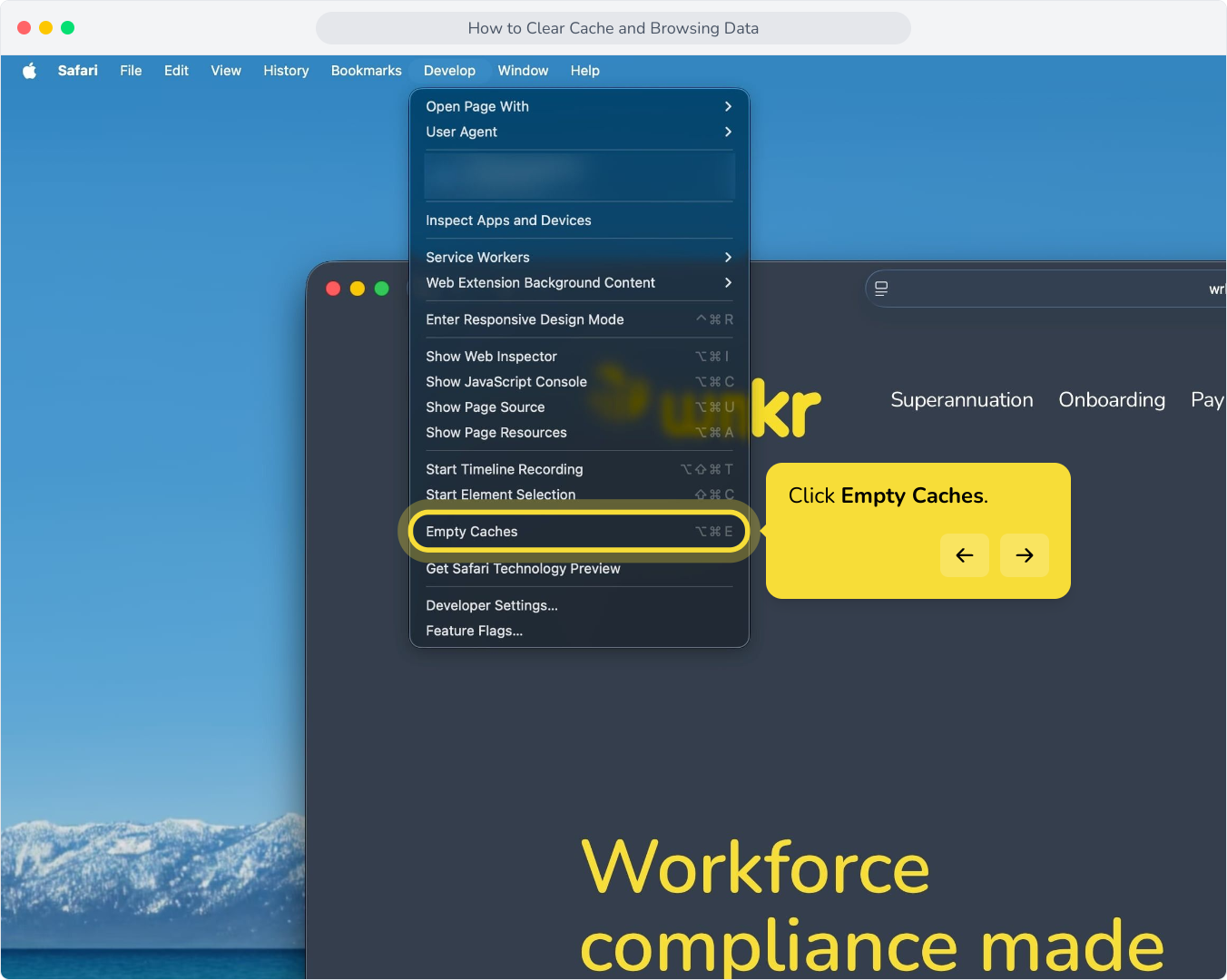
20. Click Empty Caches.
21. Now, click on History from the toolbar.

22. Click Clear History.

23. Select the time period to clear data for.

24. Click Clear History.

25. Microsoft Edge
26. Select the menu button

27. Select Settings.

28. Navigate to Privacy, search, and services.
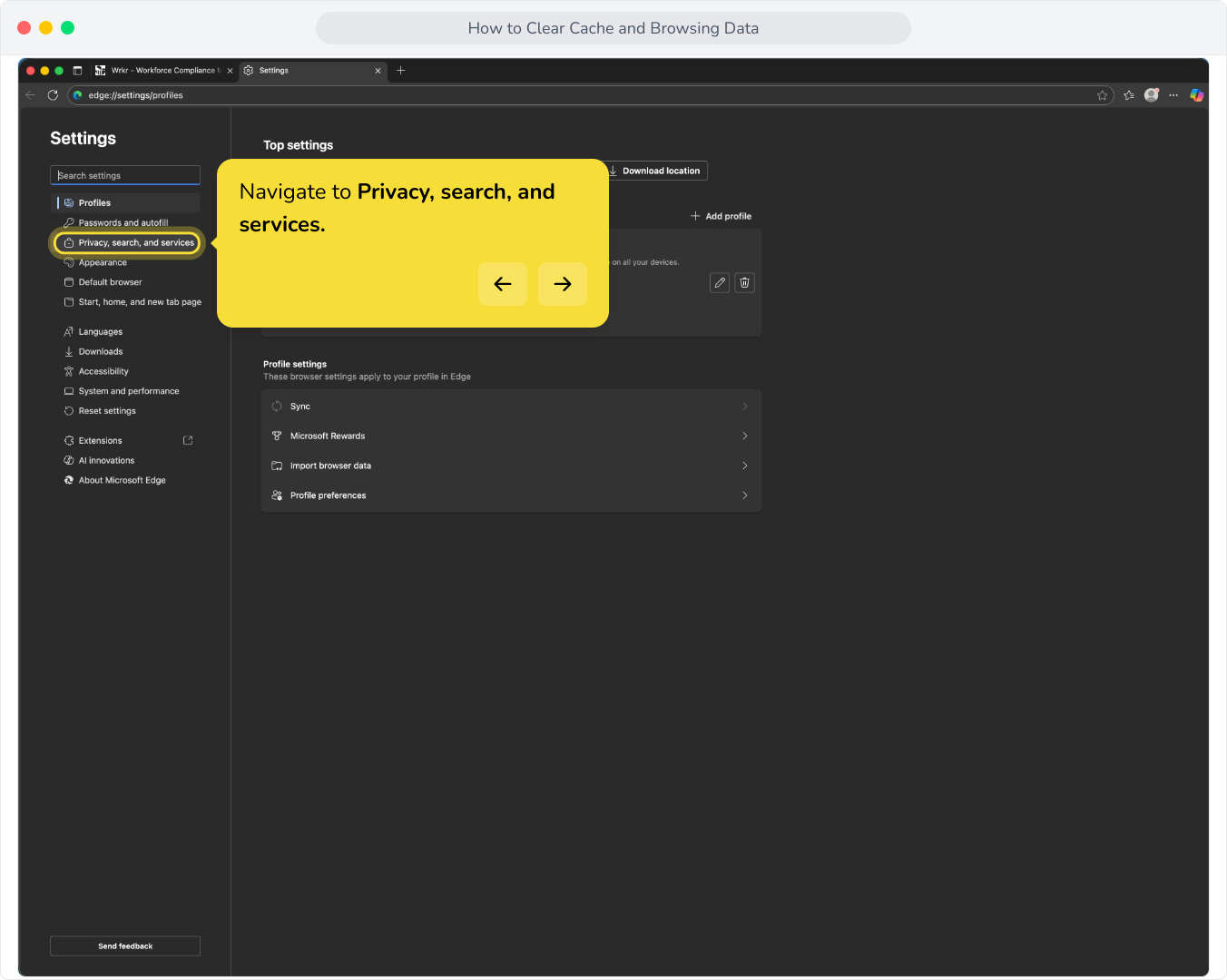
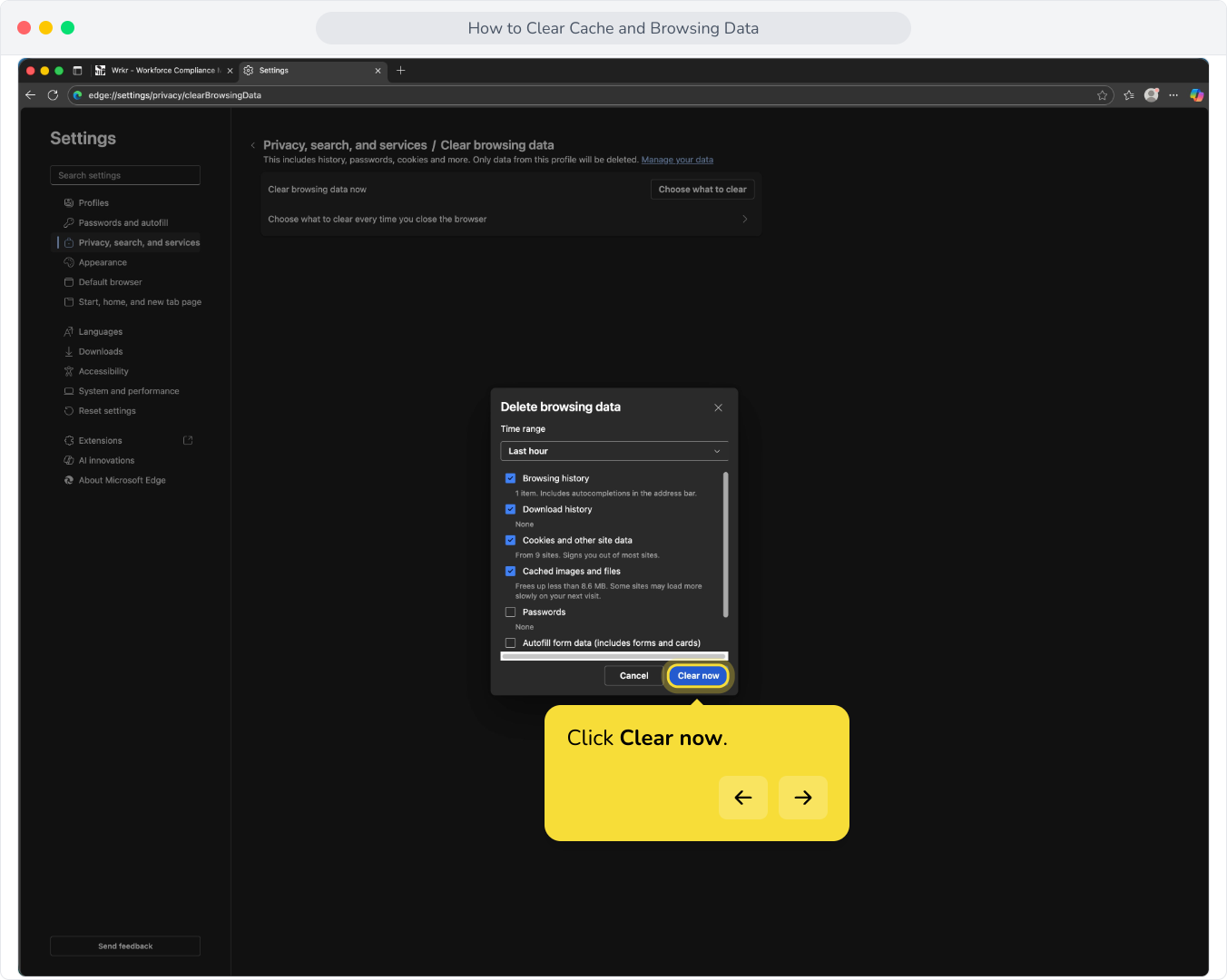
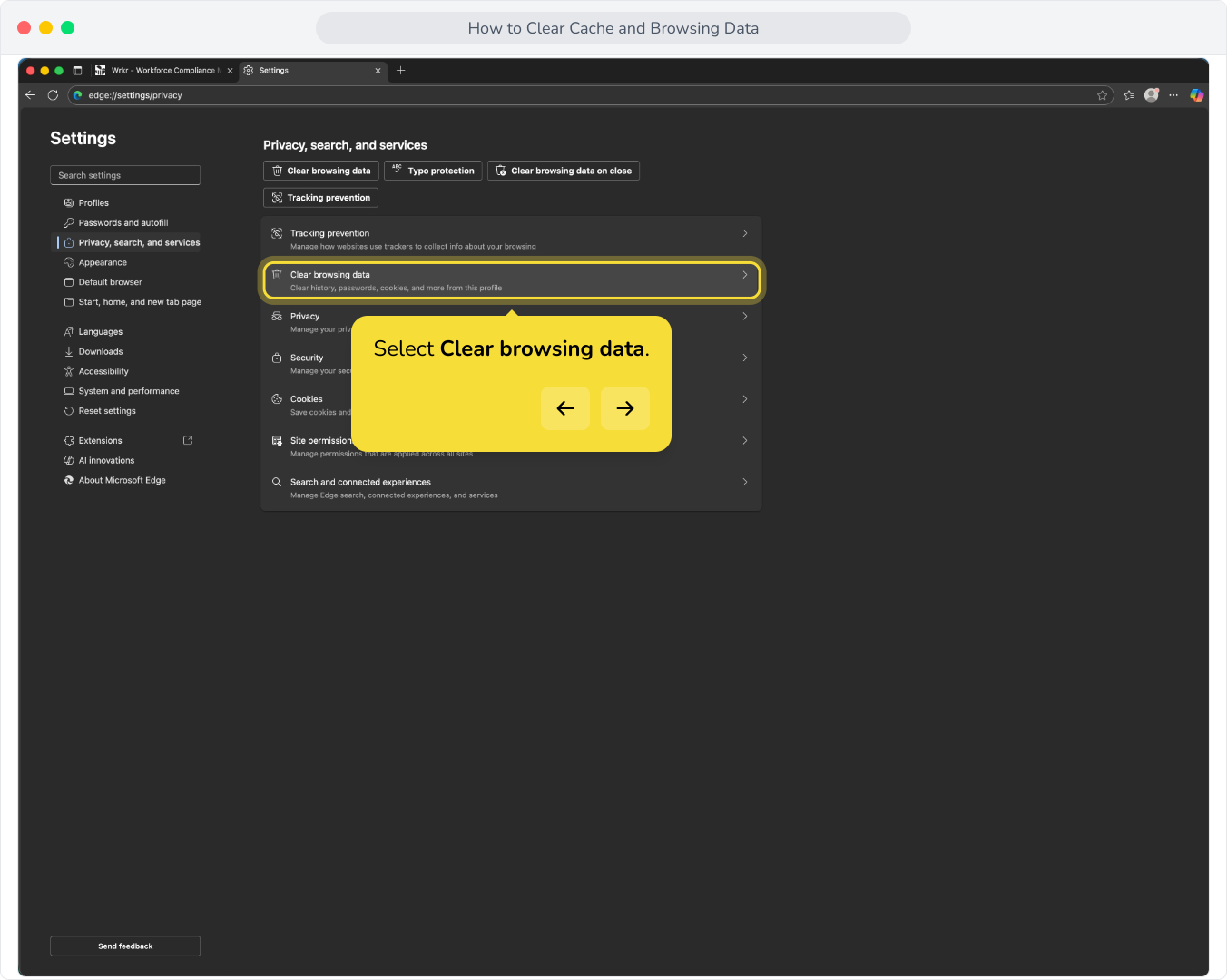
29. Select Clear browsing data.
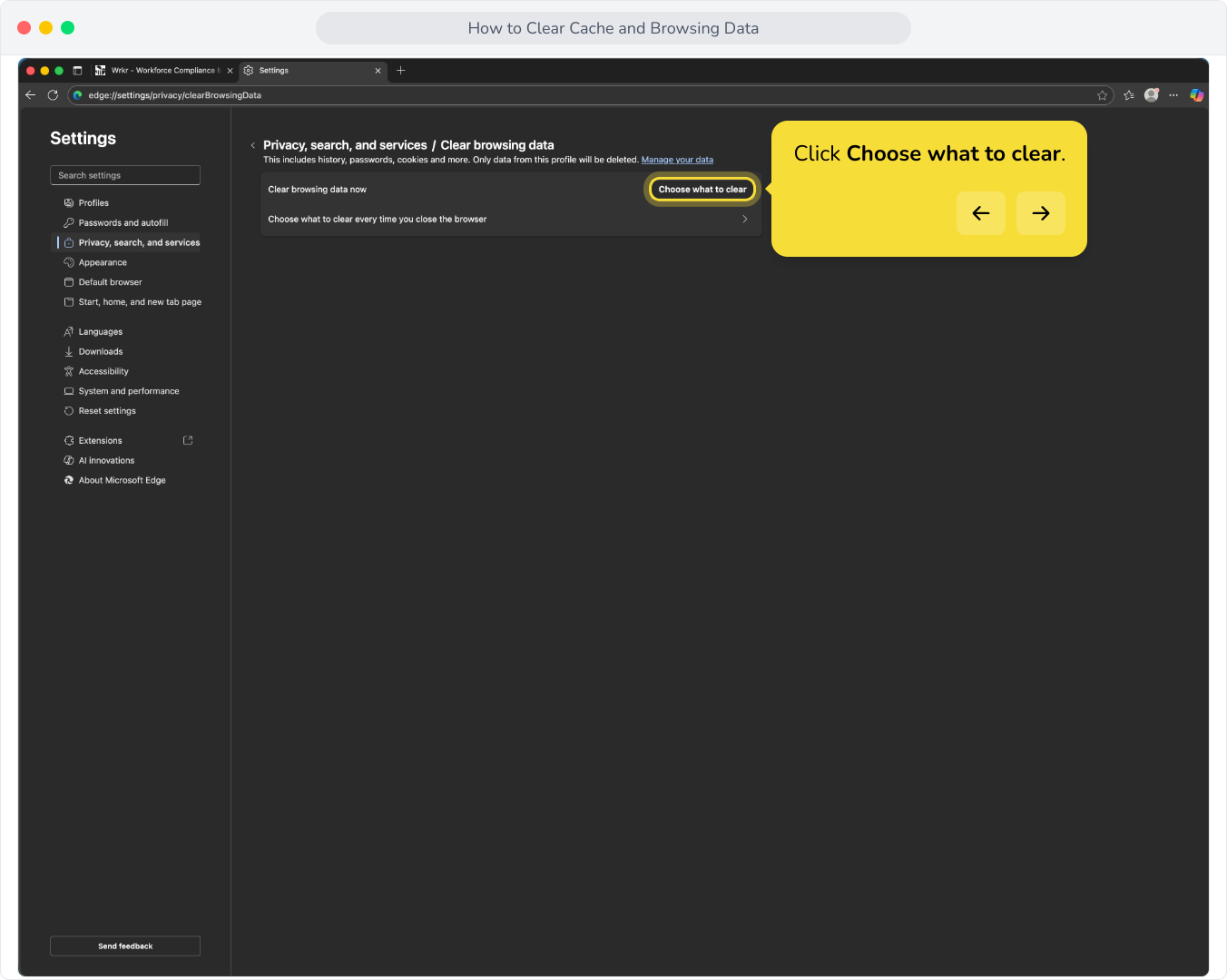
30. Click Choose what to clear.
31. Select your time range, and data you wish to clear.
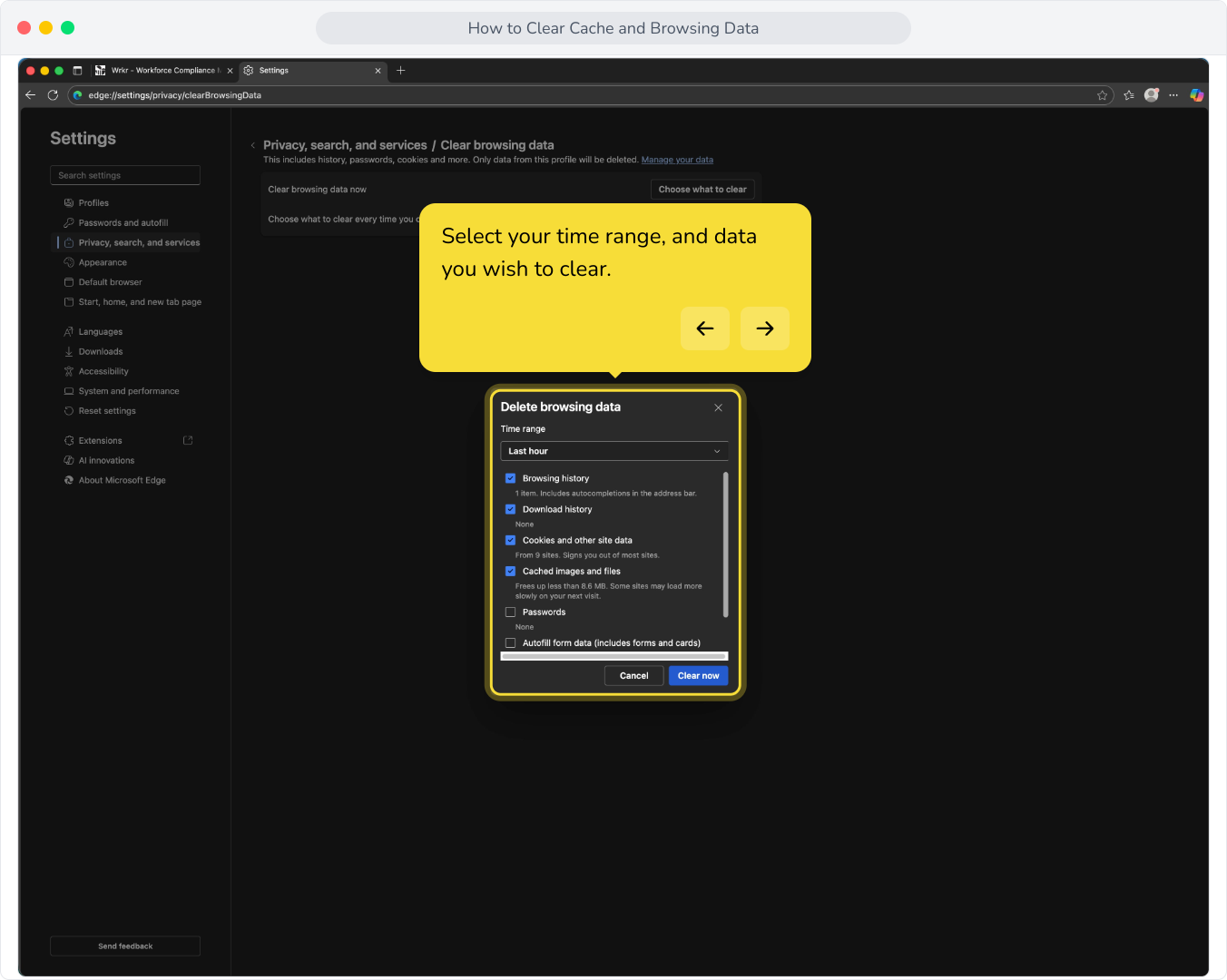
32. Click Clear now.