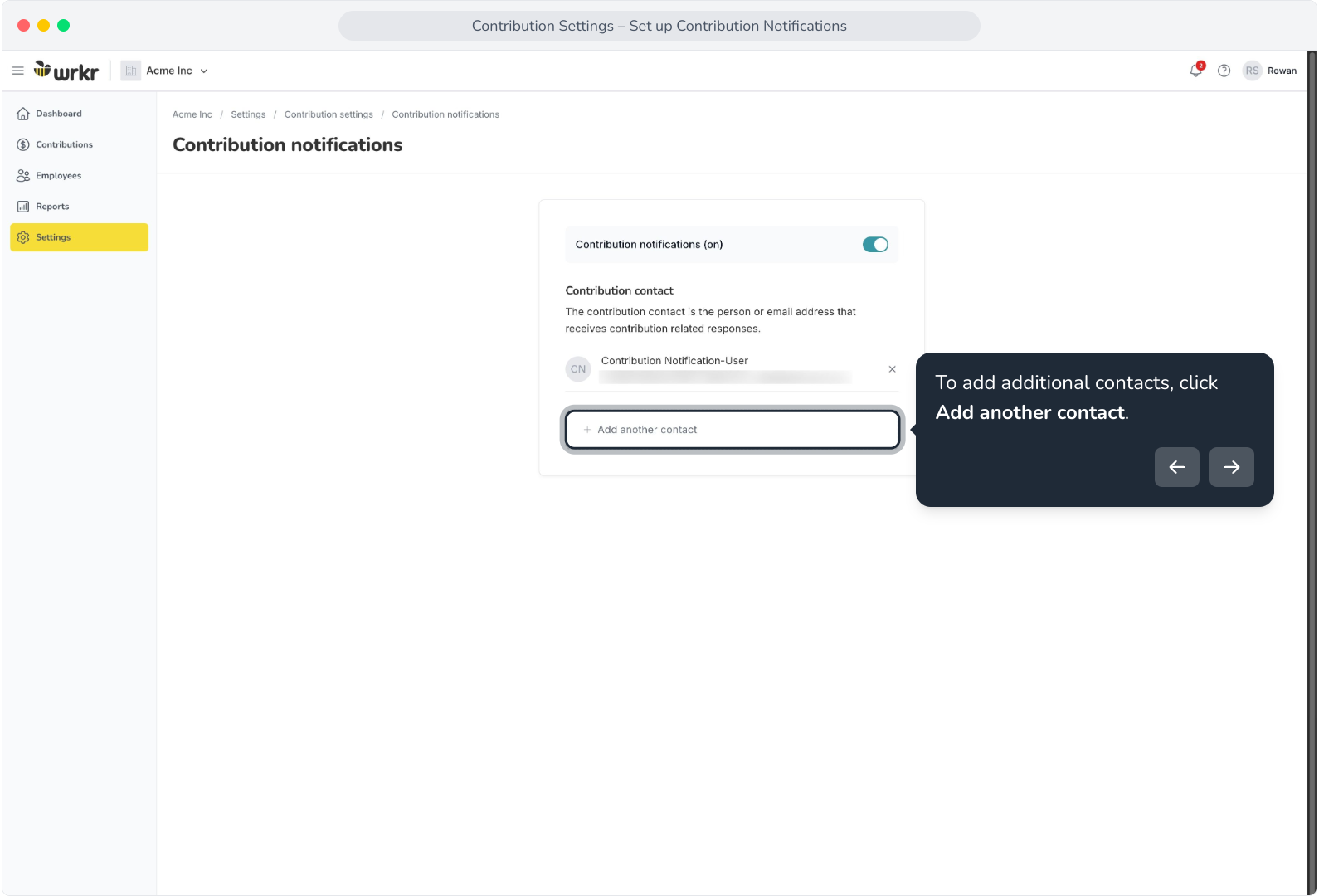
Context: This guide walks through the process of setting up notifications for Contributions, and how to add users to be notified.
Interactive Demo
Note: Make the demo full-screen for a better experience. You can mute/un-mute narration to suit your preferences.
Step by Step
1. Contribution Settings – Set Up Contribution Notifications
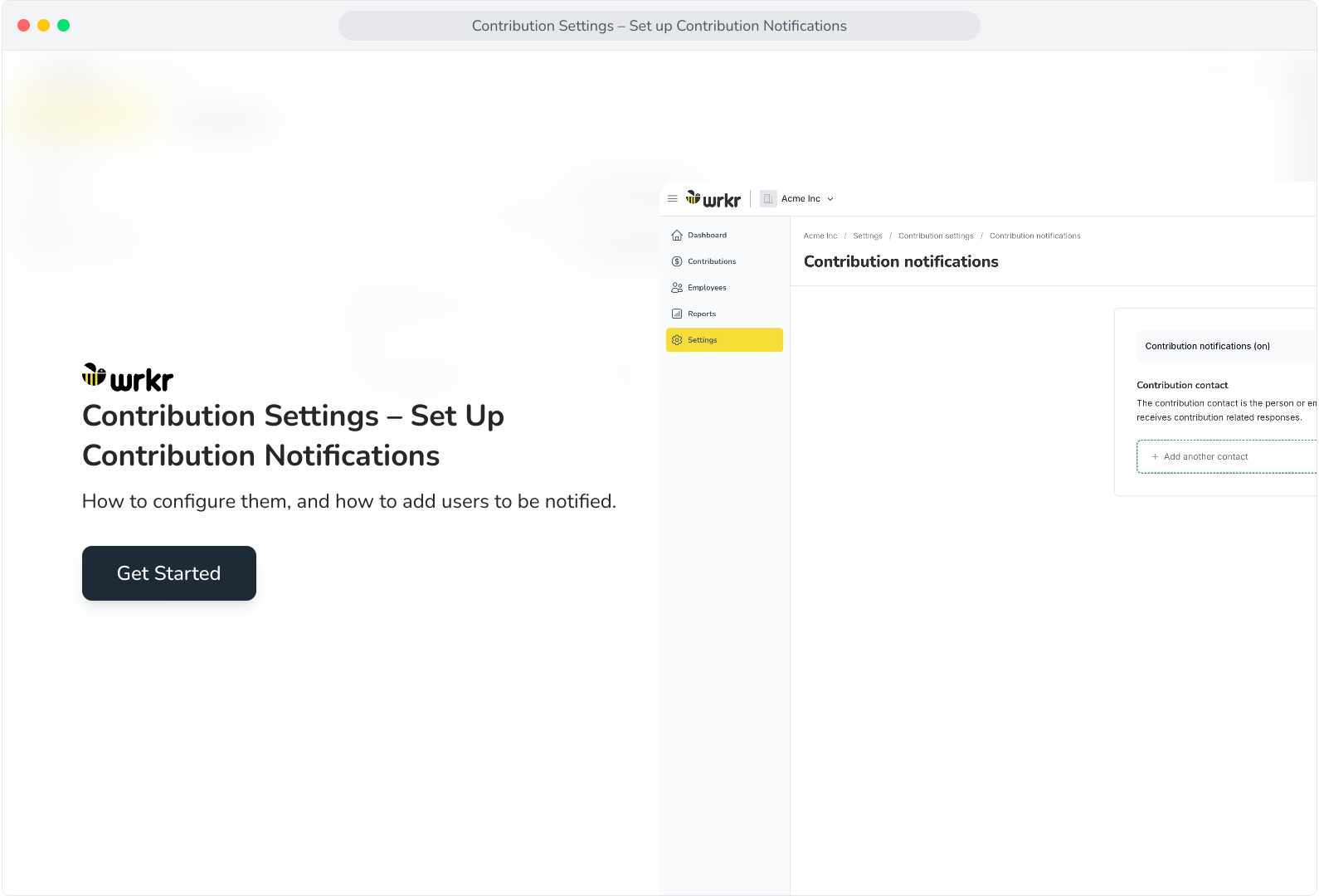
2. To configure contribution notifications, navigate to Settings.
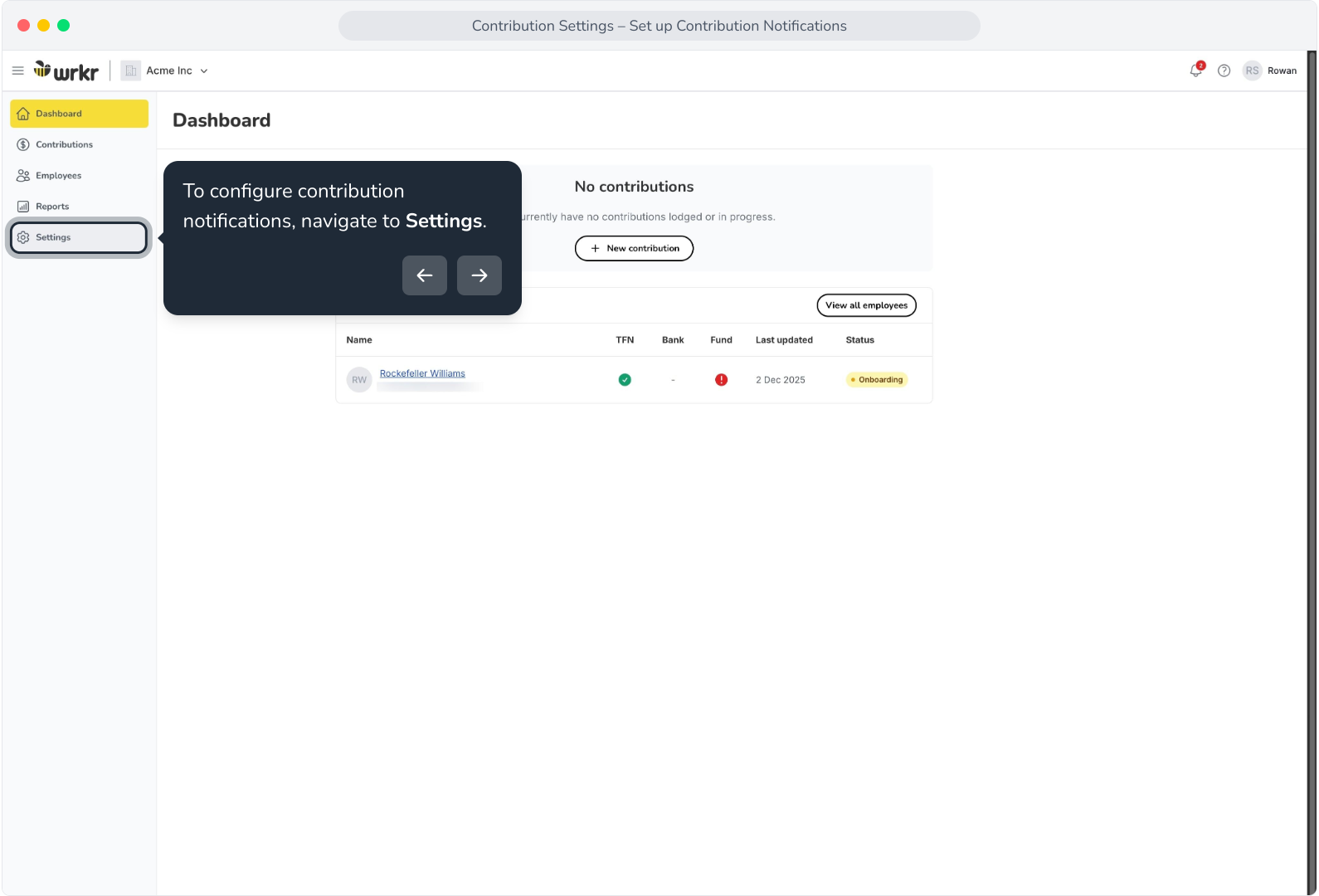
3. Select Contribution settings.
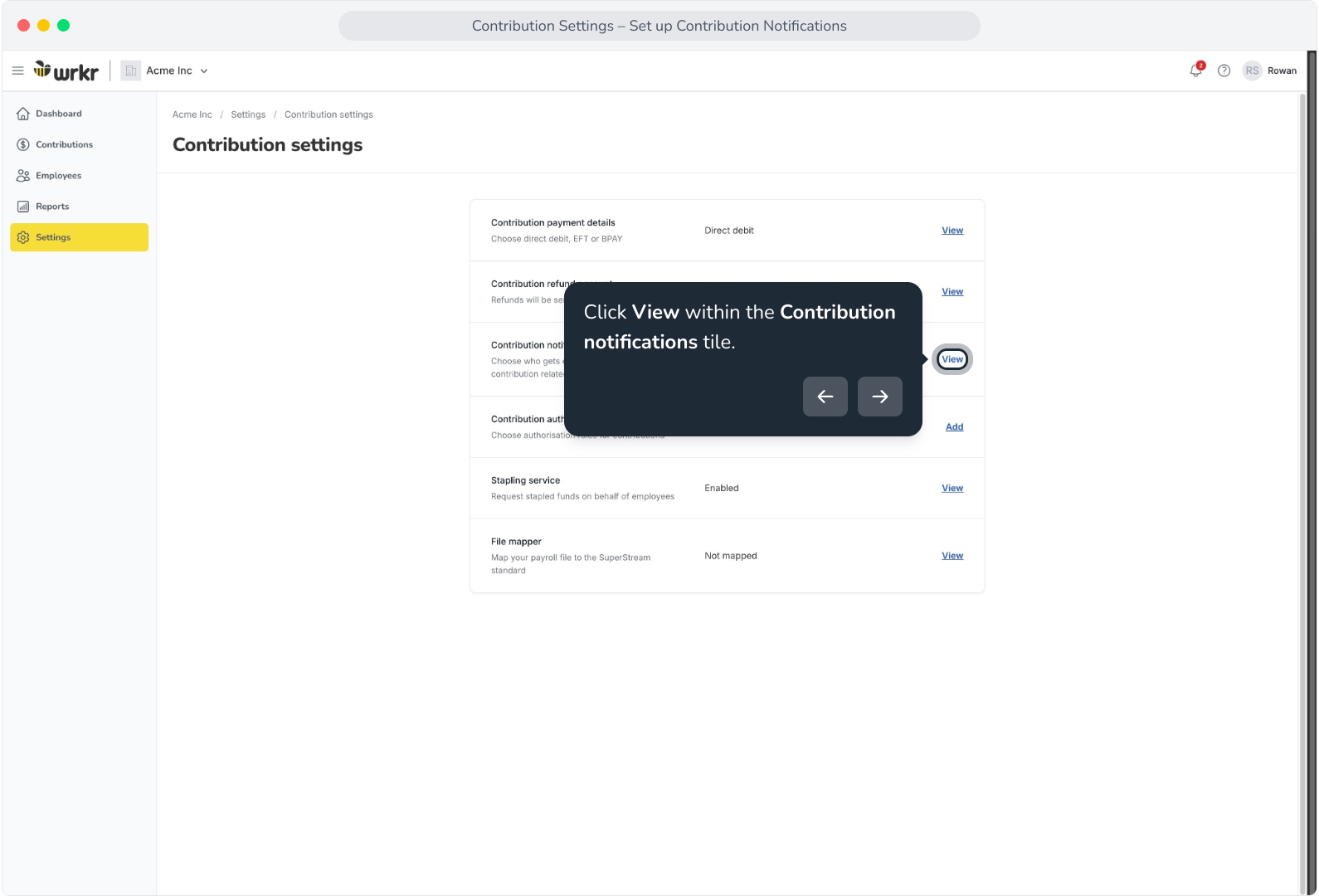
4. Click View within the Contribution notifications tile.
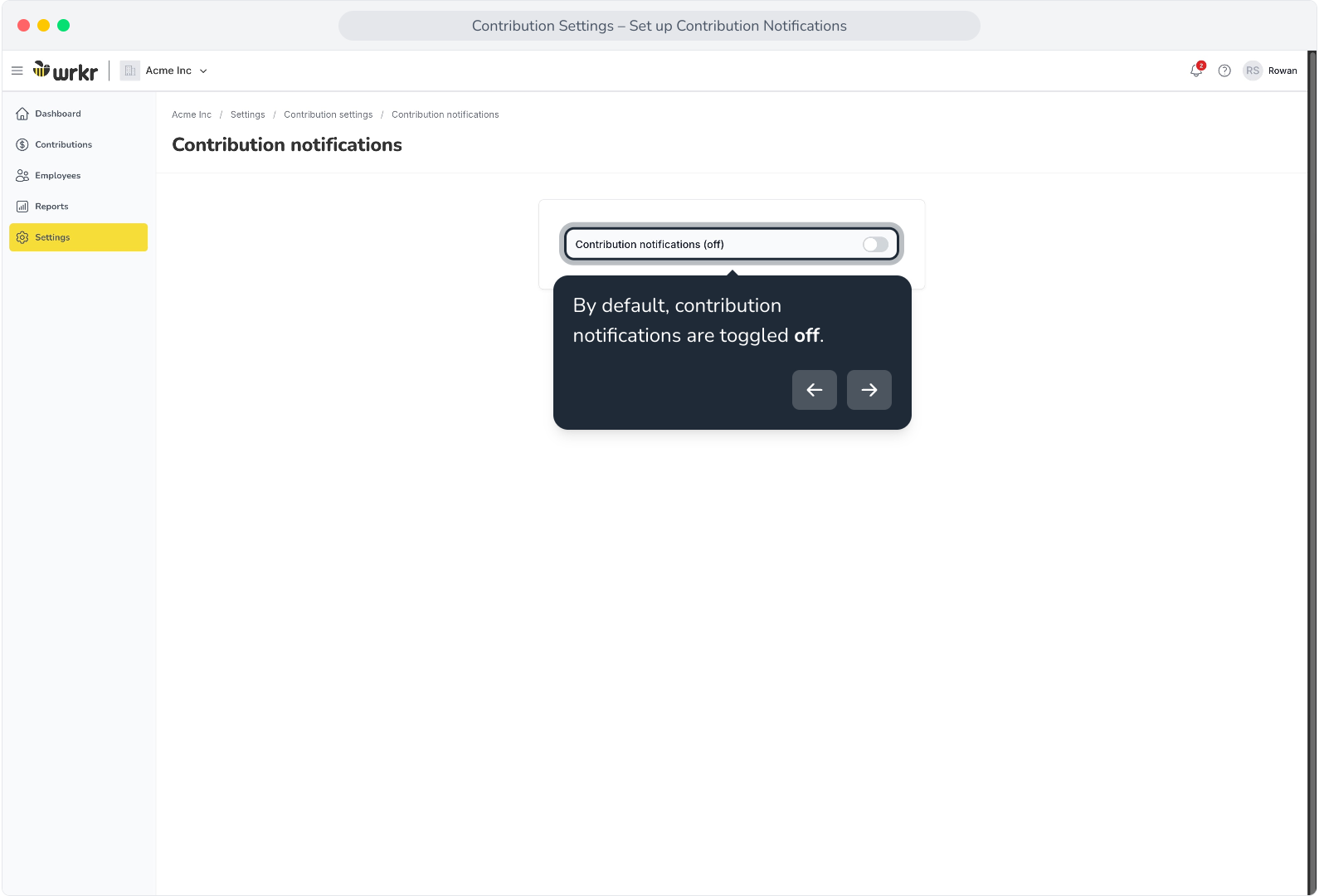
5. By default, contribution notifications are toggled off.
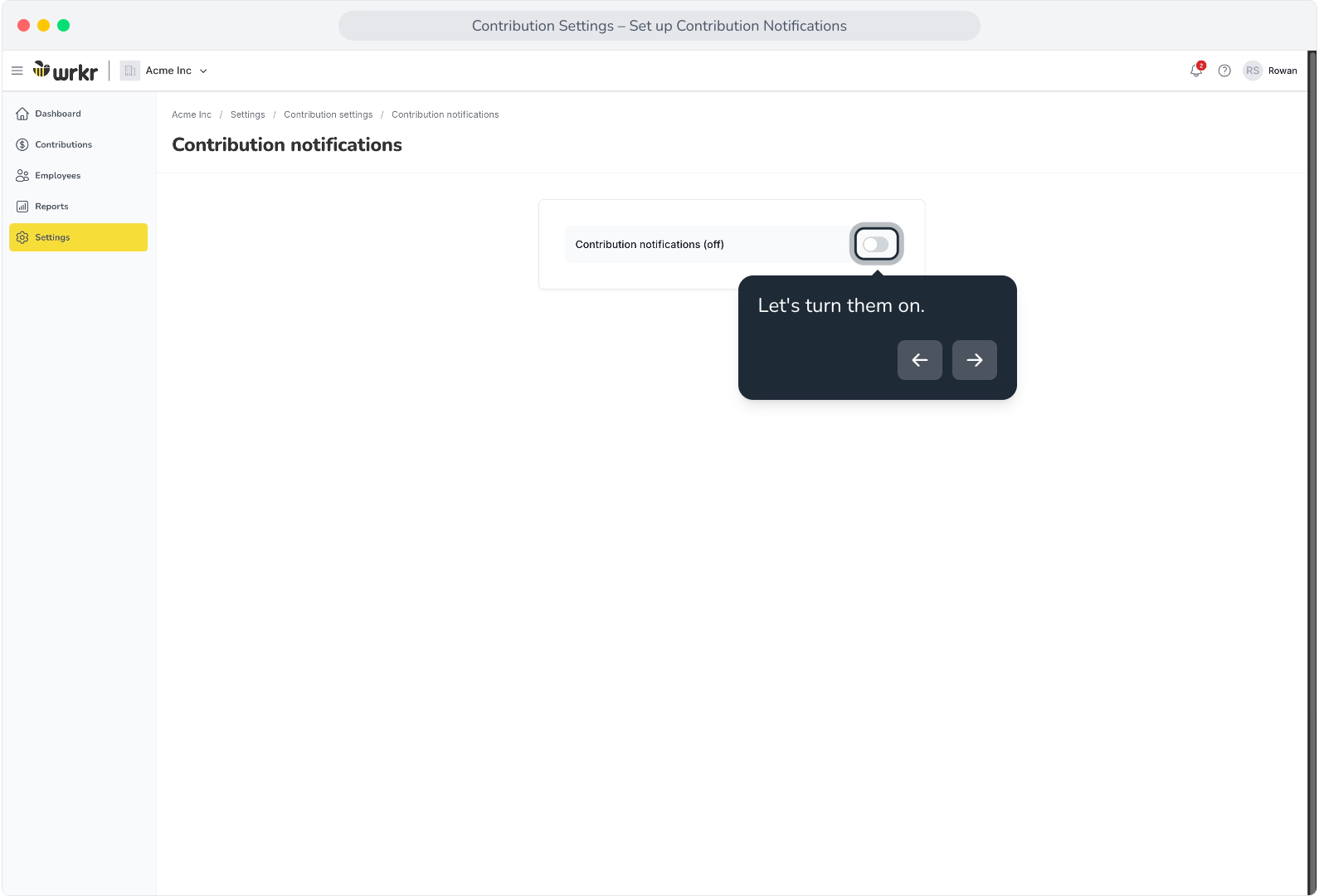
6. Let's turn them on.
7. Contribution notifications are sent to elected users via email and relate to updates about contributions. For example, when a contribution payment is required, when a refund has been received, or any other matters relating to the processing of contributions within your organisation.
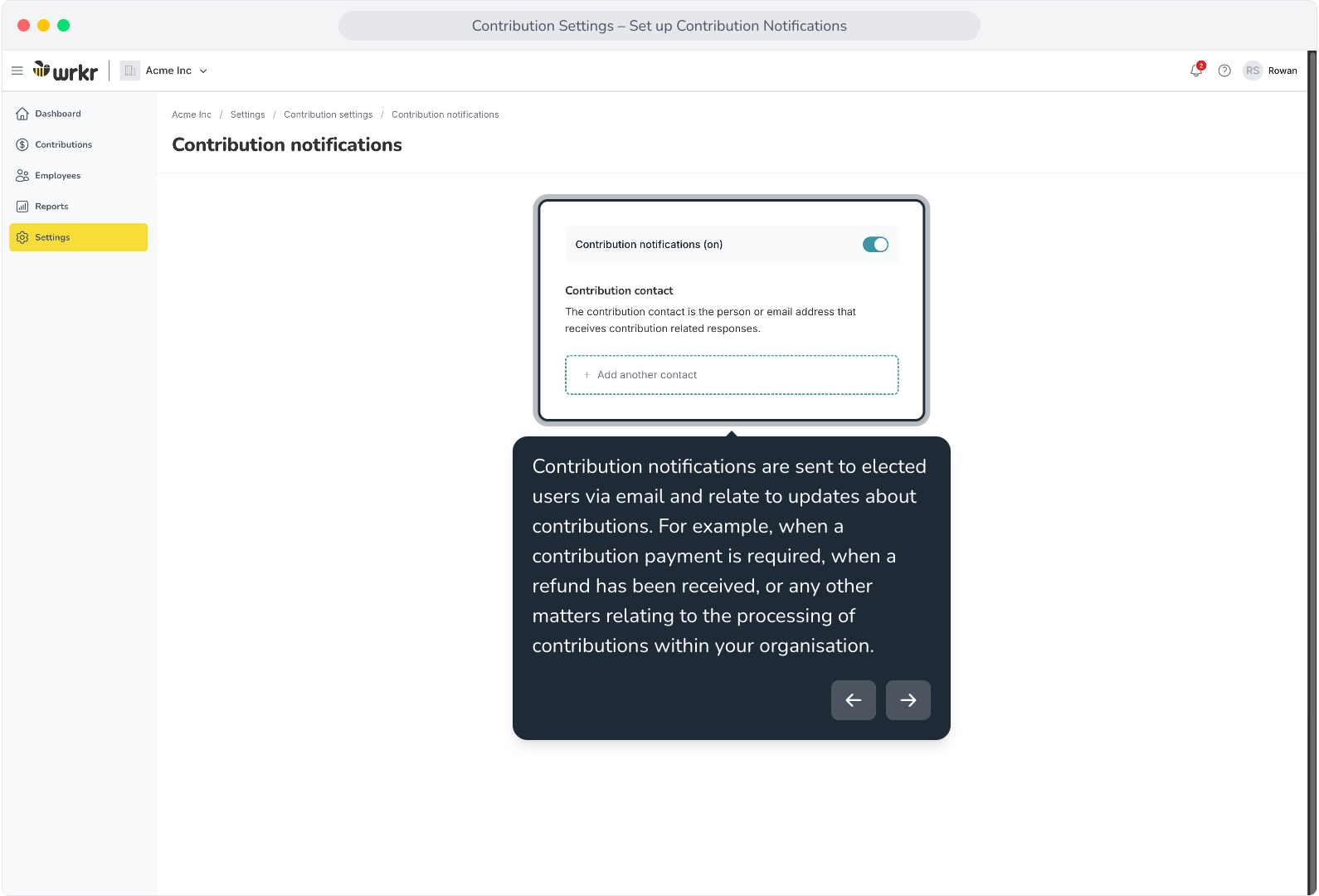
8. To add a contact to be notified, click Add another contact.
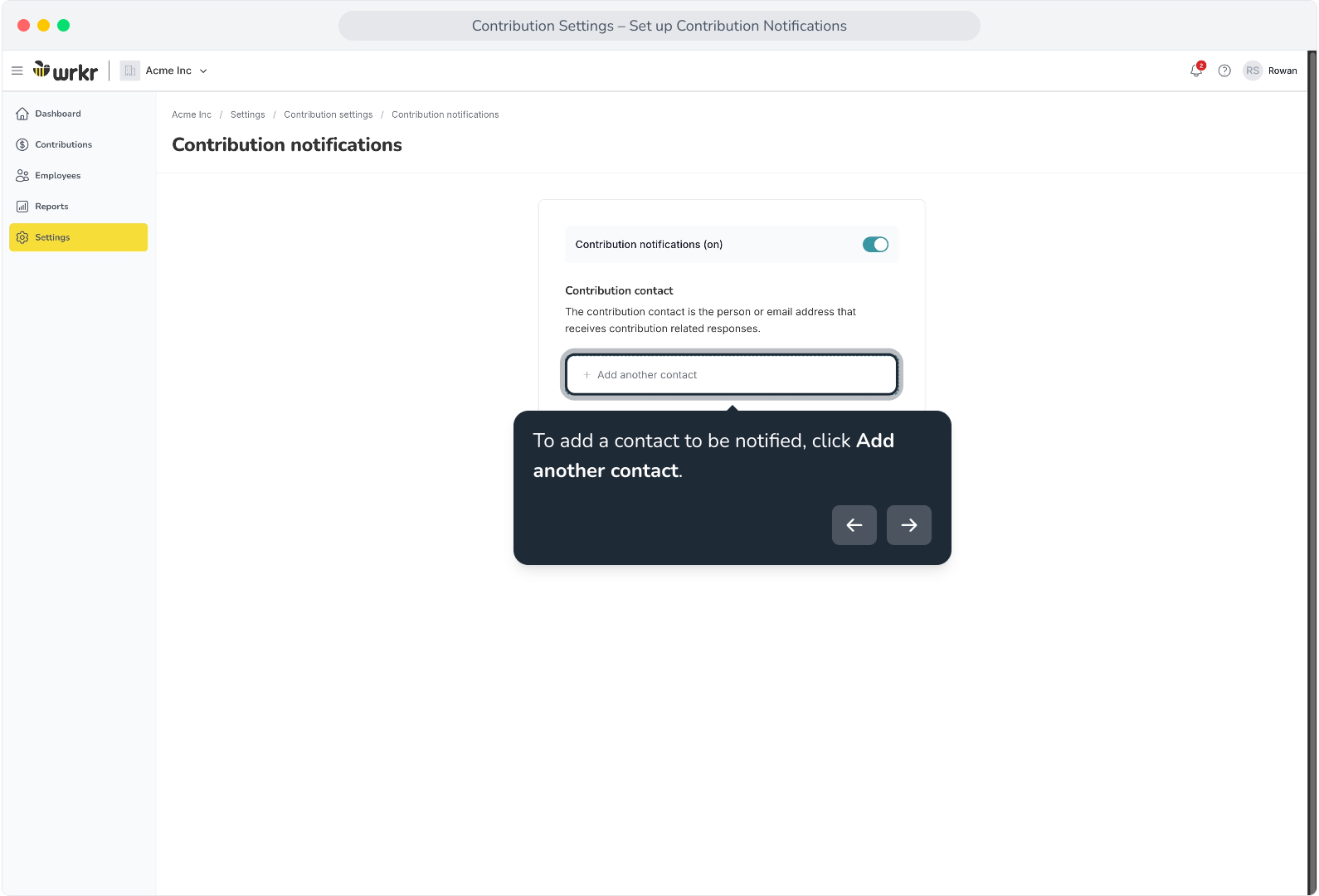
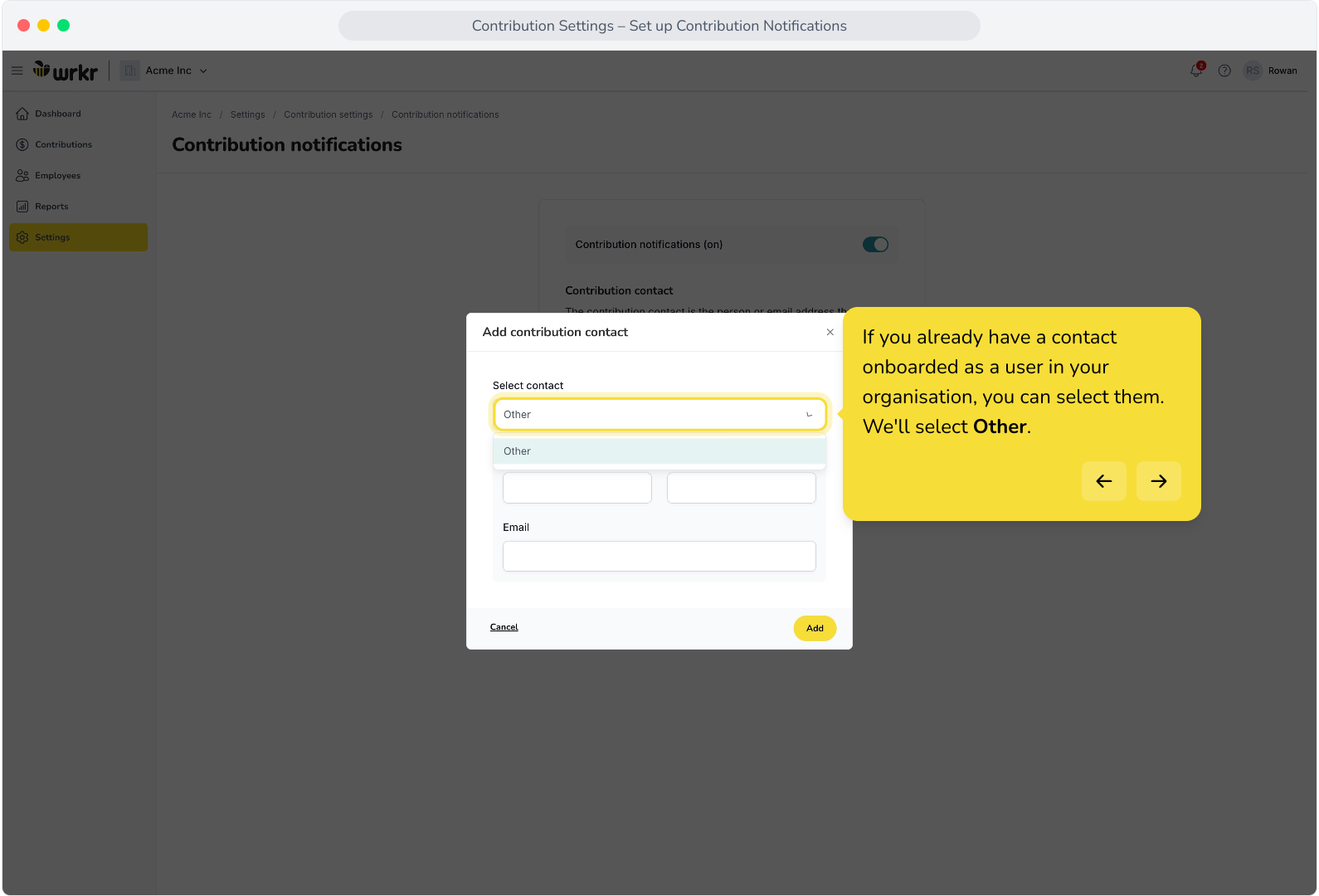
9. If you already have a contact onboarded as a user in your organisation, you can select them. We'll select Other.
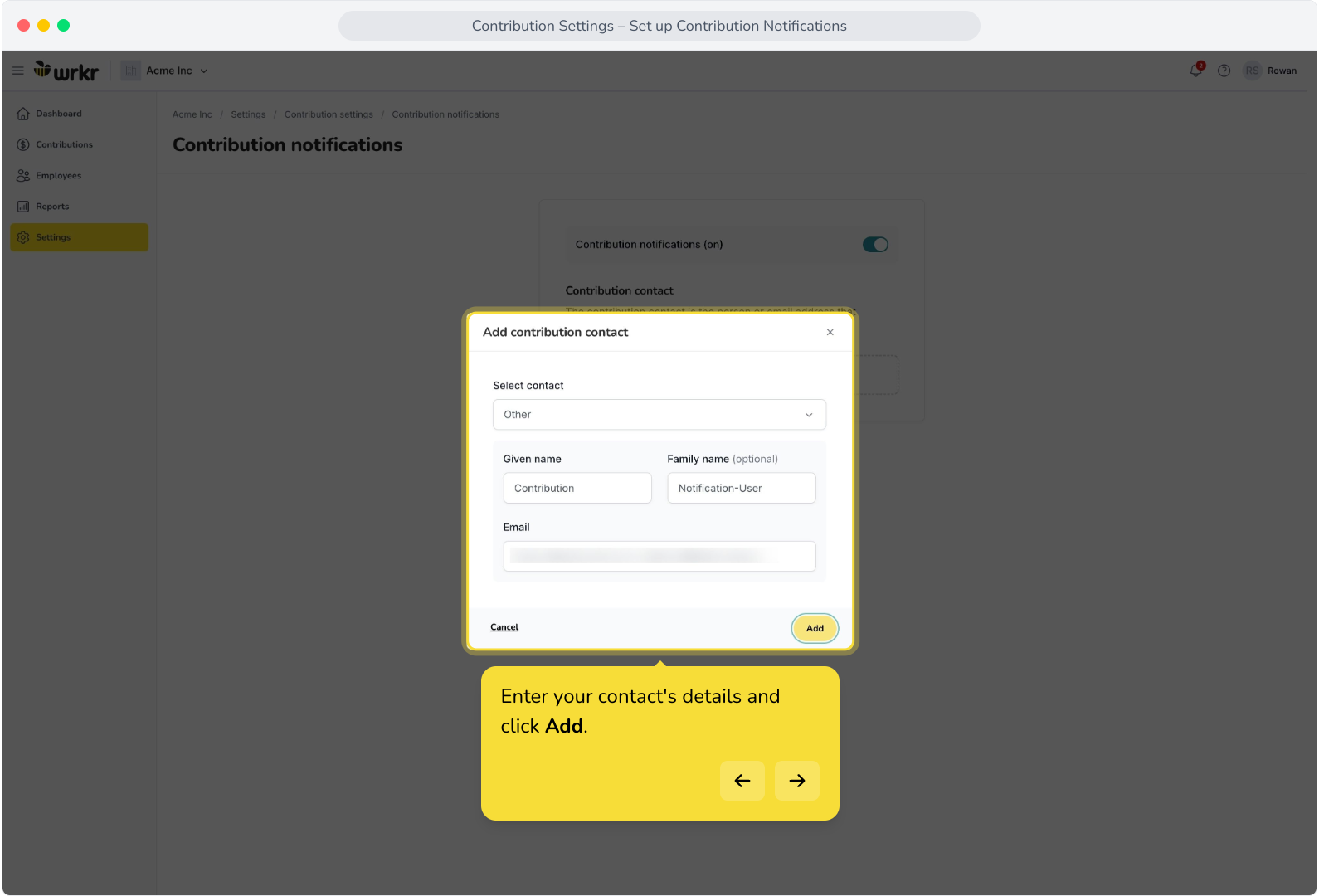
10. Enter your contact's details and click Add.
11. Now we've added our first contribution contact. This user will receive emails relating to contributions.
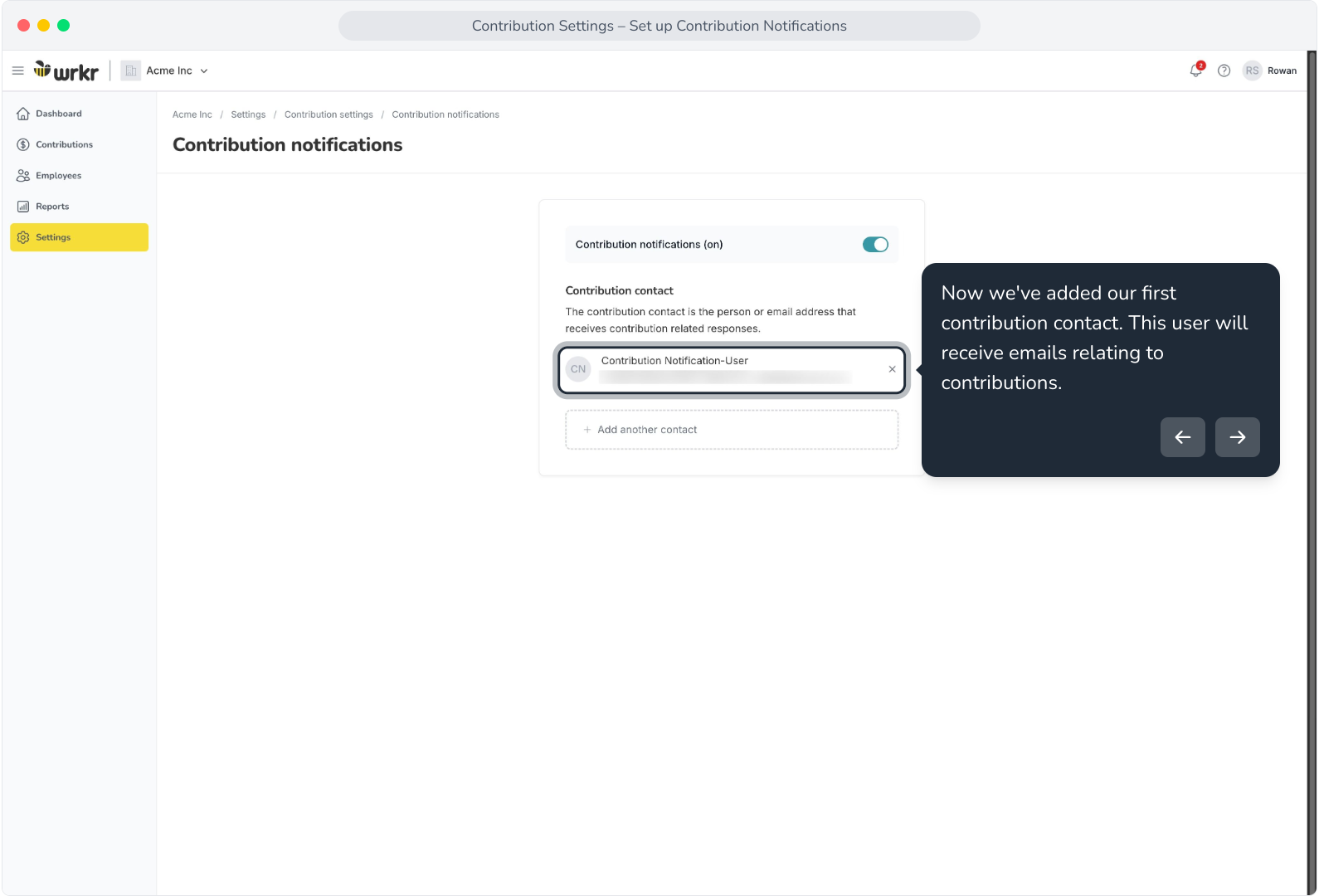
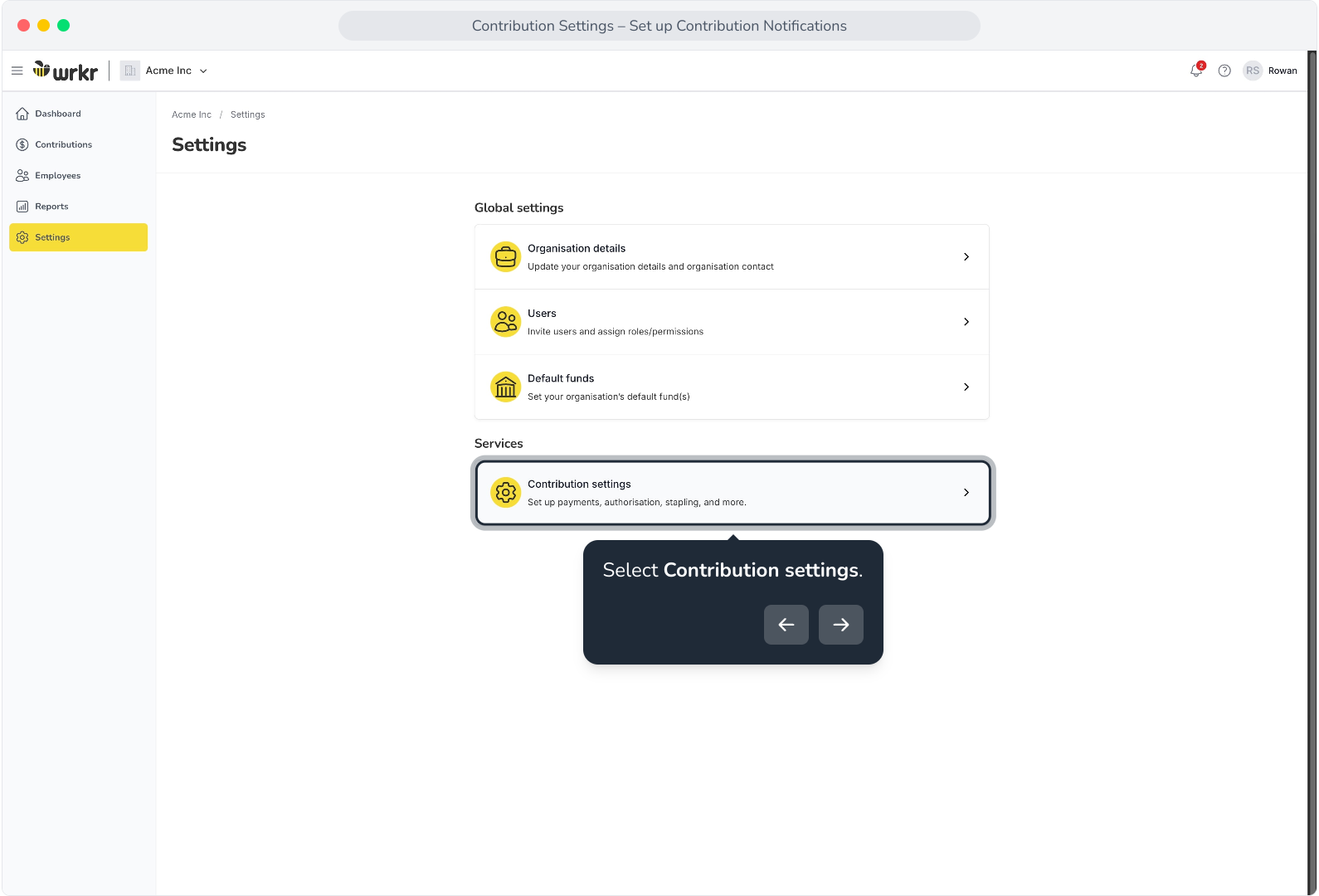
12. To add additional contacts, click Add another contact.